8 Best Google Family Link Alternatives in 2026: Free and Paid Options Compared
Google Family Link remains one of the best free ways to manage a child’s Android phone or Chromebook. It covers app approvals, screen-time limits, device location, and restrictions for Google services. You may not need to replace it if those basics are enough.
The case for switching becomes stronger when your child uses an iPhone, your family has a mix of operating systems, or you need features Family Link does not provide—such as risk alerts for messages and social media, broader web filtering, route or location history, cross-platform location tools, or a single dashboard for several device types.
Quick answer: the best Family Link alternatives by need
- Best for families using both Android and iPhone: AirDroid Parental Control →
- Best free option for an Apple-only family: Apple Screen Time →
- Best for alerts about risky messages and social activity: Bark →
- Best balanced cross-platform suite: Qustodio →
- Best free option for Windows and Xbox: Microsoft Family Safety →
- Best value for many child devices: Norton Family →
- Best for broad device coverage and web filtering: Mobicip →
- Best parental-control and identity-protection bundle: Aura →
There is no universal winner. The right choice depends first on the child’s device, then on the one or two problems you actually need to solve.
Editorial disclosure:
AirDroid publishes this guide and makes AirDroid Parental Control, one of the products compared below. To keep the comparison useful, we include cases where Family Link or a competing product is the better fit, state major platform limitations, and link to official product documentation.
Why Look for An Alternative to Google Family Link?
Google’s current help documentation confirms that Family Link can set app and screen-time limits, show a supervised device’s location, and manage restrictions in Chrome, YouTube, Search, and Play. That is a capable free package.
Its biggest limitation is device coverage. Google says Android devices and Chromebooks can be supervised, but most Family Link supervision tools do not work on a child’s iPhone, iPad, Windows PC, or Mac. An iPhone-owning parent can use the Family Link parent app to manage a child’s supported Android device; that does not mean Family Link can manage the child’s iPhone. See Google’s supported-device explanation.
Consider an alternative if you need any of the following:
- Full screen-time and app rules on a child’s iPhone or iPad
- One parent dashboard for Android and iOS child devices
- Windows, Mac, Kindle Fire, or broader Chromebook coverage
- Alerts about potentially concerning texts, images, searches, or social activity
- More detailed location history
- Reports that go beyond time spent in apps
If your child only uses Android or a Chromebook and you mainly want free app approval, basic time limits, and location, staying with Family Link is a sensible choice.
We first tested Family Link so every paid alternative had the same baseline. Our child devices were a Google Pixel 7 running Android 17 and an iPhone 14 running iOS 18.7; the parent used an iPhone 17 running iOS 26. On Android, we set a two-hour daily limit, blocked Roblox, scheduled bedtime from 9:00 p.m. to 7:00 a.m., filtered adult websites in Chrome, and requested the device’s location. The Roblox block took effect, the Downtime rule locked restricted apps at the scheduled time while keeping Phone and Messages available, all five adult test websites were blocked without affecting the three educational sites in our control group, and the device’s location refreshed in seconds.
On the child’s iPhone, Family Link let us manage the child’s supervised Google Account and adjust selected content settings for Google services such as Search and YouTube, but it could not set a device-wide screen-time limit, block installed iOS apps, schedule iPhone Downtime, remotely lock the device, or report the iPhone’s location. This matched Google’s supported-device documentation and became the main reason we tested cross-platform alternatives.
Our assessment combined real-world testing and official product documentation (see our testing methodology for full details). As of September 15, 2026, we reviewed each provider’s U.S. product, pricing, compatibility, and support materials, and installed their mobile apps on two child devices to complete the same core tasks where possible. We compared them across six practical questions:
- Which child devices can actually be supervised?
- What does the product add beyond Family Link?
- Which important features change between Android and iOS?
- How many children or devices does the listed plan cover?
- What is the current public price or free option?
- What is the compromise a buyer should understand before installing?
Google Family Link Alternatives Compared
| Alternative | Best for | Supported child devices | What it adds beyond Family Link | Main trade-off |
|---|---|---|---|---|
| AirDroid Parental Control | Broader Android visibility; mixed Android/iPhone families | Android, iPhone, iPad | Android-only screen mirroring, notification sync, remote camera/ambient audio; cross-platform location and usage rules | Advanced monitoring is mainly Android-only; more permissions to configure |
| Apple Screen Time | Apple-only families | iPhone, iPad, Mac | Native Apple purchase, communication, content, and privacy controls | No Android support or cross-platform dashboard |
| Bark | Risk alerts for messages and social activity | Android, iPhone/iPad, Chromebook, Amazon Fire; account connections vary | Automated alerts for categories such as bullying, self-harm, predators, and sexual content | Higher price; deeper iOS device scanning requires additional iOS monitoring setup |
| Qustodio | Balanced controls across many platforms | Android, iOS, Windows, Mac, Chromebook, Kindle Fire | Broad filtering, routines, reports, location, and selected social/call/message monitoring | Advanced features require the higher plan; iOS capabilities have conditions |
| Microsoft Family Safety | Windows and Xbox households | Windows, Xbox, Android for selected controls | Microsoft Store approvals, Windows/Xbox schedules, Edge filtering | Location/driving features is retiring; web filters require Edge |
| Norton Family | Many child devices at one annual price | Windows, Android, iOS | School Time, search/video supervision, broad device allowance | No child-device support for Mac; mobile monitoring depends on supported browsers |
| Mobicip | Broad platform coverage and web filtering | Android, iOS, Windows, Mac, Chromebook, Kindle Fire | Cross-platform filtering, schedules, location, reports, and social monitoring by plan | Useful features are split by tier; verify exact OS feature coverage |
| Aura | Parental controls plus identity/device protection | Android, iPhone, iPad; Windows for Safe Gaming | Safe Gaming alerts, security tools, and optional family identity protection | No Family Link-style child location tracking; overkill for basic time limits |
Prices shown are public US prices checked on September 15, 2026. Taxes, renewal rates, promotions, app-store prices, and regional availability may differ.
1AirDroid Parental Control — best Google Family Link alternative for mixed Android & iPhone families
Best for: Parents who need more context than Family Link provides on a child’s Android phone, or an Android parent who needs to manage selected controls on a child’s iPhone.
AirDroid Parental Control is worth considering when your problem with Family Link is not simply a lack of screen-time controls, but that its rules do not fit the way your family uses devices.
For example, you may want games and social media blocked during homework or bedtime while keeping Phone, Maps, school tools, or messaging available. AirDroid Parental Control lets parents create multiple Downtime schedules, apply a shared limit to a group of apps or a separate limit to each app, and place essential apps on an Always Allowed list.
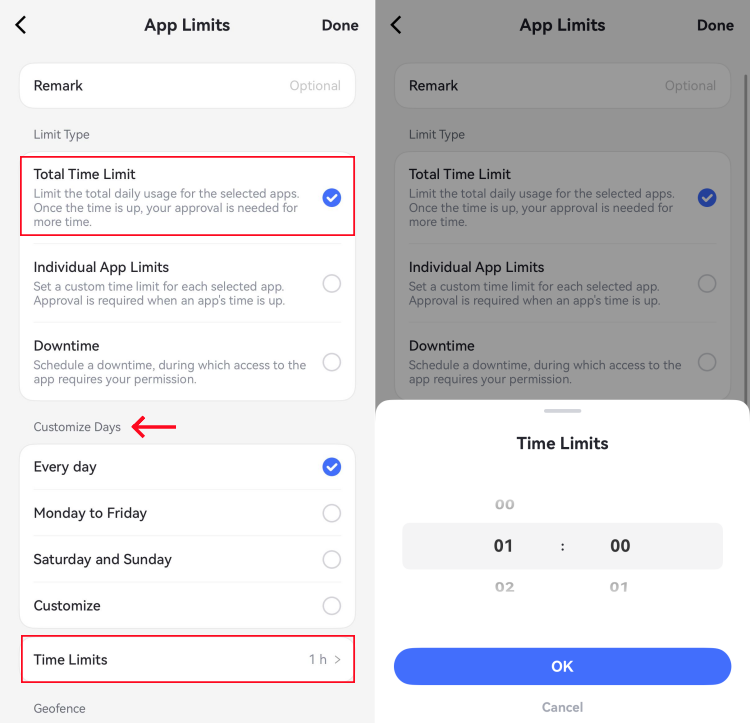
Parents can also block selected apps and restrict newly downloaded apps instead of relying on one device-wide rule.
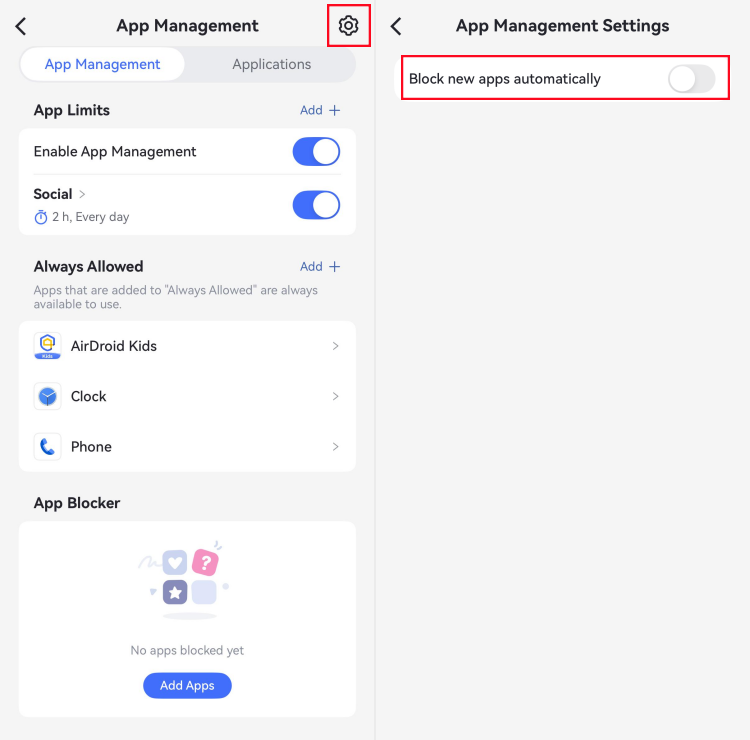
This makes AirDroid particularly relevant to families experiencing three common Family Link frustrations:
- Bedtime rules are too broad: Schedule restrictions for distracting apps while leaving essential apps accessible.
- App controls need to be more specific: Set separate limits for individual apps or categories and block newly installed apps.
- Location information is not detailed enough: Check the child’s current location, review up to 30 days of route history, and receive alerts when the child enters or leaves a saved geofence.
AirDroid Parental Control can also manage supported Android and iOS child devices from an Android phone, iPhone, or web dashboard. This is useful when siblings use different mobile platforms or when a parent wants to manage the family from a computer. However, feature depth differs by operating system. Screen mirroring, notification syncing, remote camera, ambient audio, and several advanced monitoring tools are primarily available for Android child devices, while some iPhone controls require additional supervision setup.
What we could verify:
- The parent app supports Android and iOS, and parents can also use a web dashboard.
- Child devices currently require Android 8 or later, iOS 15 or later, or iPadOS 15 or later.
- The monthly plan is US$9.99 for two child devices. The quarterly and annual plans cover up to 10 devices; the annual plan is US$59.99.
- The official setup guide requires installing and binding the child app, then granting the permissions needed for selected features. Expect more setup steps than with a built-in system tool.
Where it is stronger than Family Link: extended visibility on Android, cross-platform mobile management, location history, and a web parent dashboard.
Where it is weaker: the most distinctive monitoring tools are Android-only, and the number of permissions can feel heavy if all you want is a bedtime schedule. Features involving the camera, ambient audio, messages, or location should be used only where lawful, for a legitimate safety need, and with the child’s knowledge.
Price: US$9.99/month for two devices, US$19.99/quarter for up to 10 devices, or US$59.99/year for up to 10 devices.
Verdict: Choose AirDroid when the child’s main phone is Android and Family Link’s activity totals do not give you enough context. For an iPhone-only household that wants only native restrictions, Apple Screen Time is simpler and free.
2Apple Screen Time — best free Family Link alternative for iPhone
Best for: Families in which the child and supervising parent use Apple devices and need free, system-level controls rather than message monitoring.
Screen Time is built into iPhone, iPad, and Mac. With Family Sharing, a parent can manage a child’s Downtime, app limits, purchase permissions, content ratings, web restrictions, communication limits, and privacy settings from a parent device.
Apple also includes two safety features that ordinary time-limit apps may not match as neatly: Communication Safety can warn about sensitive photos and videos, and Communication Limits can control whom a child can contact during normal time or Downtime. Apple documents these controls in its parental-control guide.
Where it is stronger than Family Link: it is the native choice for a child’s iPhone or iPad, with Apple-specific purchase, communication, content, and privacy restrictions.
Where it is weaker: it does not manage Android devices, provide a mixed-platform dashboard, or show the content of social-media conversations. Location sharing is handled through Apple’s Find My ecosystem rather than as a Screen Time report.
Price: Free with supported Apple devices.
Verdict: If everyone who needs to supervise or be supervised is in the Apple ecosystem, try Screen Time before paying for another service.
3Bark — best for alerts about risky messages and social activity
Best for: Parents who want software to flag possible safety issues without reading every ordinary message.
Bark’s approach is different from a conventional activity log. It analyzes supported texts, email, images, videos, web activity, and connected social accounts, then sends alerts for potential concerns such as bullying, self-harm, predators, drugs, or sexual content. Parents can adjust alert sensitivity rather than receiving every conversation.
This makes Bark a more natural upgrade when the problem is not “too much screen time” but “I need to know when digital activity may require a conversation.”
Important iPhone limitation: Apple restricts what third-party apps can read on an iPhone or iPad. Bark’s app can handle site/app blocking and location, but deeper device scans require the optional Bark Sync hardware. It scans the iPhone or iPad when the device is connected, so do not interpret this as continuous, real-time access to every iOS message. Bark Sync currently costs US$6/month or US$49/year in addition to the Bark app subscription.
Where it is stronger than Family Link: automated risk-category alerts and broad account-based monitoring.
Where it is weaker: it costs more than most options here; its screen-time tools are not the main attraction; and some account connections require the child’s credentials. Availability also varies by platform and by the service being monitored.
Price: US$14/month or US$99/year for the Bark app; a 7-day free trial is listed. Optional Bark Sync costs extra.
Verdict: Bark is the best fit when you care more about meaningful risk alerts than detailed minute-by-minute control. It is harder to justify if your only need is an app timer.
4Qustodio — best balanced cross-platform parental-control suite
Best for: Families that need one broadly capable tool across phones, computers, Chromebooks, and Kindle Fire tablets.
Qustodio covers Android, iOS, Windows, Mac, Chromebook, and Amazon Fire. Its core controls include web filtering, app and game blocking, daily limits, routines, activity reports, location monitoring, and the ability to pause internet access. Its higher plan adds more detailed app rules, YouTube monitoring, calls and messages, and social or AI-powered alerts.
This breadth is Qustodio’s advantage over Family Link. It also names the browsers it can filter on each operating system, which is the kind of detail buyers should check before installing.
Platform caveats: Qustodio’s own pricing notes say that the panic button and some Instagram, TikTok, Snapchat, and X message alerts are Android-only. Calls and messages on iOS require access to a Windows or Mac computer and a separate setup component. On iOS, app monitoring and blocking apply only to supported apps.
Where it is stronger than Family Link: much broader device coverage, stronger web/reporting controls, and more advanced monitoring options in the Complete plan.
Where it is weaker: the plan structure is more complex, premium features become expensive, and the experience is not identical across operating systems.
Price: The limited free version protects one device. Qustodio Basic is US$59.95/year for up to five devices; Complete is US$104.95/year and currently lists unlimited family devices. A 30-day money-back guarantee is advertised.
Verdict: Qustodio is a strong generalist when the family has several types of devices and wants conventional parental controls plus selected deeper monitoring.
5Microsoft Family Safety — best free option for Windows and Xbox
Best for: Children who spend most of their screen time on Windows PCs, Xbox consoles, and Microsoft accounts.
Microsoft Family Safety can set Windows and Xbox device schedules, limit apps and games, show activity reports, enforce Microsoft Store age limits, and filter web content in Microsoft Edge. Selected app and game limits are also available on Android.
The ecosystem fit is the reason to use it. If a child plays on Xbox and uses a Windows PC for school, Microsoft’s account-level controls are more relevant than a phone-first tool.
There are two limitations the old version of this article missed. First, Microsoft states that location and driving safety features are going away, so Family Safety should no longer be recommended as a location tracker. Second, web and search filters work only in Microsoft Edge while the child is signed in. Microsoft’s troubleshooting page also distinguishes Android app/game limits from full Android device screen-time control.
Where it is stronger than Family Link: Windows and Xbox screen-time controls, Microsoft Store approvals, and Microsoft account integration.
Where it is weaker: no current location proposition, Edge-only web filtering, limited value for a child’s iPhone, and less visibility into social or messaging risks.
Price: Core Family Safety tools are free; some Microsoft family services may be bundled with Microsoft 365.
Verdict: Use it for a Microsoft-centered household, often alongside the built-in controls on the child’s phone rather than as the only family-safety tool.
6Norton Family — best value for many child devices
Best for: Larger families that want web, search, video, app, and school-time supervision without paying per child device.
Norton Family includes web supervision, search supervision, YouTube video activity, app supervision on supported platforms, time rules, location tools, and School Time. The current plan lists unlimited devices at US$49.99 for the first year, making it one of the lower-cost paid options for a large household.
Compatibility needs careful wording. Norton Family can be installed on a child’s Windows PC, Android device, or iPhone/iPad. It cannot be installed as child protection on Mac. A parent may still supervise through a web browser on a Mac. Norton’s product page makes this parent-versus-child distinction.
Browser coverage also varies. Norton says web activity monitoring supports Chrome, Firefox, and Edge on Windows; supported browsers on Android; and its in-app browser on iOS. That means a family should test the exact browser the child normally uses.
Where it is stronger than Family Link: price for many devices, Windows support, School Time, and search/video reporting.
Where it is weaker: no child-device Mac support, platform-dependent features, and less emphasis on modern social-media risk detection than Bark or higher-tier Qustodio.
Price: US$49.99/year at the time of checking. The public page says this is the first-year price and renewal pricing may be higher.
Verdict: Norton Family offers strong value when device count matters, provided the children do not need Mac supervision.
7Mobicip — best for broad device coverage and web filtering
Best for: Families that need filtering and screen rules across a mix of phones, computers, Chromebooks, and Kindle Fire tablets.
Mobicip supports iPhone, iPad, Android, Windows, Mac, Chromebook, and Kindle Fire. Depending on the plan, it can block apps and websites, create schedules, set screen-time and app limits, show activity reports, locate family devices, prevent uninstallation, and monitor supported social activity.
Its strongest reason to replace Family Link is coverage. Its filtering tools include categories and specific websites; higher tiers add broader reporting, location, and social-monitoring features.
Where it is stronger than Family Link: cross-platform filtering, coverage for Mac/Windows/Kindle Fire, and more flexible family schedules.
Where it is weaker: the lowest-priced Lite plan is intentionally narrow, and the pricing page can make Standard and Premium look similar at a glance. Confirm which features and device count are included before checkout, and test filtering in the child’s usual browser.
Price: Lite starts at US$35.88 billed annually for five devices; Standard is US$59.88 billed annually for 10 devices; Premium is US$95.88 billed annually for 20 devices. A 7-day premium trial and 30-day money-back guarantee are currently advertised.
Verdict: Mobicip is a practical shortlist choice when platform coverage and web filtering matter more than reading or analyzing messages.
8Aura — best for parental controls plus identity and device protection
Best for: US families that want screen-time controls bundled with online security, child identity protection, and gaming-risk alerts.
Aura’s parental controls include app and website blocking, screen-time limits, schedules, internet pause, SafeSearch, and usage reports. Its Safe Gaming feature, powered by Kidas, can alert parents to potential cyberbullying or predator risks in supported PC game chats. The larger family plan adds identity-theft monitoring, antivirus, VPN, password management, financial monitoring, and identity-theft insurance.
Aura should not be described as a location or geofencing alternative to Family Link. Its current parental-controls page focuses on online activity and security and does not list child location tracking. That distinction makes it a poor fit for parents whose primary goal is seeing whether a child arrived at school.
Where it is stronger than Family Link: broader family cybersecurity, safe-gaming alerts, and identity-protection services.
Where it is weaker: no Family Link-style child location tracking, a higher cost than built-in controls, and many bundled features that a screen-time-only buyer may not need.
Price: The Kids plan starts at US$10/month billed annually or US$13 billed monthly, with unlimited kids and devices. The full Family plan costs more and adds identity and financial protection. A 14-day free trial is currently listed.
Verdict: Choose Aura when parental controls are one part of a wider family cybersecurity purchase. Choose a different product if location is non-negotiable.
Which Google Family Link Alternative Should You Choose?
Start with the child’s main device, not the longest feature list:
- Child uses only Android or Chromebook, and budget is zero: Keep Google Family Link unless you can name a missing feature that matters.
- Child uses only iPhone/iPad, and you want free native controls: Use Apple Screen Time.
- Child uses Android and you need screen, notification, location, and content context: Consider AirDroid Parental Control.
- Family mixes Android and iPhone child devices: Compare AirDroid, Qustodio, and Mobicip against your three must-have features; do not assume Android and iOS capabilities match.
- The main concern is dangerous conversation or emotional-risk signals: Look first at Bark; compare its supported services and iOS setup with Qustodio or Aura.
- The child’s main devices are Windows and Xbox: Use Microsoft Family Safety.
- You have many devices and need a low annual price: Check Norton Family, as long as no child Mac needs supervision.
- You want identity protection, antivirus, and parental controls in one subscription: Consider Aura.
Do not pay for ten extra features if the real problem is one bedtime schedule. Conversely, do not choose a free tool based on price if it cannot supervise the device your child actually uses.
How to Switch from Family Link without Leaving A Protection Gap?
- Write down your three must-have rules. For example: block new app installs, enforce bedtime, and alert when the child leaves school.
- Check the child-device requirements. Confirm the exact Android, iOS, Windows, macOS, ChromeOS, or Fire OS version—not just the parent-app compatibility.
- Talk with your child before installation. Explain what will be visible, what will not, why each rule exists, and when you will review it together.
- Install and test the new tool before removing the old setup. Test one blocked app, one allowed app, one website, one time-limit request, and location if relevant.
- Avoid conflicting rules. Running two services that both use VPN, device-management, accessibility, or content-filtering permissions can cause unexpected blocks. Once the new tool works, simplify the configuration.
- Review after one week. Remove unnecessary permissions, tune alerts, and change rules that block schoolwork or essential communication.
A Note on Safety, Privacy, and Trust
Parental-control apps are tools, not substitutes for conversation or emergency services. Use the least intrusive feature that solves the problem. A teenager may reasonably experience location, message, camera, or ambient-audio access differently from a young child.
Before using advanced monitoring:
- Tell the child what the app can collect and when you will look at it.
- Use camera, audio, call, SMS, and location features only where lawful.
- Keep the parent password private and enable multi-factor authentication when available.
- Revisit the arrangement as the child becomes older and more independent.
- Do not rely on any app as impossible to bypass. Rules depend on power, connectivity, permissions, operating-system changes, and correct setup.
Final verdict
Google Family Link is still a strong free starting point for Android and Chromebook households. Replace it only when a specific limitation affects your family.
Choose Apple Screen Time for free iPhone controls, Microsoft Family Safety for Windows and Xbox, Bark for risk alerts, Qustodio for a broad all-round suite, Norton Family for many devices at a lower annual price, Mobicip for wide platform coverage, and Aura for a cybersecurity bundle.
For a child’s Android phone—or a mixed Android/iPhone household that wants one parent dashboard—**AirDroid Parental Control** offers the most meaningful step up in device visibility. Just remember that its deepest monitoring features are Android-only and should be used transparently.
FAQs about Alternatives to Google Family Link










Leave a Reply.