For a child's supported Android device, Google Family Link is a good first option. For iPhone and iPad, start with Apple Screen Time and family controls. The better fit depends on the child's devices, your account setup and the rules you need.
5 Best Parental Control Apps in the UK for Your Family
Your child needs their phone for the bus home, their tablet for homework and their favourite game to catch up with friends. You want limits that fit around those activities, a way to stay in contact, and clearer information when something needs your attention.
For UK parents, choosing an app also means checking what happens beyond home Wi-Fi, whether school resources remain accessible, and what the subscription will actually cost in pounds.
The timing matters. Ofcom's 2026 research found that smartphone ownership among UK children rose from 56% at age 10 to 83% at age 11. That is a substantial change in independence for children and in day-to-day decisions for parents.
Published by AirDroid. This guide draws on our editor’s hands-on product trials, official feature documentation and UK pricing information. Our recommendations consider device compatibility, everyday family needs and the value of upgrading from free controls. Product details and UK App Store listings were checked on 28 October 2026.
Best Parental Control Apps in the UK: Quick Comparison
Start with the device your child uses. An app available on your own iPhone or Android phone may offer different controls on theirs.
| App | A good fit for | Child-device coverage to check | Main buying consideration |
|---|---|---|---|
| Google Family Link | Free everyday Android supervision | Supported Android devices and Chromebooks | Most device supervision tools do not work on a child’s iPhone or iPad. |
| Apple Screen Time | Families managing iPhone and iPad use | Apple devices; controls vary by device and software | Check Family Sharing, individual accounts and software compatibility first. |
| AirDroid Parental Control | Mixed-devices families wanting mobile usage controls, location tools and additional Android activity information | Supported Android and iOS devices | Android and iPhone capabilities differ; advanced iPhone management needs additional setup. |
| Qustodio | Families managing phones alongside computers | Supported Android, iOS, Windows, Mac, Chromebook and Fire devices | Choose the plan for the devices and features you actually need. |
| Kids360 | Families wanting screen-time routines with task rewards | Supported Android and iOS devices using the child companion app | Check which limits are enforced in the free version, trial and paid subscription. |
How our testing informs these recommendations
Our editor’s hands-on product trials form part of the assessment behind this guide. We combine that experience with official documentation to distinguish what a product offers from what a particular family can use on its devices.
The comparison considers setup requirements, everyday controls, the information available to parents, and subscription value. For UK families, relevant questions include whether school resources remain accessible, how restrictions fit around the school day, and which functions depend on Wi-Fi or mobile data.
Where we describe a test result, it applies to the device, software version and settings used. Check the corresponding requirements for your child’s phone, especially when comparing Android and iPhone features.
What Should UK Parents Check Before Choosing An App?
Match the controls to your child's day
Write down the problem you want to solve. "No gaming after bedtime" calls for a different setup from "let me know when my child reaches their after-school club" or "help me understand concerning activity on their phone".
Separate time management from content monitoring
These features answer different questions:
- App limits: how long can my child use this game or social app?
- Web filtering: which websites can the supported browser access?
- Activity reports: which apps or sites have been used?
- Content alerts: has a supported feature detected something that needs attention?
- Location tools: where is the phone reporting its position?
Include every device and both homes
A restriction on a phone does not automatically apply to a laptop, console or second tablet. Make a short device list before comparing subscriptions.
If your child moves between households, agree who can change rules and receive information. Check whether another parent can have their own authorised access, rather than relying on a shared password. Decide how routines will work across school days, weekends and school holidays.
1Google Family Link: a free starting point for Android
Choose Family Link first if your child uses Android and your main needs are app approvals, time limits and everyday device supervision.
Family Link provides individual app limits, app blocking, schedules and controls for Google Play and supported Google services. It also offers location features for supported devices. A parent can use the Family Link app on an iPhone to manage a child's supported Android device.
That makes it a practical starting point when a child gets their first Android phone. Set the essential rules, check how they behave during a normal school week, and identify any remaining problem before paying for another app.
Its device boundaries matter. Google explains that most Family Link supervision tools do not work on a child's iPhone, iPad or computer other than a Chromebook. Chromebook location reporting is also unavailable.
Also check how time is counted. Google says daily device limits apply to each Android device or Chromebook separately: a two-hour limit gives two hours on each device. That matters if your child has both a phone and a tablet and your goal is one shared allowance.
2Apple Screen Time: a built-in starting point for iPhone and iPad
Choose Screen Time first if your child uses an iPhone or iPad and you want to manage everyday access, spending and device routines.
Apple Screen Time is a free option for UK parents who want everyday controls on a child’s iPhone or iPad. Built into Apple’s devices, it helps families manage app access, screen-time routines and age-appropriate content without adding a subscription.
Parents can set time allowances, schedule periods of restricted access, manage websites and content ratings, and review how their child uses apps. Always Allowed keeps selected apps and contacts accessible during restrictions. Apple’s related Family Sharing controls also include Ask to Buy for eligible purchases and downloads.
For a UK school week, that could mean limiting entertainment during homework, keeping learning resources such as BBC Bitesize available, and setting a different routine for weekends. Essential contact options can remain available when a child needs to arrange collection after a club or let a parent know their bus is late.
The main consideration is your family’s devices. Remote management through Family Sharing uses a supported iPhone, iPad or Mac, with a separate Apple Account for the child. Available features depend on software compatibility, so check older hand-me-down devices against Apple’s requirements.
3AirDroid Parental Control: flexible Android app limits and custom content alerts
Consider AirDroid Parental Control when you want app and browsing rules, location tools and more information about activity on your child's Android phone.
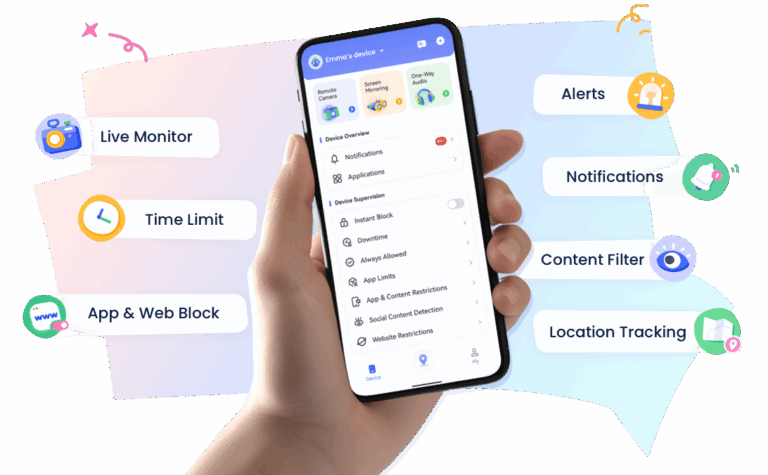


Our app brings together screen-time rules, activity reports and safety alerts for parents who want more involvement as their child becomes independent.
In our Android comparison tests, we approved extra time for an app after it reached its limit. The extension applied to that app alone. That is useful when you agree to a little more gaming after homework and want to keep the exception specific.
AirDroid’s app controls also support individual limits, shared allowances across selected apps and app-specific downtime. You could set one allowance for entertainment apps and keep games unavailable after bedtime. Daily and weekly activity reports help you review how those rules fit your child’s actual usage.
Custom keywords let you tailor alerts to specific concerns. Enable detection for supported Android apps and add the terms you want monitored. In an earlier controlled test, a configured keyword alert arrived in roughly five seconds on a stable connection. Other concerning test conversations went unflagged when they did not sufficiently match the detection logic. Treat alerts as conversation starters.
Our location tests showed the last known position while the child phone was offline; updates resumed after reconnection. For after-school check-ins, test coverage on your child’s usual route.
Buying for a child’s iPhone? Features differ from Android. Advanced management requires additional setup through AirDroid Parental Connector; enabling Supervision Mode restarts the device and clears call history. Read our iPhone setup guide first.
Our recommendation: choose AirDroid when app-specific exceptions, configurable alerts and location checks address needs your family actually has. During the trial, test those features on your child’s phone and agree together how you will use them.
4Qustodio: detailed screen-time rules for phones and computers
Consider Qustodio if your priority is managing app access and building different rules for homework, downtime and weekends.
In our editorial team’s hands-on Qustodio review, we tested Samsung Galaxy S20+ 5G and Google Pixel 7 child phones. Daily limits and app rules generally applied quickly, and scheduled Routines started and stopped promptly in those configurations.
Two details affect how you use those controls. Background activity sometimes counted towards reported daily usage. When we approved extra time after an app reached its limit, the extra allowance applied to the device rather than only that app. If you are extending one game after homework, check which other apps become available too.
Content alerts were less consistent in our controlled scenarios: WhatsApp alerts arrived with varying delays, while one Instagram scenario produced no alert. These Android findings cannot establish real-world detection rates or iPhone performance.
For device coverage, Qustodio documents support for Android, iOS, Windows, Mac, compatible Chromebooks and Amazon Fire tablets. Browser and account-profile restrictions apply, so check its system requirements against your household’s devices. Free covers one device, Basic up to five, and Complete advertises unlimited coverage under its terms; compare the plans and included features.
Our buying verdict: shortlist Qustodio for structured time and access rules, with content alerts as supporting information. Pay for the tier that covers your actual devices and controls.
5Kids360: screen-time routines with task rewards
Compare Kids360 if you want children to see their time rules and earn extra screen time through agreed tasks.
Kids360 combines usage controls with a reward approach: children can complete parent-set tasks and other activities to earn additional phone time. Its companion app, Alli360, shows children information such as their limits, remaining time and usage statistics. The provider also describes schedules, app restrictions and location tools.
This is a distinct choice for a family trying to make daily rules easier to follow. You might agree a fixed entertainment allowance, then use a clearly defined task for a small amount of extra time. Keep the arrangement manageable: if every household task becomes a negotiation about minutes, reassess whether that reward system suits your child.
Look closely at the free and paid distinction. Kids360's current description separates free information and some basic controls from subscription features such as automatic blocking when time runs out and recurring schedules. A displayed allowance and an enforced limit are different things.
The provider also says one subscription covers unlimited children and child devices. Check that coverage alongside the price of the particular offer presented to you.
What to Test Before Committing to A Subscription
Use your child's normal routine to judge whether a product is worth keeping.
1. Test your main rule. Set the app limit, schedule or web restriction you actually need, then try it on the child's device.
2. Check schoolwork and contact. Open the learning resources your child uses and verify the agreed way to reach family while restrictions are active.
3. Change connections. Move between home Wi-Fi and mobile data and check the relevant functions again.
4. Check location conditions. Review update times on a normal journey. An old location, a flat battery or a lost connection can affect what you see.
5. Assess the workload. Look for false blocks, excessive alerts, battery impact and settings that need repeated attention.
6. Check permissions and account access. Enable only the features you intend to use, protect the parent account, and review who can see information about your child. Read the privacy and deletion options before enabling more detailed monitoring.
Choose the subscription when it reliably completes the job you bought it for and fits the way your family uses its devices.
FAQs about Parental Control Apps in the UK
What is the best free parental control app in the UK?

Can I manage my child's iPhone from an Android phone?
Some third-party services support that pairing, but compare the actual iPhone features and installation requirements. AirDroid documents additional iPhone Supervision Mode setup through a supported Android device or computer. Family Link's parent app on iPhone does not mean it can provide the same supervision of a child's iPhone.
Can parental control apps read WhatsApp messages?
App usage, message notifications, keyword alerts and full conversation access are different capabilities. On supported Android devices, AirDroid can sync received notifications; what appears depends on the notifications available. Do not assume this provides a complete WhatsApp conversation history.
Do parental control apps work away from home Wi-Fi?
Some device-based functions can continue away from home, but check the app's connection, permission and background-running requirements. Remote reports and location updates depend on the conditions needed by that service. Your home broadband filter does not follow the phone onto mobile data.
Can children bypass parental controls?
No app should be treated as impossible to bypass. Check that the child's account, installation and permissions remain correctly configured, particularly after device changes or updates. Agree what happens if a setting stops working and review the rules together.










Leave a Reply.