Yes, but Apple's built-in Screen Time is limited for parents who use Android phones. Apple Family Sharing requires an Apple device ecosystem for remote management. For mixed-device families, third-party parental control apps like AirDroid Parental Control provide cross-platform screen time management.
AirDroid Parental Control
Cross-Platform Screen Time and Online Safety
- 🚫Comprehensive websites & apps blocking
- ⌛Hide apps once time limit is reached
- 💬Chat and call with family safely and easily
- 📍Live location tracking and geo-fence alerts
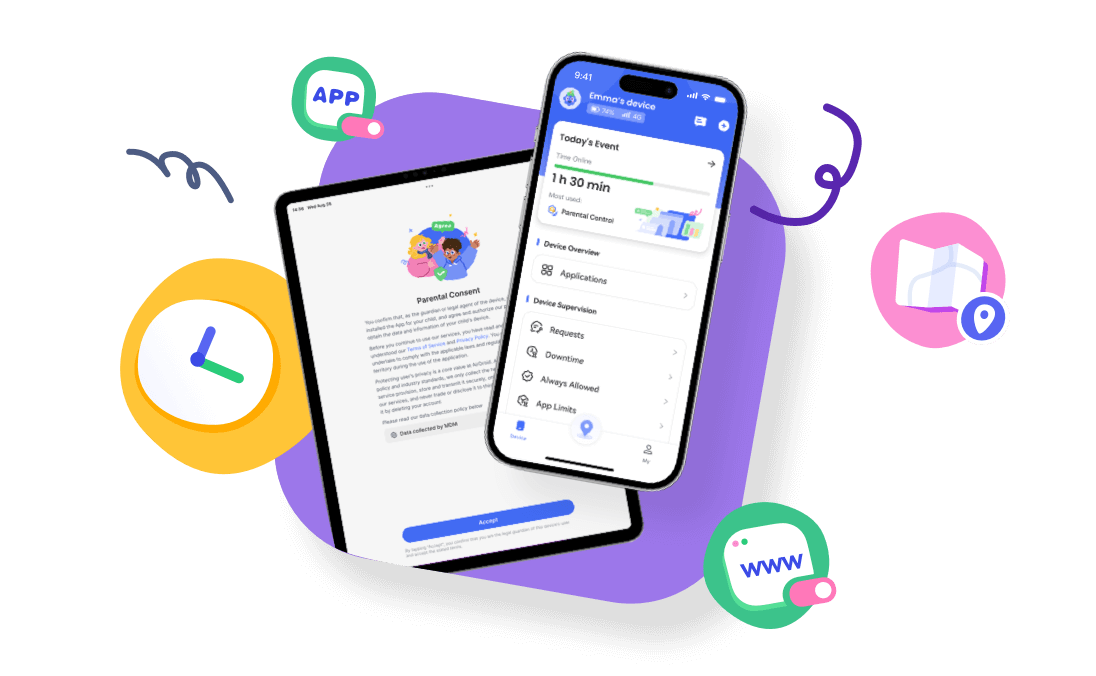
Screen Time on iPhone (2026): What Really Counts
If your Screen Time reports look wildly inaccurate, you're not alone, and your phone isn't broken.
For parents, these reports are crucial for guiding children's digital habits. However, this becomes an uphill battle in mixed-device homes. If you use Android to manage a child's iPhone, Apple's iOS-only ecosystem leaves you with limited visibility and disjointed controls.
What Screen Time Actually Measures (iOS 18)
As of iOS 18 (2025), Screen Time uses one simple rule: if the screen is on and you're interacting with it, it counts.
This means it tracks foreground activity—apps open and visible, web pages you're reading, videos playing on screen. It does not track background processes, audio playback with the screen off, or passive device activity.
The system organizes usage into individual apps (Instagram, Safari, Messages), app categories (Social, Entertainment, Productivity, Games), and websites (domains visited in Safari). It also tracks pickups (how often you check your phone)—but this is separate from time totals.
Data resets at midnight local time daily. Weekly reports follow your region's calendar settings (typically Sunday-Saturday in the US). This principle is consistent with Apple's background execution guidelines, which distinguish between foreground and background activity.
| Activity | Counts? | Why It Confuses Users | Quick Check |
|---|---|---|---|
| Active app use (games, social, browsing) | ✅ Yes | Usually accurate; confusion comes from background audio | Screen Time → See All Activity → check app list |
| Web browsing (Safari, Chrome) | ✅ Yes | Background tabs accumulate time even when not reading | Check "Websites" section for domain-level detail |
| FaceTime/video calls | ✅ Yes | Sometimes shows less if you multitask during call | Screen Time → FaceTime → verify duration matches |
| Picture-in-Picture video | ✅ Yes | Both video and background app count—seems like "double counting" | Normal behavior; both activities are genuinely concurrent |
| Cross-device usage (same Apple ID) | ✅ Yes | Only if "Share Across Devices" enabled; otherwise shows single-device only | Settings → Screen Time → Share Across Devices (toggle on) |
| 🔥 Music/podcasts (screen off) | ❌ No | Most common "missing time" complaint: You listened 2hrs, Screen Time shows 15min | Music app → Library → check "Listening Time" for true audio duration |
| Phone calls (Phone app closed) | ❌ No | Long calls don't appear if you exit app after dialing | Keep Phone app on screen during call to track, or check call log separately |
| 🔥 Navigation (screen off) | ❌ No | Top 3 confusion: 1hr drive shows 10min because audio-only directions | Screen must be on and showing map to count; check Battery for full GPS time |
| Background downloads/updates | ❌ No | Can cause "ghost usage" at odd hours when processes finish | Settings → General → Background App Refresh to control |
| Checking notifications (no tap) | ❌ No | Pickups tracked separately, but don't add to time totals | Only tapping into app after notification counts toward time |
What Counts Toward Screen Time
Active App Usage
Any app open on screen while you're scrolling, typing, tapping, or watching. Examples: texting in Messages, scrolling TikTok, playing games, writing in Notes.
Web Browsing
Time spent in Safari or other browsers with the page visible. Includes reading articles, watching web videos, shopping, using web apps.
Video Calls
FaceTime, Zoom, Google Meet, and other video calls count because the screen remains active. Audio-only calls (screen off) do not.
Picture-in-Picture Video
Watching a video in a small floating window while using other apps—both the video and the background app count toward Screen Time.
Navigation with Screen On
Using Apple Maps or Google Maps with the display active. Following turn-by-turn directions with the screen off does not count.
Cross-Device Usage
If "Share Across Devices" is enabled, usage from iPhone, iPad, and iPod touch combines into one total under the same Apple ID.
What Doesn't Count (Top 3 Confusions)
#1: Audio Playback (Screen Off)
Music, podcasts, audiobooks playing with the display off or locked. This is the #1 reason Screen Time appears "too low." You listened 2hrs, Screen Time shows 15min. Check Music app → Library → "Listening Time" for true audio duration.
#2: Safari Background Tabs
You browsed 20min, Screen Time shows 2hrs. Background tabs and auto-play videos accumulate time even when not actively reading. Close unused tabs or check "Websites" section for domain-level detail.
#3: Navigation (Screen Off)
1hr drive shows 10min because audio-only directions don't count. Screen must be on showing map to track. Check Settings → Battery → Maps for true GPS usage time.
Phone Calls (App Closed)
Regular voice calls don't count if you exit the Phone app after dialing. Only calls where the Phone app remains visible on screen are tracked. Check Recents tab for actual call duration.
Background Activity
App updates, downloads, email syncing, location services, AirPlay streaming to TV—these run without screen engagement and aren't counted.
Checking Notifications
Waking the screen to view time, battery, or notification banners doesn't count. Only tapping into an app after seeing the notification adds time.
Why Your Numbers Seem Wrong: 4 Data Fixes
Fix 1: "I Listened to 2 Hours of Podcasts, Screen Time Shows 15 Minutes"
The confusion: You see low numbers and worry Screen Time isn't working—or your child is bypassing limits.
Why it happens: Audio playback with the screen off doesn't count. Screen Time measures visual engagement, not audio consumption.
How to verify (3 steps):
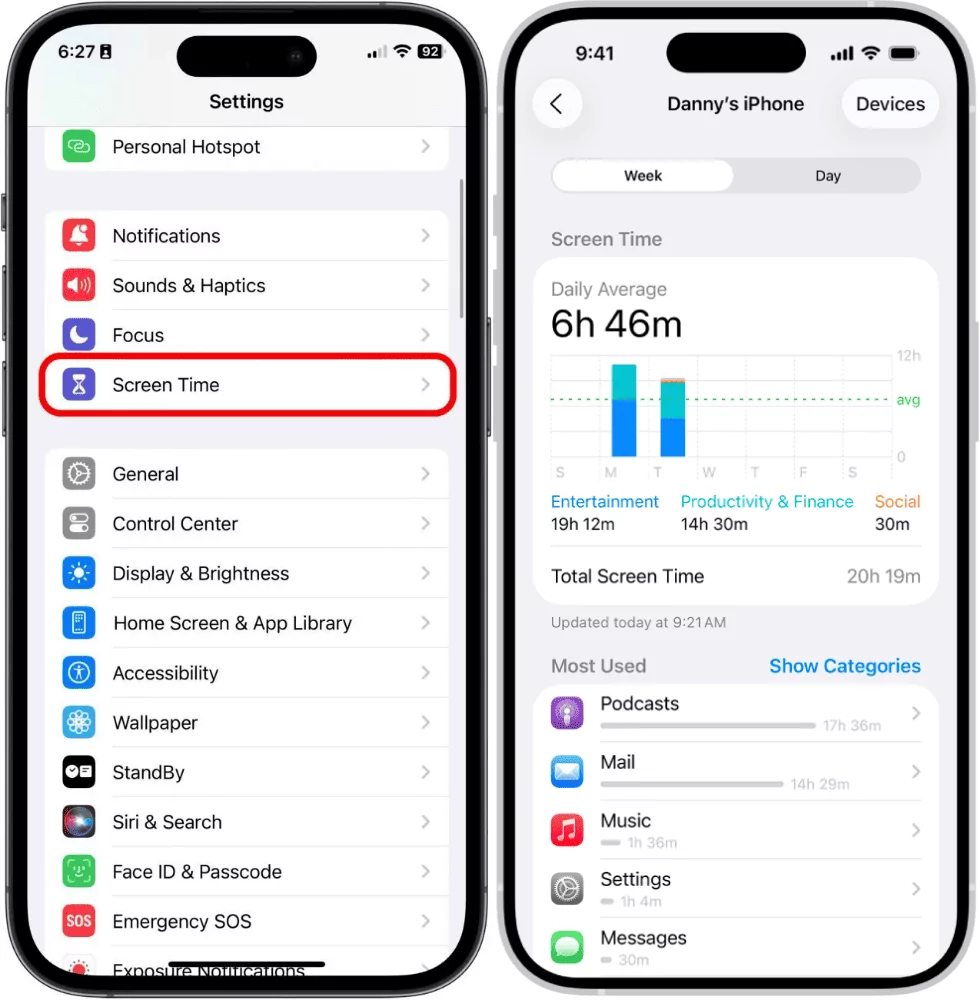
- 1.Go to Settings → Screen Time → See All Activity → tap "Music" or "Podcasts."
Note: This only displays the music usage time while the screen is on.
- 2.Check your podcast app's "Up Next" queue or episode history to estimate total listening duration.
If Screen Time shows 15min but you listened to 3+ podcast episodes (~2hrs), you've confirmed the audio-screen-off behavior
Alternative for Apple Music users: Visit replay.music.apple.com for approximate listening statistics (updated weekly, not real-time).
The limitation: Screen Time cannot track audio-only time. There is no native iOS feature to view total audio consumption including screen-off playback.
For parents: This is why your child's "low Screen Time" might still represent significant device engagement. Consider:
- Setting App Limits on Music/Podcasts categories (triggers when screen is on, but establishes boundaries)
- Having conversations about audio content, not just screen time totals
- Using podcast app settings to set daily time reminders (if available)
Fix 2: "My Child’s Screen Time Shows Usage at 2 Am When They Were Asleep"
The confusion: Usage appears at impossible hours, suggesting errors—or worse.
Why it happens:
- Delayed sync: Screen Time data can take hours to sync across Family Sharing. Activity from 8 PM might appear as 2 AM timestamp due to sync delay.
- Background completion: Apps finishing uploads, backups, or updates that started earlier.
- Time zone issues: Device traveling across zones or manual time changes (if restrictions not properly set).
How to verify (3 steps):
- Step 1. Check Settings → Screen Time on child's device directly (not Family Sharing) for real timestamps.
- Step 2. Compare to Battery settings (shows actual app activity times.)
- Step 3. If timestamps match on device but not in Family Sharing → sync delay confirmed.
How to prevent:
- Ensure all devices on latest iOS for reliable sync
- Settings → Content & Privacy Restrictions → Location Services → Setting Time Zone → "Don't Allow" (prevents manual time changes.)
- Check Screen Time in morning rather than real-time for more accurate data.
Fix 3: "Safari Shows 2 Hours but I Only Browsed for 20 Minutes."
The confusion: Screen Time seems inflated, suggesting incorrect tracking.
Why it happens:
- Background tabs: Safari counts time for any visible tab, even when not actively reading.
- Auto-play videos: Videos playing in background tabs accumulate time.
- In-app browsers: Instagram, Facebook in-app browsers show as app time, not separate web time.
How to verify (3 steps):
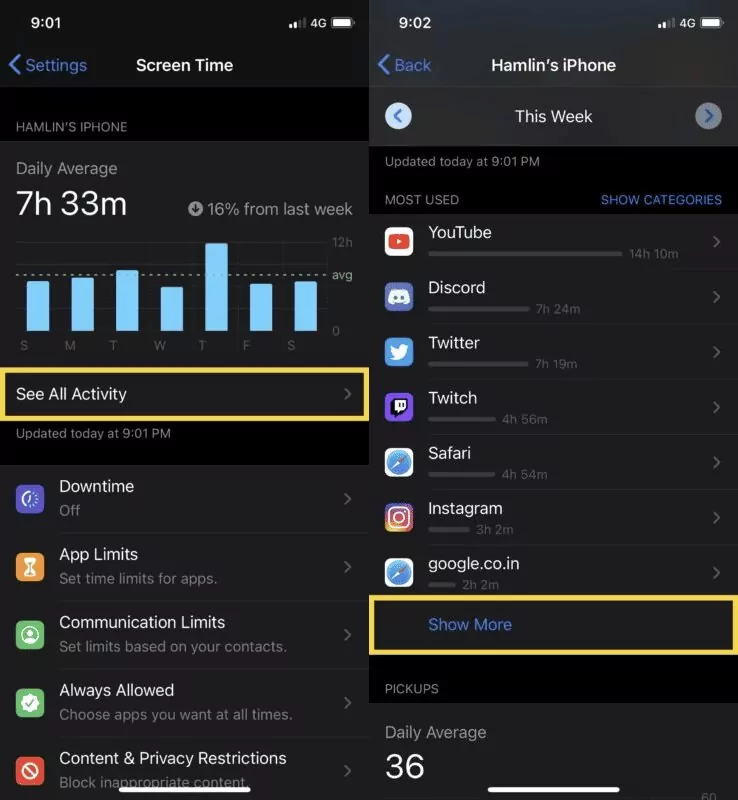
- Step 1. Screen Time → See All Activity → tap Safari → check "Websites" for domain-level breakdown.
- Step 2. Identify sites you don't remember visiting (possible auto-redirects or ads.)
- Step 3. Check for long durations on video sites (likely auto-play.)
How to fix:
- Close unused tabs: Safari → Tabs button → Close All [X] Tabs.
- Disable auto-play: Settings → Safari → Advanced → Experimental Features → "Media Auto-Play" (if available.)
- Limit background refresh: Settings → General → Background App Refresh → turn off for Safari (may affect notifications.)
Fix 4: "Games Category Shows High Time but My Child Was Using a Learning App"
The confusion: Categories seem wrong, making it hard to judge actual usage.
Why it happens: Apple assigns categories based on App Store classification, not actual usage. Many educational apps are classified as "Games" or "Entertainment."
How to verify (3 steps):
- 1. Screen Time → See All Activity → tap the specific app (not category.)
- 2. Check app name and actual usage time.
- 3. Tap app name → "About This App" to see App Store category.
How to get accurate view:
- Use "Show Categories" vs "Show Apps" toggle to see raw app list.
- Check individual app times rather than relying solely on category totals.
- Set App Limits on specific apps, not categories, for precise control.
For parents: Use miscategorized apps as conversation starters. "I see 2 hours in [App Name]—what were you working on?" rather than "You've played games for 2 hours."
Can Parents Set iPhone Parental Control from an Android?
Apple Screen Time works best when parents and children are both using Apple devices.
If a parent uses an Android phone while their child uses an iPhone, Apple's built-in parental controls have limitations because they rely on Apple's Family Sharing ecosystem.
For families with mixed devices, a cross-platform parental control app can provide a more convenient way to manage screen time, check app usage, and set digital boundaries from an Android phone.
Use AirDroid Parental Control for Cross-Platform Screen Time Management
If you are an Android parent managing your child's iPhone, AirDroid Parental Control can help bridge the gap between different operating systems.
Unlike Apple's built-in Screen Time, which is mainly designed around Apple devices, AirDroid Parental Control allows parents to manage children's device usage from a different platform.
- Understand your child's digital habits to help them build healthy screen routines
- Co-create balanced daily schedules and mindful downtime
- Minimize distractions to foster a focused learning and play environment
- Stay connected with key milestones to offer timely support and guidance


| Feature | Apple Screen Time | AirDroid Parental Control |
|---|---|---|
| Manage iPhone from Android | Limited | Supported |
| Screen time reports | Yes | Yes |
| App usage reports | Yes | Yes |
| Mixed device families | Less convenient | Designed for cross-platform parental control |
Using Screen Time with Family Sharing
Parents can use Family Sharing to monitor and manage Screen Time for children and other family members. Here's how the system handles multi-user households in iOS 18.
Separate Accounts
In a Family Sharing group, each person's Screen Time data remains separate. A child's usage is tracked on the child's Apple ID, not mixed with the parent's. The parent can see the child's report, but the child's time does not add to the parent's screen time.
Viewing Child Reports
Once a child is added to Family Sharing and Screen Time is set up, parents can view the child's activity from their own device. Apple explains that with Family Sharing you can "open Screen Time on your device, then tap your child's name" to see their report. This allows parents to see how much time the child spends in each app or category, their pickups, notifications, etc.
Setting Limits Remotely
Parents can remotely set Downtime schedules, App Limits, and Always Allowed apps on the child's devices. For example, a parent can impose a daily limit on "Games" or schedule no-device time on school nights. When the limit is reached, the child's device will enforce it (and the child can request more time from the parent).
All Screen Time rules you create for a child (Downtime, App Limits, Content & Privacy Restrictions) apply to all of the child's Screen Time-enabled devices.
Content & Privacy Restrictions
Parental controls allow blocking or limiting categories of apps and content. Under Screen Time settings, parents can turn on Content & Privacy Restrictions on the child's device to restrict explicit content, app usage, in-app purchases, and more.
These restrictions mean certain apps or features won't be accessible at all, effectively excluding them from the child's screen time.
Syncing Settings
Apple advises that to ensure Screen Time settings (limits, downtime, etc.) work properly across a family group, all devices should be updated to the latest iOS before enabling or changing these settings.
Proper syncing ensures a child's limits apply to all their devices and that parents see accurate, up-to-date reports.
When Screen Time Isn't Enough
Screen Time handles device-level controls well, but many families encounter gaps:
- Location visibility: Screen Time shows what apps were used, not where your child is. Find My is separate, requires manual checking, and doesn't send arrival notifications.
- Real-time awareness: Data syncs with delays. You can't see current activity or receive alerts for unusual patterns.
- Cross-platform families: Screen Time only works on Apple devices. No visibility into Android phones, Windows computers, or Chromebooks.
Common solutions: Families often combine Screen Time (for iOS device control) with dedicated family safety tools (for location tracking, cross-platform visibility, and real-time alerts). This keeps Screen Time handling what it does best while filling the visibility gaps.
Screen Time FAQs (2026)
Can I control my child's iPhone from my Android phone?
What is the best way to manage an iPhone if I use Android?
If parents use Android while their child uses an iPhone, a cross-platform parental control app is usually more practical than Apple Screen Time alone. AirDroid Parental Control allows parents to understand child's digital habits, and create healthy device habits across different operating systems.
Does FaceTime count as Screen Time?
Yes. FaceTime counts in full because the screen is active with video. Regular phone calls only count if the Phone app stays open on screen. See video calls section.
Does listening to music count as Screen Time?
No—if the screen is off. If you stream music with the display locked or off, it doesn't count. If you browse the Music app with the screen on, that browsing time does count. For true audio time, check Music app → Library → "Listening Time." See #1 confusion
Do phone calls count as Screen Time?
It depends. Regular voice calls only count if the Phone app stays open and visible on screen. If you dial and immediately exit the app or lock your phone, the call time is not tracked. FaceTime calls always count because the screen remains active with video. For accurate call duration, check the Recents tab in the Phone app rather than relying on Screen Time.
Does Screen Time count when the phone is locked?
No. Locked or idle devices with the screen off register zero Screen Time. The system only tracks active visual engagement.
How often does Screen Time update?
Not in real-time. Data can take minutes to hours to fully sync, especially across Family Sharing. Daily totals reset at midnight local time. For most accurate view, check in morning rather than real-time.
Can I exclude certain apps from Screen Time?
No. You cannot hide or exclude specific apps from tracking. You can set custom time limits for individual apps, but usage will still appear in reports.
Does Screen Time track websites inside apps?
Partially. Safari browsing shows specific websites. In-app browsers (like Instagram's built-in browser) may show as app time rather than separate web time. See Fix 3
Why does my Screen Time show usage when I was asleep?
Sync delays or background completion. Activity from earlier may sync at odd hours, or apps finish background processes. Check timestamps on child's device directly vs Family Sharing to confirm. See Fix 2
Key Takeaways
Screen Time measures active visual engagement—not total device time. Audio playback, background activity, and locked devices don't count.
Numbers seem wrong? Check the 4 fixes above: audio-only time, sync delays, background tabs, or miscategorized apps.
For families: Screen Time handles iOS device controls well. For location awareness, real-time alerts, or cross-platform visibility, consider complementary tools.









Leave a Reply.