Choosing an Android parental control app is less about finding the longest feature list and more about finding the right level of help for your family. We evaluated 11 current options and then hands-on tested five finalists on a Samsung Galaxy S20+ 5G and Google Pixel 7, looking at setup, rule execution, web controls, risk alerts, location, tamper response, privacy, and multi-device value.
Our overall Android pick is AirDroid Parental Control for families that want flexible app rules plus optional safety context when a specific concern comes up. Google Family Link remains the best free starting point, while Qustodio, Bark, and Norton Family stand out for screen-time management, risk alerts, and web filtering respectively.
Last tested: September 2026 Test devices: Samsung Galaxy S20+ 5G (Android 11) · Google Pixel 7 (Android 16)
Transparency: AirDroid publishes this comparison and makes one of the products reviewed. We applied the same published criteria to every finalist. Product teams may correct factual information, but they do not change competitor findings, test results, or editorial conclusions.
Strong blocking across the browsers and private-browsing scenarios we tested
Less flexible per-app time management
Quick takeaway: Start with Family Link if basic boundaries are enough. Consider a paid app only when you can name the gap you need to solve, such as more flexible time rules, stronger web controls, risk alerts, broader Android context, or better cross-platform management.
2. Which Type of Android Parental Control Do You Need?
Before comparing subscriptions, decide what kind of help you actually need. More monitoring is not automatically better.
1 Level 1: Basic Boundaries
You mainly need screen-time limits, bedtime or school schedules, app approvals or blocking, basic content restrictions, and occasional location checks. For many first-phone families, Google Family Link covers most of this at no cost.
2 Level 2: Activity Awareness
You want to understand patterns, not read individual conversations. Useful signals may include app-usage reports, browsing activity, location history, and trends that show whether a rule needs to change.
3 Level 3: Risk Alerts
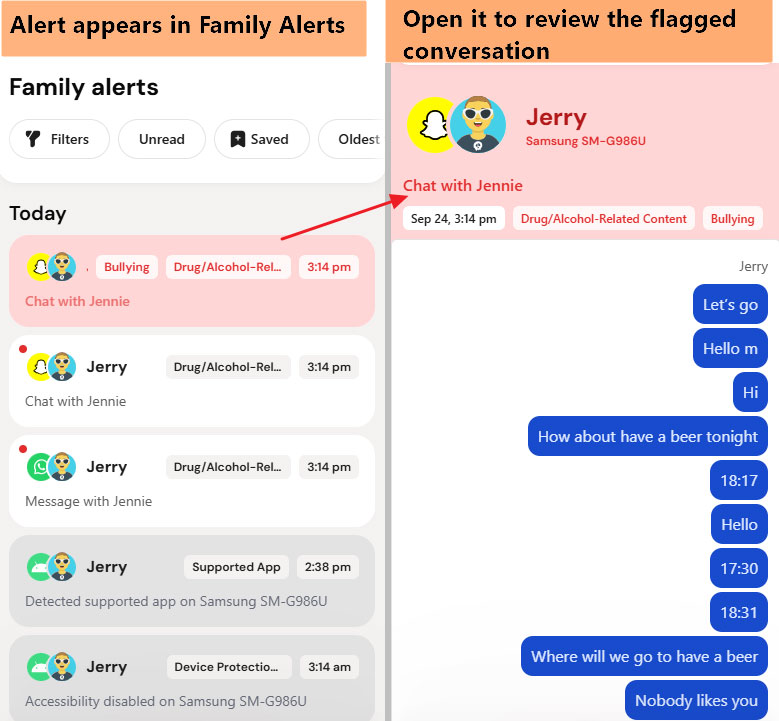
You do not want to review everything, but you do want a signal when supported activity may involve bullying, sexual content, self-harm, grooming, substance-related topics, or another concern. Here, the important questions are what the app actually covers, how quickly alerts arrive, how much context they provide, and what they can miss.
4 Level 4: Additional Safety Context
Sometimes an alert or location pin is not enough to understand a specific concern. Some Android tools can provide additional device or situational context, such as notifications, calls and SMS information, screen activity, or—with certain products—camera or ambient-audio access. These capabilities require the clearest family boundaries because they are more privacy-sensitive than screen-time or app rules.
5 When a Free Tool May Be Enough
Do not upgrade just because a paid product has more features. If Family Link already gives you the rules and location tools your family uses, and you do not have a recurring safety need that requires something more, staying with the free option may be the better choice.
A useful rule is: start with boundaries, add awareness when needed, add risk alerts for a specific reason, and use higher-access features only when the safety need justifies them.
3. How We Tested the Best Android Parental Control Apps
We first evaluated 11 parental control apps based on current Android support, documented features, privacy and safety fit, and relevance to U.S. parents. Five finalists then went through hands-on testing on Samsung and Google Pixel devices.
5 finalists hands-on tested · 2 Android environments · repeated multi-day reliability checks · Last tested September 2026
Testing details
Devices and Setup
We used a Samsung Galaxy S20+ 5G running Android 11 and a Google Pixel 7 running Android 16. For each product, we recorded the app version, installation source, required permissions, battery/background settings, network condition, and test date.
Setup testing included Accessibility, Usage Access, Notification Access, location, Device Administrator, battery/background permissions, Restricted Settings when applicable, and any additional child-app installation required for advanced features.
Core Rules and Reliability
We tested the product's supported core features rather than rewarding apps simply for advertising more tools. Depending on the app, that included screen-time limits, per-app rules, schedules, web filtering, risk alerts, location, geofences, activity reporting, calls/SMS, and product-specific safety features.
We repeated important rules and checked behavior after restart, Wi-Fi/mobile-data changes, temporary loss of internet, Battery Saver, low battery, and selected permission changes. We also noted whether the parent was warned when monitoring stopped.
Location and Alerts
For location-capable apps, we checked location freshness, manual refresh behavior, offline recovery, and saved-place arrival/departure alerts. For products with safety alerts, we used controlled synthetic test content and recorded whether an alert appeared, how long it took, how much context it provided, and whether relevant test content was missed.
An alert is a signal for parental attention, not proof that bullying, grooming, self-harm, or another event occurred.
Tamper Response
We do not call any software parental control “unbreakable.” We recorded whether an ordinary change was prevented, detected, able to interrupt control, and recoverable . We do not publish step-by-step bypass instructions.
Privacy and Family Fit
We reviewed sensitive permissions, privacy disclosures, available data-deletion information, and whether the product can be used transparently and proportionately. An app did not earn extra credit simply because it could access more information from a child's phone.
How We Scored
Category
Weight
Reliability and rule execution
20%
Android setup and compatibility
15%
Core parental controls
15%
Safety alerts and insight
12%
Location and remote safety
10%
Tamper response and recovery
10%
Privacy, transparency, and child appropriateness
8%
Family management, support, and value
10%
We considered each app in the context of what it is designed to do. Family Link, for example, is not penalized simply for not offering message-risk monitoring. A longer feature list does not automatically produce a higher recommendation.
Evidence Labels and Limits
Throughout this guide:
Officially supported means the provider documents the feature, but we did not independently verify that specific performance claim.
Verified in our test means we reproduced the result on the listed devices and conditions.
Not independently verified means we found a provider or third-party claim but did not have enough test evidence to use it as a performance conclusion.
Our results apply to the phone models, Android versions, permissions, network conditions, app versions, and U.S. feature availability we tested. Android behavior can change after OS, OEM, or app updates.
4. The Best Parental Control Apps for Android We Tested
1 AirDroid Parental Control: Best Overall for Android
Best for: Families that want flexible per-app rules, location, targeted safety alerts, and the option to check additional Android context when a specific concern comes up.
What Happened in Our Android Test
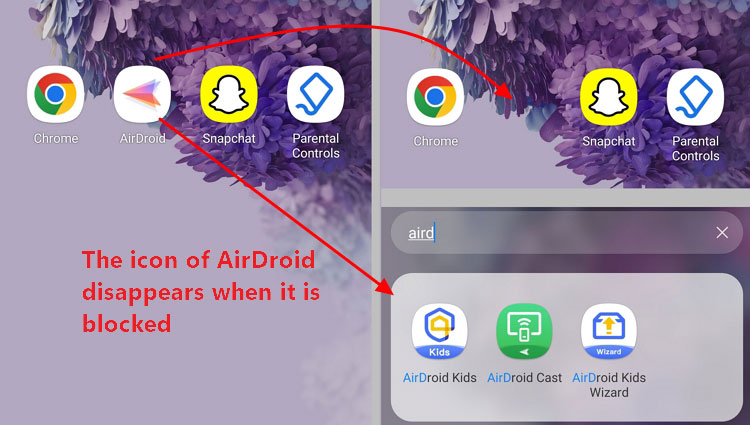
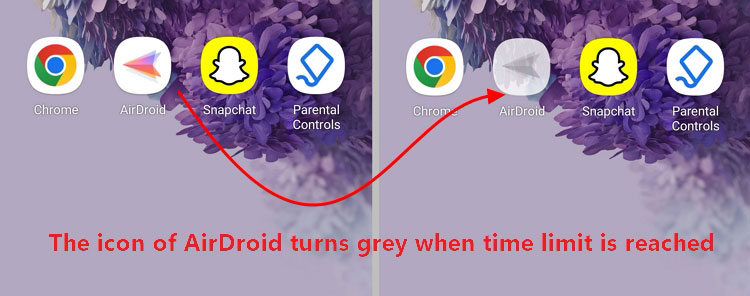
AirDroid's clearest advantage was the combination of granular time controls and optional Android context. Parents can set daily limits or scheduled downtime for selected apps instead of relying only on device-wide schedules.
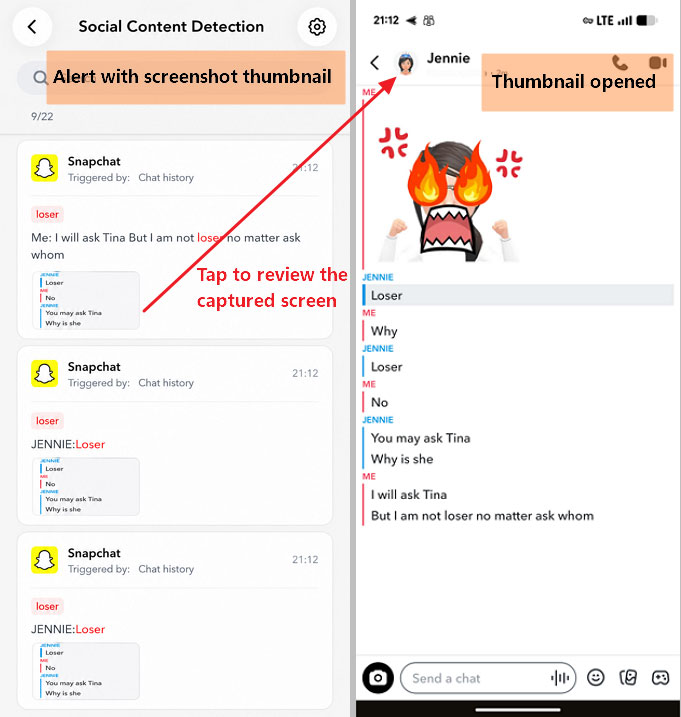
In controlled content-alert testing, a custom keyword match reached the parent phone in about five seconds on a stable connection. We also saw relevant test activity that was not detected, so we treat these alerts as targeted signals rather than complete coverage.
AirDroid can add context through notification syncing, screen mirroring, live location and history, and—on supported Android child devices—Remote Camera and One-Way Audio. Those tools can be useful when there is a specific safety reason to check what is happening, but they are more privacy-sensitive than ordinary screen-time controls and should be used with clear family boundaries.
What Recent Parent Reviews Add
Recent Google Play reviews gave us stress-test targets rather than a verdict. Pricing/subscription complaints were the most common low-star theme in our dataset, followed by reliability and setup/permission issues. High-star reviews often praised ease of use and stable core features, but not strongly enough for us to treat either as a unique comparative advantage.
Where It Stands Out
Per-app limits and scheduled downtime give parents more flexibility than device-wide rules alone.
Targeted alerts can be fast when a configured rule matches.
Android context tools can help answer a specific safety question without making them necessary for everyday use.
What We Didn't Like
Custom monitoring requires the parent to decide what matters and maintain those rules.
Fast alerts do not mean every relevant conversation will be detected.
Some Android context features require sensitive permissions and can be disproportionate for routine monitoring.
Best if: You want flexible Android rules plus optional safety context for specific situations.
Avoid if: You want a mostly hands-off alert model across a very broad set of social services, or you prefer a lighter permission footprint.
Best for: Families that want free, transparent Android controls for screen time, apps, Google services, and basic location.
What Happened in Our Android Test
Family Link's core rules worked quickly on both test phones. App blocking, per-app daily limits, device schedules, and remote locking were dependable in ordinary use, and the rules we tested recovered after restart, network changes, and short offline periods.
Its biggest limitation was flexibility rather than basic rule execution. Family Link can set daily limits for individual apps, but Downtime and School Time are device-level schedules. We could not create a separate recurring downtime window for one app. When the device-wide daily limit was reached, extra time remained parent-led through Bonus Time or local parent verification.
Google ecosystem controls are the main reason Family Link feels cohesive: Google Play approvals, SafeSearch, Chrome settings, YouTube controls, and screen-time rules live in the same family system.
Location was less consistent. The Samsung phone was sometimes difficult to locate, and Family Places alerts could be delayed. In bounded tamper tests, some time controls were also easier to interrupt than the stronger protection layers we saw in paid tools.
What Recent Parent Reviews Add
Screen time was one of the clearest parent pain points in our Google Play review analysis: it appeared in both strong praise and low-star complaints. We read that as evidence that the feature matters a great deal to families, not as a failure-rate estimate. Our own tests found fast rule execution but weaker location and tamper performance.
Best for: Families that want flexible daily limits, per-app limits, recurring routines, web filtering, and optional monitoring in the same service.
What Happened in Our Android Test
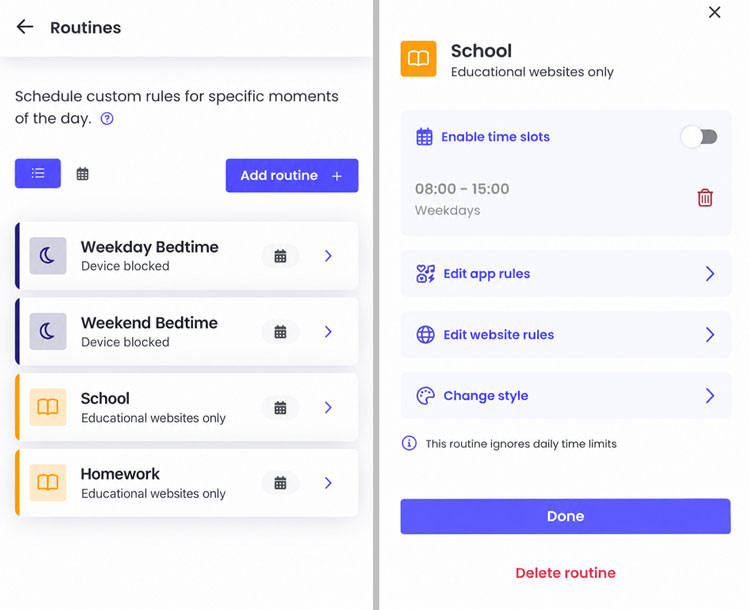
Screen-time controls were Qustodio's clearest strength. Daily device limits, per-app limits, app blocking, Routines, and Internet Pause worked on both test phones, with scheduled rules applying and ending promptly. Internet Pause also worked with Battery Saver enabled; when a child phone was offline, the rule applied after it reconnected.
One reporting caveat mattered: background app activity sometimes contributed to the daily device total on both Samsung and Pixel, so the reported time should not always be read as active screen-on use.
Web filtering also responded quickly. A blocked URL was stopped immediately and appeared in Timeline. Core rules recovered after restart and temporary network loss. Qustodio protected access to its settings with parent credentials and Device Administrator added another uninstall step, but after we disabled Accessibility, the child phone prompted for repair while the parent received no corresponding email, push, or dashboard warning in that test.
Location itself was responsive: manual refresh usually updated in about three seconds and recovered quickly after temporary internet loss. My Places alerts were less consistent. Our iPhone parent device received no arrival/departure notification in the current round, while the Android parent device received an arrival alert roughly 30 minutes late.
Smart Alert performance also varied. Chrome search alerts were fast and complete in three controlled rounds; WhatsApp alerts arrived in all three rounds after roughly 3–15 minutes; Instagram triggered in two of three rounds and took about 20–35 minutes when it did arrive.
What Recent Parent Reviews Add
Qustodio's low-star review themes centered on pricing, setup/permissions, reliability, and tamper concerns. A small set of detailed high-star reviews praised stability, but the sample was too small to call that a comparative advantage. Those themes matched the areas we stress-tested most heavily.
Where It Stands Out
Flexible daily, per-app, and routine-based screen-time rules.
Quick rule execution and good recovery after ordinary interruptions.
Broader optional coverage than a basic screen-time tool, including web, location, search, and supported social monitoring.
What We Didn't Like
Background activity can inflate the time shown in usage reports.
Social alert speed and coverage varied by channel.
My Places notifications were inconsistent in our current test.
Parent-side warning was weak when Accessibility was disabled.
Best if: Structured screen-time management is your first priority and you also want web, location, and optional safety alerts.
Avoid if: You need consistently fast geofence notifications, fully customizable risk keywords, or a very light Android permission setup.
Price: In our September 2026 check, web pricing was $59.95/year for Basic and $104.95/year for Complete ; in-app prices were higher on the parent devices we checked. Free/trial covered one child device, Basic up to five, and Complete unlimited devices.
Best for: Families—especially those with older kids or teens—that want automated risk signals without routine access to a child's full conversation history.
What Happened in Our Android Test
Monitoring is where Bark made the strongest case. Controlled Snapchat and WhatsApp conversations repeatedly generated alerts, but successful alerts often took about 35–40 minutes. Bark does not promise real-time delivery, so we view it as a tool for surfacing issues for follow-up, not an emergency alarm.
Coverage was not complete. Repeated Instagram conversations about alcohol did not trigger an alert even though both phones showed normal reporting, Accessibility was on, sensitivity was set to All, and the child account actively opened and used the DM thread. We also saw examples of incomplete context and benign activity being classified as concerning.
Bark's broader Android controls were less consistent. Routines can restrict categories or services during school or bedtime, but standard Android does not provide the same per-app daily minute budgets we tested in Qustodio and AirDroid. App and website filtering also behaved inconsistently in repeated use.
Location showed a similar split: the map was generally accurate, while Favorite Location arrival/departure alerts failed in three rounds. Reboot recovery was better, and location continued updating with Battery Saver enabled.
Setup is also more involved than a Play Store install. Bark Kids is downloaded from Bark's website, and our Pixel required an additional Restricted Settings step before Accessibility could be enabled.
What Recent Parent Reviews Add
Recent low-star Google Play reviews most often raised pricing, setup/permission, and reliability concerns. We also saw a newer cluster of comments about teen privacy and autonomy from both parent and child voices. We used those themes as test targets, not as estimates of how often Bark users experience a problem.
Where It Stands Out
Alert-first monitoring across supported messages, social services, searches, photos, and other online activity.
Parents generally see flagged content and context rather than a continuous transcript of everything.
One app subscription covers unlimited kids and devices.
What We Didn't Like
Alerts were not immediate and coverage was incomplete.
App/web filtering was less consistent than the strongest rule-based products in our test.
Favorite Location alerts failed in our repeated rounds.
Android setup and maintenance are more involved than a normal Play Store install.
Best if: Risk alerts matter more than precise per-app time budgets or full message-history access.
Avoid if: You need immediate alerts, granular per-app daily limits, highly dependable geofence notifications, or a child app that installs entirely through Google Play.
Price: Bark Premium was $14/month or $99/year at our September 2026 check, with a 7-day trial and unlimited kids/devices.
Best for: Families that mainly want strong website filtering, age-based browsing rules, straightforward app blocking, device-wide time rules, and basic activity/location tools.
What Happened in Our Android Test
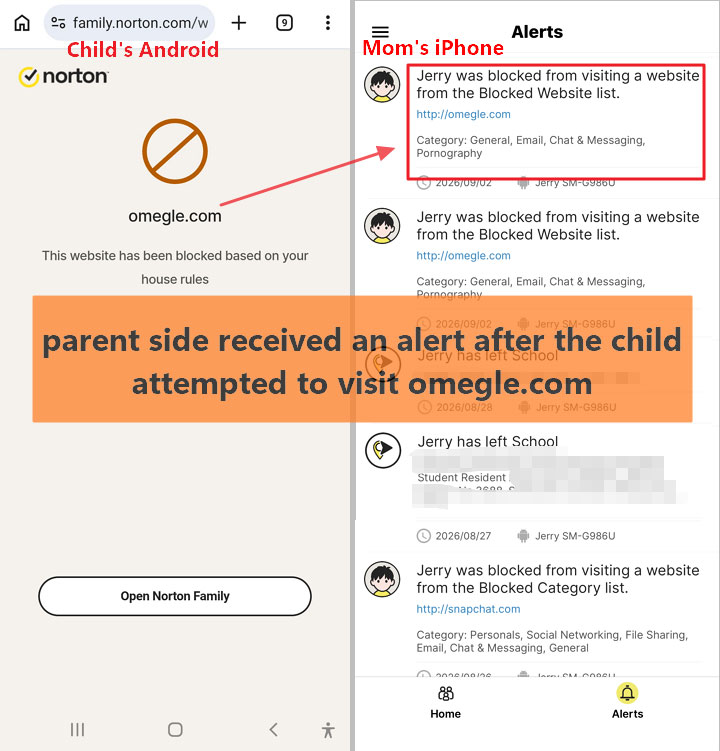
Web Supervision was Norton's clearest strength. Restricted URLs were blocked quickly in Chrome, Samsung Internet, the Google app, and private browsing in the scenarios we tested, and the parent account received blocked-site alerts. Norton also starts with age-based web categories that parents can customize.
The main limitation is that Web, App, and Time controls work as separate layers. School Time changes web access, but apps still marked Allowed under App Supervision could continue to open. Norton also lacks the same per-app daily time budgets and app-specific recurring downtime we tested in Qustodio and AirDroid.
Instant Lock worked on both phones but showed a device difference: under five seconds on Samsung versus roughly a minute on Pixel. Location differed even more. Repeated Locate Now checks usually refreshed within 10 seconds on Samsung, while Pixel often failed to refresh immediately and the newer location appeared in history two to three minutes later.
Core rules recovered after restart, network changes, and short offline periods, but tamper response was not flawless. Changing the device clock interrupted the Downtime rule we tested, and Accessibility-loss alerts fired only once in two attempts on each phone.
What Recent Parent Reviews Add
In our review dataset, reliability/performance concerns were the most common detailed low-star theme for Norton, followed by bypass or disabling concerns. Our own results were mixed in the same areas: web controls were strong, while location responsiveness and permission-loss alerts were less consistent.
Where It Stands Out
Strong web filtering across the browsing scenarios we tested.
Useful age-based starting rules that can be customized by category or website.
Good recovery after restarts and ordinary network interruptions.
What We Didn't Like
School Time is primarily a web rule, not an automatic app-distraction lock.
No per-app daily budget or recurring app-specific downtime.
Location performance differed substantially between Samsung and Pixel.
Tamper alerts and time-rule resistance were not fully consistent.
Best if: Web filtering is one of your main concerns and device-wide time rules are enough.
Avoid if: You need granular per-app schedules, fast geofence/location performance on every phone, or social-content risk alerts.
Price: Norton Family was $49.99/year in our September 2026 check. Norton says one Norton Family account can monitor up to 50 devices.
5. Additional Android Parental Control Apps We Evaluated
We also evaluated other Android options before choosing the five hands-on finalists. These products are not necessarily poor choices; most were left out because their strongest use cases overlapped with our finalists, required more specialized setup, or needed more hands-on verification before we could rank them fairly.
OurPact combines screen-time rules, app blocking, location, and screenshot-based monitoring, but its full Android pairing process requires a computer and cable.
Aura now includes screen-time controls, app/web blocking, Messaging Insights, and AI-based risk signals, but its parental-control tools do not currently include child GPS tracking or geofencing, and Safe Gaming is a Windows-PC feature.
MMGuardian is an Android-focused alternative with message monitoring, safety alerts, web/app controls, location, and tamper protection. Its communication-monitoring use case overlaps heavily with Bark, AirDroid, and Qustodio, and some features require additional setup.
Kidslox now extends beyond screen time into remote screenshots, location, nudity alerts, and selected social/activity monitoring, but we did not run it through the same Samsung-and-Pixel protocol.
FamilyTime and FamiSafe both advertise broad monitoring, location, SOS, and device-management feature sets. We kept them outside the ranked group because we had not independently verified enough of those capabilities under the same two-device protocol.
Boomerang is a lower-cost option focused on screen time, app management, web filtering, YouTube activity, and location. Its full Android call/SMS features require specific child-app versions outside the standard Google Play setup.
Android Apps We Would Not Treat as Current U.S. Android Options
Platform support changes. Before installing any app, check the provider's latest Android compatibility page.
6. What Matters Most When Choosing an Android Parental Control App
1 Setup and Compatibility
“Works without root” does not mean “works without setup.” None of our five finalists required rooting, but several relied on Accessibility, Usage Access, Notification Access, location, Device Administrator, background permissions, or a provider-downloaded child app. On newer Android versions, some installations also require Restricted Settings to be allowed manually.
The phone itself matters too. We saw meaningful differences between Samsung and Pixel, so “supports Android” does not guarantee identical behavior on every model.
2 Reliability and Tamper Response
A parental control app is useful only if its rules continue working after restart, network changes, or Android background restrictions. We also care about what happens when a required permission changes: does the app prevent the change, warn the parent, interrupt control, and recover afterward?
No software tool should be treated as impossible to bypass. Tamper protection is better understood as a way to make ordinary changes harder and make interruptions more visible.
3 Location Is More Than a Map Pin
A current location can work even when geofence alerts do not. We saw this distinction with more than one product. Compare location freshness, manual refresh behavior, offline recovery, and arrival/departure notification timing rather than checking only whether the app has a map.
We did not turn short hands-on sessions into a battery ranking because screen-on time, GPS use, network conditions, and the features being tested varied too much for a fair percentage comparison.
4 Privacy and Transparent Use
The more information an app can access, the more important family boundaries become. Screen-time limits and location are different from message monitoring, screen viewing, Remote Camera, or One-Way Audio.
More access is not automatically safer. Use higher-access features for a clear reason, explain the monitoring in an age-appropriate way, and reduce supervision when the underlying need changes.
5 Family Fit, Support, and Value
Look beyond the cheapest one-device price. Consider how many child devices a plan covers, which parent and child platforms are supported, whether features change by platform, and how easy it is to restore monitoring after permissions or settings change.
7. Which Android Parental Control App Is Right for Your Family?
The five finalists solve different problems. Use the app that matches your family's main need rather than choosing the product with the most features.
1 If Your Child Is Getting Their First Android Phone
Start with Google Family Link. It covers the basics—screen-time limits, per-app rules, schedules, Google Play controls, Chrome/Search settings, and location—without a subscription. Move to a paid tool only when you can name the missing capability.
2 If Basic Controls Do Not Give You Enough Android Context
Consider AirDroid Parental Control. It keeps the everyday app, time, web, and location controls while adding optional Android context such as synced notifications, screen viewing, Remote Camera, and One-Way Audio. These features are most appropriate when there is a specific safety reason to use them, not as a default level of supervision.
3 If Structured Screen-Time Rules Are the Priority
Choose Qustodio. Its combination of daily limits, per-app rules, Always Allowed exceptions, Routines, and Internet Pause gave us the strongest screen-time-management experience. Be aware that usage totals can include some background activity and that alert/location-notification performance was less consistent.
4 If You Mainly Want Risk Alerts
Choose Bark. Bark is built around surfacing potentially concerning activity without giving parents a routine full-history view of every conversation. It is a better fit when risk signals matter more than granular per-app time budgets—but our testing also showed that alerts can be delayed or missed.
5 If Web Filtering Is the Main Concern
Choose Norton Family. It produced the strongest web-blocking results in our Android test. The tradeoff is less granular per-app time management and more variable location/tamper performance.
6 If Your Family Uses Both Android and iPhone
Compare AirDroid and Qustodio feature by feature. Both support child Android and iPhone devices, but the feature sets are not identical across platforms. AirDroid's most Android-specific context features do not all carry over to iOS, while Qustodio is particularly useful when you want similar screen-time and web rules across mobile devices and computers.
Norton can also fit Android-and-Windows households, while Bark is attractive for families that want one risk-alert subscription across many children and devices.
7 For Tweens and Teens, Revisit the Level of Supervision
Age alone should not decide the app. A teen who mainly needs help with late-night scrolling may need schedules, not message monitoring. A temporary safety concern may justify more context for a period of time. Use the least intrusive tool that solves the problem, explain what is being monitored and why, and revisit those settings as trust and independence grow.
8. Frequently Asked Questions
Does Google Family Link Automatically Turn Off When My Child Turns 13?
No. In the U.S., turning 13 does not automatically end Family Link supervision. Google lets the child continue with supervision or update the account while keeping it. Under Google's current rules , children under 18 need parent approval to stop supervision. The applicable age varies by country.
Do Parental Control Apps Require Root Access on Android?
The five finalists did not require us to root either test phone. They may still require Accessibility, Usage Access, Notification Access, location, Device Administrator, background permissions, or other system settings. On Android 13 and later, some sideloaded apps may also require the user to allow Restricted Settings before sensitive permissions can be enabled.
Can Kids Bypass Parental Controls?
Sometimes. No software parental control should be described as unbypassable. In our tests, some apps protected settings with passwords or Device Administrator, while ordinary changes such as a permission change or device-time change could interrupt certain controls. What matters is whether the app makes changes harder, warns the parent, and recovers.
Technical controls also work better when children understand the family rule behind them.
Is a Free Parental Control App Enough?
For many families, yes. Family Link covers daily limits, per-app limits, schedules, app blocking, Google Play controls, and basic location. A paid tool becomes more useful when you need a specific capability Family Link does not focus on, such as stronger web management, third-party risk alerts, additional Android context, or broader cross-platform management.
Can a Parental Control App Remotely See or Hear Around My Child's Phone?
Some can. Among our five finalists, AirDroid supports Remote Camera and One-Way Audio on supported Android child devices. These are not ordinary screen-time features. Use them only for a clear safety purpose, with age-appropriate transparency and family boundaries.
Which App Is Best for Multiple Kids and Devices?
For sheer capacity, Bark and Qustodio Complete support unlimited child devices, while Norton Family supports up to 50 monitored devices. AirDroid's quarterly and annual plans support up to 10 child devices. Family Link is free but uses Google's family-group structure.
Capacity is only one factor. If you manage just a few phones, choose the app whose rules, alerts, platform support, and privacy model fit your family rather than paying for a larger device allowance you do not need.
Bailey Morgan is a Product Specialist at AirDroid Parental Control. She writes about practical issues parents face today, including screen time, social media, online risks, parental controls, kids' use of AI, and the balance between digital safety and growing independence.











Leave a Reply.