How to Remove Google Family Link (2026 Guide): When, Why, and What to Do Next
Your child just turned 13. Then, an email from Google lands in your inbox: "Is your child ready to manage their own account?" A wave of mixed emotions hits you at once. "If I turn off Family Link supervision, will they just scroll on TikTok and YouTube all night? What about adult content?" but also, "Am I holding on too tightly and hurting our relationship?" This isn't just another dry tech tutorial.
It's a digital parenting crossroads that almost every modern family faces. Looking through discussions from local parenting groups to Reddit’s ParentingTech, you see two extremes: parents who deeply regret removing it too quickly, and parents who are terrified to touch the button at all. If you are wondering how to remove Family Link supervision safely without inviting digital chaos, you are in the right place.
In this guide, we'll walk you through the whole journey step by step:
- ✅ When is the right time to stop supervision?
- ✅ The latest official removal steps (with a 2026 update)
- ✅ Quick fixes for the 6 biggest headaches parents face
- ✅ How to protect your teen after turning off Google controls
1. Understanding Family Link's Strengths and Limits: Why Do Parents Choose to Remove It?
Before hitting that "remove" switch, it helps to look back at why you installed Family Link in the first place—and why it’s suddenly causing friction in your home.
When Google Family Link first launched, it felt like a total lifesaver for parents. It's 100% free, baked right into Android, and lets you manage app downloads, bedtimes, and device locations from one simple screen. For younger kids, it does the job brilliantly.
However, as children get older, the same controls can raise new questions about independence, privacy, and how much supervision is still useful.
Family Link is strong for core Google and Android controls, but it may not fit every family's needs as a child becomes more independent.
Here are some of the practical tradeoffs to consider:
| Feature | What Works Well | Limits or Tradeoffs |
|---|---|---|
| Setup & Removal | Easy to start up | Stopping supervision ends the Family Link controls tied to that supervision. If your family only wants to loosen certain rules, adjust individual screen-time, app, web, or location settings before deciding to stop supervision completely. |
| App Approval | Direct Google Play integration | Turning 13 in the U.S. does not automatically end supervision. Children under 18 currently need a parent's approval to stop Family Link supervision. |
| Location Tracking | Accurate GPS with no fee | Location depends on the child's supervised device being powered on, connected, and able to report location. If the device is offline or has not been used recently, the location may not update. |
| Screen Time Limits | Clean, simple schedules | Per-app daily limits are useful, but Downtime and School Time are device-level schedules rather than recurring schedules for individual apps. |
| Cross-Platform | Deep Android integration | Parents can use the Family Link app on an iPhone, but most Family Link supervision tools cannot supervise a child's iPhone or iPad. |
| Privacy Dynamic | Transparent supervision | Supervision is visible to the child, so families should explain what is being managed and revisit the rules as the child becomes more independent. |
Family Link gives parents several controls they can adjust individually, so turning 13 does not force an all-or-nothing decision. The more useful question is whether your teen still benefits from the current level of supervision, or whether some limits can be loosened while supervision stays in place.
That brings us to the next critical question: How do you know if your teen is actually ready for this freedom?
2. When Is the Right Time to Remove It? Start with This Parent Self-Check
Now that you know Family Link's limitations, you shouldn't rush to turn it off just because an automated birthday email tells you to.
Many parents assume that turning 13 automatically means supervision should end. It doesn't. In the U.S., 13 is the age when Google allows a child to update how their account is managed, but existing Family Link supervision can continue. Under Google's current rules, children under 18 still need a parent's approval to stop supervision. Google explains the current age and supervision rules here.
Take two minutes to run through this quick self-assessment before making changes. This is an editorial reflection tool, not a clinical or developmental assessment.
Score each statement from 0 to 10 based on your teen's everyday habits (0 = Never, 10 = Consistently).
- Can your child spot online scams, reject friend requests from strangers, and avoid clicking shady links?
- Do they understand basic online boundaries (e.g., never sending private photos or personal info) and react appropriately?
- Can they put down their phone after 1–2 hours without an argument or repeated reminders?
- If they encounter cyberbullying, hate speech, or explicit content, will they come to you and talk about it openly?
- Do they handle real-life priorities first (homework, sleep, chores) before disappearing into their screens?
What Your Score Means:
- 0–25 points: Keep supervision active. Your child still needs clear digital guardrails and daily structure.
- 26–35 points: Gradual transition. Ease back on restrictive app locks, but keep basic oversights in place while watching how they handle it.
- 36–50 points: Consider more independence. Your child may be ready for fewer restrictions, but whether to stop supervision entirely should still depend on your family's needs, the child's behavior, and the controls you still find useful.
If you're not fully confident yet, consider having a relaxed conversation first. Ask them: "What kind of guidance feels helpful to you, and what feels like micromanagement?" Opening this dialogue builds far more trust than any software setting ever will.
3. Latest Steps to Remove Family Link Supervision (2026 Official Guide)
If your child is ready and you have agreed on house rules, follow these official steps to remove supervision smoothly without breaking their Google account.
Good news before you begin: Stopping supervision does not delete your child's Google Account. Their account and existing Google data remain unless you separately choose to delete them.
Scenario 1: Your Child Has Reached Google's Applicable Age
- 1. Open the Google Family Link app on your parent phone. Make sure it is updated to the latest version.
- 2. Select your child's profile, then tap Controls > Account settings > About supervision.
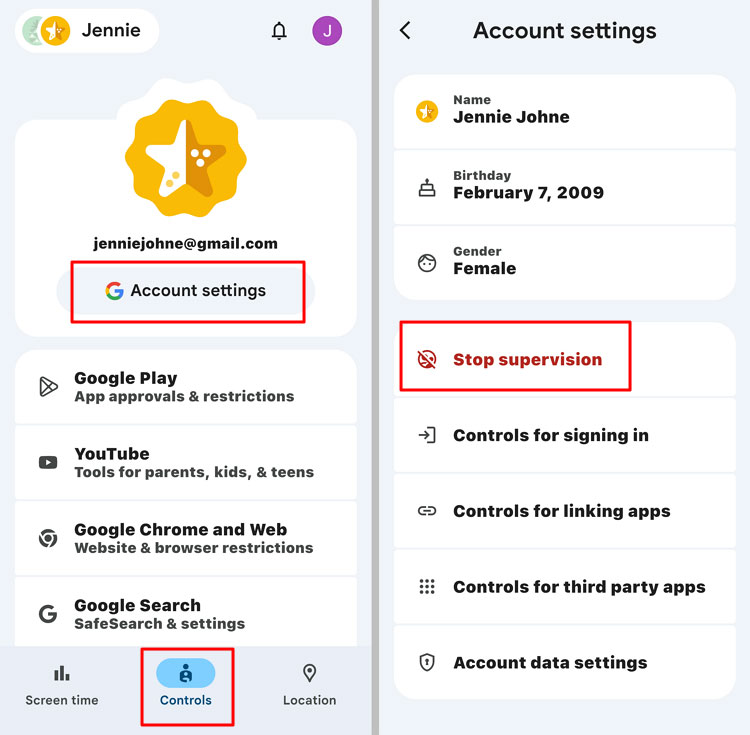

- 3. Follow the on-screen instructions, then tap Stop supervision.
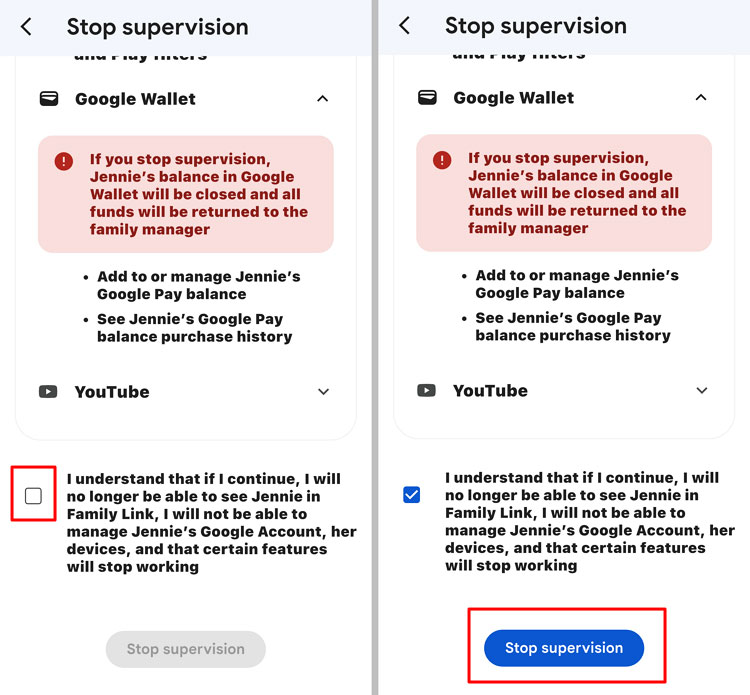

- 4. Google will notify both you and your child when supervision is stopped.
⚠️ Quick Troubleshooting: Google only allows supervision to be stopped once your child reaches age 13 in the U.S. or the applicable age in their country. If you see an error even though your child is old enough, Google says the child may need to update their Google Account first. Also make sure your Family Link app is up to date.
Scenario 2: Your Child Is Below Google's Applicable Age
If your child is below age 13 in the U.S. or the applicable age in their country, Google does not currently offer the standard Stop supervision option for that child account. See Google's current supervision instructions.
If your goal is to stop supervision without deleting the account, you will need to wait until the child reaches Google's applicable age. If you are trying to remove a younger child from a Google family group for another reason, Google may require you to delete the supervised child account or transfer supervision to another parent instead.
Scenario 3: Your Child Initiates the Request (From Their Phone)
Once a child reaches age 13 in the U.S. or the applicable age in their country, they can start the stop-supervision process from a supported Android device. However, if they are under 18, Google currently requires a parent's approval. On Android, the parent verifies the change by signing in or using a Parent Access Code. Google notifies both the parent and child when supervision is stopped.
What Changes Right Away After Removal?
- ❗ Family Link screen-time limits, app controls, content restrictions, and supervised-device location controls stop applying.
- 📩 Google notifies both the parent and child when supervision is stopped.
- ☁️ The child's Google Account and existing account data remain in place.
- 🔄 If you add supervision again later, you may need to review and rebuild some family rules and settings.
4. The 6 Most Common Parent Questions (Answered)
Even with step-by-step instructions, unexpected glitches happen. Here are straight, practical answers to the problems parents ask about most often:
5. What Comes After Removal: 4 Digital Parenting Habits That Actually Work
Removing Family Link from your child's phone solves the technical issue, but it does not mean your guidance is no longer needed.
In fact, the opposite is true: this is where trust-based digital parenting becomes even more important. Without automated app locks, these four practical strategies can help keep expectations clear:
- Create a Simple "Family Tech Agreement"
Sit down together and write out clear, non-negotiable family standards. Examples include: charging devices outside bedrooms overnight, keeping phones off during family meals, and maintaining honest conversations about online experiences. - Schedule a Weekly Casual "Tech Check-in"
Don't wait until something goes wrong to talk about their phone. Bring it up naturally during a drive or over snacks: "Found any funny YouTubers lately?" or "Any weird spam accounts messaged your group chat?" Normalizing these chats makes them comfortable coming to you if something feels off. - Rely on Nudges Rather Than Sudden Lockouts
Help your teen set up their own built-in screen time timers or bedtime reminders through Android's "Digital Wellbeing" or iOS "Screen Time." Managing some limits themselves gives them a chance to practice making their own choices. - Review Monthly Freedom Together
At the end of each month, do a quick two-minute review. If they handled their screen time and schoolwork responsibly, praise their maturity. If things slipped, adjust your family rules accordingly.
6. If You Still Need More Than Family Link Offers
Turning 13 does not mean you have to remove Family Link. You can keep supervision in place and adjust individual controls as your teen becomes more independent. But some families eventually need capabilities that Family Link does not focus on, especially when a child changes platforms or when parents want additional safety alerts or Android-specific monitoring tools.
You might be thinking:
- "I want to loosen some app rules but keep location and basic safety controls."
- "I don't want to read every conversation, but I want optional alerts for specific online risks."
- "My teen switched to an iPhone, where most Family Link device-supervision tools no longer apply."
Family Link can remain useful well into the teen years, especially for Android screen time, app management, Google content controls, and location. If your family needs capabilities outside that scope, a dedicated parental control app such as AirDroid Parental Control may fill some of those gaps.
The key is not to add more monitoring for its own sake. A parental control app should solve a specific family need and be used with clear, age-appropriate boundaries:
At a Glance: Google Family Link vs. AirDroid Parental Control
| Safety Feature | Google Family Link | AirDroid Parental Control |
|---|---|---|
| Platform Support | Parents can manage Family Link from Android or iPhone, but most child-device supervision tools work on Android and Chromebook, not a child's iPhone or iPad. | Supports child devices on Android and iOS, although available features differ by platform. |
| Management Flexibility | Supervision can continue after age 13; parents can adjust individual controls or stop supervision later. | Offers granular app limits plus optional safety alerts and additional monitoring tools, depending on the child's platform. |
| Proactive Safety Alerts | App approvals and Google-service controls, but no broad social-message risk-alert system. | Custom keyword alerts and other supported safety alerts on compatible child devices; alert coverage varies by feature and platform. |
| Location & Safety Zones | Child-device location plus Family Places arrival/departure alerts on supported Android devices. | Live location, route history, and geofenced arrival/departure alerts on supported child devices. |
| Teen Privacy Balance | Core supervision is visible to the child and focuses on Google account, app, screen-time, web, and location controls. | Can extend to notifications, screen activity, or surroundings on supported Android devices, so families should set clear boundaries around privacy-sensitive features. |
| Cost | Free | Free trial available with comprehensive tiered safety plans |
The takeaway: Family Link does not automatically end at 13, and many families can keep using it while gradually loosening individual controls. Consider another app only when you have a specific need Family Link does not cover, and use any additional monitoring transparently and proportionately.
7. Conclusion: Removing Supervision Is a Milestone, Not an End
Returning to our opening question: "Should I remove Family Link or keep it on?"
The answer is never a simple yes or no. It comes down to honest communication: How much freedom has your teen shown they can handle, and how ready are you to guide instead of restrict?
Taking off Google Family Link's supervision isn't quitting as a parent. It's simply upgrading your role from a digital gatekeeper to a trusted coach.
Common Parent Q&A
Your Immediate Next Steps
If you're still on the fence, here is what you can do today:
- ✔ Complete the 5-question maturity self-check above with your partner.
- ✔ Sit down with your teen this week to discuss house rules before touching any settings.
- ✔ If you need a flexible middle ground during their teenage years, explore how a balanced tool like AirDroid Parental Control can bridge the gap.
Have you already turned off Family Link, or are you preparing to take that step? Drop your questions and stories in the comments below—let's support each other through these digital parenting milestones!










Leave a Reply.