Circle Review 2026: Test Results, Pros, Cons & Features
Circle's current website states that Circle is now part of Aura. This review covers the Circle Parental Controls app shown in our test screenshots, not a separate Aura setup. Check current product availability, subscription details, and migration information before purchasing.
Circle is built around internet filtering, usage reports, time rules, and family routines. Those tools sound straightforward on a feature list, but our test produced a more uneven result: Circle was strong at showing online activity, filtering websites, and applying Focus Time, while app-specific blocking and Bedtime did not enforce every rule consistently on our Android child device.
For this Circle review, we used the parent app on an iPhone 14 and tested the child-side controls on a Xiaomi Redmi Note 7 running Android. We kept the settings concrete: a 30-minute daily internet limit, a 15-minute YouTube limit, a 15-minute Bedtime window, a 15-minute Focus Time schedule, Teen filtering, and specific apps marked Not Allowed.
Our bottom line: Circle is a convincing option for families that mainly want internet visibility, website filtering, and scheduled online routines. Families that need dependable per-app enforcement, automatic place alerts, or route history should examine those gaps carefully before subscribing.
Circle Review: Quick Verdict
Circle did not fail across the board. In fact, several features worked cleanly: Usage organized online time by app and category, the Teen web filter redirected our blocked test page, SafeSearch reduced explicit Google results, and Focus Time stopped YouTube video content from loading while leaving WhatsApp available.
The problem was consistency. Marking YouTube and TikTok as Not Allowed did not stop us from opening them in our test. Circle also sent the correct 30-minute and 15-minute limit alerts, yet YouTube continued to work after the limit had been reached. During Bedtime, Chrome displayed Circle's restriction page, but the YouTube app still played content.
| Area | What We Observed | Main Limitation |
|---|---|---|
| Usage and History | Clear daily, weekly, and monthly usage views plus visited and filtered activity | Activity records show network or app use, not message content or the child's intent |
| Website filtering | The Teen filter and SafeSearch blocked the harmless test destination as expected | Coverage can still depend on the site, browser, connection, and filter configuration |
| App blocking | YouTube and TikTok were marked Not Allowed | We could still open the apps in our Android test |
| Time Limits | The parent iPhone received the daily and YouTube limit notifications on time | YouTube remained usable after the tested limit expired |
| Bedtime | Chrome was redirected to Circle's Bedtime page | YouTube content still played during the same schedule |
| Focus Time | YouTube video content stopped loading while the allowed WhatsApp app remained usable | The app interface could still open because Circle was interrupting internet access rather than closing the app |
| Location | The point-in-time device location was useful when refreshed | No route history or geofence workflow was available, and updates required a manual request |
Note: These hands-on results apply to our stated iPhone-parent and Android-child setup. Performance can change with the device, operating system, permissions, network, VPN, app version, subscription, and later product updates.
How We Tested Circle
We tested Circle from both sides of the setup: the parent changed rules on an iPhone 14, and we checked what actually happened on the Xiaomi Redmi Note 7 child device. We recorded the rule, the parent-side alert, the child-side result, and any mismatch between what the dashboard promised and what the child device allowed.
Our broader review principles are explained in how we test parental control apps.
Filtering and app rules: We selected the Teen preset, enabled SafeSearch, opened a harmless blocked test site, and marked YouTube and TikTok as Not Allowed.
Time controls: We set a 30-minute overall daily internet limit, a separate 15-minute YouTube limit, Bedtime from 8:45 PM to 9:00 PM, and Focus Time from 12:00 PM to 12:15 PM.
Allowed apps and rewards: We kept WhatsApp available during Focus Time and reviewed the options for extending a time limit, ending Focus Time, or delaying Bedtime.
Location and reports: We requested the child device's current location, refreshed it manually, and reviewed Usage and History for recorded app and website activity.
Evidence: We retained screenshots of the settings, parent alerts, child-device results, location screen, activity history, and Rewards menu.
Limits: We did not test every phone, browser, network, VPN, operating system, or Circle subscription. A result from this setup should not be treated as proof that every family will see the same behavior.
Circle Hands-On Test Results
1Internet Usage
Circle's Usage dashboard was one of the easiest parts of the app to understand. It organized online time by day, week, and month and broke the total down by categories, services, and apps such as YouTube.
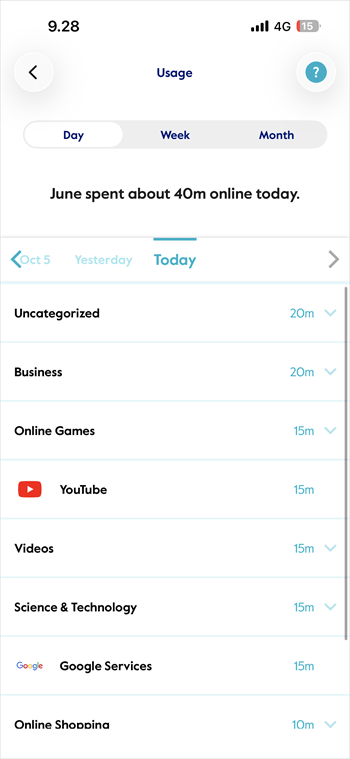
In our test, the reported YouTube activity matched the type of activity we generated on the child phone. That makes Usage useful for spotting a repeated habit or starting a conversation about where online time is going.
It is still a usage estimate, not a complete account of what the child watched, read, or intended to do. We would use it to discuss patterns rather than treat a high total as evidence of a problem by itself.
2Location Tracking
Circle returned a point-in-time location for the Xiaomi child device, and the map was useful for a quick check. The catch was that the location did not keep refreshing automatically in our session. We had to tap Refresh, and sometimes repeat the request, before the displayed time and position updated.
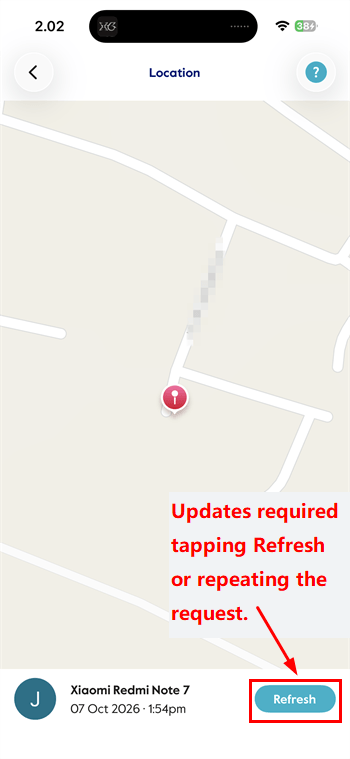
This behavior matches Circle's description of Location as a point-in-time request. Circle's official support information also states that it does not retain historical family-device locations. We did not find a geofence option for automatic arrival or departure alerts.
That makes Circle Location suitable for an occasional device check, but less useful for a family that wants route history or an alert when the device enters or leaves an agreed place such as home or school. Location represents the device, not proof of who was carrying it or what was happening nearby.
3Filtering and Blocking
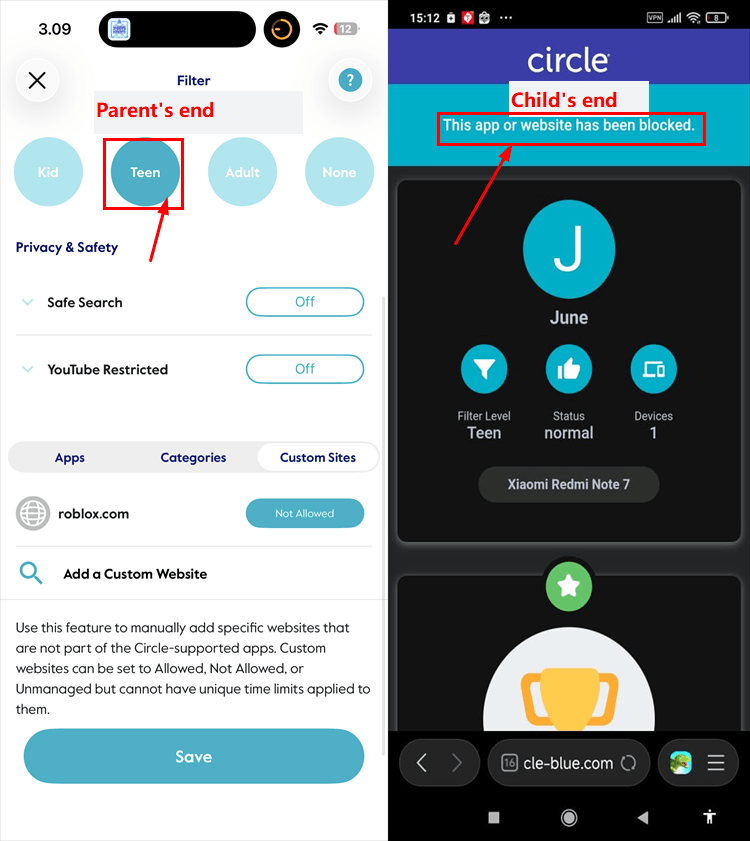
Circle offers Kid, Teen, Adult, and customizable filtering rules. We selected the Teen preset, enabled SafeSearch, and then tried to open a harmless site that our rule did not allow. Circle redirected the child device to its block page, and Google SafeSearch also filtered the explicit test material as expected.
App-level enforcement was less convincing. We marked TikTok and YouTube as Not Allowed, saved the rule, and then tried both apps on the child phone. In this test, the apps still opened; YouTube content was visibly available on the device.
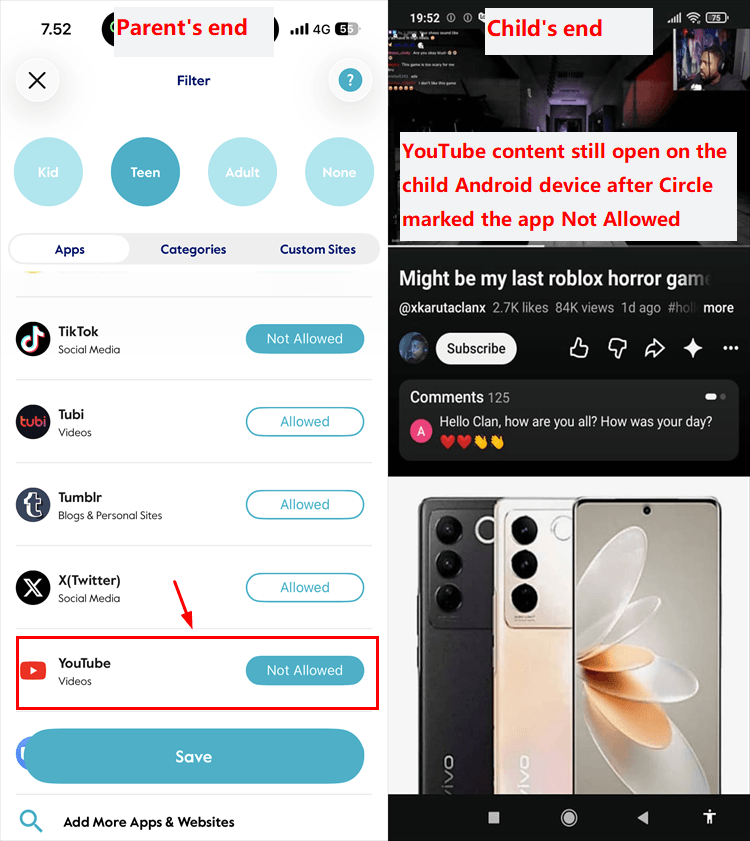
The practical conclusion is narrower than saying Circle never blocks apps: website filtering worked in the same environment, while the two specific Not Allowed app rules did not enforce as expected. Families should test the exact apps that matter to them before relying on the rule.
4Screen Time Limits
We set two limits: 30 minutes of total daily internet time and 15 minutes for YouTube. The parent app accepted both rules and clearly showed the configured allowances.
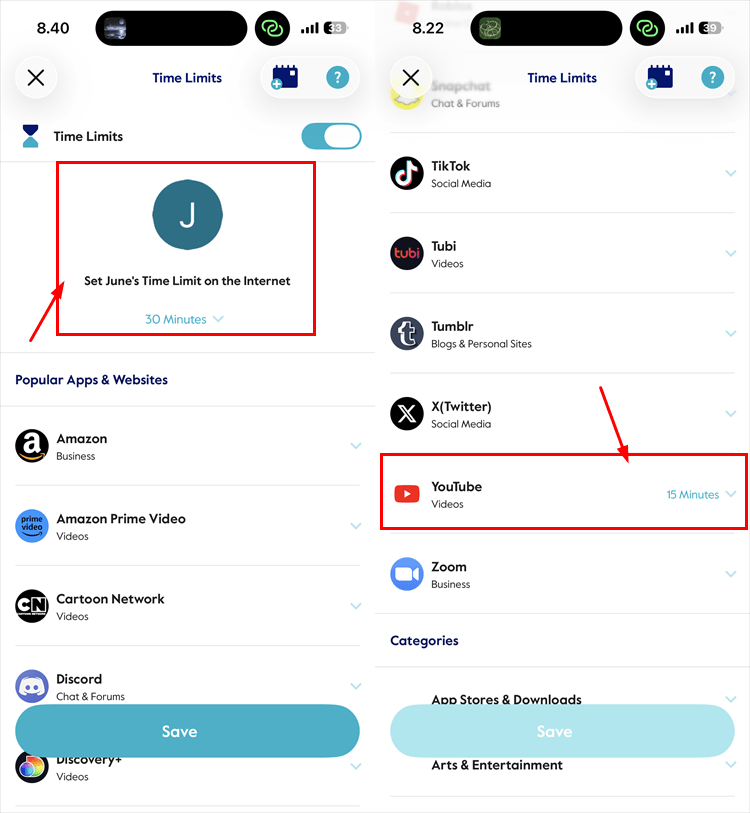
The notification side worked well. The parent iPhone received one alert when the child profile reached the 15-minute YouTube limit and another when the 30-minute daily limit was reached.
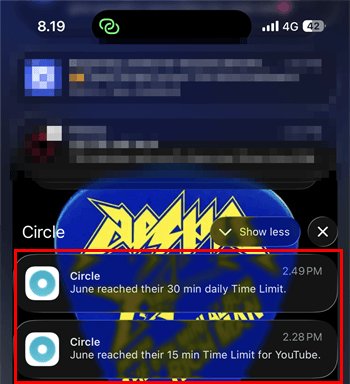
The enforcement result did not match the alerts. After the limits expired, we could still use YouTube normally on the child phone. In our setup, the feature documented that the allowance had been used but did not provide the strict app cutoff we expected.
This is an important distinction for parents: a timely alert proves the rule was measured, but it does not by itself prove the target app became unusable. Check the child device after the limit is reached.
5Bedtime
For Bedtime, we scheduled a short test window from 8:45 PM to 9:00 PM. The same rule produced two different child-side outcomes.
During the schedule, the YouTube app continued to load and play video content. When we tried to browse in Chrome, however, Circle interrupted the request and displayed its purple Bedtime page.
Bedtime therefore worked as an internet-browsing boundary in our test but did not consistently stop the standalone YouTube app. If late-night app use is the main concern, test the app rather than checking only Safari or Chrome.
6Device History
History separates Visited and Filtered activity and provides a chronological record tied to the devices in the child's profile. Our log showed WhatsApp activity alongside Google services and other network destinations from the Xiaomi phone.
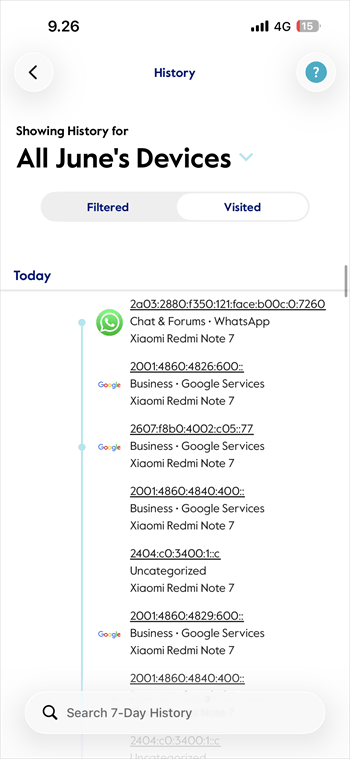
This was useful for confirming that a service had been accessed and for investigating why a website rule did or did not apply. Some entries were technical domains or network addresses, so the record was not always immediately readable.
Circle History should not be described as reading WhatsApp conversations. In our test, it recorded service or network activity; it did not provide the contents of private messages.
7Focus Time
Focus Time gave us Circle's most convincing scheduled-control result. We created a 12:00 PM to 12:15 PM study window and selected which services could remain available.
During the schedule, the YouTube interface still opened, but video content remained stuck loading. Circle was interrupting the service's internet access rather than force-closing its app.
We also placed WhatsApp on the allowed list. Messages continued to work during Focus Time, which showed that the routine could reduce entertainment access without cutting off an approved family communication channel.
That combination makes Focus Time more useful than a blanket device shutdown for homework or family routines. It also illustrates why Circle's controls need to be evaluated feature by feature: Focus Time blocked YouTube streaming in the same environment where the Not Allowed rule, Time Limit, and Bedtime produced weaker app-level results.
8Rewards
The Rewards menu offers three practical adjustments: extend a Time Limit, disable Focus Time, or delay Bedtime. This lets a parent make a temporary change without rebuilding the regular schedule.
We confirmed that these options were available in the parent interface. The presence of this system has proven successful in providing an ideal balance between strict supervision and measured freedom for the family.
Circle Pros and Cons
1Pros
- Useful Usage summaries. Daily, weekly, and monthly views made it easy to see where online time was going.
- Effective website filtering in our test. The Teen preset, custom rule, and SafeSearch produced the expected browser result.
- Clear limit notifications. The parent iPhone received separate alerts for the YouTube and overall daily limits.
- Practical History view. Visited and filtered activity helped us trace service and website access across the child profile.
- Simple temporary rewards. Parents can see options to extend time or relax a schedule without changing the normal routine.
2Cons
- App enforcement was inconsistent. YouTube and TikTok remained accessible after being marked Not Allowed in our setup.
- Limit alerts did not guarantee a cutoff. Circle reported that both tested allowances had expired, but YouTube still worked.
- Bedtime behaved differently by access route. Chrome was blocked while the YouTube app continued playing.
- Location was reactive rather than proactive. We had to request updates manually, and Circle did not offer route history or geofence alerts.
- History can require interpretation. Technical domains and addresses may be less useful to a parent than clear app names.
Is Circle Worth Using?
Circle is worth considering when the family's main goal is to understand internet use, filter websites, and create study or offline routines. Its strongest results in our test came from Usage, History, the Teen web filter, SafeSearch, and Focus Time.
- Choose Circle for internet visibility. Usage and History present a practical picture of visited, filtered, and categorized online activity.
- Choose it for website boundaries. The browser restriction worked promptly in our harmless test scenario.
- Choose it for flexible study schedules. Focus Time reduced YouTube access while keeping an approved communication app available.
Circle is harder to recommend when one exact app must become unusable at a specific time or when the family needs automatic arrival alerts and route history. Those were not minor checklist differences; they affected the scenarios we actually tested.
- Look elsewhere for strict per-app enforcement. Test the specific app on the child's real device before treating Not Allowed, Time Limits, or Bedtime as dependable.
- Look elsewhere for proactive location boundaries. Circle's point-in-time request is different from geofencing and saved route history.
Circle Alternative: AirDroid Parental Control
Circle's best features center on internet filtering, activity visibility, and scheduled access. AirDroid Parental Control becomes a more relevant alternative when a family wants those digital-habit tools combined with more granular app rules and proactive location-safety options.
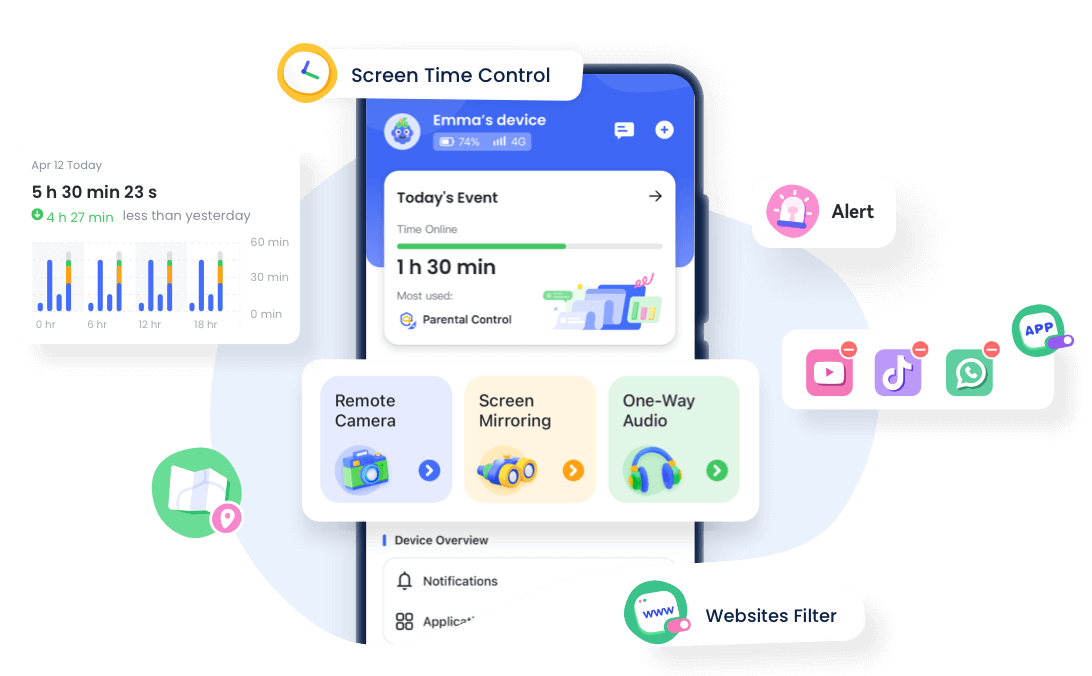
- More granular app boundaries. AirDroid documents separate Individual App Limits, shared Total Time Limits, and Downtime schedules, together with app blocking, Always Allowed apps, and child requests for additional time. This gives families more ways to match the rule to homework, sleep, weekends, or a single distracting app.
- Proactive location safety. Live device location, route history, and geofences can help families confirm agreed arrivals or receive an alert when the device enters or leaves places such as home or school.
- Supported safety signals. On compatible child devices, AirDroid can surface selected online-risk alerts connected to a specific family concern. Android provides broader notification and social-content coverage than iPhone, and an alert should lead to a calm conversation rather than an assumption of wrongdoing.
- Help and communication tools. SOS and Family Chat can give a child a direct way to ask for support and help the parent follow up with location context when appropriate.


AirDroid is not a reason to enable every available feature. Families should explain the setup, use only the controls needed for the current safety or digital-habit goal, and review those controls as the child becomes more independent. Feature availability depends on the child's platform, permissions, network, setup mode, subscription, and current app version.
Final Verdict
Circle earned its best marks in the parts of the app that help a parent understand and shape internet use. The Usage and History views were informative, the Teen website filter worked in our scenario, and Focus Time created a useful study routine without disabling an approved communication app.
We would not rely on this tested setup for strict app-specific enforcement or proactive location safety. The Not Allowed rules, Time Limits, and Bedtime did not consistently stop YouTube on the child Android device, while Location required a manual request and provided no geofence or route history.
Circle is a reasonable fit for filtering and online routines, but not the strongest fit for every family-safety need. Before subscribing, repeat the feature that matters most on the child's actual phone, browser, network, and operating system. If granular app limits and proactive location tools are the deciding factors, compare AirDroid Parental Control alongside Circle.
Circle Review FAQs











Leave a Reply.