6 Best Parental Control Apps That Cannot Be Deleted 2026 (Tested)
“My child keeps deleting parental control apps…”
If that sounds familiar, you’re not alone. Many parents set up controls only to find them gone within days.
Here’s the reality: no parental control app is completely undeletable. Both Android and iOS are designed to give the device owner ultimate control.
But some apps are much harder to remove, especially when they use system permissions, uninstall protection, and parent approval features. We spent days testing six popular parental control apps by deliberately attempting some known bypass ways. Here's what we found.
Quick Guide: 6 Best Parental Control Apps That Cannot Be Deleted
| App | Anti-Uninstall Mechanism | Multi-User Resistance | Platforms | Best For |
|---|---|---|---|---|
| AirDroid Parental Control | Device Admin / Device Owner + account binding | Moderate (cannot fully block it) | Android, iOS | Families whose kids already bypass basic controls |
| Qustodio | Device Admin (Android) + MDM anti-tampering (iOS) | Moderate ("Protect Android Settings" can block multi-user switching) | Android, iOS, Win, Mac | Families needing detailed reports and comprehensive rules |
| Bark | Device code | Low (no dedicated multi-user protection) | Android, iOS | Teen social media monitoring |
| Norton Family | Device Admin (Android) + password gating (Windows) | Not supported (officially incompatible with multi-user mode) | Android, iOS, Win | Mixed Windows and Android households |
| Google Family Link | Device owner service (Android system-level) | High (can block adding/switching users) | Android, iOS (parent app) | Basic Android supervision only |
| Apple Screen Time | Screen Time passcode + FamilyControls framework | N/A (iOS has no multi-user) | iOS, macOS | Free Pure Apple ecosystem households |
In 2026, the top parental control apps for uninstall protection are AirDroid Parental Control, Qustodio, Bark, Norton Family, Google Family Link, and Apple Screen Time. We evaluated them across four dimensions: Device Admin/Device Owner privilege mechanisms, anti-uninstall password protection, persistent control in multi-user environments, and cross-platform coverage. Paid solutions significantly outperform free options in bypass resistance.
Our testing was conducted under the following conditions:
Test Devices: Google Pixel 7 (Android 17) as the primary test device, and iPhone 14 (iOS 18) as secondary devices.
Test Accounts: A separate parent account and child account (age set to 10) were created for each app. For multi-user testing, an additional standard (non-supervised) user account was created to simulate a child switching users.
Methodology Notes: Each app was fully installed and all available permissions activated, then subjected to the following test scenarios: uninstall via system settings, checking control status after creating a second user, checking whether controls auto-restore after reboot, and checking whether functionality is compromised after manually clearing app data. For a detailed breakdown of our process, see our testing methodology.
AirDroid Parental Control is our product. We applied the same removal and tampering tests to it as we did to the other five options, and we have included the setup costs and limitations we found.
1AirDroid Parental Control: Best for families whose kids already bypass basic controls
Anti-Uninstall Mechanism: On Android, AirDroid Parental Control enforces uninstall prevention through Device Owner privileges. Once the child’s device is bound to the parent’s account, AirDroid Kids activates stealth mode to prevent removal. Uninstalling requires first disabling Device Admin privileges in Settings, which demands the parent’s password or admin code. AirDroid also uses Accessibility API to protect critical settings from tampering.
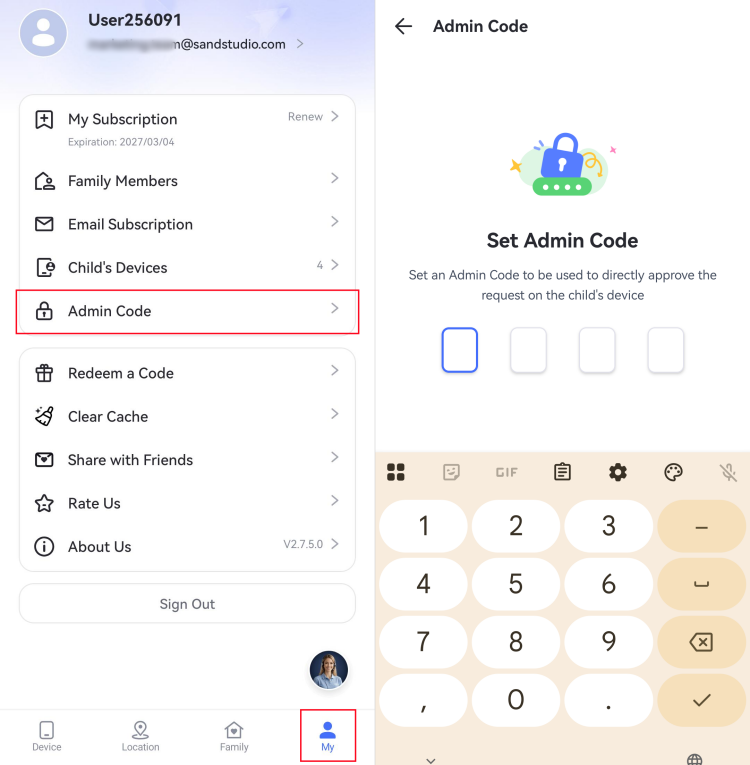
Multi-User Test: After creating a second standard user account on Android 17, AirDroid Kids controls did not carry over to the new user environment—the child could freely install apps and use the device without time limits. AirDroid can detect new user creation and send a notification to parents on Android, but cannot prevent user creation or automatically apply controls to new users. In our test, we successfully created a new user via Settings → System → Multi-user without AirDroid intercepting the process.
Bypass Resistance: Multi-user scenarios are a key weakness—controls are completely ineffective after switching to a secondary user. Community reports indicate that without proper Device Owner configuration, the uninstall process can be simplified.
Verdict: If you need an affordable paid solution with robust Android anti-uninstall capability and multi-user bypass is not a primary concern, AirDroid Parental Control is the most pragmatic choice.


2Qustodio: For families needing detailed reports and comprehensive rules
Anti-Uninstall Mechanism: On Android, Qustodio uses Device Administrator privileges to block uninstalling, requiring the parent password. On iOS, Qustodio Advance—a desktop tool—installs an MDM remote management profile for anti-tampering protection, requiring a cable connection and temporarily disabling Find My iPhone. The Kids App is password-protected on iOS and macOS, preventing uninstall without parental permission.
Multi-User Test: Qustodio offers a rare multi-user protection feature. In the Kids App under “Configure This Device → Device Settings,” parents can enable the “Protect Android Settings” option, which disables the “Add User” and “Switch to Guest” functions on the device. In our Android 17 test, after enabling this option, the multi-user management entry in system settings was locked, preventing the child from creating new users or switching to guest mode. Note that on older Android versions, the guest account may need to be manually disabled. This feature effectively addresses the common multi-user vulnerability shared by most parental control apps.
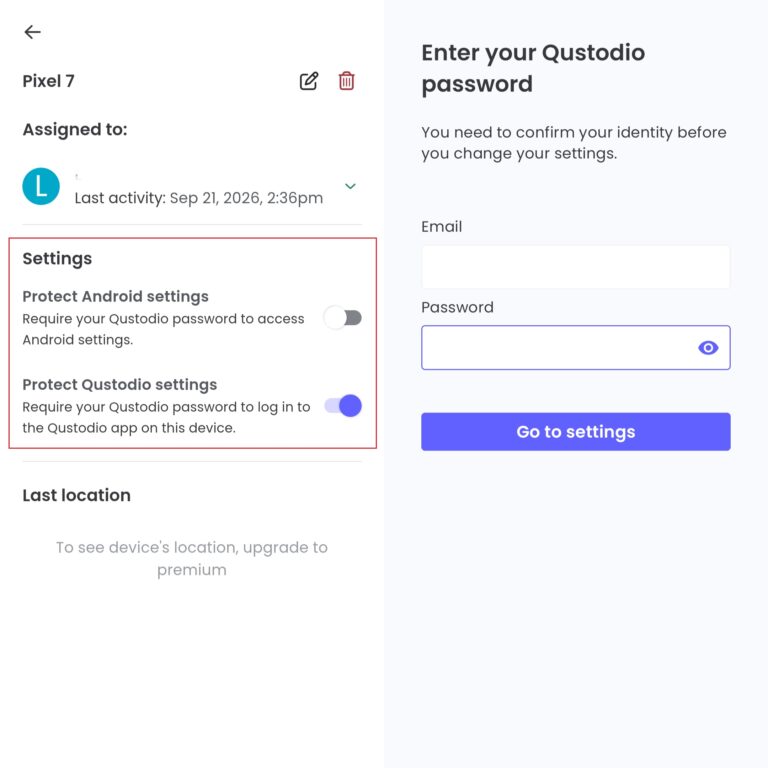
Bypass Resistance: Qustodio demonstrates strong Android uninstall prevention, but iOS has notable weaknesses—users report that children may bypass Qustodio Advance protection through specific operations without triggering an uninstall notification. For multi-user protection, Qustodio’s “Protect Android Settings” feature outperforms its peers, making it the strongest multi-user bypass resistance among the paid products we tested.
Verdict: If you need a parental control app with a unique iOS anti-tampering solution and the strongest multi-user bypass resistance among paid products, Qustodio is the top pick.
3Bark: Best for Content and Social Risk Alerts
Anti-Uninstall Mechanism: On Android, Bark uses a device code for uninstall protection. The device code rotates every 5 minutes and is only visible in the parent’s Bark dashboard. On iOS, Bark relies on Apple’s Screen Time controls for uninstall prevention.
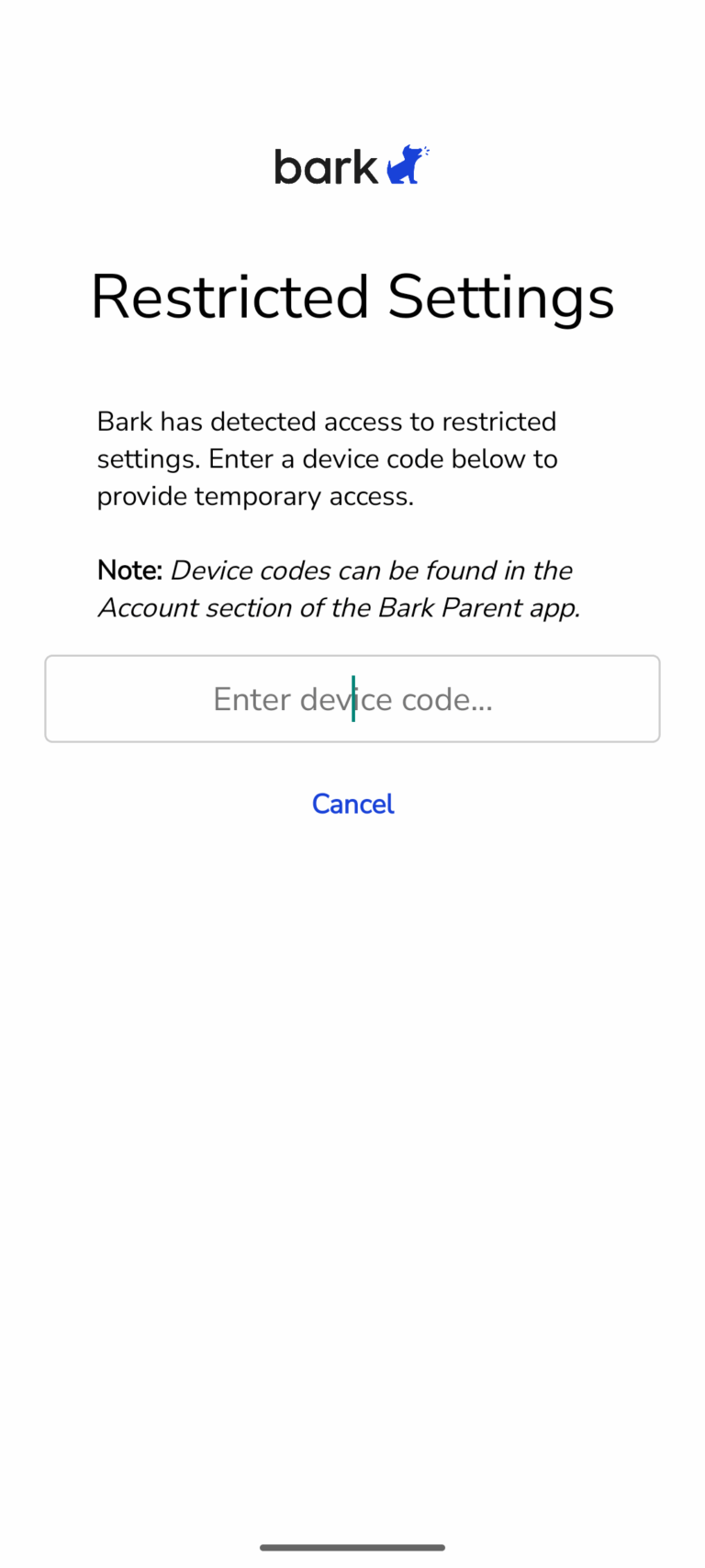
Multi-User Test: Bark offers no dedicated multi-user protection on Android. In our test, we successfully created a second user account—the Bark Kids app was completely invisible in the new user environment, controls did not apply, and the child could freely use the device. Bark also provides no notification or alert in the parent dashboard regarding multi-user creation.
Bypass Resistance: Rotating device codes on Android increase bypass difficulty, but if a child guesses the code, deletion is possible. Multi-user scenarios represent a clear weakness for Bark on Android. iOS has no native uninstall protection; children can use Airplane Mode to delete Bark and avoid notification.
Verdict: If your child is a teenager, primarily needs social media monitoring, Bark is a top priority.
4Norton Family: Best for Families Already Using Norton
Anti-Uninstall Mechanism: On Android, Norton Family uses Device Administrator privileges and prompts “prevent your child from uninstalling the app” upon activation. On Windows, password-gating requires the parent’s email and password to uninstall. On iOS, Screen Time restrictions prevent deletion, requiring restrictions to be enabled in device settings.
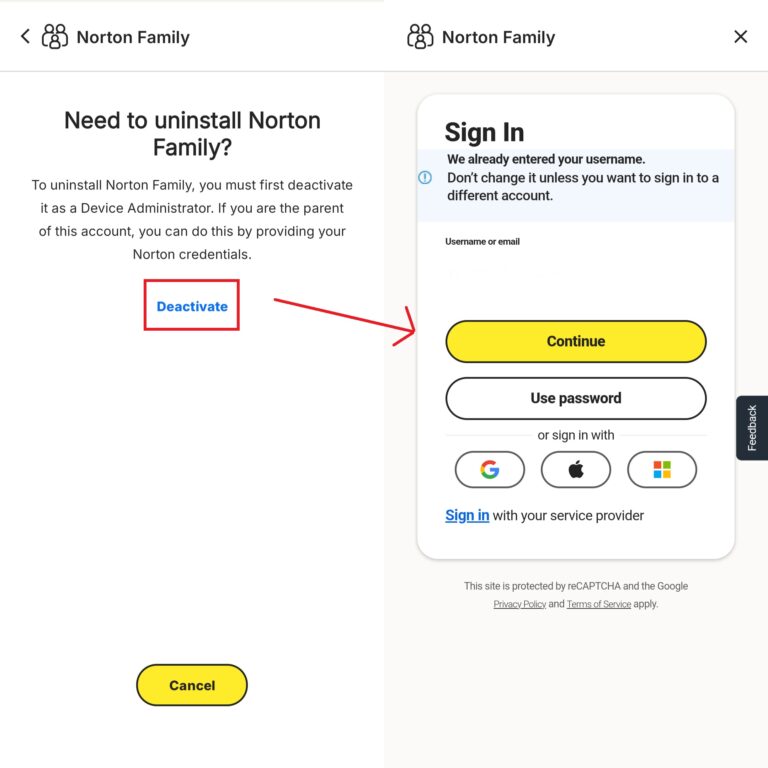
Multi-User Test: Norton’s official system requirements page explicitly states that Android multi-user mode is not supported. This means Norton Family may fail to monitor or enforce controls properly on multi-user devices—a known product limitation rather than a configurable protection feature. On Windows, Norton Family supports creating separate user accounts for each child for individual monitoring. However, on Android, if a child successfully creates a second user account, Norton Family will not function in the second user.
Bypass Resistance: Windows protection is solid, with reliable password-gating. Android Device Admin protection is effective, but the lack of multi-user mode support is a clear weakness. On Windows, children with Administrator account privileges may bypass monitoring by creating new user accounts. iOS protection is relatively basic.
Verdict: If your child uses both a Windows PC and an Android phone without multi-user scenarios, Norton Family offers the most cost-effective cross-platform anti-uninstall solution.
5Google Family Link: Best Free Option for Android
Anti-Uninstall Mechanism: Family Link runs as a device-owner service at the Android system level, making it impossible for children to uninstall it themselves on supervised devices. App deletion is blocked by the system and can only proceed after the parent removes the child’s Google account or stops supervision from the parent’s Family Link app.
Multi-User Test: Family Link is the only free solution in our testing with multi-user management capabilities. Parents can manage multi-user settings on their child’s device through the “Screen Time → Device → Users” path in the Family Link app. Specifically, parents can prevent children from adding new users or switching to guest mode, effectively blocking multi-user bypass attempts. After enabling “Add/remove user,” the child’s access to multiple user feature in system settings is locked. Note, however, that Family Link’s multi-user management support varies across device brands. Samsung devices have disabled multi-user functionality in favor of Secure Folder, and some brands may require Device Owner mode to fully lock multi-user access.
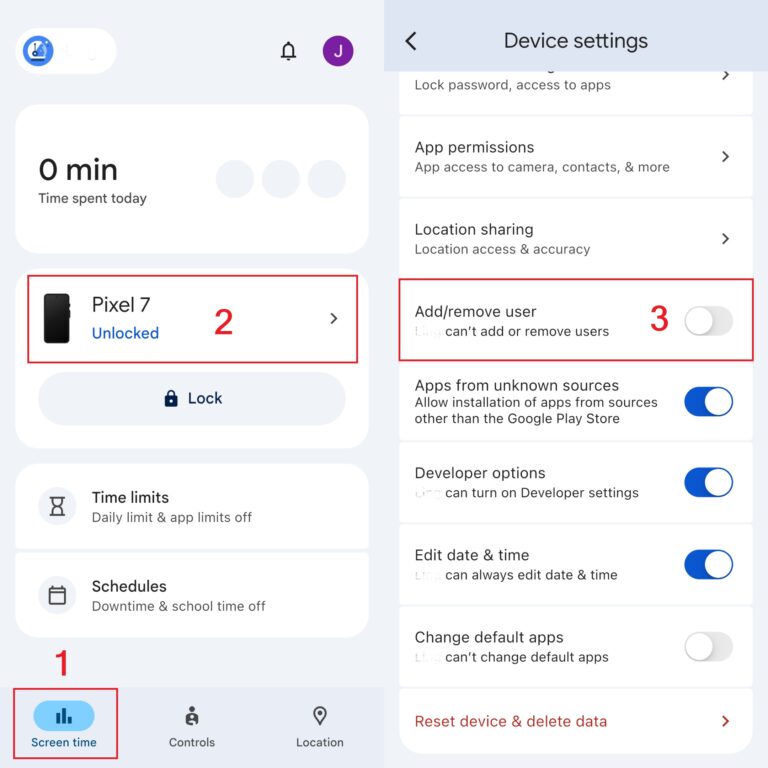
Bypass Resistance: Family Link offers the strongest uninstall protection among free options because it is baked into the OS and cannot be removed through conventional means. For multi-user bypass resistance, Family Link provides the most comprehensive management options among free products. Additionally, children aged 13+ can request to stop supervision.
Verdict: If you only need basic supervision on Android devices with multi-user protection and have zero budget, Family Link is the undisputed choice.
6Apple Screen Time: Best Built-In Protection for iPhone
Anti-Uninstall Mechanism: Apple Screen Time prevents app deletion through “Content & Privacy Restrictions”: parents enable Screen Time on the child’s device with a separate passcode, then navigate to Content & Privacy Restrictions → iTunes & App Store Purchases → Deleting Apps → Don’t Allow. Additionally, through the FamilyControls framework, developers can mark apps as non-deletable.
Multi-User Test: iOS itself does not offer Android-style multi-user functionality, so there is no scenario where a child creates a new user to bypass Screen Time. Apple’s Family Sharing mechanism allows multiple family members to share a device, but each member logs in with their own Apple ID. Screen Time settings are bound to each child’s Apple ID through Family Sharing, and controls automatically switch with the account. On iPad, if Family Sharing is enabled, parents can set independent Screen Time rules for each child. On Mac, standard user accounts can be created with Screen Time configured per user. Therefore, in the Apple ecosystem, control persistence across multi-user scenarios depends on proper Family Sharing configuration.
Bypass Resistance: Screen Time’s passcode protection is effective for uninstall prevention, but known bypass vulnerabilities exist—users report children bypassing “Don’t Allow” restrictions by deleting and re-downloading certain apps. In the Apple ecosystem, because multi-user functionality is tied to Apple ID, Screen Time generally persists across account switching as long as Family Sharing is properly configured.
Verdict: If your household is all-Apple and you only need free screen time and content controls, Apple Screen Time is the simplest choice.
Which App Is Hardest to Delete on Android?
For Android, we would choose AirDroid Parental Control. It uses several layers rather than relying on a single uninstall block. Parents can hide the AirDroid Kids icon to reduce casual discovery, while a separate Admin Code protects removal and other sensitive actions. This combination makes it less likely that a child will find the app, open it, and remove or change its protection during ordinary phone use.
Which App Is Hardest to Delete on iPhone?
There are three good approaches, depending on how much setup you will accept.
- For the simplest built-in option, choose Apple Screen Time and set app deletion to Don’t Allow.
- For a more complete third-party parental control system, choose AirDroid Parental Control with Supervision Mode.
- Qustodio Advance is another strong option, particularly if you already use Qustodio and have a computer available for the one-time setup.
The important distinction is whether you installed only the basic App Store version or completed the product’s advanced supervision process. On iPhone, that difference can determine whether the child app behaves like an ordinary removable app or a managed component of the device.
How to Make a Parental Control App Harder to Delete
On Android
- Use a child or supervised Google Account where possible.
- Give the parental control all required permissions.
- Use a parent password or Admin Code the child does not know.
- Do not reuse the phone’s screen-lock PIN.
- Restart the phone and test the uninstall process yourself.
- Check the parent dashboard after turning off one permission.
- Retest protection after major Android updates.
- Use Google Family Link to turn off Add/remove user, then remove or password-protect any secondary and guest profiles already on the phone.
On iPhone
- Add the child’s Apple Account to Family Sharing.
- Set a separate Screen Time passcode.
- Do not use the child’s device passcode as the Screen Time passcode.
- Turn on Content & Privacy Restrictions.
- Set Deleting Apps to Don’t Allow.
- Restrict account changes where appropriate.
- Restart the iPhone and verify that restrictions still work.
What If Your Child Keeps Bypassing Parental Controls?
More restrictions are not always the complete answer. If a child repeatedly tries to disable supervision, first determine what they are attempting to access and why.
Use the technology to support a clear family agreement:
- Explain what you monitor and what you do not
- Tell your child which behaviors trigger alerts
- Set rules that match the child’s age
- Review restrictions as the child becomes more responsible
- Give older children a reasonable degree of privacy
- Create a process for requesting additional time or app access
- Discuss the consequences of disabling protection in advance
Parental controls work best when a child understands the boundaries. No anti-uninstall feature can replace communication, consistency, and age-appropriate trust.
Final Verdict
The best parental control app that cannot be easily deleted depends first on the child’s phone.
For Android, AirDroid Parental Control offers the best combination of password-protected removal, device supervision, and parent-side visibility. Google Family Link is the best free alternative, especially for younger children with properly supervised Google Accounts.
For iPhone, Apple Screen Time is the simplest built-in way to prevent app deletion. Parents who need more complete monitoring and stronger third-party controls should consider AirDroid Parental Control with Supervision Mode or Qustodio Advance.
Frequently Asked Questions










Leave a Reply.