Salfeld Child Control Review 2026: Powerful Screen-Time Controls, but Not the Easiest to Learn
Salfeld Child Control is one of the most configurable parental control tools I have tested for managing screen time. It can limit an entire device, individual apps, groups of games and even specific websites—all under different daily, weekly or scheduled rules.
Its most distinctive advantage appears in families that share devices. On a Windows PC, Salfeld recognizes existing Windows accounts and lets parents apply different restrictions to each user. On Android devices that support multiple users, separate user spaces can also be managed, although each one requires its own app setup.
That flexibility comes at a cost. Salfeld has more settings to learn than a basic parental control app, and its web portal is noticeably easier to configure with a mouse than from a phone.
After using Salfeld on both Windows and Android for 3 days (from September 15, 2026 to September 17, 2026), my overall conclusion is straightforward:
Salfeld is a strong choice for families that want precise control over screen time, apps and websites. It is less suitable for parents who want a minimal, mobile-first setup or need to supervise a child’s iPhone.
Salfeld Child Control at a Glance
| Category | Our finding |
|---|---|
| Best for | Detailed screen-time management and families sharing Windows or Android devices |
| Child devices | Windows 10/11 and Android 7–16 officially; Android 17 also worked on our test device |
| Parent access | Web browser, Android parent app or iPhone/iPad web app |
| Standout feature | Per-user rules on a shared device |
| Main strengths | Granular time limits, app groups, web filtering and cross-device limits |
| Main weakness | Learning curve and desktop-oriented portal design |
| Test devices | Lenovo running Windows 11 and Pixel 7 running Android 17 |
| Test duration | 3 days |
| Overall rating | 3.5/5 |
What I liked
- Separate rules for different users sharing one device
- Daily, weekly and monthly limits can be combined
- Different schedules can be created for each day
- Individual apps, programs and websites can have their own limits
- Multiple games or apps can share one group allowance
- Essential apps can remain available after screen time expires
- Blacklist, whitelist, category, age and keyword web filters
- Rules continue working when the child device goes offline
- Cross-device time counting
- Useful extension requests and Bonus Time Codes
- Fixed-term licenses do not renew automatically
What could be better
- Initial setup and configuration take time
- Overlapping limits are not immediately easy to understand
- Detailed schedule editing is cumbersome on a phone
- Mobile help icons do not always provide usable explanations
- Android setup requires several sensitive permissions
- Web-filter performance depends partly on the platform and browser
- No child app for iPhone or iPad
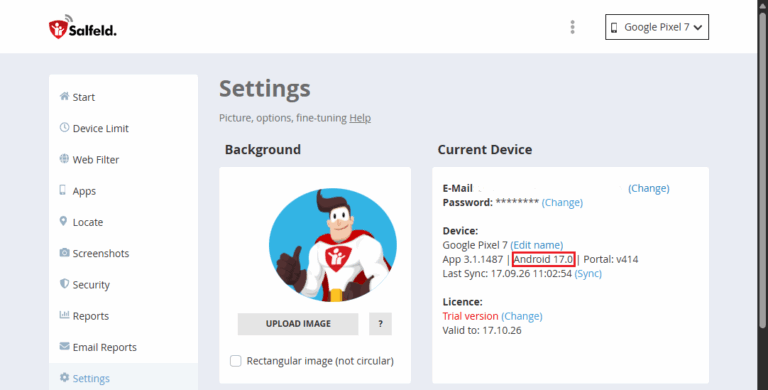
I installed Salfeld on a Lenovo PC running Windows 11 and a Pixel 7 running Android 17. Although Salfeld’s official download page currently lists support for Android 7 through Android 16, the app installed and operated on our Android 17 test device. I managed both devices through the same Salfeld account using Chrome on Desktop and Chrome & Safari on iPhone 17 (see how we test).
During 3 days of testing on Android 17, the core functions we tested—including Device Limit, Web Filter, App Limits, Locate, Screenshots, Reports, Roaming, and other verified functions — worked as expected. However, Android 17 remains outside Salfeld’s officially stated compatibility range, so this result should be treated as evidence from our specific device rather than a guarantee for every Android 17 model.
My tests covered:
- Multiple users sharing one device
- Daily and weekly screen-time limits
- Bedtime and homework schedules
- Individual app and program restrictions
- Shared limits for groups of games
- Always-available educational and communication apps
- Blacklist and whitelist web filtering
- Category, age and keyword filters
- Rule synchronization between the portal and child devices
- Offline enforcement
- Extension and unblock requests
- Location requests on Android
- Common attempts to disable or bypass the controls
What Makes Salfeld Different?
Most parental control apps are designed around one child using one personal phone. Salfeld also supports that arrangement, but it handles shared family computers particularly well.
During Windows installation, Salfeld detected the user accounts that already existed on the computer. I could select which accounts should be monitored, leave the password-protected parent account unrestricted and create different policies for each child.
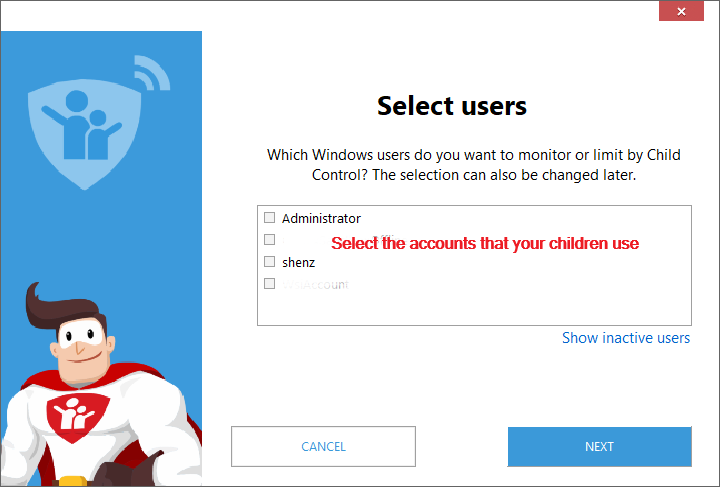
This is cleaner than treating the entire computer as if it belonged to one child. Salfeld’s Windows installation guide confirms that time limits, program rules and web filters can be applied separately to each Windows account.
In my test with 3 Android users, individual limits for each user can be implemented. Salfeld states that only one license is required for the physical device, even when several user spaces are configured.
Parents should protect all unrestricted accounts with strong passwords. Children should also use standard rather than administrator accounts on Windows; otherwise, operating-system access can weaken the restrictions.
Salfeld Child Control Hands-on Test Results
1Setup Experience
Installing Salfeld on Windows was relatively direct. The program connected to the existing user accounts, asked which users should be supervised and then moved most ongoing administration into the web portal.
Android required more work. To monitor apps, enforce blocks and resist removal, Salfeld guided me through permissions such as:
- Device Administrator access
- Accessibility Service access
- Usage monitoring
- Optional location access
The Android setup took approximately 13 minutes on my Pixel 7. The most confusing step was granting location permission. After completing the authorization, the app did not automatically return to Salfeld for the next configuration step, so I had to manually switch back. Additionally, if I did not select “Allow all the time” for location access, tapping “Next” on the configuration page redirected me to the location permission settings again.
These permissions are understandable for the functions Salfeld provides, but parents should know what they are granting. This is not an app that becomes fully operational after a single confirmation screen.
Once both devices appeared in the portal, changes took approximately 8 seconds to reach them. I could also trigger a manual synchronization when I wanted to test a rule immediately.
2Screen-Time Management
Screen-time control is Salfeld’s strongest area. For a device or user, I could configure:
- Daily limits
- Weekly limits
- Monthly limits
- Different allowances for each weekday
- Fixed blocked periods
- Break requirements
- Temporary locks and unlocks
These rules can be combined. For example, a child could receive seven hours for the week while still being limited to 90 minutes on a school day and blocked completely after 9 p.m.
The strictest active rule wins. A child may still have time left in the daily allowance, but the device will be restricted when a scheduled bedtime begins. Likewise, an app may have time remaining while the total device allowance has already expired.
That hierarchy is powerful, but it is also one of the first things a new user must learn.
2.1App, Program and Group Limits
Salfeld can allow, block or time-limit individual Windows programs and Android apps. It can also combine several entries into a group with one shared allowance.
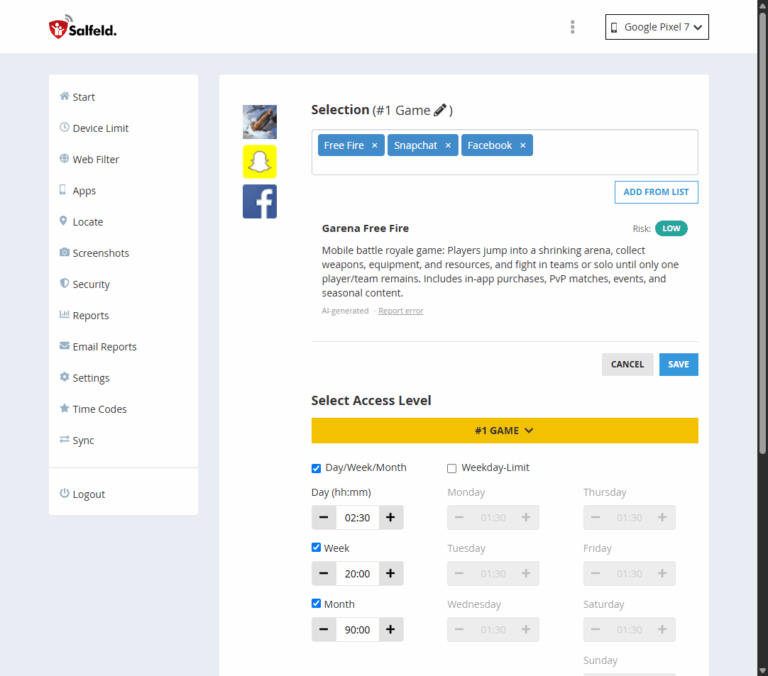
I used this to place 3 apps into a single Games group. Instead of assigning a separate limit to every title, I gave the entire group 2.5 hours per day.
This approach works well because children cannot extend their total gaming time simply by moving from one game to another.
2.2Keeping Essential Apps Available
Salfeld calls its exception setting “Allowed PLUS.” An app or website with this status can remain accessible after the main device allowance expires. This is useful for:
- School platforms
- E-book readers
- Family messaging
- Transport apps
- Accessibility tools
Some Allowed PLUS configurations can also stop the main counter or generate bonus time. This allows parents to distinguish between recreational and educational screen use instead of treating every minute as equal.
3Web Filtering
Salfeld provides three main filtering modes:
- No Filter: Browsing activity can still be recorded, but broad category, keyword and age restrictions are not applied.
- Blacklist: Most websites are allowed unless a rule blocks them.
- Whitelist: Only websites explicitly approved by the parent are accessible.
Parents can create rules based on:
- Website categories
- Age classifications
- Keywords
- Exact domains
- Custom allowed and blocked lists
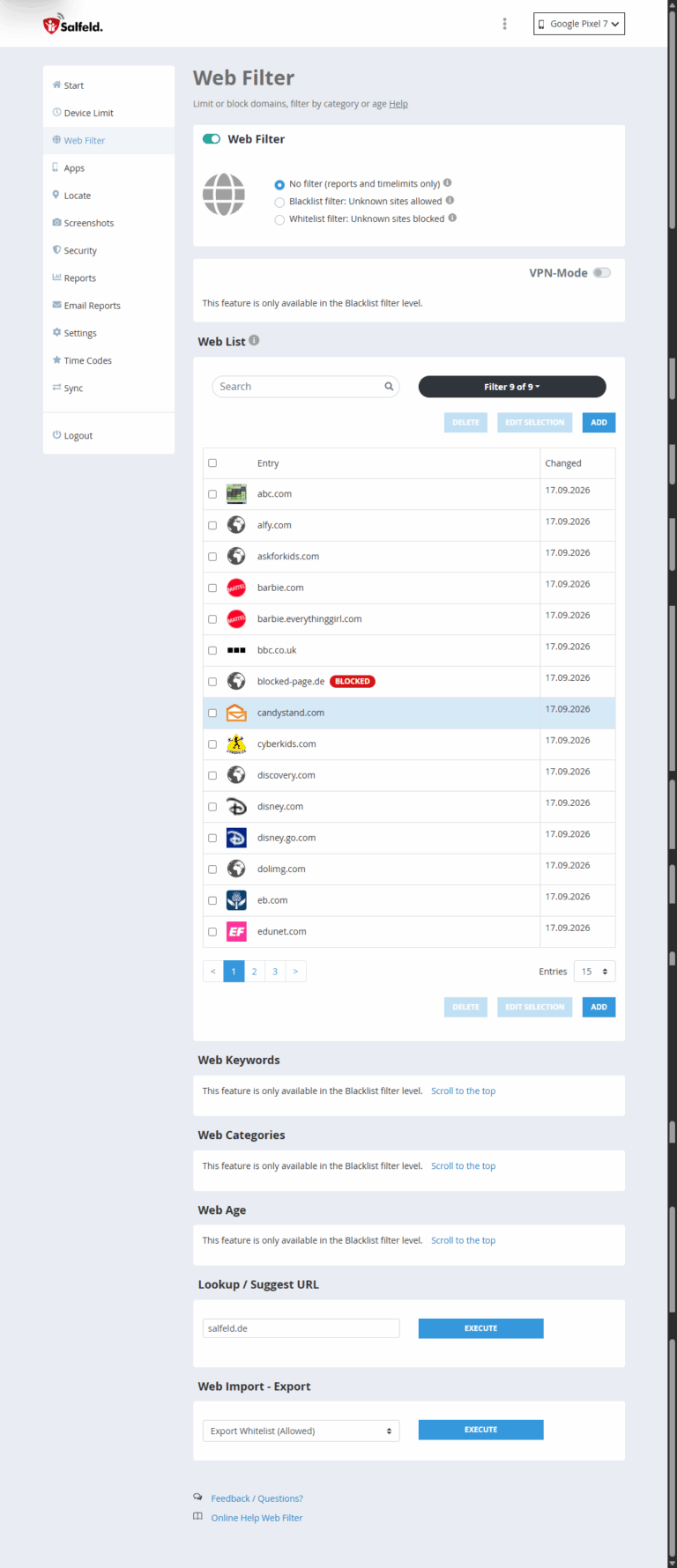
Individual websites can also receive time limits or join a shared group with other websites and apps.
I liked being able to begin with reporting, observe the sites actually used and then introduce more specific rules. This is less disruptive than enabling the strictest filter immediately and dealing with numerous legitimate pages being blocked.
Parents should understand that a website explicitly added to the allowed list can override broader keyword, category or age rules. This is useful for correcting a false positive, but allowed entries should be added carefully.
4The Portal Works Better on a Computer
Salfeld is managed mainly through its web portal, so the parent does not need to take the child’s device every time a rule changes.
For quick actions, the mobile experience was adequate. I could check the day’s usage, grant more time and temporarily lock or unlock a device without returning to a computer.
Detailed configuration was a different story.
The blocked-time schedule illustrates the difference clearly. On desktop, I could hold the mouse button and sweep across multiple cells to select a large period. Creating a recurring bedtime schedule felt fast and precise.
On a phone, I could not paint across the timetable in the same way. I had to select cells individually, with a long press required for certain adjustments. Editing a full seven-day schedule took considerably longer.
I noticed a similar inconsistency with the interface’s exclamation-mark help icons. On desktop, moving the pointer over an icon displayed an explanation. On mobile, the same icon appeared, but I could not consistently access that explanation and received no guidance about whether to tap or hold it.
The portal is usable from a phone, but initial configuration is far more comfortable on a computer. The design feels desktop-first—perhaps unsurprising for a company that says it has worked on child-protection software since the late 1990s.
5Reports, Requests and Extra Time
Salfeld’s activity reports show how long a device, app, program or supported website was used. Parents can also receive daily or weekly summaries by email.
The reports gave me enough information to answer practical questions such as:
- Has the daily allowance already been used?
- Which game consumed most of it?
- Was a blocked website requested repeatedly?
- Did the child device synchronize recently?
Website usage data depends on the web filter being active and on a supported browser.
When a restriction is inconvenient rather than inappropriate, a child can request an extension or ask for a site to be unblocked. Parents can respond through the web portal or parent app.
Salfeld also offers six-digit Time Codes. A parent can provide one verbally or by message, allowing the child to redeem predefined extra time without learning the parent password.
These exception tools matter. A parental control product that cannot handle an unexpected homework deadline or family schedule change quickly becomes a source of arguments.
6Cross-Device Time Limits
Salfeld calls its cross-device system “Roaming.”
I assigned Lenovo Desktop and Pixel 7 to the same roaming profile. Their usage was then counted toward one shared allowance, preventing the child from simply moving to another device after reaching a limit.
Roaming needs an internet connection to keep usage synchronized. This differs from Salfeld’s ordinary local enforcement: existing limits continue working when a device goes offline, but the portal may not show the latest activity until the connection returns.
7Location and Screenshots
Salfeld can request the location of an Android child device. This is useful for an occasional device check, but Salfeld’s core strength is not location tracking. Parents who prioritize continuous location history, geofencing or place alerts should confirm that the available location features meet their needs.
Screenshot tools are also available, with platform-related limitations. Protected apps may prevent Android screenshots, and the Android user must grant screen-sharing consent. Each time a screenshot is taken, a supervised Android device will also display a pop-up notification. On a shared Windows computer, screenshots may not always be attributed automatically to a specific user; the activity log may be needed to determine who was signed in.
I would use screenshots sparingly and discuss their use with the child. Detailed control does not need to become invisible surveillance.
8Pricing
At the time of review, Salfeld’s published pricing for a 24-month license was: $29.95/1 device, $49.95/3 devices, and $59.95/5 devices. It also published pricing for a 12-month license was: $19.95/1 device, $29.95/3 devices, and $39.95/5 devices.
One license is required per physical child device. Parent access through the portal or parent app does not require an additional license.
Salfeld describes this as “no subscription.” That does not mean the license lasts forever. It means the selected term is paid upfront and does not renew automatically. The license expires at the end of the purchased period.
The product also offers a 30-day trial without a credit card and a 30-day money-back guarantee. Prices may differ by currency and license term, so check the current Salfeld pricing page before purchasing.
9Privacy Considerations
Salfeld is operated by Salfeld Computer GmbH in Germany and publishes GDPR-related privacy information and a process for deleting devices, associated data and parent accounts.
According to its Google Play listing, the Android app may collect personal information, app activity and other data categories. The developer states that data is encrypted in transit, can be deleted on request and is not shared with third parties.
These are developer-provided disclosures rather than an independent security audit.
Because parental control data can reveal sensitive information about a child’s habits, parents should:
- Use a unique account password
- Protect unrestricted device accounts
- Review what appears in email reports
- Collect only the information they need
- Delete devices and logs that are no longer required
- Explain the monitoring arrangement to the child
Who Should Choose Salfeld?
Salfeld is a good fit if:
- Several people share a Windows computer or Android tablet.
- Different users need different rules.
- A single daily limit is not flexible enough.
- You want separate allowances for games, websites and educational tools.
- You need daily and weekly limits at the same time.
- You want one allowance shared across Windows and Android devices.
- You are willing to spend time configuring detailed rules.
- You prefer a fixed-term payment that does not renew automatically.
Who Should Look Elsewhere?
Consider another option if:
- The child primarily uses an iPhone or iPad.
- You want an almost configuration-free setup.
- You mainly need social-message or conversation-risk monitoring.
- Continuous location tracking is your highest priority.
- You expect detailed schedule editing to be effortless on a phone.
- You need only a simple daily screen-time limit.
Salfeld Child Control Alternative: When AirDroid Parental Control Is a Better Fit
Salfeld is particularly strong at enforcing detailed time rules on Windows and Android. However, its narrower platform coverage and screen-time-focused design leave several needs unanswered.
It cannot supervise a child’s iPhone or iPad, its location feature is designed mainly for occasional checks, and it does not center its experience on social-content risks, notification insights or real-time remote monitoring.
If those capabilities matter more to your family than highly granular Windows controls, AirDroid Parental Control is a more suitable alternative.
| Family need | Better fit | Why |
|---|---|---|
| Different children share one Windows PC | Salfeld | Applies separate rules to existing Windows user accounts |
| Highly detailed daily, weekly and monthly limits | Salfeld | Offers more combinations of device, app, website and group limits |
| Child uses an iPhone or iPad | AirDroid | Supports supervised iOS and iPadOS child devices |
| Android and iPhone children in one family | AirDroid | Manages both platforms from one parent account |
| Arrival and departure alerts | AirDroid | Supports geofences and entry/exit notifications |
| Social and notification risk awareness | AirDroid | Offers notification syncing and supported content-risk detection |
| Remote visual context on Android | AirDroid | Provides screen mirroring, remote camera and one-way audio |
| Fixed-term payment without automatic renewal | Salfeld | Its license expires instead of renewing automatically |


A better option for children using iPhones
Salfeld allows a parent to open its portal from an iPhone, but it cannot install a child component on an iPhone or iPad. That distinction is easy to miss: iOS works as a parent access point, not as a supervised child platform.
AirDroid Parental Control supports child devices running Android 8 or later and iPhones or iPads running iOS/iPadOS 15 or later. Parents can manage supported screen-time, app, website and location controls across both systems from one account. This makes it a more practical option for families in which one child uses Android while another uses an iPhone.
The iOS version is not identical to the Android version. Apple’s restrictions mean that remote camera access, one-way audio, notification syncing and live screen mirroring are limited to Android child devices. Enabling the fuller set of iOS controls also requires Supervision Mode, which involves connecting the child’s device to a computer or compatible Android device during setup.
Even with those limitations, AirDroid covers an important use case that Salfeld does not: directly supervising a child’s iPhone or iPad. AirDroid provides a detailed cross-platform feature comparison for checking which functions are available on each child platform.
Stronger location safety tools
Salfeld can request the current location of an Android device, but location is a secondary feature rather than the center of the product.
AirDroid goes further by combining:
- Live device location
- Up to 30 days of route history
- Custom geofences
- Entry and exit alerts
- Device-offline and low-battery alerts
A parent could create a geofence around school, for example, and receive a notification when the child enters or leaves that area. Route history can also show where the device has been instead of providing only its current position.
These functions make AirDroid more appropriate when the question is not just “How long has my child used the phone?” but also “Did they arrive at school?” or “Where was the device earlier today?”
More context around mobile risks
Salfeld’s reports are effective for understanding time spent in apps, programs and supported websites. They do not provide the same degree of context about what is arriving on a child’s phone.
On supported Android devices, AirDroid can add several layers of information:
- App-notification syncing
- Social-content risk detection
- Inappropriate-image detection
- Calls and SMS monitoring
- Screen mirroring
- Remote camera access
- One-way audio
These tools address a different parental concern. A time report may show that a child spent 40 minutes in a messaging app, but it cannot indicate whether a suspicious notification, harmful keyword or inappropriate image appeared during that period.
AirDroid’s content features are intended to surface selected warning signs so parents do not have to interpret screen time alone. Feature availability depends on the operating system, granted permissions and region; the more advanced remote-monitoring tools are available only for Android child devices.
Remote camera, screen and audio functions are also sensitive by nature. They should be used proportionately and with the child’s knowledge, not as a substitute for communication or as an expectation of constant surveillance.
AirDroid is not a direct upgrade in every respect
AirDroid should not be treated as a universally better version of Salfeld. The two products prioritize different family situations.
Salfeld remains the stronger option when the primary problem is a shared Windows computer or a need for unusually detailed combinations of daily, weekly, monthly, app, website and blocked-time rules. AirDroid Parental Control does not supervise Windows PCs as child devices.
For a family centered on Windows and precise time rules, Salfeld remains the better fit. For a mobile-first family that needs broader online and real-world safety coverage, AirDroid Parental Control addresses several of Salfeld’s most important gaps.
Final Verdict
Salfeld Child Control is not the simplest parental control product, but simplicity is not what makes it valuable.
Its strength is the ability to express complicated family rules accurately. Different users on the same computer can have different limits. Games can share one allowance. School apps can remain available after entertainment time expires. A weekly budget can coexist with a daily ceiling and a fixed bedtime.
The tradeoff is a steeper learning curve. Parents need to understand how device limits, app limits, schedules, groups and exceptions interact. Android also requires several permissions and some manufacturer-specific attention. The mobile portal is suitable for quick decisions, but a computer remains the better place to build detailed policies.
After testing Salfeld across Windows and Android for 3 days, I rate it 3.5 out of 5.
It is particularly easy to recommend for a Windows-focused household or a family sharing devices. Parents seeking detailed screen-time and web controls will find capabilities that simpler products often lack. Those wanting a polished, mobile-first experience may find the setup and interface more demanding than expected.
The 30-day trial is the best way to decide. Configure the rules your family genuinely needs, test them on every child account and check whether the additional precision justifies the time required to maintain it.
Frequently Asked Questions










Leave a Reply.