Safe Lagoon 2026 Review: What Works and What Doesn't
Safe Lagoon was strongest in our Android test at blocking apps, enforcing schedules, detecting selected risky language, and organizing supported activity reports. It was less convincing when location signals drifted indoors, and its call and SMS blacklist did not stop our test contact from reaching the child phone.
This Safe Lagoon review keeps those mixed results intact. We tested the controls on two Android phones, recorded what happened on both the parent and child sides, and checked the current official documentation where the product's present limits differ from what its interface may suggest.
Safe Lagoon Review: Quick Verdict
Quick answer: Safe Lagoon is worth considering for an Android family that wants firm app rules, schedules, geofences, selected online-risk alerts, and detailed supported activity records. In our test, app blocking and screen-time rules responded promptly, while AI Shield flagged the harmless risk scenario we created.
The weak point was call and SMS blocking. A blacklisted test contact still placed a call and delivered a text. Safe Lagoon's current help center now states that its Android module can show call and SMS activity but cannot reliably block incoming calls or texts. Families should therefore treat this as a product limitation, not rely on the blacklist as a safety-critical barrier.
| Area | Our Score | What We Found |
|---|---|---|
| Location and geofences | 4/5 | The mapped device position and history were useful, but indoor GPS drift produced false departure alerts. |
| App Control | 5/5 | Our Snapchat block took effect promptly and displayed an access-request option on the child phone. |
| AI Shield | 5/5 | The harmless WhatsApp threat scenario generated a categorized alert with limited visual context. |
| Screen Mirror and Gallery | 4/5 | Supported images and screen-session records were clear, but setup and plan requirements add friction. |
| Schedules and time limits | 5/5 | The study schedule and entertainment limit worked as configured in our test. |
| Supported chat-risk context | 4/5 | Our WhatsApp and Snapchat test activity appeared promptly, although current documentation separates AI alerts from Screen Mirror sessions rather than promising a complete chat archive. |
| Internet and app history | 5/5 | The dashboard recorded the supported searches, YouTube titles, apps, and usage times used in our scenario. |
| Call and SMS blocking | 1/5 | The blacklisted contact still called and texted the child phone; current official documentation says reliable incoming blocking is not supported. |
Test scope: These scores describe our two-phone Android setup, not every device, plan, operating-system build, or future app version.
What Is Safe Lagoon and How Much Does It Cost?
Safe Lagoon is an Android parental-control service built around a parent app, a child app, and a browser-based Web Center. Its current documentation covers app and website rules, screen-time schedules, last-known device location, geofences, supported activity records, and optional AI Shield and Screen Mirror features.
According to Safe Lagoon's current pricing guide, web filtering remains free. As checked on October 13, 2026, Premium costs $6.99 monthly or $5.83 per month when billed annually; Premium Screen Mirror costs $14.99 monthly or $12.50 per month billed annually; and Premium AI Shield costs $19.99 monthly or $16.58 per month billed annually. Each current paid plan includes five child profiles. Prices, taxes, trials, and included features can change, so confirm the live checkout before subscribing.
Platform note: Safe Lagoon's current help center describes its active child-device setup as Android. The feature findings in this review should not be presented as iPhone test results.
How We Tested Safe Lagoon
We evaluated Safe Lagoon using two Google Pixel Android phones, with one configured as the parent device and the other as the child device. We verified each workflow on both devices rather than relying solely on the parent dashboard: rules had to take effect on the child phone, alerts had to correspond to the harmless test events, and any reported failure had to occur more than once before we recorded it.
The supplied screenshots include activity dated October 7 and October 9, 2026. Learn more about how we test parental control apps.
For location, we compared the child device's known position with the parent map, reviewed the timeline, created a home geofence, and watched for entry and departure alerts while the phone remained indoors and while it changed location.
For App Control, we set Snapchat to Always Blocked and then tried to open it from the child phone. We also checked whether the blocked screen explained the restriction and allowed the child to request access.
For screen time, we created a one-minute study schedule from 05:07 to 05:08, applied a 15-minute entertainment limit, and attempted to open WhatsApp during the scheduled block.
For AI Shield and supported chat-risk context, we sent harmless sample messages containing violent or threatening language through controlled WhatsApp and Snapchat scenarios. We then compared the event time, category, text, and available screenshot context shown to the parent.
For reports, we checked whether the dashboard recorded the test Google searches, YouTube titles, app names, and usage durations visible in our screenshots.
For call and SMS controls, we placed a test contact on the blacklist, called the child phone, and sent a harmless text from that same contact. Both reached the phone in our setup.
Our results remain specific to the tested Android environment. Network conditions, background battery rules, Accessibility access, operating-system restrictions, plan level, sideloaded modules, and product updates can change performance. Safety alerts are signals for a calm family check-in, not proof that a child did something wrong.
Safe Lagoon Hands-On Test Results
1Location and Geofences
Safe Lagoon's location tools made a strong first impression in our test. The parent dashboard displayed the child device on a digital map, allowed us to create a home safe zone, and paired the reported position with a clear date and time stamp.
During our controlled checks, the mapped position matched the phone's known location closely and placed it correctly inside the designated boundary. This made the main map useful for confirming whether the device was where we expected it to be.
The history view added more detail. It recorded the device entering and leaving the home boundary between 03:23 and 03:25, so we could review the order and timing of the location events instead of relying only on the current map position.
We did, however, see occasional false departure alerts while the phone was still inside the home. This is consistent with the GPS drift that can occur when a device is indoors or has a weaker satellite signal. The incorrect alerts were noticeable, but they did not erase the otherwise accurate map and useful location history we observed.
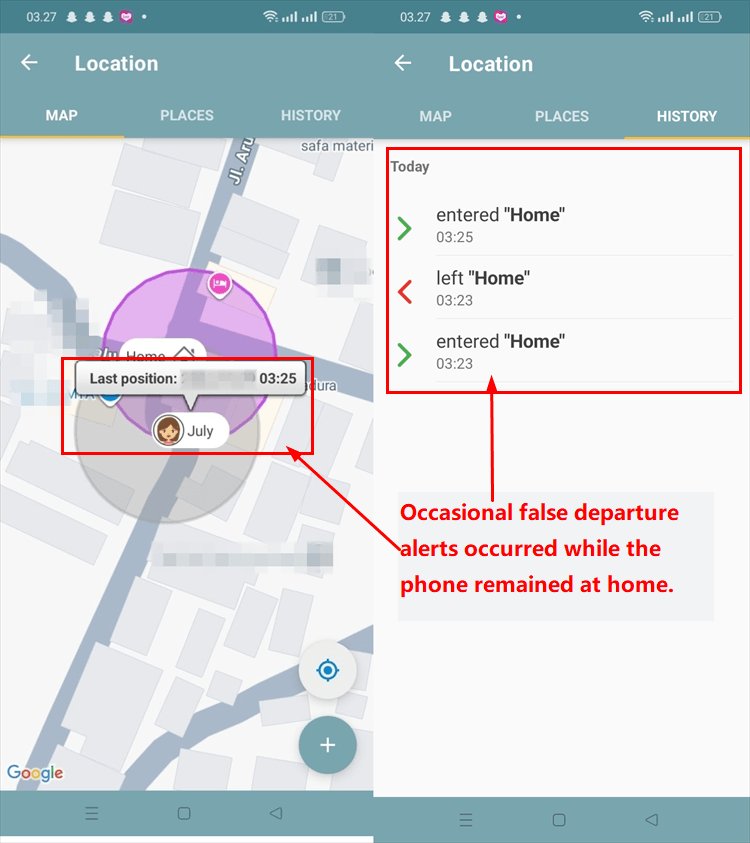
Our result: Safe Lagoon's location feature was dependable overall in our test, especially for viewing the device's current position, creating safe zones, and checking recorded boundary events. Indoor alerts should still be confirmed before a parent assumes the child has left an agreed place.
Safe Lagoon's current help documentation describes last-known location and geofences as current capabilities, while noting that historical routes are not available in the current Parent app Timeline. The history available to a family may therefore depend on its account, app version, and current product setup.
2App Control
App Control was one of Safe Lagoon's strongest features in our hands-on test. The parent dashboard listed the installed apps and let us assign each one to a schedule, set it to Always Blocked, or leave it Always Allowed. This made it easy to apply a different rule to Snapchat without also restricting useful apps such as Chrome or WhatsApp.
We tested the control by setting Snapchat to Always Blocked. The dashboard immediately displayed a red blocked label, and the child phone could no longer open Snapchat through its normal launch path.
When we attempted to launch the app, Safe Lagoon replaced it with a clear restriction screen. The screen also included an option for the child to request access, which is more practical than a silent block because it gives the family a way to discuss an exception.
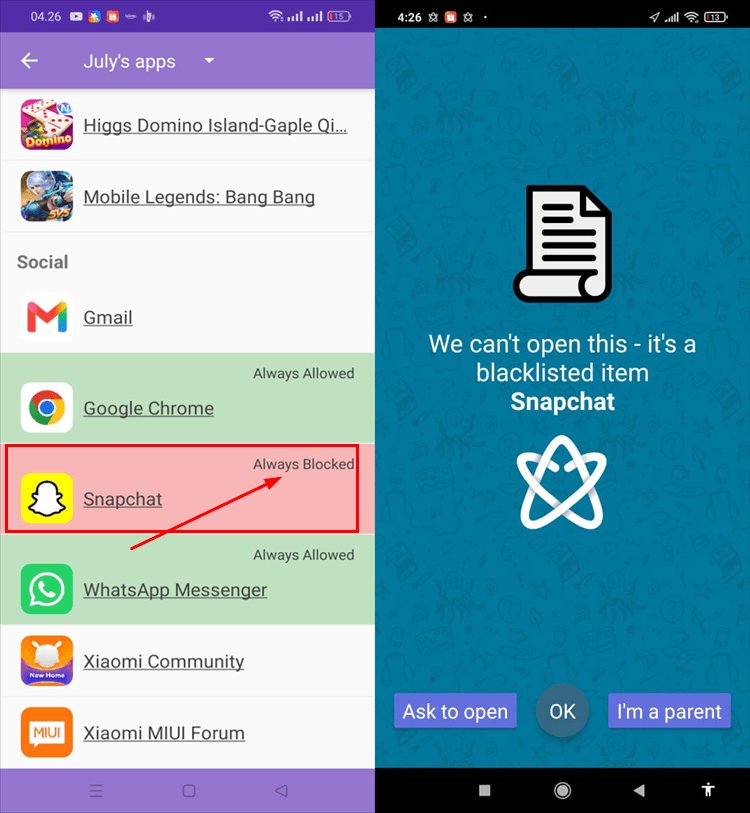
Our result: The Snapchat rule responded promptly and remained active throughout this test. We did not find an ordinary in-app workaround in our setup. However, no app block should be described as impossible to bypass across every Android phone because Safe Mode, removed permissions, battery controls, Device Owner status, and future system updates can change enforcement.
3AI Shield
AI Shield is designed to surface supported on-screen language that may indicate bullying, violence, threats, or another online-safety concern. Once the required setup and permissions were active, we did not need to enter a custom keyword for the scenario used in our test.
We sent a harmless WhatsApp sample containing violent and threatening wording. Safe Lagoon detected the event at 03:47 and marked it with the red violence-and-threats category. The parent-side alert included the detected text and a blurred screenshot that supplied limited context around the event.
The alert also asked whether the detection was helpful. That feedback option is useful because automated classification can misunderstand jokes, quoted language, fictional content, or a conversation in which the child is seeking help rather than causing harm.
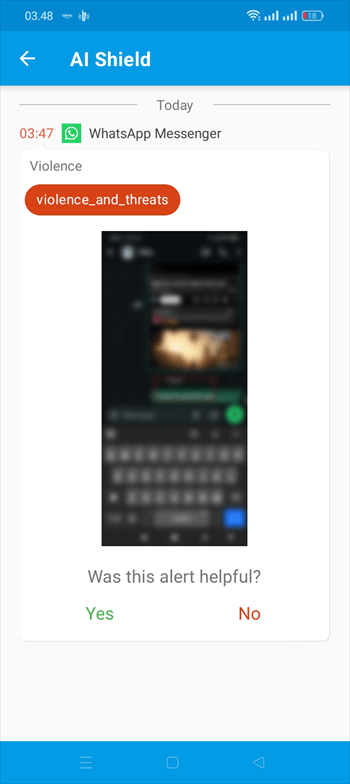
Our result: AI Shield responded promptly and categorized our controlled WhatsApp scenario correctly. It provided an early safety signal without requiring the parent to search through the dashboard manually.
The current AI Shield guide says the feature shows alerts for suspicious events rather than a complete chat history. Parents should treat an alert as a reason for a calm check-in, not as proof of a child's intent or behavior.
4Screen Mirror and Gallery
The visual records were clear once the Gallery features were active.
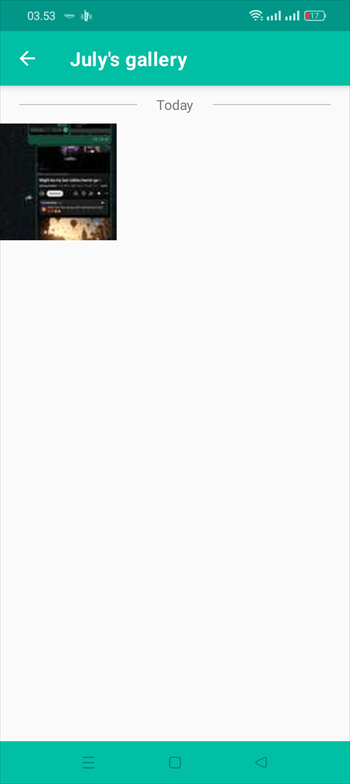
In our test, Safe Lagoon saved sequential screenshots from an entertainment app while a video was playing. The images made it possible to understand what was displayed during the recorded session rather than seeing only an app name or usage total.
The daily timeline added useful context by showing when supported apps were opened and how long they remained active. Our screenshots recorded 24 seconds of Chrome use at 03:25 and 29 seconds of App Vault use at 03:24.
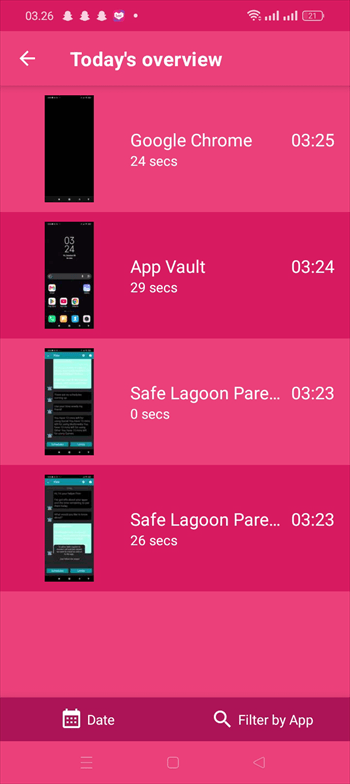
The main drawback was setup. In our test environment, enabling the broader set of visual and communication records involved downloading and installing an additional file manually. The instructions were manageable, but the extra step made onboarding less straightforward than the core app-blocking setup.
Screen Mirror requires an eligible higher-tier plan, while the separately installed Device Monitor module is currently documented for calls, SMS, and Gallery.
Our result: The captured images and timeline were detailed and easy to review, but the plan differences and additional setup need clearer explanation. Because screen images may contain sensitive context, families should use this feature transparently and only when a defined safety concern makes it proportionate.
5Schedules and Screen-Time Limits
Safe Lagoon lets parents combine clock-based schedules with daily time limits. This is useful when a family wants one rule for when an app may be used and another rule for how long a category of apps may be used during the day.
We created a short Study Time schedule running from 05:07 to 05:08 and separately assigned a 15-minute daily limit to entertainment apps. Both rules appeared correctly in the parent dashboard.
We then attempted to open WhatsApp while the study schedule was active. The child phone immediately displayed an hourglass and explained that the app was unavailable because of the current schedule. It also provided an option to request access.
Our result: The schedule and daily allowance worked consistently in this scenario. Used with rules the child understands, these controls can support homework, bedtime, and family-time routines without requiring every app to be blocked all day.
6Supported Chat-Risk Context
We tested Safe Lagoon's supported message context with harmless samples in WhatsApp and Snapchat. The parent dashboard organized the available records by app and contact, making the two test conversations easy to distinguish.
The WhatsApp sample arrived at 03:47, and the Snapchat sample appeared at 03:50. In both cases, the dashboard displayed the threatening wording used in our controlled scenario promptly enough for the parent to understand why the activity had been flagged.
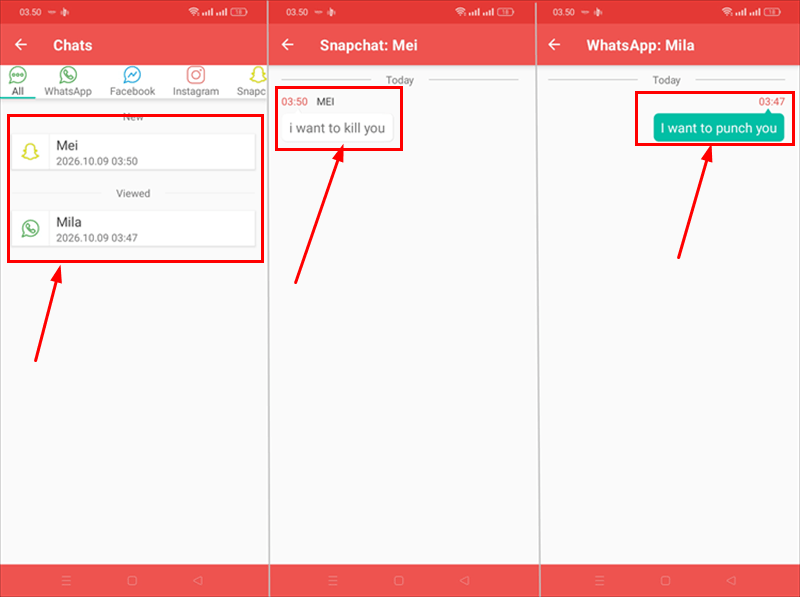
This was a useful result because the parent did not have to predict the exact time at which the test message would appear. The available context also helped distinguish the triggering wording from an unexplained alert.
Our result: The WhatsApp and Snapchat samples used in our test appeared promptly and were easy to review. We would still not call this a complete chat archive. Safe Lagoon's current documentation separates selected AI Shield alerts from Screen Mirror session screenshots, and coverage may change when an app, permission, Android background rule, or product version changes.
7Internet and App History
Safe Lagoon's Internet and App History reports were among the most detailed parts of our test. The dashboard separated web activity from app usage, so we could review both the content recorded during a session and the amount of time assigned to supported apps.
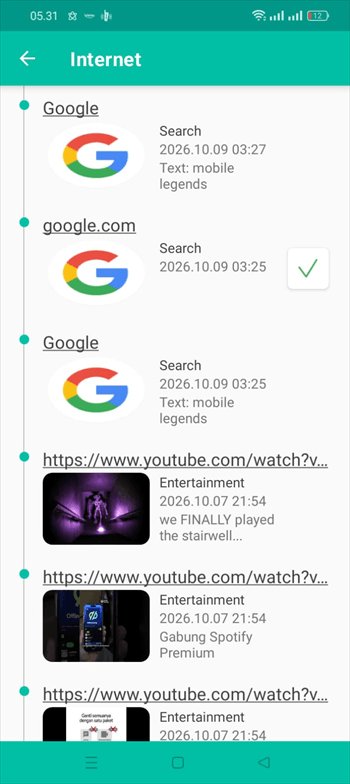
In the Internet report, Safe Lagoon captured the Google search term "mobile legends" at 03:25 and again at 03:27. It also displayed the titles of two YouTube videos in the activity dated October 7, 2026.
The Apps Used view listed individual applications with their recorded duration. In our screenshots, Chrome appeared with two seconds of use, while App Vault showed one minute and five seconds at 03:25.
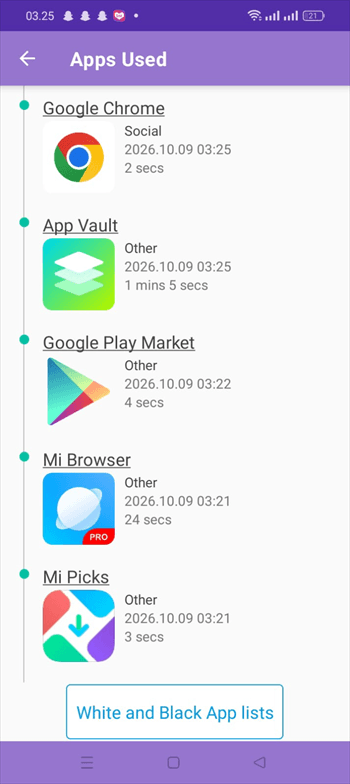
Our result: The reports gave us a clear, practical account of the supported browsing and app activity used in the test. They should not be described as a guaranteed record of everything a child searches, watches, or does because browser choice, linked accounts, private modes, permissions, connectivity, and app updates can affect collection.
8Call and SMS Controls
The Calls and SMS area provides a blacklist and whitelist interface, so we tested whether adding a number to the blacklist would stop that contact from reaching the child phone.
We added a test contact named "Weirdo" to the restricted list and confirmed that the number appeared in the rule. We then placed a call from that contact at 05:42. The child phone rang normally instead of rejecting the call.
We repeated the check with SMS. A harmless message saying "hi" from the same blacklisted contact was still delivered to the child phone. Because the screenshots show both the configured rule and the received communications, the outcome was not caused by forgetting to add the number.
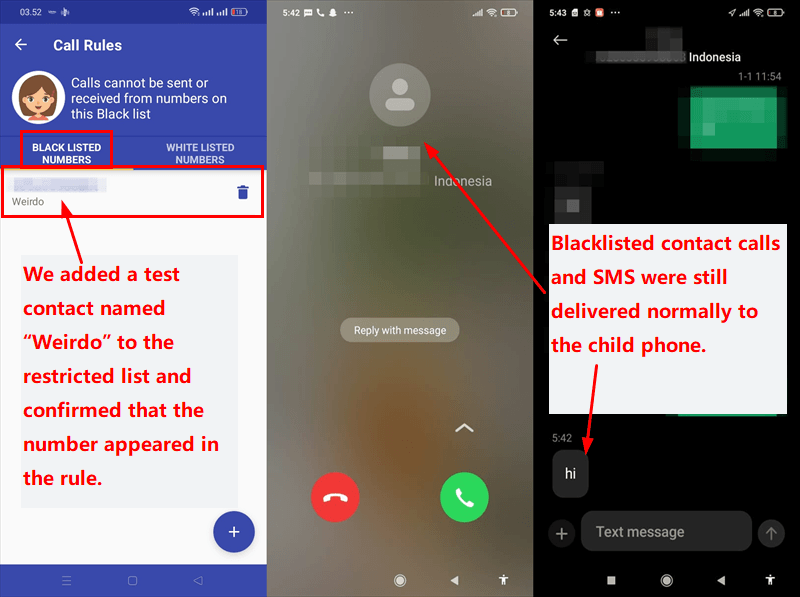
Our result: Call and SMS blocking did not work in our Android test. This result is significant, but current Safe Lagoon documentation shows that it should be understood as a product limitation rather than an isolated failure in our setup.
The official call and text guide says the Android Device Monitor module can show supported call and SMS activity but cannot reliably block incoming calls or texts. It also notes that RCS, MMS, group chats, and in-app messengers fall outside ordinary SMS visibility.
If blocking a dangerous contact is essential, use the phone, carrier, or messaging service's native controls and test them directly. Do not rely on the Safe Lagoon blacklist as the only communication barrier.
Safe Lagoon Pros and Cons
1Pros
- Responsive app rules. The Snapchat block and scheduled WhatsApp restriction took effect promptly in our Android setup.
- Flexible screen-time structure. Parents can combine app rules, category limits, and clock-based schedules for agreed routines.
- Useful supported risk alerts. AI Shield categorized our harmless WhatsApp test scenario and supplied limited context for a family check-in.
- Detailed supported reports. The dashboard clearly organized the test searches, YouTube titles, app sessions, and usage times it captured.
- Practical place tools. The map and geofence history were useful when GPS data was stable.
2Cons
- Indoor geofence errors. GPS drift generated departure alerts while the child phone was still at home.
- No dependable incoming call or SMS block. Our blacklisted test contact still got through, matching the limitation in Safe Lagoon's current help center.
- Setup can be confusing. The parent app, child app, plan tiers, permissions, and optional sideloaded module make it easy to misunderstand which feature provides which data.
- Visual features are intrusive if overused. Screen-session captures should be enabled only for a defined safety reason and with clear family expectations.
Is Safe Lagoon Right for Your Family?
Safe Lagoon is a reasonable fit for an Android family that wants firm app rules, schedules, geofences, supported activity reports, and optional risk alerts in one service. Its strongest tested features were the controls that produced a visible, immediate result on the child phone.
- Choose it for app and routine management. Blocking, schedules, and daily limits were the most consistent parts of our test.
- Consider it for selected safety signals. AI Shield can help surface a supported risk event, but it is not a complete message archive or a substitute for conversation.
- Look elsewhere for guaranteed call or SMS blocking. Safe Lagoon's own current guide says reliable incoming blocking is not supported.
- Expect hands-on Android setup. Families should be comfortable checking permissions, battery access, plan entitlements, and any required module on the actual phone.
The child app is visible according to Safe Lagoon's current documentation. That supports a healthier setup: explain the enabled rules, agree on when safety alerts or screen context may be reviewed, and reduce access as the child demonstrates greater independence.
Safe Lagoon Alternative: AirDroid Parental Control
Safe Lagoon performed well for app rules and selected Android safety signals, but its current limits around call and SMS blocking and its layered setup may not fit every family. AirDroid Parental Control is a broader child-safety alternative for families that want digital-habit tools, location and emergency support, and supported risk alerts in one service.
- Location and emergency support. Live device location, route history, geofences, SOS, and Family Chat can help families confirm an agreed arrival or respond when a child actively asks for help.
- Teen-driving safety insights. Supported trip records can include routes, start and end points, distance, duration, speeding alerts, and post-trip events such as hard braking or rapid acceleration.
- Granular app and web routines. Families can use individual app limits, shared total limits, Downtime, Instant Block, Always Allowed apps, Focus Mode, website rules, and child requests for extra time.
- Supported online-safety alerts. On compatible child devices, selected keyword, social-content, notification, image, call, or SMS signals can help parents notice a potential concern. Broader notification and communication coverage is mainly available on a child's Android device.


AirDroid's features vary by the child's operating system, permissions, network, plan, region, setup, and current app version. Safety alerts and driving records are context for a calm conversation, not proof of misconduct or proof of who was driving. Driving information may reflect cycling or traveling as a passenger, and SOS does not replace local emergency services.
Final Verdict: Is Safe Lagoon Worth It?
Safe Lagoon is worth considering when the family's priorities are Android app blocking, screen-time schedules, geofences, supported usage reports, and optional risk alerts. Those features produced the clearest positive results in our hands-on checks.
It is harder to recommend as an all-in-one communication barrier. The blacklist did not stop our test call or SMS, and current official documentation now says incoming blocking is not reliable. The additional setup for advanced records also deserves more attention than the original draft gave it.
The best choice is not the app that collects the most information. It is the one that addresses the family's specific safety need with transparent rules, age-appropriate privacy, and the least intrusive feature that can reasonably help.
Safe Lagoon Review FAQ











Leave a Reply.