How to Block ChatGPT for Kids (iPhone, Android, Mac & Windows)
Your child is under 13, or you think ChatGPT isn't an option yet due to inappropriate content or harmful advice. So, you might be looking for how to block ChatGPT on the device: both the app and chatgpt.com.
If so, start by checking how your child accesses ChatGPT: on a phone, a computer, or both? Through the app, the website, or both?
Why ChatGPT's Built-in Parental Controls Aren't Enough
ChatGPT's parental controls work by linking your account to your teen's. Once linked, you can set quiet hours, during which the teen cannot use ChatGPT. That's useful, but it leaves gaps:
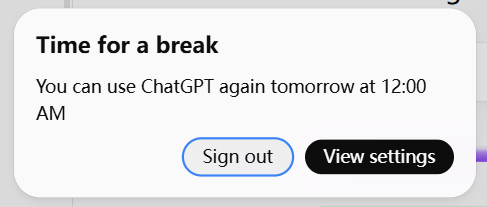
- It depends on your teen's linked account. The rules only work if your teen accepts the invite and stays logged in. Moreover, when teens try to access it during quiet hours, ChatGPT even offers the "Sign out" option. With this, the quiet hours exist in name only if kids signed out.
- The teen can unlink the account and parental controls. OpenAI says the parent is notified of account unlinking, but the parent has no option to prevent it in advance. And after it is unlinked, parents can no longer manage that account's settings.
- No age verification for children under 13. OpenAI states ChatGPT is not meant for users under 13. Though it uses age prediction and offers age verification in some situations, it doesn't enforce it. That means, if your child is in that age group and enters a fake birthdate, they are in.
How to Block ChatGPT on iPhone & iPad
Apple's Screen Time helps parents manage kids' apps and websites through Family Sharing. Before you start, make sure your child's Apple ID is included in your family group. Then, set a Screen Time passcode so your child can't undo or bypass your parental controls.
Block the ChatGPT App with Screen Time
- Step 1.On your iPhone, open "Settings > Family" and select your child.
- Step 2.Go to "Screen Time > App Limits > Add Limit."
- Step 3.Select "ChatGPT" and set the limit to 0.
- Step 4.Enable "Block at End of Limit" so your child cannot ignore the limit.
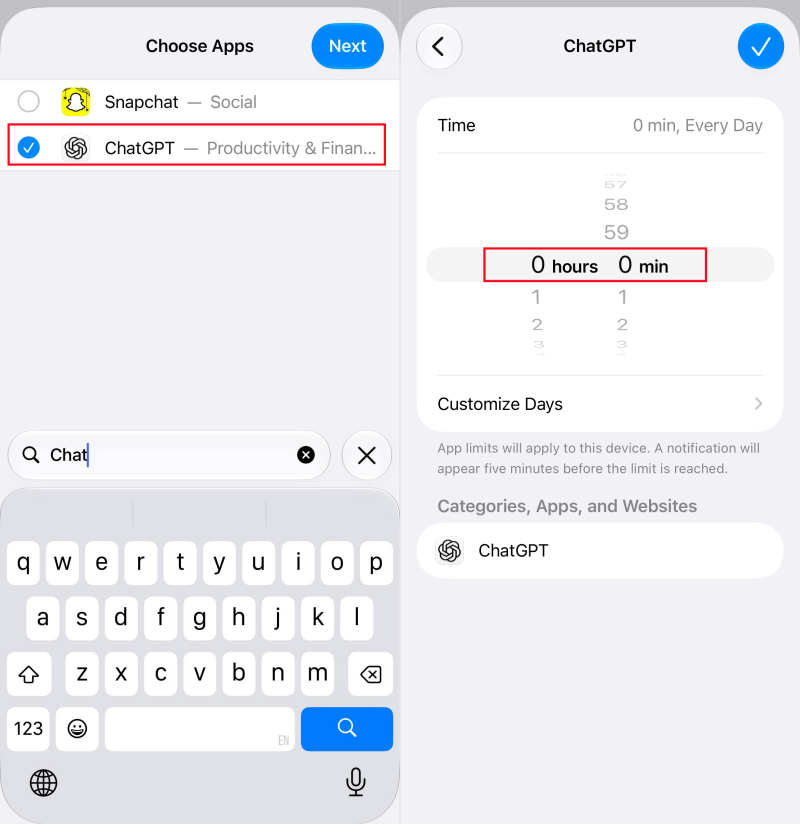
On updated iOS 27 parental controls, open "Settings > Family > your child > Apps & Websites > Add > ChatGPT," and you can easily block the app.
Block ChatGPT on Safari
- Step 1.Open your child's Screen Time settings on your phone.
- Step 2.Tap "Content & Privacy Restrictions" and turn it on.
- Step 3.Go to "App Store, Media, Web & Games > Web Content."
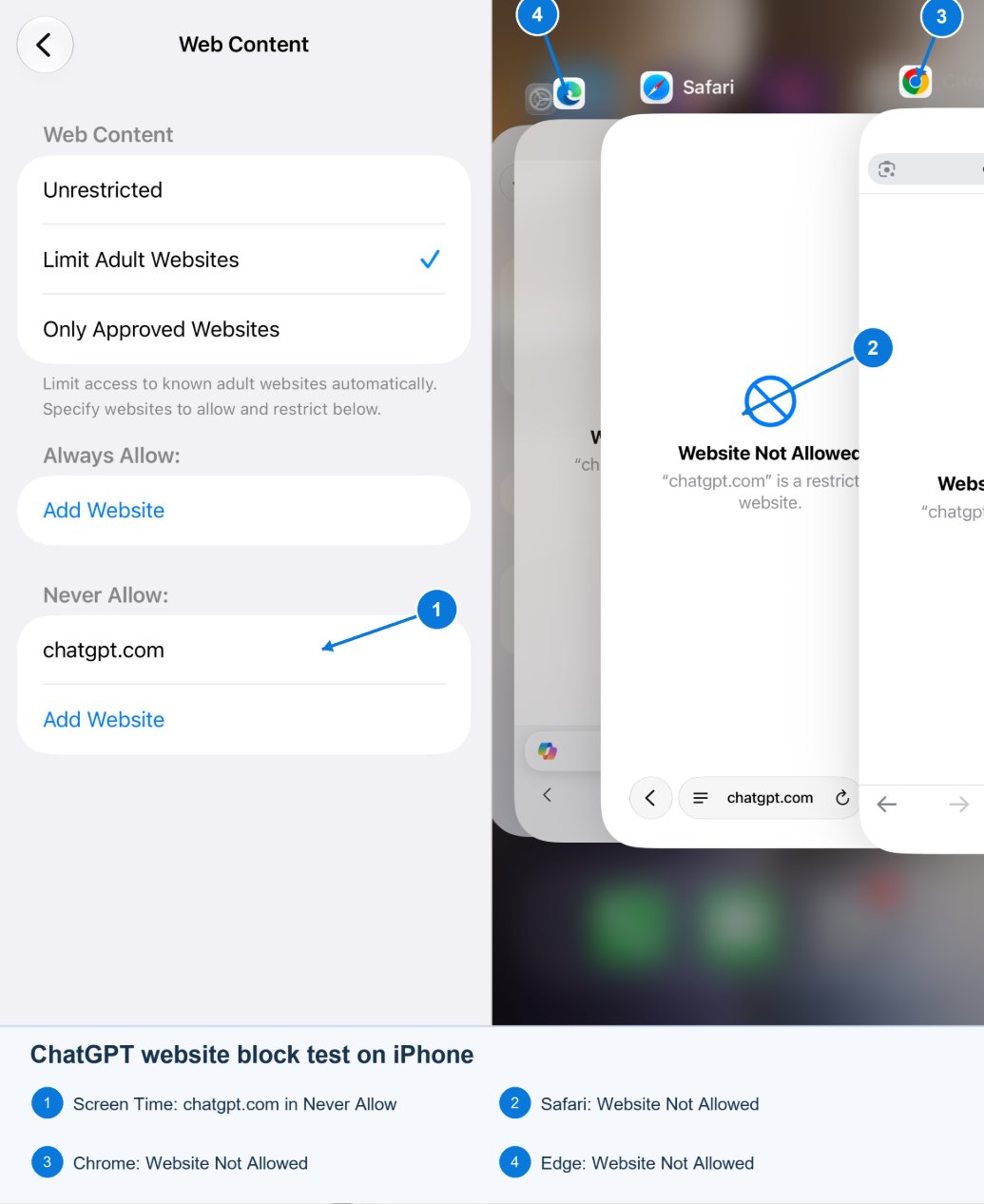
- Step 4.Select "Limit Adult Websites." Under "Never Allow," enter chatgpt.com.
On updated iOS 27, find the "Apps & Websites" menu in Screen Time. Then, add chatgpt.com and select "Block Website."
In our test, when adding chatgpt.com in Screen Time for blocking, it cannot be opened in Safari, Chrome, or Edge. Here is our test result screenshot on an iPhone 14 running iOS 27. If your child uses another browser, we suggest testing that browser too.
How to Block ChatGPT on Android
If your child uses an Android device, Google Family Link handles app and website blocking similar to Apple's Screen Time. To do so, your child needs a supervised Google account linked to your Family Link app first.
Block the ChatGPT App with Family Link
- Step 1.Open Family Link and select your child's profile.
- Step 2.Go to "Screen time > Time limits > App limits."
- Step 3.Select ChatGPT, turn off the "Allowed" toggle, which means "Blocked."
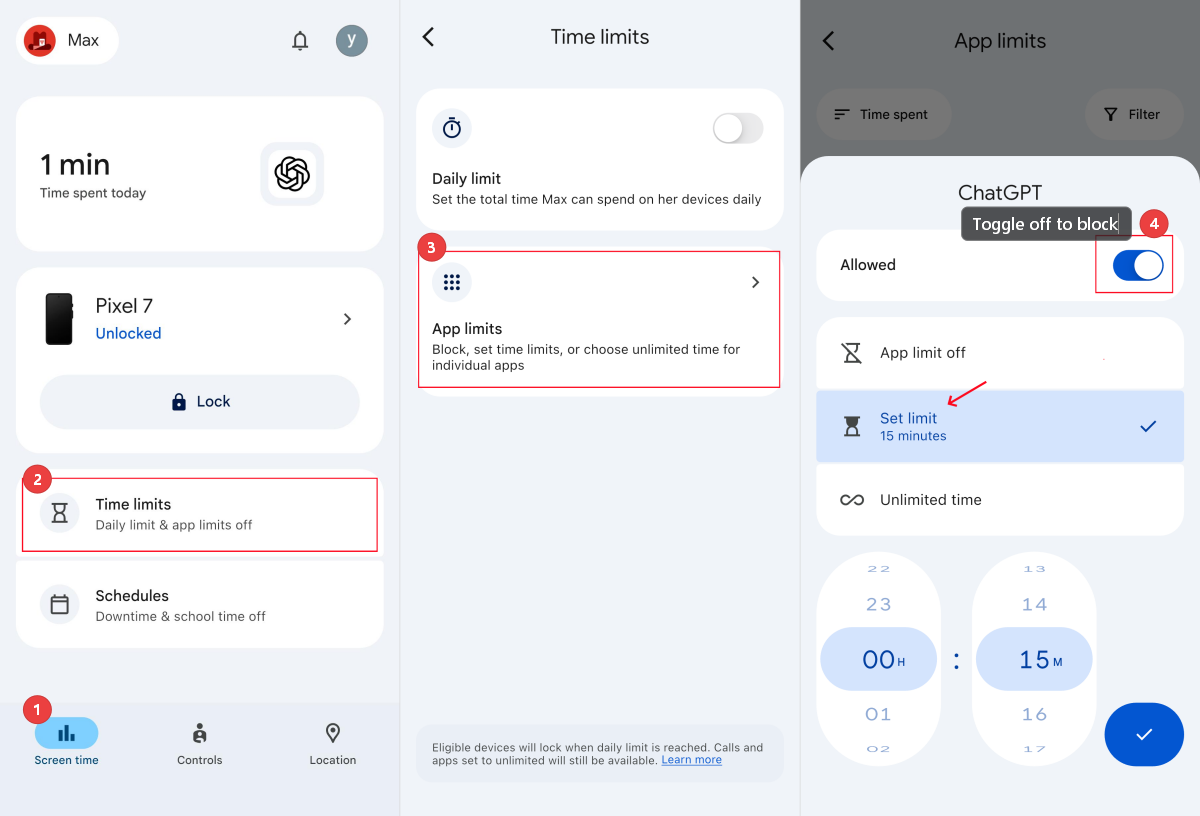
Once blocked, the ChatGPT app will turn gray. If it's not, according to Google, the app block rule may take about 5 minutes to apply or take effect when the device next connects to the internet.
Block ChatGPT on Chrome
- Step 1.In Family Link, select your child.
- Step 2.Switch to the bottom "Controls" tab, then tap "Google Chrome and Web."
- Step 3.Tap "Manage sites > Blocked sites," and add "chatgpt.com."
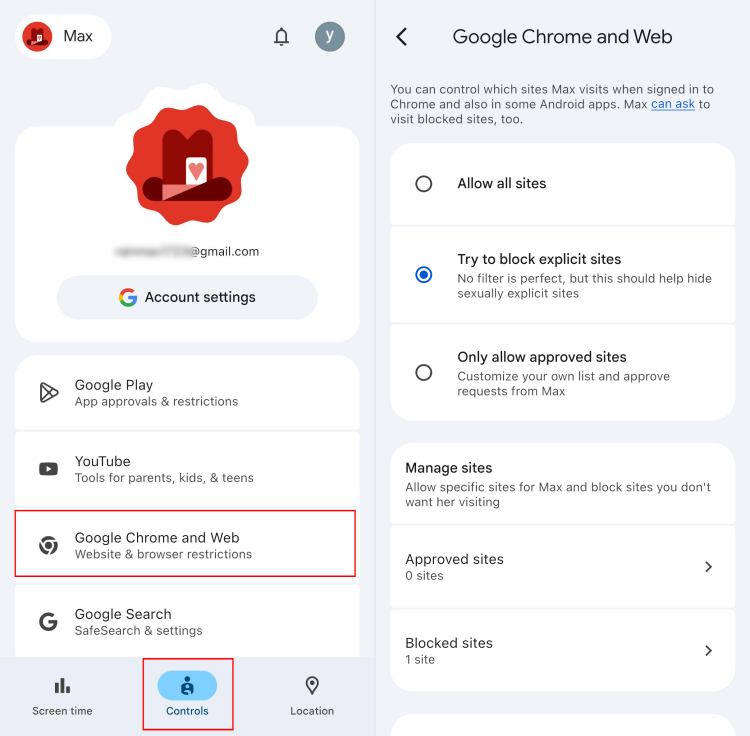
Family Link's website restrictions apply not only to Android Chrome but also to Chrome on other devices where your child is signed in with their supervised account. However, the restriction does not follow them if they sign out, switch Chrome profiles, or open another browser.
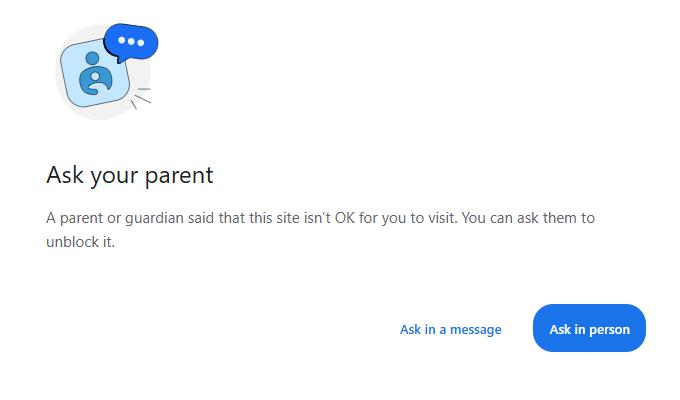
During testing, when visiting chatgpt.com on Windows Chrome with the child's supervised account, it wasn't loaded with a page showing "A parent or guardian said that this site isn't OK for you to visit. You can ask them to unblock it."
However, if other browsers like Samsung Internet or Firefox are installed on your child's device, consider apps like AirDroid Parental Control that block ChatGPT across browsers on Android and iPhone. Or you can check our guide on How to Block Websites on Android.
How to Block ChatGPT on Mac
Apple states, "When Share Across Devices is on, any Screen Time limits or schedules you set apply to your iPhone, iPad, and Mac."
So, if your child uses the same Apple Account on their iPhone and Mac, Screen Time restrictions you set for their iPhone may already sync through the "Share Across Devices" feature. And you probably don't need to repeat the steps.
- First, make sure your child's Mac is signed in with the linked Apple account.
- Then, check that ChatGPT rules you set through Apple Screen Time are synced on your child's Mac. If not, enable "Share Across Devices" in your child's Mac Screen Time. Or set up the restrictions on the Mac separately:
Block the ChatGPT Desktop App on Mac
- Step 1.On the child's Mac, click the Apple menu.
- Step 2.Go to "Screen Time > App Limits."
- Step 3.Search for and add ChatGPT, set the limit to 0 minutes, and turn on "Block at End of Limit."
Block the ChatGPT Website on Mac
- Step 1.From System Settings, head to "Screen Time > Content & Privacy" and turn it on.
- Step 2.Open "App Store, Media, Web & Games."
- Step 3.Select "Limit Adult Websites" and click "Customize" to add chatgpt.com to the "Restricted" list.
How to Block ChatGPT on Windows
For a kid's Windows computer, Microsoft Family Safety can block a Windows app and filter websites in Microsoft Edge with the Microsoft account logged in. Here's how.
Block the ChatGPT Desktop App on Windows
- Step 1.Sign in to Microsoft Family Safety as a family organizer.
- Step 2.Click your child's profile.
- Step 3.Locate the top "Windows" menu and find "Apps, features, and games."
- Step 4.Click the three dots next to ChatGPT and select "Block."
Block ChatGPT on Edge for Windows
- Step 1.In Family Safety settings, switch to the "Web Safety" tab.
- Step 2.Under "Filter settings," enable "Filter inappropriate websites and searches."
- Step 3.Add chatgpt.com to "Blocked sites."
If your child uses Chrome on Windows with a supervised Google account, try Family Link steps to block ChatGPT. Or get other 5 Ways to block websites on Chrome.
Tips: Prevent ChatGPT from Downloading for Under-13s
OpenAI's terms require users to be at least 13. But without strict age verification, children can access it without their parents' permission. Hence, the cleanest way to enforce that is to stop the install for kids under 13 before it happens.
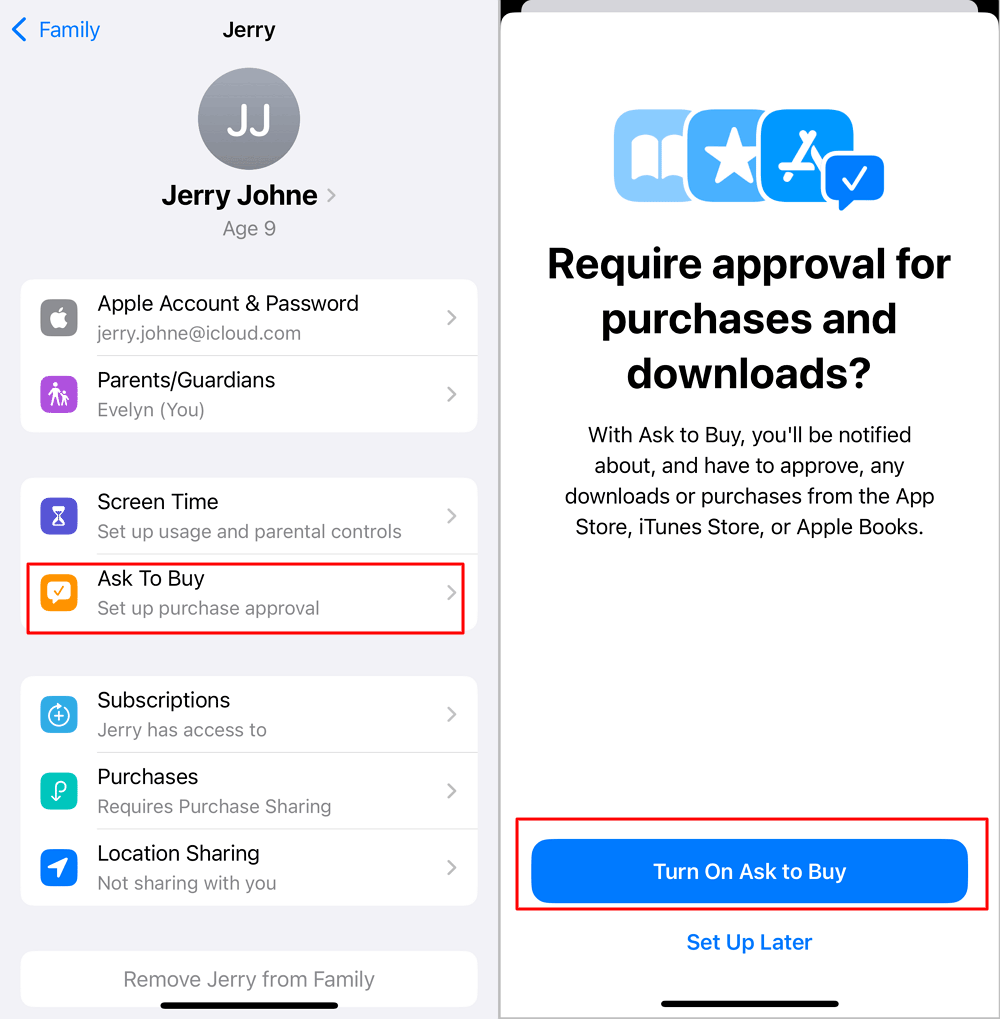
- iPhone, iPad & Mac: Use Family Sharing with "Ask to Buy," so eligible App Store downloads need your approval (it's on by default for children under 13). You can also go to "Screen Time > Content & Privacy > iTunes & App Store Purchases > Installing Apps" and choose "Don't Allow."
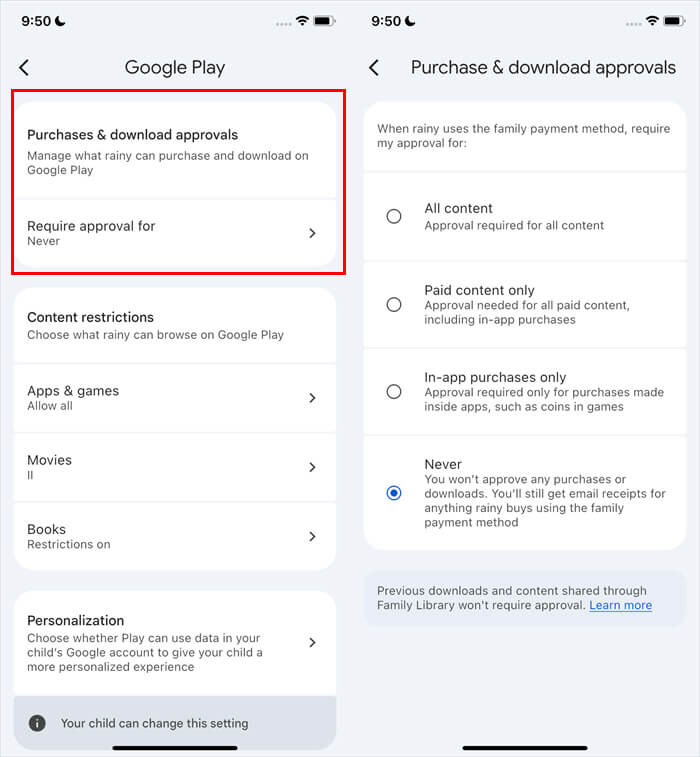
- Android: In Family Link, go to "Controls > Google Play" and require approval for all downloads. You can also set an age-rating limit as "Everyone 10+" for apps, so ChatGPT labeled as Teen won't appear on your child's Google Play.
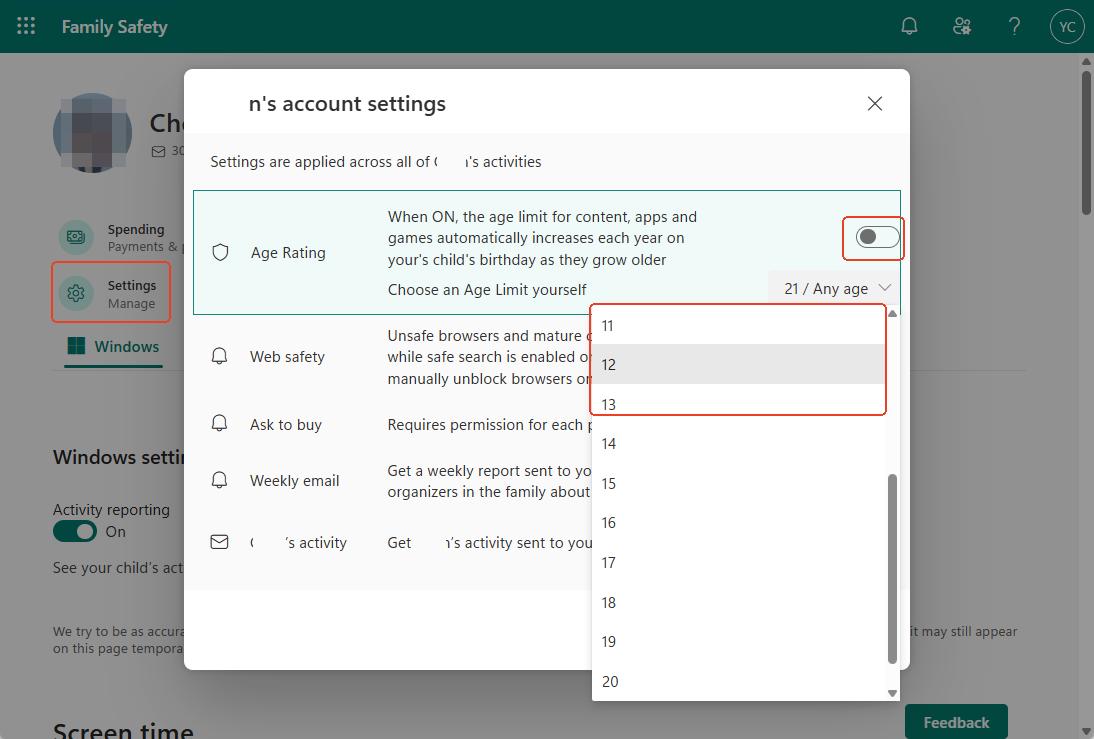
- Windows: In Family Safety, click the "Settings" button and turn on "Age Rating." Then, set an age limit based on your kid's real age. So the Microsoft Store won't install apps above it.










Leave a Reply.