How Can Parents Block AI Apps on a Child's Android Phone or Tablet?
AI chatbots are widely used today, yet most kids lack self-discipline for such tools and rely on AI for schoolwork. This is why a few parents are looking for ways on Reddit to block AI chatbots on homework.
Additionally, many parents hesitate to let younger kids use AI platforms prematurely. Regarding this, here are practical solutions to help parents monitor and block AI chat usage on kids' Android devices.
30-Second Summary:
- If you just need to restrict access to AI chatbot apps, Google Family Link is the best free option for Android. It even helps you prevent AI app downloads and block AI sites in Chrome.
- For parents who want alerts for risky AI-related conversations, consider AirDroid Parental Control. Also, it blocks AI websites across all browsers, not just Chrome.
- Built-in controls from individual AI platforms are too limited. So they're not recommended as a standalone solution.
Method 1. Use Family Link
✅ Best For
- Families looking for a no-cost, straightforward way to track AI usage and block AI apps.
- It is especially effective for children under 13, where AI services like Gemini are automatically restricted.
⚠️ Limitations to Know
- No AI conversation monitoring: Family Link cannot monitor or alert risky conversations inside AI apps.
- Only Chrome filtering: Website restrictions apply only to Google Chrome. If your child uses Edge or a third-party browser, those AI sites may remain accessible.
Google Family Link is Android's native parental control system. It requires no subscription and works directly with your child's Google account.
With it, parents can supervise children's AI usage, limit or block AI tools, prevent AI app downloads, and manage Gemini access. In the following, we'll show you how.
First of all, open the Family Link app or find Family Link directly in your Settings → Parental controls on devices running Android 16 or later.
Block AI Apps or Set AI App Limits
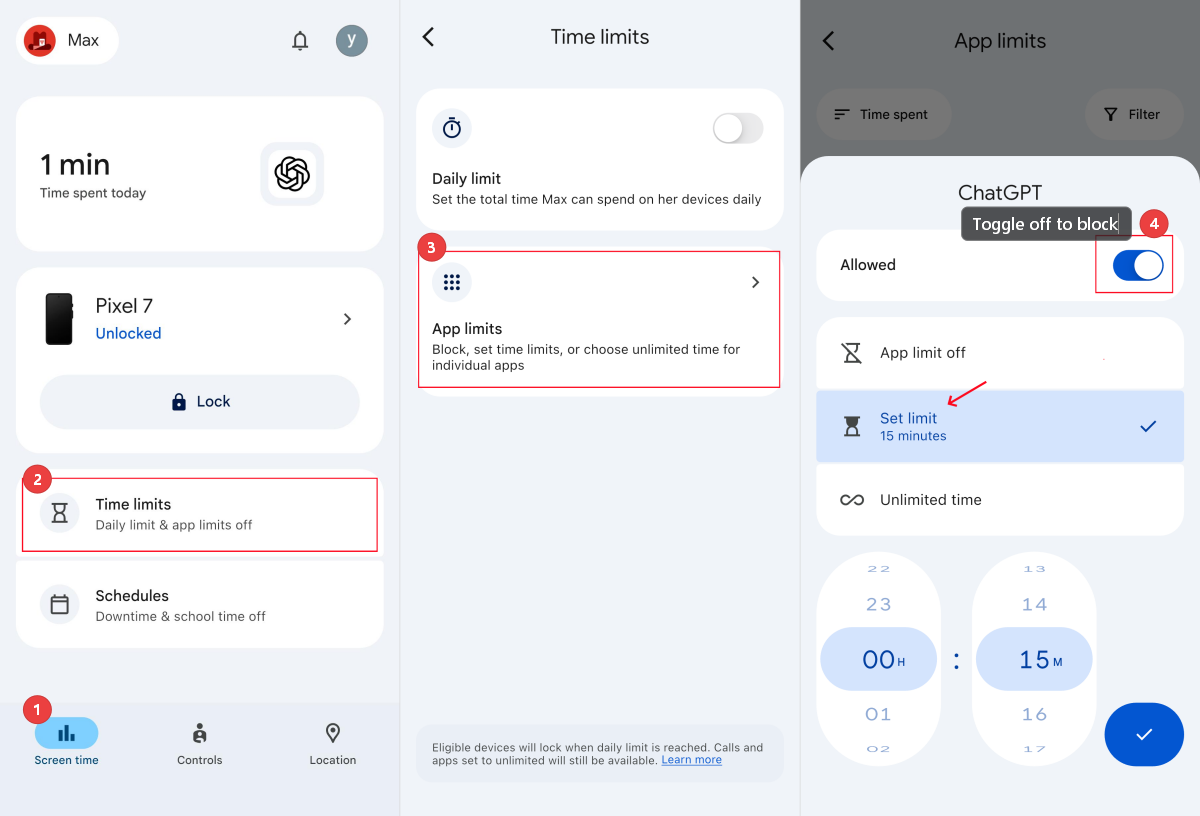
If your child already has ChatGPT or similar apps on their device, you can remotely block them through your Family Link dashboard:
- Step 1.On Family Link, select your child's profile.
- Step 2.Tap "Screen time (bottom-left) → Time limits → App limits."
- Step 3.Find the AI app in the list.
- Step 4.To block AI apps, simply toggle off "Allowed," making the app inaccessible immediately.
- Step 5.You can also tap "Set limit" to restrict AI apps to specific minutes per day.
Prevent New AI App Installations
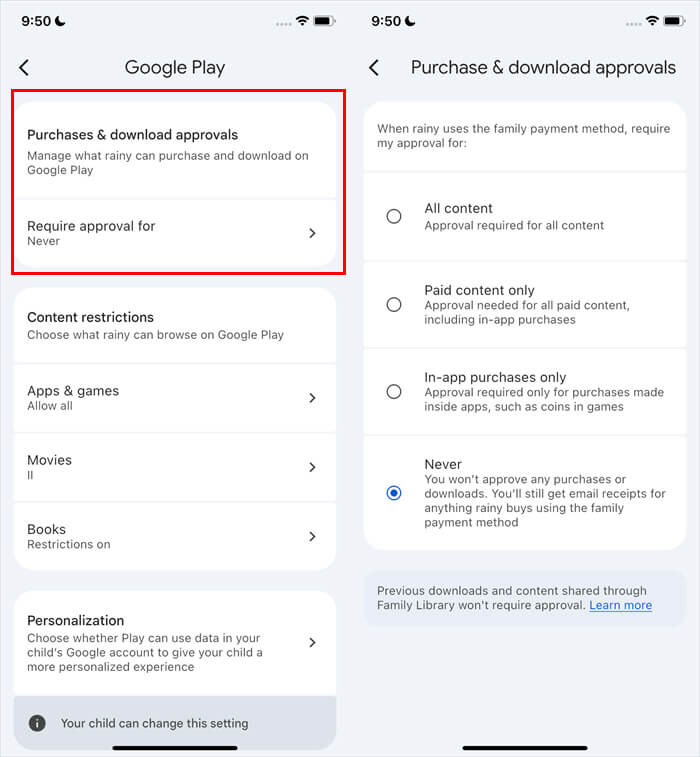
One of Family Link's strongest features is requiring your approval for every app your child tries to download from Google Play.
This means that no new AI tool, no matter how obscure, gets installed without your consent.
- Step 1.Go to "Family Link → Controls → Google Play."
- Step 2.Make sure "Require approval for" is set to "All content."
Block AI Websites in Android Chrome
Many children bypass AI app blocks by simply opening AI tools in a browser. Family Link lets you block specific websites on your child's Chrome and Google:
- Step 1.From Family Link, tap "Controls → Google Chrome and Web."
- Step 2.Under "Blocked sites," add the URLs of AI platforms you want to restrict, for example:
✓ chatgpt.com (ChatGPT)
✓ gemini.google.com (Gemini)
✓ character.ai (Character AI)
✓ claude.ai (Claude)
✓ chai-ai.com (Chai AI)
✓ crushon.ai (CrushOn AI)
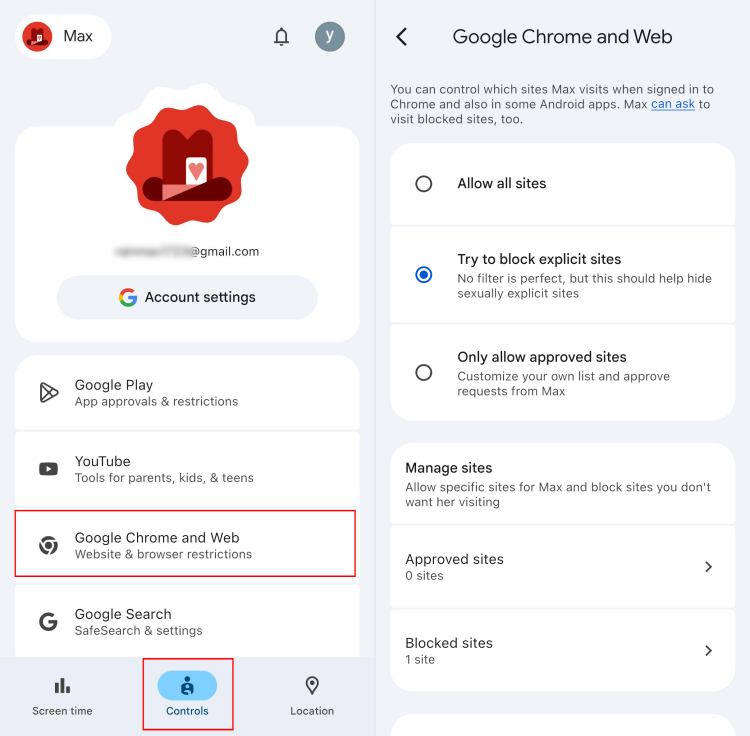
For stricter control, you can also choose "Allow only approved sites," which blocks every AI site except those you explicitly whitelist.
Manage Gemini Access
For children under 13, Family Link automatically restricts Gemini access. However, Family Link provides a dedicated toggle for Gemini, indicating you can give your child access to Gemini apps.
- Step 1.Find "Controls → Gemini" on your Family Link dashboard.
- Step 2.Turn on "Gemini Apps."
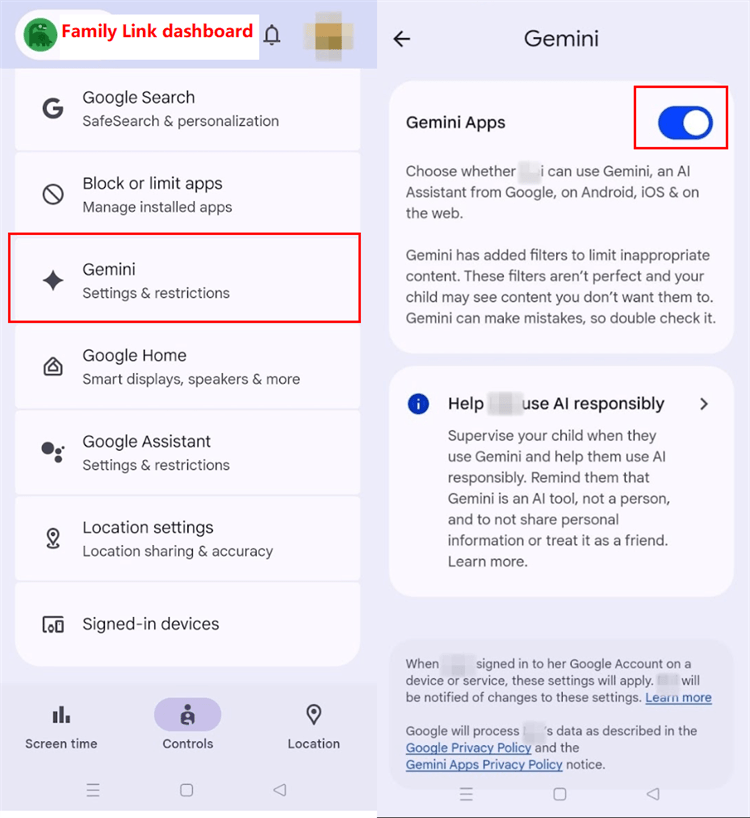
*Note: According to Google, it hasn't made Gemini available to all supervised accounts at once. So even if you enable the toggle, your child may not yet be able to use it.
Method 2. Try AirDroid AI Chat Monitor & Blocker
✅ Best For
- Families want real-time alerts for high-risk topics in AI apps.
- It is particularly useful if your concern is emotional dependency on AI characters or exposure to self-harm discussions.
⚠️ Limitations to Know
- Incomplete context capture: Fast-scrolling chats or long-text messages may be missed.
- Privacy trade-off: It requires broad device permissions and offers some visibility to chats, which some older teens may resist.
- Subscription cost: Approximately $9.99 per month.
Google Family Link is excellent for blocking AI apps, but if you need to know whether your child interacts with risky AI chats, AirDroid Parental Control adds that layer.
Its standout feature is "AI Content Detection," which monitors conversations and alerts you when concerning keywords appear inside ChatGPT, Gemini, and Character AI.
Also, it offers general AI control features similar to Family Link, such as AI app blocking, AI usage tracking, and time limits.
Here's how to set it up and use it to block and monitor AI apps on your child's Android device.
Monitor AI Conversations on Android
Unlike Family Link, AirDroid can actually monitor AI chatbot apps on a child's Android phone or tablet. Its content monitoring works by scanning keywords you set up. Here's how to set it up:
- Step 1.Make sure you've downloaded AirDroid Parental Control and linked your child's Android device.
- Step 2.Then, tap "Social Content Detection → Settings."
- Step 3.Toggle on the AI apps your child is using, such as ChatGPT, Gemini, or Character AI.
- Step 4.Next, go to "Keyword Management."
- Step 5.Toggle on preset risk categories (bullying, self-harm, etc.) or add your own keywords you're concerned about.


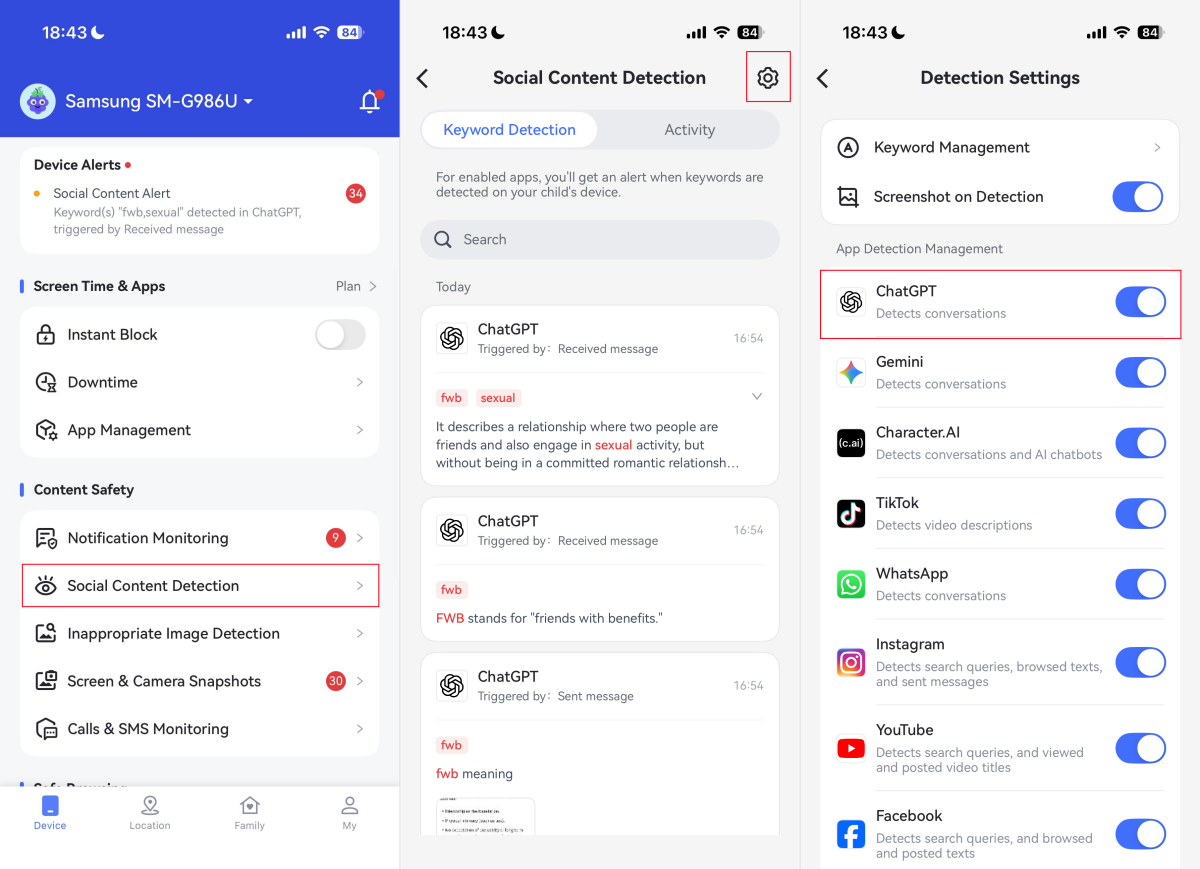
Once done, AirDroid scans your child's AI conversations in real time. When a flagged keyword pops up, you receive an instant alert, along with a screenshot showing the concerning message.
Block AI Apps or Add Time Limits
If your child already has ChatGPT, Gemini, or similar apps, you can block them remotely on homework:
- Step 1.Tap "App Management" on AirDroid Parental Control.
- Step 2.Locate "App Limits" or "App Blocker."
- Step 3.Tap "Add" and select the AI app you want to manage.
- Step 4.Lastly, set the allowance (e.g., 30 minutes), schedule downtime (e.g., 21:00-07:00), or move it to the blacklist.
When the time runs out, or the rule works, they'll see a restriction message when they try to open it.
Block New AI Apps Automatically
Though AirDroid cannot restrict apps from the Play Store directly, it stops your child from opening newly installed AI apps. So even if your child downloads an inappropriate AI app, they won't be able to use it.
- Step 1.Open "AirDroid Parental Control → App Management → Settings."
- Step 2.Toggle on "Block new apps automatically."
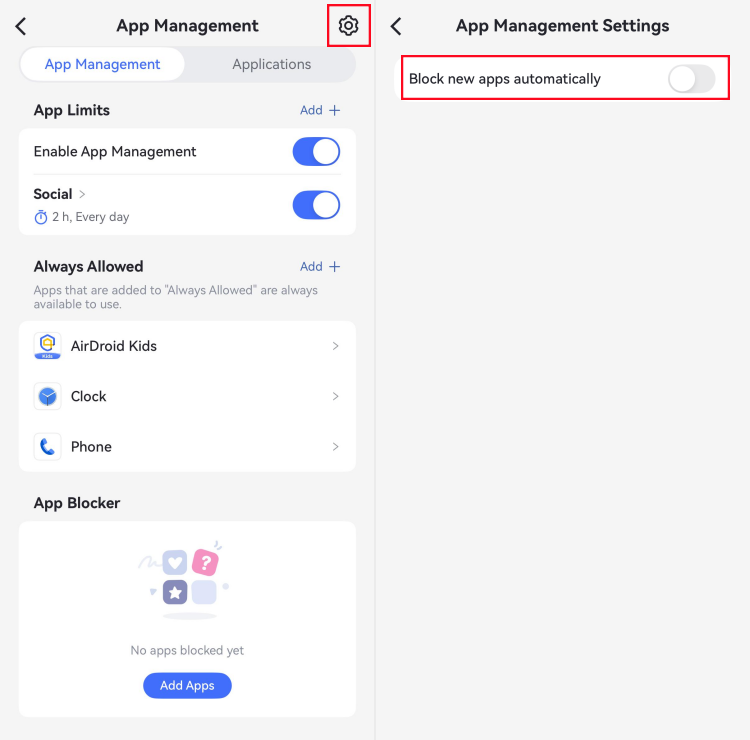
Once enabled, any app your child installs will be automatically blocked from opening. You'll receive an alert on your phone.
Block AI Websites across Android Browsers
Popular AI tools, including ChatGPT, Gemini, and Character AI, are accessible through a browser. If you need to completely restrict AI access, AirDroid web filtering helps you block AI websites on Android Chrome, Samsung Browser, Edge, and any other browser.
- Step 1.Go to "Website Restrictions" from AirDroid's parental dashboard.
- Step 2.Tap "URL Blacklist → Add URLs."
- Step 3.Enter the domain of each AI platform, for example:
✓ chatgpt.com (ChatGPT)
✓ gemini.google.com (Gemini)
✓ character.ai (Character AI)
✓ claude.ai (Claude)
✓ chai-ai.com (Chai AI)
✓ crushon.ai (CrushOn AI)
Method 3. Set up AI Platform Built-in Parental Controls
✅ Best For
- Families who want to reduce explicit content on specific AI platforms.
⚠️ Limitations to Know
- No centralized parent dashboard: It is not easy for parents to manage each app's settings.
- Can be easily changed or bypassed: These platforms don't provide enhanced protection for settings. Tech-savvy kids can easily opt out of these parental controls.
- No conversation monitoring: They do not tell you what your child is actually discussing, even if it's risky.
Some mainstream AI chat platforms, such as ChatGPT and Character AI, offer their own parental controls. These let you track AI usage, set downtime, or receive safety alerts directly within the AI service itself. Here's what's actually available on the major platforms.
ChatGPT
OpenAI introduced parental controls for ChatGPT in 2025. Both parent and teen need to link their ChatGPT accounts to activate parental control settings.
With it, parents can:
- Set custom quiet hours to block nighttime ChatGPT usage.
- Reduces viral challenges and graphic, sexual, violent, and extreme beauty content.
- Receive high-risk alerts when self-harm-related signs are detected.
Step-by-Step Guide: How to Set Up Parental Controls in ChatGPT
Gemini
Gemini is controlled through Google Family Link. That is, it doesn't offer a separate Gemini-specific parental dashboard.
Also, parents cannot filter content or monitor conversations within Gemini (Google automatically applies the content filter to limit inappropriate content); the only option is to allow or block access entirely.
Step-by-Step Guide: How to Manage Gemini Access
Character AI
Under pressure from lawsuits and regulators over teen safety incidents, Character AI also introduced Parental Insights. But it's initiated by the teen, not the parent, and offers only limited controls compared to ChatGPT.
With it, parents can:
- See the daily average time spent on Character AI.
- Know the top AI characters their teens interacted with most frequently and the time spent on each.
Step-by-Step Guide: How to Set Up Parental Insights in Character AI
FAQs
Can my teenager simply turn off Family Link supervision?
Not anymore. Since a policy change in January 2026, teenagers between 13 and 18 must get parents' approval before they can stop supervision.
Does AirDroid let me read every single AI conversation?
No. AirDroid captures screenshots only when your custom risky keywords are triggered. It does not track every message.
Do these tools work on iPhones or iPads?
If your child uses an iPhone or iPad, the child-side restrictions are very limited in Family Link. For instance, you can't block apps or set screen time the way you can on Android.
AirDroid Parental Control works across iOS and Android, but AI conversation monitoring is only available on children's Android devices.
AirDroid Parental Control works across iOS and Android, but AI conversation monitoring is only available on children's Android devices.
Will monitoring my child's AI chatbots damage trust?
It can. This is why transparency matters. Experts recommend telling your child why controls are in place, negotiating boundaries together, and gradually loosening restrictions as they grow.
Additionally, don't try to access every message; only step in when you see a genuine red flag.
Additionally, don't try to access every message; only step in when you see a genuine red flag.










Leave a Reply.