How Kids Bypass iPhone Parental Controls? And How to Stop Them
You spent an hour setting up Screen Time on your child's iPhone. You felt some peace of mind.
Then, after handing it over, your child found a way around it. This situation happens more often than you think.
A recent survey found that over 60% have managed to bypass parental controls. And kids enthusiastically share these hacks on YouTube, Reddit, and more communities. Some YouTube tutorials on this topic have reached 11 million views.
The good news? Most bypass methods and loopholes can be fixed as long as you know exactly where to look.
Most Common Bypass Methods and How to Fix
Here's what your kids may figure out to bypass screen time on iPhone and how you can stop it.
Firstly, we collected commonly shared bypass methods from Reddit, Apple Community discussions, video tutorials, and parent feedback.
Secondly, we tested every method on our iPhone 14 running iOS 26, with Apple Screen Time enabled.
For each method, we applied our bypass protection testing approach and checked three things: whether the bypass still works on newer iOS 26, what setting or loophole makes it possible, and what parents can do to block or reduce the risk.
Since Apple regularly patches bugs, some widely shared tricks may no longer work. This is why the guide also includes a "Debunked" section.
⚠️ Some test results may vary by device, iOS version, and Screen Time or Family Sharing settings.
1Switching to a different Apple account
Screen Time restrictions are tied to the Apple account. That is, if your child signs out of their managed account or logs in with a different Apple ID, the parental controls you configured don't apply anymore.
And since Apple doesn't guide parents to set a passcode for Screen Time by default, kids can usually sign out easily to bypass the restrictions.
How to Fix
Set a Screen Time passcode
- On your phone, go to "Settings > Screen Time."
- Scroll down to find your child's profile.
- Select "Manage Screen Time > Lock Screen Time Settings."
- Create a 4-digit passcode.
- Make sure the passcode is different from the phone's unlock code. Otherwise, your child can guess it easily.
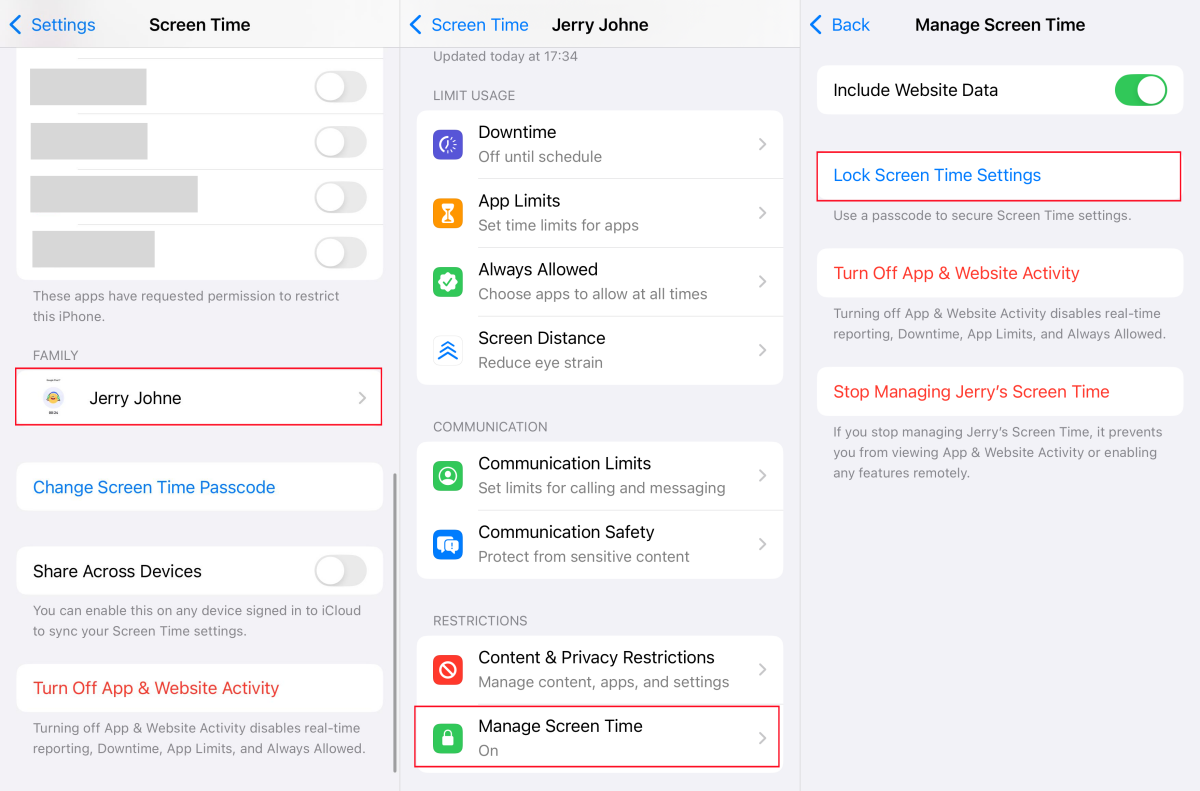
Doing so makes the sign out option unavailable due to restrictions.
Prevent account changes
- Open "Settings > Screen Time > [Your Child's Name]."
- Access "Content & Privacy Restrictions."
- Tap "Accounts" under "ALLOW CHANGES TO."
- Select "Don't Allow" for it.
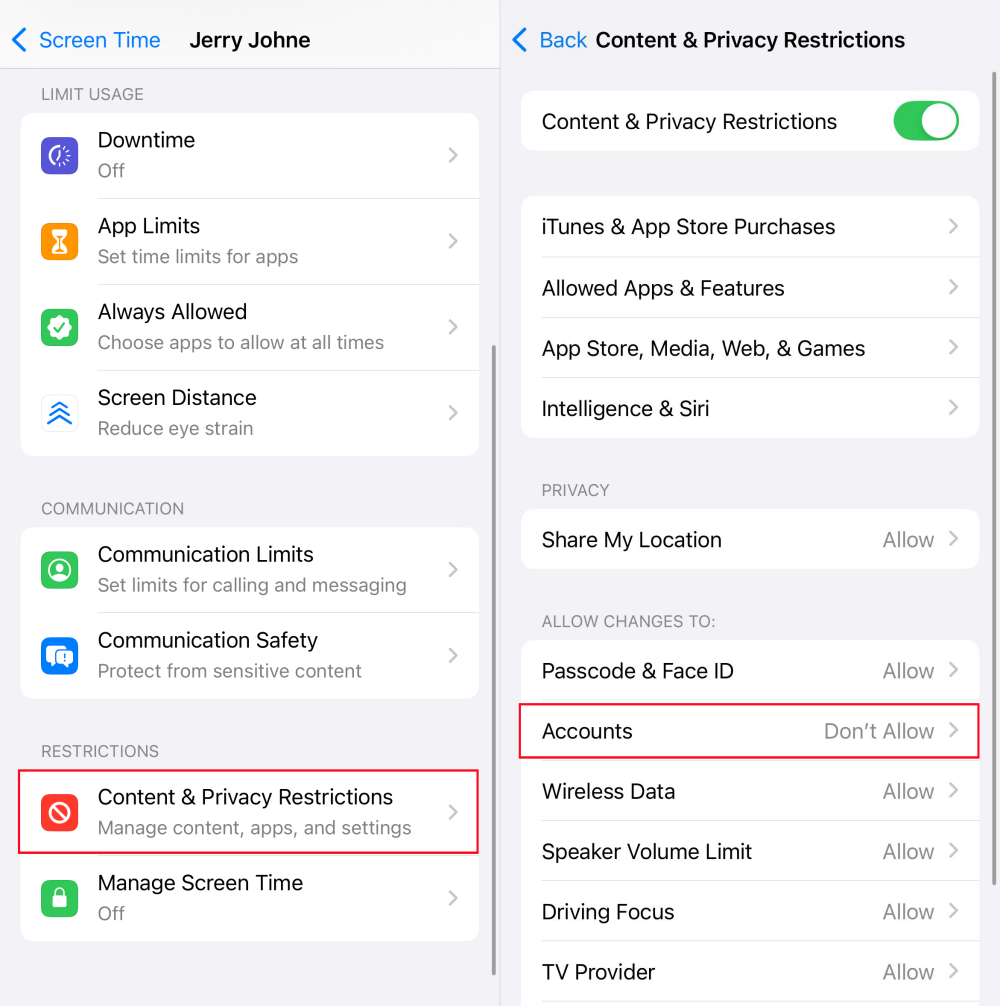
After this, your child's Apple account turns gray (meaning inaccessible) in the settings.
2Exploit the "Ignore Limit" button
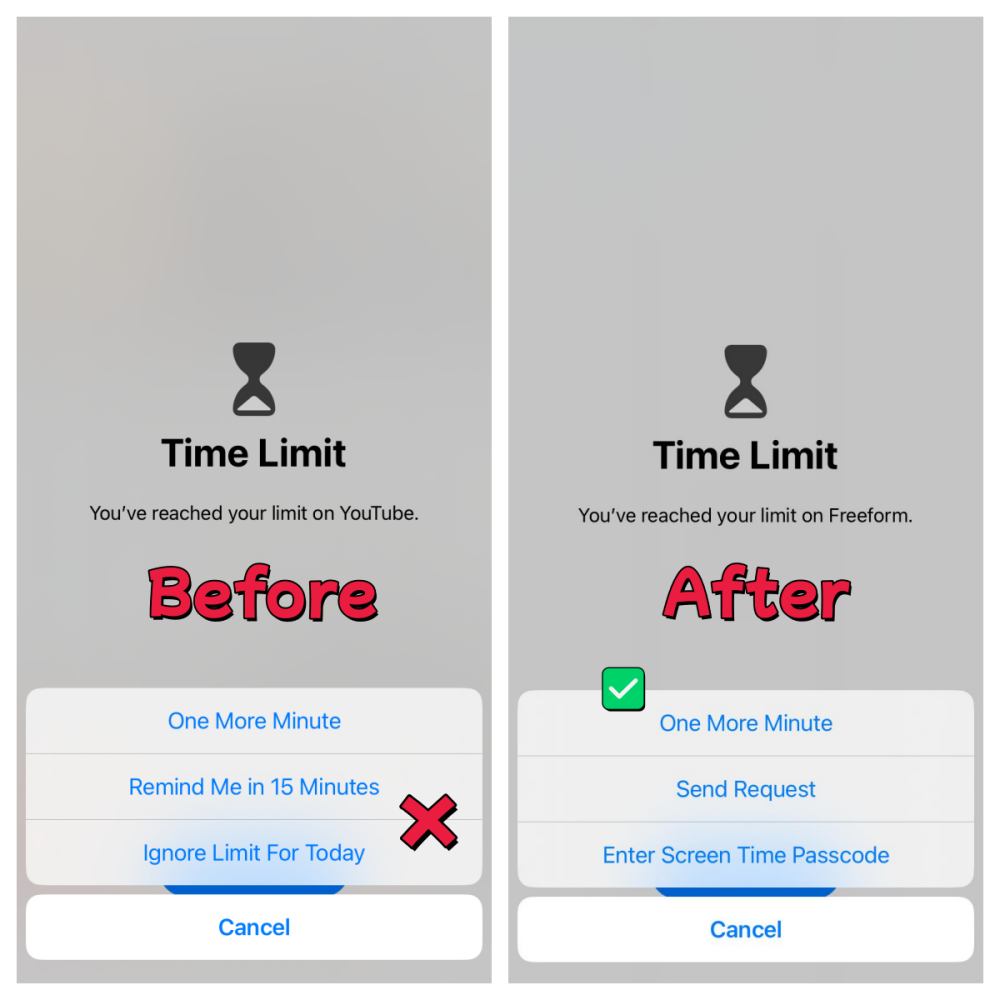
Apple offers an "Ignore Limit" option to give users flexibility when the app limit or downtime is reached. However, without a Screen Time passcode, kids can utilize "Ignore Limit" to keep using the app for the rest of the day.
How to Fix
Remove the "Ignore Limit" button
- On your phone, go to "Settings > Screen Time."
- Scroll down to find your child's profile.
- Select "Manage Screen Time > Lock Screen Time Settings."
- Create a 4-digit passcode.
- Make sure the passcode is different from the phone's unlock code. Otherwise, your child can guess it easily.
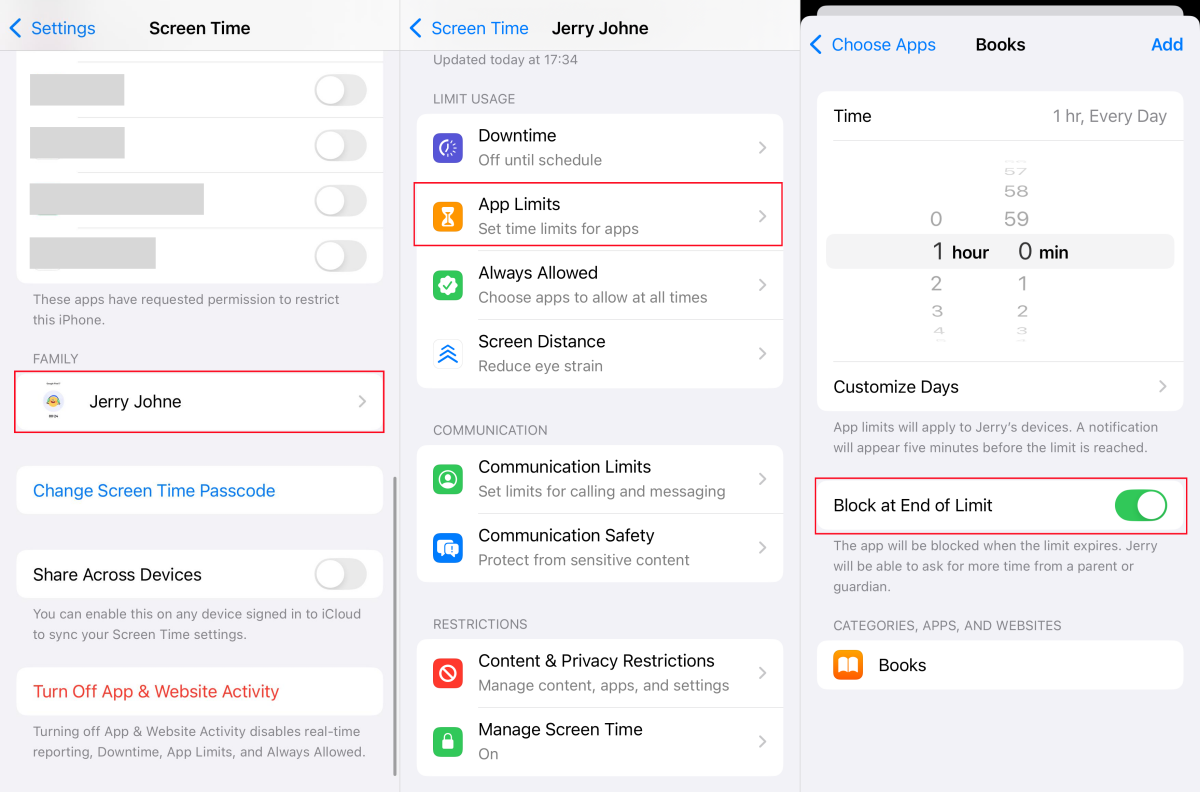
⚠️ Even if the "Ignore Limit" is disabled, your child can still have an option to use the restricted app for one more minute (this is what Apple designed on purpose).
3Resetting and erasing all settings
When there is no passcode for Screen Time, your child can factory reset the managed iPhone. After that, all Screen Time restrictions, Find My, app data, and settings are erased.
How to Fix
As such, every time your child tries to erase the phone settings, the device requires them to enter the passcode to complete.
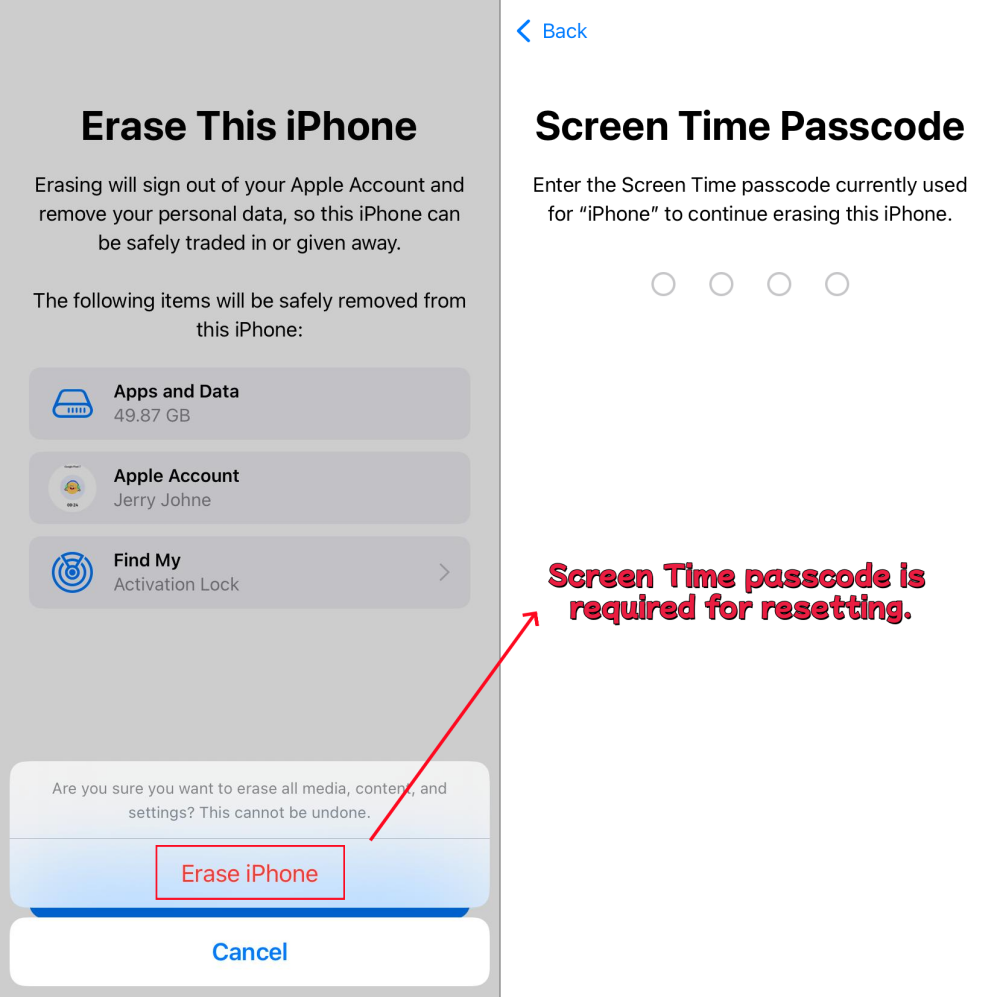
That said, if your child has gone as far as wiping their phone to bypass restrictions, it may be time to have a serious conversation about that and review if your rules in place are reasonable.
4Turning off location sharing or Find My
Just like Screen Time restrictions, an iPhone's family location tracking can also be easily bypassed by children.
Although Apple automatically shares the child's location with the parent's account, the child can disable location services, turn off location sharing, or disable Find My to make their location untraceable.
How to Fix
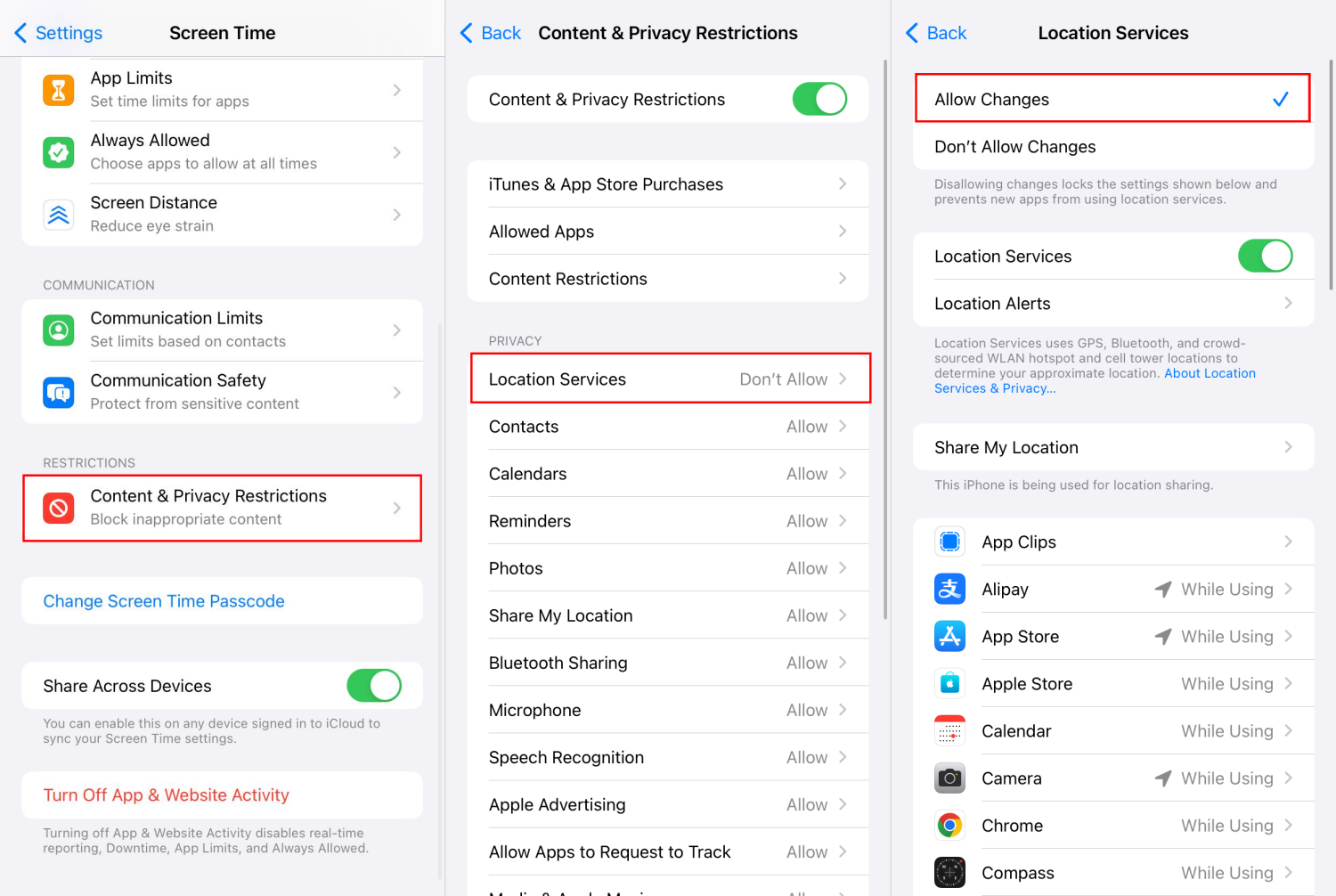
Lock location services changes in Screen Time
- On your child's device, open "Settings > Screen Time > Content & Privacy Restrictions."
- Under "Privacy," set to "Don't Allow Changes" for "Location Services" and "Share My Location."
5Rebooting the phone for a grace window
According to some parents' feedback, when an iPhone restarts, there is a window of approximately 30–60 seconds while iOS and Screen Time restrictions load. During this short window, all restricted apps are accessible.
So, when your child has hit their daily limit, simply power the phone off, then turn it back on, and they'll have a fresh window to keep using.
How to Fix
There is no complete native fix for this currently. Even when it works, the loophole typically only gives the child about 30 seconds of access after a reboot. That's barely enough time to check a notification.
6Using the parent's device to adjust restrictions
Think about it carefully: can your child unlock and access your iPhone? If yes, they might pick up your phone to change or remove the parental controls when you make dinner or take a shower.
Because Screen Time restrictions can be managed from your device, this convenience also becomes a loophole.
How to Fix
- Change your iPhone unlocking passcode to make it harder for your child to unlock it.
- Don't leave your phone unattended.
- Review the Screen Time reports and settings regularly for unexpected changes.
7Using an old device or a friend's one
The research by FamilyBond in 2026 revealed that school-issued laptops and tablets are the primary way kids bypass home parental controls.
Since the restrictions only apply to the iPhone that is signed into your child's Apple account, every other device, including a friend's iPhone or an old iPad, is unrestricted.
How to Fix
- Check what devices exist in your home.
- Set up parental controls or web filters on your home WiFi router to apply limits across devices.
- The most important thing is to talk about it and let them understand why restrictions exist.
Debunked: What Kids Think Works (But Doesn't)
You've probably seen articles listing a dozen ways kids can get past iPhone parental controls. Sounds scary, doesn't it?
But here's the reality: many of those "bypass methods" either never worked on recent iOS versions or have already been fixed by Apple. Below are three common myths we tested on iOS 26:
Myth 1: Kids can change the date and time to extend playtime
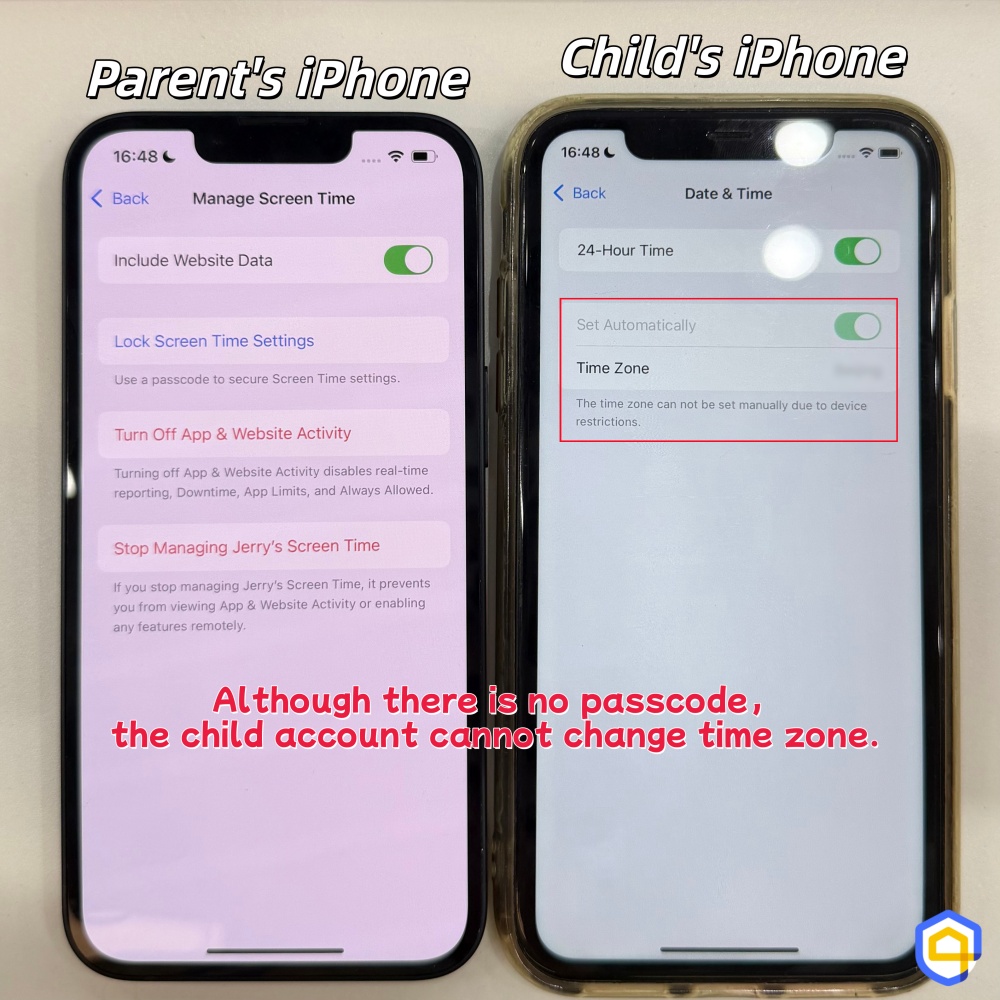
You may have come across online tutorials claiming that kids can change the device time or time zone to get around Downtime or App Limits.
However, in our testing on a child's Apple ID with a new device (iOS 26+), this no longer works. Apple automatically locks the date and time settings as long as you use a child's Apple account to log in.
Myth 2: Reinstall apps to reset limits
During our testing, we found that even when the child is able to reinstall the restricted app when the time is up, the existing Screen Time limit remains in place. The timer does not reset.
Moreover, your child is not able to re-download any app unless you manually turn off the purchase approval (this option is automatically enabled for your child's accounts).
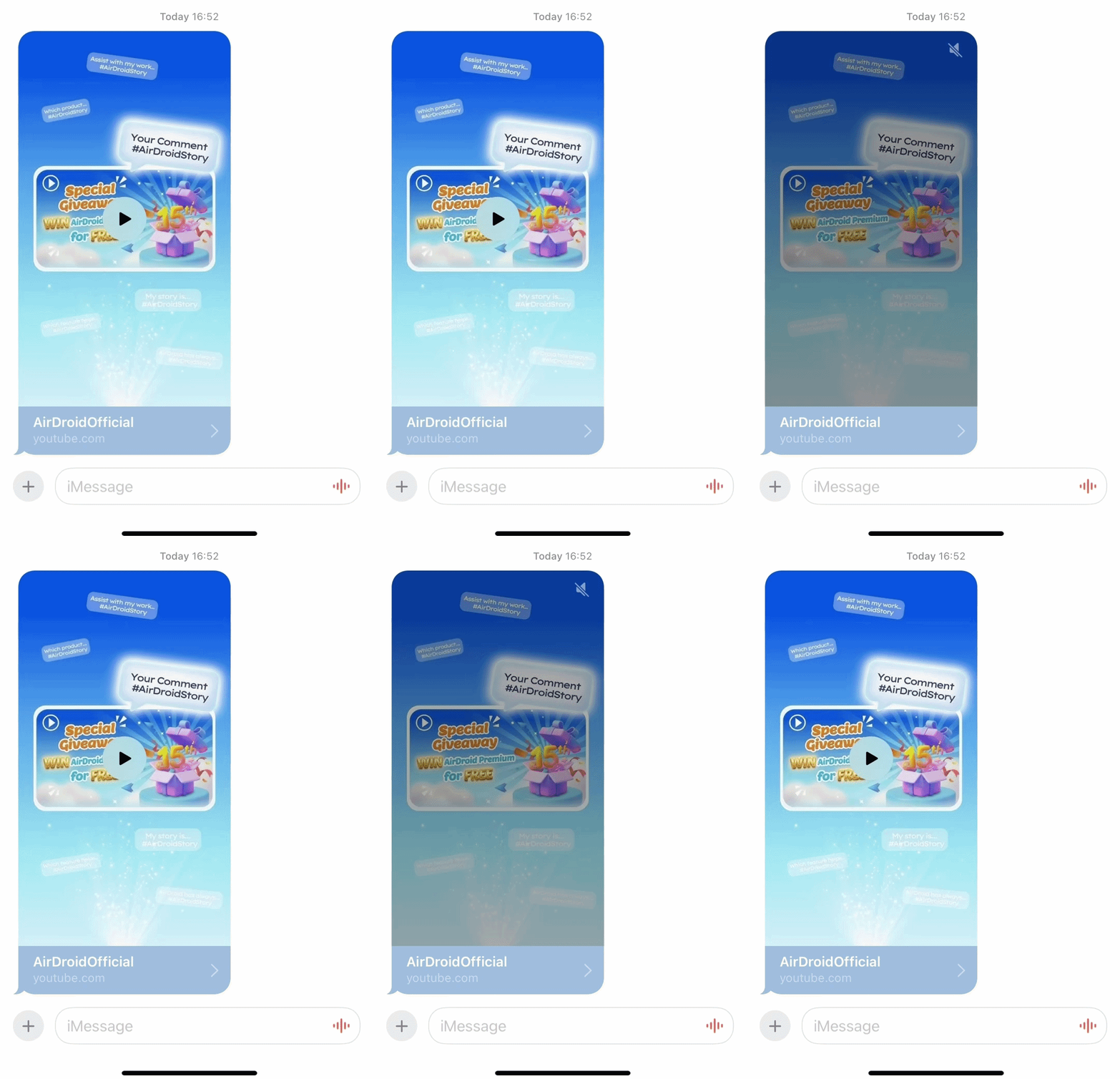
Myth 3: Kids can access blocked content through web or iMessage
A teen shared on Reddit how he used the Google search engine to browse YouTube when his YouTube app was blocked on his iPad. However, we tested this method and found it doesn't work anymore on iOS 26 (up to September 2026).
And there is another thing to note: in my testing, when I restricted the YouTube app on the child's iPhone, the video content was still available to preview in messaging apps; it is not available to open (below is my test result).
Why Is Apple Screen Time So Easy to Bypass?
Compared to Family Link, which is built into Android and which we used before, Apple Screen Time is vulnerable. For example, Google Family Link locks accounts and location services changes, and even disallows resetting, making it harder for kids to get around on Android devices.
Then why is Apple Screen Time easy to bypass?
When Screen Time Isn't Enough: What to Do?
If your child keeps finding ways around Screen Time and you're tired of patching every loophole, it's time for different approaches. For example:
Switch to a Stronger Tool (If Needed)
When Screen Time's native controls aren't cutting it, you can consider the following:
- Router-level filtering: Manage every device on your home network, including old iPads, computers, or devices of your child's friend.
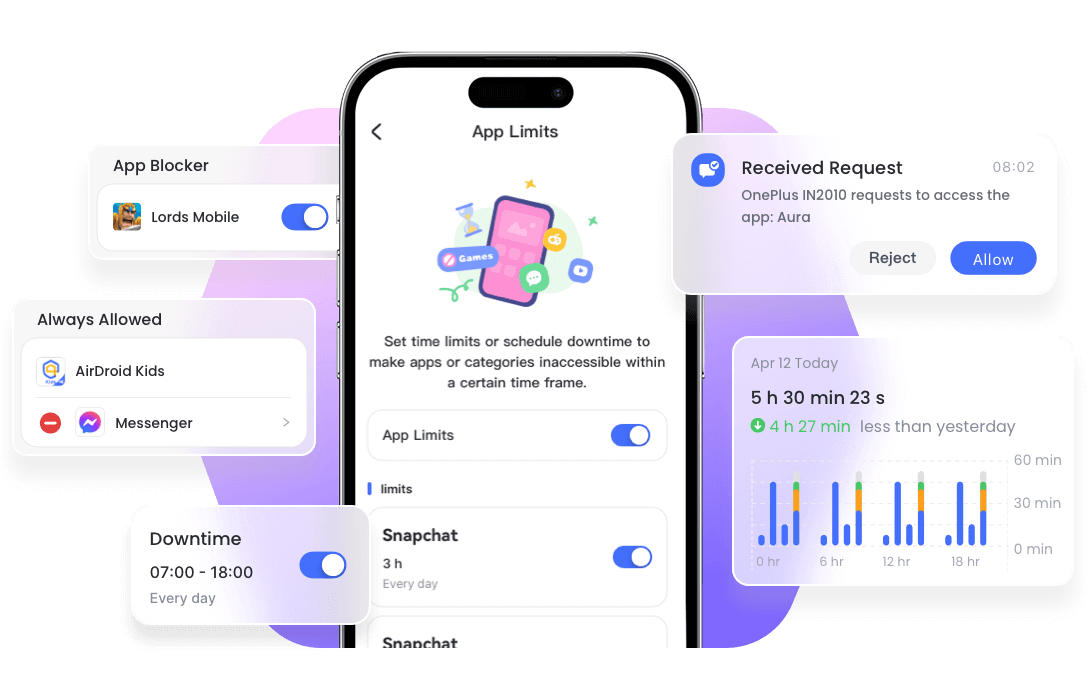
- Third-party parental control apps: Tools like AirDroid install MDM to set restrictions for your child's iPhone, making it harder to uninstall or bypass, while also supporting YouTube monitoring and keyword-based content detection across devices.
Offer Flexibility for Them
If you set a strict limit (e.g., no device use after 9 PM) before, try to leave a 15–30 minute bonus time when your child meets study or chore goals. When they know they have a little room, they're far less likely to look for loopholes.
Turn It into a Family Contract
Many kids get around parental controls because they feel over-restricted. So, why not sit down with your child to talk about whether the rules make them feel uncomfortable? If so, adjust the restrictions together.







Leave a Reply.