How to Block YouTube Channels and Videos for Kids
YouTube's autoplay and algorithm keep recommending inappropriate channels and videos for your kids? Or one video appears in YouTube Kids, and you don't want them to watch it again?
The good news is that YouTube gives parents tools to block specific channels and videos. But the steps depend on whether your child uses YouTube Kids, or YouTube with a supervised account or a regular account.
Quick pick:
- Your child uses YouTube Kids: Directly block a video or channel in the app. For stricter control, use Approved content only.
- Supervised kid account on YouTube: Use a linked parent account to block a specific channel or choose a content setting.
- Supervised teen account on YouTube: Set a content level by age.
- Regular or unsupervised teen account: Enable Restricted Mode to filter some mature content.
Block Videos or Channels in YouTube Kids
YouTube Kids is a separate app with filtered content made for children under 13. In YouTube Kids, you can block a single video or channel directly.
Here's how to block a video or channel on YouTube Kids:
- Step 1.From a video's watch page, tap "More > BLOCK."
- Step 2.Then choose "Block this video" or "Block this channel."
- Step 3.Confirm by clicking "Block."
- Step 4.Complete the on-screen math problem or enter your custom passcode.
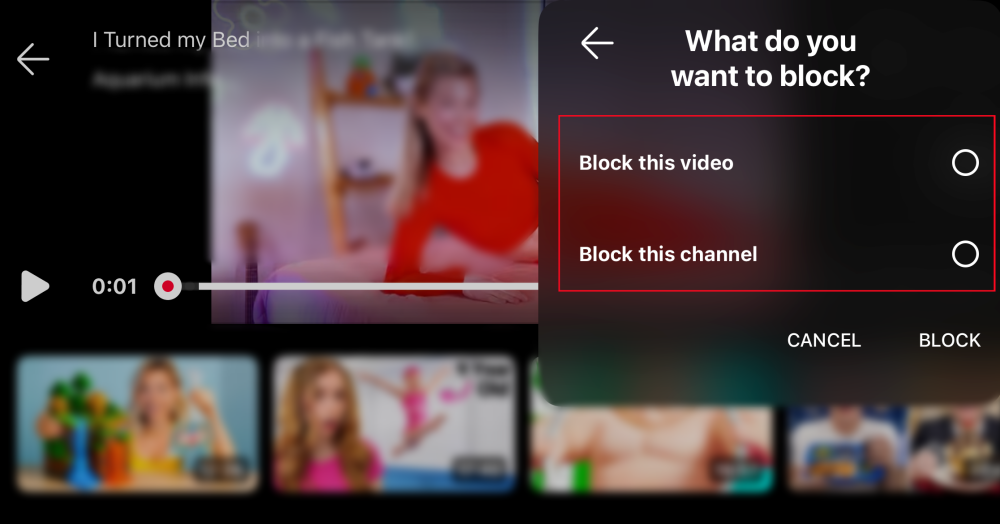
Blocks are saved to your child's profile, so if you have more than one child on the app, set them up for each profile.
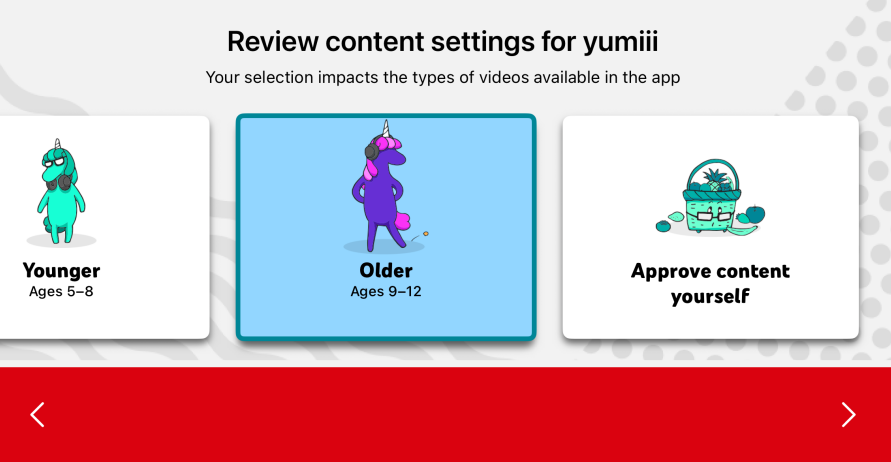
If you don't want to block videos one by one, consider setting an age-based content setting: In YouTube Kids, go to "Settings > Your child's profile > Edit Content Settings." You can select an age range, such as Preschool, Younger, or Older. Or choose "Approved Content Only," where your child can watch only the videos, channels, and collections you approve.
Block Videos or Channels in YouTube
Older kids often move on to regular YouTube. And YouTube offers different settings and ways to block channels.
Method 1: Set the Content Level in Family Center
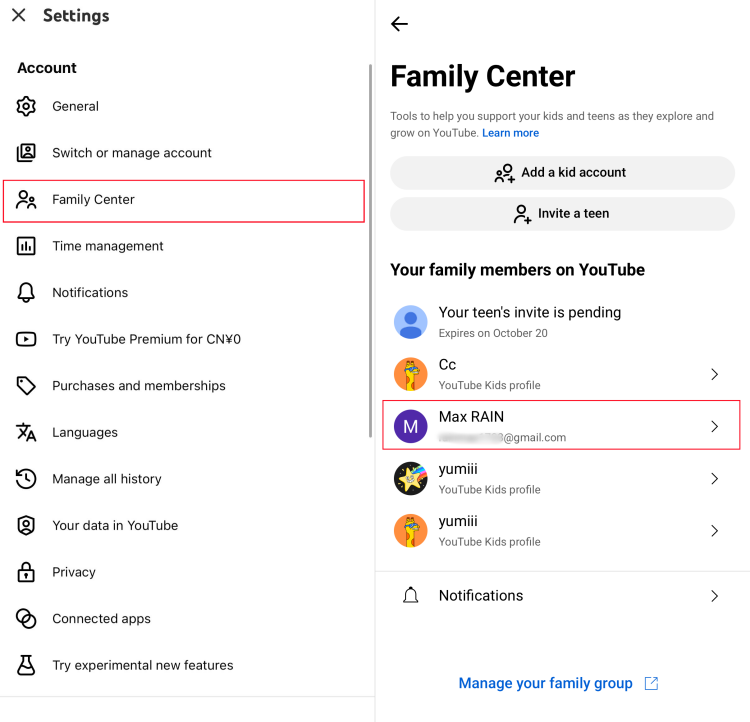
For a supervised kid and teen account, start in YouTube Family Center. With it, you can manage your child's YouTube experience, such as what they can watch based on age ranges, how much time they can spend on Shorts, etc. Here's how:
- Step 1.Open YouTube with your linked parent account.
- Step 2.Go to "You > Settings > Family Center." Select your child's YouTube profile.
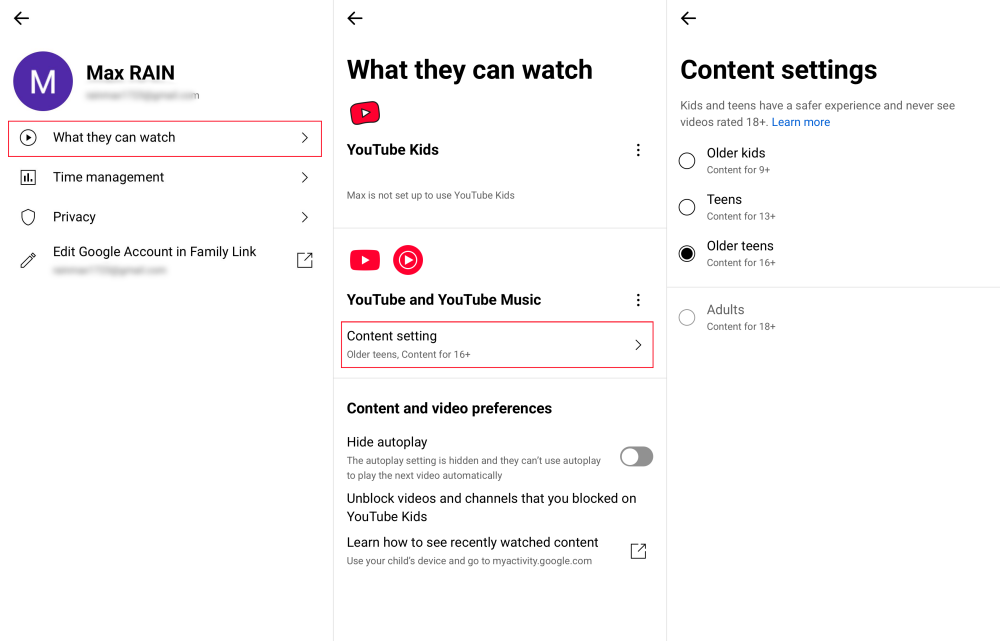
- Step 3.Tap on "What They Can Watch."
- Step 4.Under "YouTube and YouTube Music," tap on "Content setting."
- Step 5.Pick one of three levels: Older kids, Teens, and Older teens based on your child's age, and loosen it as they grow.
Method 2: Use "Block Channel for Kids"
If one particular channel is the problem, you can also block it for the supervised kid account from that channel's page. Here's how:
- Step 1.Sign in to the YouTube app with your linked parent account.
- Step 2.Locate and open the channel you want to block.
- Step 3.Tap the three vertical dots at the top.
- Step 4.Select "Block channel for kids."
- Step 5.Tap "BLOCK" next to the child you want to block it for. If you have multiple children, select each profile separately.
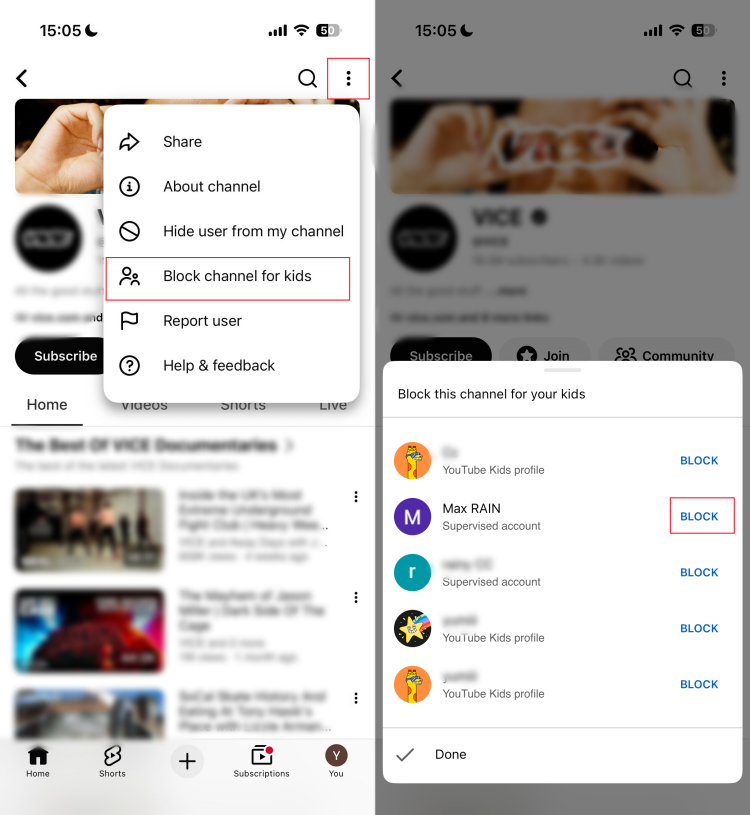
After this, the child won't see the blocked channel on YouTube. However, in our test, channels with similar names may still be there when searching for them.
Method 3: Turn on Restricted Mode
If your teen is over 13 and has their own unsupervised Google account, what YouTube offers is "Restricted Mode."
It works as a content filter that can hide videos with potentially mature content. Though this doesn't let you pick a specific channel or video to block, it filters out mature YouTube content to some extent. To turn it on for your teens:
- Step 1.Open their YouTube app and go to Settings.
- Step 2.Then, select "General > Restricted Mode."
- Step 3.Turn on the toggle.
- Step 4.Since the setting works separately at the browser or device level, if they use YouTube on a computer, click on "Profile > Restricted Mode > Activate Restricted Mode."
💡Some parents can turn on Restricted Mode in Family Link by going to "Controls > YouTube." However, availability depends on the teen's age and their account setup. According to Google, you can't access Restricted Mode in Family Link if your teen is over 13 (or other available age) and you didn't create their supervised Google Account before they reached that age.
Tips to Make YouTube Safer Beyond Blocking
Get Alerts for Risky YouTube Activities
YouTube's built-in tools stop some concerning videos, but new videos, channels, and creators keep appearing. And these settings tell you very little about what your child actually watches day to day.
For this, AirDroid Parental Control helps to spot content that may deserve a conversation. It watches for inappropriate words in a video's title or description and alerts you, so you can step in early.
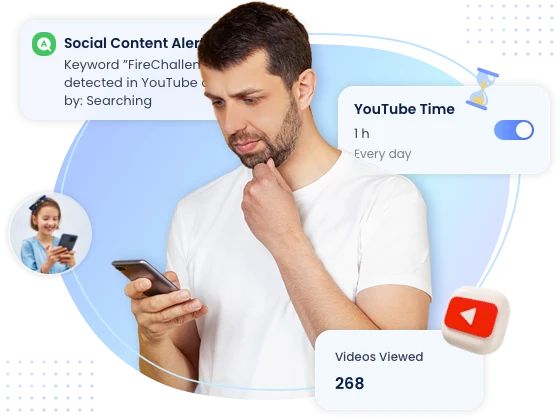
Additionally, it provides parents with a 30-day watch history if your child uses an Android. For iOS, parents can also review partial activities like their liked videos and uploads from their own channel or subscribed ones.
Check YouTube Viewing History Regularly
Sitting down together and taking a regular look at viewing history helps you notice a channel your child keeps returning to and spot risky patterns.
You can also do this by asking what they like about a channel and what caught their eye. This also lets you understand your child's interests.
Turn YouTube into Family Time
Pick a video to watch together occasionally, especially when your child is exploring a new topic or creator. If something feels misleading, frightening, or too mature, you can pause and talk about it in the moment. Agree on what kinds of videos feel appropriate, and revisit those boundaries as your child grows.
FAQs
- For a channel blocked through your linked parent account, return to that channel page. In the YouTube app, tap "More > Block channel for kids > Unblock next to your child's name."
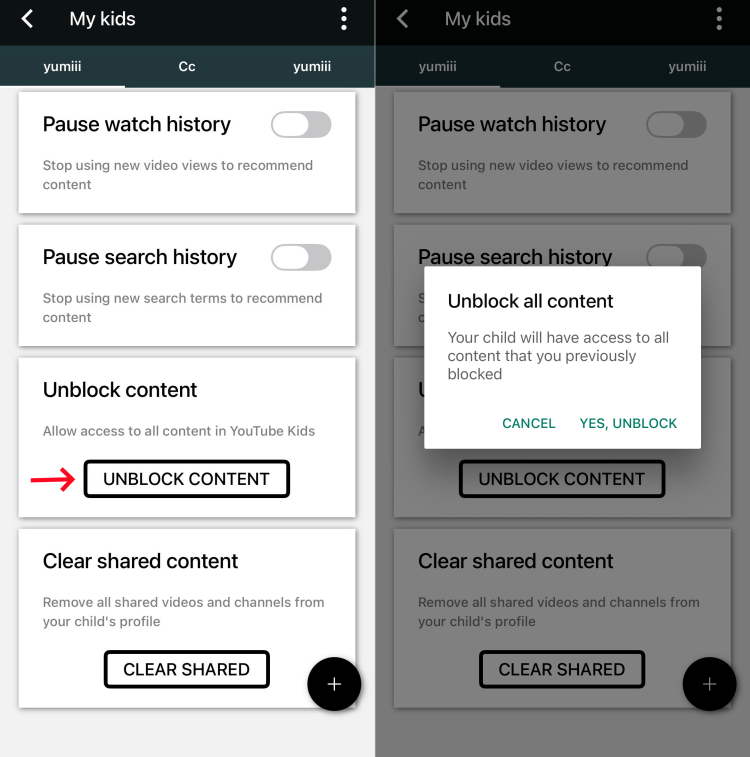
- In the YouTube Kids app, go to "Settings," complete the parent check, select your child's profile, and choose "UNBLOCK CONTENT." Note that this will remove all videos and channels you previously blocked.










Leave a Reply.