How to Stop Kids From Using Ignore Limit on Screen Time
"I set up Screen Time on my kid's iPhone with app limits and downtime," one frustrated parent posted on Reddit. "But when the time limit is reached, there's an 'Ignore Limit' button that completely bypasses everything I set up."
What is the point of Screen Time if kids can just ignore it? I've looked everywhere in settings but can't find a way to remove this option.
Sound familiar?
In this guide, we'll show you what's actually happening with that "Ignore Limit" button, whether Apple lets you remove it (spoiler: not exactly),and—most importantly—how to make every override require your approval so your Screen Time limits actually stick.
1Why your child can still ignore Screen Time limits
Before we dive into fixes, let's understand what's actually happening—because this knowledge transforms you from a frustrated parent into an informed one.
When an app hits a Screen Time limit, iPhone/iPad shows options like "One More Minute," "Remind Me in 15 Minutes," or "Ignore Limit for Today."
This isn't a bug. It's part of Screen Time's design. According to Apple's official documentation, Apple includes these built-in "override" options so kids can practice self-management instead of being hard-stopped every time.
In real life, though? That can feel like your carefully set boundaries just got a "negotiation button"— especially when you're managing a 10-year-old's TikTok habit or a teen's late-night gaming sessions.
2 Can You Actually Remove the "Ignore Limit" Button?
Short answer: No. Apple doesn't provide a way to permanently hide or remove the "Ignore Limit" option from Screen Time. These override prompts are built into the system—there's no setting to turn them off completely.
While you can't eliminate the button itself, you can make it require your permission every time—either by setting a Screen Time passcode kids don't know, or by routing requests to your device through Family Sharing.
Next, we'll show you exactly how to set this up.
3 3 Ways to Stop "Ignore Limit" (Step-by-Step)
There's no one-size-fits-all setup. The right method depends on whether you're managing your child's device directly, using Family Sharing, or need something more robust than Apple's built-in controls.
1 Set a Passcode to Stop "Ignore Limit" on Your Child's Device
Best for: Managing Screen Time directly on your child's iPhone/iPad without Family Sharing.
Set a Screen Time Passcode
Step 1. : On an iPhone, go to Settings > Screen Time.
Step 2. : Scroll down to Lock Screen Time Settings.
Step 3. : Enter a Screen Time passcode and confirm it.
Step 4. : Enter your Apple ID in case you want to reset it.
Enable Block at End of Limit in App Limits
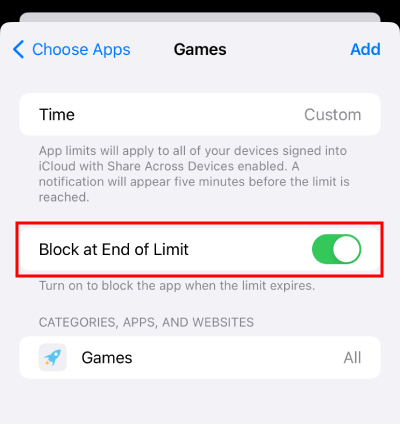
Setting a passcode alone won't stop "Ignore Limit"—you also need to enable this setting for each app category you want to restrict.
Step 1. : On an iPhone, go to Settings > Screen Time > App Limits.
Step 2. : Choose a specific app or category and how long your child can use it.
Step 3. : Remember to enable Block at End of Limit, then tap Add.
🔔 Plug These Security Leaks Your Kids Are Already Using
Even with a passcode and "Block at End of Limit" enabled, tech-savvy kids have discovered workarounds. According to security experts, here's how to close the most common loopholes:
- Prevent app deletions/reinstalls: Content & Privacy Restrictions → iTunes & App Store Purchases → Set "Installing Apps" and "Deleting Apps" to Don't Allow (stops kids from resetting limits by deleting/reinstalling apps)
- Lock time zone changes: Settings → General → Date & Time → Set Automatically = ON, then Content & Privacy Restrictions → Location Services → System Services → Setting Time Zone = OFF (prevents tricking Screen Time with timezone changes)
- Disable screen recording: Content & Privacy Restrictions → Content Restrictions → Screen Recording = Don't Allow (stops kids from recording you entering your passcode)
If your child is under 10 and not tech-savvy, you can probably skip it. But if you're dealing with a tween or teen who spends a lot of time on their device, these are the exact tricks they'll try first. We've seen parents come back frustrated after skipping this step—so if you have the time, close these loopholes now to save yourself headaches later.
Pros
- Free—built into every iPhone and iPad
- No additional apps or subscriptions needed
- You control the passcode, so kids can't change settings
Cons
- Setup is tedious—you need to enable "Block at End of Limit" for every single app category
- If your child discovers or guesses your passcode, all limits become useless
2 Use Family Sharing to Approve "Ignore Limit" Requests
Best for: Parents who want override requests to come to their own device for approval (recommended for most families).
How it works: Instead of entering a passcode on your child's device, they send a "Request More Time" notification to your phone—you approve or deny with one tap.
Set Up Your Child in Family Sharing
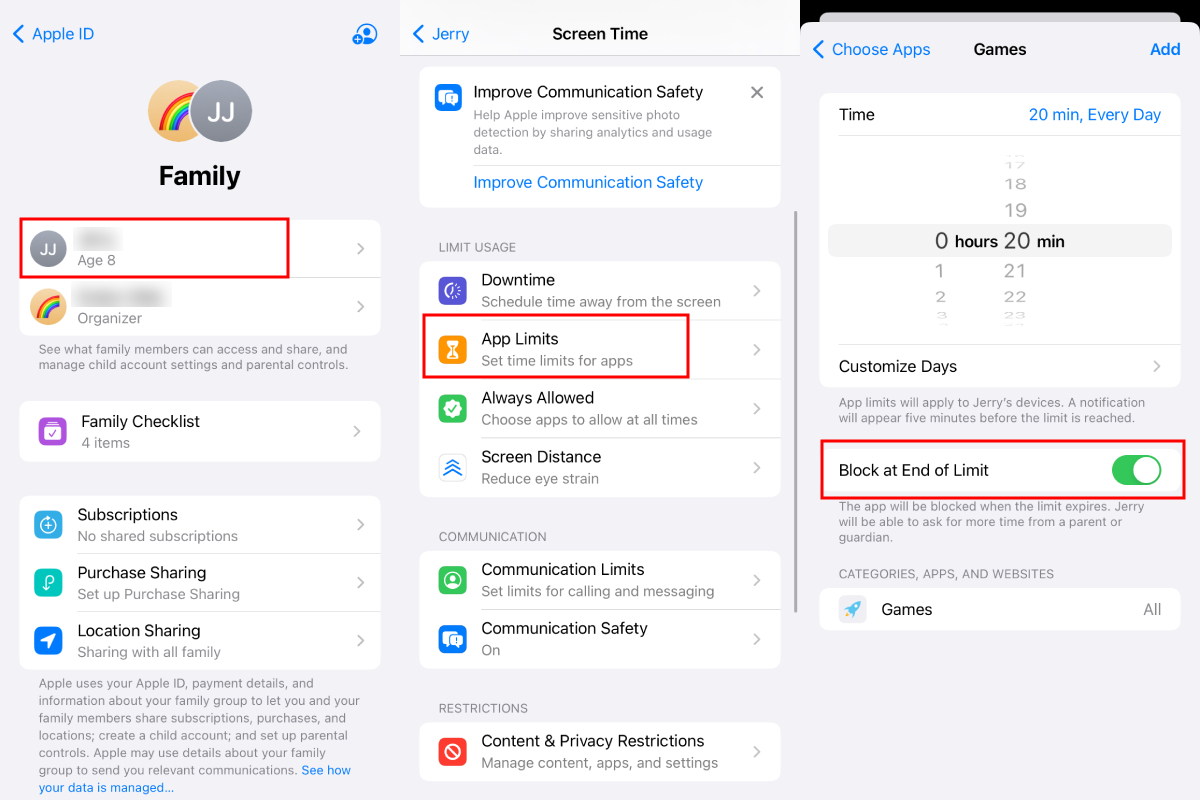
Step 1. : After adding your child's device to your Family Sharing group, tap your child's account.
Step 2. : Tap Screen Time > App Limits.
Step 3. : Follow the steps mentioned earlier to set a time limit for a specific app or category.
Step 4. : Remember to enable Block at End of Limit.
Manage "Ignore Limit" Requests
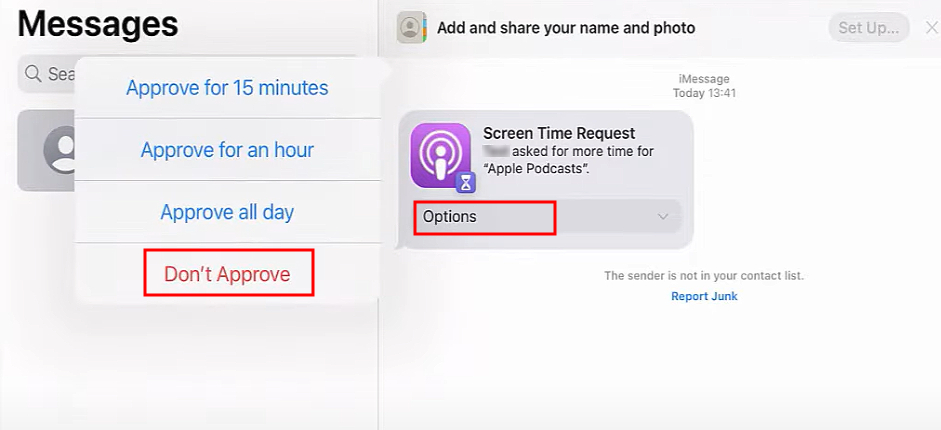
When your child hits a limit, they'll see "Ask For More Time" instead of "Ignore Limit." On their device: They tap "Ask For More Time" → select a reason → sends request to you On your device: You get a notification → tap Approve (grant 15 min, 1 hour, or all day) or Deny
Pros
- Easier than remembering/entering passcodes
- You control approvals from your own phone
- Teaches kids to ask permission instead of sneaking around
- Works across all devices in the family
Cons
- Initial setup can be confusing if Apple IDs/roles aren't configured correctly
- Settings don't always sync immediately—can take a few minutes
- If you're not nearby with your phone, kids are stuck waiting for approval (no emergency override)
3 Use Third-Party Parental Control Apps (When Built-in Controls Aren't Enough)
Best for: Families where Apple's Screen Time keeps getting bypassed, or you need features Apple doesn't provide (cross-platform support, app blocking, location tracking).
Assuming your child has their own Apple ID, even if you've added them to your Family Sharing group or set a Screen Time passcode on their device, they can still bypass these restrictions by leaving the family group or resetting all settings.
In this situation, a more effective solution is AirDroid Parental Control. With this app, you can still set Screen Time limits without worrying about bypasses.
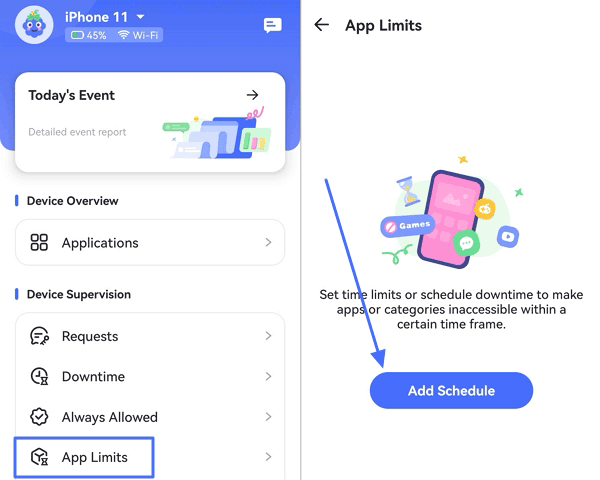
Step 1. : Install AirDroid Parental Control on your phone, then install AirDroid Kids on your child's iPhone/iPad and link the devices to your account.
Step 2. : Set downtime schedules for specific times (bedtime, homework hours, family time)—go to "Downtime" in the AirDroid app to configure when devices should be restricted.
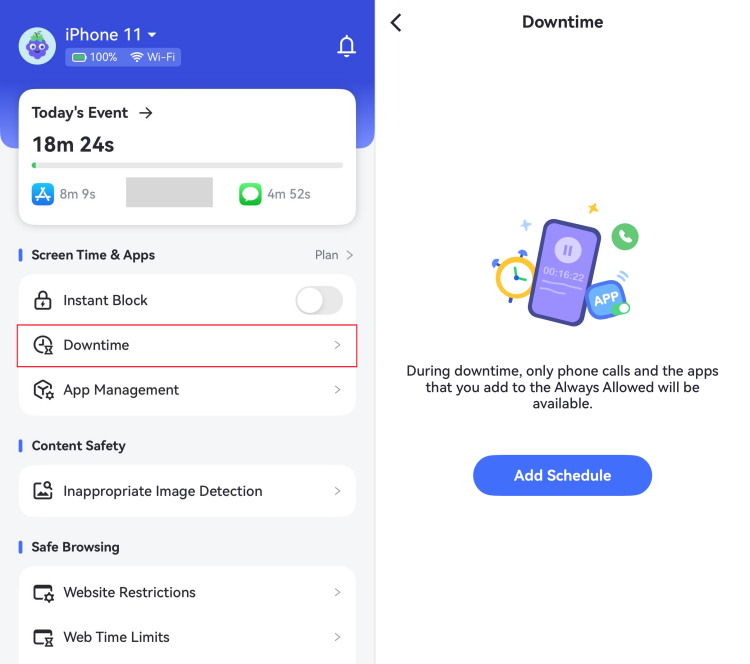
Step 3. : Set app-specific limits for the biggest distractions (TikTok, YouTube, games) using the "App Limits" feature.
Pros
- Works on both iOS and Android
- Can't be easily removed—kids can't uninstall or disable it without parent approval (unlike Screen Time passcode that can be reset)
- More than just time limits—also blocks apps entirely, filters content, and tracks location if needed
Cons
- Requires subscription (not free like Screen Time)
- Some features limited on iOS due to Apple's restrictions
4Why Ignore Limit Becomes a Family Conflict Trigger
Tools matter—but the "Ignore Limit" button usually isn't the real problem. The problem is what it signals: the rule can be negotiated at the exact time you need it to hold.
👦 Kids experience it as:"If I can tap one more minute, the limit isn't final."
👨 Parents experience it as:"I set a boundary, but it doesn't stick—so I have to fight the same battle again."
Over time, this creates a cycle: limit reached → child extends time → parent reacts → conflict escalates. The fix isn't only stricter tech—it's clear, consistent rules and a plan for exceptions.
Why Consistency Matters
The American Academy of Pediatrics emphasizes that better outcomes come from family rules that focus on balance, content, and communication—not screen time alone.
But those rules only work when they're consistent. Research shows that "when caregivers respond consistently to a child's needs, they create neural pathways that support emotional resilience and stress management."
In plain English: When rules exist but aren't enforced, children don't learn self-regulation—they learn that rules are negotiable. And that lesson extends far beyond screen time.
How to Talk to Your Child About Stricter Limits
If you're tightening controls after letting things slide, here's how to frame the conversation:
- I need to talk about Screen Time. When I first set it up, I didn't understand how it worked—and I let things slide when I shouldn't have. That's on me.
- Going forward: [explain the limits]. These aren't punishments—they're boundaries to help us manage screen time better. I'll enforce them consistently now.
- I know this feels stricter. But you're smart enough to understand why consistent rules matter. Let's make this work.
5From Policing to Partnering: Building a Healthier Screen Culture
Setting up the perfect restrictions is a great first step, but technology alone won't teach self-regulation. To truly manage screen time, you need to move beyond "policing" your child's device and start "partnering" with them to build a sustainable digital life.
Co-create rules, don't just impose them
Research shows children follow rules they helped create. Instead of "You get one hour, period," try: "What feels fair for school nights vs. weekends?" You have final say, but involving them builds buy-in and reduces the "me vs. you" dynamic.
Focus on what screens are replacing
According to the American Academy of Pediatrics, what matters isn't just time—it's whether screens are displacing sleep, homework, physical activity, or face-to-face interaction. Thirty minutes of educational content isn't the same as thirty minutes of TikTok rabbit holes.
Create device-free zones for everyone
Bedrooms at night (devices charge elsewhere), dinner table (no phones for anyone—including parents), first hour after school (decompress time). These aren't punishments—they're protection for sleep and connection that screens too easily displace.
Model the behavior you expect
If you're scrolling during dinner while enforcing "no phones at the table" for your child, they'll notice the hypocrisy. Research published in the NIH found that parental screen use directly increases children's screen time. Family rules apply to everyone.
FAQ: Screen Time Problems & Solutions









Leave a Reply.