AirDroid Parental Control
24/7 Kids' Guardian via App & Web
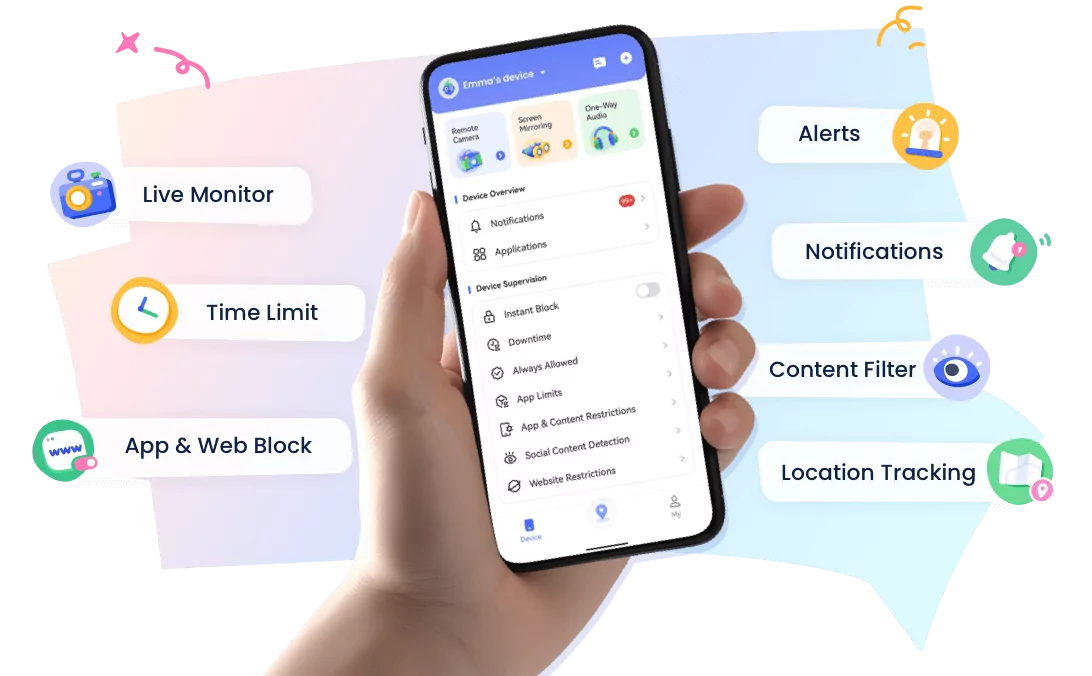
- 👀Live surroundings and location tracking
- 🔞Content Monitoring and App/Web Blocking
- ⚠Instant alerts for online risks and geofences
- ⌛Screen time control and monitor
Does AirDroid Parental Control Monitor Snapchat? Features, Setup & Limitations
Snapchat can be difficult for parents to understand. Conversations move quickly, some content disappears, and ordinary screen-time reports do not always explain whether a child may be facing bullying, unwanted contact, sexual content, threats, or other safety concerns.
That does not mean parents need to read every private conversation. AirDroid Parental Control offers a simpler, layered approach: start with Snapchat usage and app limits, add supported risk alerts when there is a clear safety need, and involve the child in the process whenever possible.
Transparency note: This guide is published by AirDroid Parental Control and describes our own product. Features vary between Android and iPhone, so this article also explains the product's limitations and the factors that can affect results.
Quick Answer
Yes, AirDroid Parental Control can help parents oversee parts of a child's Snapchat usage, but it does not provide a complete archive of every Snap or private conversation.
On a child's Android device, AirDroid Parental Control can help parents review app usage, set Snapchat time limits or schedules, manage access, review supported device notifications, and use selected-keyword alerts through Social Content Detection where Snapchat is supported in the current setup. Screen Mirroring can also provide current on-screen context when a parent has a specific safety concern.
On a child's iPhone, the focus is mainly on app visibility, usage management, location features, and restrictions available under the selected setup mode. Snapchat keyword detection, notification syncing, and Screen Mirroring are currently Android-focused features.
The simplest way to use AirDroid Parental Control is to choose only the feature that matches the family's concern. For example, use an app limit for excessive use, or configure a small set of relevant risk keywords when there is a genuine safety concern. More access is not automatically better protection.
AirDroid is best suited to families whose child uses Android and who want Snapchat usage rules plus selected-keyword safety alerts.
What Snapchat Usage Can AirDroid Parental Control Cover?
“Monitoring Snapchat” can mean very different things. Some parents only want to understand screen time, while others need an alert when supported activity may indicate cyberbullying, grooming, self-harm, threats, or another immediate concern.
The table below separates these goals so families can choose the least intrusive option that meets the child's safety needs.
| Parent's Goal | Relevant AirDroid Parental Control Feature | What It Can Help With | Platform Notes |
|---|---|---|---|
| Understand Snapchat use | Applications and activity reports | Review whether Snapchat is installed and understand app-use patterns available in the dashboard | Available on the child's iPhone and Android |
| Reduce excessive Snapchat time | Downtime and App Limits | Set a daily limit or prevent access during homework, bedtime, or family time | Available on the child's iPhone and Android |
| Pause or restrict Snapchat | Instant Block, Plan and App Blocker | Manage access when the app is interfering with sleep, school, or an agreed family rule | Available on the child's iPhone and Android |
| Receive alerts for selected concerning terms | Social Content Detection | Alert a parent when a supported app on the child's device receives content containing a selected keyword catalogue | Available for a child Android device; Snapchat must be supported and enabled in App Detection Management |
| Review supported Snapchat-related notifications | Notifications Sync | Provide notification-level context without promising access to the complete conversation | Available for a child Android device |
| Check current on-screen activity after a serious concern | Screen Mirroring | Show the child's current screen when the feature is supported and properly enabled | Available for a child Android device; best used transparently and only when needed |
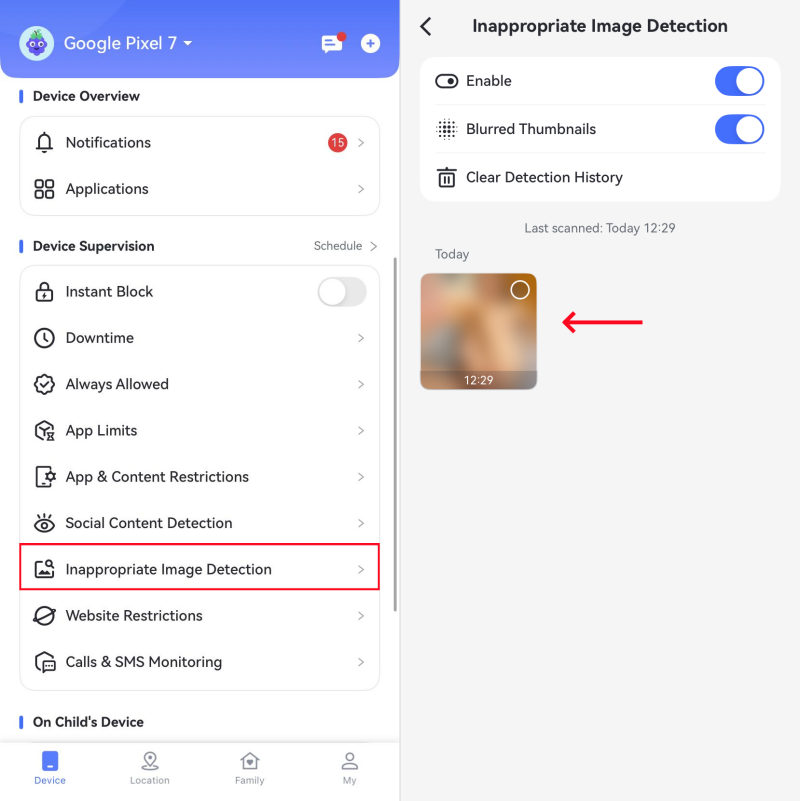
| Receive warnings about potentially inappropriate saved images | Inappropriate Image Detection | Detect supported images after they are saved to the child's internal storage or Gallery | This is a device-level feature, not a guarantee that every Snapchat image will be detected |
If a family's main goal is simply to reduce late-night Snapchat use, an app schedule may be enough. Risk alerts and current-screen tools should be added only when they address a specific concern.
AirDroid Parental Control Snapchat Features on Android
AirDroid Parental Control offers its broadest Snapchat-related coverage when the child's phone is Android. Parents can manage the relevant settings from one AirDroid Parental Control dashboard instead of checking several separate menus.
1See Snapchat Usage Patterns
The "Today's Event" feature can help answer a basic question: Is Snapchat taking up too much of the child's day?
For example, parents can tap "Today's Event" to see the child's total screen time for the day, how long Snapchat was used in the Most Used Apps section, and how many Snapchat notifications were received.
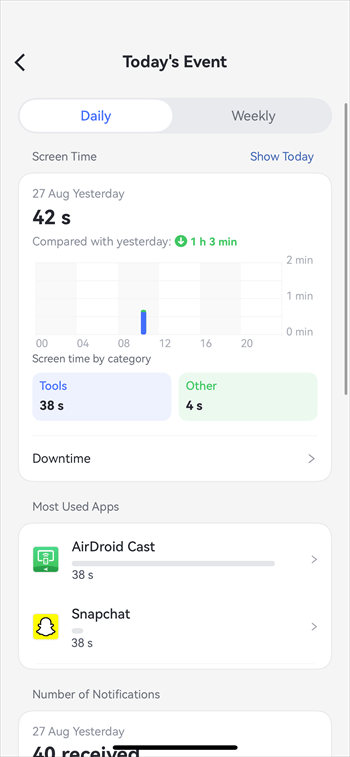
If it shows six hours of total screen time, two hours on Snapchat, and frequent notifications late at night, parents can use that information to discuss sleep, homework, and family time—without reading the child's ordinary conversations.
2Set a Reasonable Limit or Schedule
Parents can use these features of Airdroid Parental Control to create simple, consistent boundaries around Snapchat and other apps. With "Plan," you can set daily time limits or choose when specific apps are available—for example, allowing Snapchat for one hour after homework.
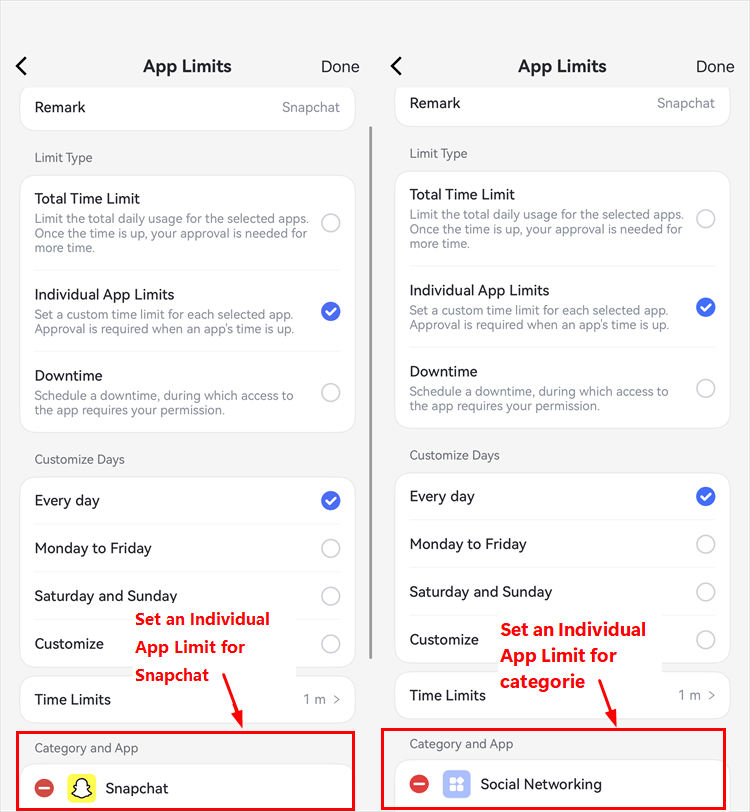
"Always Allowed" keeps important apps accessible, while "App Blocker" can restrict Snapchat and other distracting apps when needed. During "Downtime," only phone calls and apps marked as "Always Allowed" remain available, so a family might pause Snapchat automatically at bedtime.
Whenever possible, parents should agree on these rules with their child and explain the reason behind them. This helps the controls feel more like reasonable safety boundaries than punishment.
3Configure Selected-Keyword Risk Alerts
AirDroid Parental Control's "Social Content Detection" can provide keyword-based risk alerts for Snapchat and other supported social apps on Android. Parents can enable Snapchat in "App Detection Management" and choose relevant terms in "Keyword Management." When selected keywords are detected, AirDroid Parental Control sends an alert to the parent. In this context, a risk alert is a safety signal, not an automatic judgment that a conversation is dangerous.
For example, parents might select focused keywords related to bullying, threats, self-harm, or requests to meet offline. If Snapchat content includes a phrase such as "Meet me after school, but don't tell your parents," "I'll hurt you," or "No one likes you," AirDroid Parental Control can flag the match so the parent knows that a calm and timely check-in may be needed.
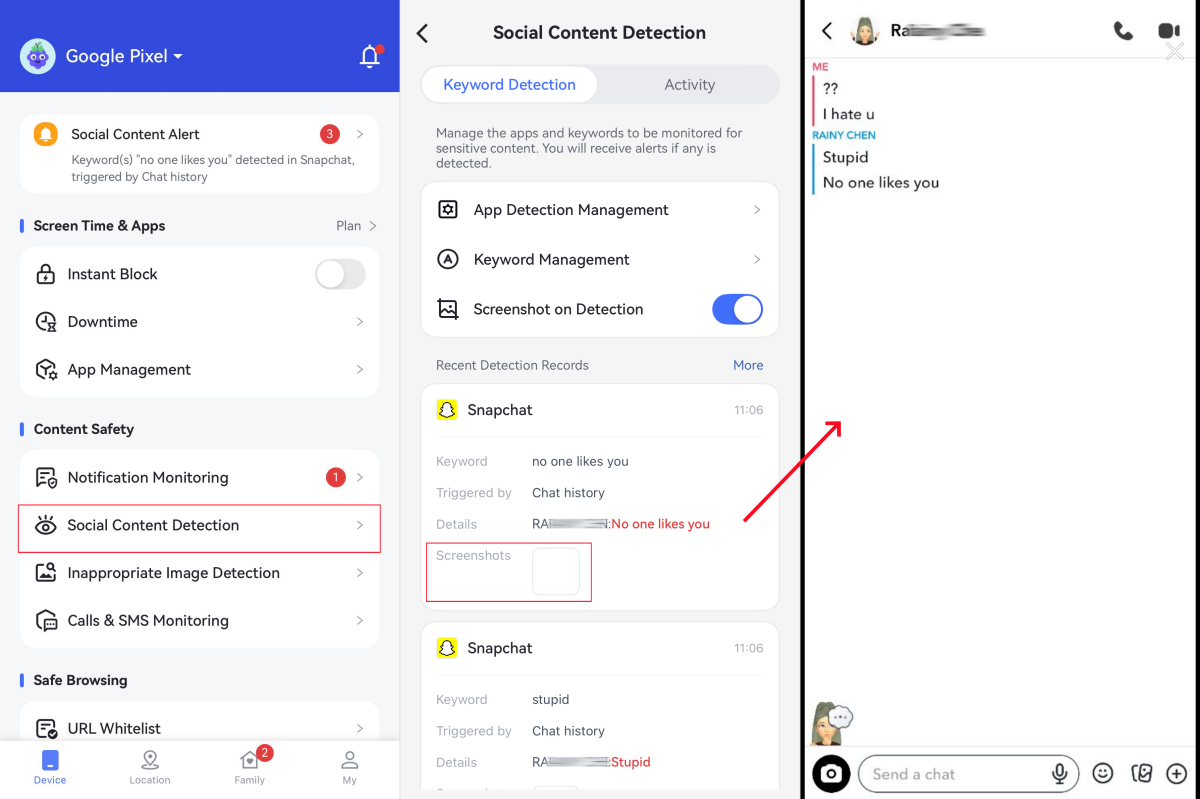
To keep Snapchat risk alerts useful, choose age-appropriate terms connected to a specific concern. Avoid adding long lists of broad words, as they may trigger unnecessary alerts and make harmless conversations appear suspicious.
Important: A keyword match does not prove that a child has done something wrong or that the message reflects an immediate threat. Parents should consider the context, speak with the child calmly, and respond according to the seriousness of the situation.
4Review Available Notification Context
On the child's Android phone, "Notification Sync" may show the same type of Snapchat alerts that appear on the device, such as "1 missed message from Abby" or "Abby sent you a Chat." These brief notifications can help parents notice general activity patterns, such as frequent Snapchat alerts after bedtime, without opening the app or reading the child's private conversations.
Used respectfully, Notification Syncing should support conversations about sleep, screen habits, and online safety—not become a way to track every contact or make assumptions about private interactions. Parents can focus on patterns, explain any concerns calmly, and give the child an opportunity to share what is happening in their own words.
Notification Syncing is not a complete Snapchat message history. It only reflects the information included in notifications generated by Snapchat and displayed by Android. Notifications may show a contact's name without revealing the message, and they may be shortened, grouped, hidden by privacy settings, disabled, or not generated at all.
5Use Screen Mirroring Only When Added Context Is Necessary
AirDroid Parental Control's "Screen Mirroring" can show the child's current Android screen. For example, suppose a younger child has arranged to meet in person with someone they first met on Snapchat, misses an agreed check-in, and does not answer the parent's calls. After trying the usual ways to make contact, the parent might use Screen Mirroring briefly to look for an immediate sign that the child needs help.
The purpose should be to address the specific safety concern, not to inspect unrelated Snapchat conversations or monitor the child's friendships. Parents should stop using the feature once the situation is clarified, explain why it was necessary, and agree in advance on the limited circumstances in which it may be used. Screen Mirroring should remain an emergency or time-sensitive safety tool, not a form of routine surveillance.
6Add Saved-Image Detection Where Appropriate
Inappropriate Image Detection can identify supported risky images after they are saved to the child's device storage or Gallery.
Because disappearing or unsaved Snapchat content may never reach the Gallery, this feature should be treated as an additional safety layer rather than complete Snapchat coverage.
Why the setup stays simple: families do not need to enable every feature. Start with usage and limits, add selected alerts only if needed, and reserve current-screen access for situations where the child's safety may be at risk.
What AirDroid Parental Control Supports on iPhone
AirDroid Parental Control can also support families whose child uses an iPhone, but parents should not expect the same Snapchat-related visibility available on Android.
In the basic iPhone setup, AirDroid Parental Control provides a more limited set of functions.
Depending on the current version and setup, parents may be able to review the installed app list, app usage report, manage app access or usage rules, and use supported location features.
| Snapchat-related need | AirDroid Parental Control for a child's Android device | AirDroid Parental Control for a child's iPhone |
|---|---|---|
| Set limits on Snapchat access or usage time | Yes. Parents can use "Plan" or "App Limits" to set daily limits and schedules, "Downtime" to restrict access during selected periods, "Always Allowed" to create exceptions, "Instant Block" and "App Blocker" to block Snapchat when necessary. | Yes. Parents can use "App Limits," "Downtime," "Always Allowed," "Instant Block" and "App Blocker" to manage when and for how long Snapchat can be used. |
| Receive alerts for selected keywords detected in Snapchat | Yes. Parents can enable Snapchat in "App Detection Management," add relevant terms in "Keyword Management," and receive keyword-based alerts through "Social Content Detection." | No. AirDroid Parental Control's "Social Content Detection" is currently available only for a child's Android device. |
| Review Snapchat notifications from the child's device | Yes. "Notification sync" may show supported Snapchat notifications generated on the child's Android phone, such as "Abby sent you a Chat." | No. AirDroid Parental Control's "Notification sync" is currently available only for a child's Android device. |
| View what is currently displayed on the child's screen | Yes. "Screen Mirroring" can display the child's current Android screen and should be used only for a specific, time-sensitive safety concern. | No. AirDroid Parental Control's "Screen Mirroring" is currently available only for a child's Android device. |
Note: Available features may depend on the child's device, operating system, app version, permissions, and notification settings.
For an iPhone family, AirDroid Parental Control may be a suitable choice when the primary goal is healthier app use, clearer limits, and general device safety.
If the main requirement is Snapchat keyword or notification alerts, parents should understand that the current AirDroid Parental Control capability is focused on the child's Android device.
How to Set Up Snapchat Risk Alerts
The steps below apply to a supported child Android device.
Install and connect the family devices. Install AirDroid Parental Control on the parent's phone, install AirDroid Kids on the child's Android device, and follow the in-app instructions to bind the devices.
Explain the safety purpose. Tell the child which controls will be used, what kind of event may create an alert, and how the family will respond. The goal should be protection and conversation, not secret access.
Confirm the required permissions. Complete the guided permissions on the child's phone so the selected features can work.
Open Social Content Detection. In AirDroid Parental Control, go to Social Content Detection and open App Detection Management.
Enable Snapchat if it appears as supported. Turn on detection for Snapchat in the current app list. If Snapchat is not shown, do not assume that keyword detection is active for it.
Add a small, relevant keyword set. Open Keyword Management and select or add terms related to the family's actual concern. Avoid adding vague everyday words that are likely to create false alarms.
Run a harmless test. With the child's acknowledgment, use a non-sensitive test phrase to confirm whether a supported alert reaches the Requests area on the parent's device. Record the test conditions and result.
Agree on what happens after an alert. A sensible first step is usually a calm conversation. If the alert suggests an immediate danger, follow the family's safety plan and contact appropriate local help.


A privacy-conscious setup starts small: use the fewest keywords and controls needed for the concern, review the settings regularly, and reduce oversight as the child demonstrates safer habits.
What We Observed in Our Test
We tested AirDroid Parental Control around practical family-safety tasks rather than trying to collect every Snapchat conversation.
The test covered setup, app-use controls, supported alerts, notification context, and the differences between Android and iPhone.
| Test Item | Test Conditions | What the Guide Confirms | Practical Takeaway |
|---|---|---|---|
| Initial setup | Test date: August 18, 2026. Parent: Google Pixel 7, Android 16, AirDroid Parental Control 2.7.6.0. Children: Samsung Galaxy S20+, Android 13; iPhone 14, iOS 26.6, AirDroid Kids 1.8.2. Required permissions were enabled. | Android connects through a QR code or URL followed by guided permission prompts. Full iPhone management requires a one-time Supervision Mode setup using AirDroid Parental Connector, a USB cable, and a pairing code. | The Android setup is direct and guided. The iPhone requires one extra setup stage, after which parents can manage supported safety features from the same dashboard. |
| Snapchat usage and app limit | Snapchat was given a 30-minute daily limit and blocked from 10:00 p.m. to 7:00 a.m. on both child devices. | In "App Management," parents can select Snapchat, choose an individual time limit or downtime schedule, and tap "Done." The app becomes unavailable when the limit is reached or during the scheduled downtime. | It provides a simple way to protect homework, sleep, and family time. Essential apps can remain accessible through "Always Allowed." |
| Selected-keyword alert | On the Android child device, Snapchat was enabled in "Social Content Detection," the harmless test keyword "bluebird" was added, and the required permissions were granted. | AirDroid sends an alert when a selected keyword is detected in an enabled supported app. If "Screenshot on Detection" is enabled, the alert can include limited visual context. | The alert works as an early safety signal for possible bullying, threats, or unsafe contact. It does not prove that a conversation is harmful and should be followed by a calm check-in. |
| Notification Sync | Snapchat notifications were enabled on the Samsung Galaxy S20+, and Snapchat was turned on under AirDroid's "Notification Sync." | Parents can search for Snapchat and review notifications generated on the child's Android phone, such as "Abby sent you a Chat." The available detail depends on what Snapchat and Android include in the notification. | Notification syncing offers quick context without opening Snapchat, but it is not a complete message or chat history. |
| Android and iPhone comparison | Samsung Galaxy S20+ with Android 13 compared with iPhone 14 running iOS 26.6 and Supervision Mode. | Android supports Snapchat app limits, notification syncing, supported-app keyword detection, and Screen Mirroring. On iPhone, AirDroid supports app limits, blocking, downtime, location, and other supervised controls; AirDroid currently limits iOS social-content detection to YouTube and does not document Snapchat notification syncing or Screen Mirroring. | Android provides broader Snapchat safety alerts and context. The supervised iPhone setup is better suited to simple access limits, screen-time rules, and location safety. |
Method note: Initial setup took approximately 6–7 minutes. During testing, keyword alerts were delivered to the parent device within about one minute. Only test accounts and harmless sample content were used; no real child data or private conversations were involved. Results may vary depending on network conditions, device permissions, operating system restrictions, and app updates.
The final test results should be read as a snapshot of the tested devices and app versions, not a promise that every phone will behave identically.
Operating-system changes, permissions, notification settings, connectivity, battery controls, and product updates can all affect results.
What AirDroid Parental Control Cannot Guarantee
AirDroid Parental Control is designed to give parents useful safety signals and device controls. It should not be presented as a way to capture everything a child does on Snapchat.
- It cannot guarantee access to every Snap or conversation. Disappearing content, platform restrictions, notification behavior, and device settings can all limit what is available.
- It is not a complete Snapchat message archive. Supported notifications or alerts do not equal a full, chronological copy of private chats.
- A keyword alert can miss context. A selected word may be used jokingly, quoted from someone else, or included in a supportive conversation. Risky behavior may also use language that is not on the list.
- Android and iPhone coverage is not the same. Social Content Detection, notification syncing, and Screen Mirroring are currently child-Android features.
- Screen Mirroring shows current activity, not a guaranteed history. It should be used only when the family has a clear reason for needing additional context.
- Saved-image detection does not cover every Snapchat image. It applies when supported images are saved to internal storage or the Gallery.
- Alerts depend on the device setup. Permissions, internet access, battery settings, app versions, and operating-system changes may affect delivery.
- No app can replace an open safety conversation. Children still need a trusted adult they can approach without fearing an automatic punishment.
For many families, the most balanced approach is to use Snapchat Family Center for Snapchat's own family tools and AirDroid Parental Control for broader device-level support such as usage rules and supported risk alerts.
The tools serve different purposes and should be combined with clear family expectations.
Parents comparing different approaches can also read our guides to Snapchat monitoring apps and safer ways to check a teen's Snapchat and respond to risk alerts.
FAQs










