Family Link Not Working? Fix Daily Limits, Parent Access Code & More
Is your Family Link not working? You're not alone. From outdated locations to daily limits not working, the issues with this app seem endless.
The tricky part? These issues don't all have the same cause. So, to fix Family Link not working, start by finding the situation that matches yours.👇
Quick Troubleshooting Tips for Family Link Not Working
Start with these general troubleshooting tips to see if your issue is temporary and can be fixed in minutes:
- Verify "Device Admin" for Family Link is activated on your child's device (go to "Settings > Apps > Special app access > Device admin > enable Family Link parental controls.")
- Make sure both devices are signed into the correct Google accounts
- Restart both the parent and child devices
- Force stop the Family Link app and reopen
- Update Google Family Link to the latest version
- Contact Family Link support directly
Common Family Link Issues and How to Fix
If the quick fixes didn't solve the problem, it's time to look at what's actually going wrong.
1Downtime & Daily Limits Not Working
Many parents find that Google Family Link doesn't always enforce screen time limits or downtime as expected.
For example, when you've set a strict downtime or time limit, your child continues to use their phone, or the dashboard shows the child used more screen time than the limit allowed.
Why This Happens
- You mark certain apps as "Unlimited Time."
- You don't save the settings properly.
- Your child changes the date & time to bypass the screen limits.
Fix 1: Review or Reset Time Limits Settings
Go to "Family Link > Screen time > Time limits or Schedules"
Review your child's time limit and downtime schedule to see if they are set correctly as you expected.
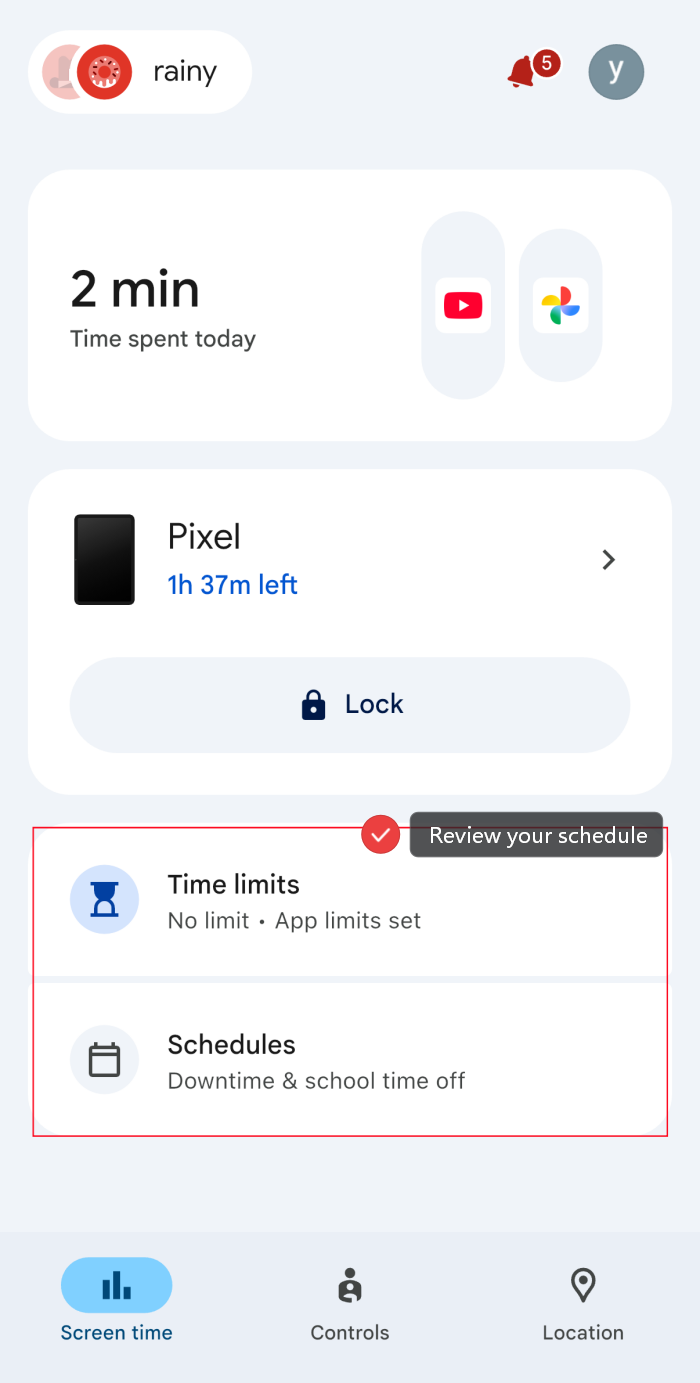
Most importantly, dive into the "App Limits" section to check if any app was set to "Unlimited Time," which is exempt from the screen time limits and downtime.
Or try to remove the existing schedule and reset it again.
Fix 2: Disable "Edit Date & Time"
If you previously allowed your child to edit the date and time, it's possible that time limits and downtime won't work.
To prevent your child from ever bypassing the limit by changing the clock, re-lock this setting from your dashboard:
- Step 1. Open "Family Link > Screen time > Devices setting."
- Step 2. Then, disable "Edit date & time."
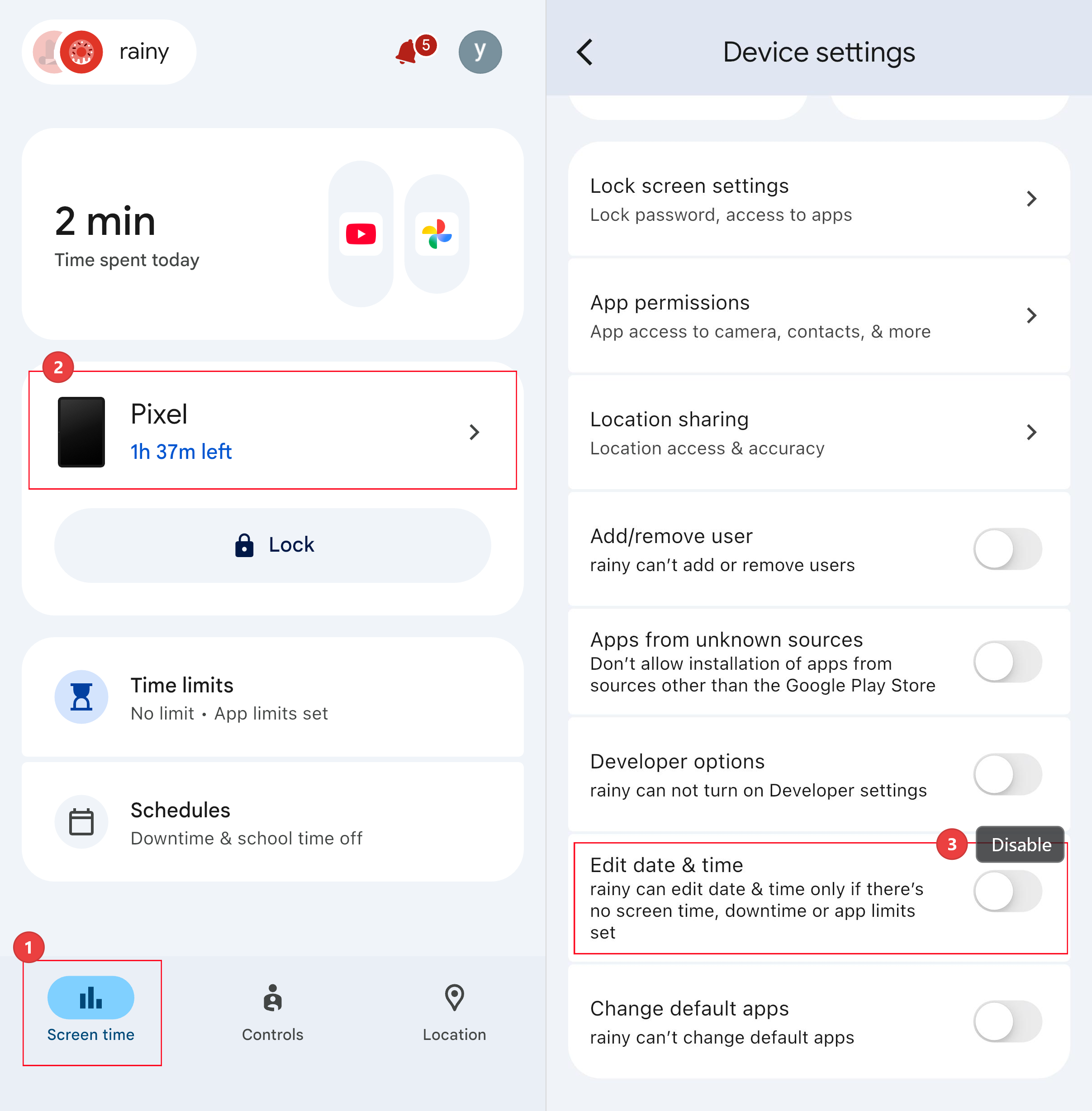
After this, the time settings on the child's phone will be grayed out, ensuring they can't manually add extra hours to their day.
2Location Not Updating
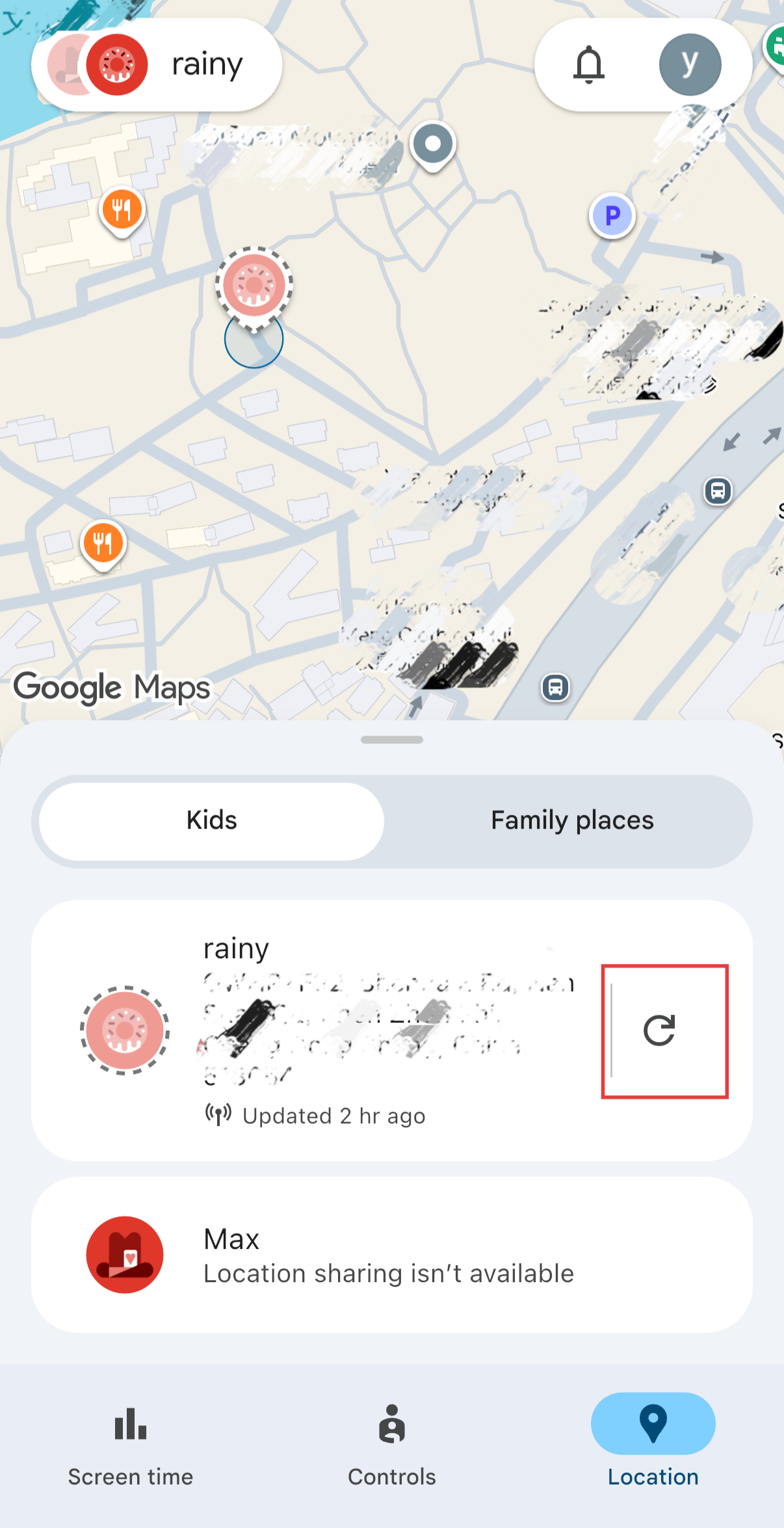
This is parents' worst nightmare when the map says "Updated 2 hours ago."
Common Myths: When Family Link stops updating the location data, many guides suggest it is caused by the disabled location services or the battery saver mode. The truth is that Family Link automatically locks the location setting changes and puts Google Play Services in unrestricted battery mode on the child's device.
Why This Happens
- Family Link only processes and updates location periodically, not every minute.
- The child's device is turned off or disconnected from the network.
- Location updates may be delayed due to the Battery Saver mode.
Fix 1: Manually Refresh the Location
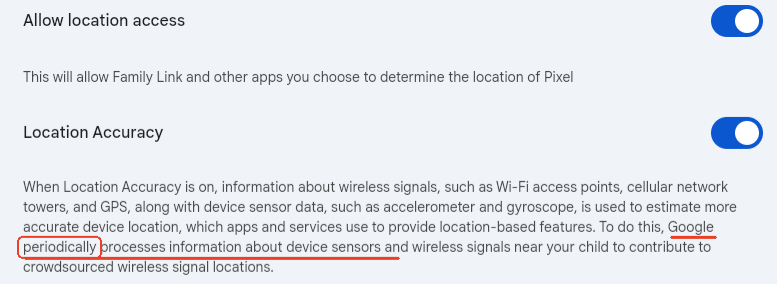
According to Family Link, it doesn't track and display real-time location frequently. So, what you're seeing might just be delayed this time, which is normal.
To fix it, just open "Family Link > Location" and hit the "refresh" button to request an updated location manually.
Fix 2: Ensure the Child's Device Is Online
Family Link relies on the Internet to send and report the location data. Hence, make sure your child's device is powered on while it has a stable WiFi or mobile data connection.
3Parent Access Code Not Working
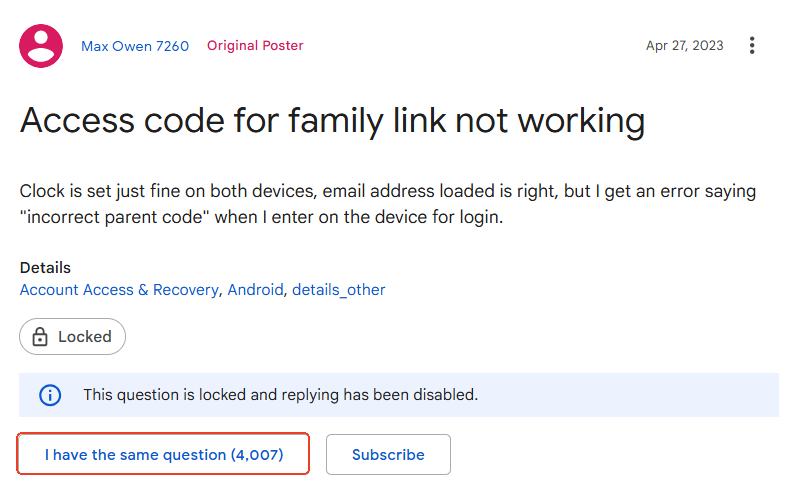
You've opened your Family Link app, checked the 6-digit parent access code, and typed it into your child's device, only to see "Wrong code. Try again." Sounds familiar? You're not alone. Thousands of parents are facing this issue and seeking help in the community.
Why This Happens
- The access code is entered in the wrong field.
- The parent code has expired.
- The child's device clock does not match your phone's.
Fix 1: Check What the Screen Is Asking For
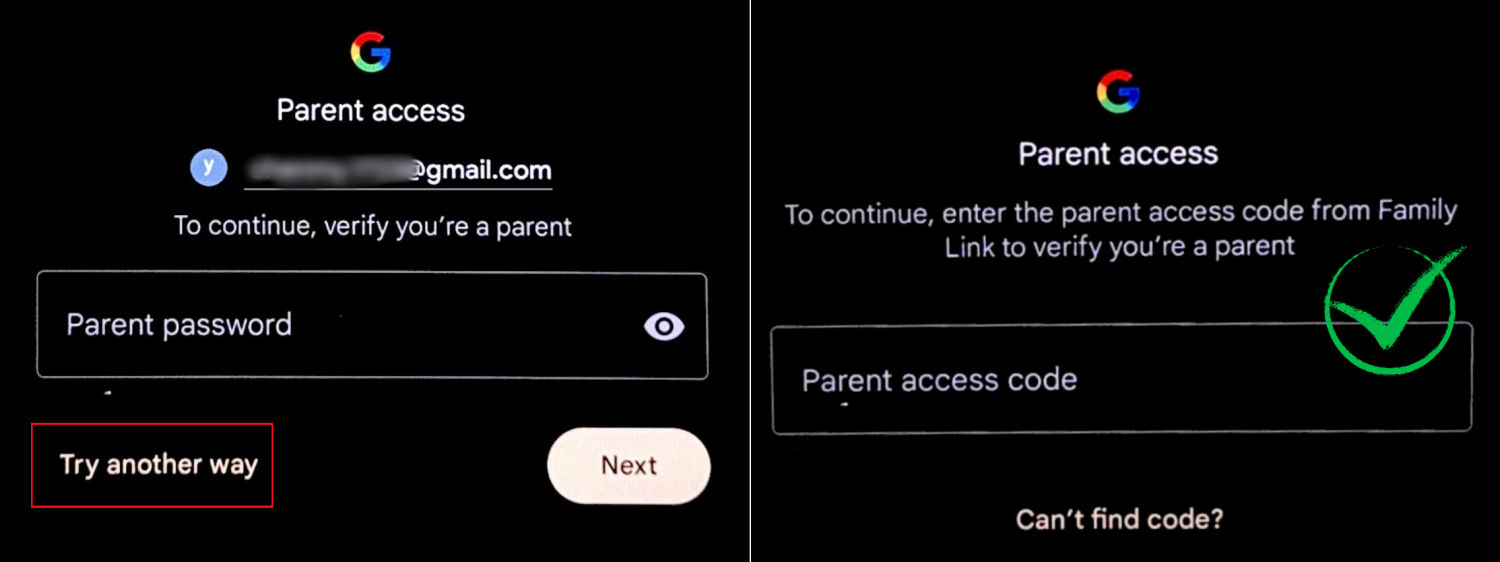
By default, Family Link prompts to enter the parent account password first, not the access code.
If you type a 6-digit number into a field expecting a complex password, it will fail every time.
So, look closely at what the screen is asking for. If the prompt says "Parent password," tap on "Try Another Way" to switch to the option for entering a parent access code.
Fix 2: Generate a Fresh Code Right Before Using It
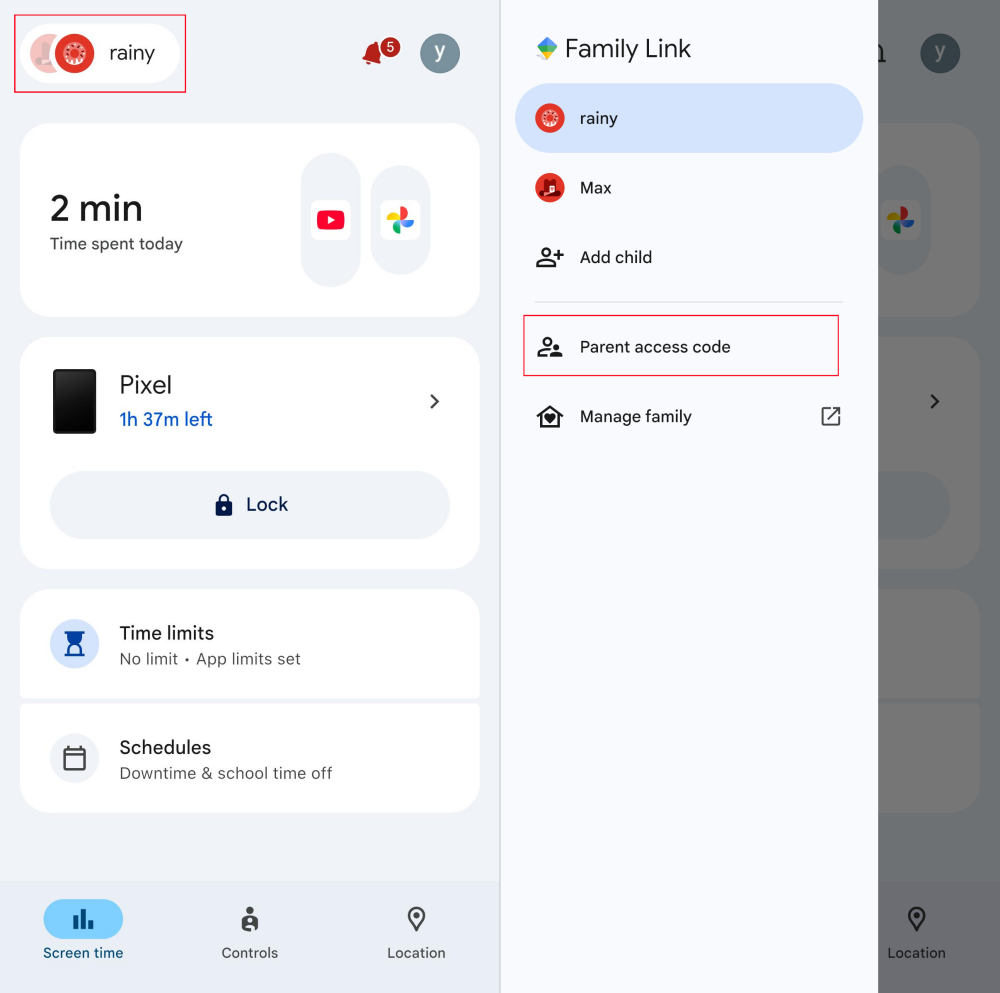
Family Link's parent access code rotates every hour. So, only generate the code right when your child needs it to unlock his device or edit time limits. To do so:
Open "Family Link > tap your child's profile > tap Parent Access Code."
Fix 3: Sync Time on Both Devices
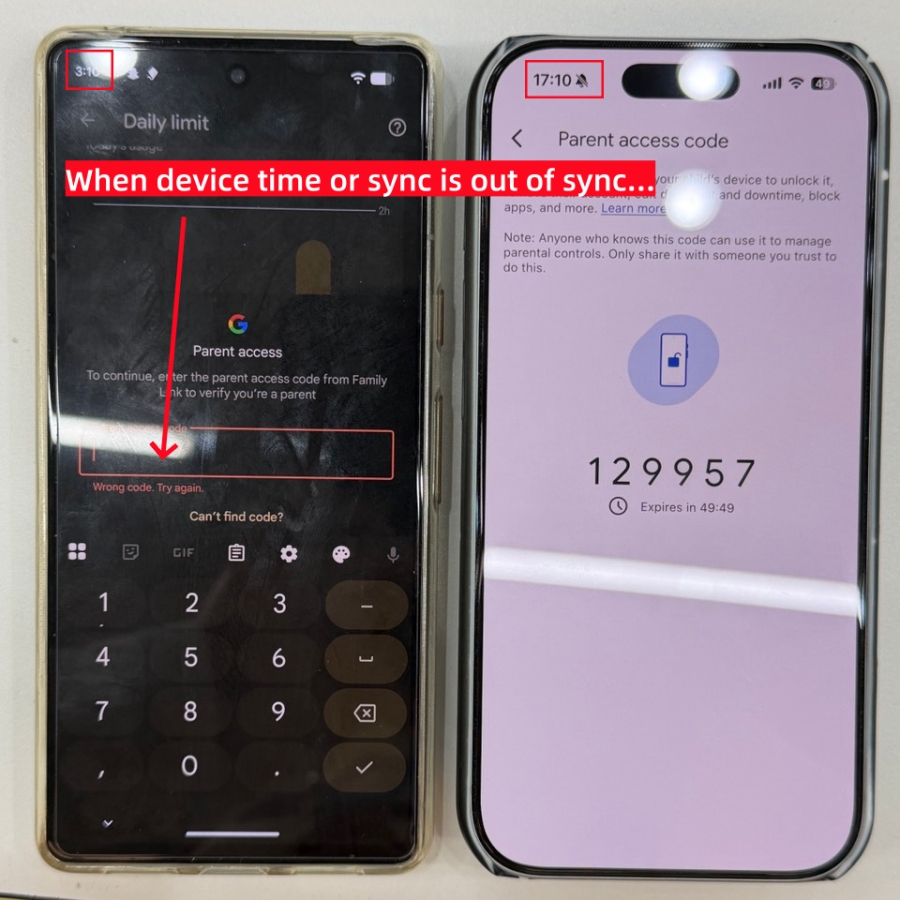
During testing, Family Links shows "Wrong code" when my phone's time mismatches my child's. Therefore, all you need to do is turn on automatic date & time on your phone.
- Step 1. Open "Settings" and search for "Date & Time."
- Step 2. Enable the "Automatic date and time" setting.
Since the child's time settings are set to automatic by Family Link, you don't need to fix the clock on their end.
4Approval Request Not Working / Not Showing
Sometimes, your child says, "I sent the request to install the app or make a purchase," but nothing appears on your phone.
Why This Happens
- The child's approval request won't be sent through notifications if you're using a non-Android device.
- The request was sent to another device if you have multiple devices logged in.
- You haven't added a Google Play family payment method.
- Poor connectivity or service caused request delays.
Fix 1: Open Family Link to Review the Request
For me, I didn't get any notification of Family Link on my iPhone, let alone the approval request. This has also been confirmed by multiple Reddit users.
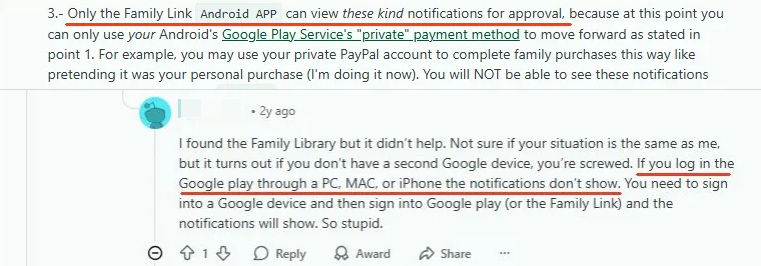
So, if you are using Family Link on your iPhone or computer, please tap the "bell" icon in the upper right corner of Family Link.
After this, you can properly review your child's approval request and approve or deny it.
Fix 2: Add Your Family Payment Method
In Google Family Link, purchase approvals are handled through Google Play's payment system. If no valid payment method is set, there is no way to approve their purchase approvals.
👉This issue is more common when the parent is using an iPhone. Since iOS apps go through Apple's App Store, many parents never realize a payment method needs to be set up in Play Store, even though the child's device relies on it.
To add a family payment method, the fastest way is to go to the Google Payment Center page and enter the correct card info to proceed.
Best Alternative When Family Link Doesn't Work
If you've tried all the fixes above and Family Link is still letting you down, the issue may not be your setup. In most cases, it comes down to how Family Link's limitations, such as:
- Children can sometimes bypass it
- Location is not updated in real-time
- Purchase approvals depend on Google Play setup
At this time, you might need a more powerful alternative, like AirDroid Parental Control, for a smoother experience. It provides:
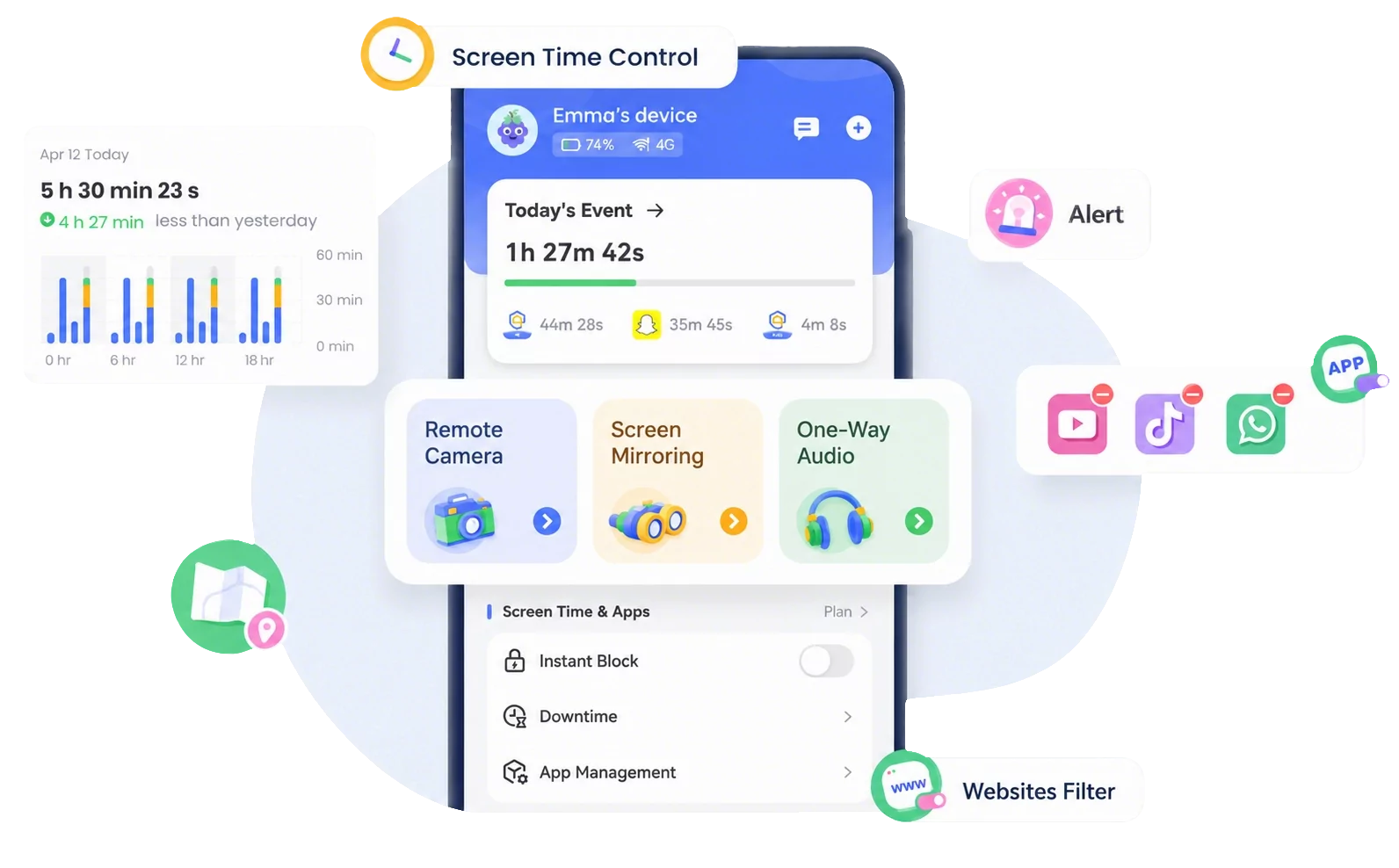
- Uninstalling protection makes it harder to bypass
- Cross-platform supports
- Live location and 30-day route tracking
- Social media, AI apps and SMS content warning
- Live screen mirroring
- Instant activity reports
See how Family Link stacks up against AirDroid >>>
FAQs about Family Link
Can Family Link Be Used on iPhone?
Yes, but with some limitations. Parents can use the Family Link app on both Android and iOS. For managing a child's iPhone, Family Link's settings only work on apps or services that are logged into your child's Google account.
How to Stop Supervision on Family Link?
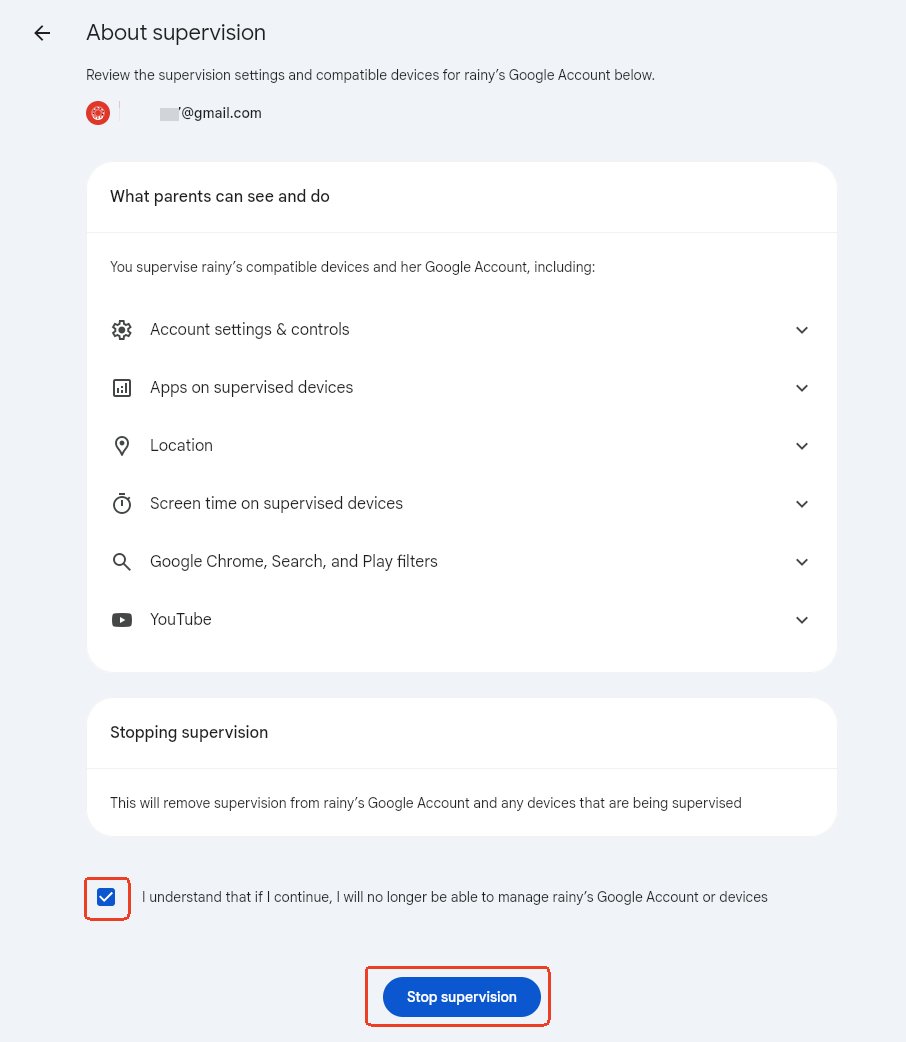
On Family Link, select your child’s account. Tap on "Account Settings > About Supervision." Then, you can "Stop supervision."
Can Family Link See Your Screen?
No, Family Link does not have the ability to see or monitor child's screen in real-time. If you are looking for a parental control app that can monitor your child's phone screen for safety, we recommend AirDroid Parental Control.









Leave a Reply.