"Is there any way to quietly block Roblox so that a kid wouldn't notice?" This question from Reddit r/RobloxHelp resonates with many parents.
One user even described his younger sister becoming "hysterical" when unable to play, highlighting how the game can sometimes spiral from a hobby into a source of emotional distress.
Simply deleting the app isn't enough. On iOS, parents need a strategy that prevents redownloading and blocks browser-based access.
This guide covers the most effective ways to block Roblox on iPhone and iPad—from native Screen Time settings to "quiet" restrictions—allowing you to restore balance, avoiding the immediate drama of a direct confrontation.
Key Takeaways:
✅ Multi-Layered Defense: Combine iOS Screen Time with AirDroid to close the "Safari loophole."
✅ 2026 Official Updates: Leverage new Parent-Link and Select Accounts for remote 15min-3hr time caps.
✅ Relationship First: Use a Digital Family Contract to frame blocking as "protection, not punishment."
✅ Community Wisdom: Stay ahead of bypass tactics like using friend accounts or AI-driven nudges.
Why Modern Parents Need a Balanced Approach to Roblox
Roblox isn't just a game; it's a massive "metaverse" where millions of children socialize, create, and explore.
However, for many families, the line between healthy play and digital dependency can blur.
To manage it effectively, parents need a balanced approach—one that respects the platform's social value while acknowledging the biological and financial pressures it exerts on young minds.
Potential Risk
Simple Description
⚠️Addictive Design
The game uses dopamine loops that make it hard for kids to stop.
⚠️Inappropriate Content
Kids may encounter "hidden" sexual or violent user-created maps.
⚠️Financial Loss
Easy in-game purchases can lead to accidental high credit card bills.
⚠️Stranger Danger
Open chat features allow strangers to contact and message children.
⚠️Sleep Disruption
Late-night play ruins biological sleep cycles and focus.
⚠️Cyberbullying
Other players may use the chat to harass or intimidate your child.
⚠️Online Scams
Scammers often promise "Free Robux" to steal account passwords.
⚠️Privacy Leaks
Children may accidentally share their real name, school, or location.
At a Glance: Which Method Should You Choose?
Find the best way to manage Roblox based on your specific needs:
🚀 Best for Speed:Apple Screen Time – Quick, free, and built-in on all iOS devices.
⏳ Best for Modern Moderation:Roblox Official Controls – 2026 "Select Account" tiers for remote 15min-3hr caps.
🛡️ Best for Tech-Savvy Kids:AirDroid Parental Control – Provides a "Remote Lock" that is harder to bypass than native tools.
🏠 Best for Total House Blackout:WiFi Router Blocking – Cuts off Roblox for all gaming consoles, PCs, and tablets at once.
Method 1: Block Roblox on iPad/iPhone via Apple's Built-in Features
Screen Time is a powerful native tool built into Apple devices running iOS 12 or later.
As the name implies, it provides parents with the oversight needed to review and control exactly how much time is spent on specific apps like Roblox. For a full breakdown of these security features, you can also refer to the official Apple Support guide on parental controls.
In this way, you may want to know how to block Roblox on iPhone. To effectively block Roblox on an iPhone or iPad, Screen Time offers several strategic options depending on your goals:
💡Best For: Parents who want a flexible, immediate block that can be toggled daily without deleting the app.
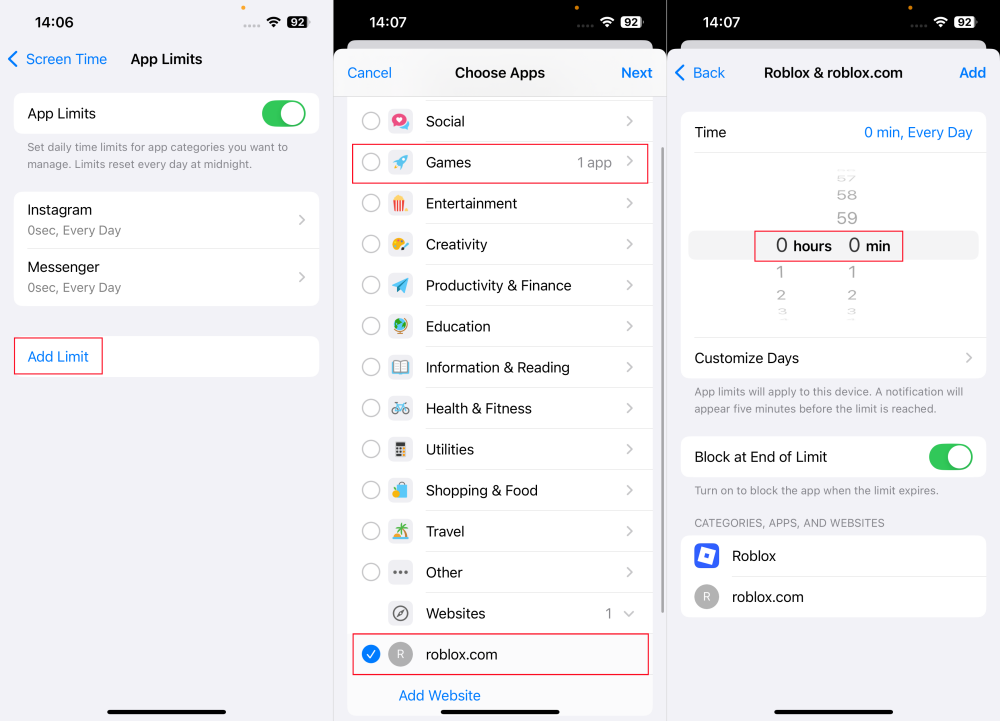
While Screen Time's "App Limits" feature is typically used to reduce usage, it can function as a complete block by setting the daily allowance to zero. Once triggered, the Roblox icon will be greyed out, and the app will refuse to launch until the limit is reset.
Step 1.Open the "Settings" app.
Step 2.Select "Screen Time" and then "App Limits."
Step 3.Click and "Add Limit."
Step 4.Find and select "Roblox" under the "Games" category. Also, enter "roblox.com" under "Websites."
Step 5.Then, schedule 0 hours and 0 mins and save it.
Note: During testing, only iOS 26 and specific versions of iOS 18 support a 0-minute limit. On older versions, the minimum limit is 1 minute.
1.2 Use Downtime
💡Best For: Establishing healthy boundaries during critical hours, such as homework time or overnight.
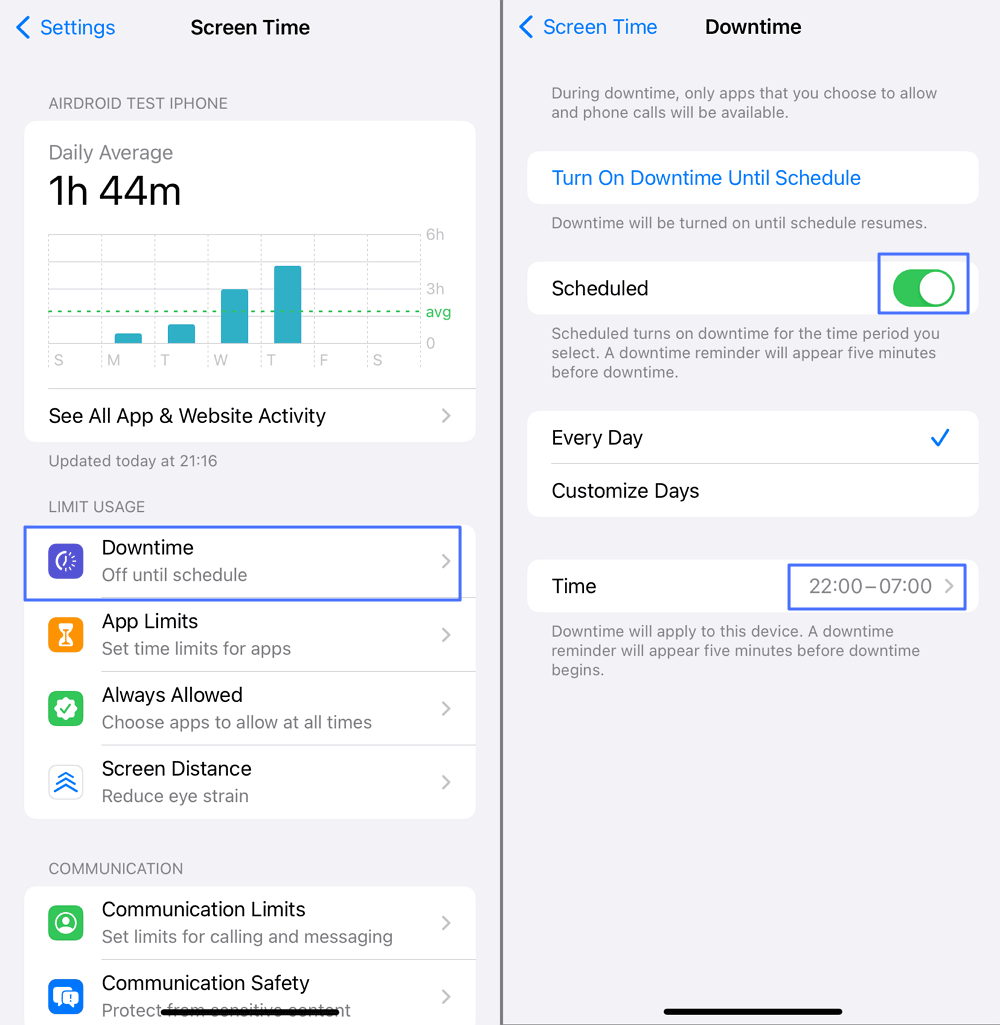
Downtime acts as a scheduled "digital curfew." During these hours, only apps you specifically whitelist (like Phone or Messages) will function. All other apps, including Roblox, will be instantly restricted.
Step 1.Go to "Screen Time" in the "Settings" app.
Step 2.Click on "Downtime."
Step 3.Then, choose "Turn on Downtime Until Tomorrow" or toggle on "Scheduled" to customize when you need to shut down Roblox.
Pro Tip: Since Downtime applies to almost every app, remember to add essential apps to the "Always Allowed" list so your child can still reach you in emergencies.
1.3 Set App Age Rating Restrictions
💡Best For: A "quiet block" that makes Roblox disappear from the home screen entirely.
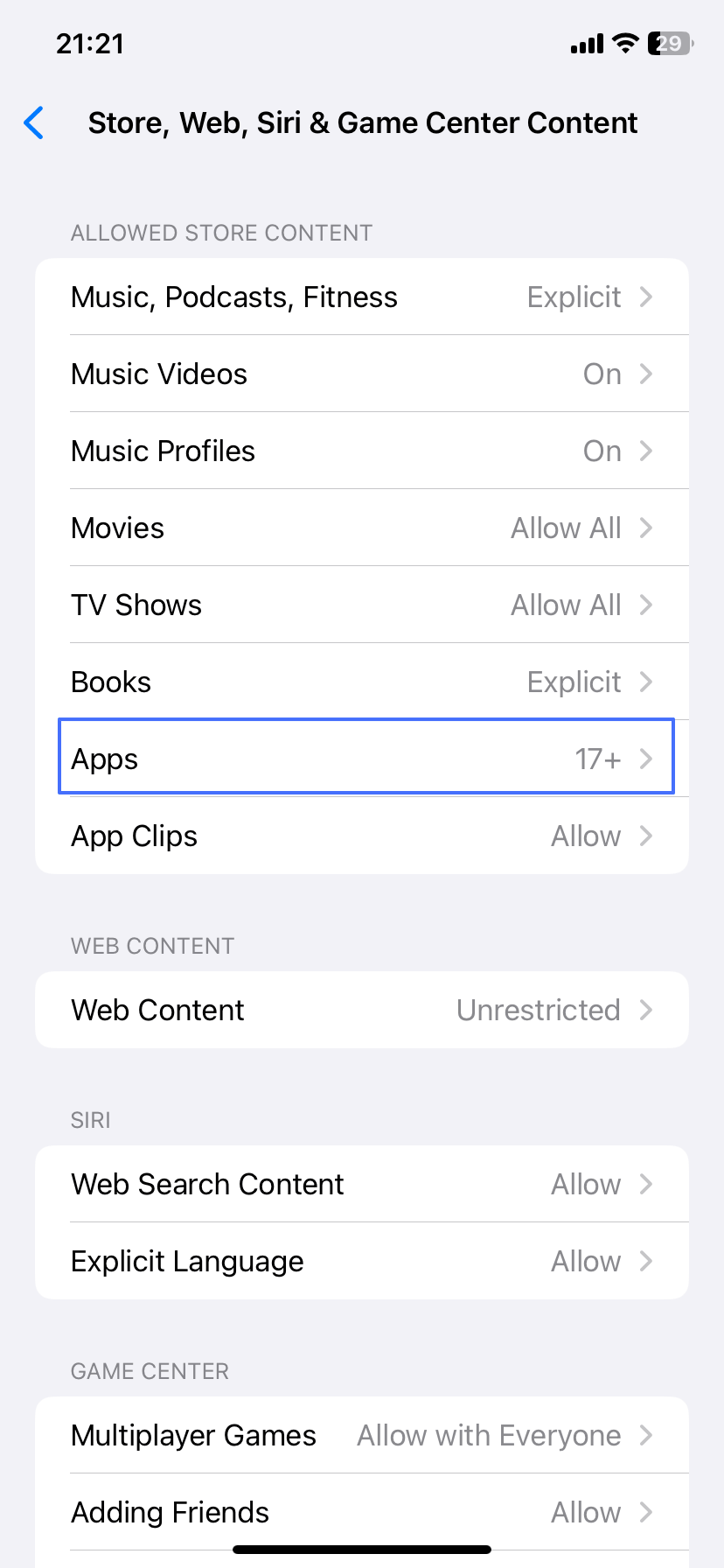
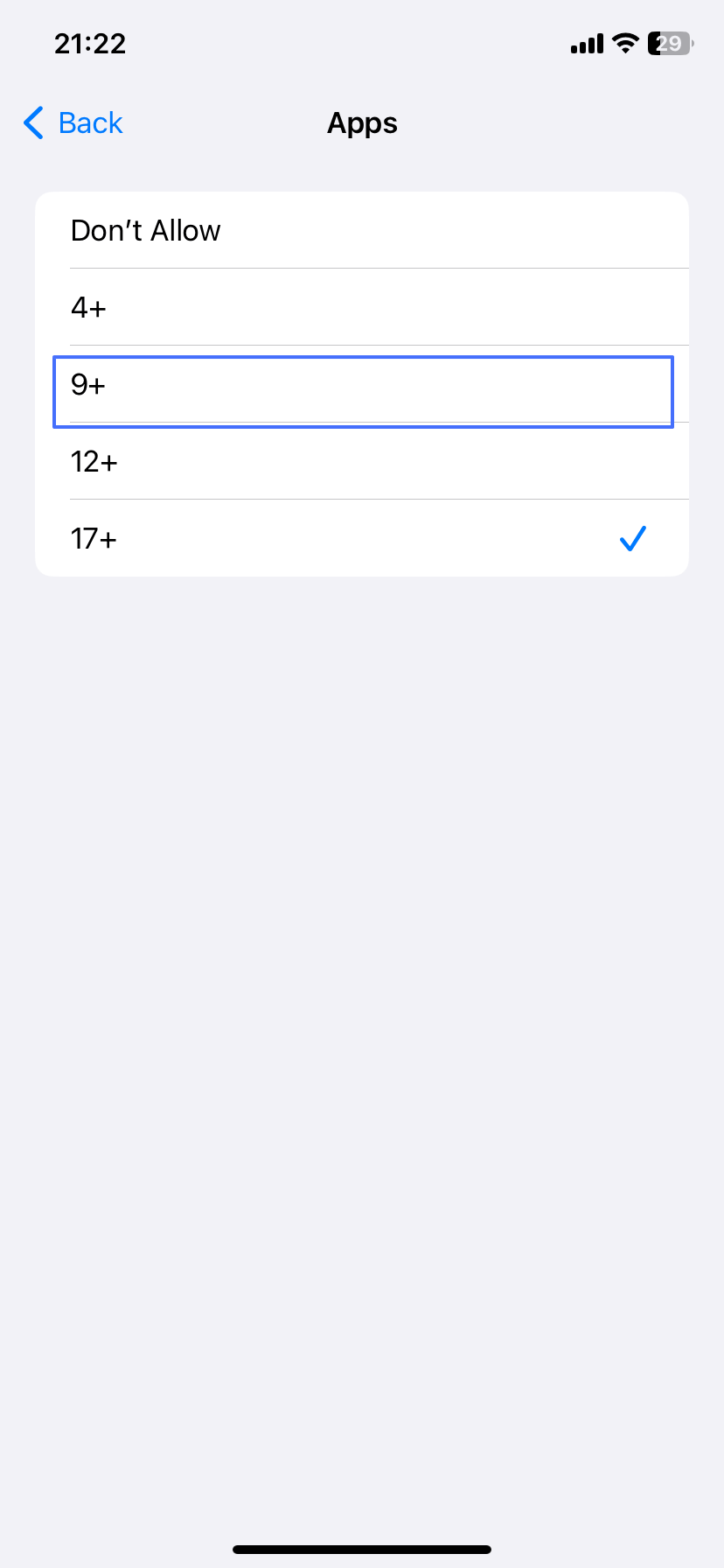
Because Roblox is rated 12+ in the App Store, you can use Apple's content filters to hide it. By lowering the allowed age rating, the device will automatically hide Roblox as if it was never installed.
Step 4.Since Roblox is rated 12+, select either 4+ or 9+ from the app age ratings.
1.4 Block the Roblox Website
💡Best For: Closing the browser loophole where children log in via Safari or Chrome to bypass app limits.
Step 1.Go to Settings > Screen Time.
Step 2.Tap Content & Privacy Restrictions and turn it on.
Step 3.Tap Content Restrictions > Web Content.
Step 4.Select Limit Adult Websites (this allows adding custom sites). Under "NEVER ALLOW," tap Add Website and enter roblox.com.
1.5 Delete and Prevent Reinstallation
💡Best For: Enforcing a "clean break" for kids who are overly obsessed or frequently reinstall the game behind your back.
For a permanent solution, you can delete the app and lock the App Store. This is the most effective way to end the "delete and download" cycle once and for all.
Step 1.Locate Roblox on your child's iPhone or iPad.
Step 2.Press and hold the app icon until a menu pops up.
Step 3.Then, select "Remove App > Delete App."
Step 4.Once you've done that, go to "Settings" and select "Screen Time."
Step 5.Scroll down and select "Content & Privacy Restrictions."
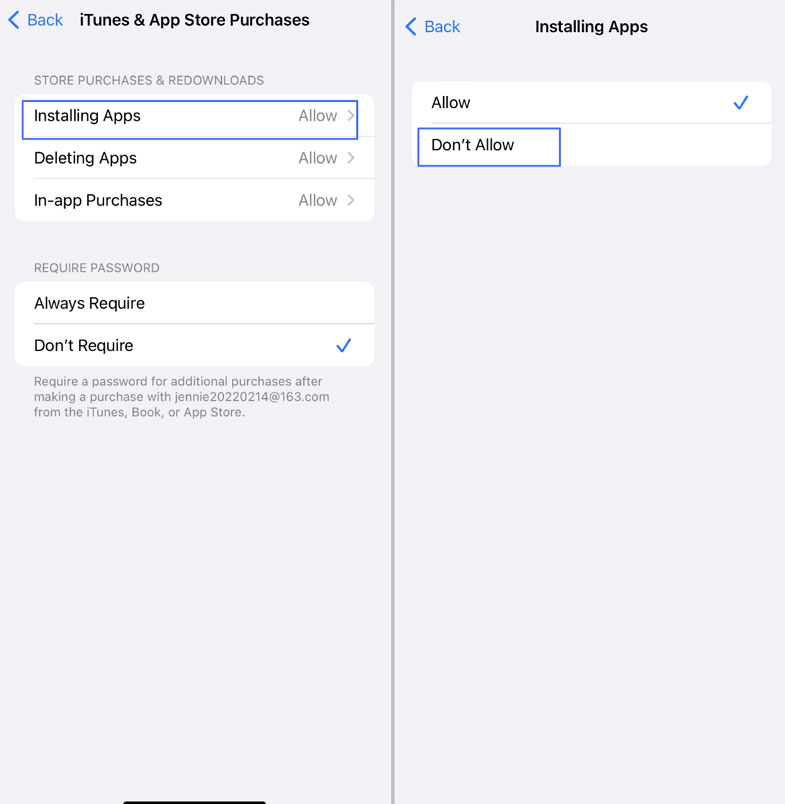
Step 6.Select "iTunes & App Store Purchases."
Step 7.Tap on "Installing Apps" and mark "Don't Allow."
With this setting enabled, the App Store icon will disappear, and your child will be unable to download any new apps without your passcode.
Method 2: Leveraging Roblox's Official Parental Controls(2026 Updated)
🚀 2026 April Update: Roblox officially launched the "Select Account" tier and remote time-capping for parents. If you haven't linked your account yet, Screen Time might be your only (and weaker) option.
How to Secure a Roblox Account
In 2026, Roblox introduced a more robust account-linking system on Roblox Parental Controls. Parents can now link their own verified account to their child's to monitor activity and set limits directly from their own device.
Step 1. Create and Verify a Parent Account: Create a Roblox account for yourself. Ensure your age is set to 21+ and verify your identity using a government-issued ID (License/Passport) in the "Account Info" settings to unlock parental privileges.
Step 2. Access the Child's Account: Log into your child's Roblox account. Go to Settings and navigate to the Parental Controls menu.
Step 3. Initiate the Link: On the child's account, look for the "Add a Parent" option. Enter the email address associated with your verified Parent Account and click "Send Email".
Step 4. Confirm via Email: Check your inbox for a linking request from Roblox. Click on "Use Existing Account" and select "Agree" to establish the connection.
Step 5. Manage Screen Time & Safety: Once linked, go back to your own account settings under Parental Controls. You can now remotely manage your child's screen time, spending, and chat privacy.
Note : To use these features, the parent's account must be ID-verified to prove they are over 18. This ensures that only adults can manage the restriction settings.
Roblox inside settings focus on safety and content, while Apple Screen Time focuses on duration. To truly limit playtime, stick to the iOS Screen Time settings mentioned above.
By combining these official in-game settings with Apple's Screen Time, you create a multi-layered defense that is significantly harder for kids to circumvent.
Once you have linked your account using the 2026 updated process, you can remotely manage Roblox's native safety suite. According to the Official Roblox Help Center, these features are designed to curate a safer environment without a total ban.
Feature
Parental Benefit
Parental PIN
Acts as a master lock, ensuring settings can only be changed by you, even from a remote device.
Experience Guidelines
Filters the "Metaverse" by age (All Ages, 9+, 13+, or 17+), instantly blocking access to mature content.
Communication Limits
Prevents "Stranger Danger" by disabling chat or restricting it to verified friends only.
Monthly Spend Restrictions
Prevents bill shock by setting a strict monthly budget for Robux purchases.
Method 3: Managing Roblox with AirDroid Parental Control
💡Best For: No more physical confrontations. If your child is sneaking Roblox under the covers, simply lock the app from your own phone.
While native tools are a great starting point, they often leave gaps that "tech-savvy" kids can exploit.
For parents seeking a more robust, low-friction way to block Roblox on iPhone or iPad, AirDroid Parental Control offers a comprehensive dashboard that goes beyond simple restrictions.
This is especially useful if you eventually run into gaps when using Screen Time—app limits not working, kids bypassing limits, inconsistent syncing, or else. Here's how AirDroid can help:
One click to block the Roblox app and website.
Prevent access to Roblox and other selected apps for certain times.
App or web restrictions can't be turned off without the parent's access.
Check if your child played Roblox during classes.
Set different blocking rules if you have two or more kids.
To use AirDroid Parental Control—a reliable cross-platform parental control app—to block Roblox, download it first and then follow the guide below:
Step 1.Open AirDroid after installation and sign in.
Step 2.Connect it with your child's device. It could be an iPhone, iPad, or Android.
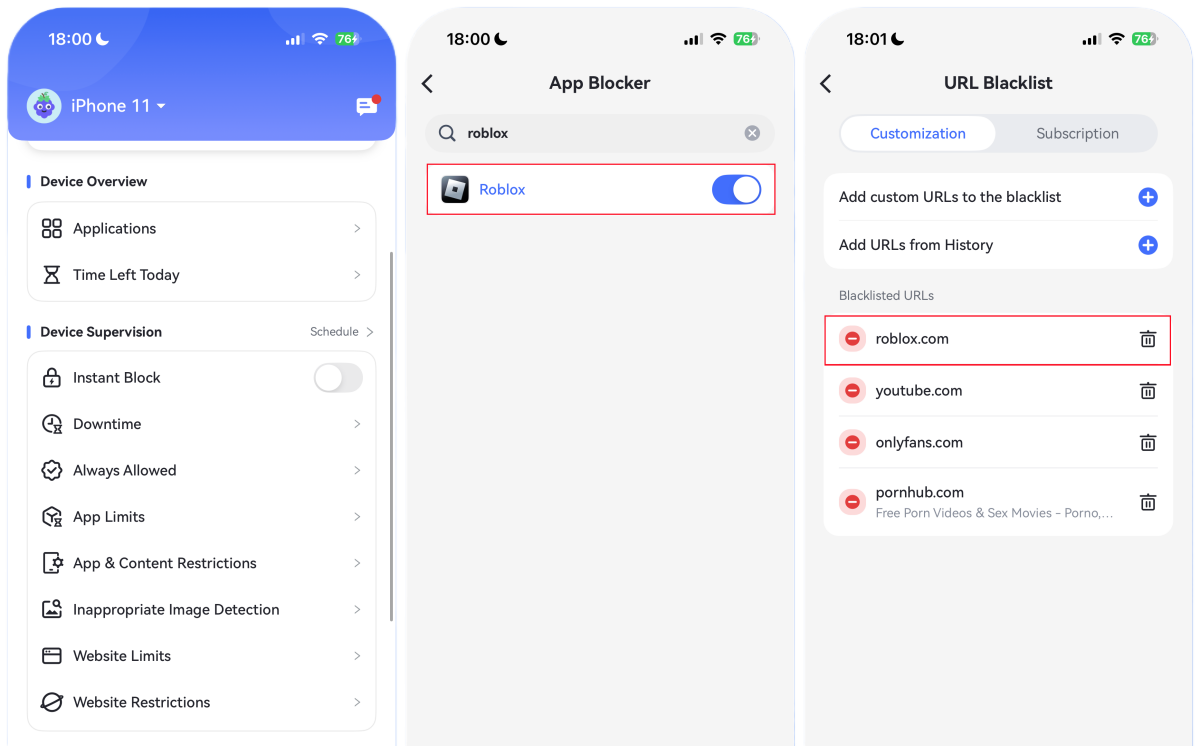
Step 3.Go to "App & Content Restrictions" and then "App Blocker." Search for "Roblox" to block.
Step 4.If you need to block the web version of Roblox, go to "Website Restrictions." Under "URL Blacklist," type "roblox.com" to complete.
Method 4: Block Roblox on WiFi Router
💡Best For: Perfect for unplugging the whole family during dinner or exam week. This doesn't just block a phone—it cuts off Roblox access for gaming consoles, PCs, and tablets simultaneously across the entire home network.
If you want a once-and-for-all solution, blocking Roblox directly on your WiFi router is the most effective way to stop Roblox on all devices connected to your network — iPhones, iPads, Android devices, even laptops.
This method works well for someone who wants a stronger, network-level block.
Follow the steps below to use this method:
Step 1.Open your web browser and type your router's IP address.
Step 2.Log in with your admin username and password.
Step 3.From the menu list, select "Access Control," "Parent Control," or similar settings.
Step 4.Then, under "Blocked Website," enter "roblox.com."
Step 5.Click "Save," and after that, devices connected to this WiFi router won't be able to use Roblox on their web browser.
These steps may vary depending on the type of router you're using.
Roblox and U.S. Child Safety Regulations: What Parents Should Know
In the United States, there is no federal "gaming curfew," but several laws are in place to give parents the power to intervene. Understanding these can help you leverage your rights as a consumer and a parent.
Regulation
What It Means for Your Family
COPPA (Children's Online Privacy Protection Act)
This federal law requires Roblox to get parental consent for users under 13. It is the reason why restricted chat and privacy settings exist for younger accounts.
KOSA (Kids Online Safety Act)
A major bill gaining momentum in Congress that aims to force platforms like Roblox to disable "addictive features" (like dopamine-driven rewards) by default for minors.
State-Level Laws (e.g., California & Utah)
States like California and Utah have passed "Age-Appropriate Design Codes" that require tech companies to prioritize child well-being and provide "silent" blocking tools for parents.
FTC Billing Protections
The Federal Trade Commission (FTC) regulates "deceptive billing." If your child makes unauthorized purchases due to lack of parental gates, you often have legal grounds for a refund through Apple.
Note: While laws are evolving to hold platforms more accountable, US policy currently places the primary "off switch" in the hands of parents via tools like Apple Screen Time and Family Sharing.
By using the blocking methods outlined in this guide, you are essentially exercising your rights under these safety frameworks to ensure your child's digital environment remains healthy and secure.
How to Talk to Your Child About Gaming Boundaries
Technical blocks are effective, but they work best when paired with open communication. According to the American Academy of Pediatrics (AAP), the most successful digital parenting moves beyond simple time limits to focus on quality, context, and conversation.
Here is how to handle the Roblox talk based on expert guidance.
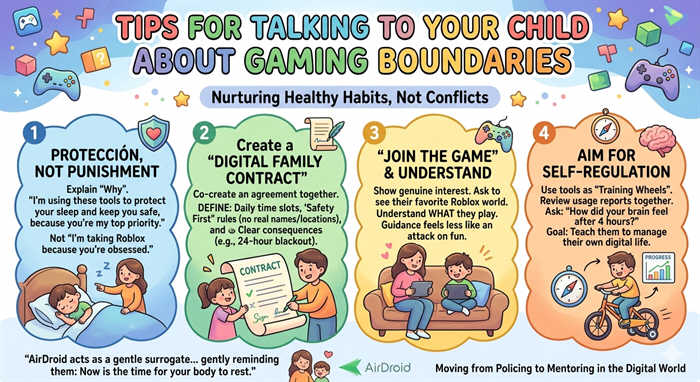
💡 Pro Tip: The "Protection, Not Punishment" Framework When you implement blocks, explain why. Instead of saying, "I'm taking Roblox away because you're obsessed," try the expert-backed approach: "I'm using these tools to protect your sleep and keep you safe from strangers, because your well-being is my top priority."
1. Create a "Digital Family Contract"
The AAP strongly recommends creating a Family Media Use Plan. Rather than a one-sided ban, negotiate a "treaty" that both you and your child sign. This contract should clearly define:
Daily Time Slots: Agreed-upon windows for Roblox (e.g., after homework, before 8:00 PM).
The "Safety First" Rule: No sharing real names, locations, or photos—a key pillar of online citizenship.
Consistent Consequences: Pre-determined steps (like a 24-hour blackout) if the agreement is broken, which reduces "in-the-moment" arguments.
2. "Join the Game" – Be a Digital Mentor
Experts at Common Sense Media suggest that "co-playing" is one of the best ways to monitor safety. Ask your child to give you a tour of their favorite Roblox world.
When you understand what they are playing, your boundaries feel like informed guidance rather than an attack on their fun. It also allows you to spot potential chat risks first-hand.
3. Aim for Self-Regulation, Not Just Compliance
The ultimate goal of using tools like Apple Screen Time or AirDroid isn't perpetual control—it's providing the "training wheels" for self-control. Use usage reports as a neutral teaching tool.
Ask: "I noticed you spent 4 hours on Roblox today; how did your brain and body feel afterward?" This helps children recognize the physical and mental effects of over-gaming, a critical skill for their future.
Expert Strategy
The Desired Outcome
AAP Media Plan
Kids are more likely to respect rules they helped create.
Active Co-Playing
Reduces the "Us vs. Them" mentality and builds trust.
Transparent Limits
Child views the blocker as a "safety belt" rather than a "cage."
By shifting the focus from "stopping the game" to "mentoring the player," you ensure that when the blocks eventually come off, your child has the maturity to manage their own digital life safely.
Common Parental Concerns & Top Community Insights (2026)
In the "Cat-and-Mouse" game of digital parenting, Roblox's landscape has shifted. Between 2024 and 2026, new challenges have emerged that native settings alone often struggle to solve. Here is what the parenting community is talking about right now.
1. The New Pain Points: Why Standard Blocks Fail
The "Friend Account" Loophole: On Reddit's parenting forums, a common complaint is that as soon as parents set up age-restricted accounts, kids simply log into an older friend's account to bypass filters.
AI-Driven Content & Spending: Parents on YouTube have noted that Roblox's new AI recommendation engine is "too good." One high-engagement comment warns: "The AI pushes content so targeted that kids are psychologically nudged into micro-transactions before they even realize it."
The "Digital Cold War": Aggressive, unexplained blocking often leads to "disconnect" in the family. Parents report that total bans without a "Digital Contract" often result in children becoming more secretive.
2. Trending Solutions from the Community
Based on high-engagement threads from the Apple Support Communities and tech-parenting blogs, here are the top-voted strategies for 2026:
The Community Verdict
Why It's Trending
"Screen Time is Not Enough"
Tech-savvy kids are finding workarounds for iOS Screen Time. Experts and users recommend Multi-Layering (e.g., using AirDroid alongside native settings).
The 2026 "Select Account" Update
Parents are praising Roblox's new Kids/Select accounts (tiered for ages 5-8 and 9-15). It allows parents to pre-approve friend requests and game access remotely.
Hard Caps on Spending
Roblox's "Monthly Spend Restrictions" is now a must-have. Community feedback suggests this has reduced "bill shock" by 80% for participating families.
3. Community Q&A: Real Questions, Expert Answers
Q: "I set Screen Time limits, but my child still finds a way to play Roblox. What am I missing?" Top-Voted Answer: Check for the "Safari Loophole." Most kids bypass the app block by using the browser. You must block roblox.com in Content Restrictions and consider a Router-level block for a total house "blackout."
Q: "Is the new 2026 'Select Account' actually safe?" Top-Voted Answer: Yes, but only if the parent completes the ID Verification. Without it, the child can still self-adjust certain privacy settings. Real safety requires the parent to be the verified "Gatekeeper."
Q: "How do I stop 'secret' in-app purchases?" Top-Voted Answer: Enable the "Spend Notification" feature in Roblox Parental Controls. You will get an email alert for every single transaction. Also, ensure your Apple ID is not linked to a credit card without "Ask to Buy" enabled.
To clear the Roblox cache on iOS devices, you need to delete the app instead of offloading it.
When you offload Roblox, it only removes the app. The app data and cache file will still be kept on your phone. However, when you delete Roblox, all your data, including the cache file, will be completely wiped out.
How to log out of Roblox on iPad?
To log out of Roblox on iPad, follow the prompts below:
Step 1.Open the "Roblox" app.
Step 2.In the bottom right corner, click on "More."
Step 3.Scroll down to the bottom and tap on the "Log out" button.
Elsa has worked on a number of iOS & Android solutions, she can always find her way around almost any application. She is an accomplished, skilled and versatile writer with more than 7 years of technical article writing experience.











Leave a Reply.