AirDroid Parental Control
24/7 Kids' Guardian via App & Web
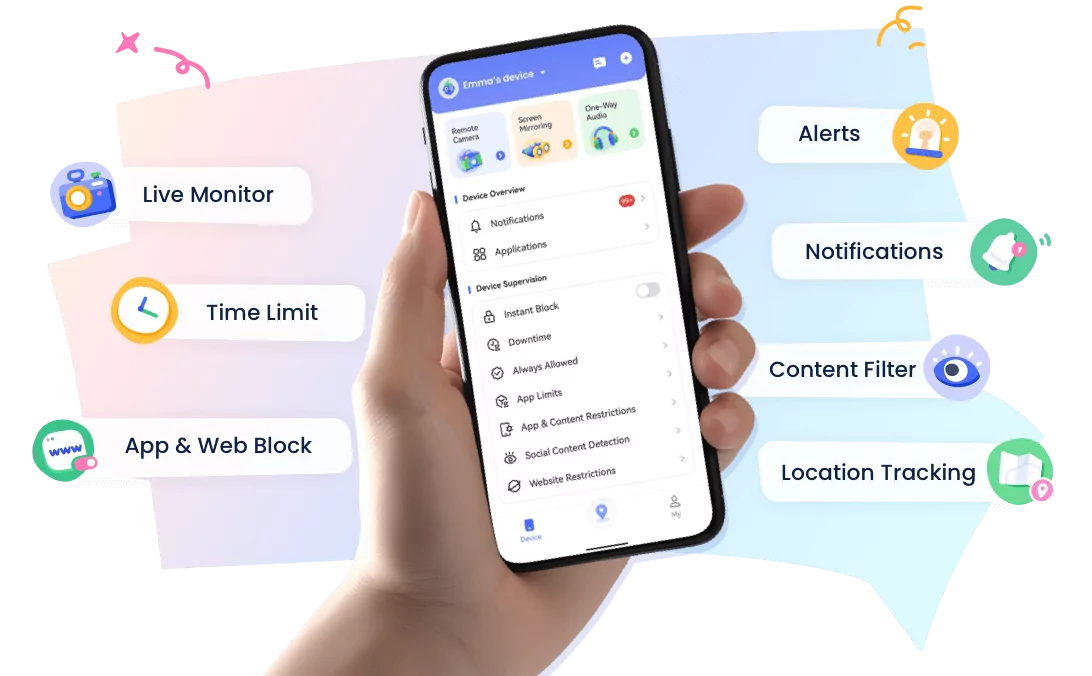
- 👀Live surroundings and location tracking
- 🔞Content Monitoring and App/Web Blocking
- ⚠Instant alerts for online risks and geofences
- ⌛Screen time control and monitor
How to See Notification History in MIUI (And Find Hidden Activity Your Child Might Be Concealing)
You swiped away a banking notification. Or a 2FA code disappeared from your lock screen. Maybe you just want to see what you've missed in the last 24 hours.
MIUI keeps a log—but finding it isn't straightforward. Worse, if you (or someone using your device) has enabled Second Space or Dual Apps, you might be looking at an incomplete picture without realizing it.
This guide covers both: recovering your own deleted notifications, and finding what's hidden in MIUI's isolated environments.
Quick Check: Does Your Device Support This?
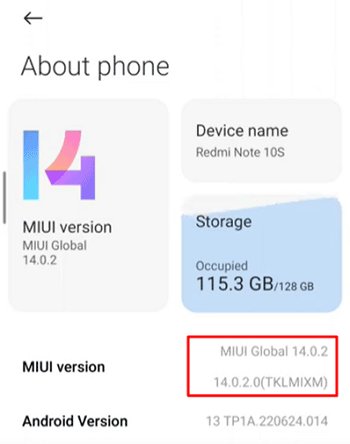
Not all MIUI devices have notification history. Check your version before searching for a feature that doesn't exist:
| MIUI/HyperOS | Android | Support | Where to Find It |
|---|---|---|---|
| HyperOS 1.0+ | 14+ | ✅ Full | Settings → Notifications → Notification History |
| MIUI 14 | 13+ | ✅ Full | Settings → Notifications & Control Center → Notification History |
| MIUI 13 | 12+ | ⚠️ Varies | Settings → Notifications (region-dependent) |
| MIUI 12/12.5 | 11+ | ❌ None | Use Method 2 or 3 only |
| MIUI 11 or older | 10 or older | ❌ None | Method 3 only |
How to Check Your MIUI Version
- Open Settings.
- Scroll to bottom → About Phone.
- Look for MIUI Version or HyperOS Version.
Method 1: Native MIUI Notification History (Quickest)
Use this if: You just deleted a notification and need it back within 24-48 hours.
Step-by-Step
- Open Settings → Notifications & Control Center (MIUI 14/HyperOS) or Notifications (MIUI 13.)
- Tap Notification History → Toggle ON if not already enabled.
- View your log: Chronological list, newest first. Tap any entry to expand. Swipe left to delete individual items.
What You Can Recover
- Banking alerts: Transaction confirmations, OTP codes (partial)
- Messaging apps: Sender name + message preview (not full content if deleted in-app)
- System notifications: Updates, security alerts, app installs
- 2FA codes: SMS verification codes (if not cleared from SMS app)
Critical Limitations
| Limitation | What It Means | Workaround |
|---|---|---|
| 24-48 hour window | Older entries auto-delete permanently | Check immediately; use Method 3 for long-term |
| Manual deletion | Anyone can clear the history | Cloud-sync apps preserve records |
| No remote access | Must have device in hand | Method 3 allows web dashboard access |
| Second Space excluded | Hidden space notifications invisible | See "Hidden Features" section below |
Troubleshooting
"Notification History option is missing"
- Your MIUI version doesn't support it (see Quick Check table.)
- Your region disabled the feature (common in EU devices.)
- Try searching "notification" in Settings search bar—path varies by sub-version.
Method 2: Google Assistant (Emergency Workaround)
Use this if: Native feature is missing and you need one specific notification right now.
- Activate: Say "Hey Google" or long-press home button.
- Command: "Show my notifications" or "Open notification history."
- Review: Last ~24 hours displayed verbally and on screen.
Limitations: Only ~24 hours, no persistent record, requires voice (not private), no Second Space visibility.
Wait—Why Can't I See Everything? (Hidden Features)
If you've checked notification history and it seems incomplete—or if you use Second Space yourself for work/personal separation—MIUI's isolation features might be splitting your notifications across environments.
Even if you don't use these features, someone else using your device might have enabled them.
What it is: A complete second user profile with separate apps, accounts, and data. Like having two phones in one device. Switching requires a password or fingerprint.
The problem: Notifications from apps in Second Space don't appear in main space history. If you (or someone else) installed apps there, main history shows nothing.
Real case: A parent on Xiaomi.eu community discovered their 14-year-old had been using Second Space to bypass screen time limits. The child had a "completely separate phone" within the device that parental control apps couldn't see. "I cannot believe that I am the first parent in the world having this issue," they wrote.
How to check:
- Settings → Special Features → Second Space.
- If you see "Enter Second Space" or a toggle, it's enabled.
- Check storage: Settings → About Phone → Storage. If usage seems high for visible apps, suspect hidden space.
Who this affects:
- Personal users: You use Second Space for work apps, missing personal notifications (or vice versa.)
- Parents: Child could install messaging apps in hidden space, invisible to main history.
- Shared devices: Multiple users with separate spaces.
What it is: Clone apps to run two accounts (e.g., work + personal WhatsApp). Clones have an orange badge on the icon.
The problem: Each instance has separate notifications. Main history only shows the primary instance. Clone activity is invisible unless you check that specific app.
Real case: Another parent on the same thread reported their 12-year-old cloned games to continue playing even when Family Link screen time was exhausted. The main app showed "time's up," but the cloned instance kept working. Their only working solution was deleting Dual Apps entirely via ADB command: adb shell pm uninstall --user 0 com.miui.securitycore
How to check:
- Settings → Apps → Dual Apps.
- Review cloned app list.
- Check home screen for duplicate icons (one with orange badge.)
Red flags:
- Two identical app icons on home screen
- Notification history shows minimal activity but app battery usage is high
- One account appears "active" while another shows nothing
Technical note: Both Second Space and Dual Apps are part of MIUI's "System Features Plug-in" (com.miui.securitycore). While advanced users can disable this via ADB, this requires technical knowledge and may affect warranty.
| Hidden Feature | What Gets Hidden | What You Actually See |
|---|---|---|
| Second Space | All apps installed in hidden environment | Nothing. Zero notifications. App appears "not installed." |
| Dual Apps | Cloned instance activity | Only primary account—cloned account invisible |
Method 3: Complete Visibility (Cross-Space Monitoring)
Use this if: You use Second Space yourself and want unified history, or you need to monitor activity across all environments.
This is the only method that aggregates notifications from Main Space + Second Space + Dual Apps into one view.
Real Scenarios
Problem: You use Second Space for work apps. Personal space history shows no Slack notifications—you miss urgent messages.
Solution: Unified feed showing both personal and work space notifications in one place.
Problem: Someone clears notification history before you can check it.
Solution: Real-time cloud backup preserves records even if local history is deleted.
Problem: Dual Apps shows minimal activity, but cloned instance has heavy usage you can't see.
Solution: Detection of all app instances, not just primary.
Capabilities Comparison
| Capability | Native MIUI | Cross-Space | Use Case |
|---|---|---|---|
| Main Space notifications | ✅ Yes | ✅ Yes | Standard recovery |
| Second Space notifications | ❌ No | ✅ Yes | Work/personal unification |
| Dual Apps (clones) | ❌ No | ✅ Yes | Complete account visibility |
| Deleted item recovery | ❌ Lost | ✅ Cloud archive | Tamper-proof records |
| Real-time alerts | ❌ No | ✅ Yes | Immediate awareness |
| Pre-installation history | ❌ No | ❌ No | Must install before need |
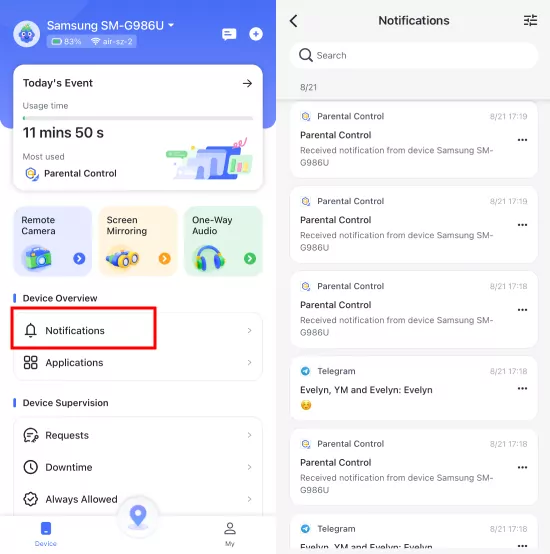
Setup: AirDroid Parental Control
Tested on MIUI 14 and HyperOS 1.0. Successfully captures cross-space notifications where native tools fail.
Your Device (Parent/Monitor):
- 1. Download AirDroid Parental Control (Google Play/App Store.)
- 2. Create account → Get 9-digit binding code.


Target Device (Your other phone/child's device):
- 1. Install AirDroid Kids app
- 2. Enter binding code
- 3. Grant Notification Access when prompted (essential)
- 4. Configure battery optimization (see below)
⚠️ Critical Setup Step
MIUI will ask "Allow AirDroid Kids to access notifications?" Do not skip. Without this, monitoring is impossible. If denied: Settings → Apps → AirDroid Kids → Notifications → Allow.
Result: Unified notification feed from all spaces, searchable by app/keyword/time.
Alternative: DIY Technical Approach
Without third-party apps:
- Disable Second Space: Settings → Special Features → Second Space → Delete (requires password)
- Remove Dual Apps via ADB:
adb shell pm uninstall --user 0 com.miui.securitycore(requires computer, may affect warranty) - Manual checks: Switch spaces and check each instance individually
Preventing MIUI From Killing Your Notification Logger
MIUI aggressively stops background apps. Without these steps, any notification logger (native or third-party) stops working within hours.
- Settings → Battery & Performance → App Battery Management
- Find your notification app
- Select "No restrictions"
- Enable "Allow auto-start"
- Open Recent Apps (square button or gesture)
- Find your notification app
- Pull down on the app card
- Tap the lock icon
- Open Security app
- Cleaner → Settings (gear icon)
- Add app to "Ignore list"
FAQ
24-48 hours maximum, then permanent deletion. For longer retention, use cloud-sync solutions.
Not natively. Once cleared from MIUI, it's gone. Third-party apps with cloud backup preserve copies before deletion.
Never. Spaces are isolated by design. Check each separately or use cross-space monitoring.
Only notification preview (sender + partial text). Full messages deleted in-app are not stored by MIUI.
Yes. For family monitoring, we recommend transparency. Secret surveillance damages trust if discovered.
Bottom Line
- Quick recovery: Method 1 for recent deletions (24-48h window)
- Check hidden spaces: Second Space/Dual Apps may split your notifications
- Complete visibility: Method 3 for unified cross-space monitoring
- Configure battery settings: Essential for any logger to work reliably
- Set up proactively: No solution retrieves pre-installation history
Native MIUI history solves "what did I just delete?" Cross-space monitoring solves "what am I not seeing?" Choose based on your actual need.
Sources: XDA Developers Forum, Xiaomi.eu Community, tested on Xiaomi 13, Redmi Note 12 Pro, POCO F5. Last verified: April 2026.









Leave a Reply.