Why Your Child Needs Their Own Apple ID (And How to Set It Up)
Well, now, your child just got their first iPhone. So you power it on, swipe through the setup screens, and then it asks for an Apple ID.
⚠️ And here, many parents make two common mistakes:
- Sharing their own Apple ID with the child
- Letting the kid create their own regular account
The two ways seem easier. No more setup, no new passwords to remember. However, that convenience often comes at a cost.
The right way? A child's Apple ID created through Family Sharing, especially if your child is under 13!
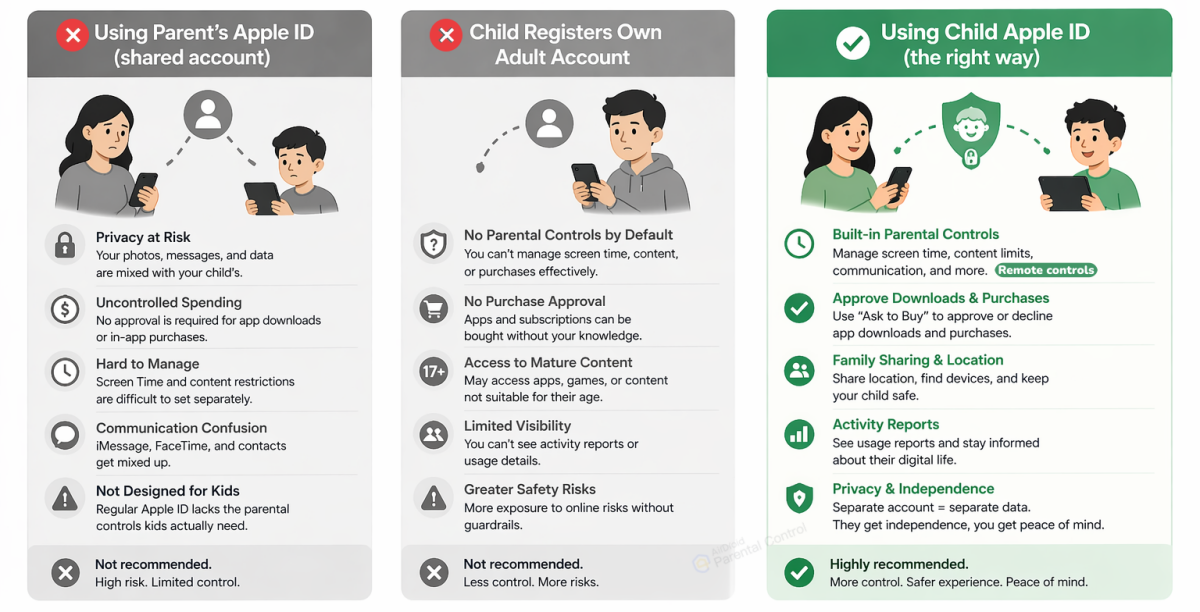
*Shared parent account, child's own adult account, or child Apple account? Here's how each option compares.
Here's Why You Should Create a Child Apple Account
It Makes Parental Controls Work Better
Apple's parental controls are tied to Apple accounts. In other words, a child's Apple ID is the foundation. Without it, parental controls may exist, but they don't truly work at all.
Here's how Apple parental controls work:
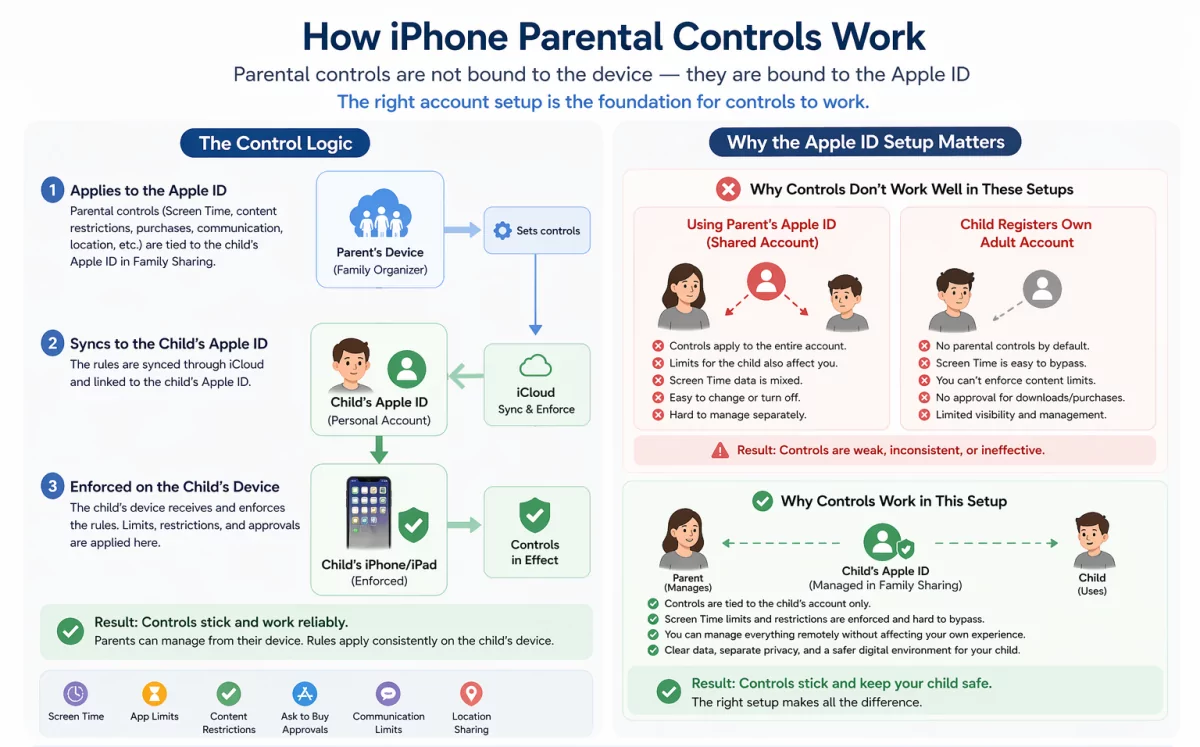
When creating a child's Apple ID, it will be added to Family Sharing automatically. Then, the parent can manage the child's iPhone directly on their own device through Family Sharing. This includes:
- View and limit screen time usage
- Enable content restrictions by age
- View your child's location on Find My
- Limit who can communicate with your child
- Prevent unauthorized app downloads and purchases
- Manage in-app purchases, gaming experience, and more
Apple requires a child account. We don't.
No Family Sharing setup. No child Apple ID required. AirDroid Parental Control works to set time limits, block apps, track location, and get real‑time alerts remotely!
It Protects Both Your and Your Child's Privacy
Though a child's account joins your family group, your child's iCloud data (including photos, passwords, browsing history, and messages) won't be shared with family members. Everyone's data is separate.
Also, using a separate child's account, they can seamlessly switch to a regular adult account when they reach the age of consent without losing any data.
⚠️ But if you and your child share the same Apple account, though the screen time rules can be synced, you're mixing your personal data with your child's:
- Your child can directly access your photos, contacts, text messages, iCloud files, browsing history, and even passwords, and vice versa.
- Your Find My will only use one device's location data, which disrupts both your and your child's daily use, especially in emergency cases.
This Complies with Apple Rules & COPPA
COPPA (US) requires verifiable parental consent before collecting personal data from children under 13.
Therefore, Apple officially does not allow children under 13 to create an Apple account without the parent's consent. That means parents must create a separate child Apple ID to comply with Apple's child privacy protection policies.
How to Create an Apple ID for Your Child [Step by Step]
Creating a child's Apple ID is surprisingly simple and takes about five minutes.
Before you start, make sure you have:
✅Your own iPhone signed into your Apple ID
✅Your child's date of birth
✅Your payment method
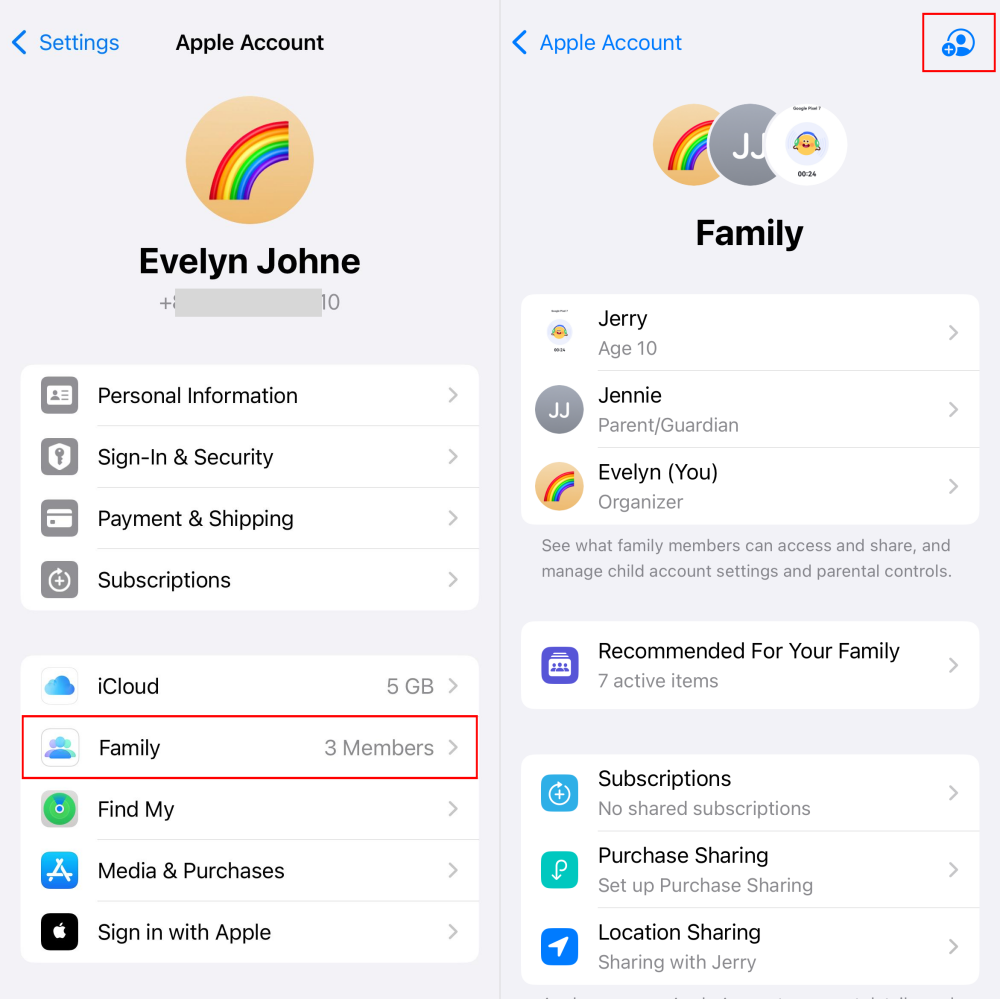
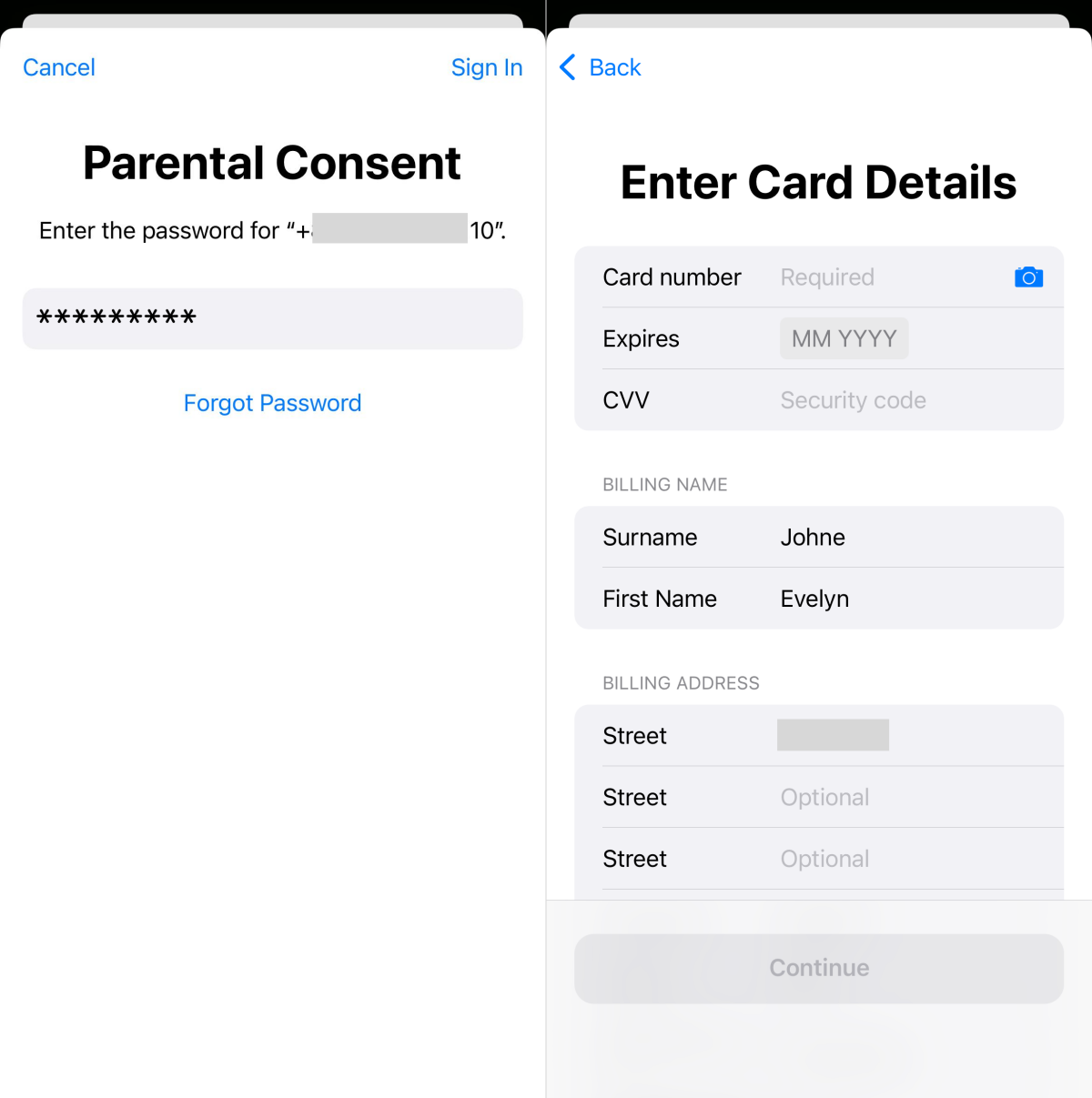
- Step 1.On your iPhone, go to "Settings > [Your Name] > Family." Tap on the "Add" button in the top right corner.
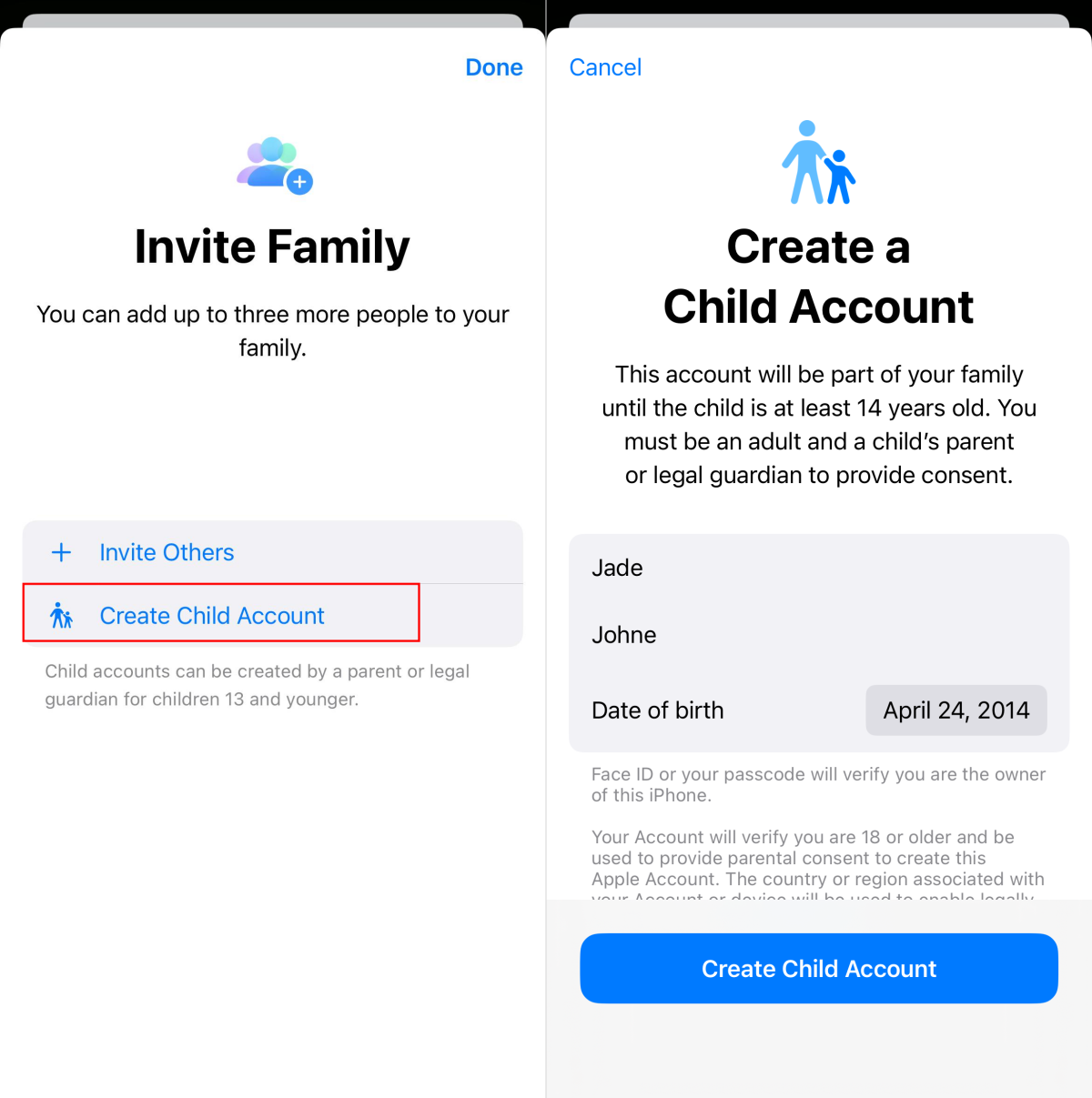
- Step 2.Next, select "Create Child Account."
- Step 3.Enter your child's full name and correct birth date.
- Step 4.Then, Apple will verify your identity using your Apple ID's password and the valid payment info.
- Step 5.After confirming, choose an email address for your child's new Apple account.
- Step 6.Now that the account is created, sign in on your child's device.
FAQs about Child Apple Account
1Can my child change the birth date?
No. The child's account isn't allowed to change the birth year without the Family Sharing organizer's consent.
2What happens when my child turns 13?
Turning 13 does not automatically remove parental controls. As the child grows, Apple automatically applies content restrictions based on their age.
However, when a child turns 13, they have the option to exit the Family Sharing group. As such, parental controls will no longer apply.
3What if my child already has a regular Apple ID?
You can convert it to a child's account. Here's how:
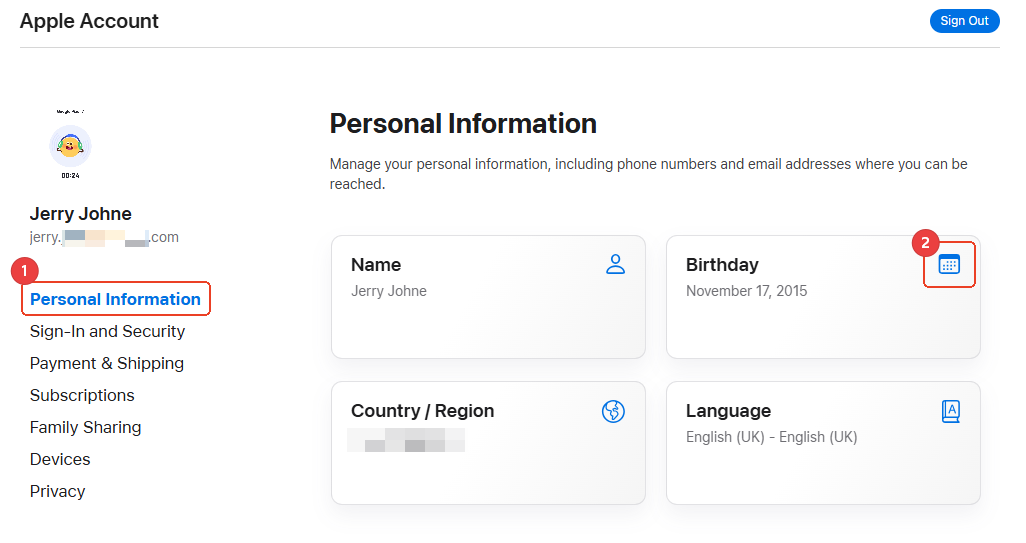
- Step 1.First, invite that account to your Family Sharing group (Go to Settings > tap your name > Family > Add Family Member > Invite others").
- Step 2.Then, visit account.apple.com.
- Step 3.Log in with the account.
- Step 4.Go to "Personal Information > Birthday."
- Step 5.Change it to the legal age of the child account (typically under 13).
- Step 6.After that, Apple sends a request to the family sharing organizer.
- Step 7.Once the request is approved, the account will be changed to the type of child account.
Final Words
Now that you know, creating a separate Apple ID for your child is the foundation for making parental controls actually work. Just do it right from the start. Create a child's Apple ID before handing over that first iPhone.
However, this is just the first step; you shouldn't stop here. In the next guide, we'll share how to apply parental controls on your child's iPhone >>>









Leave a Reply.