Android Parent, iPhone Child: Which Parental Controls Actually Work?
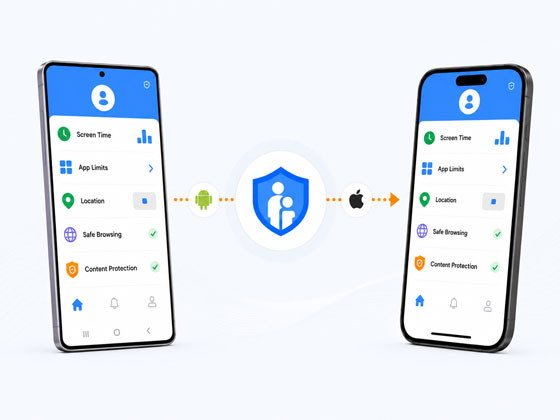
What Works for an Android Parent and an iPhone Child?
You can manage parts of your child’s iPhone experience from Android, but no single native tool gives Android parents broad remote access to all iPhone parental controls.
| Option | What It Can Help With | Main Limitation | Best For |
|---|---|---|---|
| Google Family Link | Managing selected Google Account, Google service, and signed-in Chrome settings. | Does not supervise the iPhone as a device. | Families mainly managing the child’s Google Account or Chrome use. |
| Apple Screen Time and Find Devices | Built-in app, time, purchase, content, and device-location options. | Most Screen Time controls cannot be remotely managed from Android. | Families comfortable managing controls on the child’s iPhone or using limited browser-based device locating. |
| Third-Party Parental Controls | Remote access from Android to selected iPhone controls, activity, location, and alerts. | Coverage and setup vary by task, provider, and iOS rules. | Families needing ongoing cross-platform management. |
What Do You Need to Manage from Android?
The best solution depends less on the brand and more on what you need to manage. Start with the task, compare the native options, and then decide whether a third-party service adds enough value.
Manage Screen Time and Apps
Family Link: Cannot set device-wide screen-time limits or block apps on a child’s iPhone. These controls apply to supported Android devices and Chromebooks.
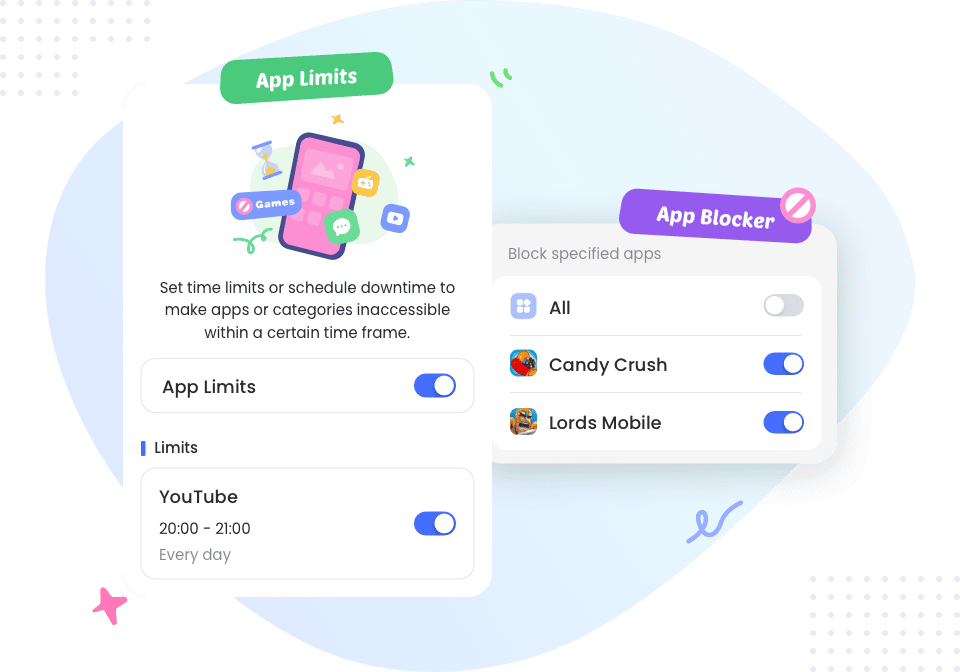
Apple: Screen Time can set App Limits, Downtime, Always Allowed apps, and other restrictions directly on the child’s iPhone. Android parents cannot remotely review or change these settings through Apple’s native tools.
Third-party option: A compatible service may let you review or change supported screen-time and app rules remotely from Android.
Eligible children aged 13–17 can have Screen Time configured directly on their own iPhone when the parent does not have an iPhone or iPad. Age rules vary by country or region.
Manage App Downloads and Purchases
Family Link: App approval and purchase controls apply to Google Play, not the Apple App Store.
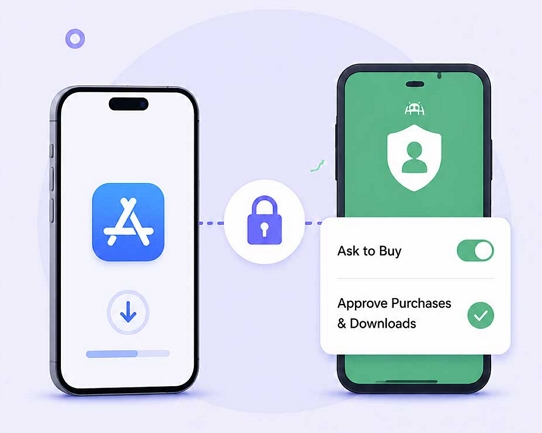
Apple: Screen Time can allow or block app installation, app deletion, and in-app purchases directly on the child’s iPhone. Apple Ask to Buy is different: individual requests must be approved using an iPhone, iPad, Mac, or Apple Watch, not an Android phone.
Third-party option: Some services can remotely manage whether installation, deletion, or in-app purchases are allowed, but they cannot replace Apple’s individual Ask to Buy approval process.
AirDroid: These App Store purchase restrictions require Supervision Mode.
Manage Websites and Content Restrictions
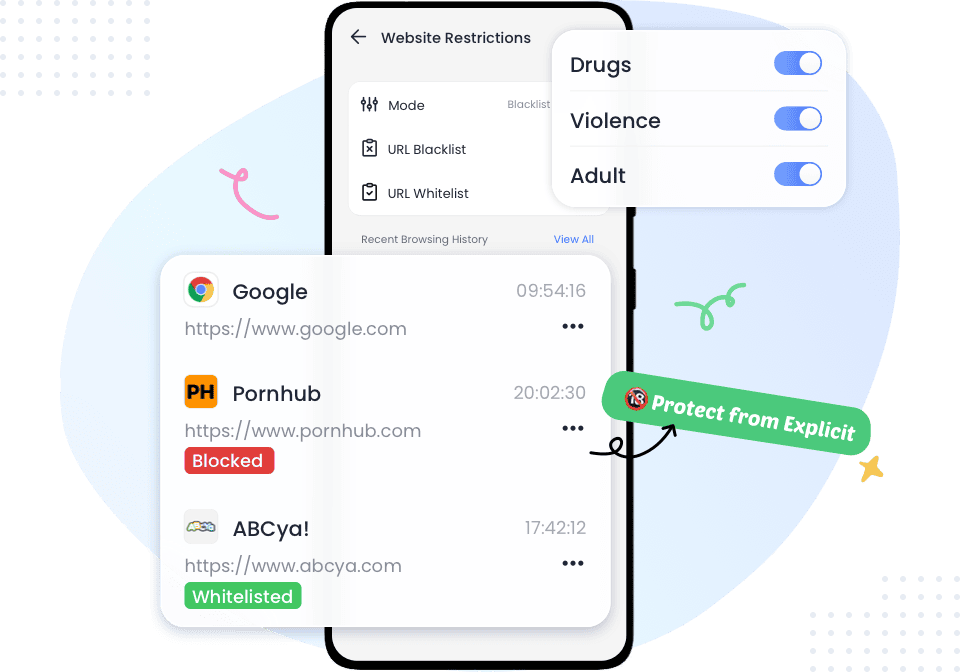
Family Link: Can filter, allow, or block websites in Chrome when your child is signed in with their supervised Google Account. It can also approve or deny requests to open blocked websites.
These settings do not cover Safari or other browsers, and they stop applying if the child signs out of Chrome.
Apple: Screen Time can restrict adult content or selected websites directly on the child’s iPhone, but Android parents cannot remotely change these Apple settings.
Third-party option: A compatible service may let you manage supported website filters, website time limits, or content restrictions remotely from Android. Coverage varies by browser and setup method.
Review App and Website Activity
Family Link: Cannot provide device-wide app activity for a child’s iPhone.
Apple: Screen Time can show app and website activity, device pickups, and other usage information on the child’s iPhone. Apple does not provide an equivalent Screen Time dashboard for Android parents.
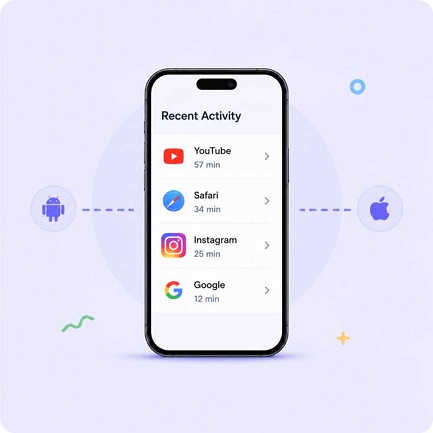
Third-party option: Some services can provide supported app usage, website history, or daily and weekly activity summaries that parents can review from Android.
Check Location and Place Alerts
Family Link: Cannot report the device location of a child’s iPhone.
Apple: Android parents can use Find Devices on iCloud.com in a browser to help locate a family member’s iPhone when Family Sharing and Find My have been set up. The web service is designed mainly for locating devices and lost-device actions.
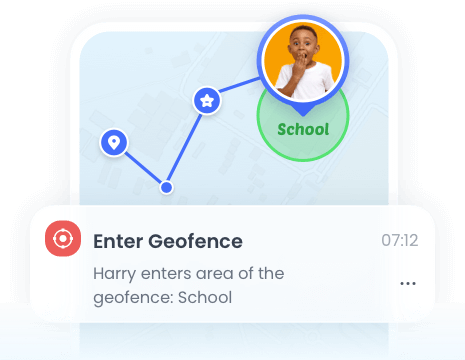
It is not the same as an ongoing family-location dashboard with route history, geofences, and arrival or departure alerts.
Third-party option: A compatible cross-platform location service may add these ongoing family-location features for Android parents.
Receive Selected Content and Safety Alerts
Family Link: Can manage selected Google and YouTube settings.
Apple: Provides on-device protections such as Communication Safety. Neither native option gives an Android parent broad remote safety alerts across the child’s entire iPhone.
Third-party option: Coverage varies considerably by provider and monitoring method.
AirDroid on an iPhone child device: Supported coverage currently includes alerts for potentially inappropriate images and selected YouTube activity. AirDroid does not provide broad SMS, call, notification, private-message, or social-app monitoring on an iPhone child device.

Let Multiple Parents or Caregivers Manage
Family Link: Cannot give multiple caregivers shared device-level control over a child’s iPhone because the iPhone is not supervised through Family Link.
Apple: Family Sharing supports parent or guardian roles, but remote Screen Time management requires a supported Apple parent device rather than an Android dashboard.
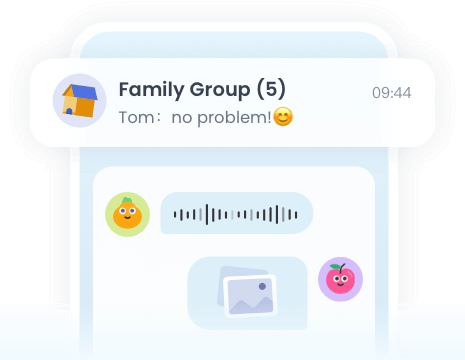
Third-party option: Some services provide separate caregiver accounts, some require a shared login, and others let additional contacts receive alerts without full management access.
AirDroid: An Admin can add up to 10 family members, with invited members using their own parent devices.
When Are Built-In Controls Enough?
You may not need a third-party service. Start with the native option that covers your main task, then add another service only when you need remote Android access or broader cross-platform support.
- Use Family Link for Google Services
Family Link may be enough if you mainly manage your child’s Google Account, YouTube settings, or signed-in Chrome browsing.
It does not provide device-wide iPhone screen time, app controls, activity reports, or location.
- Use Apple Tools for Local Controls
Screen Time may be enough if you can change app, time, purchase, and content settings directly on the child’s iPhone.
Find Devices on iCloud.com can help locate the phone, but it does not provide route history or place alerts.
- Use a Third-Party Service for Remote Access
A third-party service may fit when you need supported iPhone controls, activity, or location available from Android.
It can also support mixed-device families or multiple caregivers, but it cannot remove Apple’s system limits.
How Third-Party Parental Controls Work Across Android and iPhone
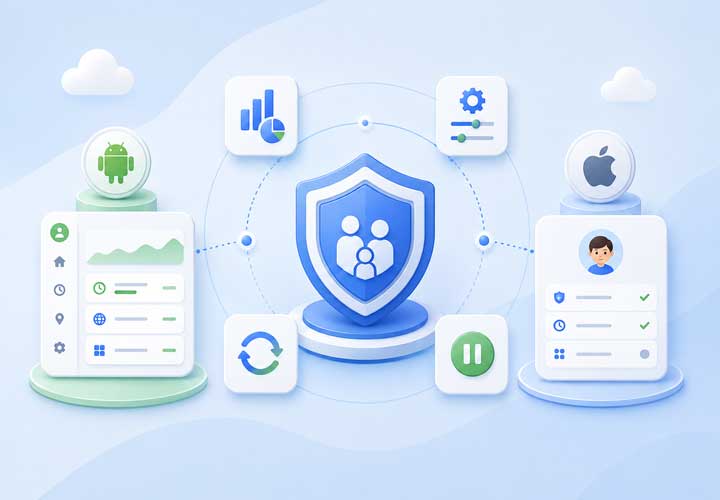
The parent side may be an Android app or web dashboard. The child side may rely on an iPhone app, profile, account connection, computer, or network device.
How It Gets Information
Depending on the feature, a service may use iPhone app permissions, a profile, an account connection, computer sync, a network device, screen broadcast, or periodic scans. “Supports iPhone” does not mean every feature comes from the child app or updates continuously.
What Setup It Needs
Some features work after app binding. Others require physical access, a profile, USB cable, Android connector, Windows or Mac, supervised setup, a home-network device, or an active screen broadcast.
How Fast It Updates
Information may be live, manually refreshed, periodically scanned, delayed, or shown as a daily or weekly summary. Check whether both devices must be online, on the same Wi-Fi, or connected to extra hardware.
What Can Interrupt Access
Permissions, app removal, deleted profiles, account changes, stopped broadcasts, network changes, or software updates can interrupt access. Recheck the feature you rely on after setup changes.
Why the Method Matters
Qustodio’s iPhone call and message monitoring uses a Windows or Mac computer and the same Wi-Fi, with updates about hourly or after a manual refresh. Bark can use its Desktop App, Bark Sync, or Bark Home and says alerts are not instant. These are assisted or periodic methods, not unrestricted live access.
Review and Adjust the Controls as Your Child Grows
Review the setup as your child becomes more independent. Keep only the controls that still match a clear need, and explain what is managed and why.
- Clear screen-time rules
- App and website limits
- Agreed location settings
- Guidance when alerts appear
- Permissions and profiles
- Whether the child app remains installed
- Whether reports and location still update
- If the family phone agreement still fits
- School and bedtime limits
- Rules for distracting apps
- A way to request more access
- Monitoring tied to a clear concern
- Screen Time and account passcodes
- App, location, and photo permissions
- Profiles, reports, and workarounds
- Whether the controls still fit your child’s age
- Rules tied to a clear need
- Transparent location boundaries
- A plan for online problems
- Regular review dates
- Restrictions they have outgrown
- Monitoring broader than needed
- Rules they cannot discuss with you
- Rules kept only because of past workarounds
Frequently Asked Questions
Answers to the practical questions Android parents ask before managing a child’s iPhone.
Can multiple parents or caregivers manage the same child’s iPhone?
Yes, but the number of caregivers and their access levels vary by service.
Qustodio supports one additional parent with a separate login. Bark can send alerts to additional contacts, but those contacts need the main Bark account credentials to open the full alert. OurPact uses a shared login rather than separate caregiver management accounts.
AirDroid lets an Admin add up to 10 family members. Invited members can use their own parent devices to help manage supported controls and receive relevant information. Only invite people you trust because caregiver access may include sensitive child and family information.
Can I manage or approve App Store purchases from my Android phone?
You can manage some purchase restrictions from Android, but you cannot approve individual Apple Ask to Buy requests.
With AirDroid Supervision Mode, you can allow or block app installation, app deletion, and in-app purchases. Apple currently requires an iPhone, iPad, Mac, or Apple Watch to approve each Ask to Buy request.
Qustodio and Bark can restrict or manage supported app access, but that is not the same as approving an App Store purchase. Mobicip also does not support approving individual iPhone purchases from Android and recommends turning Ask to Buy off during its Android-parent setup to avoid additional approval prompts.
Review Apple Ask to Buy requirements · Review Mobicip’s Android-parent setup
Do I need a computer or Supervision Mode?
Not for every AirDroid feature. Basic binding and the required permissions support selected features such as location and image alerts.
App Limits, Downtime, activity reports, website controls, App Store purchase restrictions, and broader iPhone restrictions require Supervision Mode. Supervision Mode can be completed using AirDroid Parental Connector on an Android device, Windows PC, or Mac together with a USB cable.
Can my child remove or disable the controls?
No parental control setup is completely tamper-proof.
Without Supervision Mode, a child may be able to delete AirDroid Kids directly from the iPhone. With Supervision Mode enabled, the child device must first be unlinked before the app can be removed.
You should still review permissions, profiles, account settings, app installation status, and whether reports or location information continue to update.
Can parental control apps monitor calls, messages, or private chats on an iPhone?
Some services can monitor selected calls, SMS or iMessage, photos, videos, or supported social messages on an iPhone.
These features may rely on a computer, home-network device, hardware connector, account connection, or active screen broadcast. They do not necessarily provide continuous access or cover every private conversation.
AirDroid does not provide broad call, SMS, notification, private-message, or social-app monitoring on an iPhone child device.
Is there a free way to manage a child’s iPhone from Android?
You can use Apple Screen Time directly on an eligible child’s iPhone without buying a separate parental-control app.
Family Link can manage parts of the child’s Google Account and supervised Chrome use, but it cannot supervise the iPhone as a device. Find Devices on iCloud.com provides browser-based device locating when Apple’s required setup has been completed.
Ongoing remote management from Android may require a third-party service, and available free features vary by provider.
Manage Child's iPhone from Your Android
Manage supported screen time, app, website, purchase, and location controls from Android, with selected safety alerts from your child’s iPhone.


Android App + Web Dashboard

Supported iPhone Controls

Mixed-Device Families

Clear iOS Limits