Though Facebook has developed strong privacy and account security systems, some users still prefer not to provide their personal phone numbers while using it. So, can you create a Facebook account without a phone number? Yes, in many cases, you can sign up with an email address instead of a mobile number.
How to Create a Facebook Account without Phone Number
In this section, we'll share ways to make a new Facebook account with your email or with a long-term secondary number. The key is to use information you can access and control. Avoid fake names, disposable numbers, or third-party “verification bypass” tools, because Meta’s account rules focus on authentic identity and prohibit misrepresentation.
Unlike WhatsApp and Telegram, Facebook allows users to create an account without adding a phone number during sign-up. The safer alternative is to use a valid email address you can access, because Facebook may send a confirmation code or link to finish creating your account.
This method is usually the best choice if you want to keep your personal phone number off Facebook while still using an official sign-up path. So, if you're ready for this, here's a step-by-step guide to creating a Facebook account without a phone number:
Step 1.Visit the Facebook Login Page
Open the Facebook app or go to the Facebook Login page in your browser. Tap on "Create new account." Then, you'll be directed to the page to begin creating your account.
Step 2.Enter Your Basic Information
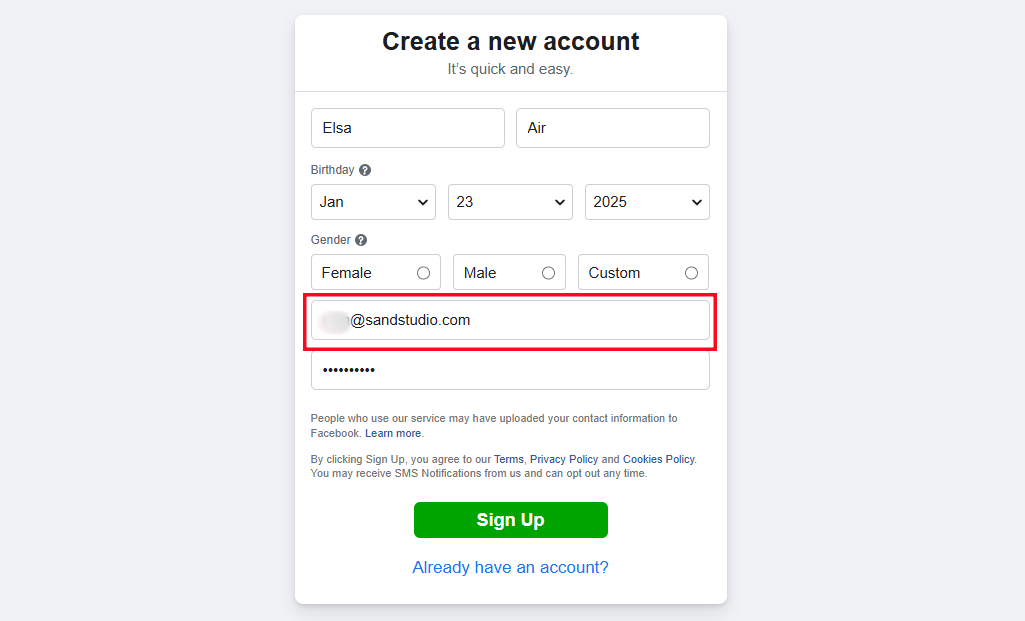
Enter your information, such as "First name" and "Date of birth," and select "Gender" from the options. Then, come to the most important step. Input a valid email address instead of a phone number. And create a secure password.
Step 3.Complete the Registration
Click "Sign Up" and then enter the verification code from your email. Once confirmed, you'll have a new Facebook account.
💡Fixed: Not Receiving Facebook Confirmation Code Email
When creating a Facebook account or logging in with an email address, you may have a typical problem - not obtaining the confirmation code. Facebook’s account confirmation guidance explains that you may need to confirm the email or mobile number used to finish account creation, so the email address should be active and typed correctly.
Fix 1. Check Facebook Emails from the Spam Folder
When you cannot get a Facebook confirmation code via email, then it might be that the Facebook email is marked as spam and sent to your junk or spam folder, especially if you have spam protection. To solve this:
Open your email program and choose the "Spam" folder from the left menu. Scroll down to see if the Facebook verification email is there. If so, you can check the verification code.
To prevent you from not receiving the verification code via emails next time, don't forget to remove the "Spam" label from this sender.
Fix 2. Verify the Email Address
You might have entered an email address with typos, so Facebook won't be able to send the code to your real email.
Therefore, go back to the sign-up page and verify the email address you entered. Correct any mistakes by clicking on "Update Contact Info" and then click "Send Email Again" to receive the confirmation email.
Fix 3. Use the Browser Instead of the Facebook App
Based on users' feedback, some of them got the "not receiving Facebook confirmation code" issue fixed by using the mobile browser to log in. So, if you're facing this problem on the Facebook app, its web version might deserve a try.
Option 2. Create a Facebook Account with a Long-Term Secondary Number
Another option is to use a long-term secondary number that you personally control, such as a Google Voice number in supported regions. This is different from using disposable SMS websites or temporary verification numbers, which can create account recovery and security problems. If Facebook later asks for verification, you need to be able to receive codes through the same number.
Google Voice is a widely used service that offers phone numbers for calls, texts, and voicemail in supported regions. Google’s own setup guide also notes that users may need a working phone that can receive texts when setting up Google Voice, so this option does not remove phone verification completely. It simply helps you avoid putting your personal mobile number directly on Facebook.
Important: Do not use fake numbers, public SMS inboxes, or one-time verification services to create a Facebook account. They can expose verification codes to other people, make account recovery harder, and may cause Facebook to ask for additional checks.
Here's how to use Google Voice for Facebook registration or verification if it is available in your region:
Step 1.Create a Google Voice Account
Visit the Google Voice website or download the Google Voice app. Sign in with your Google account. Click on "Personal Use" to continue.
Step 2.Choose and Verify a Google Voice Number
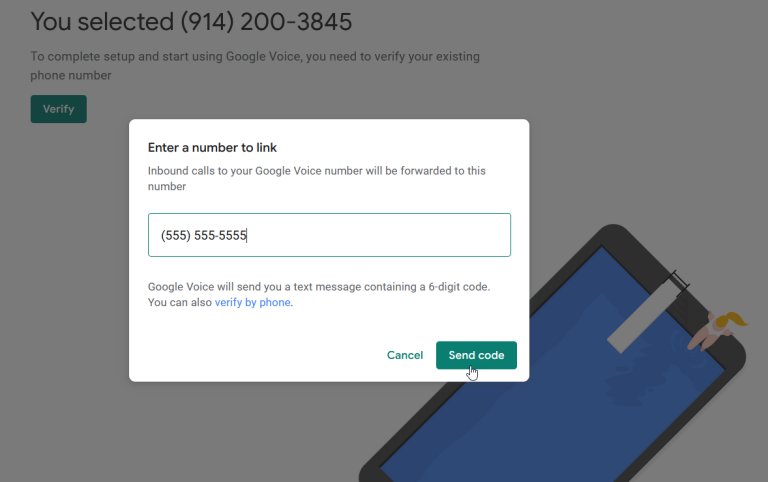
Next, search for a number by city or area code. You can pick any available number. Then, click the "Verify" button, enter your mobile number, and click "Send Code". Enter the code you received and click "Verify" to link your phone number. Complete the procedure by clicking Finish twice.
Step 3.Link Your Google Voice Number to Facebook
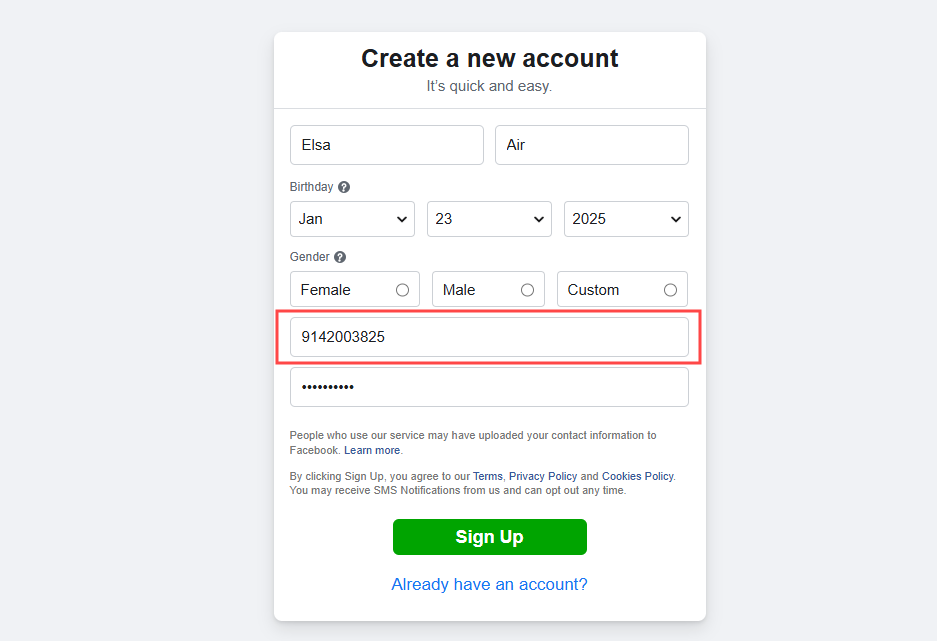
During the Facebook sign-up process, enter your active Google Voice number in place of your personal mobile number.
Step 4.Enter the Verification Code
Check your Google Voice inbox for a message containing Facebook's confirmation code. And then, you can get a Facebook account linked to the secondary phone number.
Do You Need a Phone Number for Facebook?
Whether or not you should use a phone number is largely determined by your privacy and security needs. Facebook lets many users sign up with an email address, but that does not mean a phone number is never useful. Facebook may still ask for confirmation or identity checks if it detects unusual activity, and account recovery may be easier when you have more than one trusted contact method.
Pros of Not Using Phone Number for Facebook:
Enhanced Privacy: Your personal mobile number is not attached to your Facebook sign-up, which can reduce unwanted exposure if you prefer to keep that number private.
Reduced Spam: Avoid receiving unwanted marketing messages or calls through the personal phone number you use every day.
More Control Over Account Security: You can still secure the account with a strong password, an authentication app for two-factor authentication, and alerts for unrecognized logins. The UK National Cyber Security Centre also recommends turning on 2-step verification for important online accounts because it helps protect accounts even if a password is stolen.
Cons of Not Using Phone Number for Facebook:
Limited Recovery Options: Recovering your account may become more challenging without a phone number, especially if your email account is also compromised or you lose access to it.
Extra Verification Checks: Facebook may still ask you to confirm your identity or complete security checks if it needs to verify that the account belongs to you.
Email Code Issues: If your Facebook account is linked only to your email address, you may miss a verification code because of spam filtering, typos, or inbox delays.
In summary, if your main concern is privacy, creating a Facebook account with a valid email address can be a reasonable option. If your main concern is recovery and account security, you should add strong security settings, such as a unique password, login alerts, and app-based two-factor authentication, instead of relying only on a phone number.
Avoid Fake Accounts, Temporary Numbers, and Phishing Pages
When trying to create Facebook without a phone number, do not use fake names, disposable verification numbers, or third-party account-creation tools. Meta’s policies prohibit misrepresentation, and Facebook may restrict accounts that appear suspicious or inauthentic. Also, avoid entering your Facebook login details on third-party pages that claim to bypass sign-up or verification checks. The FTC warns that phishing scams often use fake messages and links to trick people into entering passwords or personal information.
Bonus: How to Use Facebook without an Account
In addition to the above ways to make a Facebook account without a phone number, we also explore a method to support a child’s Facebook safety without logging into their Facebook account. This method is primarily useful for parents who want device-level supervision rather than access to the child’s account password.
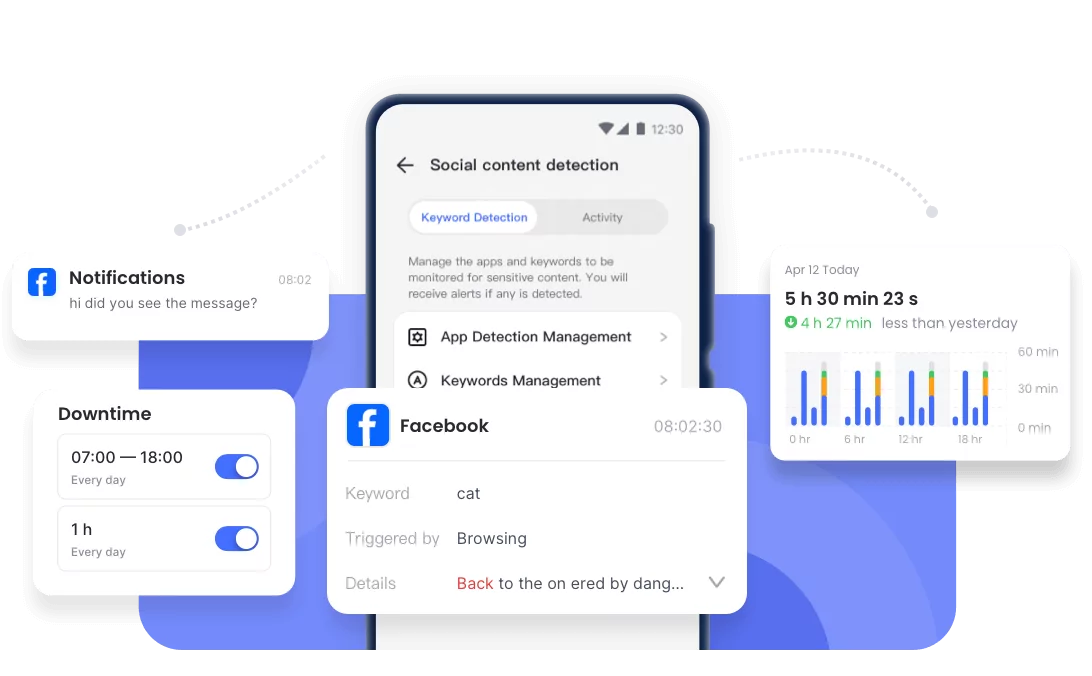
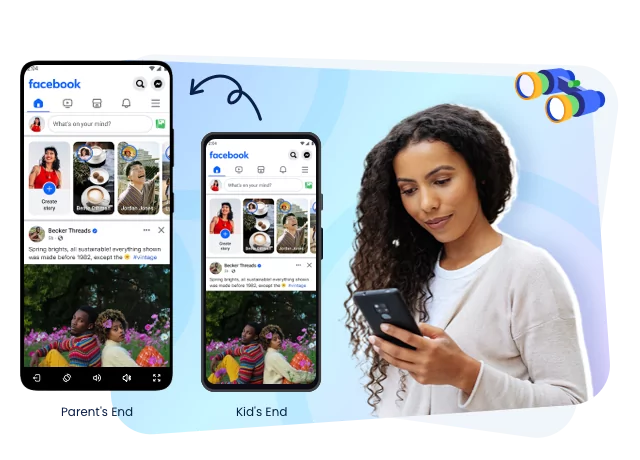
With AirDroid Parental Control, parents can remotely monitor kids' Facebook activity on a managed child device without logging into their Facebook account. It allows users to oversee various content and interactions on Facebook, including:
Facebook conversations and related notifications visible on the child device;
Live Facebook activities via the screen mirroring feature;
Facebook screen time usage.
And all these can be done in AirDroid Parental Control even if parents don't have a Facebook account or can't access their kids' Facebook accounts. Before using parental control tools, explain your safety rules to your child and make sure your use follows local laws and platform terms. Now, download it to have a try!
The process is simple if you want to remove your phone number from your Facebook account. However, make sure you still have a valid email address and other recovery options before deleting a phone number, because removing all trusted contact methods can make recovery harder.
Step 1.Start by navigating to Facebook "Settings."
Step 2.From there, tap "See more in Accounts Center."
Step 3.Then, select "Personal details" and then "Contact Info."
Step 4.Here, you'll find your phone number listed. Tap on the number, select "Delete number", then confirm your action to delete it permanently.
How to make your Facebook private?
Step 1.Access Facebook "Settings" as before.
Step 2.Under the "Audience and visibility" section, select "Profile locking."
Step 3.Tap on "Lock Your Profile" and you can make your photos and posts only visible to your Facebook friends.
Can I find my old Facebook account by phone number?
If your old Facebook account is linked to a phone number, you can try Facebook's account recovery feature. Click Forgot account on the Facebook login page. Then, enter your phone number. Facebook may show matching accounts and offer recovery steps, such as entering a verification code or completing a security check.
Conclusion
Creating a Facebook account without your personal phone number is possible when you use a valid email address or a long-term secondary number you control. For most users, email sign-up is the safest and most straightforward option. Avoid fake names, disposable verification numbers, and third-party bypass tools, and protect your account with a strong password, app-based two-factor authentication, and login alerts.
List of Sources
How to Create a Facebook Account without Phone Number
Facebook Help Center – Create a Facebook Account (https://www.facebook.com/help/188157731232424)
Facebook Help Center – Finish Creating Your Facebook Account and Confirm Your Email or Mobile Number (https://www.facebook.com/help/124904560921566)
Facebook Help Center – Names Allowed on Facebook (https://www.facebook.com/help/112146705538576)
Meta Terms of Service (https://www.facebook.com/legal/terms)
Meta Transparency Center – Misrepresentation (https://transparency.meta.com/policies/community-standards/misrepresentation/)
Google Voice Help – Set Up Google Voice (https://support.google.com/voice/answer/115061)
Do You Need a Phone Number for Facebook?
Facebook Help Center – Using an Authentication App for Two-Factor Authentication on Facebook (https://www.facebook.com/help/358336074294704)
Facebook Help Center – Get Alerts About Unrecognised Logins to Your Facebook Account (https://www.facebook.com/help/162968940433354)
NCSC – Turn on 2-Step Verification (https://www.ncsc.gov.uk/collection/top-tips-for-staying-secure-online/activate-2-step-verification-on-your-email)
Facebook Help Center – Confirm Your Identity on Facebook (https://www.facebook.com/help/100168986860974)
Facebook Help Center – Avoid Phishing on Facebook (https://www.facebook.com/help/166863010078512)
FTC – How to Recognize and Avoid Phishing Scams (https://consumer.ftc.gov/articles/how-recognize-and-avoid-phishing-scams)
Bonus: How to Use Facebook without an Account
AirDroid Parental Control – Facebook Parental Controls (https://www.airdroid.com/parental-control/facebook-parental-controls/)
AirDroid Parental Control – Official Website (https://www.airdroid.com/parental-control/)
Elsa has worked on a number of iOS & Android solutions, she can always find her way around almost any application. She is an accomplished, skilled and versatile writer with more than 7 years of technical article writing experience.









Leave a Reply.