Can Parents See Internet History on WiFi (What You Can Actually Check)
⚡Key Takeaways:
- Steps to Check WiFi History: Find and visit the router's IP > log in with the admin credentials > look for "Logs" or "Activity."
- In most cases, you can only see visited domains. Plus, most router brands (e.g. TP-Link, Xfinity, Netgear) doesn't support logging browsing history.
- If you want a detailed walkthrough,you might need tools like parental control apps.
- Always let your family members know and involve them before checking the home WiFi router logs.
"I checked my son's smartphone and saw his search history. I couldn't believe my eyes."
A Reddit parent shared a nightmare: checking her 14-year-old's history only to find it flooded with explicit, pornographic keywords, and even much worse.
That "gut-punch" feeling is every parent's wake-up call.
As a parent, you might want to keep an eye on your home network for fulfilling your responsibility to protect them from being exposed to inappropriate content too early.
So, can you see what websites are visited on your WiFi before it's too late?
The short answer: Yes. However, the visibility is often incomplete in most cases.
Here's What You Can and Can't See on WiFi Router History
What You Can See:
✅Visited domains (like youtube.com) with timestamps
✅Unencrypted website data
✅Connected device info, including model and MAC address
✅Internet access time and duration per connected device
What You Can't See:
❌The exact pages viewed on HTTPS websites
❌Browsing activity if a VPN is used
❌Emails or messages in WhatsApp, and other apps
Why WiFi routers can't show full browsing details?
First, according to the Google Transparency Report, over 95% of websites are now encrypted with HTTPS. This means the request and query data over HTTPS are encrypted. So, routers can only record the domain (like youtube.com).
Second, most routers are not built for browsing history tracking. For example, Xfinity and Netgear describe their own router logs as records of basic network events, mainly used for troubleshooting. So, not all routers record browsing history.
Finally, home router logs are often limited. Some users also noted on Reddit and YouTube that older records can be overwritten or cleared, and some routers can only store 256 logs.
Then, what does WiFi router history look like?
What you'll see in the router logs is a raw list of timestamps, visited domain names, and device IDs or IP addresses, which are presented line by line. No page titles, no search terms.
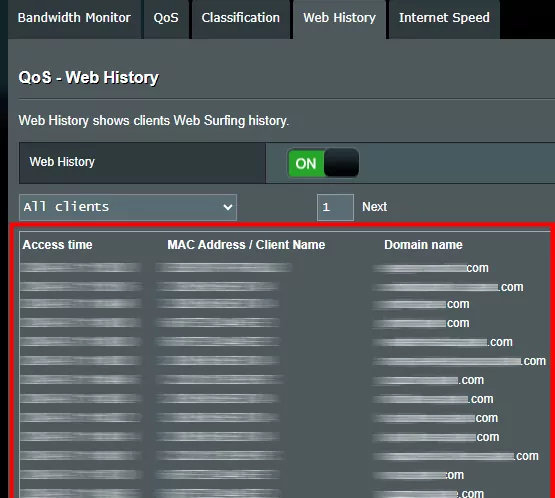
*The exact layout and logged info vary by router brand.
How to See What Websites Are Visited on Your Home WiFi
You can check WiFi browsing history on your home network by following the steps below:
- Step 1: Find your home router's IP address
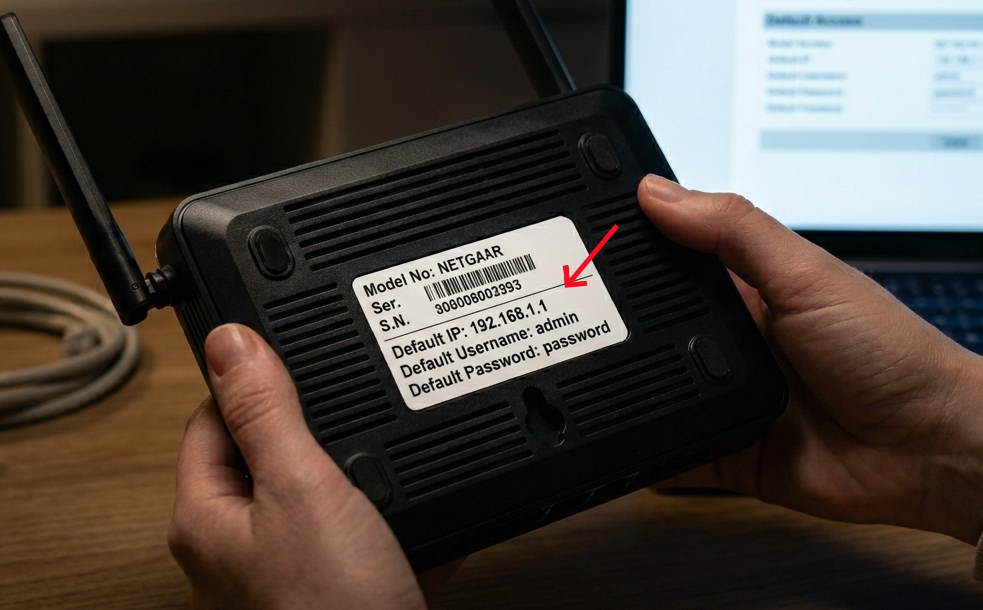
- Every router has an IP address. Without it, you have no access to its WiFi router settings. The quickest way to find yours is to look at the label on the back or bottom of the router.
- Alternatively, you can find the IP address of your router on your own device:
- Windows: Type "ipconfig" in the Command Prompt, press enter. Look for "Default Gateway."
- Mac: Open "System Settings > Wi-Fi > Details > TCP/IP > IPv4 Address."
- iPhone: Go to "Settings > Wi-Fi > info > Router."
- Android: Head to "Settings > Internet > tap your network > gear > Gateway."
- Step 2: Log in to your router
- Open any browser on your phone or computer, type the IP address into the address bar to proceed.
- Next, sign in with your admin username and password. These are usually printed on a sticker on the back or bottom of your router.
- Step 3: Find the activity log in the route panel
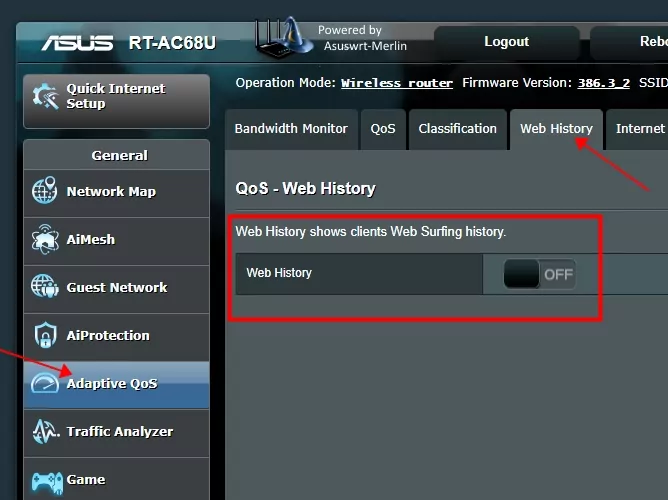
- Once you're logged in, look for a section like "Logs," "System Log," "Access Restrictions," "Web History," or "Browsing History."
- You can also select your router brand below to locate it exactly:
- ASUS: Go to "Adaptive QoS > Web History." (Source: ASUS forum)
- D-Link: Go to "Router Status > Connection List > Visited History." (Source: D-Link support)
🛠️ What If You Can't Find Any History?
- We found that many router leaders, such as Netgear, TP-Link, and Eero, etc, don't provide a browsing history log. If you can't find one, your router likely just doesn't support it.
- If the log is empty, it might be that the log feature is turned off by default. Just look for a toggle to enable it and check back the next day.
A Simpler Way to See What Websites Your Child Visited
By now, you've probably noticed that checking the WiFi router history isn't straightforward. And even when it works, it only covers the time your child is connected to your home network.
That means when they're not home, switch to mobile data or connect to a VPN; the route history is not enough for safety risks.
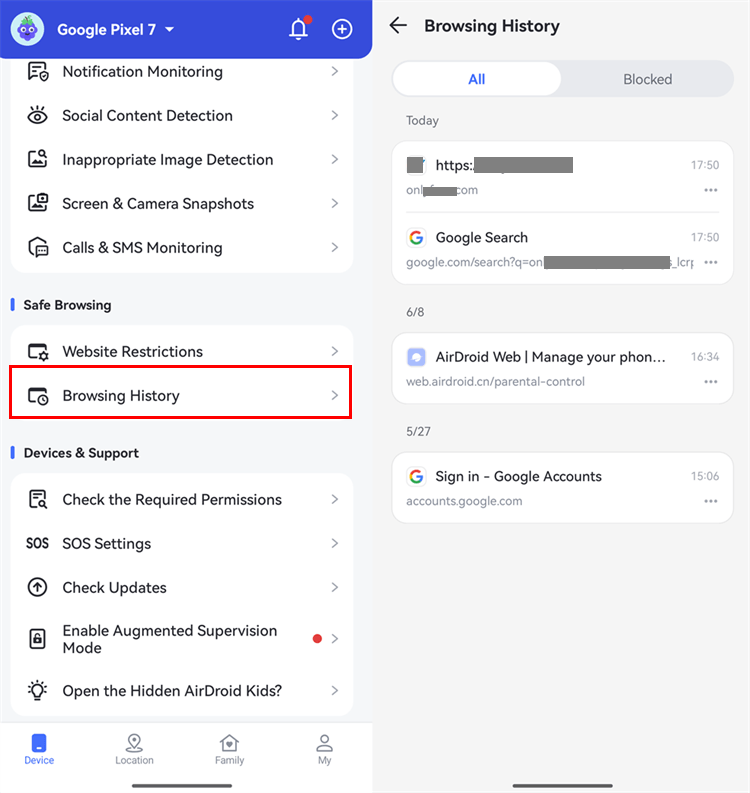
So, instead of relying on network-level data, about 51% of parents choose to use device-level safety tools, such as AirDroid Parental Control. With it, you can:
- Review child's browsing & searching history
- Get instant alerts when they receive harmful URLs from social apps
- Know if they want to open a blocked site
- Set up a URL blacklist and whitelist for kids
As such, you can stay informed wherever your child goes, not just when they're home.
Should You Check Your Child's Browsing History on WiFi?
Let's clarify: checking the WiFi route history isn't something you need to do 24/7, nor is it for every family situation. Knowing when to check is essential to balance protection with trust.
So, if you've noticed 2 or 3 of the following, it may be worth taking a closer look:
- They're under 12 and may not yet recognize online risks.
- They quickly close tabs or switch screens when you walk by.
- They're spending time online late at night and are exhausted the next morning.
- They have recently experienced cyberbullying or been exposed to harmful content.
- You've noticed mood swings or anxiety after spending time online.
And the most important thing is you're trying to make sure they're safe, not controlling or spying on them.
What to Do If You Notice Something Concerning
After using either way, you can know whether your child was exposed to inappropriate web content. Whenever you find a website alarming, take it as an opportunity to guide your child online.
- Stay calm and avoid accusing:
- Have a conversation:
- Teach them to recognize risks:
- Set online rules:
In fact, the Guardian's report shows that 59% of children encountered explicit content accidentally rather than searched for it. So, don't confront your child in anger or fight.
Instead, try asking your child, "I noticed you visited [website]—can you tell me what you were looking for?" or "Did you see anything on that site that confused you?" This encourages them to share their real thoughts.
Use the moment to talk about what makes a website inappropriate or unsafe. And let them know that if something feels off online, they can always come to you for help.
Work together to create simple online rules, like "no visiting age-inappropriate websites." Importantly, make it clear that some unsafe websites may be restricted for them.
FAQs about WiFi Router History
List of Sources
- Parental Concerns & Real-Life Cases
- Reddit parent shares nightmare (https://www.reddit.com/r/family/comments/jptpt9/i_checked_my_sons_smartphone_and_saw_his_search/)
- The Guardian — 59% of children encountered explicit content accidentally (https://www.theguardian.com/society/2025/aug/18/children-exposure-to-porn-online-safety-act-commissioner)
- HTTPS Encryption & Router Limitations
- Google Transparency Report — HTTPS overview (https://transparencyreport.google.com/https/overview)
- CIO.gov — HTTPS FAQ (https://https.cio.gov/faq/)
- Xfinity Community — Router browsing history (https://forums.xfinity.com/conversations/your-home-network/router-browsing-history/64f7483cbaecdd4ece04fa39)
- Netgear — Router logs PDF (https://www.downloads.netgear.com/files/answers/Router%20logs.pdf)
- Router-Specific Official Guides
- ASUS ZenTalk — Enable website history (https://zentalk.asus.com/t5/faq/wireless-router-how-to-enable-the-website-history-feature-in/ta-p/407354)
- D-Link Support — View visited websites (https://www.dlink.com/uk/en/support/faq/cameras-and-surveillance/mydlink/settings/router/how-do-i-view-which-websites-have-visited-through-my-mydlink-router)
- Eero Support — eero Plus Activity Center (https://support.eero.com/hc/en-us/articles/360001007006-What-is-the-eero-Plus-Activity-Center)
- Industry Data & Parental Control Trends
- Mordor Intelligence — Wireless router market report (https://www.mordorintelligence.com/industry-reports/wireless-router-market)
- MacBook Journal — Parental controls survey (https://macbookjournal.com/parental-controls-survey/)









Leave a Reply.