How to See Deleted History on Safari (iPhone/iPad/Mac) — Real Success Rates & Parent's Guide 2026
Content Transparency:
- All methods in this article were tested on iPhone 14 (iOS 17.4) and iPhone 15 (iOS 18.1). Last updated: April 2026.
If you've deleted Safari browsing history on your iPhone, iPad, or Mac and it has already synced to iCloud, this data is typically unrecoverable. Apple's official support documentation clearly states: once Safari history is cleared and synced, it is permanently deleted from all associated devices.
However, this doesn't mean there's no hope at all. Under certain specific conditions—such as having a backup before deletion, or another device that hasn't synced yet—you may still have a chance to recover some data. This article provides you with an honest feasibility assessment based on actual testing and technical documentation.
⚡ 30-Second Quick Check: Is Your Situation Recoverable?
| Your Situation | Recovery Chance | Recommended Action |
| Made encrypted backup via iTunes/Finder before deletion | High (70-80%) | Method 3 or 4 |
| Mac has Time Machine backup enabled | Medium-High (60-70%) | Mac Method 1 |
| Have another Apple device that may not have synced | Medium (40-50%) | Disconnect immediately, Method 5 |
| No backup made after deletion | Very Low (<10%) | Check alternative information sources |
| Deleted and iCloud sync completed | Almost Impossible | Accept reality, learn prevention |
1. iPhone/iPad Recovery Methods (Sorted by Real Success Rate)
The following methods are sorted by actual operability and success rate, not marketing hype. Please choose based on your specific situation.
1 Check Unclosed Tabs (Success Rate: 80-90%)
Applicable Scenario: You cleared your browsing history, but certain website tabs remain open.
This is the simplest and highest success rate method. Safari's "Clear History" feature does not automatically close open tabs—as long as the tabs are still open, you can directly see the previously visited pages.
- 1. Open the Safari app.
- 2. Tap the Tabs Overview button (two overlapping squares) in the bottom-right corner.


- 3. Scroll through all open tabs to find the historical pages you need.
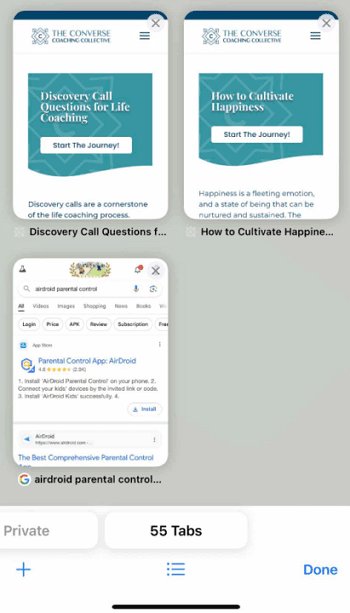

Important Note: Once these tabs are closed, they will be permanently gone (unless you have a backup). We recommend immediately adding important pages to bookmarks or reading list.
2 Check Website Data Cache (Success Rate: 20-30%)
Applicable Scenario: After deleting history, some website cache data may still remain on the device.
This method only shows a list of visited website domain names, not the specific pages visited or timestamps. However, it can give you clues that certain websites were indeed visited.
- 1. Open the Settings app.
- 2. Scroll down to find Safari and tap it.
- 3. Scroll to the bottom and tap Advanced.
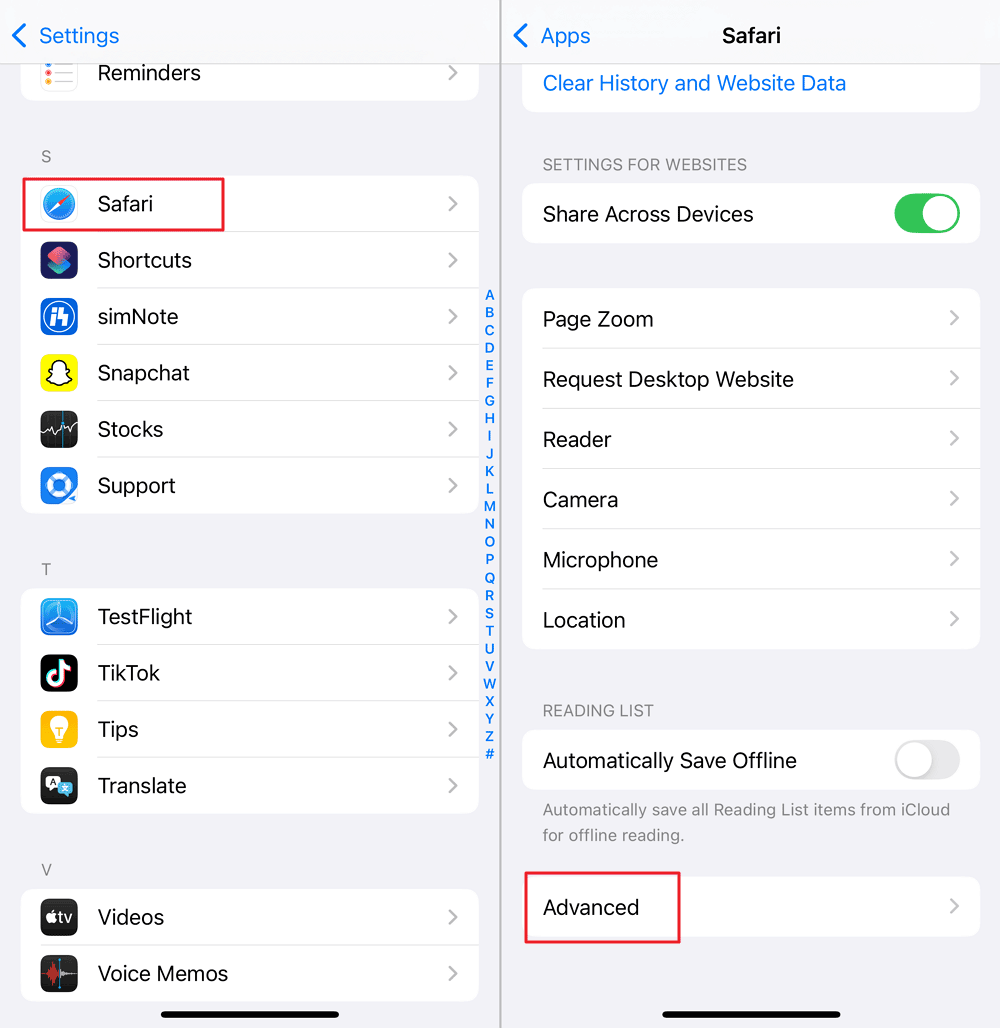

- 4. Select Website Data to view cached information.
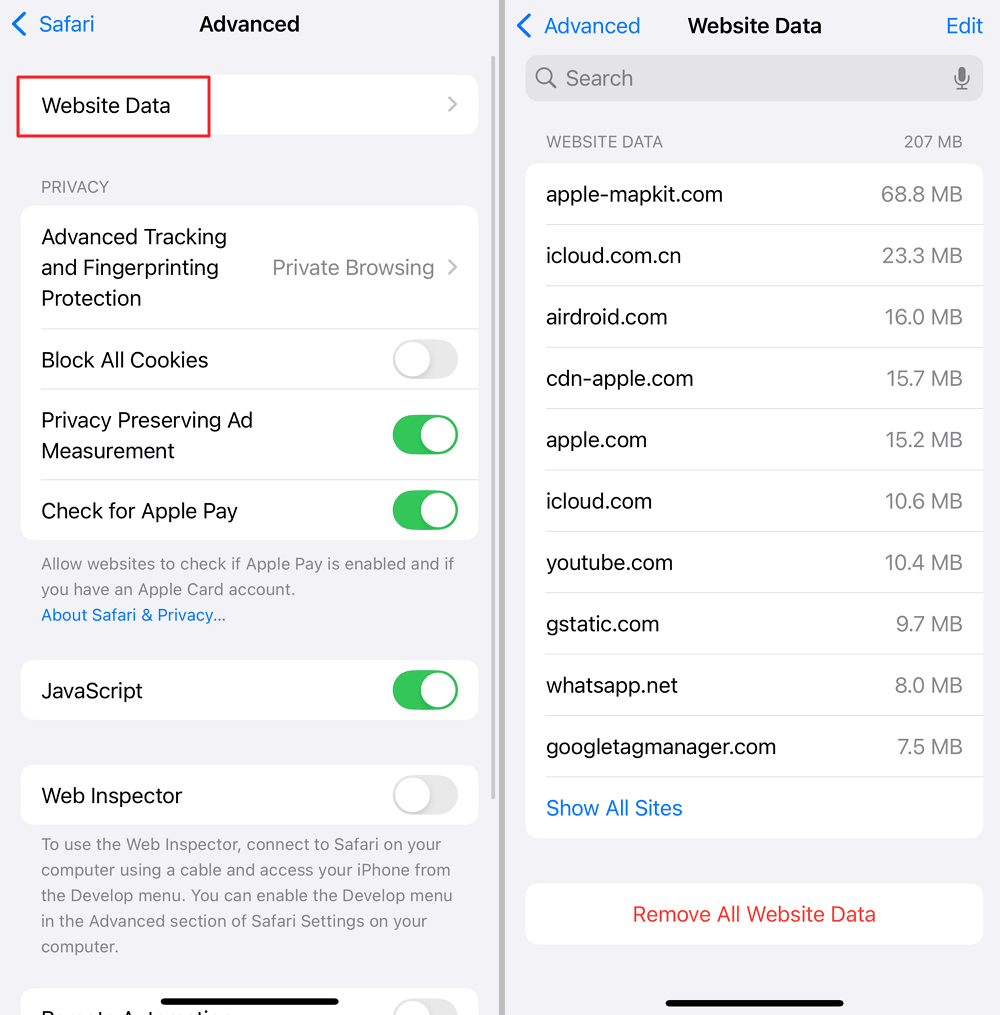

Limitations:
- Only shows website domains, not specific page URLs
- Does not show visit times and frequency
- If the user cleared "History and Website Data," this will be empty
3 Restore from iTunes/Finder Backup (Success Rate: 70-80%)
Applicable Scenario: You backed up your iPhone via iTunes (Windows/macOS Mojave and earlier) or Finder (macOS Catalina and later) before deleting the history.
⚠️Read Before Proceeding
- Restoring a backup will overwrite all current data on the device (photos, messages, app data, etc.)
- Ensure the backup was created before the history was deleted
- We recommend testing the backup content on another device first, confirming it contains the needed history before restoring
- 1. Connect your iPhone to the computer you previously backed up with.
- 2. Open iTunes (Windows/macOS Mojave and earlier) or Finder (macOS Catalina and later).
- 3. Select your device.
- 4. In the "Summary" or "General" tab, click Restore Backup.
- 5. Select the backup file created before the history was deleted.
- 6. Click Restore and wait for completion.
💡 Pro Tip: If you don't want to overwrite current data, you can use third-party backup viewer tools (like iMazing) to browse backup contents first, confirming it contains the needed history before deciding whether to restore.
4 Restore from iCloud Backup (Success Rate: 60-70%)
Applicable Scenario: You have iCloud Backup enabled and had an automatic or manual backup before deleting the history.
⚠️ Critical Warning
This method requires erasing all content and settings on the device, then reactivating and restoring from backup. All current data will be lost—ensure you have another backup.
- 1. Go to Settings > General > Transfer or Reset iPhone > Erase All Content and Settings.
- 2. After the device restarts, follow the setup wizard.
- 3. On the "Apps & Data" screen, select Restore from iCloud Backup.
5 Multi-Device "Offline Rescue" (Success Rate: 40-50%)
Applicable Scenario: You have multiple Apple devices (like iPhone and iPad) using the same Apple ID, and one device may not have synced the deletion yet.
This is a time-sensitive rescue window. When Safari history is deleted on one device, if other devices are offline (not connected to Wi-Fi or cellular data), the deletion won't immediately sync to those devices.
🚨 Offline Rescue Playbook (Execute Immediately)
Check sync status first: On the potentially unsynced device, go to Settings > [Your Name] > iCloud > Safari. Check if "Last Sync" time is before the deletion time.
- If it shows "Syncing..." or the time is within the last few minutes, immediately enable Airplane Mode.
- Disconnect all other devices from the internet (turn off Wi-Fi and cellular data).
- Open Safari on the unsynced device and check if history still exists.
- If you find the needed history, immediately screenshot or export it.
- Turn off Safari iCloud sync on that device: Settings > [Your Name] > iCloud > Safari (turn off), then select "Keep on My iPhone/iPad".
- After confirming data is saved, decide whether/when to reconnect to the internet.
Key Limitations:
- Once the offline device reconnects to the internet, the deletion will sync immediately
- If other devices were already online, this method won't work
- The time window is typically only a few minutes to a few hours
2. Mac Recovery Methods
Mac users can retain Safari history for up to a year, but once deleted, recovery difficulty is similar to iOS devices. The following methods are sorted by success rate.
1 Time Machine Backup Restore (Success Rate: 70-80%)
Applicable Scenario: Your Mac has Time Machine backup enabled and had a backup before deleting the history.
This is the most reliable method for Mac users to recover Safari history. Safari history is stored in the ~/Library/Safari/History.db file, and Time Machine can restore earlier versions of this file.
🛡️ Safe Operation Tip: To avoid overwriting current browsing data, we recommend saving the restored file to the Desktop or another location instead of directly overwriting the original file. You can view the restored file content using SQLite browser tools.
- 1. Quit Safari (must fully quit, Command+Q.)
- 2. Open Finder, click Go > Go to Folder in the menu bar.
- 3. Enter the path
~/Library/Safariand click "Go." - 4. Find the History.db file and select it (don't open.)
- 5. Connect your Time Machine backup drive.
- 6. Click the Time Machine icon > Enter Time Machine in the menu bar.
- 7. Use the timeline to find the backup point before the history was deleted.
- 8. Select the History.db file from that time point and click Restore.
After restoration is complete, reopen Safari and click History > Show All History in the menu bar to view the restored content.
2 Check Cookies and Cached Data (Success Rate: 20-30%)
Applicable Scenario: After deleting history, some website cookies and cache may still remain.
This method is similar to "Website Data" on iOS—it only shows a list of visited website domains, not specific pages or a complete timeline.
- 1. Open Safari.
- 2. Click Safari > Settings (or Preferences) in the menu bar.
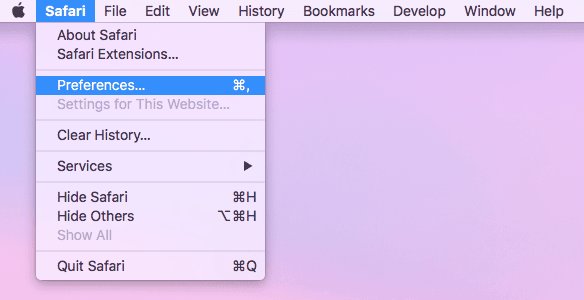

- 3. Click the Privacy tab, then click Manage Website Data.
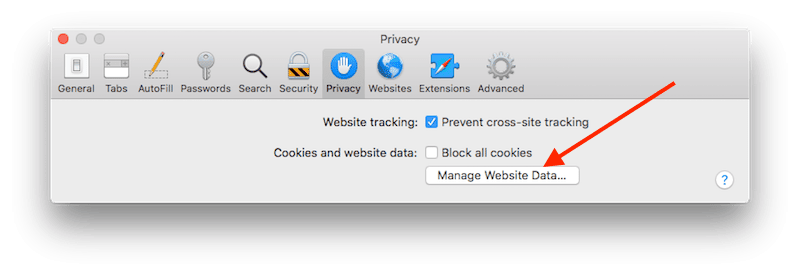

- 4. Browse the list of displayed website domains.
3 Direct SQLite Database Access (Technical, Success Rate: Varies)
Applicable Scenario: You have some technical background and want to try extracting data directly from Safari's SQLite database file.
🔧 Technical Notes:
- Need to install SQLite browser tool (like DB Browser for SQLite)
- Need access to
~/Library/Safari/History.dbfile - If the file has been overwritten or corrupted, this method won't work
- Requires basic SQL query knowledge
Basic Steps:
- 1. Quit Safari.
- 2. Copy
~/Library/Safari/History.dbto a safe location (avoid directly manipulating the original file.) - 3. Use DB Browser for SQLite to open the copied file.
- 4. Browse the
history_visitsandhistory_itemstables to view data.
Important Reminder: This method has a high technical threshold for average users, and success cannot be guaranteed.
3. For Parents: What to Do When You Find Deleted History
Let's be honest about why you're here. You checked your child's iPhone and the Safari history is empty. Your heart skips a beat. The questions start racing: What are they hiding? Should I confront them? Am I overreacting?
Take a breath. An empty history doesn't automatically mean trouble. Here's how to handle this without damaging trust—or missing real warning signs.
Before you assume the worst, know that kids delete browsing history for many reasons:
- Storage cleanup: iPhones prompt users to free up space; clearing history is an easy win.
- Embarrassment (not danger): They looked up something silly, personal, or age-appropriate private (crushes, body questions, etc.)
- Habit: Some people just like keeping things tidy—yes, even teenagers.
- Actual concern: They accessed something they know they shouldn't have.
The key difference: Your response should match the actual situation, not your anxiety.
What not to say: "Why did you delete your history? What are you hiding?" (This guarantees they'll learn to hide better next time.)
Try this instead:
"I noticed Safari history is empty—did you clear it? I've been getting storage warnings on my phone too, so I wondered if that's why."
Why this works: You're not accusing. You're giving them an opening. Watch their reaction:
- Relieved explanation: "Yeah, my phone said storage was full!" → Probably normal cleanup.
- Tense, avoiding eye contact: "Uh... I don't remember..." → Worth a gentle follow-up.
Maybe you saw something concerning—a search term, a change in behavior, or you just have that parent's gut feeling. Here's the thing: recovering the exact history is less important than understanding what's going on.
Check these first (before trying recovery methods):
- Screen Time: Settings > Screen Time > See All Activity. Even without history, you'll see Safari usage time, when it was used, and for how long. If they spent 2 hours on Safari at 2 AM, that's a conversation starter regardless of what sites they visited.
- Alternative sources: Check Part 4 (router logs, iCloud tabs, bookmarks). You might not get exact URLs, but you can see patterns.
- Context clues: What else changed? New apps? Different behavior? Sometimes the history isn't the real story.
The best outcome isn't catching them—it's them coming to you when something's wrong. Here's how to set that up:
Set up Screen Time with the right conversation:
"I'm setting up Screen Time on your iPad. This isn't about spying—it's about making sure you don't accidentally run into dangerous stuff online. If you ever see something that makes you uncomfortable, I want you to tell me. I won't be mad that you saw it; I'll just help you deal with it."
- 1. Settings > Screen Time > Turn On Screen Time.
- 2. Select "This is My Child's Device".
- 3. Set a passcode (don't share it.)
- 4. Enable "Content & Privacy Restrictions" with age-appropriate filters.
Let's be real: if you try all the methods above and find nothing, that's normal. Most deleted Safari history is truly gone. That's exactly why real-time visibility matters more than recovery. Tools like AirDroid Parental Control allow parents to view browsing activity as it happens—so you don't have to rely on recovering deleted data later.
"I tried to recover your browsing history because I was worried, but I couldn't. That actually makes my point: I can't protect you by watching everything you do online. The only way I can help is if you tell me when something's wrong. I promise I won't punish you for being honest—I just want to help."
This shifts the dynamic from "I monitor you" to "I trust you to tell me." That's the foundation of real online safety.
For younger kids (ages 8-12) or situations where you have specific safety concerns, third-party monitoring tools can help—but use them transparently:
- Avoid hidden monitoring: It destroys trust and may have legal implications.
- Choose visible tools: AirDroid Parental Control syncs browsing history to your device in real-time—your child knows you can see it.
- Check weekly, not constantly: Daily monitoring creates anxiety; weekly check-ins are enough to spot patterns.
Quick AirDroid Setup:
- 1. Download AirDroid Parental Control on your device or visit webparent.airdroid.com.
- 2. Create account, download AirDroid Kids on child's device.
- 3. Bind devices, tap Website Restrictions to view history.
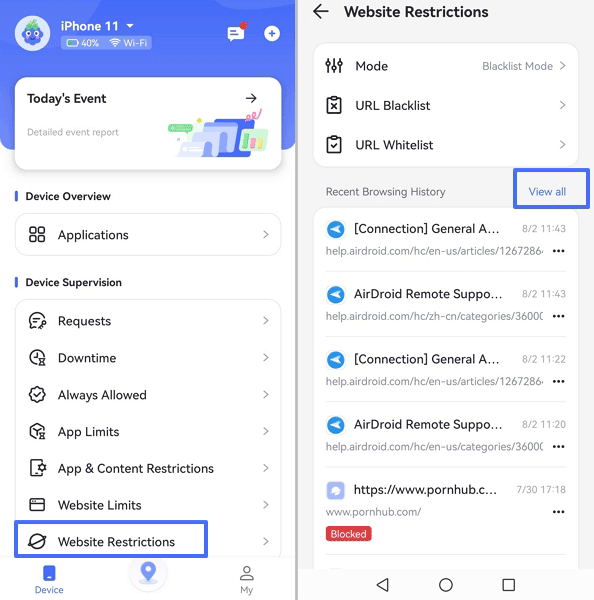

⚖️ Legal Note: Monitoring children under 18 is legal in most jurisdictions, but transparent communication is recommended. Monitoring adults may violate privacy laws.
4. Alternative Information Sources (Reconstructing Browsing Behavior)
Even if Safari history is completely deleted, you can still reconstruct browsing behavior by analyzing indirect data sources. While these methods won't show exact URLs, they can help you understand what happened, when, and why.
- Screen Time → Usage Pattern: Reveals when Safari was used and for how long → helps identify unusual activity (e.g., late-night browsing or spikes in usage.)
- Router Logs → Domains Accessed: Shows which websites were visited at the network level → helps identify browsing categories (social media, video, etc.)
- Bookmarks → Intent: Saved pages reflect deliberate interest → helps understand what the user cared about.
- iCloud Tabs → Recent Activity: Displays currently open pages across devices → reflects the most recent browsing behavior.
Think of this as digital forensics: you're not recovering deleted history—you're piecing together a timeline from available clues.
Best for: Understanding when and how often Safari was used.
Go to: Settings > Screen Time > See All Activity
This shows Safari usage time, pickups, and activity patterns. Even without specific websites, it can reveal unusual behavior—such as late-night browsing or sudden increases in usage.
Best for: Identifying which websites (domains) were accessed.
If you control the home network, router logs can show domain-level access history for all connected devices.
Access via: 192.168.1.1 or 192.168.0.1 (varies by router)
Note: This won't show exact pages, but it can reveal patterns (e.g., YouTube, Reddit, gaming sites).
Best for: Understanding intentional browsing behavior.
If a page was important enough to save, it will remain here even after history is deleted.
View: Safari > Bookmarks icon.
Best for: Checking recent or still-open pages.
If Safari tabs are open on another device, they may still be visible even after history deletion.
View: Safari > Tabs Overview > "Tabs from [Device Name]"
Key Insight: Even without exact history, combining these sources can give you a surprisingly accurate picture of browsing behavior.
5. Final Recommendations
Rather than struggling to find recovery methods after deletion, it's better to establish preventive mechanisms from the start. For parents, this means building transparent monitoring and open communication; for regular users, this means regularly backing up important data.
✅ Do This Now:
- ☐ Set Screen Time passcode on child's device
- ☐ Turn on Content & Privacy Restrictions with appropriate website filtering
- ☐ Have an honest conversation with your child about online safety
- ☐ Install AirDroid Parental Control if you need more comprehensive monitoring
✅ Do This Now:
- ☐ Enable iCloud Backup (Settings > [Your Name] > iCloud > iCloud Backup)
- ☐ Regularly make local encrypted backups using iTunes/Finder
- ☐ Add important websites to bookmarks or reading list
- ☐ Mac users: Ensure Time Machine is running normally
Key Takeaways
- Recovery after deletion is usually impossible: Once Safari history is deleted and iCloud sync is complete, data is almost unrecoverable.
- Backup is the only reliable recovery method: iTunes/Finder backup or Time Machine are the most reliable methods for recovering history.
- Parents should focus on prevention not post-recovery: Build transparent monitoring mechanisms and open communication channels.
- Alternative information sources may be useful: Screen Time reports, router logs, bookmarks, etc. can provide partial information.
List of Sources
- iPhone/iPad Recovery Methods
- Restore your Safari bookmarks and history from iCloud (https://support.apple.com/guide/icloud/restore-your-safari-bookmarks-mmf039e1d085/icloud)
- Restore your iPhone, iPad, or iPod touch from a backup (https://support.apple.com/en-us/HT204184)
- How to back up your iPhone, iPad, and iPod touch (https://support.apple.com/en-us/HT203977)
- Mac Recovery Methods
- Restore items backed up by Time Machine on Mac (https://support.apple.com/guide/mac-help/restore-items-backed-up-by-time-machine-mh15237/mac)
- Safari User Guide for Mac (https://support.apple.com/guide/safari/welcome/mac)
- For Parents: What to Do When You Find Deleted History
- Parent's Ultimate Guide to Parental Controls (https://commonsensemedia.org/articles/parents-ultimate-guide-to-parental-controls)
- Use Screen Time on your iPhone, iPad, or iPod touch (https://support.apple.com/en-us/HT208982)
- Family Sharing and Apple IDs for kids (https://support.apple.com/en-us/HT201084)
- Alternative Information Sources
- Check your Screen Time usage on iPhone (https://support.apple.com/guide/iphone/check-your-screen-time-usage-iph2c5f6f356/ios)
- View the webpage history in Safari on Mac (https://support.apple.com/guide/safari/view-webpage-history-sfri43610/mac)
- Final Recommendations
- iCloud Backup overview (https://support.apple.com/en-us/HT203989")
- About encrypted backups on your iPhone, iPad, or iPod touch (https://support.apple.com/en-us/HT205220)










Leave a Reply.