How to Disable YouTube Shorts on iPhone, Android & Desktop
You open YouTube to watch a tutorial or listen to music, but a few Shorts later, you’ve spent longer scrolling than you intended. If you want fewer distractions without giving up regular videos, there are ways to change your YouTube experience.
The best place to start depends on your device. On your phone, try YouTube’s built-in controls. On desktop, a browser extension can change where Shorts appear. For a child, begin with the settings available for their supervised account.
These methods have different effects: reducing recommendations changes what YouTube suggests, a feed limit interrupts scrolling, and a browser extension changes the interface or playback. The sections below give you a starting point and explain each method’s limits alongside the steps.
| Your goal | Where to start | What to understand first |
|---|---|---|
| Interrupt continuous Shorts scrolling | Shorts feed limit in the YouTube on phone and computer | Regular users can dismiss or ignore the reminder |
| See fewer Shorts suggestions | Show fewer Shorts and recommendation feedback | These controls influence recommendations |
| Remove Shorts elements from a desktop browser | A browser extension | Hiding and redirecting are different from preventing playback |
| Manage a child’s Shorts feed | Supervised-account settings | Account eligibility and parental setup matter |
| Manage overall YouTube use | App-level parental controls | Whole-app restrictions can also affect long videos |
1Set a Shorts Feed Limit
Start with the Shorts feed limit if your main problem is continuing to scroll after opening the feed. If homepage suggestions are the distraction, use the recommendation controls later in this section.
In the YouTube App On Android or iPhone
- Step 1. Open YouTube and sign in.
- Step 2. Tap You, then Settings.
- Step 3. Select Time management.
- Step 4. Open Shorts feed limit.
- Step 5. Choose 0 minutes.
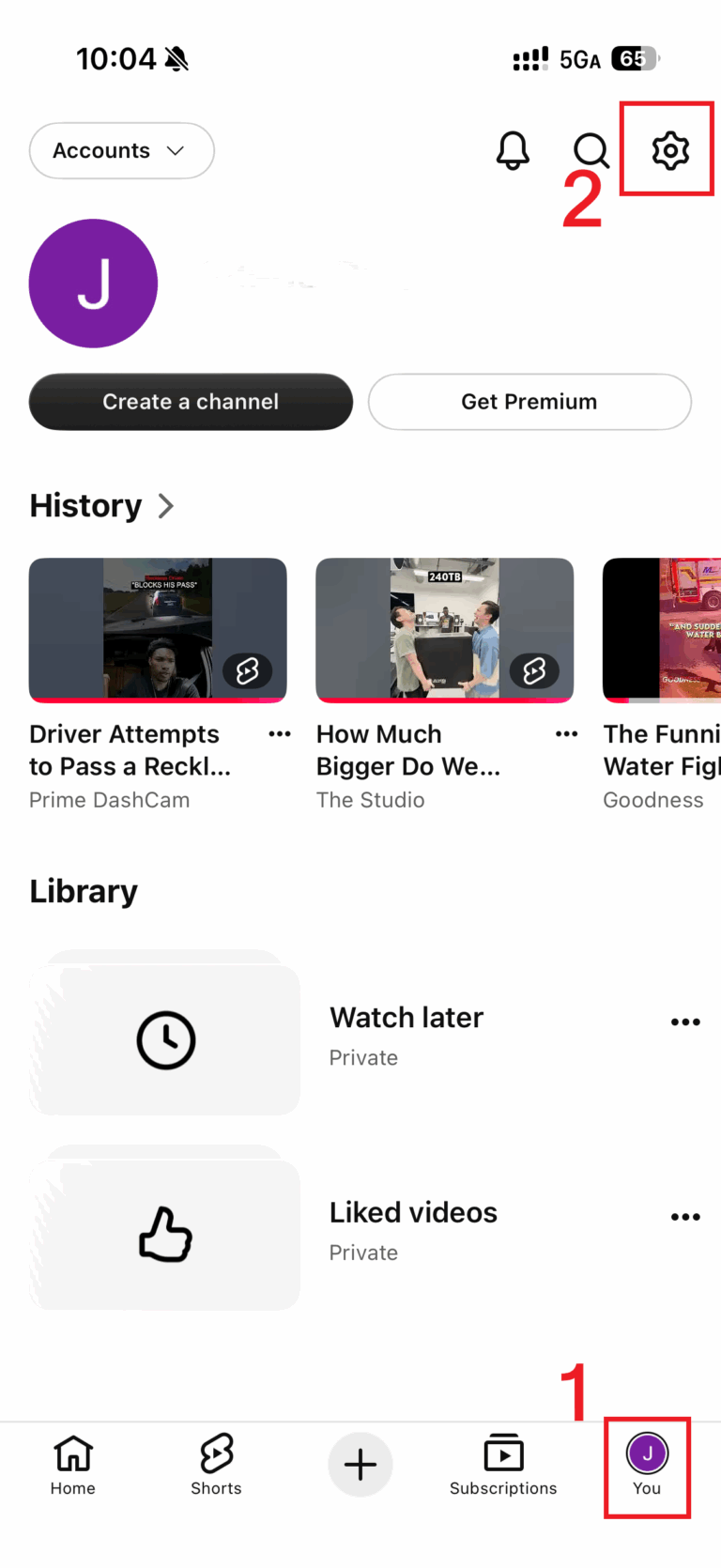
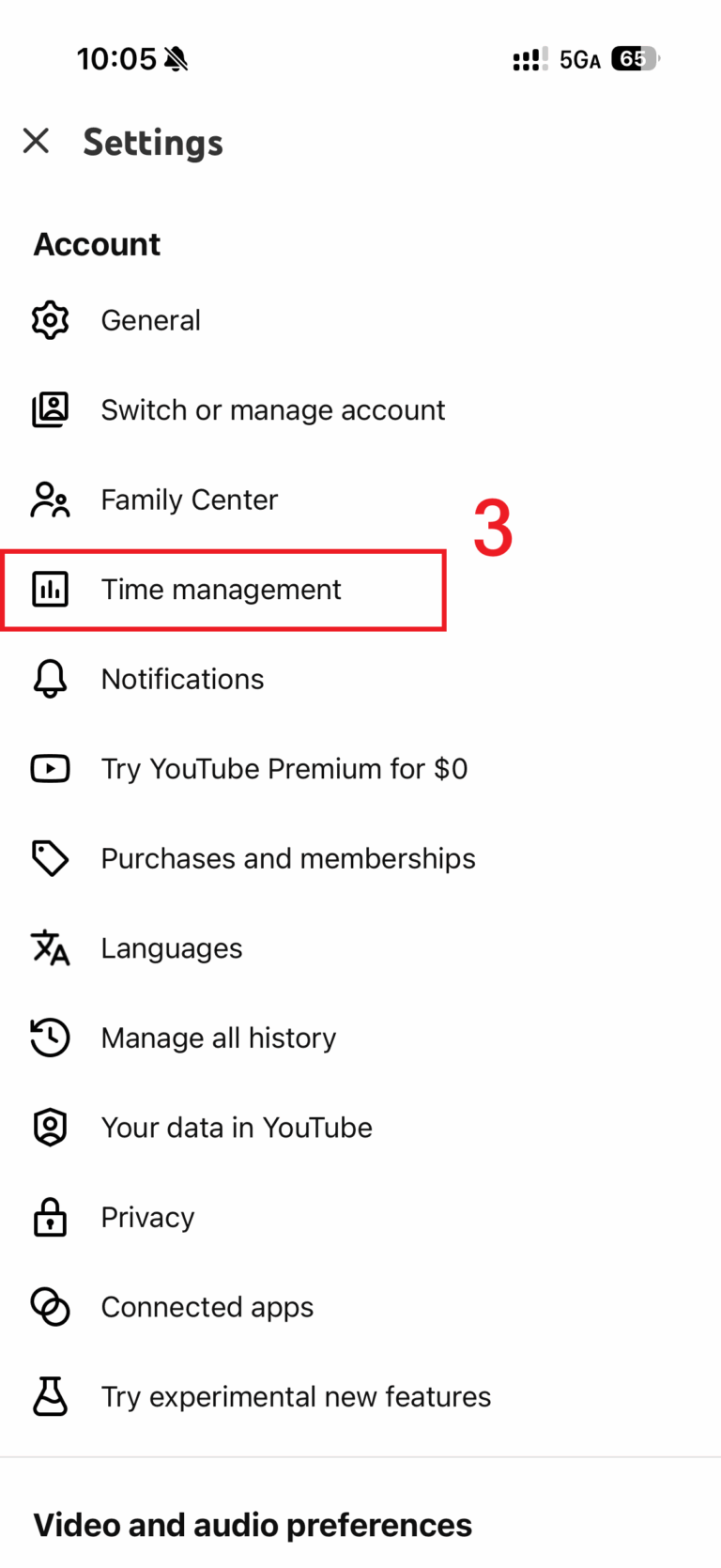
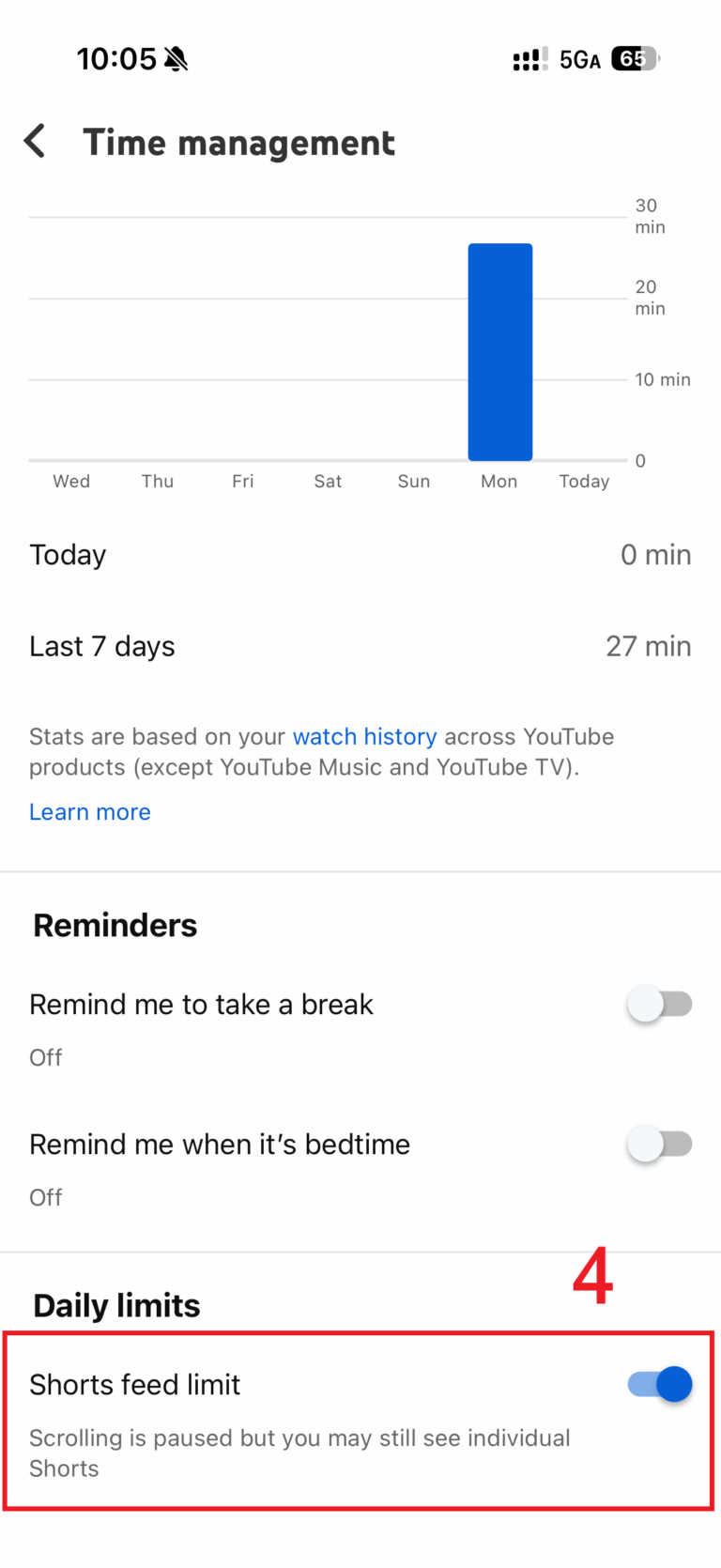
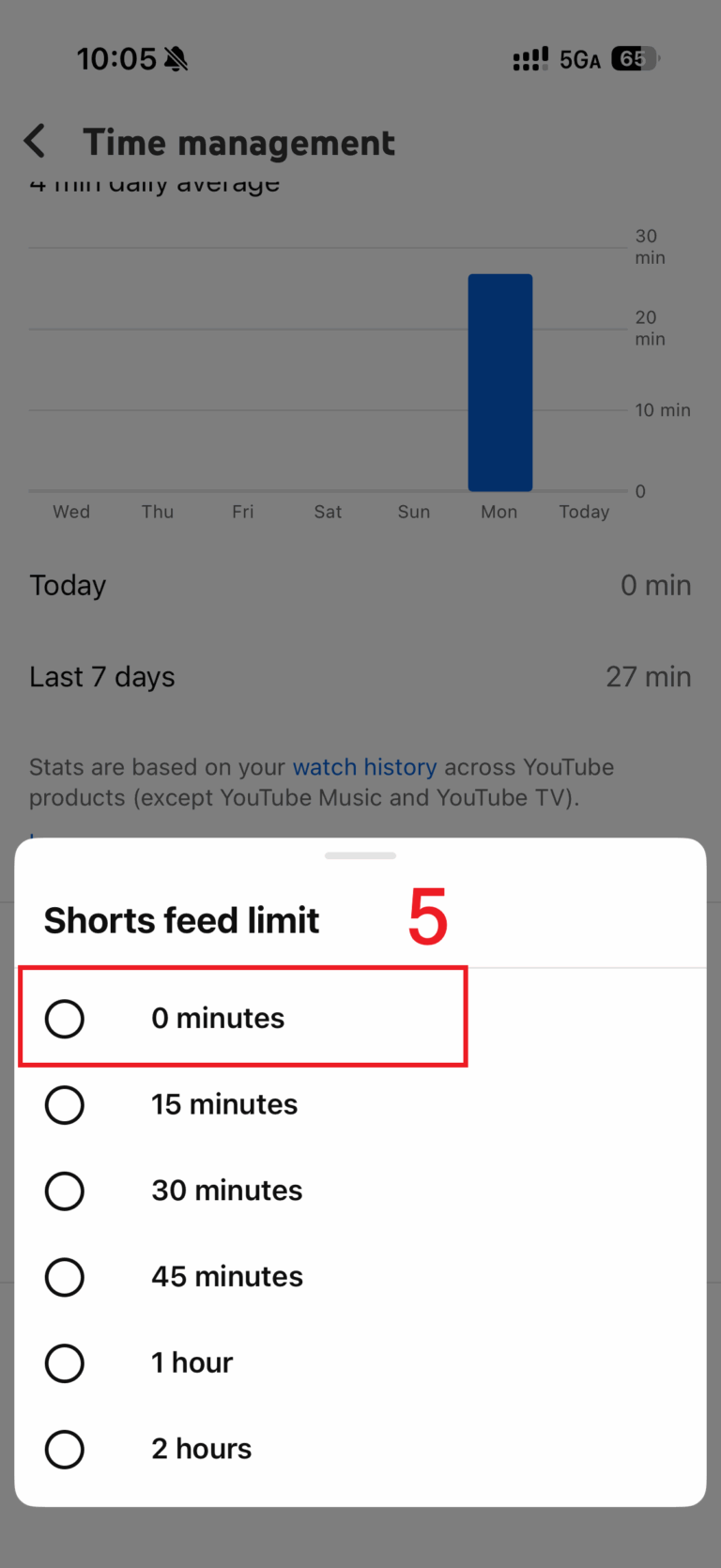
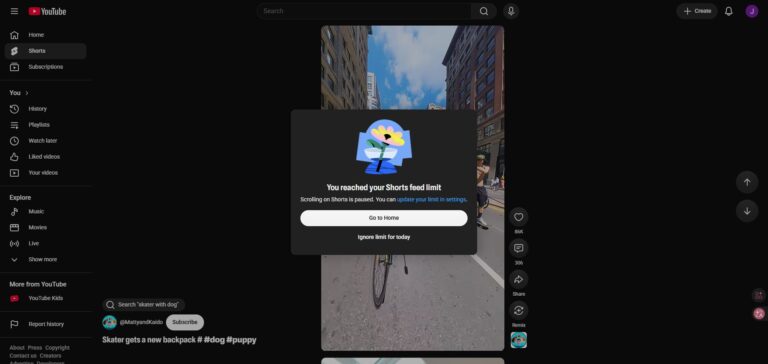
Selecting 0 minutes caused a time-limit pop-up to appear when scrolling through the Shorts feed. We could dismiss the pop-up or choose to ignore the limit and continue watching, while regular Shorts triggered the pop-up again as we continued scrolling. However, when the next item in the feed was a Shorts ad, the time-limit pop-up did not appear, allowing us to continue scrolling and watching as if no time limit had been set.
Checked on iPhone 17, iOS 26.6, YouTube 21.39.4, on October 12, 2026.
Checked on Samsung S20+ 5G, Android 11, YouTube 21.38.130, on October 12, 2026.
On the Full YouTube Website: youtube.com
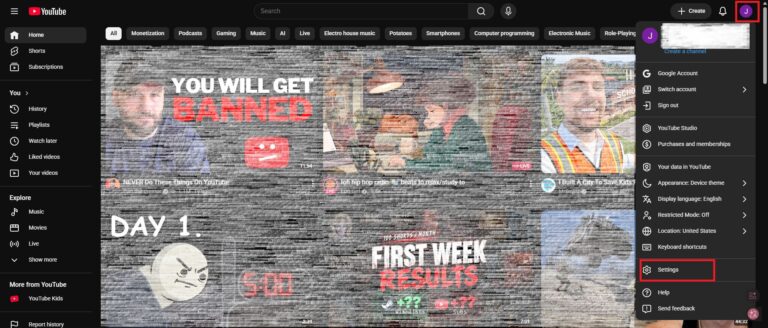
We successfully configured the limit on the full YouTube website in both a phone browser and a desktop browser. The route starts from the profile picture in the upper-right corner. On a phone browser, make sure you have opened the full website view, rather than the mobile version at m.youtube.com.
- Step 1. Open youtube.com and sign in.
- Step 2. Click your profile picture in the upper-right corner.
- Step 3. Click Settings.
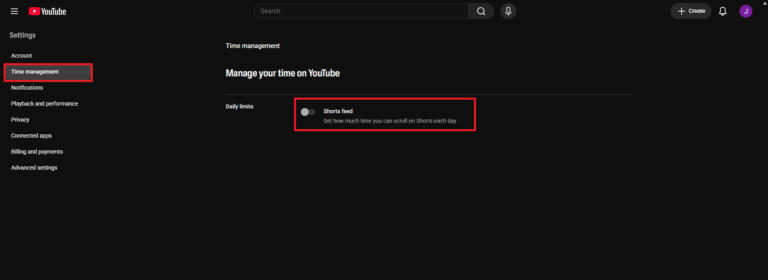
- Step 4. Find Time management.
- Step 5. Turn on Shorts feed limit.
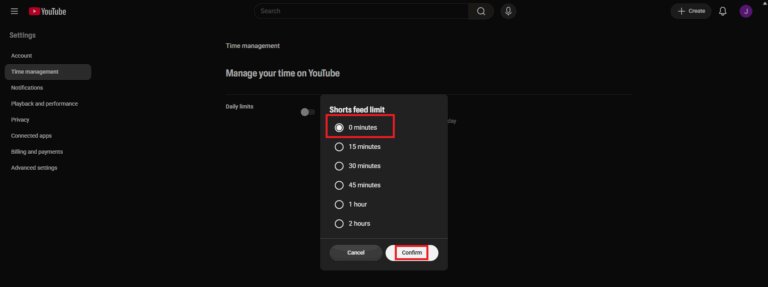
- Step 6. Set the limit to 0 minutes.
- Step 7. Click Confirm.
On the Mobile Website: m.youtube.com
If you access YouTube through your phone’s browser without having the YouTube app installed on your phone, you will be directed to the mobile version of the YouTube website.You need to check which version of the site you are using.
The Shorts feed limit setting was not available on m.youtube.com in our tests. You do not need to keep searching its settings menu.
On the same YouTube account, even if a Shorts feed limit has been set in the YouTube app or desktop website, Shorts can still be scrolled through without restriction on the mobile web version.
Unlike the mobile app, where the time limit may not apply to Shorts ads, we did not encounter any Shorts ads during our testing of the web version. The reminder appeared to be triggered each time we scrolled to a new Short, based on the behavior observed during testing.
2See Fewer Shorts in Your Recommendations
Use Show fewer Shorts if you want fewer Shorts on your homepage. Use Not interested if a particular suggestion does not appeal to you.
Both controls help adjust your YouTube experience, but neither should be treated as a restriction that prevents you from watching Shorts.
Show Fewer Shorts on Your YouTube Homepage
Show fewer Shorts is available in the YouTube app and on the YouTube website. Start here if Shorts on the homepage regularly draw you into unwanted viewing.
- Step 1. Open YouTube, sign in your account, and go to Home.
- Step 2. Find a section or grid of Shorts.
- Step 3. Open the menu for that section.
- Step 4. Select Show fewer Shorts.
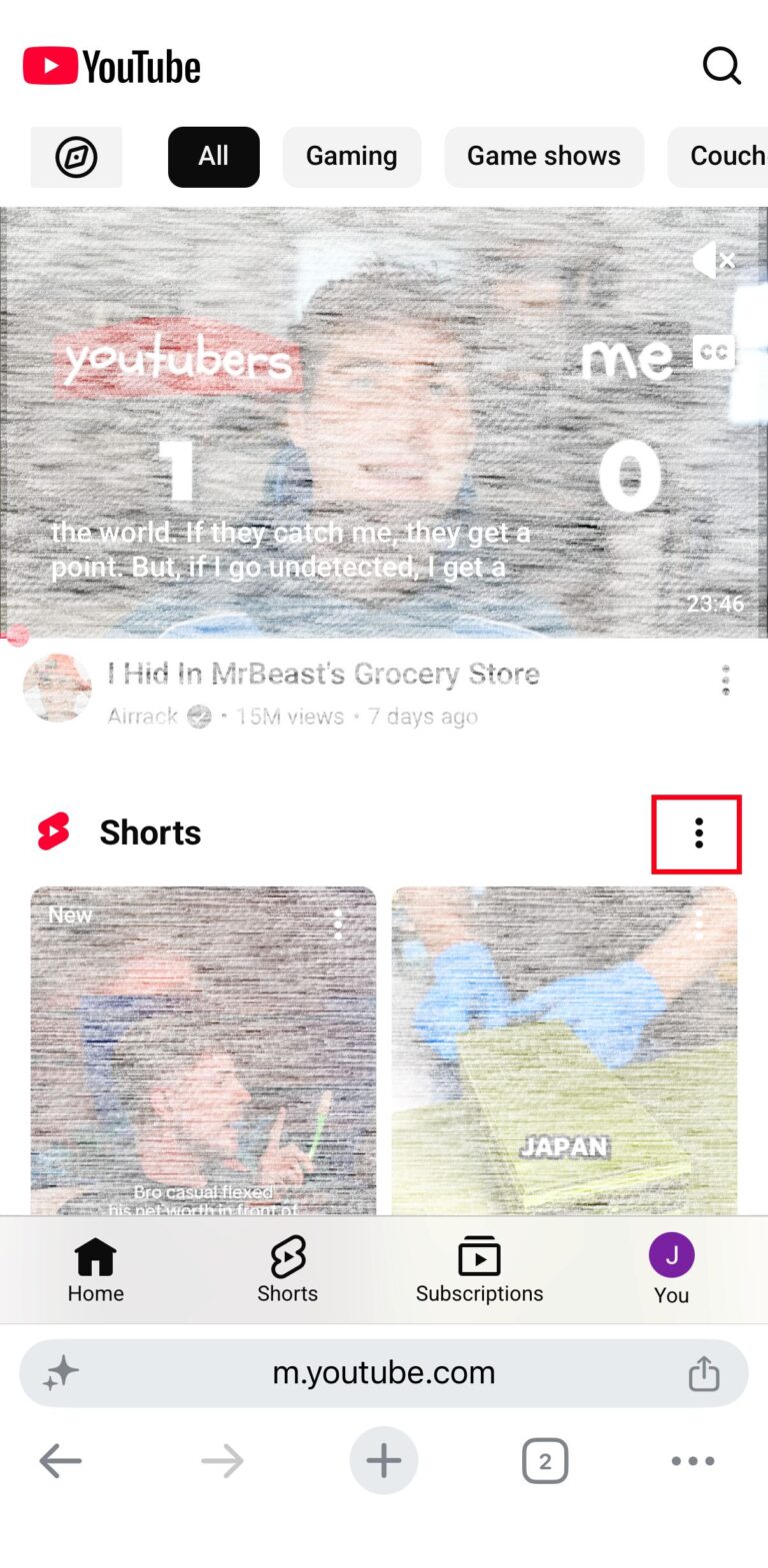
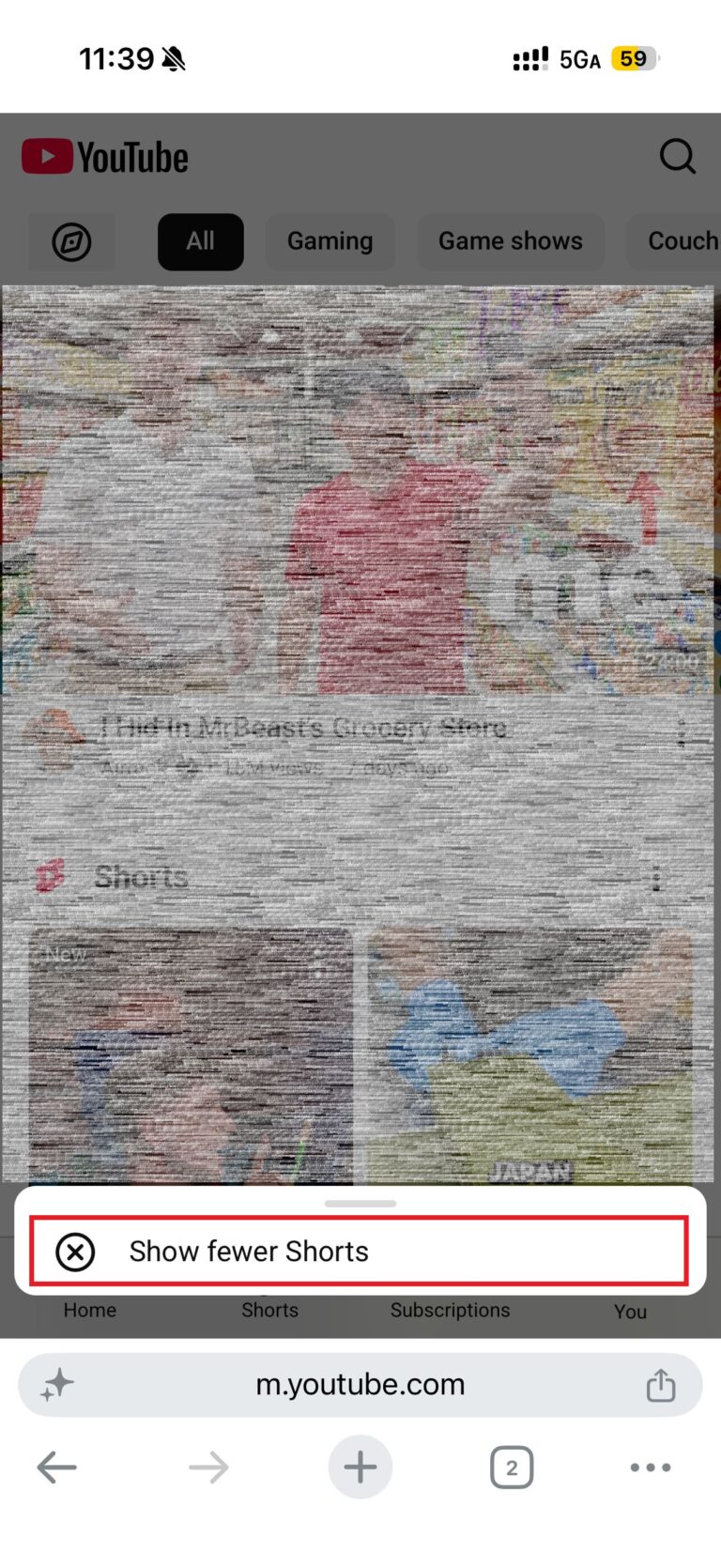
In our tesst: This option tells YouTube to show fewer Shorts on your homepage. Its scope is the Home page—Shorts can still appear in search results.
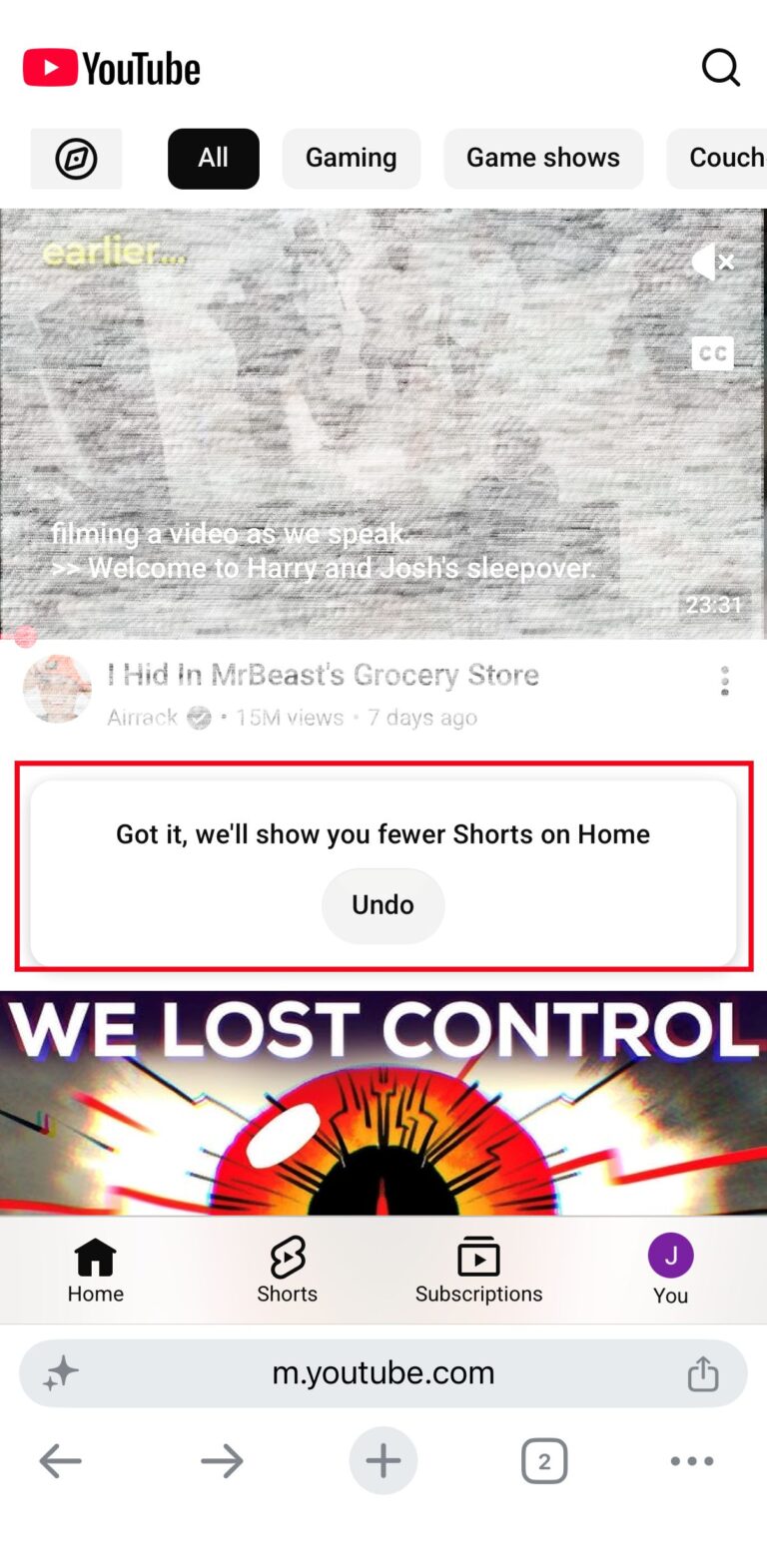
How Long Does It Last? YouTube previously displayed a message specifying a 30-day period. The current message instead says that you will see fewer Shorts on Home, without promising a fixed number of days.
Do not rely on a guaranteed 30-day hiding period. If you see Shorts on the homepage again, check whether the option is available to use again.
Mark an Unwanted Recommendation as “Not Interested”
Use this when a specific recommended video or Short is the problem.
- Find the unwanted suggestion on a recommendation page, such as Home.
- Open the menu beside that item.
- Select Not interested, where available.
This feedback mainly influences recommendations. It helps communicate what you do not want suggested; it does not block access to the video or disable Shorts as a format.
If you want fewer Shorts across your homepage, start with Show fewer Shorts above. There is no need to mark every Short individually to use that broader control.
3Hide Shorts with a Browser Extension
Start here on desktop if you want fewer visible Shorts elements in YouTube.
An extension may hide navigation items or recommendation cards, or redirect Shorts to the regular video player. Redirecting still allows the video to be watched.
Follow the setup for your browser, then read the result statement to see which parts of YouTube it changes. The desktop setup should not be assumed to affect the separate YouTube mobile app.
Chrome: Remove YouTube Shorts
Start here if you use Chrome and want to remove both the Shorts sidebar entry and Shorts from search results.
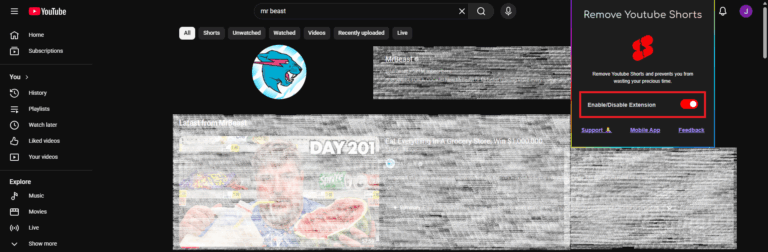
In our Chrome test, Remove YouTube Shorts hid the sidebar entry and removed Shorts content from search results. This addresses both the visible navigation shortcut and Shorts encountered during a search.
To set it up:
- Open the Remove YouTube Shorts, published by blockscroll.app.
- Click Add to Chrome and then Add extension to install the extension to your Chrome browser.
- Open YouTube official website.
- From your Extension bar, click the extension and enable it.
The Shorts entry disappears from the sidebar, and Shorts content is hidden from search results.
Edge: Unhook
Start here if you use Edge and want to remove the Shorts shortcut from YouTube’s sidebar.
In our Edge test, Unhook hid the sidebar’s Shorts entry. Shorts still appeared in search results, but clicking those results did not allow the videos to play.
To set it up:
- Open the Unhook, published by Unhook.
- Click Get and then Add extension to install the extension to your browser.
- Open YouTube official website.
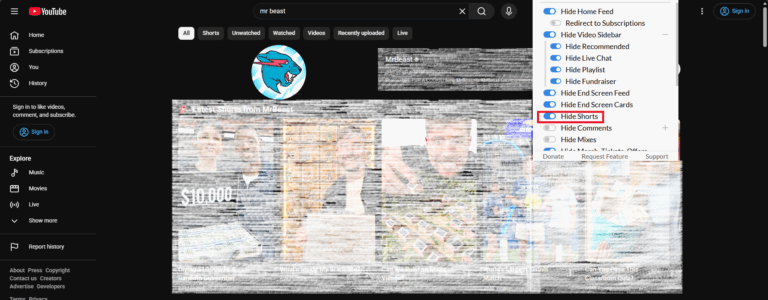
- From your Extension bar, click the extension and toggle Hide Shorts on.
The sidebar shortcut is hidden. Search results may still display Shorts; in our tested setup, those results could not be played when clicked. This is different from the Chrome result above: Unhook did not remove Shorts from the search results themselves.
4Set a Shorts Limit for Your Child
If your child uses a supervised YouTube account, you can set their daily Shorts feed limit through your linked parent account. However, setting the limit to zero minutes did not completely stop Shorts viewing in our test. The child could still watch another Short each time they returned to the Shorts tab.
Using the linked parent account:
- Step 1. Open YouTube and sign in.
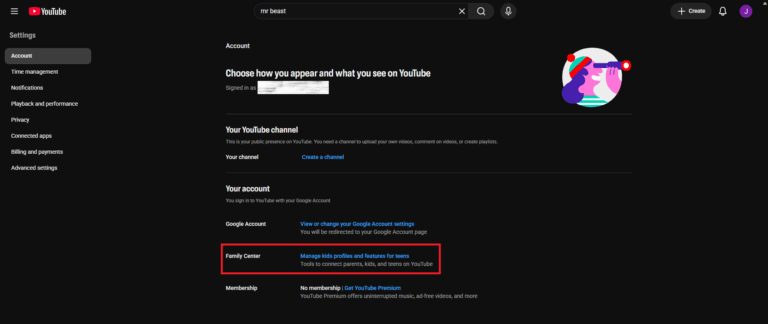
- Step 2. Click your profile picture and open settings.
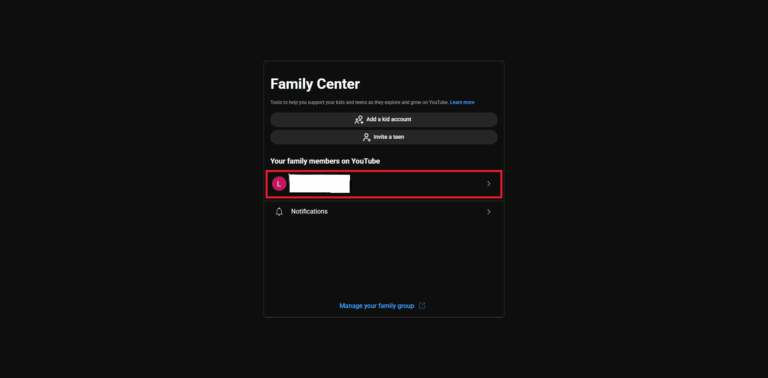
- Step 3. Open Family Center.
- Step 4. Select your child’s account.
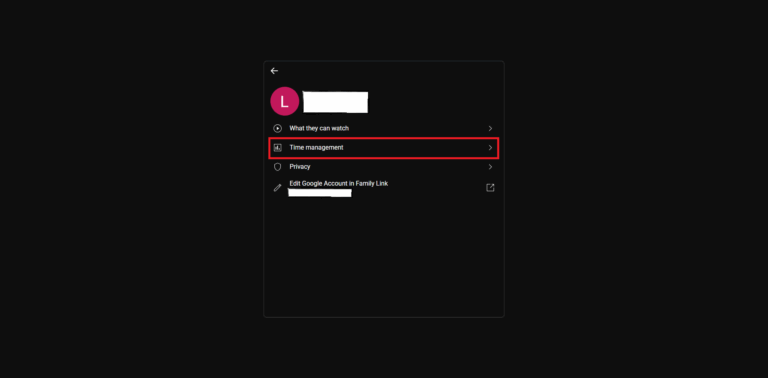
- Step 5. Open Time management and select Shorts feed.
- Step 6. Set the limit to 0 minutes.
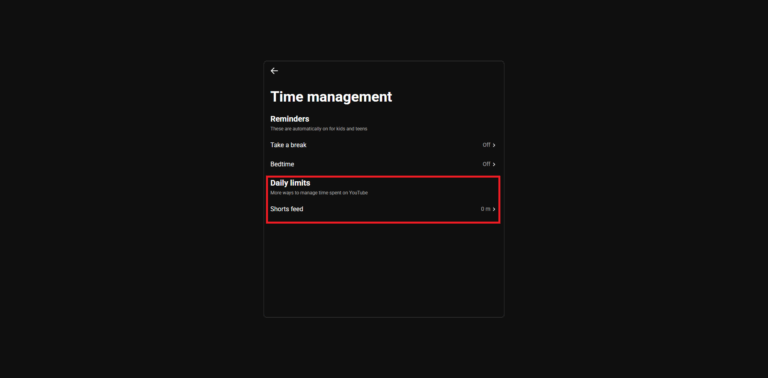
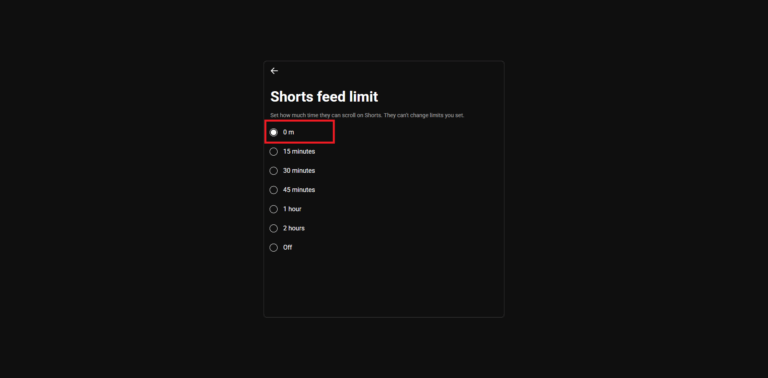
After automatically saving, open YouTube on your child’s phone and confirm that they are signed in to the supervised account.
What Happened on the Child’s Phone in Our Test?
We set the limit to zero minutes, then signed in to the child’s account in the YouTube mobile app. Here’s what we found:
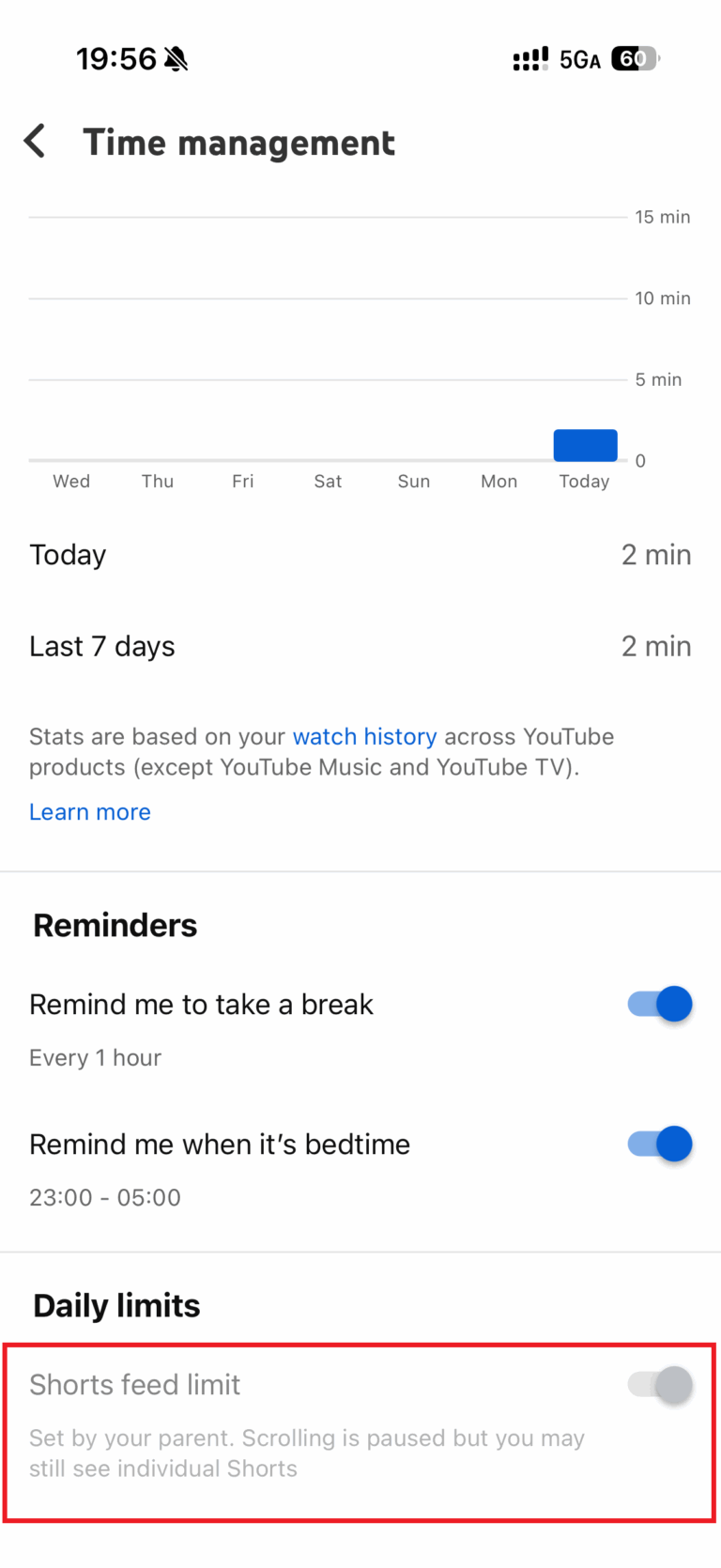
1Could the child change the limit?
The Shorts feed limit setting was grayed out. The child could not edit it.
2Was the Shorts tab removed?
No. The Shorts tab remained in the bottom navigation.
3Could the child watch a Short?
Yes. Opening the tab allowed the current video to play in full.
4What happened when the child swiped to the next video?
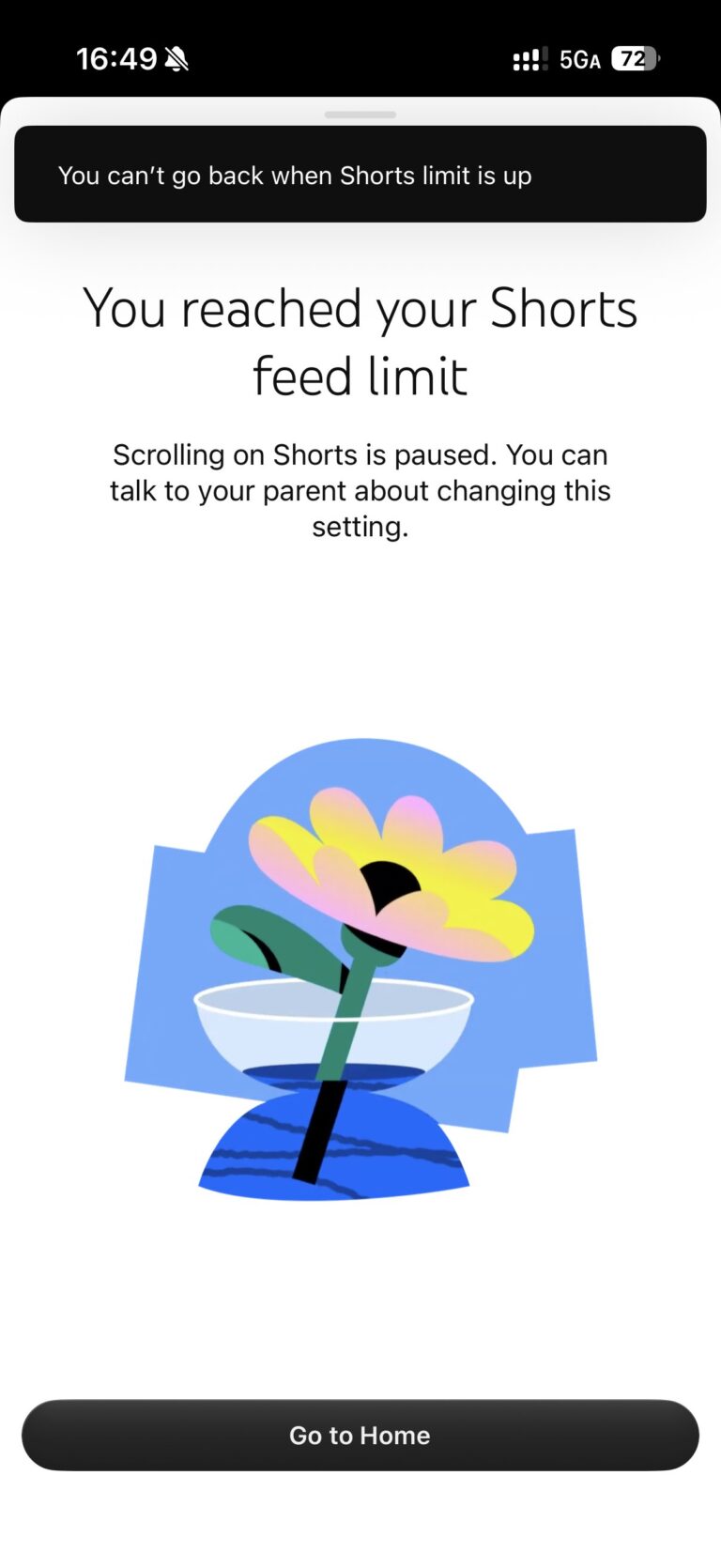
A message appeared saying the limit had been reached.
5Could the child dismiss the message?
In our test, they could not close it or use Back to resume watching. The available action was Go to Home.
6What happened after returning Home and opening Shorts again?
A different Short played. The child could watch it, swipe to trigger the message, return Home, and repeat the process.
Test environment: iPhone 17 running iOS 26.6, YouTube 21.39.4, tested on October 13, 2026.
Does a Zero-Minute Limit Completely Block Shorts?
It did not in our tested setup. The parent’s setting remained locked, and the message stopped the child from continuously swiping through the feed. However, returning Home and reopening Shorts allowed another video to play.
We were able to repeat this cycle during testing. That means the restriction did not prevent continued Shorts viewing through repeated entry, even though the daily limit was set to zero.
Before relying on this setting, check the same sequence on your child’s phone: open Shorts, watch the first video, swipe, select Go to Home, and open Shorts again. Whether the setting is locked and whether it stops further viewing are two separate things to verify.
Manage Your Child’s YouTube Time and Activity with AirDroid Parental Control
If YouTube’s Shorts feed limit does not provide enough control, AirDroid Parental Control helps you manage viewing time, review YouTube activity, and receive content alerts. Features differ depending on your child’s device.


Manage YouTube time and access
Set a daily allowance for the YouTube app, schedule downtime during homework or bedtime, or block the app. Configure website restrictions separately to manage browser access.
These rules affect all YouTube videos, including educational content. On a child’s iPhone or iPad, app limits, downtime, and website restrictions require Supervision Mode. They do not selectively remove Shorts.
Review your child’s YouTube activity
Android: View up to 30 days of recorded viewing activity, including video counts, viewing time, and watch-history entries. You can see video titles and open individual videos to understand what your child has been watching.
iPhone/iPad: After linking and authorizing your child’s YouTube account, review their uploaded videos, liked videos, and new uploads from subscribed channels. Supported records include activity counts, video titles, descriptions, and links. This is not a complete watch history; a subscribed channel’s new upload does not necessarily mean your child watched it.
Receive content alerts
Android: Add keywords to receive alerts when they appear in monitored YouTube searches, viewing, or uploads. Alerts identify the detected keyword. Enable Screenshot on Detection to review a screenshot captured when detection occurs.
iPhone/iPad: Receive keyword alerts based on the titles and descriptions of supported videos associated with the linked account. Account sign-in and authorization are required; Supervision Mode is not required for this feature.
Use time controls to set boundaries and activity records or alerts to guide conversations. Keyword alerts flag content for review; they do not automatically block every inappropriate video.
Choose the Right Way to Manage YouTube Shorts
Start with where you watch YouTube and what you want to change. To reduce Shorts on your Home page, use Show fewer Shorts. To limit scrolling, try Shorts feed limit. For desktop viewing, use the browser extension covered above for Chrome or Edge.
If you’re managing your child’s account, check what happens on their phone after setting the limit. In our test, zero minutes stopped further swiping but still allowed another Short to play each time the child reopened the tab. If you also need to manage overall YouTube use, consider an app limit or scheduled downtime—keeping in mind that these affect regular videos too.










Leave a Reply.