AirDroid Parental Control
24/7 Kids' Guardian via App & Web
- 👀Live surroundings and location tracking
- 🔞Content Monitoring and App/Web Blocking
- ⚠Instant alerts for online risks and geofences
- ⌛Screen time control and monitor
How to Check Your Child's YouTube History
You want to know what your child has been watching on YouTube. Perhaps a new channel keeps coming up in conversation, or you want to check a video that left them upset. But opening Family Link does not necessarily show you the video list you expected.
Parents can check a child's saved YouTube history through the child's account. For a supervised kid account, Google directs parents to use the child's device. Family Link can manage history settings, but it does not provide a complete remote watch-history list.
The right method depends on the account and app your child uses. Start with the options below, then learn how to keep up with supported YouTube activity from your own phone.
- Part 1: Choose the Right Way to Check Your Child's YouTube History
- Part 2: How to See Your Child's YouTube Kids History
- Part 3: How to Check a Supervised Child's YouTube History
- Part 4: Can You See a Teen's YouTube History in Family Center?
- Part 5: How to Follow Your Child's YouTube Activity From Your Phone
- Part 6: Can Parents See Deleted YouTube History?
- Part 7: Use YouTube History to Decide What to Do Next
- Part 8: FAQs about Checking YouTube History
Choose the Right Way to Check Your Child's YouTube History
Before checking, confirm which Google account your child actually uses for YouTube. On a shared tablet or TV, activity may belong to several family members.
| What your child uses | Where to start | What to expect |
|---|---|---|
| YouTube Kids | Your stuff → Watch it again | Previously watched videos from that device |
| A supervised kid account on YouTube | The child's device → Google My Activity → YouTube History | Saved account activity; parental controls are managed separately |
| A supervised teen account | YouTube Family Center | Channel activity insights; linking accounts does not give parents a full playback log |
In this guide, watch history means videos watched, while search history means queries entered on YouTube. Liked videos and subscriptions can help you understand a child's interests, but they are different records.
How to See Your Child's YouTube Kids History
YouTube Kids has a separate Watch it again area. Check it on the device your child used:
- Open YouTube Kids.
- On a phone or tablet, tap Your stuff at the bottom of the home screen.
- Choose Watch it again at the top.
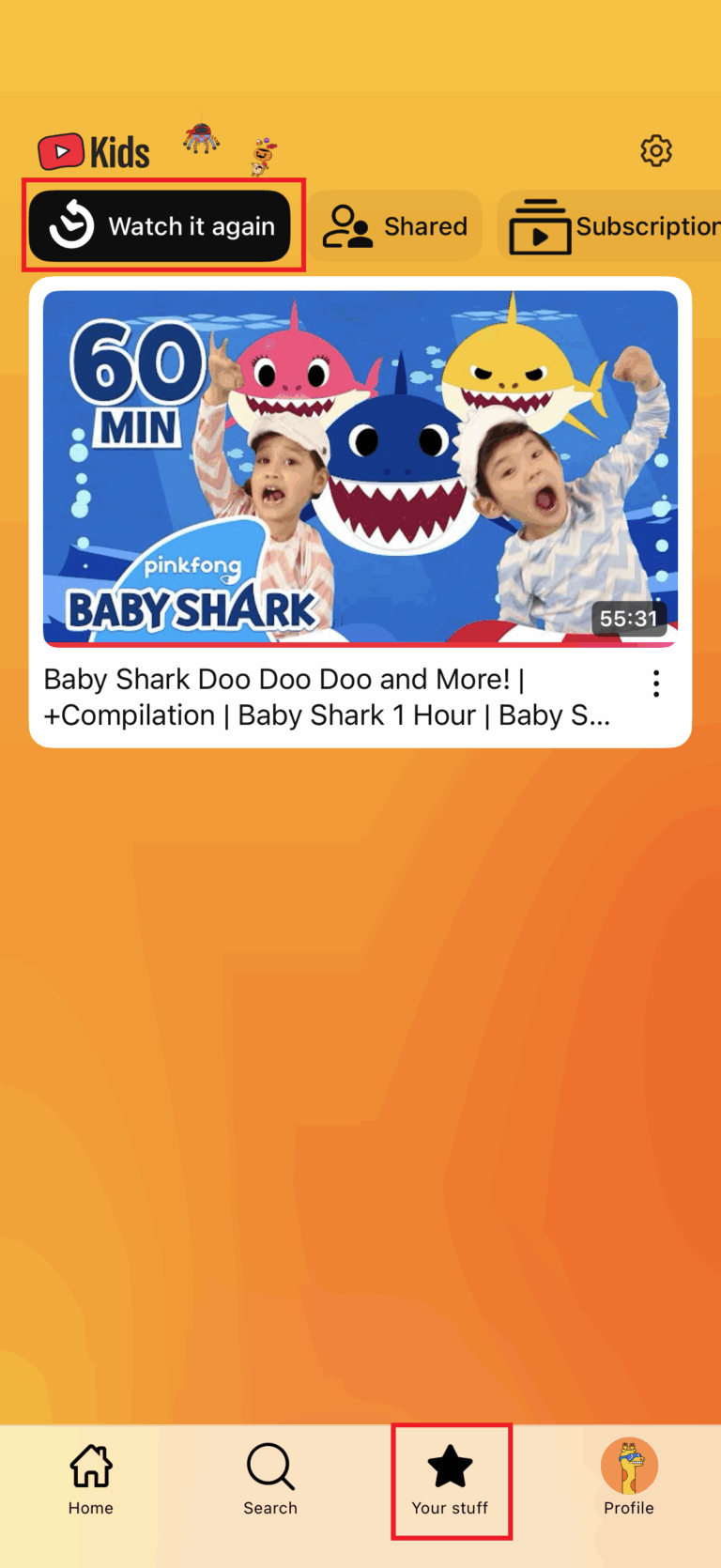
On a computer, select the profile picture in the top corner to view Watch it again videos.
YouTube Kids only shows videos watched on that device in Watch it again. If your child watches on two tablets, check both. Videos may also be missing because history was paused or cleared, Search was turned off, or a video became unavailable.
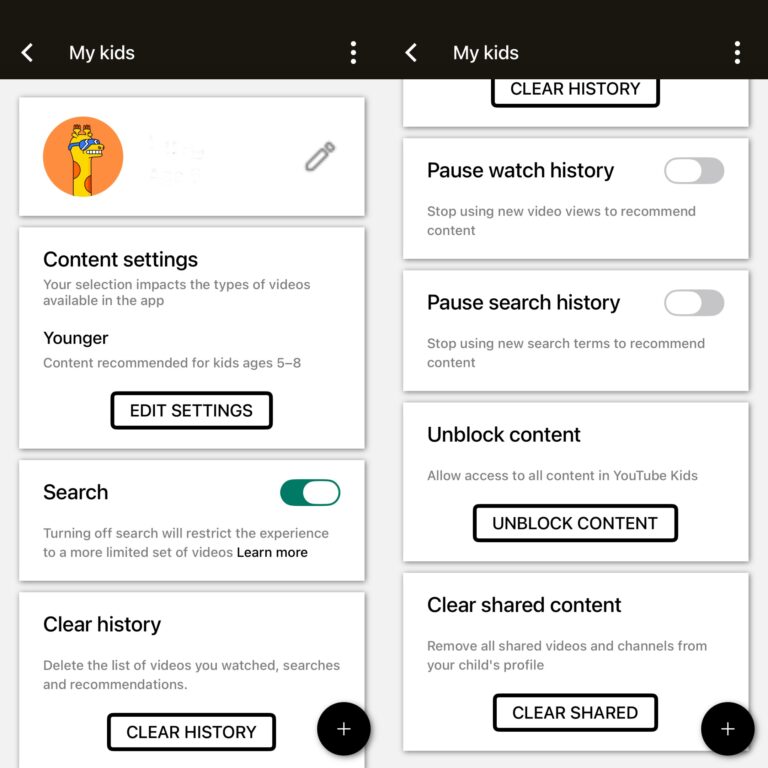
Watch it again is useful for finding a familiar video or discussing recent viewing. Treat it as a device-specific record rather than a complete account-wide timeline.
How to Check a Supervised Child's YouTube History
For a supervised kid account, use your child's device:
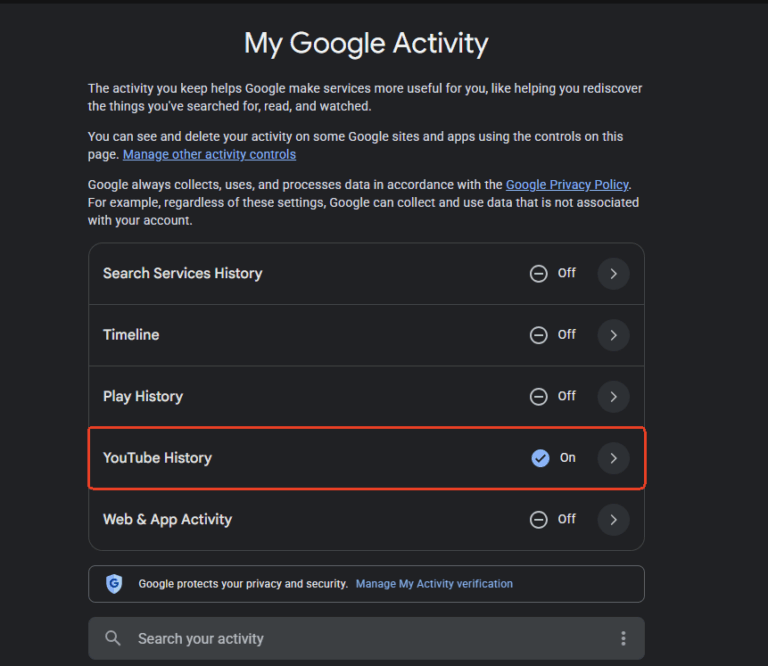
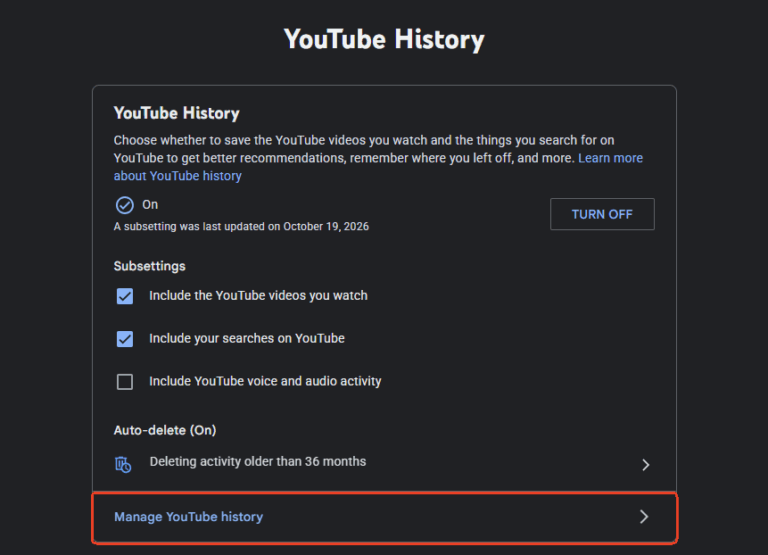
- Step 1. Open Google My Activity and confirm that the child's account is selected.
- Step 2. Choose YouTube History.
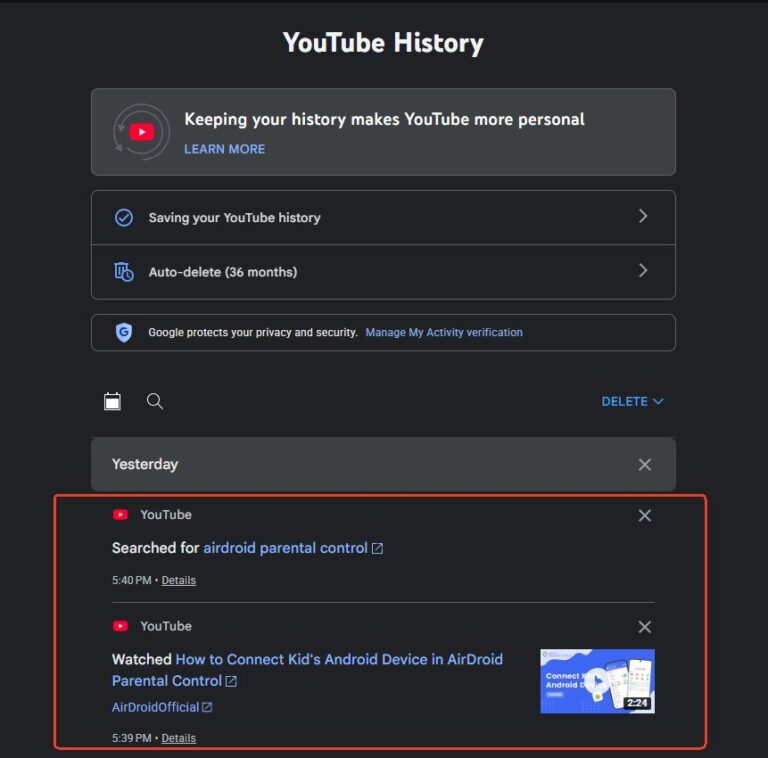
- Step 3. Open Manage YouTube history.
- Step 4. Here you can see what your child searched and watched on YouTube.
What Can You See Through Family Link?
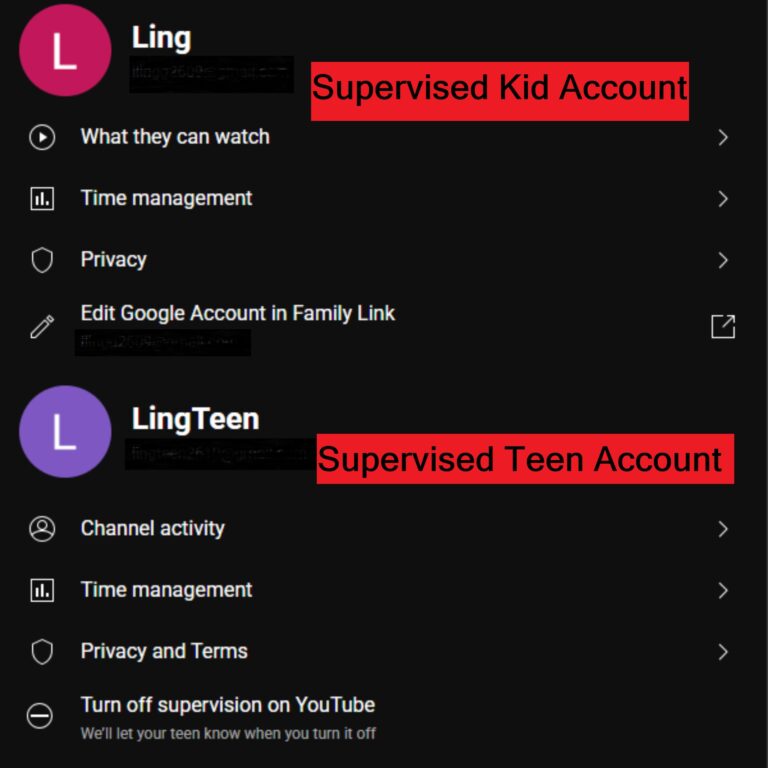
Family Link lets parents pause or clear watch and search history and manage other YouTube settings. Those controls are separate from reading the actual history. If you cannot find a video list in Family Link, use the child-device method above.
Can You See a Teen's YouTube History in Family Center?
YouTube's teen supervision does not give parents a complete watch or search history. Family Center provides information about the teen's channels and counts of uploads, livestreams, comments, and subscriptions. It also supports certain time-management controls.
If your goal is to discuss what your teen watches, agree on a regular check-in and review their saved history together. Be specific about the concern: a particular creator, a confusing topic, or viewing that runs into bedtime. That gives the conversation a clearer purpose than asking to inspect everything.
How to Follow Your Child's YouTube Activity From Your Phone
Checking history on your child's device works for an occasional review. If you want to follow supported activity from your own phone, AirDroid Parental Control's YouTube tools offer another option after setup.
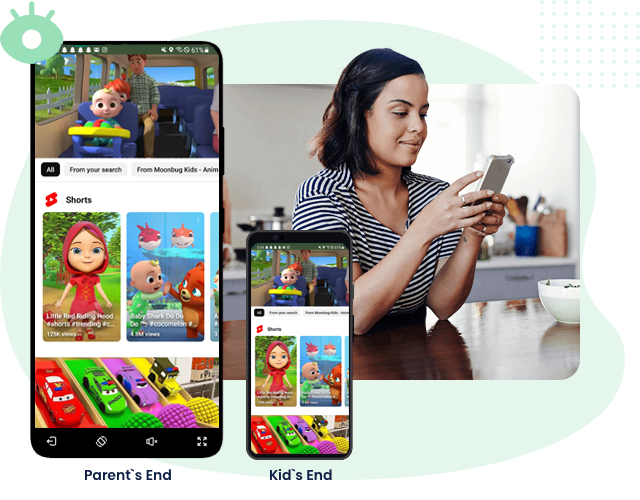
Choose based on the child's device: Android viewing-history monitoring and iPhone/iPad activity detection have different scopes. Explain the setup to your child and agree on what you will review.
Child Uses Android: Check Recent Viewing Activity
AirDroid Parental Control supports reviewing YouTube viewing activity from the past 30 days on a connected child's Android device.
To get started:
- Step 1. Install AirDroid Parental Control on your phone and create or sign in to your account.
- Step 2. Install AirDroid Kids on the child's Android device, connect the devices, and complete the required permissions.
- Step 3. In the parent app, open Social Content Detection → Settings and enable YouTube monitoring.
- Step 4. Open Activity to review supported YouTube records.


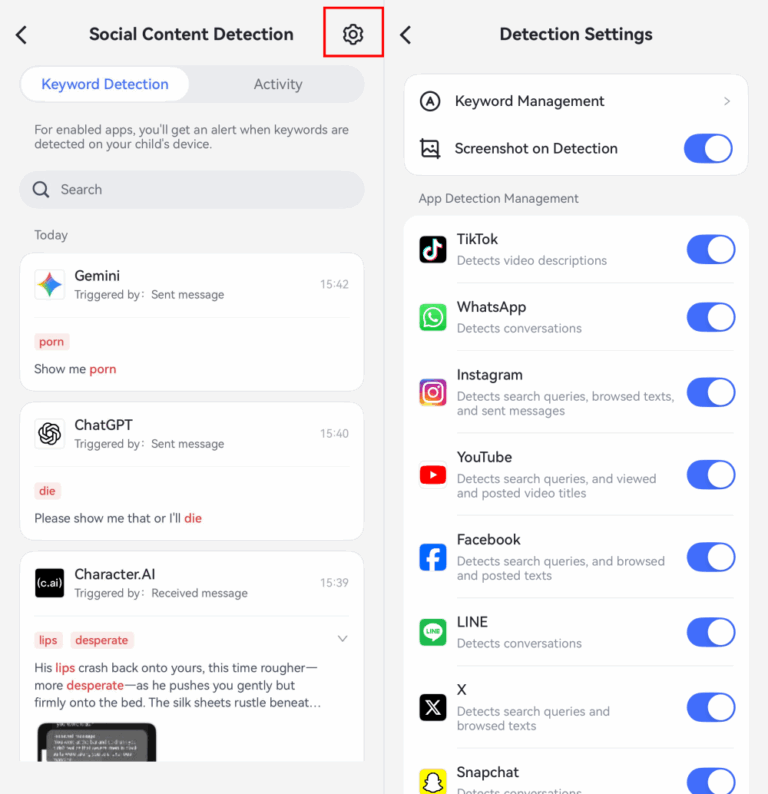
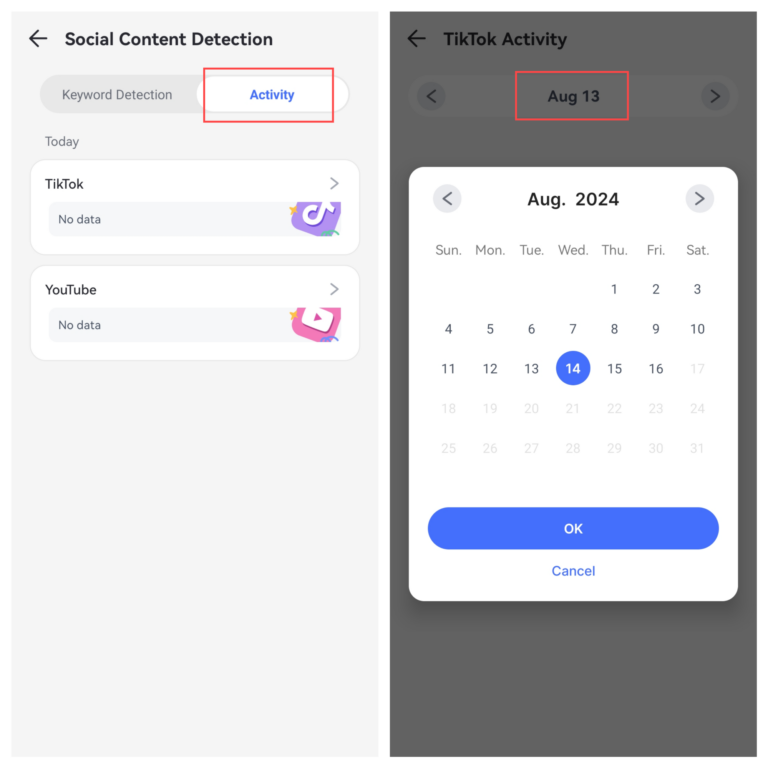
Follow the official setup guide for the current screens. The 30-day viewing window is a feature limit, not a promise to retrieve activity from before monitoring was configured.
Child Uses iPhone or iPad: Review Selected YouTube Activity
AirDroid's iOS YouTube detection works through Google account linking. After the child account holder signs in and grants access, parents can review:
- Videos the child uploads.
- Videos the child likes.
- New uploads from channels the child subscribes to.
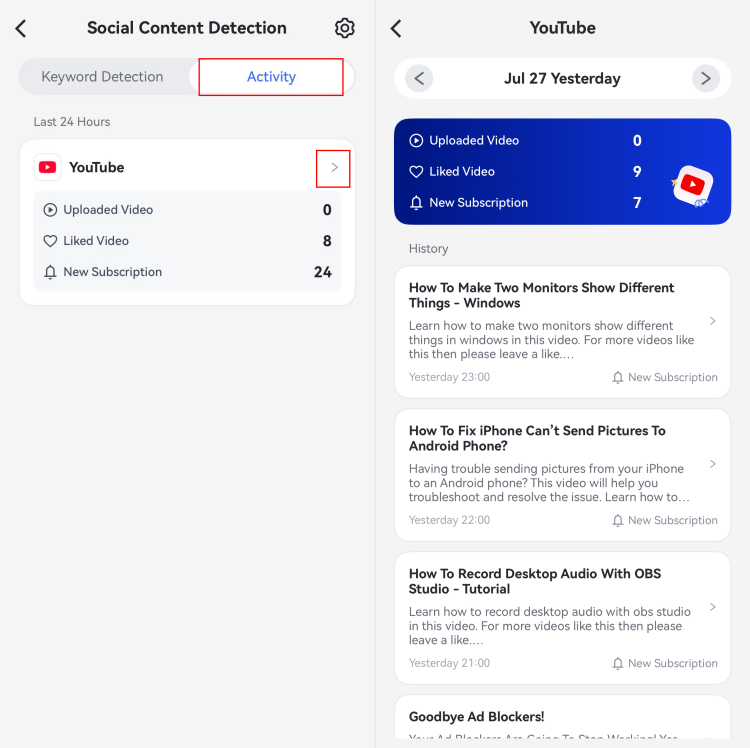
Parents can also receive alerts when monitored keywords appear in supported videos' titles or descriptions. Read the iOS YouTube detection details.
These are selected activity signals, not a full watch-history feed. A new upload from a subscribed channel does not establish that your child watched it. If you need saved playback history, use the account-level methods earlier in this guide.
Explore AirDroid's YouTube parental controls to check which tools fit your child's device and your family's needs.
Can Parents See Deleted YouTube History?
The history tools described here do not provide a restore button for deleted account activity. Google explains that manually or automatically deleting activity starts its removal from the product and systems. Read Google's deletion explanation.
Separate browser history may still contain a page visit, but a visited URL does not establish how much of a video was watched. Installing a parental control app afterward should not be treated as a way to recover deleted YouTube records.
If you are missing a specific video, try asking your child about the creator, title, or topic. That may help you find the content without making assumptions about the missing record.
Use YouTube History to Decide What to Do Next
A useful review should help answer a practical question: Is the content appropriate? Is YouTube taking too much time? Does your child need help understanding something they saw?
Discuss Content Before Reacting to a Single Entry
Choose one video and ask, “What interested you about this?” or “Was there anything in it that bothered you?” Review the context together. Repeated themes or creators may give you more to discuss than an isolated title.
If you want a prompt to check particular topics, AirDroid supports keyword-based YouTube content detection. Its iOS alerts apply to titles and descriptions of supported videos. Within supported YouTube activity, AirDroid combines keyword signals with AI-based contextual analysis to flag content for review. An alert does not prove that a video is harmful or that your child watched it.
Look at Usage Time When the Concern Is Bedtime or Homework
A video list alone cannot tell you whether YouTube is crowding out other activities. AirDroid's activity reports provide app-usage information to help you review patterns. App usage time should be interpreted separately from the time spent watching any individual video.
Start with a concrete question, such as whether YouTube is being used during homework. Then agree on a rule that addresses that situation.
Set Limits That Match the Problem
AirDroid's app limits and Downtime can help you set an allowance or restrict access during selected hours. For example, you might agree on a daily YouTube allowance and a separate bedtime schedule.
If the rule also needs to cover YouTube in a browser, review website restrictions separately. Blocking the app alone should not be treated as blocking every way to reach the service.
On a child's iPhone or iPad, AirDroid requires Supervision Mode for additional controls including usage reports, app limits, Downtime, and website restrictions. This is a separate setup step from linking YouTube for content detection. Follow the iOS setup instructions.
FAQs about YouTube Watch History

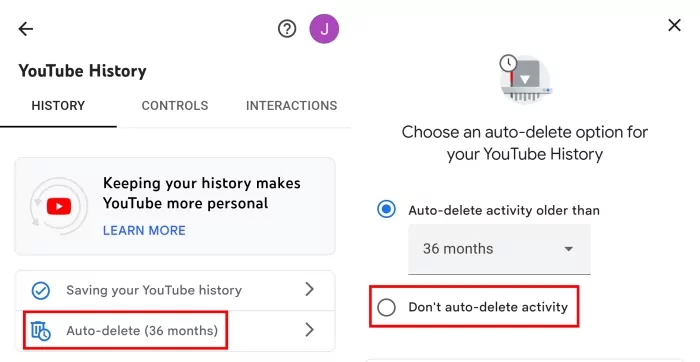
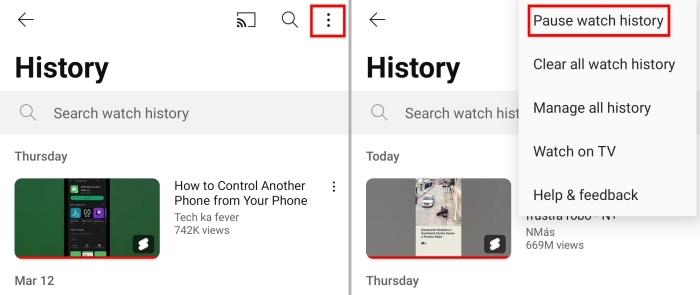
Open the YouTube app > go to You > History > View all > three dots > Pause watch history. Or you can directly head to YouTube controls and select TURN OFF.









Leave a Reply.