No. The manual setting stays with the current app or browser. Signing into the same account elsewhere does not copy it; check and enable it separately.
YouTube Restricted Mode: A Parent’s Guide to Setup and Limits
Your child wants to watch a gaming tutorial or follow a favorite creator. You want them to explore without stumbling into content they are not ready for. YouTube’s Restricted Mode offers a starting point, but a parent’s next questions are often more practical: Which account should I change? Will the setting stay on? What happens on the family tablet?
YouTube Restricted Mode is an optional filter that helps hide potentially mature videos. It can reduce exposure to some content, but its automated decisions can be wrong. YouTube explains these boundaries in its Restricted Mode guidance.
Start with the setup below, then match any additional controls to what your family needs: a smaller content library, parent-managed settings, viewing schedules, or alerts about particular topics.
Catalogue Contents[Showhide]
What Does YouTube Restricted Mode Do?
Restricted Mode uses signals such as a video’s title, metadata, and language to assess whether it should be available. Content involving sexual situations, drugs, graphic violence, or strong language may be filtered. Comments are also unavailable while the mode is on. YouTube describes its filtering criteria here.
For a parent, the useful question is whether the content your child can access matches what you are comfortable with. Review a few of their favorite channels together before deciding how much independent browsing makes sense.
Restricted Mode vs. Age Restrictions
Restricted Mode is a viewing setting; an age restriction applies to a particular video. Videos carrying an age restriction are unavailable to viewers under 18 or signed out of YouTube. A 15-year-old therefore does not gain access to those videos by switching Restricted Mode off. See YouTube’s age-restriction policy.
Keep this distinction in mind when a child says a video is blocked. First identify which rule is responsible, rather than assuming the Restricted Mode switch controls every unavailable video.
How to Turn On YouTube Restricted Mode for Your Child
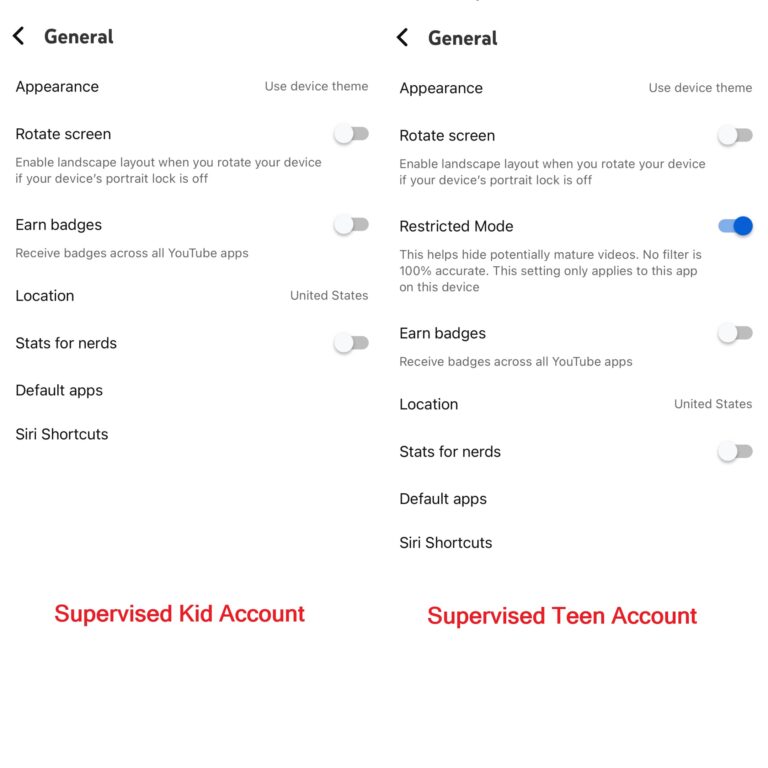
First, ask your child to open the account and device they actually use. On a shared screen, check whose profile is selected before changing anything. Supervised kid accounts and supervised teen accounts have different controls.
Before You Start: Check the Account Type
| What your child uses | Where to start |
|---|---|
| A regular YouTube account | Use the app or computer instructions below. |
| A supervised kid account | Restricted Mode is unavailable. Use Family Link to choose the viewing experience and content level. |
| A supervised teen account, generally for ages 13–17 | The teen can enable Restricted Mode in their own account and can switch it off again. |
| YouTube Kids | Use its own content settings and parental controls. |
Google explains the available routes in its family account guide. Family Center can display different kinds of profiles and supervised accounts, so seeing your child there does not establish which controls apply. Learn how Family Center is organized.
1For a Supervised Kid Account: Choose What They Can Watch
A supervised kid account uses parent-managed content settings instead of a Restricted Mode switch. This account type is generally for children under 13, or the applicable age in their country or region.
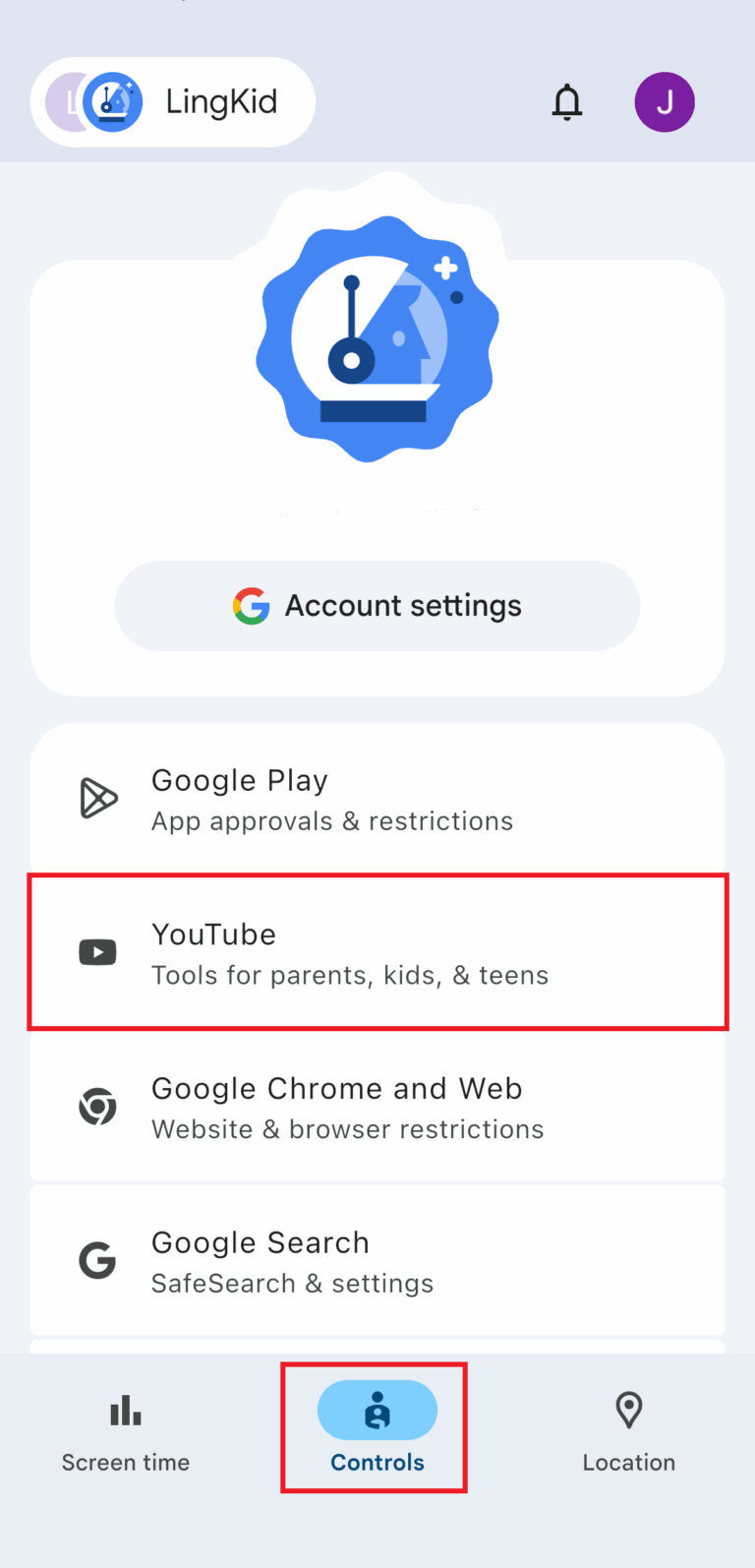
You can reach these settings through either parent-facing app:
- Google Family Link: Select your child, then open Controls >> YouTube.
- YouTube: Sign in with the linked parent account, open Settings >> Family Center, and select your child.
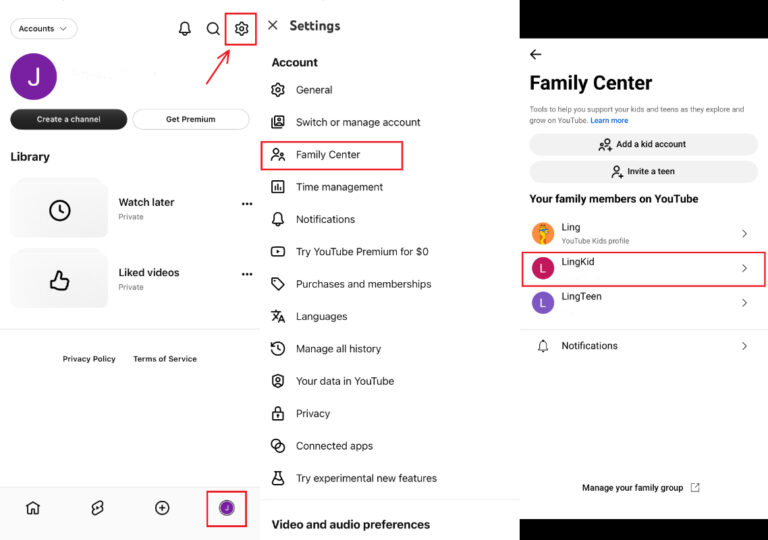
From either route, follow the same steps:
- Step 1. Open What they can watch.
- Step 2. Choose YouTube Kids or YouTube and YouTube Music.
- Step 3. If you choose YouTube and YouTube Music, select the content level that fits your child: Older kids (Content for 9+), Teens (Content for 13+), or Older teens (Content for 16+).
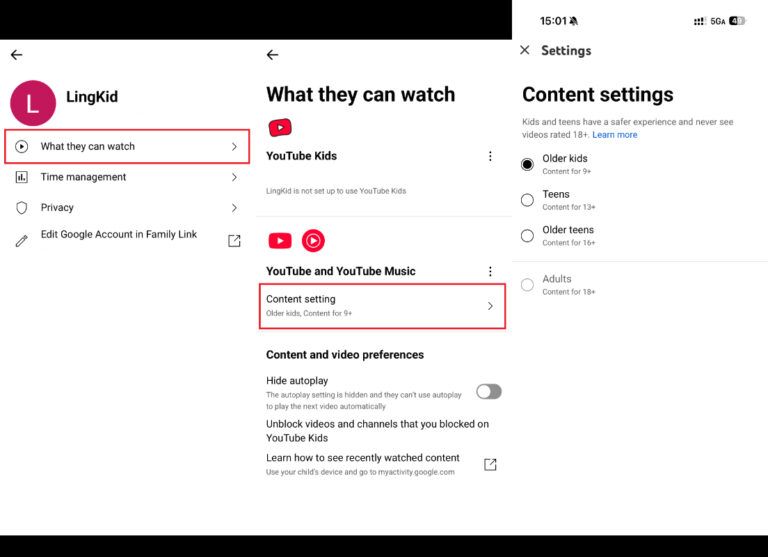
These are viewing-content levels, not account types. Selecting Teens for a supervised kid account does not convert it into a supervised teen account. Google describes the family viewing options and content levels. Choose the level based on your child’s readiness and review it as their interests change. A missing Restricted Mode switch on this account is expected; use the content settings above.
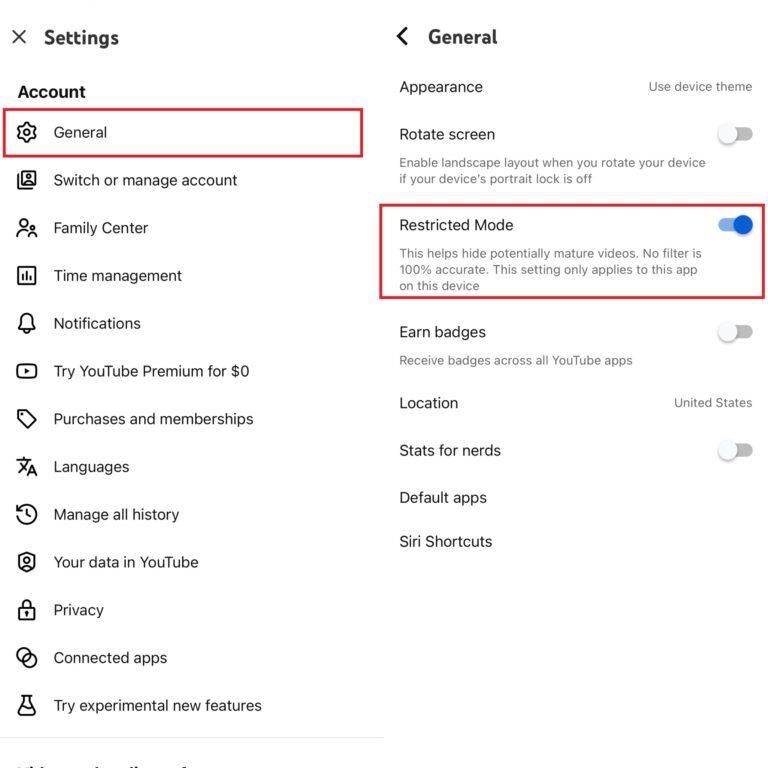
2For a Teen or Regular Account: On iPhone, iPad, and Android
- Step 1. Sign in to YouTube.
- Step 2. Open your profile menu >> Settings.
- Step 3. Select General.
- Step 4. Enable Restricted Mode.
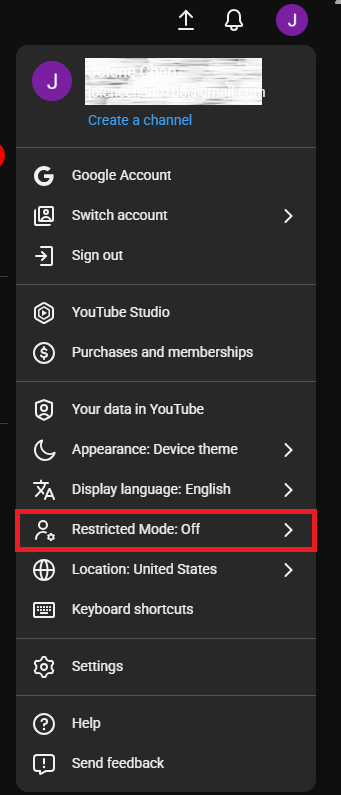
3For a Teen or Regular Account: On a Computer
- Step 1. Sign in to YouTube.
- Step 2. Select your profile picture.
- Step 3. Choose Restricted Mode.
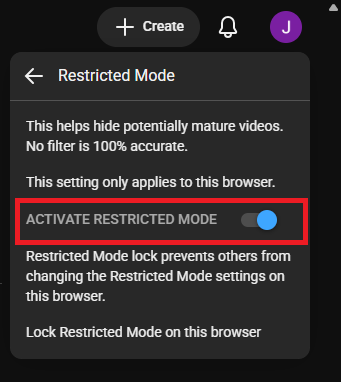
- Step 4. Enable Activate Restricted Mode.
Lock Restricted Mode in Your Browser
After enabling Restricted Mode, look for Lock Restricted Mode on this browser. If the option is available, select it and follow the account-verification prompts. Once locked, unlocking the setting requires verification of the Google account used to lock it.
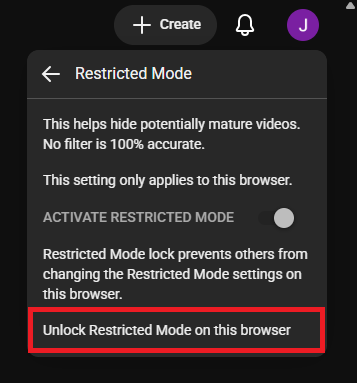
For parents, this adds protection against someone simply switching the filter off. However, its effectiveness depends on whether your child can complete verification for the locking account.
The lock applies only to that browser. It does not automatically protect the YouTube app, other browsers, or other devices—even when the same account is signed in. Check each place your child watches separately.
Check the Places Your Child Actually Watches
Manually enabling Restricted Mode affects only the YouTube app on that device or the browser where you enable it. It does not sync across your account. For example, enabling it in the phone app does not enable it in a laptop browser, even with the same account. Set it separately in each app, browser, and browser profile your child uses.
Make a short household list: phone app, tablet app, laptop browser, and shared TV. Inspect the settings in each place your child uses. Revisit the list when they get a new device or start using another profile.
Confirming that the switch is on checks the configuration. It does not establish that every video available through that setup is suitable for your child.
Can Your Child Turn Off Restricted Mode?
Yes. On a supervised teen account, the teen can turn a manually enabled Restricted Mode setting off again. Linking the account to a parent through Family Center does not lock this switch.
A teen can turn off an unlocked Restricted Mode setting in their own account. If Restricted Mode is locked in the browser, unlocking it requires account verification. Linking a teen account through Family Center does not itself enable this browser lock.
For family use, separate two questions: “Have we enabled a filter?” and “Who can change it?” Ask your child to show you the setting, then check the management method rather than assuming the visible switch is protected.
What If Your Teen Only Uses Family Center?
For a teen who has linked their account through Family Center, enable Restricted Mode together in the teen’s own YouTube settings. Explain what it changes and agree on when to review it. The teen retains access to the manual switch.
Family Center also offers channel activity insights, notifications, Shorts feed limits, and break or bedtime reminders. These are separate controls with their own purposes. See the teen supervision features.
Separate enforcement cases: Google documents eligible Family Link enforcement that prevents changes while signed in, subject to account-history and regional conditions. School or network restrictions can also control the switch. Check those conditions if the teen cannot change it. See the enforcement rules.
What Are the Limits of Restricted Mode?
Decide what you expect the filter to accomplish before relying on it. “Reduce mature content,” “allow only channels I approve,” and “stop watching at bedtime” are different household goals.
1Filtering Can Miss or Misclassify Content
YouTube acknowledges mistakes in automated filtering. Some unwanted videos may remain available, while useful educational or news content may be excluded. Availability alone is not a recommendation for a particular child.
If a video upsets your child, start with what happened: Was it the subject, an unexpected image, or something a creator said? Review it together if appropriate. You will make a more useful next decision with that context than by repeatedly toggling the same setting.
2The Filter Does Not Follow Your Family’s Preferences
Restricted Mode provides a general filter rather than age-level choices or a parent-approved viewing list. Its published criteria focus on mature content.
For example, your concern might be an unboxing channel that encourages purchases, a prank your child wants to imitate, or a creator whose behavior you dislike. Treat those concerns as reasons to review channels and agree on viewing rules, even when the videos remain available.
3Screen Time Needs Its Own Plan
Use a separate time-management setting if the goal is to end viewing during homework or bedtime. An evening spent on videos you approve can still conflict with the schedule your family agreed on.
YouTube already offers some tools here: supervised teen controls include a daily Shorts feed limit and reminders. A Shorts feed limit has a narrower purpose than an allowance for the whole YouTube app.
What If Your Family Needs More Control?
Choose the next step around the concern that remains. Adding a control is most useful when you can explain what it should change and check whether it does.
Choose the Right YouTube Experience
| Your family’s priority | Option to explore | What it offers |
|---|---|---|
| A smaller library for a younger child | YouTube Kids | Content levels, search controls, and an approved-content-only option. |
| Moving into regular YouTube with parent-selected content levels | A supervised kid account | Parent-managed viewing choices through Family Link or YouTube Family Center, with Older kids, Teens, or Older teens content levels; no Restricted Mode switch. |
| Supporting a teen’s viewing habits and channel activity | A supervised teen account | Family Center tools plus a Restricted Mode switch the teen can operate themselves. |
For children below 13—or the applicable account age in their country or region—review the supervised kid-account options. Teen supervision generally serves ages 13–17. Consider how independently your child searches and how closely you want to select content.
Add Keyword Alerts and App Limits with AirDroid Parental Control
You may want a weekday allowance for the whole YouTube app, scheduled downtime, or alerts about topics your family is concerned about. AirDroid Parental Control can help with these needs on supported devices.


App limits and downtime: Select YouTube in App Management to configure an allowance or schedule. On a child’s iPhone or iPad, these device-management controls require AirDroid’s Supervision Mode.
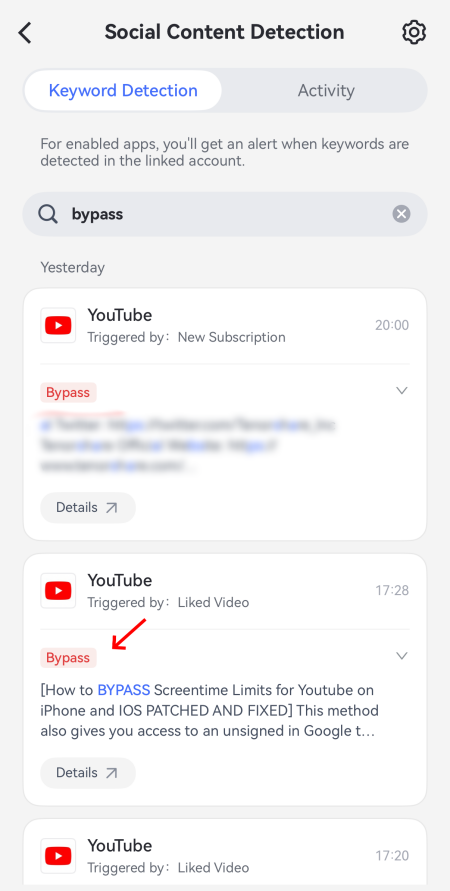
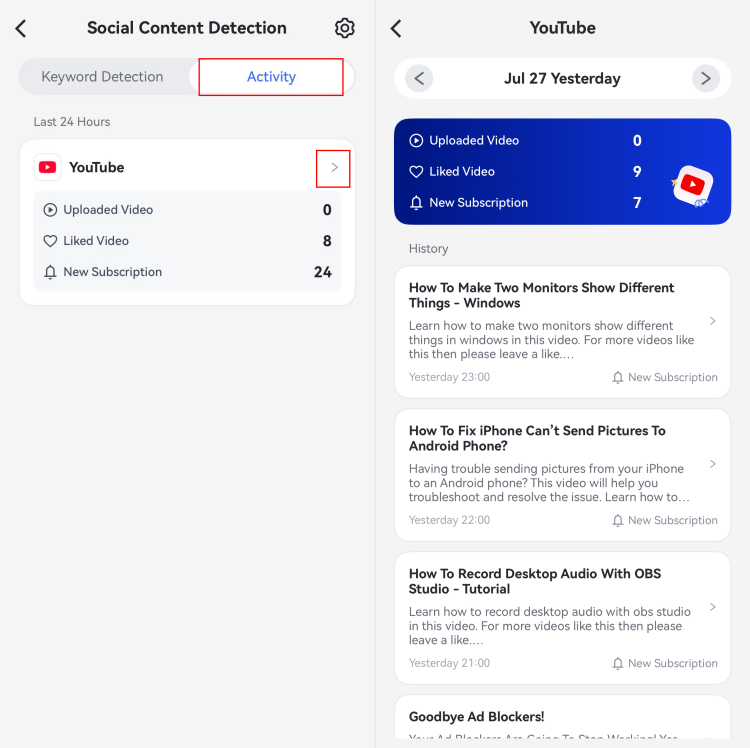
YouTube activity and keyword alerts: On supported Android devices, Social Content Detection offers keyword alerts and a rolling 30-day YouTube viewing-activity view. Enable YouTube detection and configure relevant keywords.
On a child’s iPhone or iPad, the scope differs. After Google-account linking and authorization, detection covers selected activity: uploaded videos, liked videos, and new uploads from subscribed channels. Alerts use monitored keywords in titles or descriptions. These signals do not establish everything your child watched. Learn about iOS YouTube detection.
For example, agree on a weekday viewing allowance, schedule a homework break from YouTube, and choose a small keyword list together. Review an alert in context before deciding whether to discuss or restrict something. Keyword detection itself does not guarantee a video will be blocked.
Agree on What Happens When Something Feels Wrong
Give your child an easy response plan: stop the video, leave the page, and tell you what happened. Make clear that reporting an upsetting recommendation will not automatically mean losing access to a favorite hobby or creator.
Choose a few channels together and revisit the rules when interests change. A specific agreement—such as asking before following a new prank channel—is easier to discuss than “only watch safe videos.”
FAQs about Restricted Mode on YouTube
1. Does Restricted Mode Sync Across Devices on the Same Account?

2. Why Is YouTube Restricted Mode Grayed Out?
Account or network restrictions may control it. Use YouTube’s restrictions checker, then contact the responsible parent or administrator. Troubleshooting guidance.
3. How Do I Turn Off Restricted Mode on a Shared Device?
For a regular or supervised teen account with a manually controlled setting, return to its switch and turn it off. For a supervised kid account, adjust the viewing choices and content level through Family Link or the parent’s YouTube Family Center. Check who will use the device next before changing a family setting.
4. Does Turning Off Restricted Mode Remove Age Restrictions?
No. Under-18 accounts remain unable to watch age-restricted videos. Changing the viewing filter does not change the video’s eligibility rule.
5. Is Restricted Mode Enough for a Younger Child?
A supervised kid account does not offer Restricted Mode. Manage its viewing choices in Family Link or the parent’s YouTube Family Center. If you want to select exactly what is available, consider YouTube Kids’ approved-content-only setting. It limits viewing to videos, channels, and collections you select and disables search in that mode.










Leave a Reply.