Child Phone Monitoring: What to Monitor and Which Apps to Use
Smartphones are where kids learn, socialize, and explore, but also where they encounter inappropriate content, excessive screen time, and online risks.
The good news: child phone monitoring can help you keep an eye on those issues if you use it openly.
This guide compares the top 4 child phone monitoring apps for Android and iPhone. We'll explain what each tool offers and its limitations so you can choose one that fits your family's needs.

What Phone Monitoring Can and Can't Do on Android and iPhone
Before you pick a parental monitoring tool, it helps to know whether your child's phone can give you the controls you need. You might expect Android and iPhone to offer the same phone monitoring features; however, this is not the case.
Both Android and iPhone offer native parental controls to manage screen time, restrict content, and check your child's location. The main differences emerge when you want to monitor activity inside messaging, call, or social media apps. Here's a quick overview:
| Capability | Android | iPhone |
|---|---|---|
| Screen time usage and controls | ✅ | ✅ |
| App & web blocking | ✅ | ✅ |
| Location tracking | ✅ | ✅ |
| SMS & social content monitoring | ✅ | Limited |
| Call logs | ✅ | Limited |
| Remote screen & camera access | ✅ | Limited |
*This overview covers built-in family controls and the third-party tools reviewed below. Availability depends on the app, permissions, and device setup.
Android allows third-party monitoring tools broader access to device activity when the required permissions and special access are granted. For example, notification access may let a parental control app capture message content displayed in notifications.
On iPhone, Apple limits how third-party apps access data stored by other apps through sandboxing and system-level privacy controls. As a result, monitoring of messages and in-app content on iPhone is generally more restricted than on Android.
Best 4 Child Phone Monitoring Apps
The best child phone monitoring app depends on what you need to monitor:
| What Do You Want to Monitor | Best Pick | Why |
|---|---|---|
| Surrounding or Online Content | AirDroid Parental Control | Combines social & AI content alerts, notification syncing, and remote camera and screen access on Android. |
| Screen Time Usage | Qustodio | Offers intelligent schedules, clear app categories and adjustable time limits. |
| App & Purchases | Family Link, Screen Time | Provides system-level controls for app downloads and purchase approvals. |
1AirDroid Parental Control
Best for: social content or surrounding monitoring on Android
What We Liked
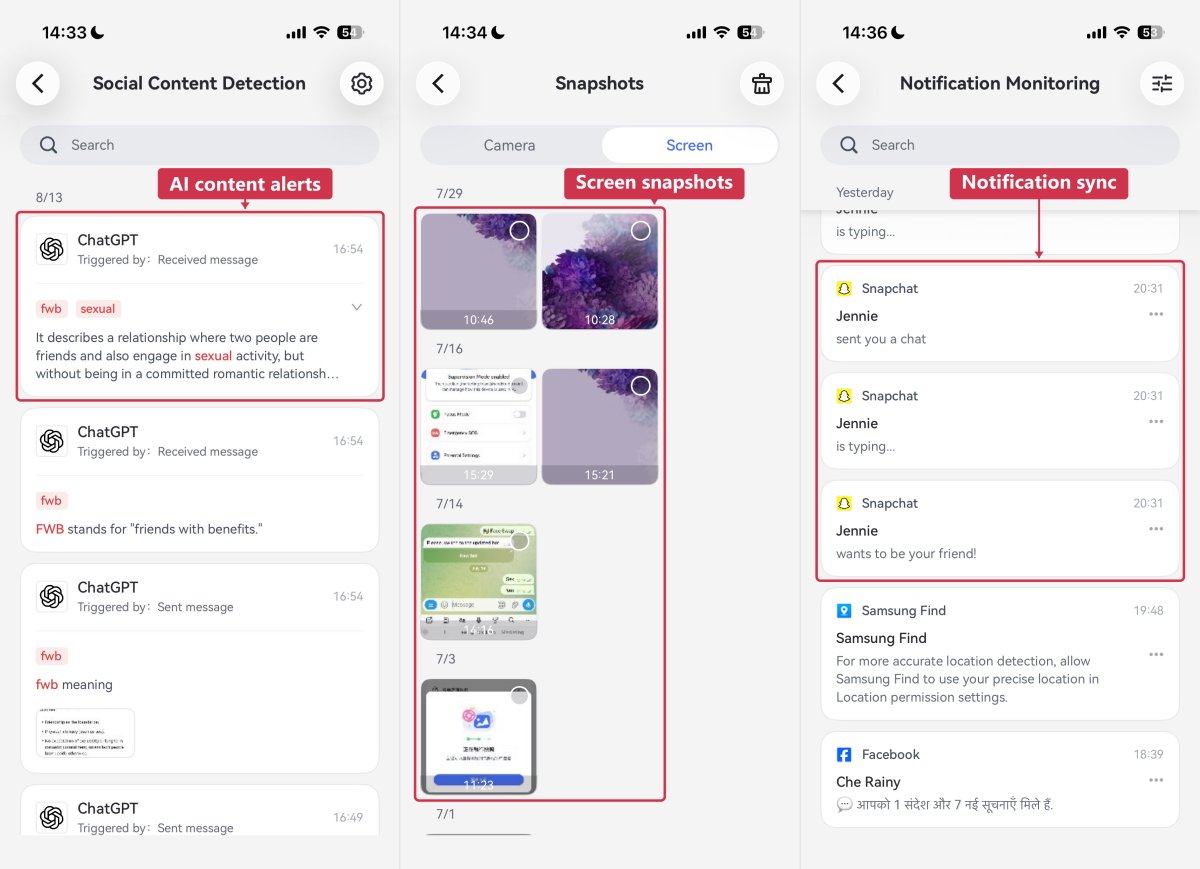
- Real-time content alerts: It detects selected keywords in YouTube (on both Android and iPhone) and other 17 social media and AI chat apps on a child's Android. In our ChatGPT test, a conversation containing “fwb” triggered an alert in the parent app. This confirms keyword detection in that test.
- Remote camera & screen access: AirDroid lets parents view what's happening by connecting the camera and screen. And most child phone monitoring apps don't cover these features.
- Notification syncing: With this, we can check what app notifications and messages kids received.
- Kid-safe browsing: It can block inappropriate websites across different browsers. Most surprisingly, it offers a kid-safe browser. And every time visiting a blocked websites can alert to parents.
What We Didn't Like
- Incomplete SMS logs: We found AirDroid's SMS monitoring does not provide a complete SMS or call history like the way Qustodio works. Instead, it showed received ones through notification syncing and messages that triggered risky keywords.
- Confusing app rules: The app offers total time limits, individual app limits, and downtime, but we found the distinction between the first two unclear.
2Qustodio
Best for: monitoring and managing kids' screen time on different devices (iPhone, Android, Windows, Mac, Chromebook, and Kindle).
What We Liked
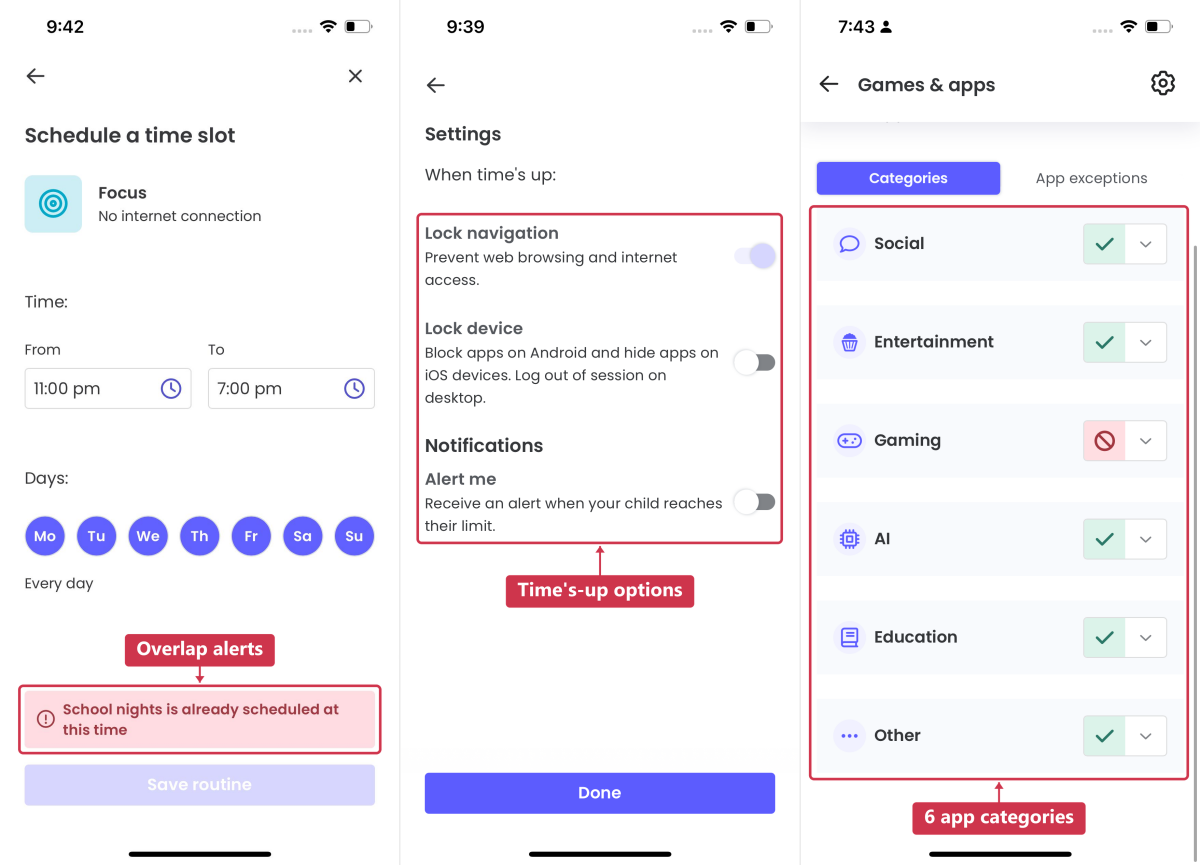
- Smarter routines: Automatically applies study, focus, and bedtime presets for different days. What we found more practical is when we selected an overlapping time slot, Qustodio flagged the existing routine, helping us avoid conflicting schedules.
- Built-in time awareness: Kids can see how much time they have left today on their end so they can better manage their screen time.
- Flexible app time limits: We found Qustodio's circular slider convenient for each day's screen time allowance. We also liked being able to choose what happens when time runs out, with options to block or hide apps, and receive an alert.
- Simple app categories: It groups apps into six categories, such as Social, Entertainment, Gaming, AI, Education, and Other. This straightforward layout made apps easier to manage.
- Broad platform support: Qustodio supports for kids' Android, iOS, Windows, Mac, Chromebook, and Kindle devices. But note that feature availability varies by platform.
What We Didn't Like
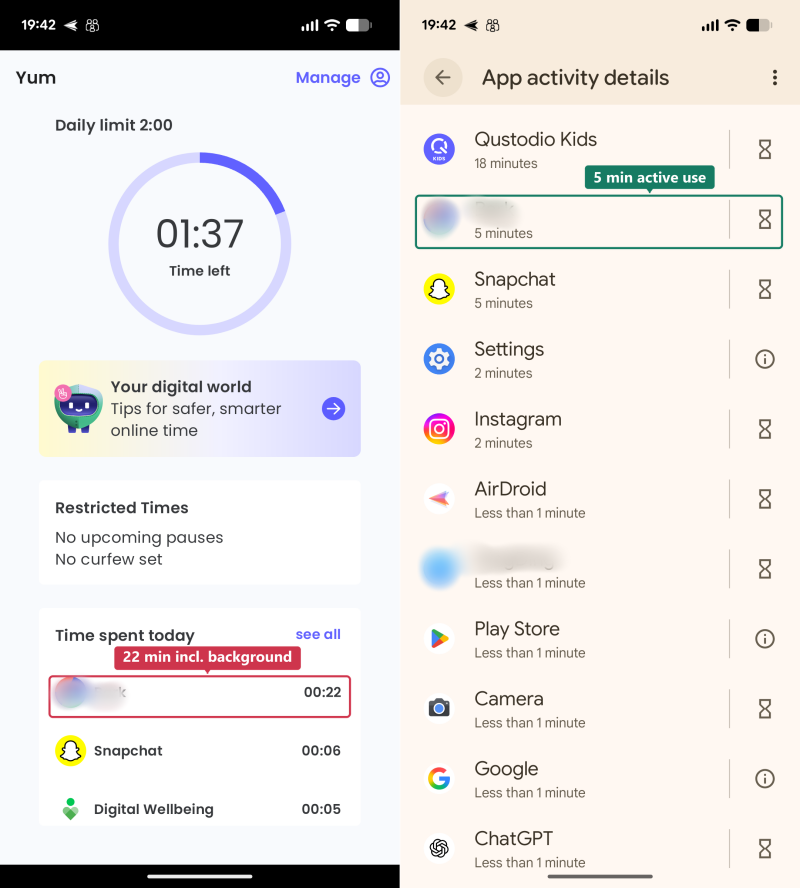
- Usage-report differences: In our test, Qustodio counted time spent by apps running in the background (we didn't open that app), so reported app usage did not always reflect active use.
- Annual-only billing. There's no monthly plan.
3Google Family Link
Best for: Android households that want free monitoring and control over what kids install and buy.
What We Liked
- Google Play controls: Because it is developed by Google, parents can set age restrictions and require approval for downloads and purchases. This is what many third-party parental controls don't support.
- Blocked apps turn gray: In our Android test, blocking an app grayed out its icon, making it easy for children to see which apps were unavailable.
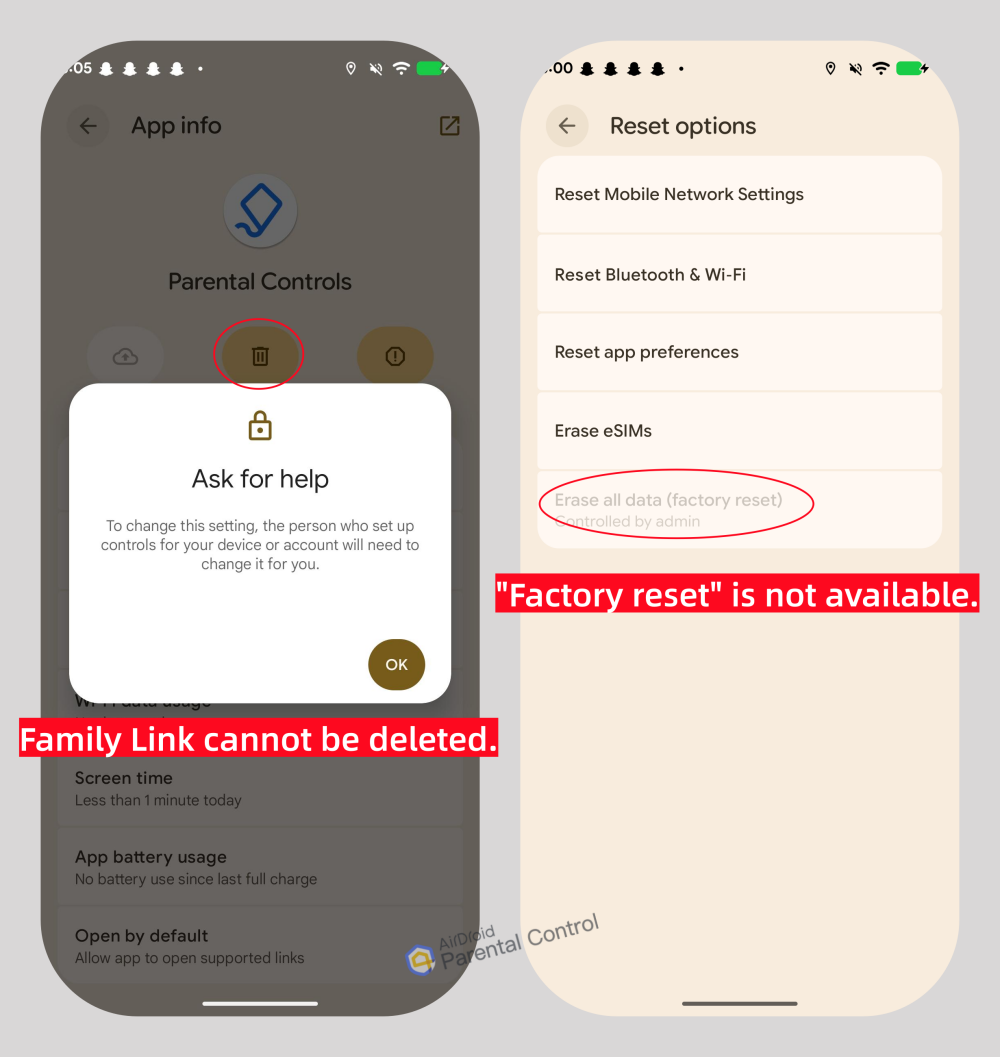
- Harder to disable: In our previous tests, attempts to uninstall Family Link, factory resetting, and changing accounts failed.
What We Didn't Like
- No device supervision on a child's iPhone: : Family Link does not provide device-level supervision of a child's iPhone, such as screen time limits or app blocking. Parents can only manage certain Google account settings or block websites from Chrome for a child's iPhone.
- Limited monitoring features: It focuses on screen time and account controls; it doesn't monitor web browsing history or location history.
4Apple Screen Time
Best for: all-Apple families who want free control over installs, purchases, and content.
What We Liked
- App deletion controls: Compared to Android's native parental controls, Apple Screen Time even lets parents prevent app deletion.
- Individual approvals: In addition to Ask to Buy, Screen Time's content restrictions provide more selective options to let parents manage app installs and purchases separately.
- Comprehensive content restrictions: App age ratings, web content filters, and communication limits are built in and reliably enforced based on children's age.
What We Didn't Like
- Apple-only. An Android parent can't manage a child's iPhone with Screen Time. (See how to set iPhone parental controls from Android)
- Mixed activity reports: Screen Time lists app and website usage together without a filter. So checking what your child actually browsed means scrolling through a feed.
- Not easy for monitoring multiple devices: When a child used both an iPhone and an iPad with the same account, we found that Screen Time limits did not take effect on the device added later.
How We Chose & Tested These Apps
Parental control marketing throws dozens of features at you. And we started from what parents are actually trying to monitor.
Based on that, we grouped the problem into three needs and picked the tool that best fits each, then confirmed the fit against our test results:
- Surroundings & online content monitoring → AirDroid
During testing, we focused on how its monitoring features performed. This test includes the platform available and alert speed through content monitoring, the effectiveness of inappropriate web filtering, and the usability of its remote camera and screen mirroring, with the picture clarity, sound quality, and connection reliability.
Additionally, we try its app management to compare it with Qustodio.
- Screen time monitoring and managing → Qustodio
We used Qustodio's 3-day free trial to complete the testing and focused more on screen time-related features. For example, we scheduled multiple routines and app limits, created overlapping schedules to see how conflicts were handled, and examined whether the report is self-explanatory or accurate.
- App & purchase monitoring and controls → Screen Time and Family Link
Our testing found each system's own tools are enough for tracking a child's app purchases. So, we turned on download and purchase approvals to see if a parent can receive the request, set age restrictions for app store content, and checked whether other phone monitoring features they provided.
Every tool in this guide was installed and used on our testing devices: an iPhone 14 running iOS 26 and a Google Pixel.
For more details on our testing process, see how we test parental control apps →
Before Monitoring: How to Talk and What to Do
A few things are worth sorting out before you install any parental monitoring apps, for example:
1. Talk to your child about monitoring
The most effective parental control tool is a conversation. Apps set guardrails, but trust decides whether those guardrails hold.
Therefore, tell your child what you will be able to monitor, such as app usage, location, or flagged messages, and why. Sometimes, small talk can help prevent misunderstandings later.
2. Confirm the device and OS
As we stated at the very beginning, monitoring features differ by app and OS. Check your child's exact device before choosing a tool and see what features are available through the official documentation.
3. Agree on phone monitoring rules
Kids who help write the rules push back far less when the rules apply.
Discuss screen time limits, bedtime schedules, which apps should remain available for school, what content parents should monitor, what apps or websites kids should avoid, etc.
Also, if you plan to use monitoring features like screen mirroring, discuss the circumstances beforehand and set boundaries.
4. Set a review point
What a 10-year-old needs monitored and what a 16-year-old needs are different. So, pick a rough check-in point (a school year change) to assess whether the current monitoring still fits.










Leave a Reply.