Cross-device Parental Control for Android Parents and iPhone Kids
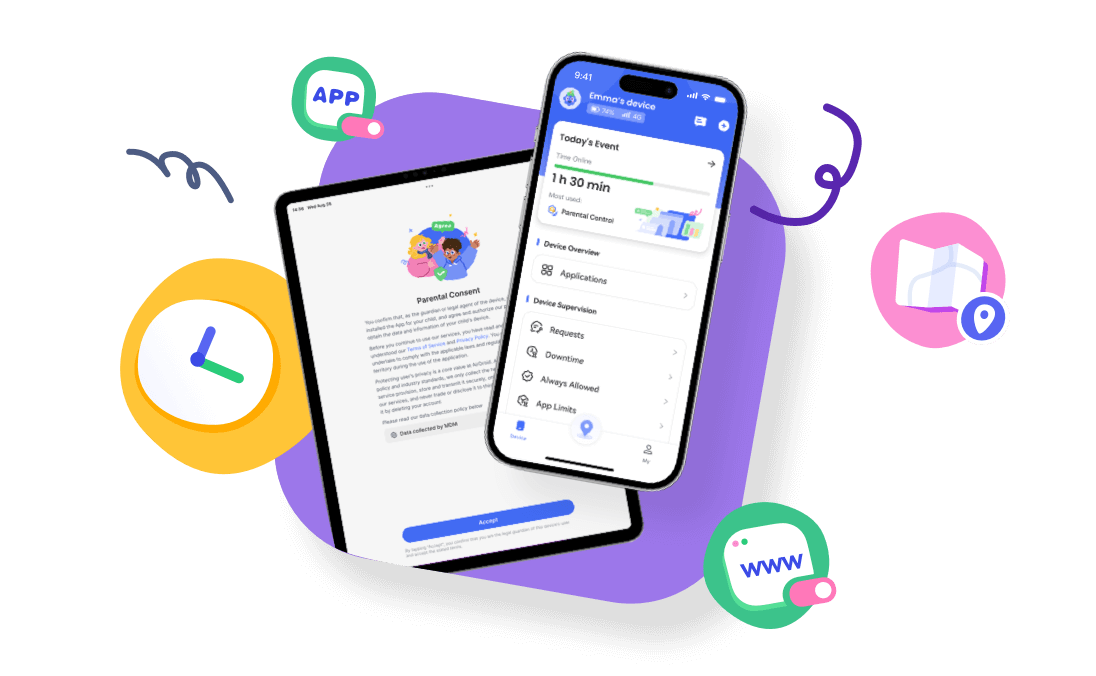
AirDroid Parental Control helps Android parents manage selected safety, screen time, and location features on a child’s iPhone.
How to Set Parental Controls on iPhone from Android
Quick Answer: Can I Manage My Child's iPhone from Android?
Yes, but the best method depends on your child’s age and the controls you need.
If you do not own an Apple device, Screen Time can be set directly on an eligible 13- to 17-year-old’s iPhone. For children under 13—although the age threshold varies by country or region—a parent or guardian generally creates and manages the child’s Apple Account through Family Sharing on a supported Apple device.
Family Link can manage the child's Google Account and supported Google services, but not the iPhone itself.
For a broader look at your options, see our guide for Android parents with iPhone children to compare parental-control solutions designed for mixed-device families.
Is AirDroid the Right Fit for Your Android-to-iPhone Setup?
AirDroid is designed for the device combination covered in this guide: you can use the Android parent app or web dashboard to manage selected features on a child's iPhone or iPad running iOS 16 or later.
It may be a good fit if you need remote screen-time, app, website, location, and selected safety controls without switching to an Apple parent device. However, iPhone support is more limited than the access available when the child uses Android.
| What you need | Supported on iPhone? | What AirDroid supports on your child’s iPhone |
|---|---|---|
| Manage screen time and app access | Yes | Set instant block, Downtime, app limits, Always Allowed apps; respond to supported requests from Android |
| Manage websites and age-appropriate content | Yes | Set website rules and time limits, and manage supported content, app-installation, and purchase restrictions |
| Understand how the iPhone is being used | Yes | Review daily and weekly activity reports |
| Check your child’s location | Yes | View current location and route history, create geofences, and receive arrival or departure alerts |
| Receive selected safety alerts | Yes | Enable inappropriate-image detection and keyword alerts for supported YouTube account activity |
| Monitor notifications, calls, SMS, live screen, remote camera, or parent-initiated one-way audio | No | Not supported on an iPhone child device |
| Receive a child-triggered SOS alert | Yes | Receive the child’s available location and a 15-second recording of the surrounding sound |
AirDroid does not require you to jailbreak your child’s iPhone. The AirDroid Kids app also remains visible on iOS, so it should be introduced as an open family safety tool rather than hidden monitoring software.
What Our Android-to-iPhone Test Showed
In our hands-on test, we used a Google Pixel 9 as the parent device and an iPhone 14 as the child device. An app restriction sent from the Pixel 9 was applied to the iPhone 14 within seconds. Results may vary with connectivity, device status, permissions, and setup mode, so test the control you rely on during the trial period.
Next step:
- Still comparing products? See our hands-on comparison of parental-control apps for Android parents with iPhone kids.
- Ready to continue? AirDroid offers a 3-day free trial for new users. Read on to check what you need before starting the setup.
What You Need Before You Start
Your Devices
- An Android phone for the parent
- An iPhone or iPad running iOS 16 or later for the child
- Physical access to your child’s iPhone during setup
Your AirDroid Setup
- An AirDroid Parental Control account
- AirDroid Parental Control on your Android device
- AirDroid Kids on your child’s iPhone
- A stable internet connection on both devices
For Additional iPhone Controls
- AirDroid Parental Connector
- An Android device or a Windows or Mac computer
- A USB cable if you plan to enable Supervision Mode
- Enough time to complete and verify Supervision Mode
Decide which functions you need before starting so you can complete the correct setup path once.
| Capability | Requires Supervision Mode? |
|---|---|
| Activity Report | Yes |
| Instant Block & Downtime | Yes |
| App Blocker & Time Limits | Yes |
| Website Filtering & History | Yes |
| Inappropriate image detection | No |
| YouTube Content Detection | No |
| Location tracking & geofencing | No |
| Focus Mode | No |
| Family Chat | No |
| Child-triggered SOS alerts | No |
Focus Mode and Family Chat are available after the basic setup is complete. They do not require Supervision Mode or a separate configuration step in Part 5.
Set Up Parental Controls for iPhone from Android with AirDroid
AirDroid uses two setup levels on a child’s iPhone. Start by connecting the devices and granting the permissions needed for location and image detection. Enable Supervision Mode if you also need supported activity reports, app limits, Downtime, website controls, or system restrictions. See the full cross-platform feature comparison for Android and iPhone.
- Step 1. Download and install AirDroid Parental Control on your Android device. You can also use the webparent.airdroid.com if you do not want to download an app.
![Download AirDroid Parental Control from Google Play]()
- Step 2. Open the app on your phone, then follow the prompts to create an account and log in.
- Step 3. Download AirDroid Kids on your child's iPhone and follow the on-screen instructions to bind the device to yours.
![Download AirDroid Kids from the App Store]()
If another parent or guardian will help manage your child’s iPhone, invite them through My > Family Members instead of sharing your primary account password.
- Step 4.Set AirDroid Kids’ Location Access to Always and grant access to the Photos library for image detection.
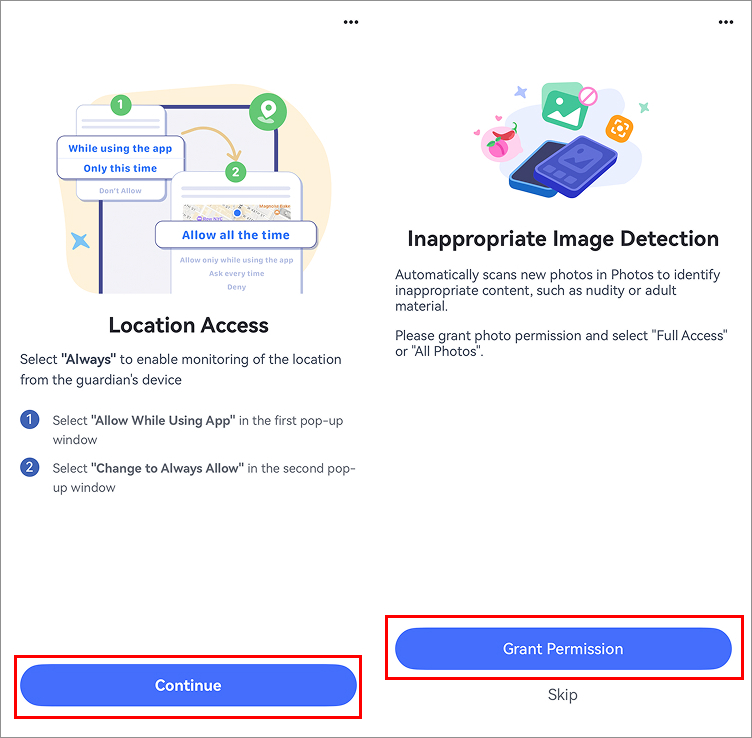

After these permissions are enabled, you can use the supported location features and receive alerts for supported images detected in Photos.
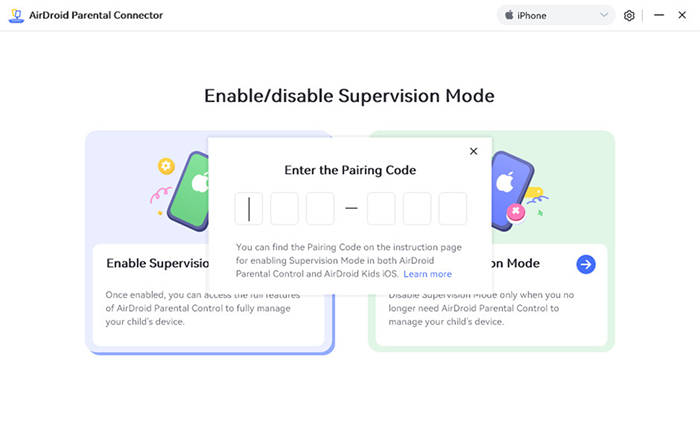
- Step 5. For more features like Screen Time, you need to install AirDroid Parental Connector on your Android device or computer, connect the iPhone to that device, and enable Supervision Mode. This enables supported controls such as screen time and app time limits, downtime, app blocking, and content restrictions.


Configure the Controls You Need
Once your devices are connected and the required iPhone setup is complete, configure only the controls that match your family’s needs. App, website, screen-time, and system controls may require Supervision Mode.
Set Downtime for Apps or the Whole iPhone
Use Downtime to reduce access during bedtime, school, homework, or other phone-free periods. You can schedule restrictions for the whole iPhone or apply a separate schedule to selected apps.
- To schedule Downtime for the whole iPhone, go to Device > Downtime > Add Schedule. Use the same schedule every day or customize it by day.
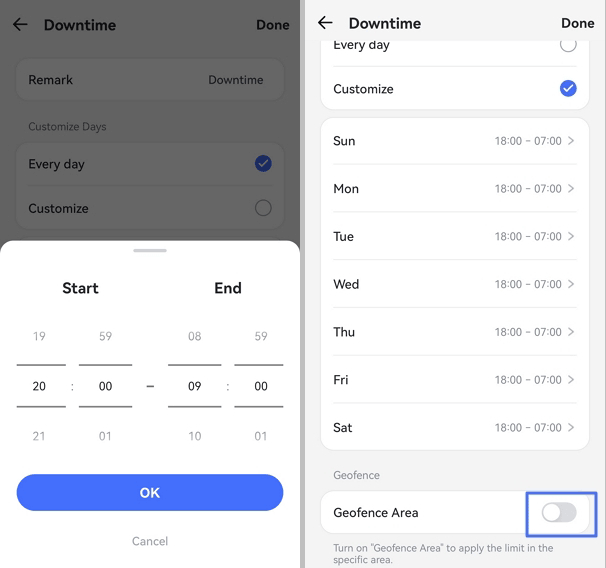

- To schedule Downtime for particular apps, go to Device > App Management > Add Limit, select the apps or categories, and set the restricted period.
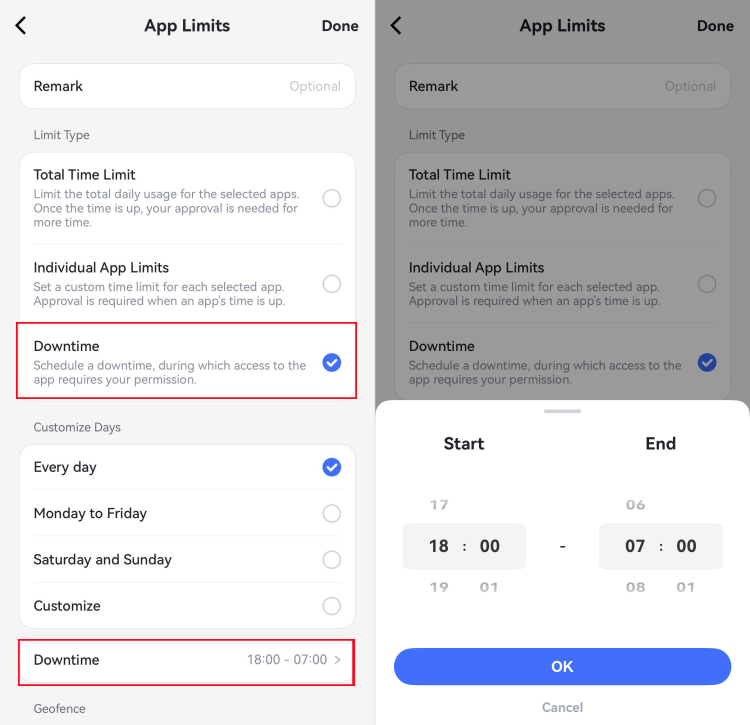

Set App Limits and Respond to Requests
Set daily time limits for individual apps or app categories, block apps that are not appropriate for your child, and respond when your child requests additional time.
- Go to Device > App Management > Add Limit.
- Select the apps or categories you want to manage and tap Next.
- Choose Total Time Limit, set how long your child can use the selected apps, and save the rule.
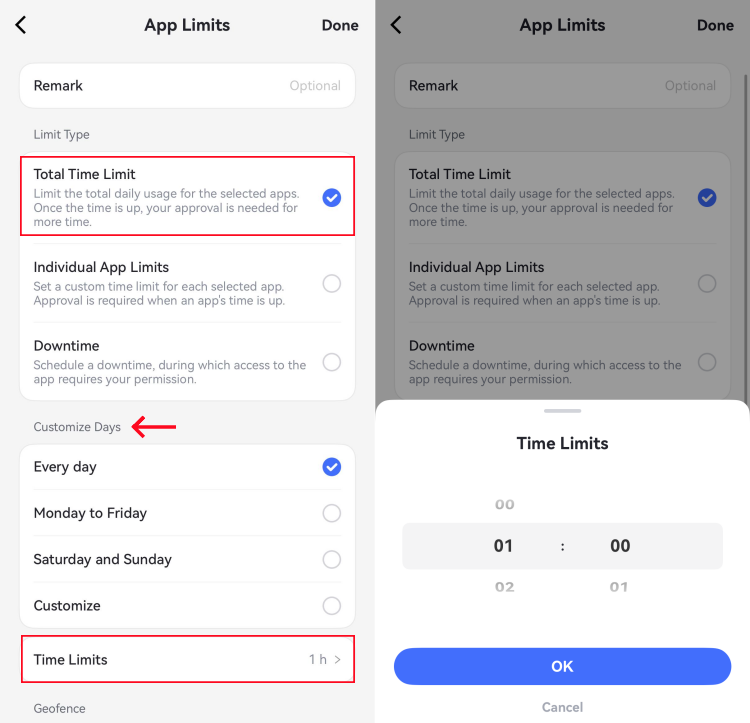
You can also use App Blocker to restrict selected apps, place essential apps on the Always Allowed list, or block newly installed apps.
When your child requests more time, open the Bell icon or the Requests section. You can approve or refuse the request from your Android device.
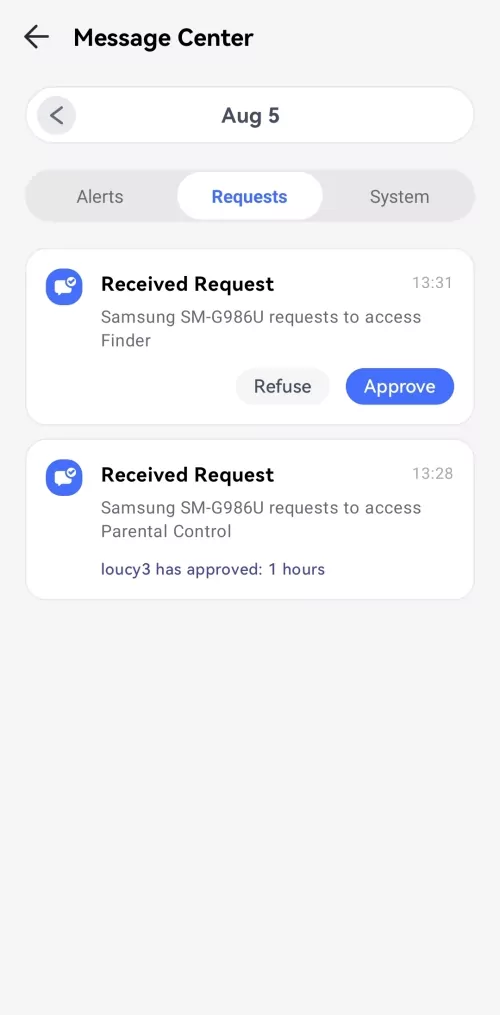
Filter Websites and Limit Web Use
Use website restrictions to block specific URLs or categories, allow only approved websites, review supported browsing history, and set time limits for web use.
- Go to Website Restrictions > Mode.
- Choose Blacklist Mode to block selected sites or categories, or Whitelist Mode to allow only approved sites.
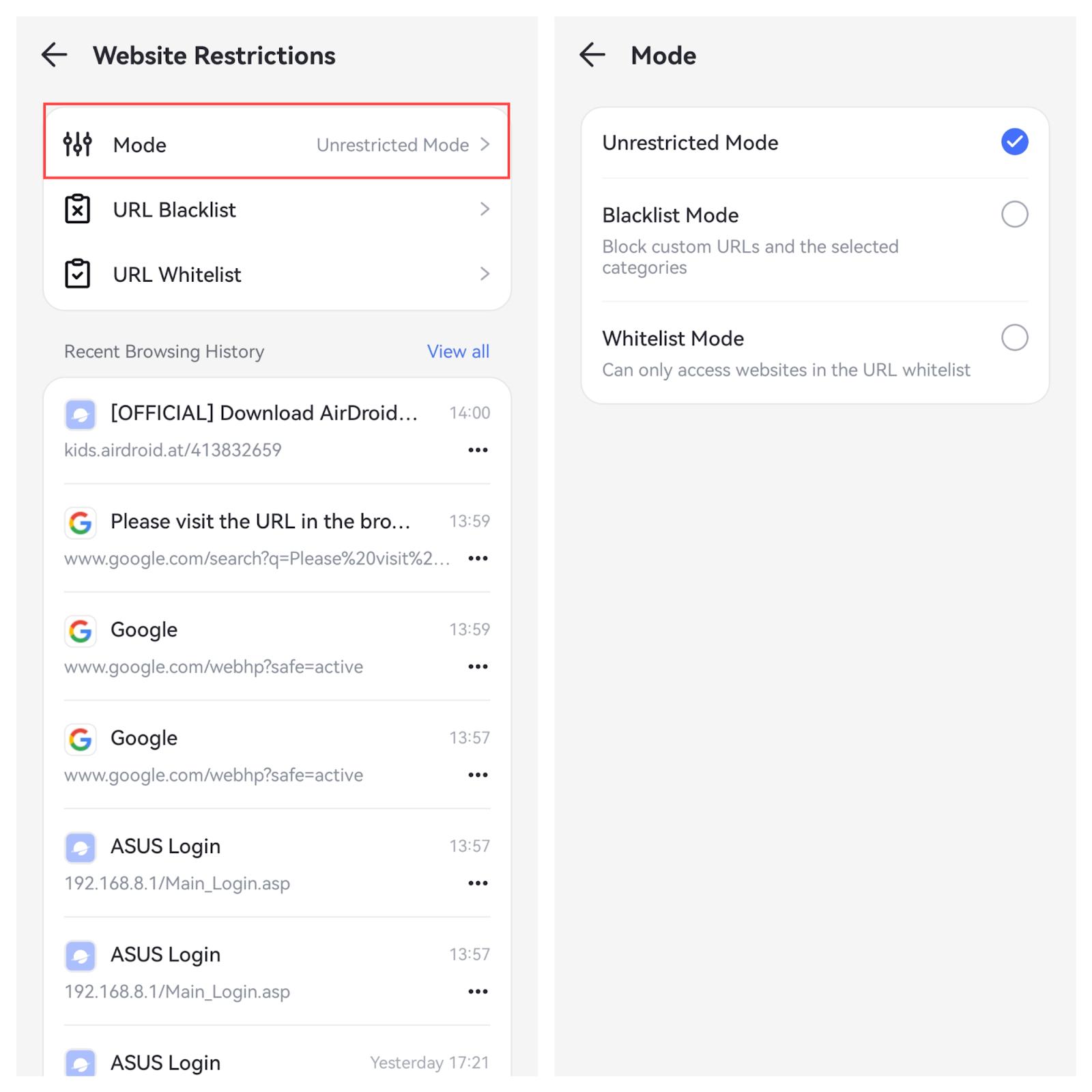

- Open Web Time Limits > Add Limit to set a daily allowance or restricted schedule.
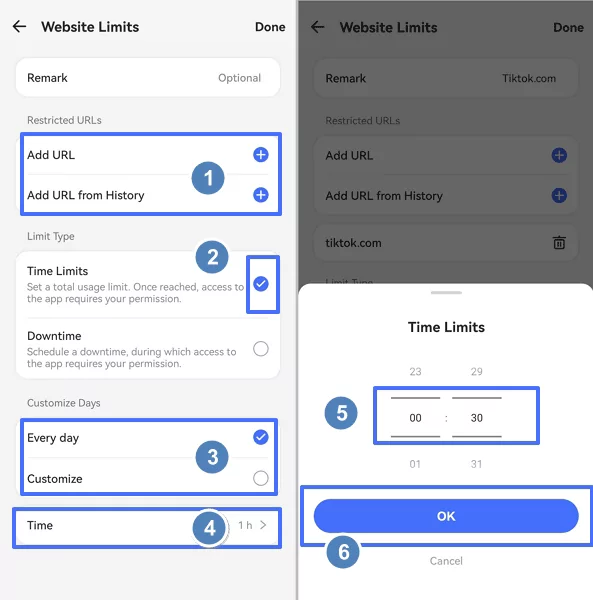

- Open Browsing History to review supported web activity and add a website directly to the blacklist when needed.
Detect Inappropriate Images and Receive Alerts
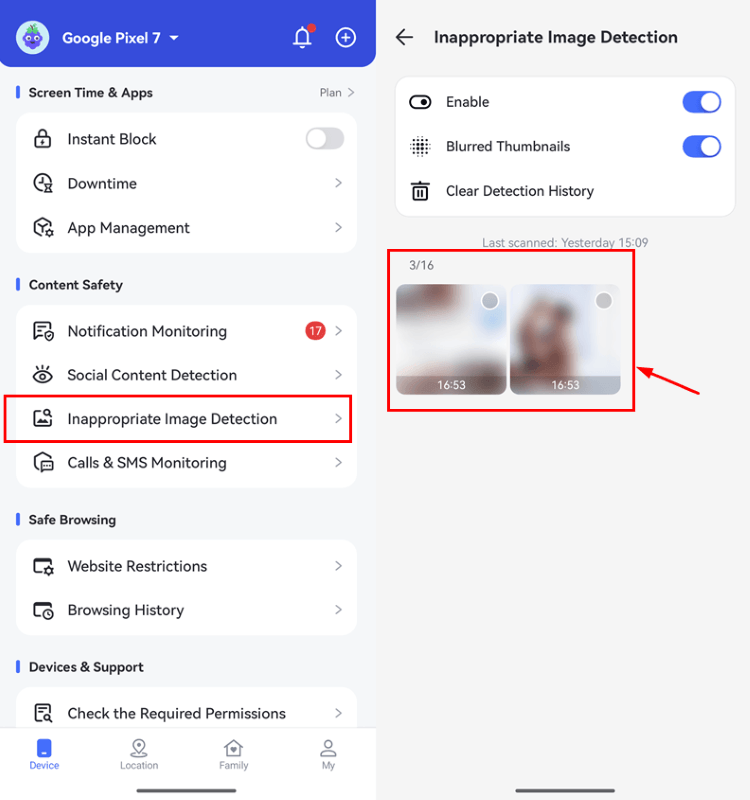
Enable image detection to receive alerts when AirDroid identifies supported images in your child’s Photos app as potentially adult, violent, or otherwise inappropriate.
- Open Inappropriate Image Detection.
- Tap Enable.
- Review detected images and alerts from the parent dashboard.
Manage Content, Purchases, and App Installations
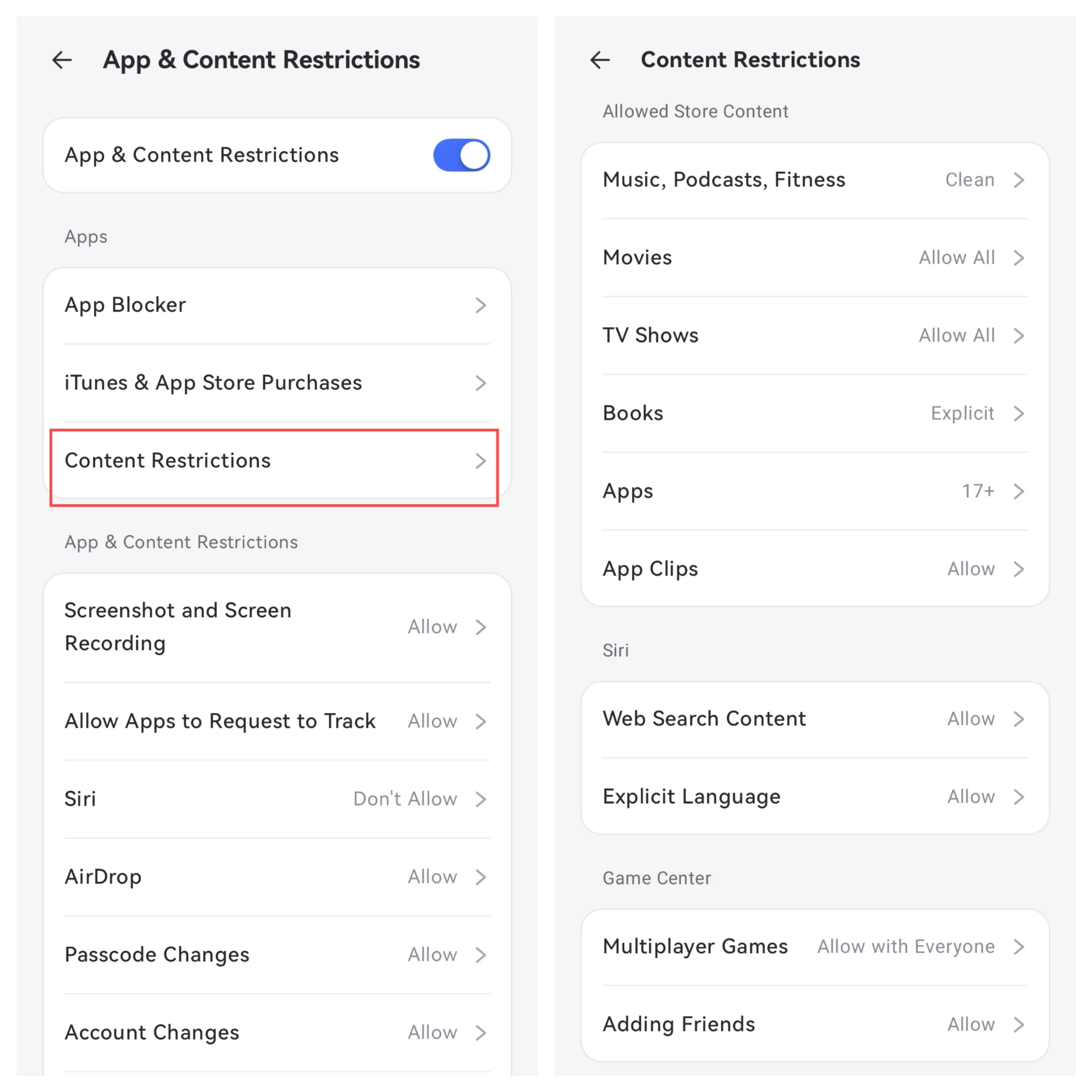
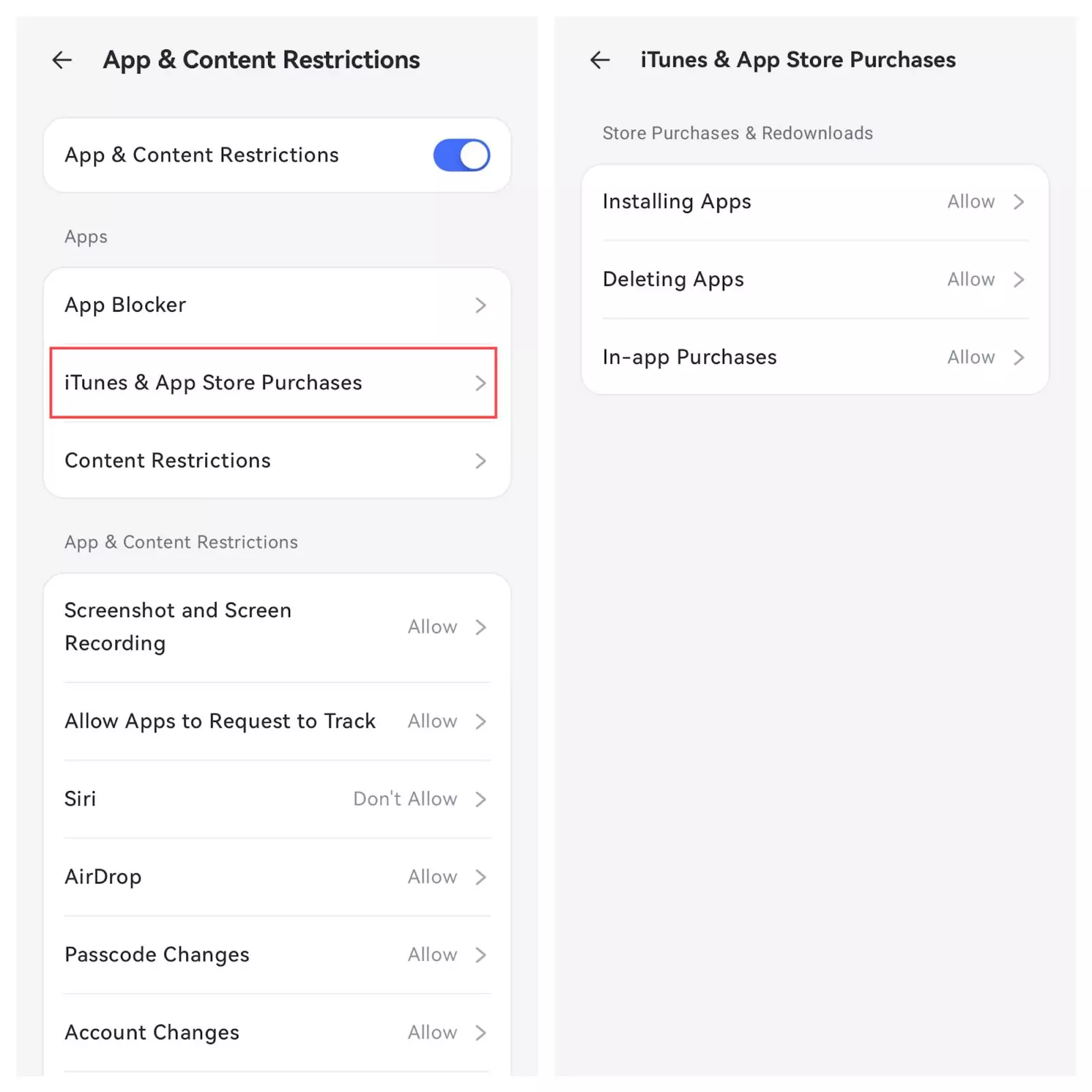
Use Apple’s supported system restrictions through AirDroid to manage age ratings, explicit media, app installation or deletion, purchases, and other device-level content settings.
- Open System Restrictions and turn it on.
- Choose Content Restrictions to set age ratings and manage explicit music, podcasts, movies, books, apps, and other supported media.

- Open the purchase and installation settings to allow or prevent app installations, deletions, and in-app purchases.

- Review newly installed apps and block an app when it is not suitable for your child.
Review YouTube Activity and Receive Keyword Alerts
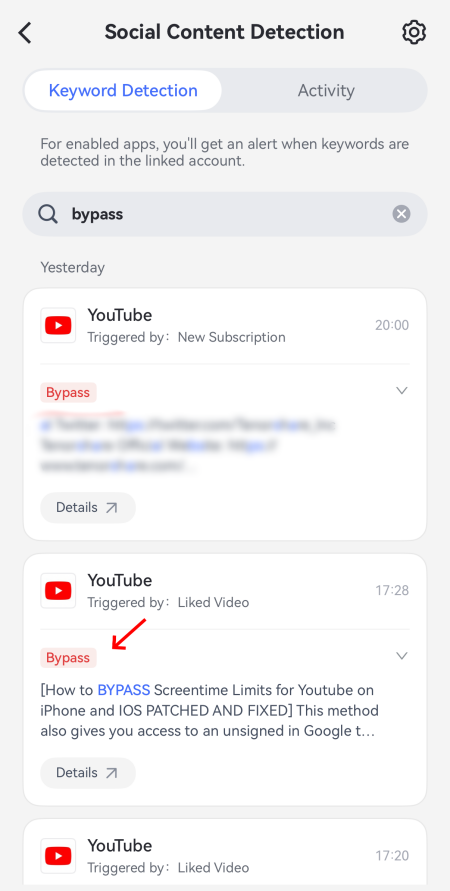
Link your child’s YouTube account to review supported activity, including liked and uploaded videos and new uploads from subscribed channels. AirDroid can also alert you when selected keywords appear in video titles or descriptions.
- Go to Social Content Detection > Link Account.
- Turn on YouTube detection, sign in to your child’s Google account, and approve access.
- Open Settings > Keyword Management to add custom keywords, use the AI Keyword Assistant, or enable keyword categories.
- Open Social Content Detection to review supported YouTube account activity.

Track Your Child’s Location
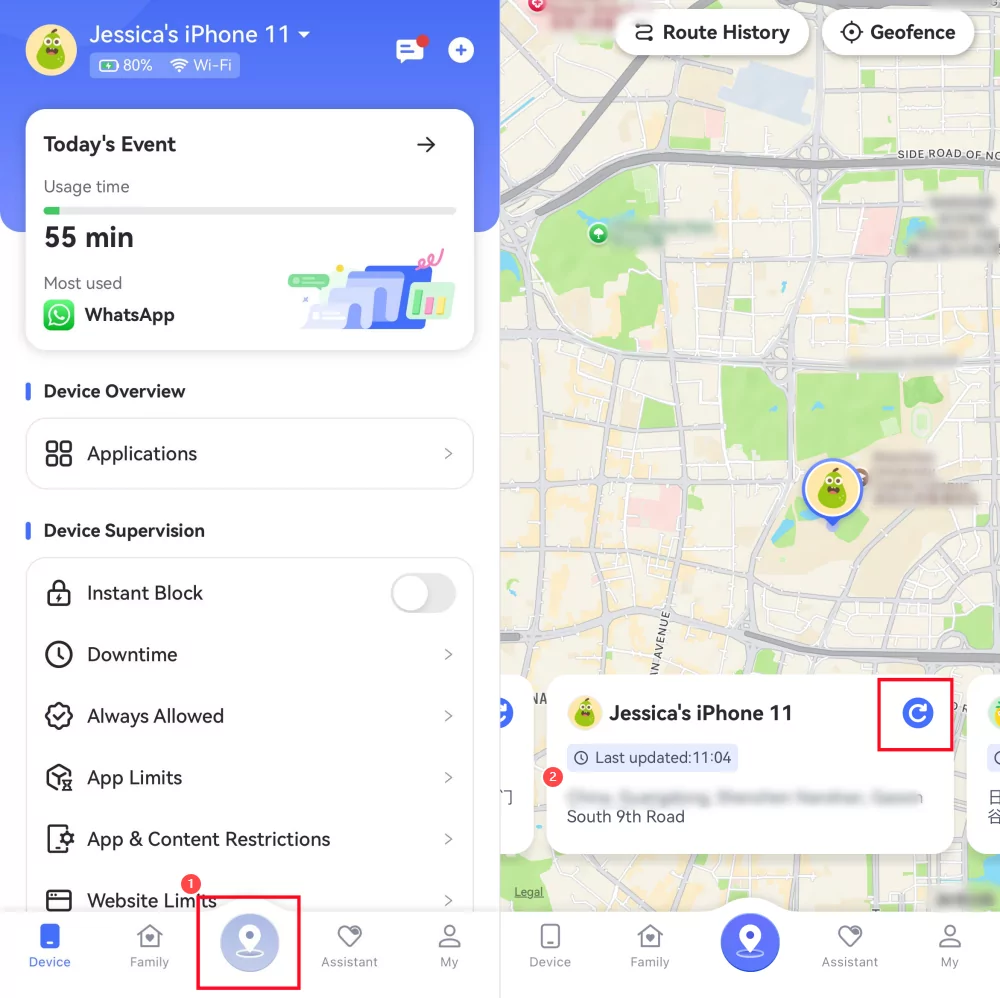
Check your child’s current location, review route history, and create geofences that alert you when the device enters or leaves a saved area.
- Tap Location at the bottom of the dashboard and use the refresh icon to request the latest available location.
- Open Route History to review the location timeline for a selected day.
- Open Geofence > Add Geofence, choose a location and radius, and save the area.
Enable SOS Alerts for Emergencies
Enable SOS so your child can send an emergency alert from AirDroid Kids. When triggered, your parent dashboard receives the child’s available location and a 15-second recording of the surrounding sound.
- Open SOS Settings in AirDroid Parental Control and turn on Enable.
- Show your child where to find Emergency SOS in AirDroid Kids and explain when it should be used.
- When your child taps the button, a five-second countdown begins. If it is not canceled, AirDroid sends the SOS alert, the child’s available location, and a 15-second recording of the surrounding sound.

Review Your Child’s iPhone Usage
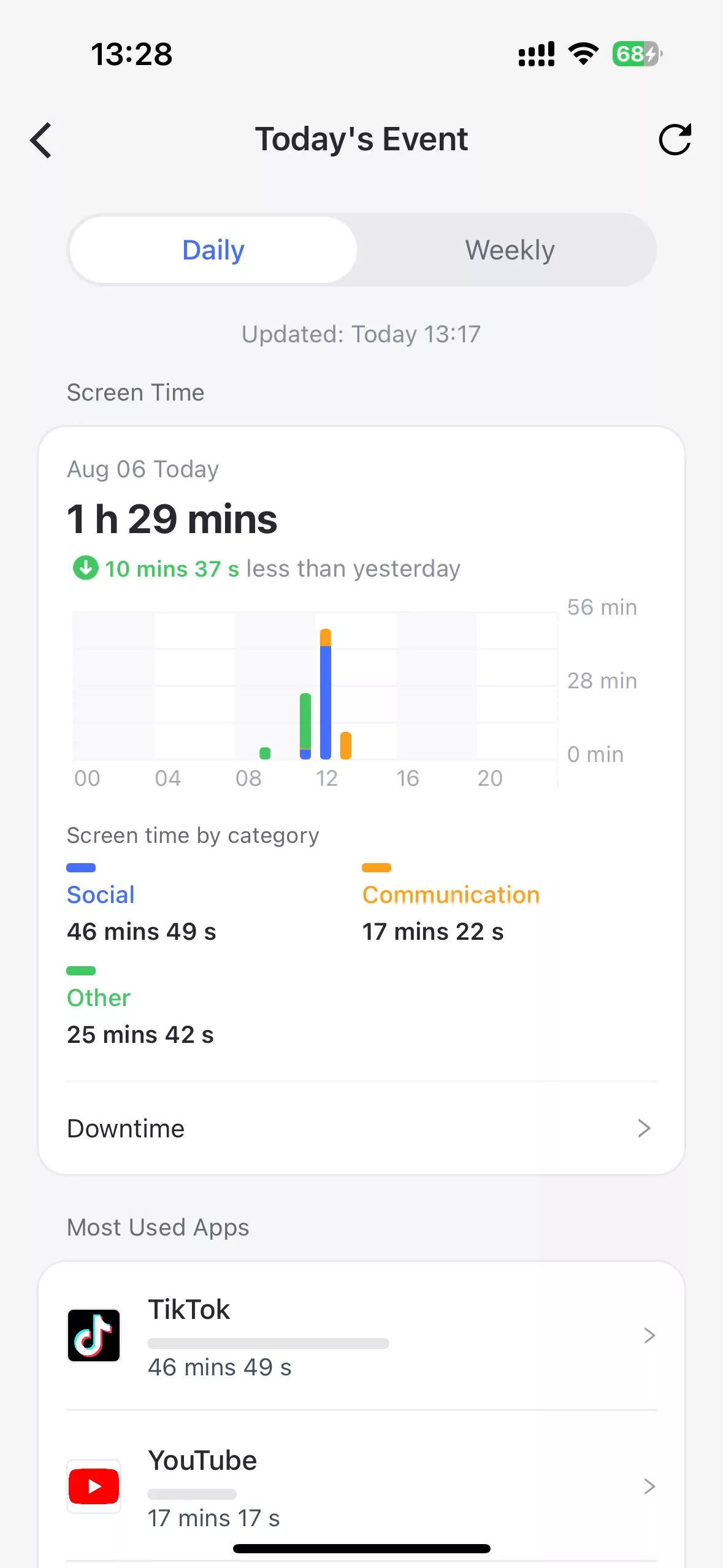
Use Activity Report to review daily or weekly summaries of your child’s iPhone use, including supported screen-time patterns, most-used apps, and when those apps were used.
- Tap Today’s Event at the top of the dashboard.
- Choose a Daily or Weekly report.
- Swipe between dates and scroll through the available usage details.
Verify the Setup and Keep It Working
Before you rely on the controls, test the features you have enabled and confirm that your child’s iPhone is still connected correctly. This helps you identify setup problems before a limit, location check, or alert is actually needed.
Test the Controls You Turned On
Test one feature at a time so you can tell which part of the setup needs attention.
- Confirm that your child’s iPhone appears under the correct child profile in AirDroid Parental Control.
- Apply a short App Limit or Downtime schedule and check whether it takes effect on the iPhone.
- Refresh the device location and confirm that the latest available location appears in your dashboard.
- Open Today’s Event after the iPhone has been used and confirm that the activity report begins to update.
- If you enabled YouTube detection, confirm that the correct Google account remains linked and that your selected keywords or categories are active.
- Practice the SOS process with your child and confirm that the alert, available location, and 15-second surrounding-audio recording arrive as expected.
Check Supervision Mode When a Control Is Missing
Binding the two devices does not automatically enable every iPhone control. If location works but app limits, Downtime, website restrictions, or other controls are unavailable, confirm that Supervision Mode was completed successfully.
- Check that the iPhone is still bound to the correct AirDroid account.
- Confirm that Supervision Mode is active before troubleshooting an individual app or website rule.
- If supervision was recently changed or disabled, enable the required setup again and retest the control.
See the AirDroid iOS setup guide for the current Supervision Mode instructions.
If Reports or Controls Stop Updating
If a feature previously worked but no longer updates, check the device and setup in this order:
- Make sure your child’s iPhone is turned on and connected to Wi-Fi or mobile data.
- Confirm that AirDroid Kids is still installed and the device remains bound to your account.
- Review the location, photo, and other permissions required by the features you use.
- Check that the required configuration profile and Supervision Mode are still active.
- Reopen AirDroid Kids and AirDroid Parental Control, then test the feature again.
- After a major iOS or AirDroid update, retest the rules you rely on instead of assuming every setting still behaves the same way.
Agree on the Rules with Your Child
Before you rely on the controls, explain what you have turned on, why you need it, and how the information will be used. Clear rules make it easier for your child to understand the setup and ask for help when a limit interrupts a legitimate activity.
Explain What You Can—and Cannot—See
Tell your child whether you will review screen-time reports, location, image alerts, YouTube keyword alerts, or app and website requests. Also explain that an automated alert may lack context and does not automatically prove that something is wrong.
Agree on Requests and Review Dates
- Decide when your child can request more app or website time.
- Choose which essential apps should remain on the Always Allowed list.
- Set a date to review whether the rules are still needed.
- Explain how responsible use can lead to fewer restrictions.
Explain How the Setup Can Be Changed or Removed
Let your child know that the controls are not necessarily permanent. If you stop using AirDroid, follow the supported removal process instead of leaving an unused management setup on the iPhone. When Supervision Mode is enabled, unbind the child device before removing AirDroid Kids. To disable Supervision Mode, reconnect the iPhone to AirDroid Parental Connector with a USB cable.
Sources and Review
This guide was reviewed against current Apple, Google, and AirDroid documentation. Available features may change with the child’s iOS version, AirDroid app version, permissions, and setup mode.
- Apple: Use Screen Time to Manage Your Child’s iPhone or iPad — Screen Time setup, activity summaries, and age-dependent setup options.
- Google: Learn Which Devices Can Be Supervised with Family Link — Family Link support and limitations on a child’s iPhone or iPad.
- AirDroid: How to Enable or Disable Supervision Mode on iOS — Supervision Mode requirements and removal process.
Last reviewed: Aug 18 2026







Leave a Reply.