Best SafeSearch Engines: Which One Should You Use?
In my last article, I covered how Google SafeSearch works and how well it filters explicit content. For parents choosing a safer search experience for their children, the next question is how it compares with Bing SafeSearch, Norton Safe Search, and DuckDuckGo Safe Search.
Below, I compare their controls and the results from the original test to help parents choose an option that fits their family's needs. Because search results change over time, treat the scores as a test snapshot rather than a guarantee.
| Aspect | Google SafeSearch | Bing SafeSearch | Norton Safe Search | DuckDuckGo Safe Search |
|---|---|---|---|---|
| Filtering levels | Filter, Blur, Off | Strict, Moderate, Off | No separate content-filtering levels | Strict, Moderate, Off |
| Ease of control | 5/5 | 2/5 | 5/5 | 5/5 |
| Adult-content filtering in the original test | 7/10 | 9/10 | 6/10 | 9/10 |
| Gory-content filtering in the original test | 7/10 | 5/10 | 8/10 | 5/10 |
Note: Norton is transitioning its Safe Search experience to Bing Search. Its current role is primarily to show website reputation information, so its earlier test scores should not be treated as current product guarantees.
Google SafeSearch vs. Bing SafeSearch
Both Google SafeSearch and Bing SafeSearch aim to reduce inappropriate search results, but their official descriptions differ. Google's SafeSearch guidance says it can detect sexually explicit material as well as graphic violence. Microsoft's Bing SafeSearch guidance describes it as a filter for explicit content. This means parents should not assume that Bing will consistently remove violent or disturbing material.
1Key Functions
Google SafeSearch is the broader option on paper because its Filter setting is designed to block detected explicit results, including adult content and graphic violence. Bing SafeSearch focuses on explicit text, images, videos, and webpages, depending on the selected level.
If a family's main concern is adult search content, either service may help. If violent or gory search results are also a concern, Google provides the clearer official coverage. Neither service promises perfect filtering.
2Filtering Levels
Bing SafeSearch provides three settings: Strict, Moderate, and Off.
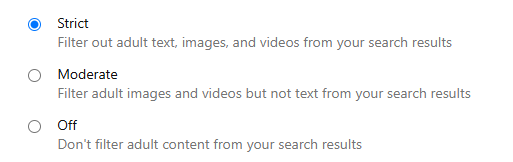
- Strict. Filters explicit text, images, and videos from search results.
- Moderate. Filters explicit images and videos but may allow explicit text results. This is Bing's default setting.
- Off. Does not filter explicit content from Bing search results.
Google uses Filter, Blur, and Off. Filter blocks detected explicit results. Blur obscures explicit images, but relevant explicit text and links may still appear. Off allows relevant results even when they are explicit.
For children signed in to a Google Account managed with Family Link, parents can manage SafeSearch, and Filter is enabled by default for applicable child accounts. Bing may automatically apply Strict mode to users under 18 where required by local law. Account, device, network, school, and regional controls can also lock a SafeSearch setting.
3Ease of Control
Google SafeSearch is simple to adjust from the SafeSearch settings page. Bing also offers direct settings, but users must choose Strict, Moderate, or Off and then save the change.
For parents who want a setting that a child cannot casually change, an account-level or network-level control is more useful than a browser preference alone. Google supports parent management through Family Link, while Microsoft documents methods for enforcing Bing Strict mode on a managed device or network.
Winner: Google SafeSearch
4Filtering Mechanism
Microsoft says Bing uses automated systems and AI-powered classifiers to understand queries, retrieve webpages, and rank search results. Bing also accepts user reports to help improve the handling of inappropriate results.
- Automated classification. Bing analyzes search queries and web content to determine which results should appear under the selected SafeSearch level. See Microsoft's explanation of how Bing delivers search results.
- PhotoDNA. Microsoft also uses PhotoDNA to help identify known child sexual abuse material. This child-protection technology is not the same as a general SafeSearch filter for all adult or violent images.
- User feedback. Reports can help search providers review inappropriate results, but a report does not guarantee that similar content will never appear again.
5Effectiveness in the Original Test
In the original comparison, Bing SafeSearch in Strict mode performed better than Google SafeSearch at removing adult search results. Google received 7/10, while Bing received 9/10 for this test category.
With the same explicit search terms, Bing Strict removed the tested explicit webpages, images, and videos, while Google still showed some text-based results related to adult content.
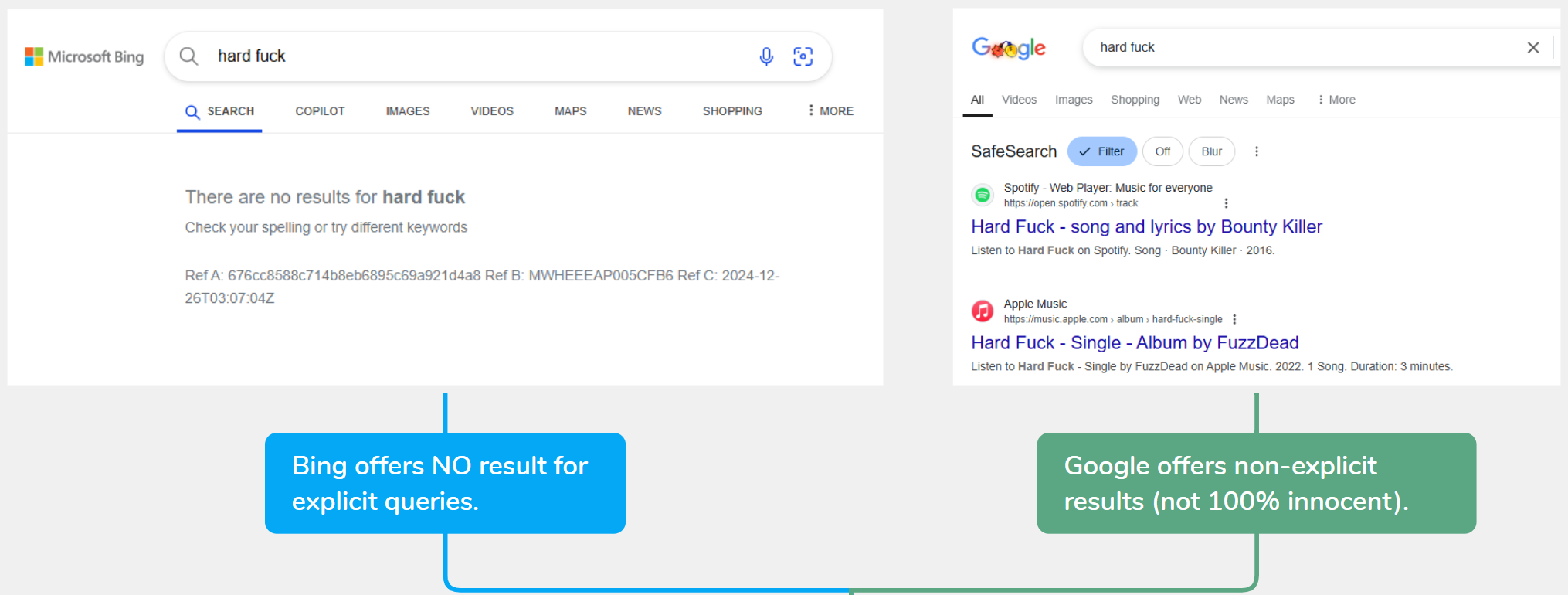
Winner for adult-content filtering in this test: Bing SafeSearch
For violent or gory content, the result was mixed. Bing removed the violent images used in the test but still showed text results and links to graphic material. Google blocked more of the tested websites but still displayed some gory images.
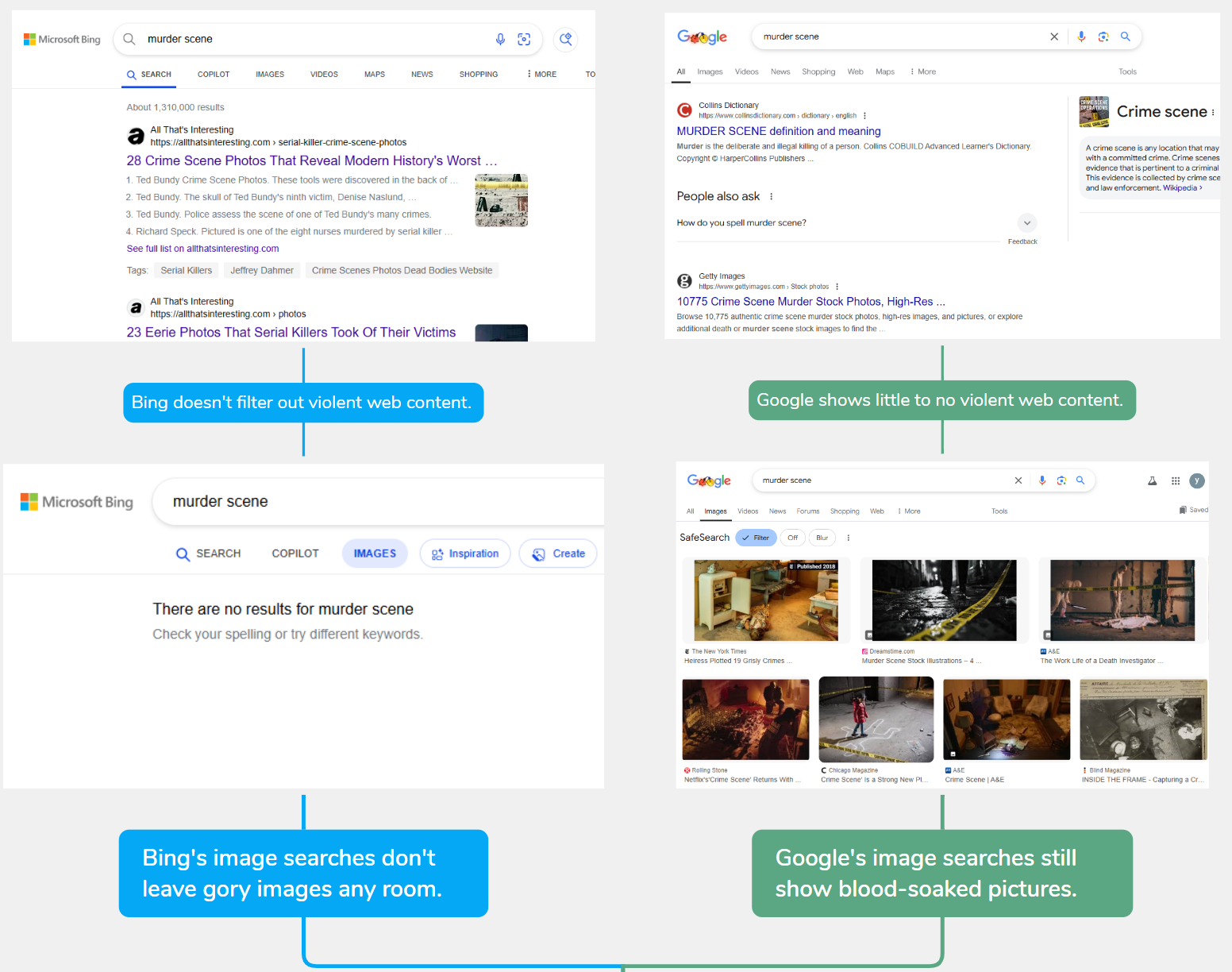
Winner for violent-content filtering in this test: Draw
The test suggested that Bing handled the selected violent images better, while Google handled more of the selected violent webpages. Parents should expect results to vary by query, region, date, and search index.
Google SafeSearch vs. Norton Safe Search
Norton Safe Search serves a different purpose from Google SafeSearch. Google focuses on filtering explicit search results, while Norton adds website reputation information to help users identify phishing, malware, and other risky sites.
Current product note: Norton began transitioning Safe Search users to Bing Search results in September 2026. Norton's current migration FAQ states that its Safe Search feature does not directly block websites; instead, it displays website reputation ratings on supported results. The original test below reflects the earlier search experience.
1Key Functions
Norton Safe Search uses Norton Safe Web technology to label potentially unsafe, suspicious, or malicious websites. This can help a parent or child avoid phishing pages and dangerous downloads, but it is not a substitute for an explicit-content filter or full parental controls.
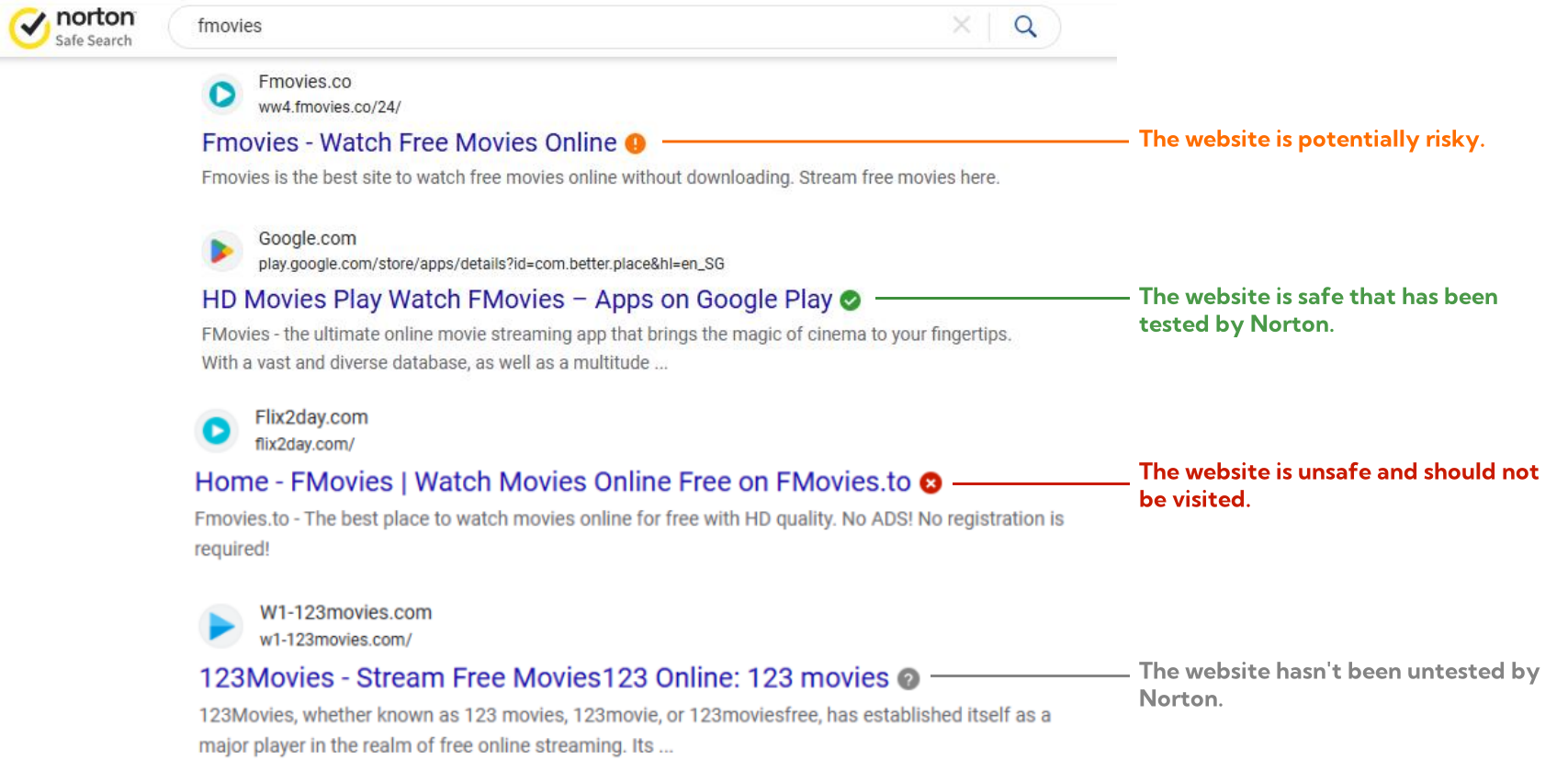
For families concerned about both inappropriate search results and malicious websites, Norton can add security context, but parents should pair it with a content-filtering setting such as Bing Strict or Google Filter.
2Filtering Levels
Norton Safe Search does not offer a separate set of adult-content filtering levels comparable to Google's Filter, Blur, and Off or Bing's Strict, Moderate, and Off. In the current experience, content filtering is provided by Bing, while Norton adds supported website reputation information.
3Ease of Control
Parents can use the current Norton Safe Search or Norton Home Page browser extension on a supported browser. During the 2026 transition, search results may differ between users as the updated Bing-based experience rolls out.
Winner for simple security guidance: Norton Safe Search
4How Norton Rates Risky Websites
Norton says Safe Web analyzes websites through several security methods and then displays a safety rating next to eligible search results.
- Signature-based file scanning. Norton compares files and sites against known threat data.
- Intrusion and behavioral detection. Norton looks for suspicious activity associated with phishing, malicious downloads, browser exploits, and unsafe links.
- Website reputation ratings. Ratings help users decide whether to visit a result, but Norton notes that Safe Search itself does not block the destination website.
Parents should explain these labels to children rather than assuming a green rating means that all content on a site is age-appropriate. A website can be free of malware while still containing material unsuitable for a child.
5Effectiveness in the Original Test
In the earlier test, Google SafeSearch and the former Norton Safe Search experience both removed many explicit text results. Google performed better with the selected explicit videos, while Norton allowed some of them to appear.
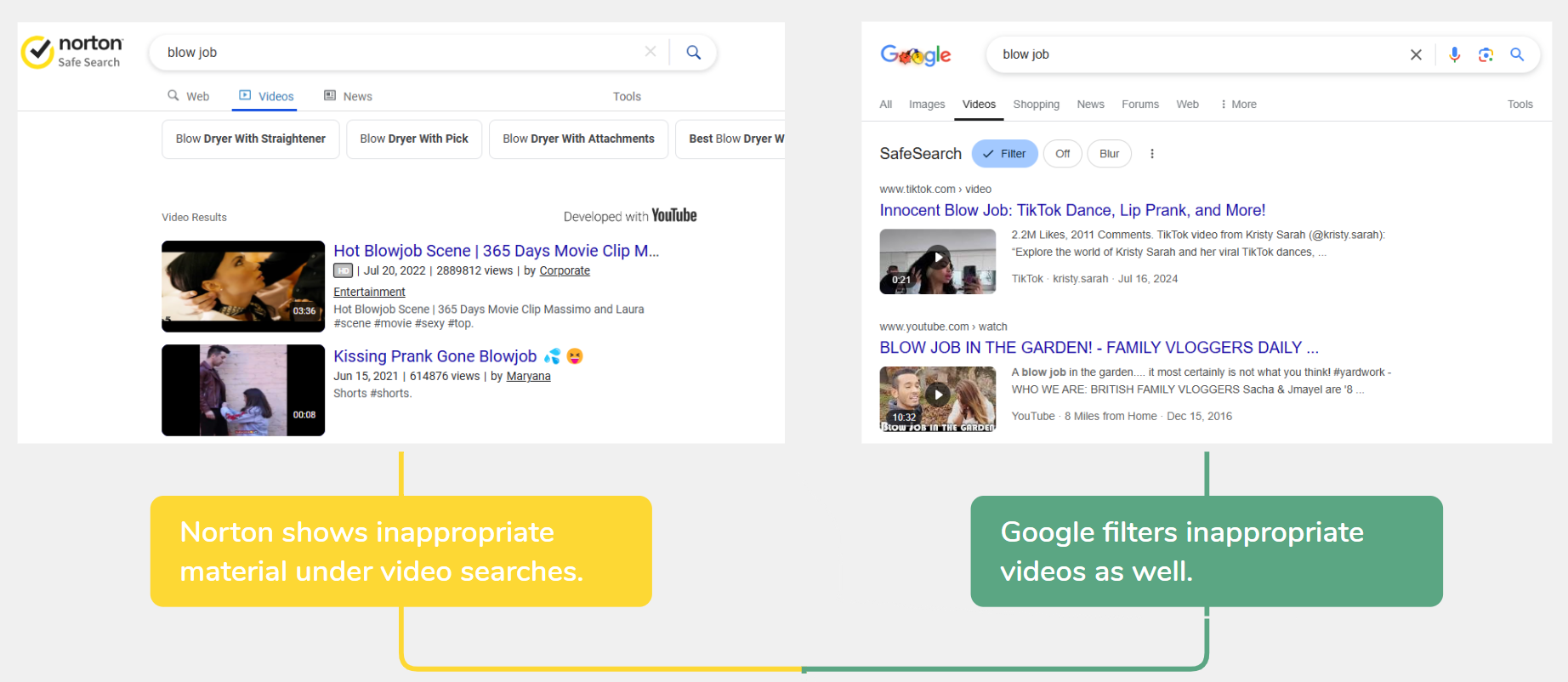
Winner for adult-content filtering in the original test: Google SafeSearch
For the selected violent-content queries, both services blocked some violent websites, while Google still showed several graphic images. The earlier Norton experience filtered more of the tested gory visuals, especially in video results.
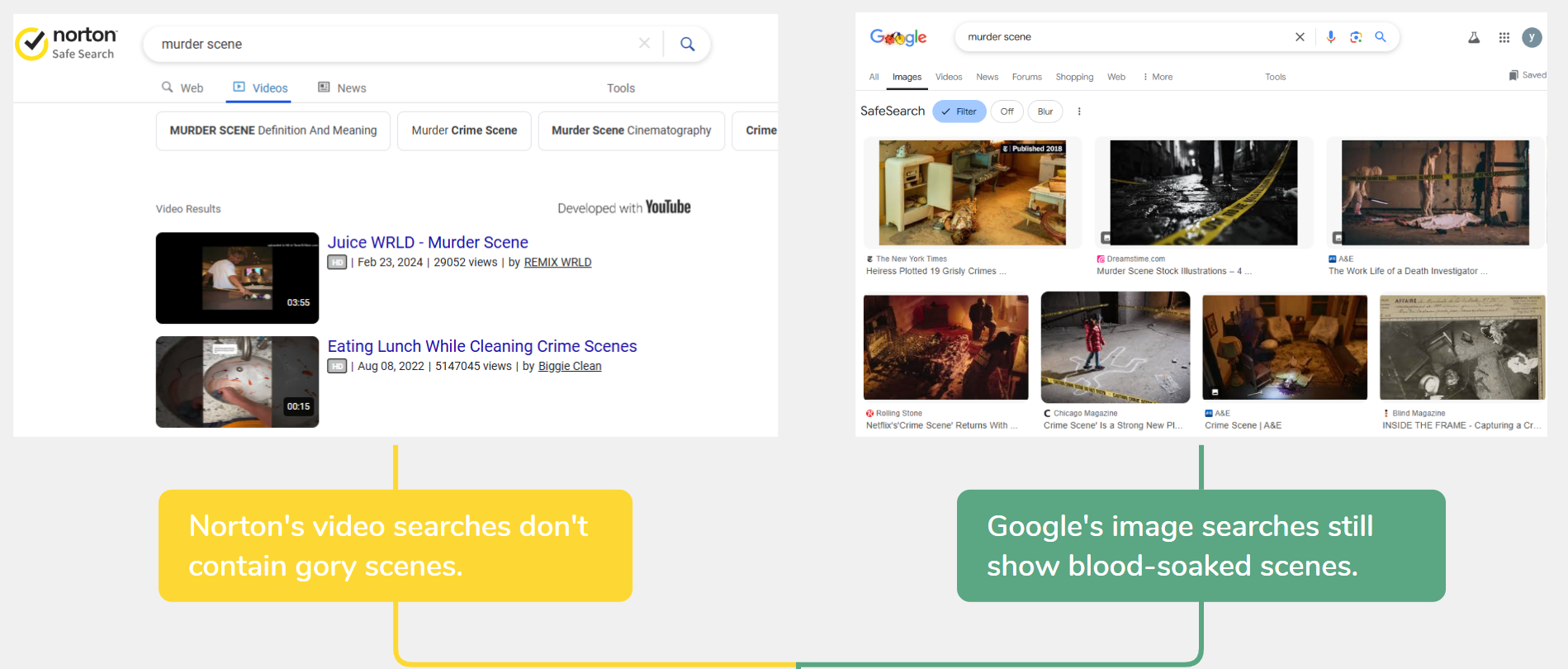
Winner for violent-content filtering in the original test: Norton Safe Search
Because Norton now uses Bing results during its rollout, parents should not assume that the older comparison will match the current experience.
Google SafeSearch vs. DuckDuckGo Safe Search
DuckDuckGo Safe Search is a privacy-focused alternative that lets families reduce adult content in search results without creating a personal search history. DuckDuckGo states that it does not track individual searches or browsing history.
1Key Functions
DuckDuckGo Safe Search is designed to remove adult content from results. Its official help page does not promise broad filtering of violent or gory content. This makes it useful for privacy-conscious families, but it may not cover every content category a parent wants to manage.
2Filtering Levels
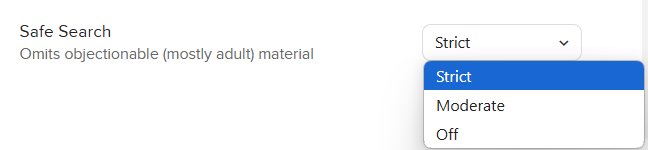
DuckDuckGo offers Strict, Moderate, and Off. Parents can choose a level from the results page or settings. They can also use safe.duckduckgo.com, which keeps Strict Safe Search enabled, or use the official URL parameter &kp=1. DuckDuckGo explains these options in its Safe Search help page.
3Ease of Control
DuckDuckGo makes Safe Search easy to adjust from its results page or settings. The safe.duckduckgo.com domain can also help families keep Strict filtering active, although a child may still switch to another search engine or browser unless a parent applies broader device or network controls.
Winner: Draw
4Filtering and Privacy
DuckDuckGo combines Safe Search settings with a privacy-focused search service. Its official documentation says the search engine does not build a personal search history, and its results are drawn from multiple sources, including Bing.
- Adult-content filtering. Strict or Moderate Safe Search can reduce adult results, although DuckDuckGo warns that some inappropriate content may still get through.
- Private search. DuckDuckGo says it does not save or share an individual's search or browsing history.
- User feedback. Users can report results that are not restricted appropriately so DuckDuckGo can review them.
5Effectiveness in the Original Test
In the original adult-content test, DuckDuckGo Safe Search removed the selected explicit webpages, images, and videos. Google filtered most inappropriate content but still showed one suggestive image.
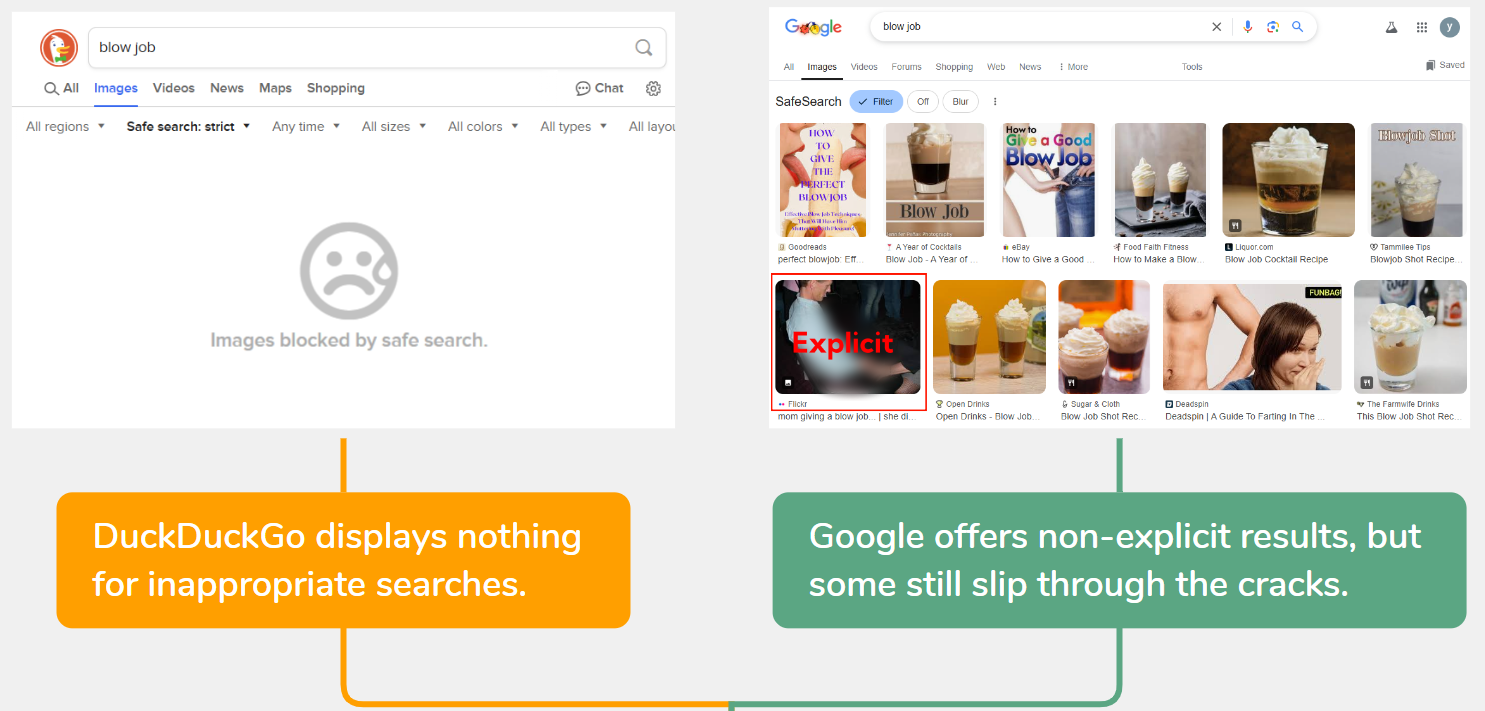
Winner for adult-content filtering in this test: DuckDuckGo Safe Search
DuckDuckGo also over-filtered one educational query about historical eroticism, while Google kept more educational results. Parents may need to balance strict filtering with access to legitimate health, history, or educational information.
For the selected violent-content query, DuckDuckGo still displayed graphic images and websites, while Google filtered more of them.
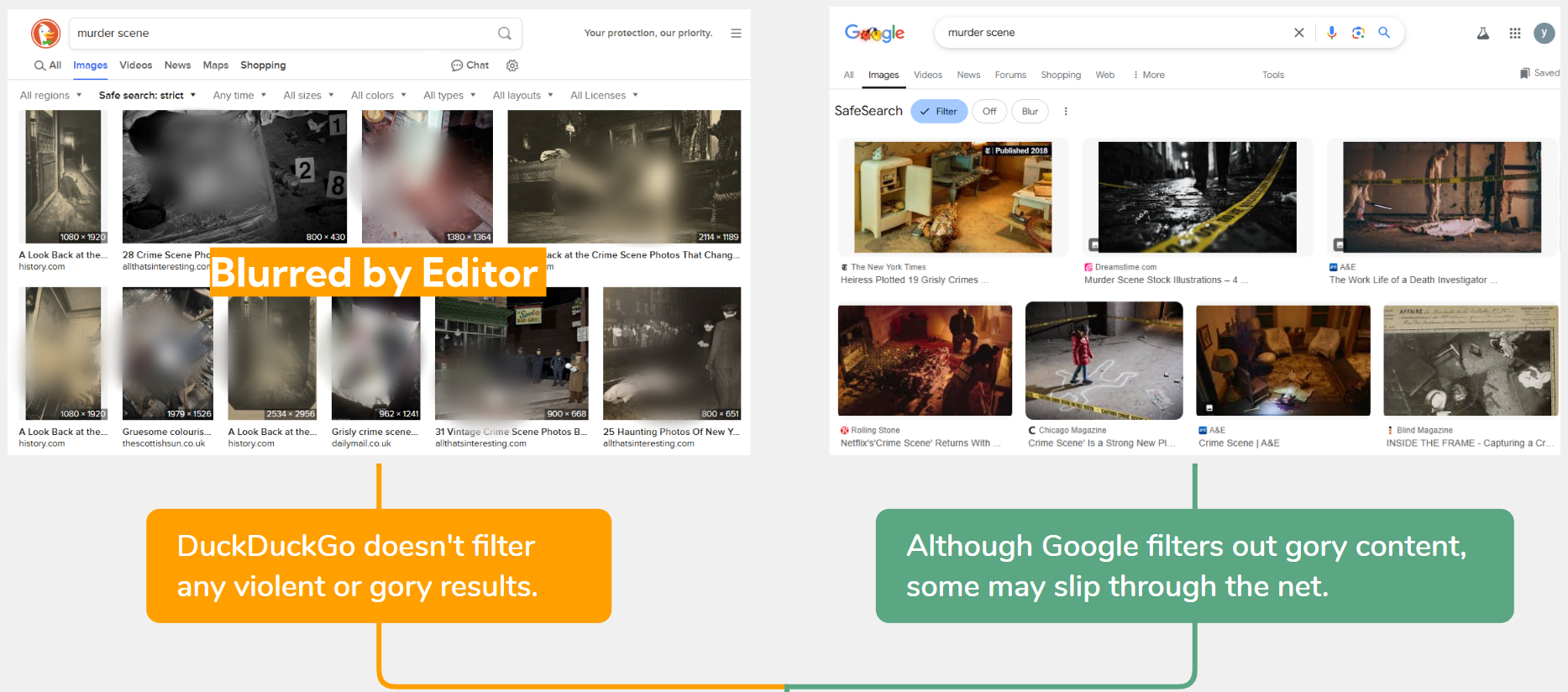
Winner for violent-content filtering in this test: Google SafeSearch
Add Broader Protection Beyond SafeSearch
SafeSearch only affects results inside the selected search engine. It does not stop a child from opening a website directly, using another search engine, browsing in an app, or seeing unsuitable content on social media. Parents who need broader support can combine SafeSearch with clear family rules and age-appropriate parental controls.
AirDroid Parental Control can help parents manage web access and respond to possible risk signals. Availability can vary by the child's operating system, permissions, app version, and setup.
- Review browsing patterns together. Parents can review supported browsing and search history with a child and use it to discuss safe choices rather than treating every entry as evidence of wrongdoing.
- Set website rules. Website restrictions can use allowed or blocked URLs and categories, depending on the child's device and configuration.
- Receive saved-image risk alerts. Inappropriate Image Detection can flag supported adult, violent, or other potentially inappropriate images saved to the child's device. An alert is a signal to check the context, not proof that the child intentionally sought the image.
- Support focused device use. Focus Mode and screen-time controls can help families protect study, sleep, and offline time.



Use these tools transparently and for a clear family-safety purpose. Explain what is enabled, agree on the rules with your child, and review the settings as the child becomes more capable of managing online risks independently.
Which SafeSearch Should Parents Use?
For parents, the best option depends on the type of search protection their child needs.
- Choose Google SafeSearch if you want explicit-content filtering that also officially covers graphic violence, especially for a child whose Google Account is managed through Family Link.
- Choose Bing SafeSearch if strong adult-content filtering is the priority and you can use Strict mode on the child's account, device, or network.
- Add Norton Safe Search if website reputation and warnings about phishing or malicious sites are important. Do not rely on it as the family's only explicit-content filter.
- Choose DuckDuckGo Safe Search if search privacy and adult-content filtering are the priorities, while recognizing that it does not promise broad violent-content filtering.
No SafeSearch tool is perfect. Parents should combine the selected filter with clear family browsing rules, explain what children should do when disturbing content appears, and review the setting as children become more capable of making safe choices independently.
If Google SafeSearch appears locked, see why SafeSearch will not turn off and how its management settings work.










Leave a Reply.