Fixed: No Active Device Used for Your Location on iPhone
Location sharing is one of the most valuable features of an iPhone. With this feature, you can rest assured that your loved ones are safe. However, have you been trying to share your location with someone on your iPhone but keep getting a message saying "No Active Device Used for Your Location?" If yes, we understand how frustrating it is, so there are practical steps to resolve it. Let's get started!
What Does No Active Device Mean on iPhone
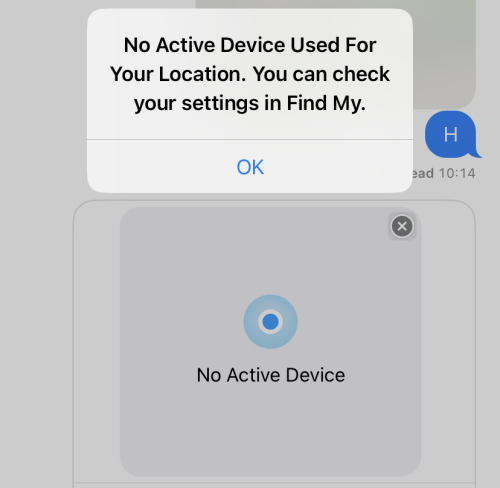
The "No Active Device Used for Your Location" error only appears when you try to share your location on iPhone via the Messages app. It means your iPhone cannot be used for sharing location due to:
- Find My app is disabled or not responding
- Poor or no network connection
- You've recently updated the iOS or made changes to your Apple ID
- The location sharing feature is not syncing properly with iCloud
How to Fix No Active Device Used for Your Location
Now that you know why does it say "no active device" when sharing location. Let's look at some practical ways to resolve this issue thoroughly.
1Reboot Find My and iPhone 

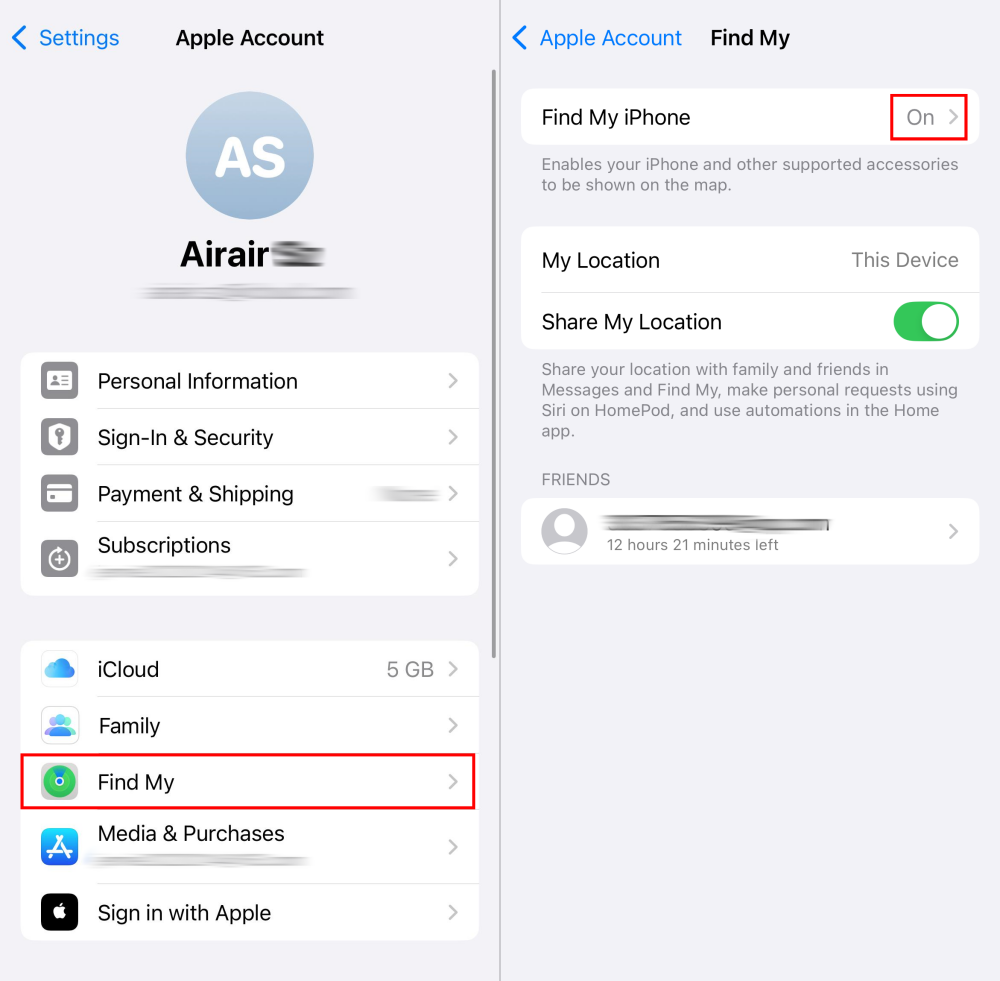
When Apple notifies you of "No Active Device Used for Your Location," it also suggests you check the Find My settings. So, the first step is to confirm you have enabled Find My iPhone.
If you have it activated already, same as me, try to re-enable it. Doing this will force your iPhone to re-establish its connection to iCloud and clear caches in the app. This solution has a high success rate, more than 20 Apple users have solved this problem with it. Here's how to turn off Find My:
- Step 1.Go to "Settings" and tap your name (Apple ID).
- Step 2.Select "Find My" and turn off "Find My iPhone."
⚠️However, one common mistake people make after turning off Find My is trying to turn it back on immediately. Doing this may not yield the best results. Instead, follow these steps before re-enabling Find My for optimal performance:
- Step 1.Enable "Airplane Mode" from the control center.
- Step 2.Power off your iPhone, wait a few seconds and then turn it back on.
- Step 3.Once your iPhone restarts, turn off "Airplane Mode" to reconnect to your network.
- Step 4.Go to "Settings," tap your name, and navigate to "Find My."
- Step 5.Toggle on "Find My iPhone," "Find My Network," and "Send Last Location."
- Step 6.Now, go to share your location, and you'll find the error message removed.
2Verify the Location Service Is On
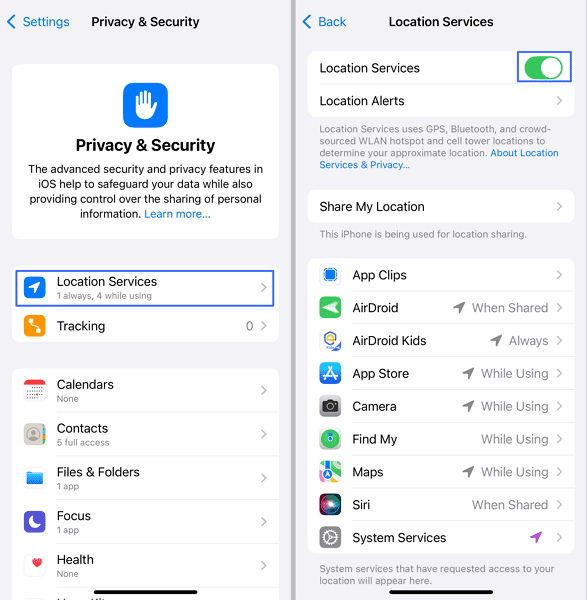
Location sharing is highly dependent on location services. If location services are off, your device may not be designated as the active location-sharing device, and features like Find My and location sharing won't function optimally. So, it is best to confirm the location service is on if you're getting a message like "No Active Device Used for Your Location."
- Step 1.Go to "Settings" and select "Privacy & Security."
- Step 2.Tap "Location Services" and ensure it is enabled.
3Accept New iCloud Terms and Condition
Have you updated the iOS recently? If yes, you may experience this issue. Apple occasionally updates its iCloud Terms and Conditions, especially after releasing updates. If you haven't accepted these updates, some iCloud-dependent services like Find My and location sharing may not work properly until you agree to the new terms.
To do so, just open iPhone "Settings." If new terms are available, a prompt to review and accept them should appear. Read through the terms and tap Agree to accept.
4Sign Out of Apple ID and Back In
No active device for sharing location could be because the location-sharing feature is not syncing properly with iCloud. When this occurs, iCloud Find My might be disconnected from the Apple server, consequently leading to the error "no active device used for your location iPhone."
Thankfully, when you sign out of Apple ID and back in, it will force iCloud to reinitialize and re-authenticate your account, thus clearing temporary glitches that could prevent location sharing. So, head to "Settings" to sign out of your Apple ID and log in.
5Reset the Internet Connection
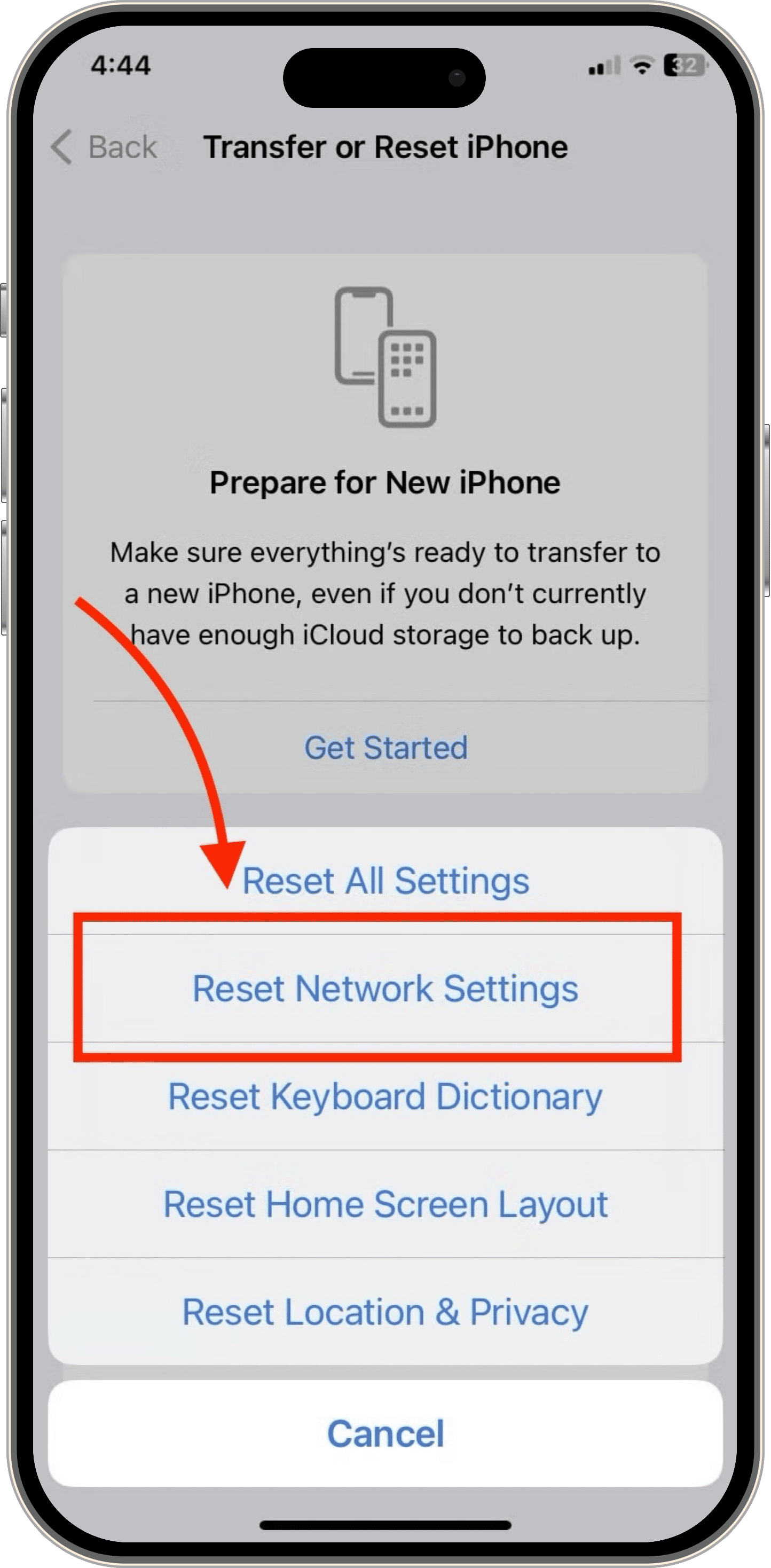
This solution is said by an Apple user who successfully fixed the "No Active Device" error. Resetting your internet connection makes it very easy for iCloud to properly sync your location data. To reset the network on your iPhone:
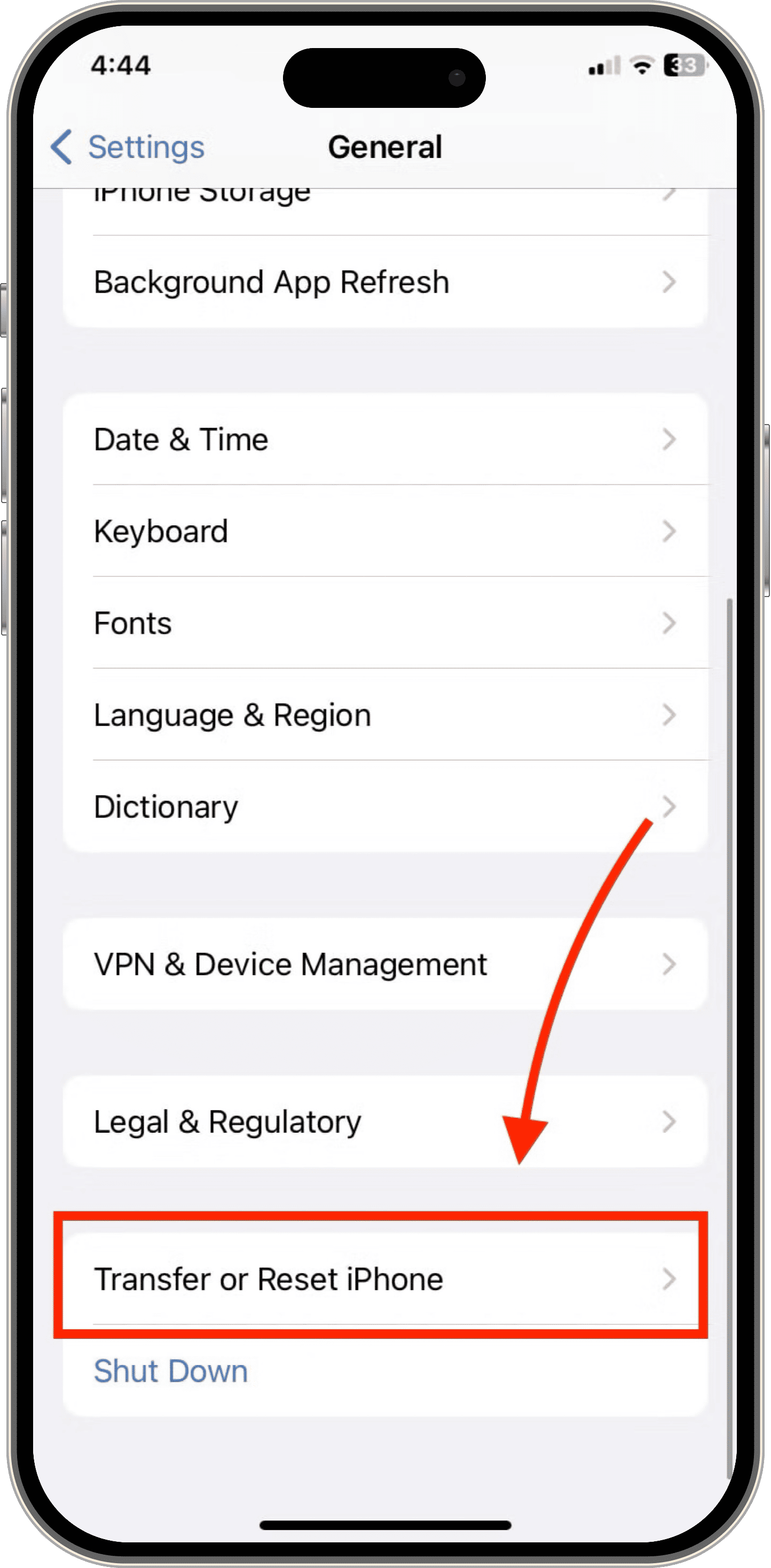
- Step 1.Tap "General" in the "Settings" app.
- Step 2.Select "Transfer or Reset iPhone."
- Step 3.Tap "Reset" and then "Reset Network Settings."
 |  |
6Request Location Sharing
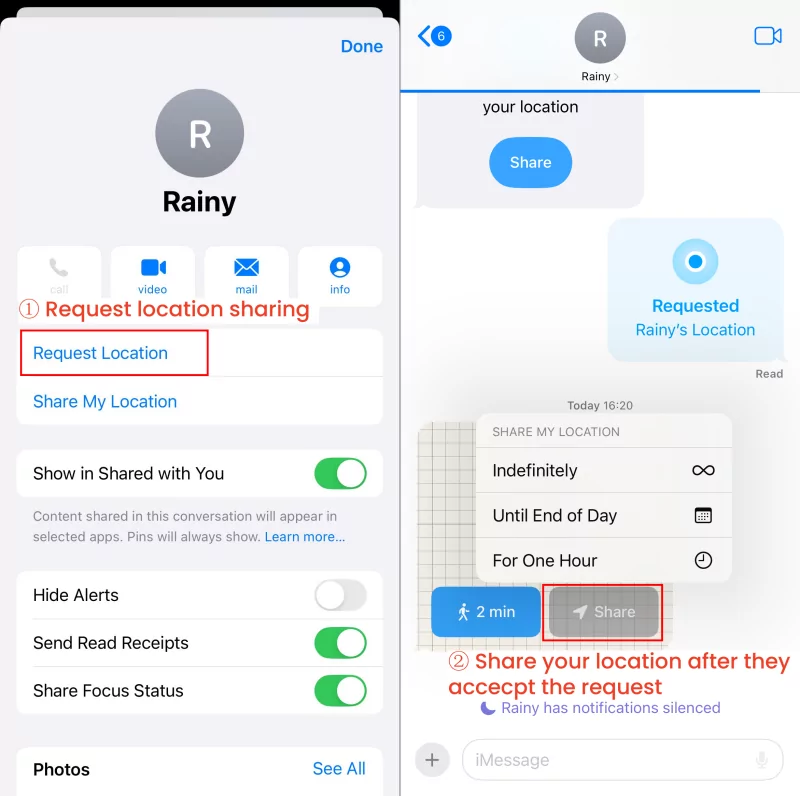
If you can't launch location sharing on your iPhone, why not request others to share location with you? Once the other party accepts your location-sharing request, you can view their location and share yours as well.
Now, request location to achieve location sharing indirectly by these steps:
- Step 1.Launch the "Messages" app on your iPhone.
- Step 2.Select the conversation with the person you want to share the location but fail.
- Step 3.Tap the person's name at the top.
- Step 4.Select "Request Location" from the menu that appears.
- Step 5.When they accept it, you can also share your location.
Best Way to Share Your iPhone Location without Glitches
Even though iPhone location-sharing features are free to use, they often come with frustrating challenges. Imagine you have to keep fixing different issues like "no active device used for your location" or "location not sharing" just to share your location with your loved ones.
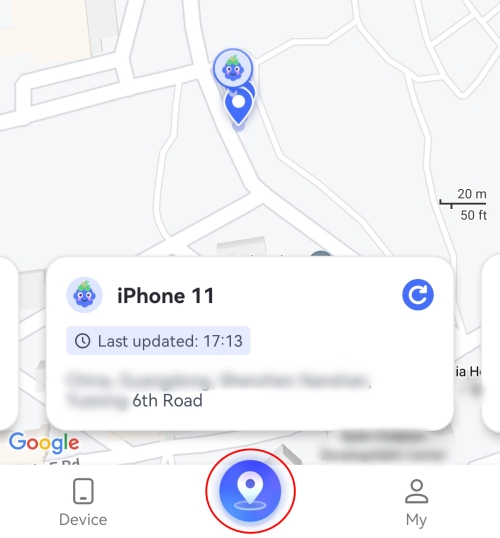
If you're tired of these constant hiccups, we've got good news! AirDroid Family Locator makes sharing and tracking locations simple and seamless. Apart from that, this app keeps location records for up to 30 days. Here's how to use AirDroid to share location with your family:
- Step 1.Download AirDroid Family Locator on your device.
- Step 2.Open it and follow the in-app instructions to bind your family members' devices.
- Step 3.Once done, go to the "location" control panel to view their shared location.
Conclusion
When encountering the "No active device used for your location" error on your iPhone while trying to share your location, several factors might be causing this issue.
Thankfully, there are practical solutions to address this issue, such as turning off the Find My feature and then enabling it. For a more reliable and hassle-free way to share your loved ones' locations, consider using AirDroid Family Locator.











Leave a Reply.