If you want to adjust controls on your child's device, or you're the device owner and no longer wish to have app and content limits in place. This guide will show you how to turn off restrictions on iPhone using multiple methods, even if you don't have a passcode.
What is Restricted Mode on iPhone and Why Disable It?
Restricted Mode is a part of the Screen Time feature available across all Apple devices. You can use Restrictions on your iPhone to:
As a parent, it makes sense to adjust content restrictions as children grow older. You might want to disable iPhone restrictions to:
- Modify or remove app usage limits imposed by Screen Time
- Allow access to certain apps or features
- Update privacy settings for new apps or features
- Remove outdated restrictions that no longer serve their purpose
- Allow your kids access to all content during holidays or special occasions
For regular users or if you're a child, you may turn off restrictions to:
- Install apps (including age-restricted ones) that are currently blocked
- Remove self-imposed Screen Time limits
- Remove parental controls
- Enable features needed for work or study
- Regain full control of your device settings and features
Turn Off Restrictions on iPhone with a Passcode
The process becomes quick and simple if you have the Screen Time passcode with you. Don't confuse this with your device passcode—they're different.
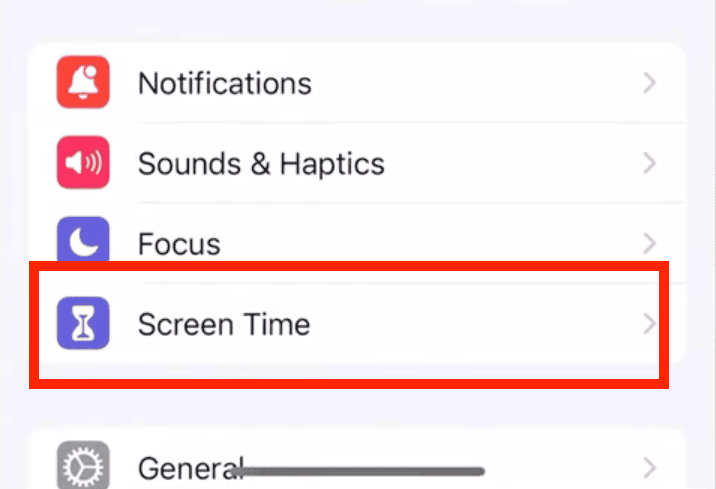
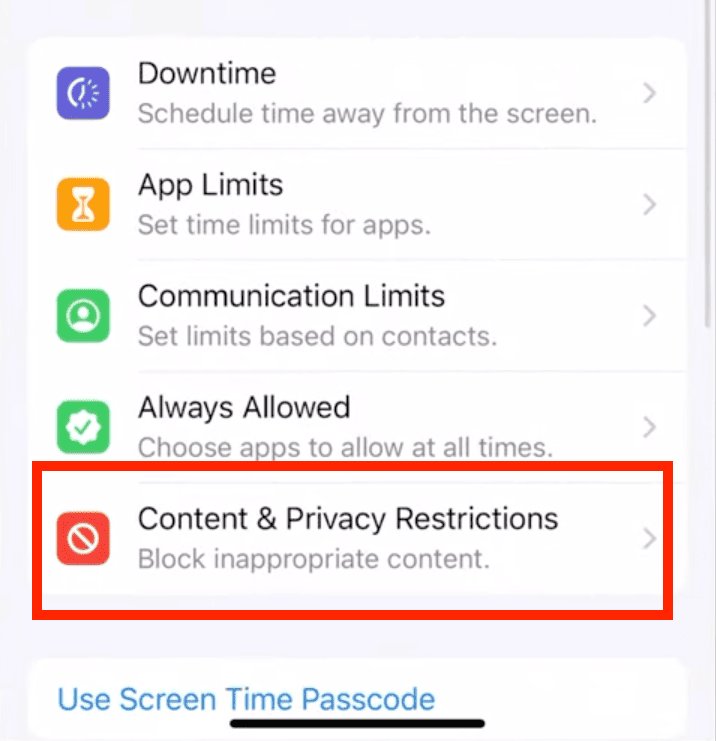
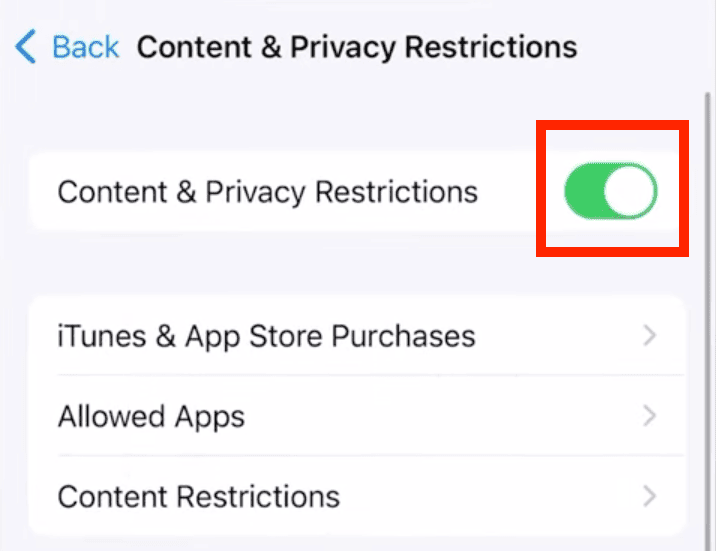
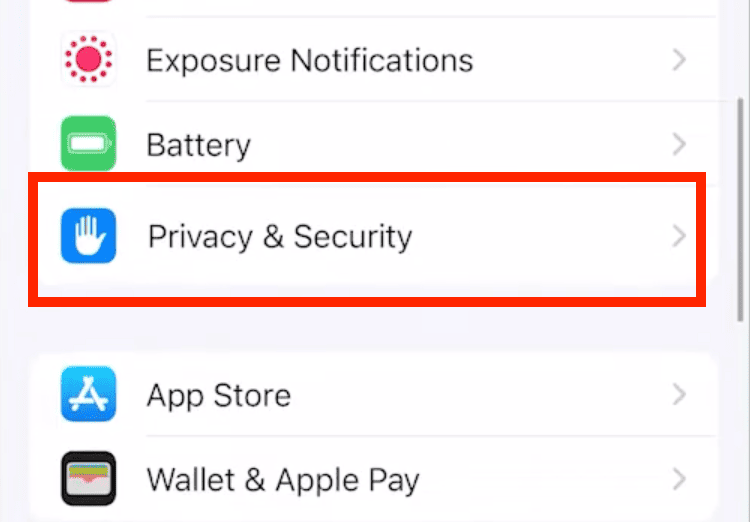
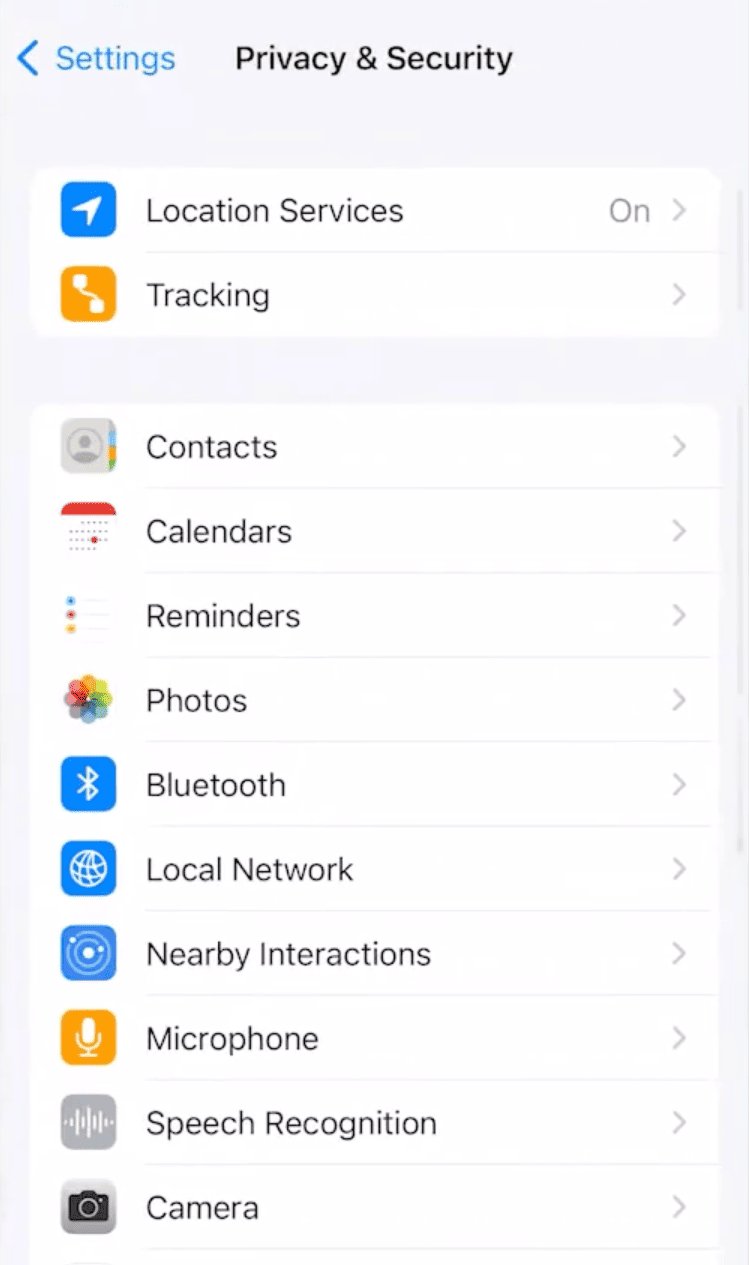
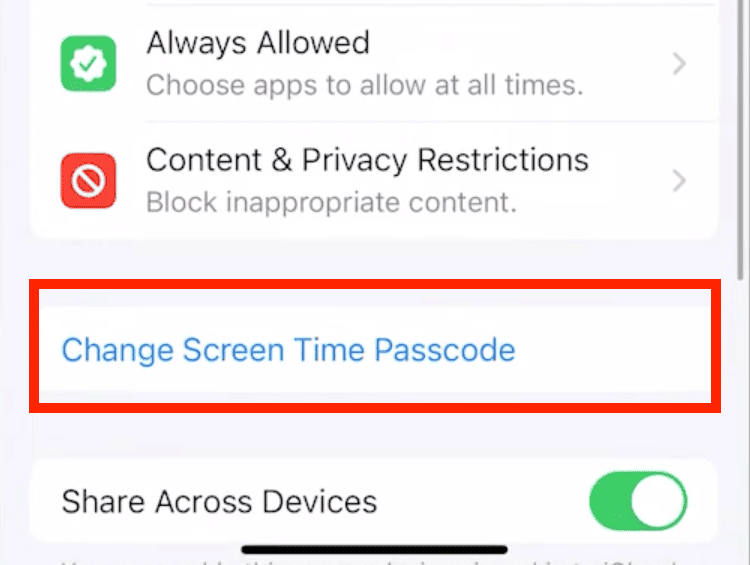
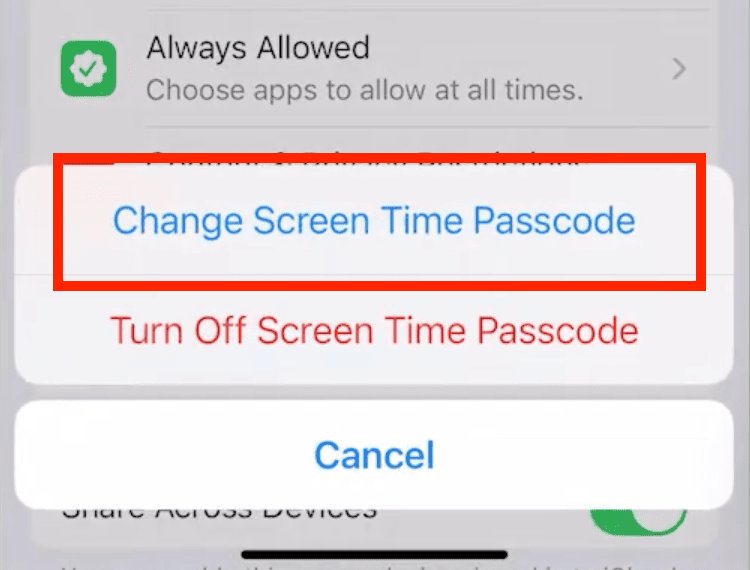
Here's how to disable restrictions on iPhone and iPad using Screen Time:
All restrictions will be removed immediately. Remember that these changes affect all devices using the same Apple ID.
Tip: If you want to access only certain apps, go to Settings > General > Content & Privacy Restrictions > Allowed Apps and enable all the apps you want to access.
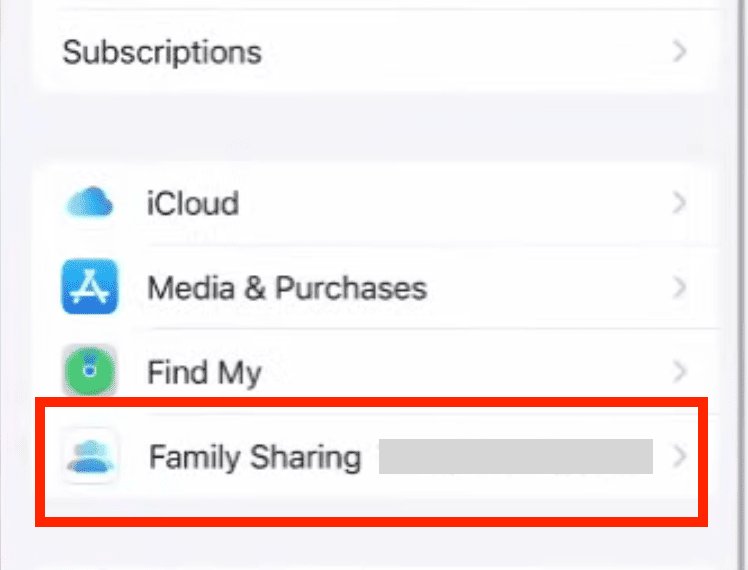
Turn Off Restrictions via Family Sharing (Only for Family Organizer)
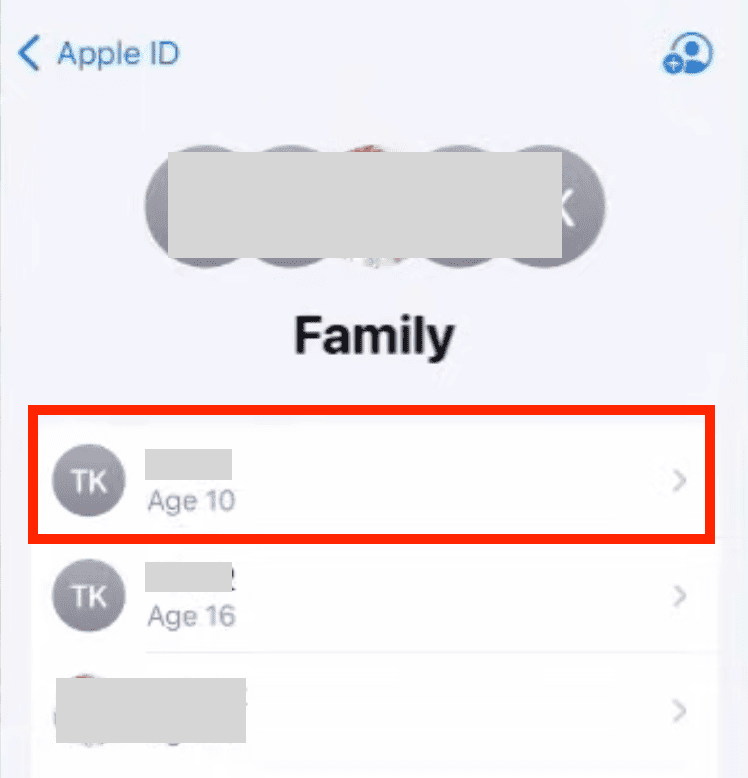
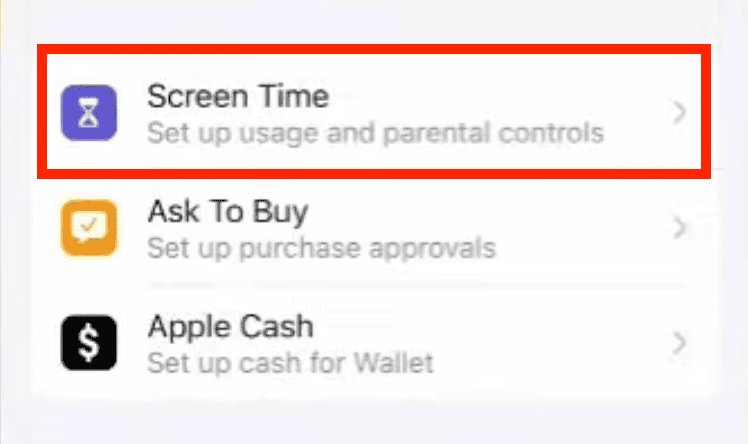
Apart from Screen Time, if you are the Family Organizer you can turn off restrictions set on other family member's devices remotely.
Once done, changes will apply immediately. Make sure to inform other family members about changes.
How to Disable Specific Content Restrictions on iPhone?
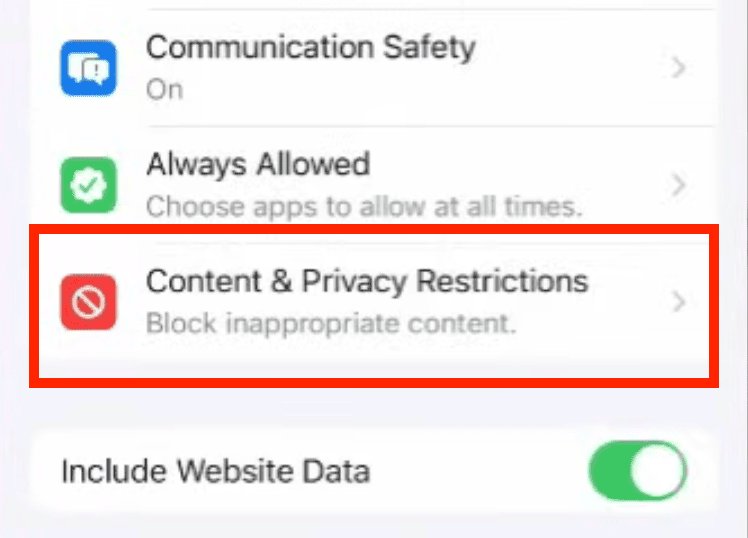
If you only want to disable restrictions for certain apps or some specific content—such as the App Store or website access—it's easy to do that. Here's how:
Unlocking the App Store
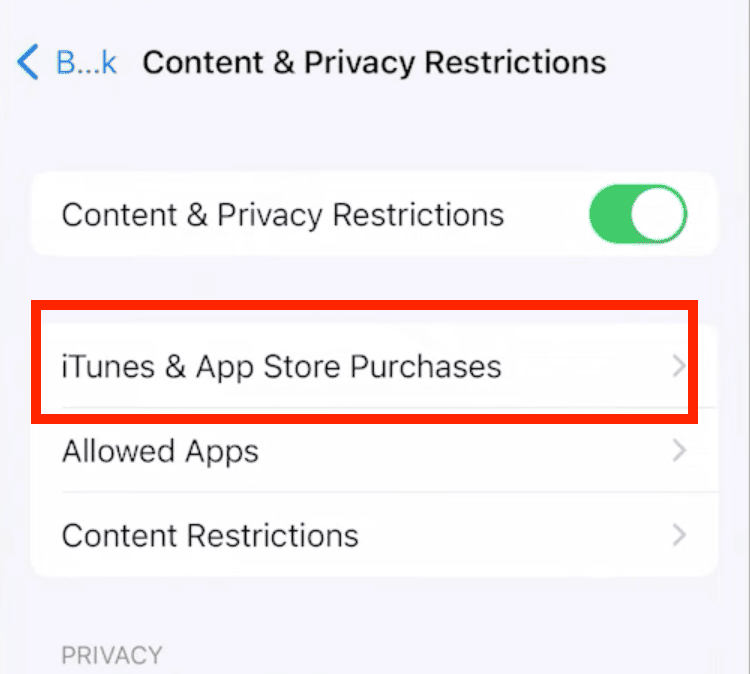
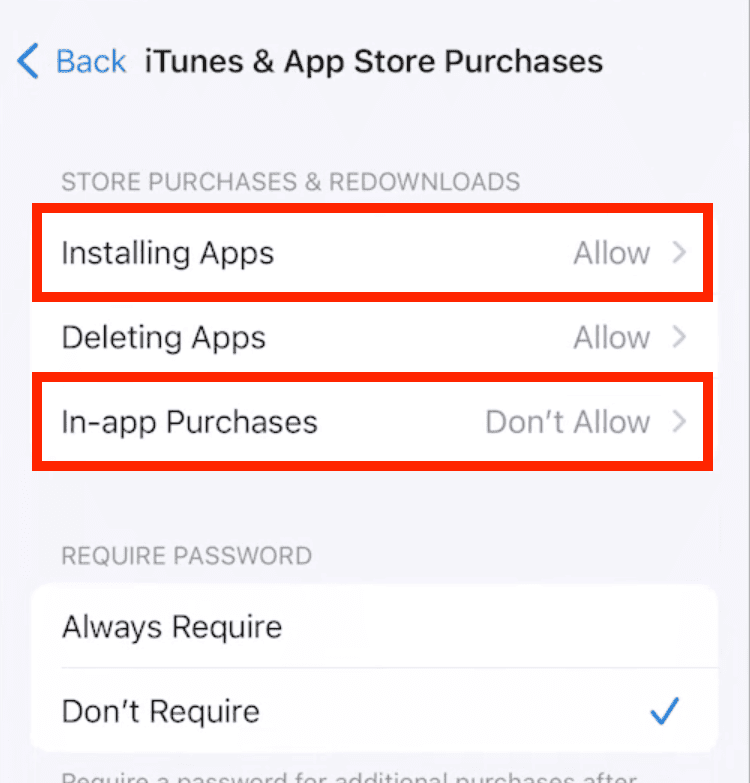
To regain access to the App Store using Screen Time restrictions, follow these steps:
You'll be able to download new apps and make in-app purchases after doing this.
Disabling Website Restrictions
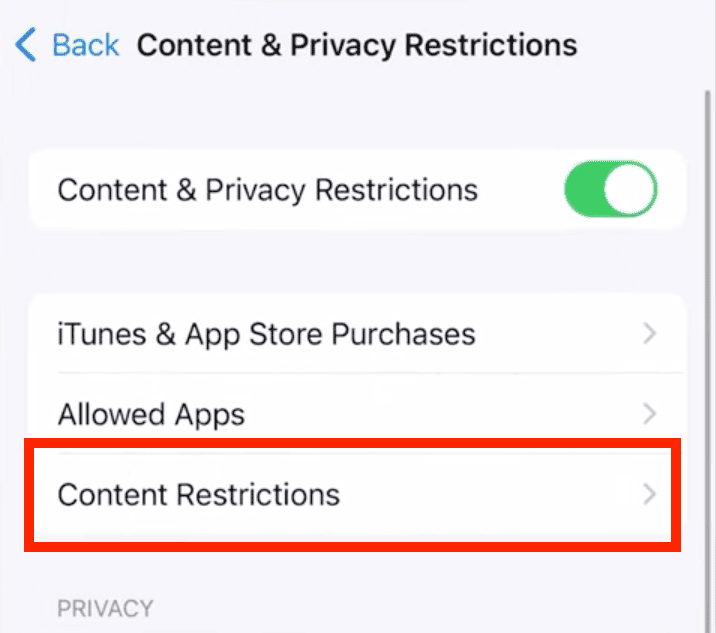
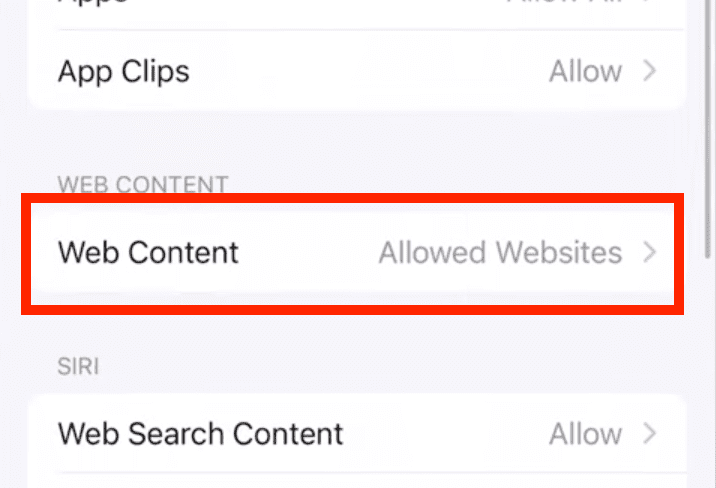
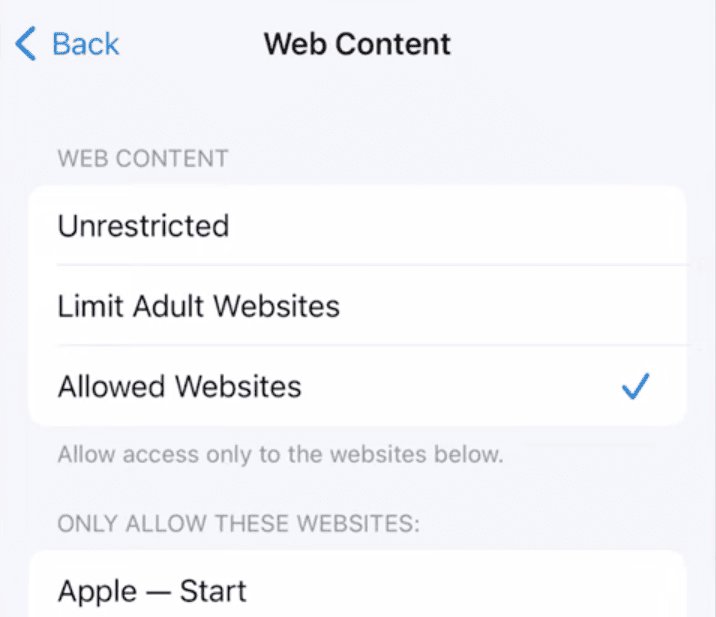
Some websites might still be blocked by other filters. If content filtering is blocking websites, you can adjust these settings:
Apart from websites, you can use this method to allow other types of content like explicit music or movies. You'll find these options in the Content Restrictions menu as shown in the steps above.
Changing Privacy Settings
You can also review each app's permissions individually using "Privacy" settings on your iPhone.
This is useful when you want to manage how apps access sensitive features—like your location, camera, or microphone.
You can adjust permissions for individual apps by going to each app's settings. Note that some apps might need to be restarted to apply changes.
How to Turn Off Restrictions on iPhone Without a Passcode?
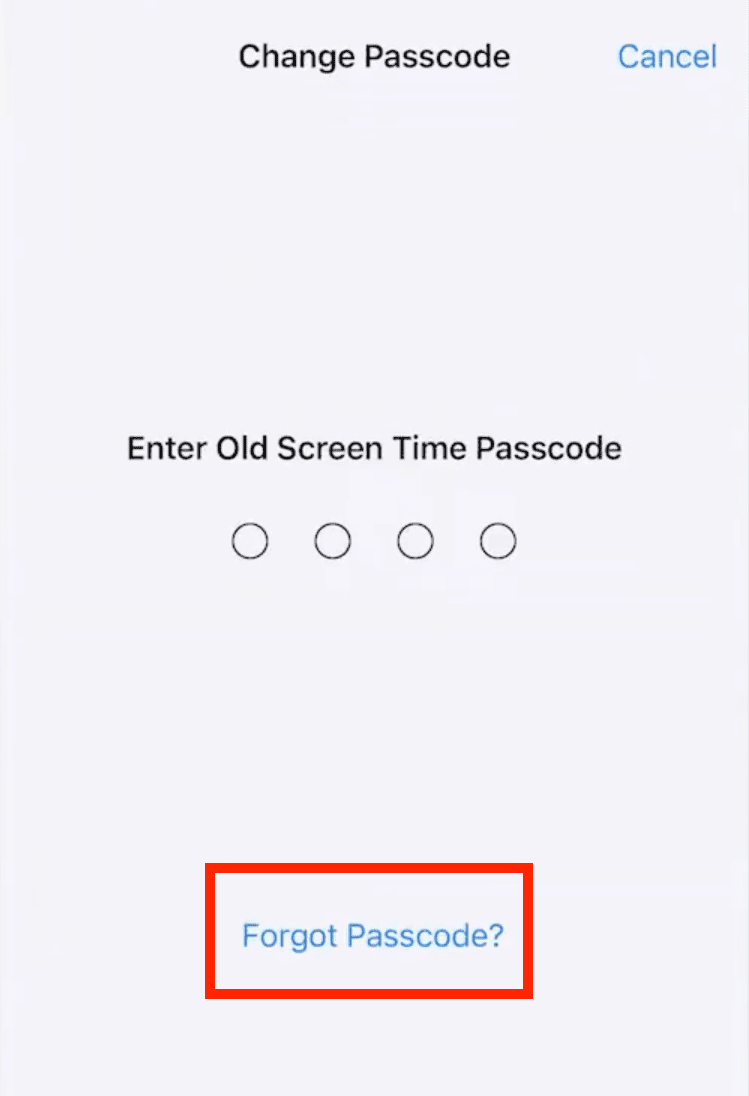
Things get a little tricky if you don't have the Screen Time passcode or can't remember it. But you're not out of luck yet!
The following solutions show how to turn off restrictions on iPhone without a password:
Use Apple ID to Reset the Screen Time Passcode
Earlier, we mentioned that the Screen Time passcode is different than your Apple ID passcode. The latter will come in handy this time.
If you do remember the Apple ID passcode, you can use that to reset the Screen Time passcode as follows:
Sometimes, two-factor authentication is required to reset the passcode. Make sure to enter the correct credentials, and remember to keep your new passcode secure. Once you've reset the passcode, you can turn off restrictions as normal by using the methods discussed above.
Log in From the Parent's Account and Disable It
If the parental restrictions are set up using Family Sharing settings, the only way to remove them is via the organizer's account.
You need to ask the family organizer (generally the parent) to sign in and remove restrictions. Or, if you know their Apple ID and passcode, then you'll be able to do that on your own.
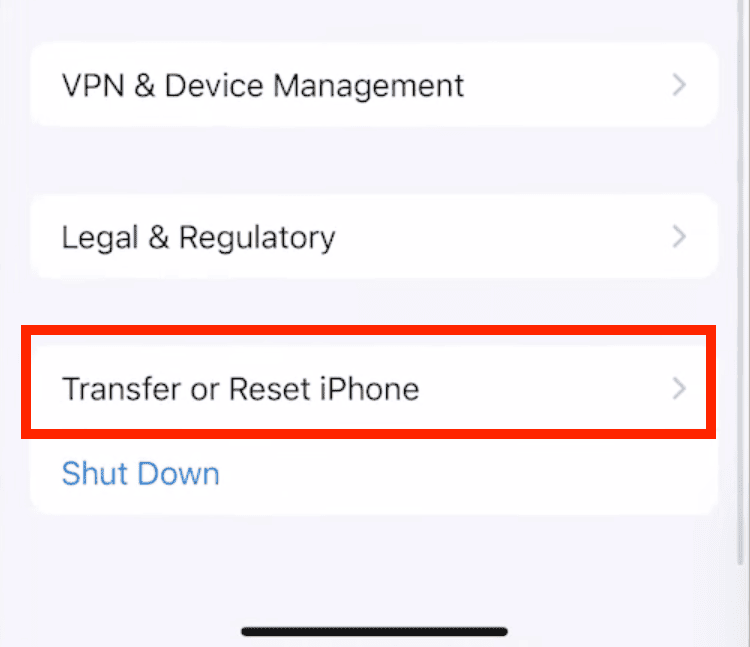
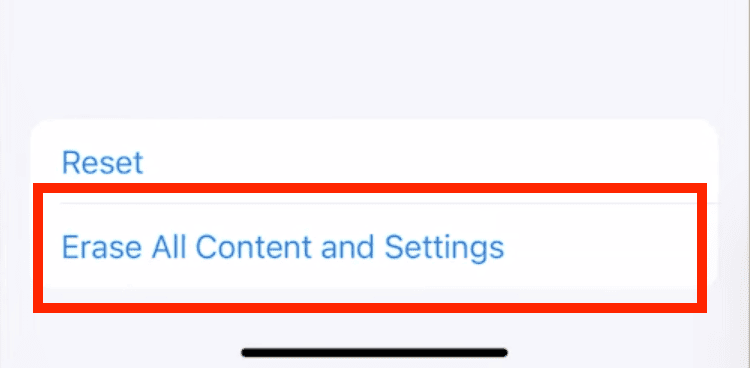
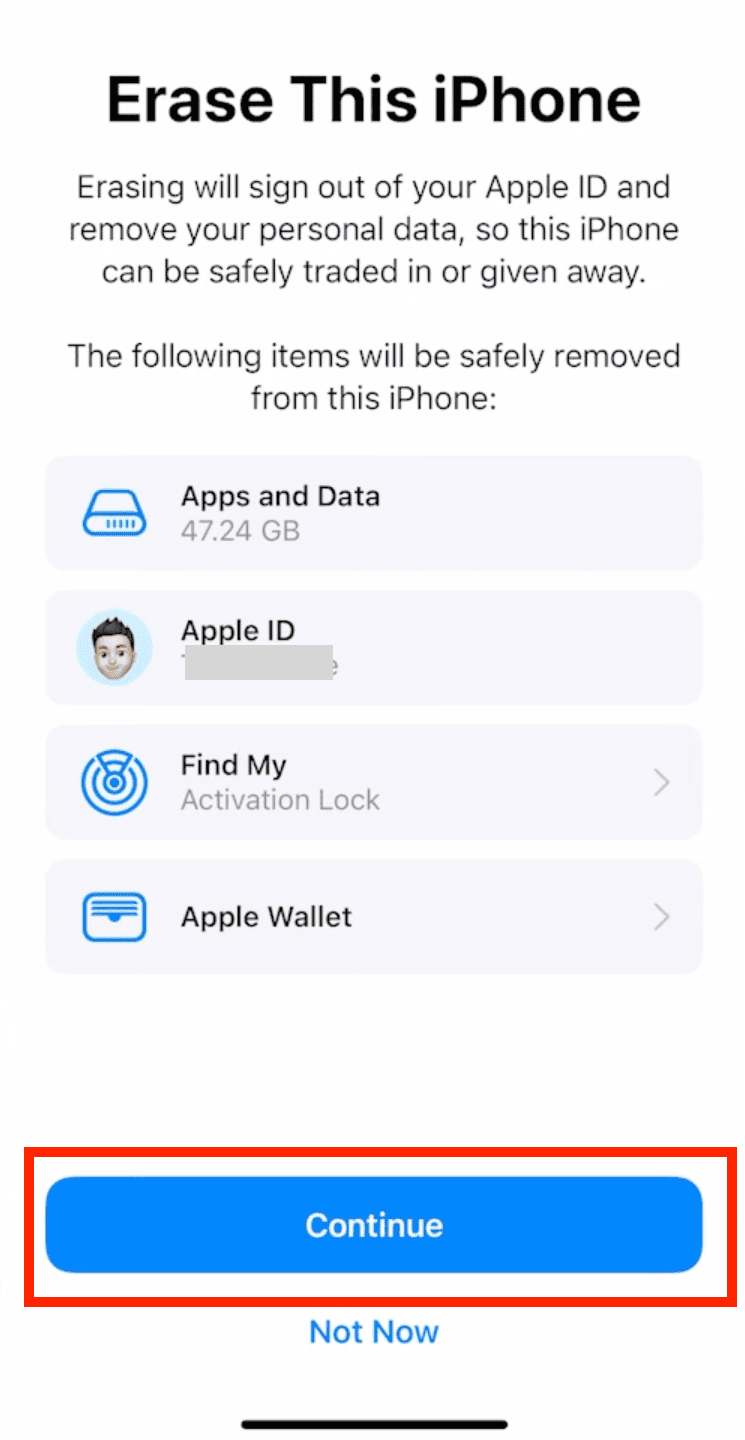
Factory Reset the Device
Factory reset is the last resort and should only be considered if nothing else works. This will erase all the data on your device, and you'll need to set it up again.
Make sure you have a backup if you want to regain your personal data, and then proceed as follows:
Contact Apple Support
If you don't remember either the Screen Time passcode or your Apple ID passcode, then unfortunately, you can't turn off restrictions on your device.
The only option you're left with is to contact Apple Support and let them know your problem. You will need to verify device ownership and follow their guidance as instructed.
You can get in touch with Apple Support by visiting the nearest Apple store, online by visiting getsupport.apple.com, or by reaching out to Apple Support on X (formerly Twitter).
Turn Off Restrictions on iPhone: Final Thoughts
Turning off iPhone restrictions is straightforward if you have the Screen Time passcode. But even without a password, you have several options to regain device control as discussed in this guide.
Remember that restrictions serve a purpose and may be required for appropriate device usage. Parents should gradually remove restrictions on their kid's device rather than all at once. Also, make sure to set up basic security measures even after removing restrictions.
Best Parental Control App for Keeping an Eye on Your Child
AirDroid Parental Control allows parents to monitor kids' online and offline activities anytime and anywhere, ensuring 24/7 safety.
Free Trial
FAQs
Why Can't I Turn Off Restrictions on iPhone?
You won't be able to turn off restrictions if someone else has set up a Screen Time passcode or Family Sharing controls on your device.
You'll need their permission or the Screen Time passcode to remove them. Sometimes, restrictions might be part of a school or work profile.
What Happens if I Disable Restrictions on My Child's Device?
When you disable restrictions on your child's device, they'll be able to access previously blocked apps (such as Roblox or YouTube), browse the web without filters, and modify device settings.
Also, there won't be any limit to their screen time or app usage. This may expose your child to restricted content or apps, so be mindful of the settings and keep basic safety features enabled.









Leave a Reply.