Switching to a different Apple account
Fix:Prevent the Apple account changes
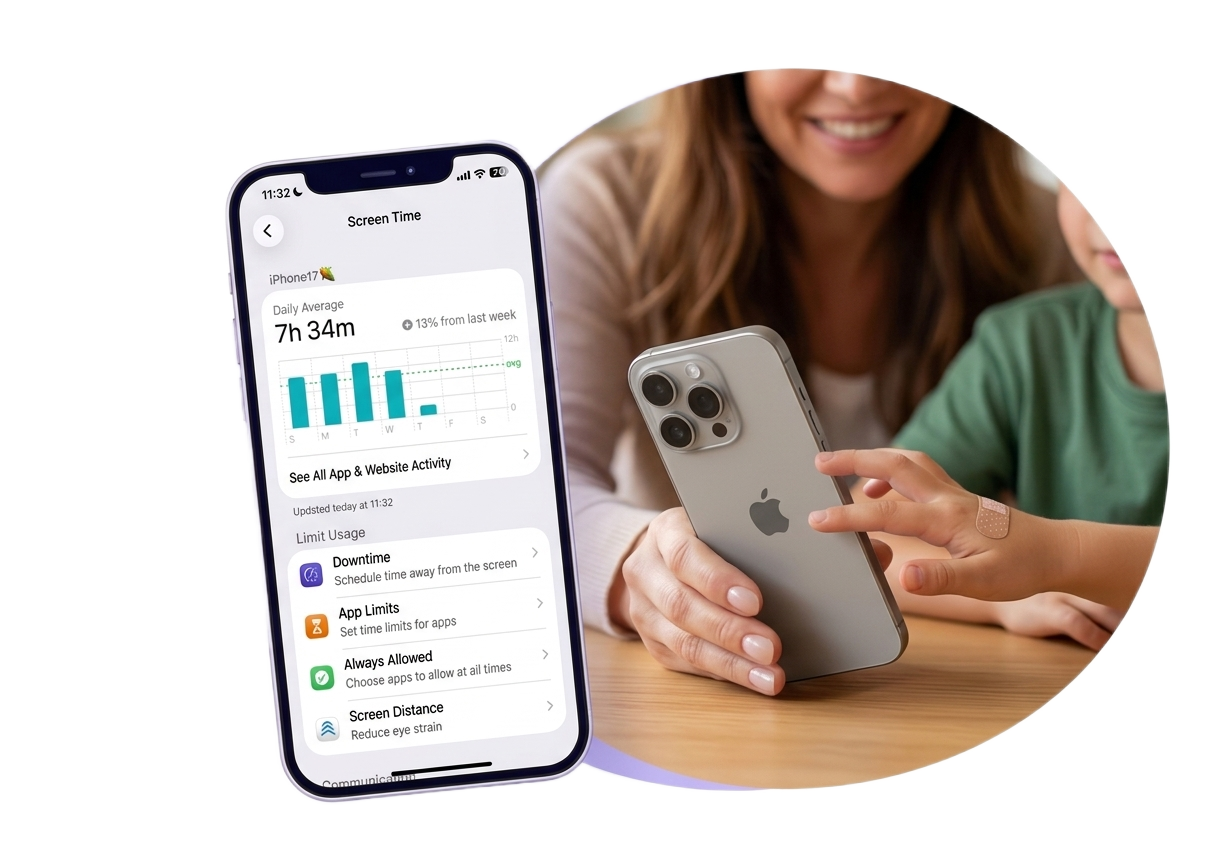
So your child can't adjust or undo your settings.
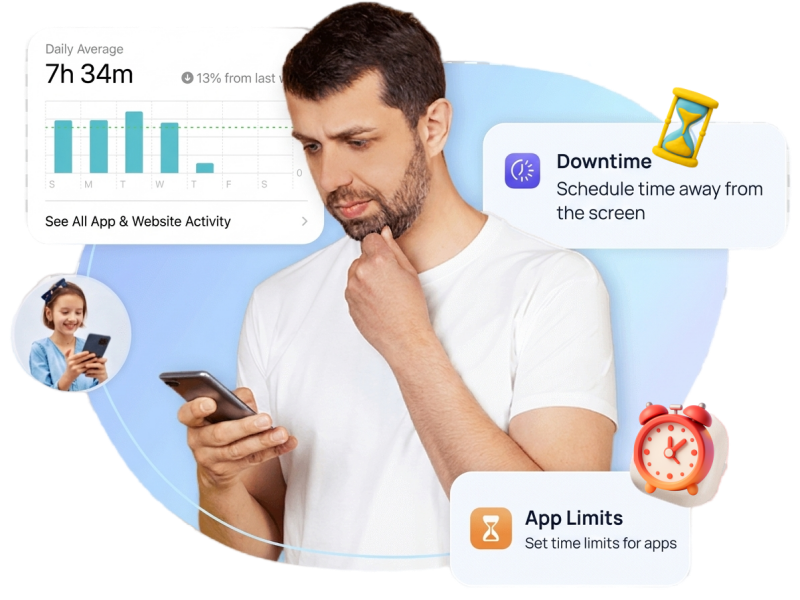
Set time limits for addictive apps like social media or games.
Create "offline hours" for bedtime, homework, or school.
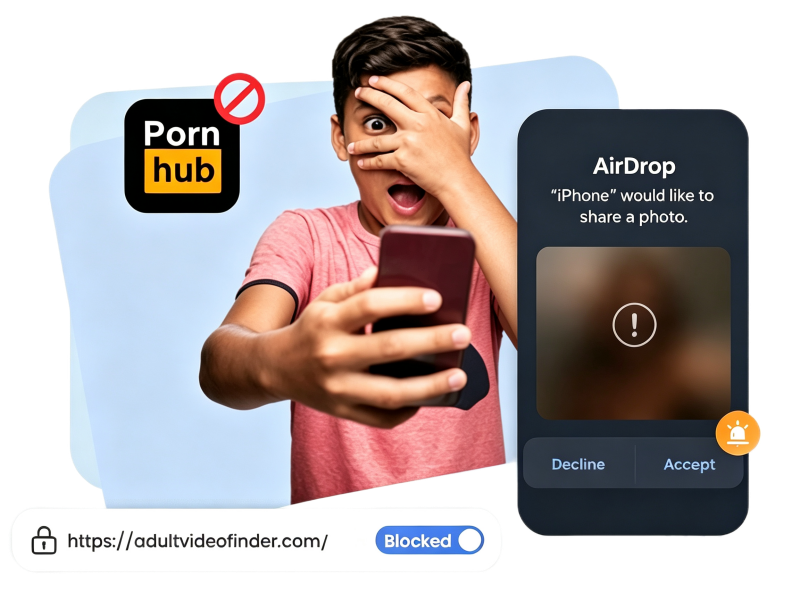
Filter adult websites, explicit music, and age-inappropriate apps.
Use a kid-safe browser instead.
Block strangers from contacting your child through calls, messages, or in-game chats.
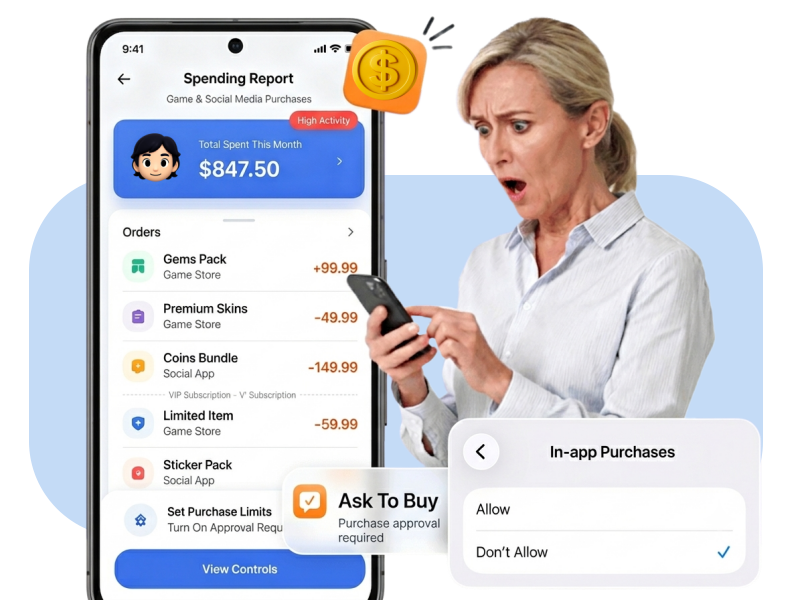
All app downloads and purchases require parents' approval.
Set "Don't Allow" for child's in-app purchases.
Avoid one-tap accidental purchases.
Enable real-time location sharing between family members.
Prevent children from changing location settings or stopping location sharing.
Teach your child how to quickly contact help in emergencies.
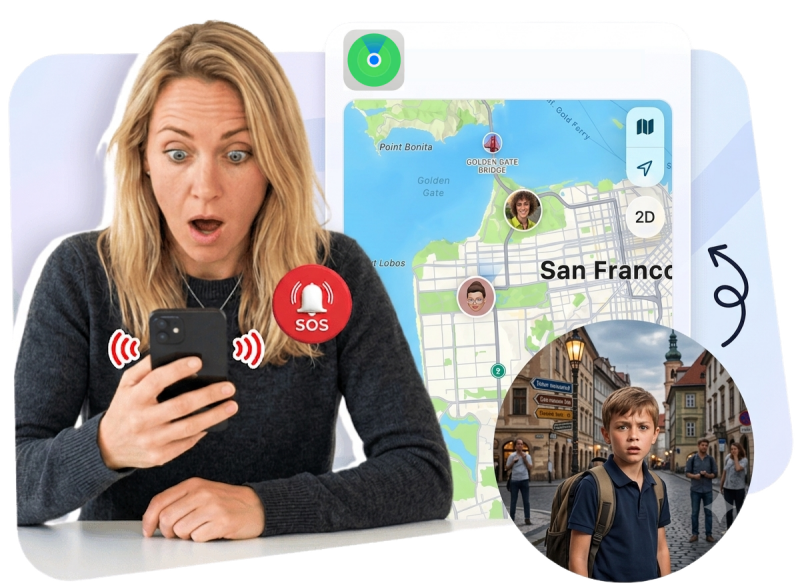
Go to "Settings > Screen Time > Your child's name > Stop Managing [Child's] Screen Time." You'll need to enter your Screen Time passcode to confirm. Note that Screen Time does not turn off automatically. However, when your child turns 18, they can choose to leave the Family Sharing group and manage their own Screen Time settings.
Yes! Though Apple's Screen Time require an iPhone or iPad on the parent's end, a cross platform parental control app like AirDroid lets you manage your child's iPhone remotely from any device.
Yes. Once you've added your child to your Family Sharing group, you can remotely manage their Screen Time from your own iPhone. To lock your child's iPhone, use features, such as Downtime and App Limits.
Yes. Navigate your child's Screen Time settings on your iPhone, select "App Limits" to see a full breakdown of their installed apps.
You can limit or block YouTube in several ways. Use App Limits or Downtime to block the YouTube app. For younger children, consider restricting access to the YouTube website through Content & Privacy Restrictions.
14,430,300 Parents Choose AirDroid Parental Control for iPhone!

Uninstall Protection

Co-Parenting Made Easy

One Account Multiple Devices

GDPR Compliance