iOS Parental

  • Why Can't I See My Child's Location on iPhone? How to Fix?
  • Screen Time App Limits Not Working on iPhone? Try These Fixes
  • How to Completely Remove Private Browsing on iPad [For Parents]
  • How to See Someone’s Location on iPhone Messages
  • How to Delete Apps on iPad with Parental Control? Why Can't Delete?
AirDroid Parental Control

Safeguard your kids all-round and ensure online balance

Scan the QR code with your mobile device to get it for free

Try It Free Via Web

How to Turn Off/On Sleep Mode on iPhone

Elsa Updated on Mar 10, 2025 Filed to: iOS Parental

Have you ever missed an important message when your iPhone on sleep mode? Or maybe you just don't want your iPhone to limit notifications at night? Sleep Mode is a helpful feature that reduces distractions and helps you sleep better.

But sometimes you might need to turn it off—for work, emergencies, or personal reasons. In this guide, we'll give you quick steps to turn off Sleep Mode (or turn it on) so you can control when your iPhone stays quiet.

  • Part 1: What is Sleep Mode on iPhone
  • Part 2: How to Turn Off/On Sleep Mode on iPhone
  • Bonus: Prevent Your Kids from Getting Addicted to Their Phones

Part 1. What is Sleep Mode on iPhone

Sleep Mode is an iPhone setting that's designed to assist you in sleeping better. It silences notifications, dims the lock screen, and minimizes bedtime distractions when you enable it. In Sleep Mode, only some apps and contacts you allowed can get through. It can help you develop a consistent sleep schedule.

Note : With the same Apple ID, Sleep Mode can be turned on or off on all of your devices.

Part 2. How to Turn Off/On Sleep Mode on iPhone

While Sleep Mode is convenient, some prefer to turn it off for certain reasons. Now let's learn how you can turn sleep mode off iPhone.

1Turn Off Sleep Mode on iPhone Manually

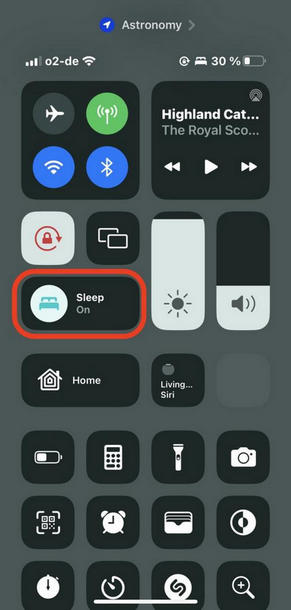
You can deactivate Sleep Mode straight from the Control Center:

  1. Step 1. Swipe down from the top-right corner of your iPhone screen (if your iPhone has Face ID). If your iPhone has a Home button, swipe up from the bottom.
  2. Step 2. In the left menu, click on the "Personal info" tab
  3. Step 3. Long press the "Focus" button in the Control Center.
  4. Step 4. Tap the "Sleep" status indicator to turn it off.
  5. turn off sleep mode on iphone

2Turn Off Bedtime Settings Automatically

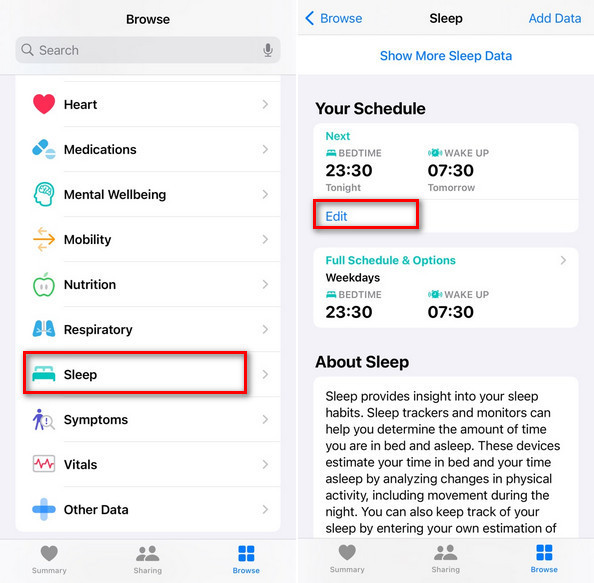
If you'd prefer Sleep Mode to turn off automatically at a certain time, you can adjust it in the Health app:

  1. Step 1. Open the Health app on your iPhone.
  2. Step 2. Tap Browse at the bottom of the screen.
  3. Step 3. Select Sleep and go to Your Schedule.
  4. Step 4. Tap Next, then Edit your schedule.
  5. Step 5. Type in the time you'd like Sleep Mode to turn off. It will turn off automatically at wake up time.
turn off sleep mode on iphone using health app

If you want to turn off sleep mode permanently, choose Full Schedule & Options after step 3, then disable Sleep Schedule.

Tip: If you have another Apple device (like an iPad or Apple Watch) logged into the same Apple ID, disabling Sleep Mode or iOS sleep mode on one will sync across all of them.

Editor's Experience

I disabled sleep mode iPhone one night because I was waiting for an important message. Bad idea! I got tons of notifications that really disturbed my sleep. Because Sleep Mode usually silences notifications! I also found my phone was nearly power off. Sleep mode usually limits background app refreshes and activities. When being turned off, apps will run more frequently. So it might not good for our battery life.

Moreover, if you utilize sleep to collect sleep data, turning off Sleep Mode will make your iPhone unable to track them. So if you are particular about sleep quality and battery life, it's better not to turn sleep mode off on iPhone.

Note: Some users have reported a bug in iOS 17 where Sleep Mode gets stuck. If this happens, update your iPhone software in Settings > General > Software Update to fix the issue.

Bonus: Prevent Your Kids from Getting Addicted to Their Phones

Getting enough sleep for children is important, but relying on Sleep Mode alone may not be enough. Since it is simple for kids to turn it off, they can still stay up late into the night gaming or viewing videos. This can lead to poor sleeping habits, affecting their health, focus, and energy during the day.

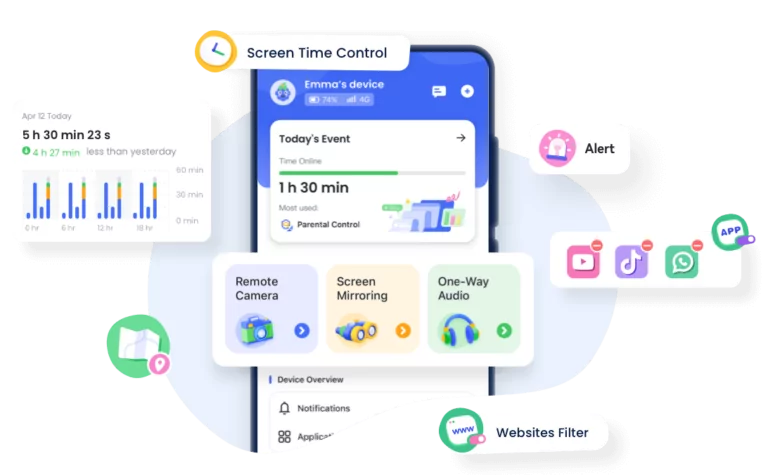
AirDroid Parental Control is a good platform for patents. Parents can set a routine for your child and lead them to follow better sleeping habits.

  • Set downtime: Restrict phone usage during sleeping hours.
  • Block unwanted apps: Block access to distracting apps like games and social media.
  • Monitor screen time: See how much time your child is spending on their device.
safeguard kids

Conclusion

iPhone Sleep Mode can help you stay concentrated and form better sleeping habits. If you need to turn it off, you can manually turn it off from the Control Center or adjust the settings in the Health app. Keep in mind that turning it off will mean more notifications, battery drain, and no sleep tracking. For parents, Sleep Mode alone may not be enough to control kids' screen time. Using an app like AirDroid Parental Control can help in setting boundaries and encouraging good sleeping habits.

FAQ

1. What happens in Sleep Mode on an iPhone?
Elsa
Elsa
When Sleep Mode is turned on, your iPhone silences notifications, dims the lock screen, and minimizes distractions. It also helps track your sleeping patterns if you have sleeping schedules set up in the Health app.
2. What is the difference between Do Not Disturb and Sleep Mode?
Elsa
Elsa
Do Not Disturb silences all notifications but won't track your sleep or set schedules. Sleep Mode is part of the Health app and is designed to help you improve your sleep by silencing notifications, minimizing distractions, and working in conjunction with bedtime routines.
3. Where is the Sleep button on an iPhone?
Elsa
Elsa
There isn't a direct "Sleep" button, though you can activate Sleep Mode in the Control Center (swipe down from the top-right corner) under Focus Mode or via the Health app in Sleep settings.
4. What is the purpose of Sleep Mode?
Elsa
Elsa
The main purpose of Sleep Mode is to reduce distractions and help you maintain a consistent sleeping routine. It quiets notifications, darkens the screen, and works with the Health app to track your sleeping patterns.
Share:
Click a star to vote
8197 views
Elsa
Elsa
Elsa has worked on a number of iOS & Android solutions, she can always find her way around almost any application. She is an accomplished, skilled and versatile writer with more than 7 years of technical article writing experience.
You Might Also Like
3 Methods to Watch YouTube on Android Auto without Rooting
Elsa
Elsa
Nov 4, 2025
How to Cast Your Android/iPhone to TV without WiFi
Elsa
Elsa
Nov 26, 2025
How to Transfer Photos from Android to iPhone without Computer
Charudatta
Charudatta
Jan 15, 2025
how to use AirDroid discount code
How to Use AirDroid Discount Coupon Codes
How to Use AirDroid Discount Coupon Codes?
Elsa
Elsa
Jan 6, 2025
how to mirror android to roku
mirror android to roku
[3 Effective Ways] How to Mirror Android to Roku?
Elsa
Elsa
Mar 24, 2023
mirror and control iPad on PC
How to Mirror and Control PC on iPad [Updated 2024]
Elsa
Elsa
Jan 30, 2024
3 Methods to Watch YouTube on Android Auto without Rooting
Elsa
Elsa
Nov 4, 2025
How to Cast Your Android/iPhone to TV without WiFi
Elsa
Elsa
Nov 26, 2025
How to Transfer Photos from Android to iPhone without Computer
Charudatta
Charudatta
Jan 15, 2025
how to use AirDroid discount code
How to Use AirDroid Discount Coupon Codes
How to Use AirDroid Discount Coupon Codes?
Elsa
Elsa
Jan 6, 2025
how to mirror android to roku
mirror android to roku
[3 Effective Ways] How to Mirror Android to Roku?
Elsa
Elsa
Mar 24, 2023
mirror and control iPad on PC
How to Mirror and Control PC on iPad [Updated 2024]
Elsa
Elsa
Jan 30, 2024
Discussion

Leave a Reply. Cancel reply

Your email address will not be published. Required fields are marked*

Product-related questions?Contact Our Support Team to Get a Quick Solution>
Home > iOS Parental > How to Turn Off/On Sleep Mode on iPhone





