How to Download Apps on iPhone with Minimal Apple ID Requirements
Downloading apps from the App Store on iPhones and iPads typically requires an Apple ID and password. However, there are legitimate ways to minimize password prompts and simplify the download process—especially for parents managing their child's iOS device.
This guide highlights 5 safe and Apple-compliant methods to help parents and users streamline app downloads without compromising privacy or violating Apple policies.
Do You Need an Apple ID to Download Apps?
Yes, in nearly all cases, an Apple ID is required to download apps from the App Store. However, Apple offers several features that reduce how often you need to enter your Apple ID password—especially for free apps or shared devices.
- Enable "No Password" for Free Apps
- Adjust Password Settings for App Store Purchases
- Set Up Family Sharing with Purchase Sharing
- Use Screen Time to Manage Download Permissions
- Sign In Once Using a Managed or Shared Apple ID
1. Enable "No Password" for Free Apps
- Step 1: Open the Settings app
- Step 2: Go to Face ID & Passcode or Touch ID & Passcode
- Step 3: Enter your device passcode
- Step 4: Enable authentication for iTunes & App Store
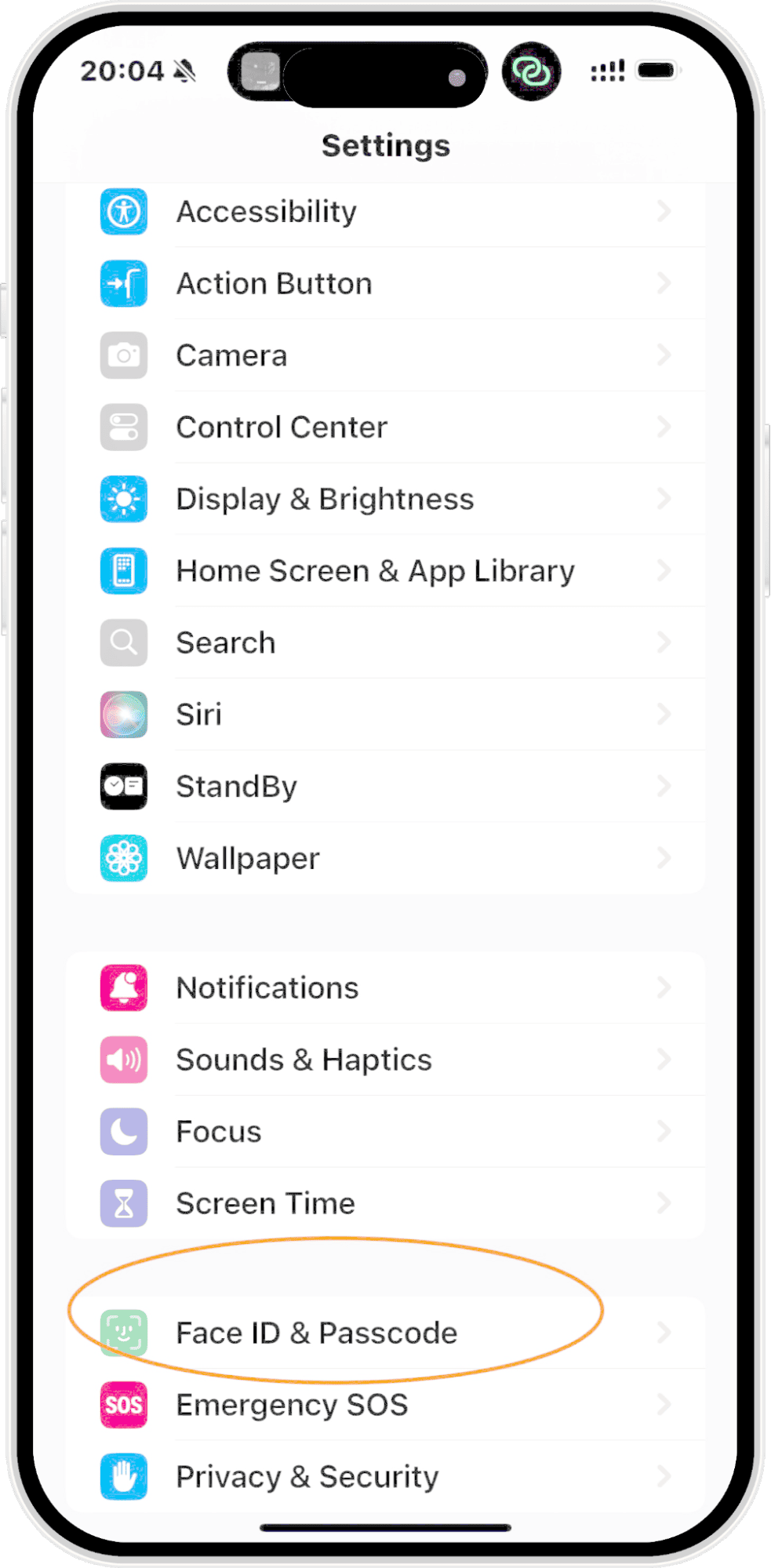
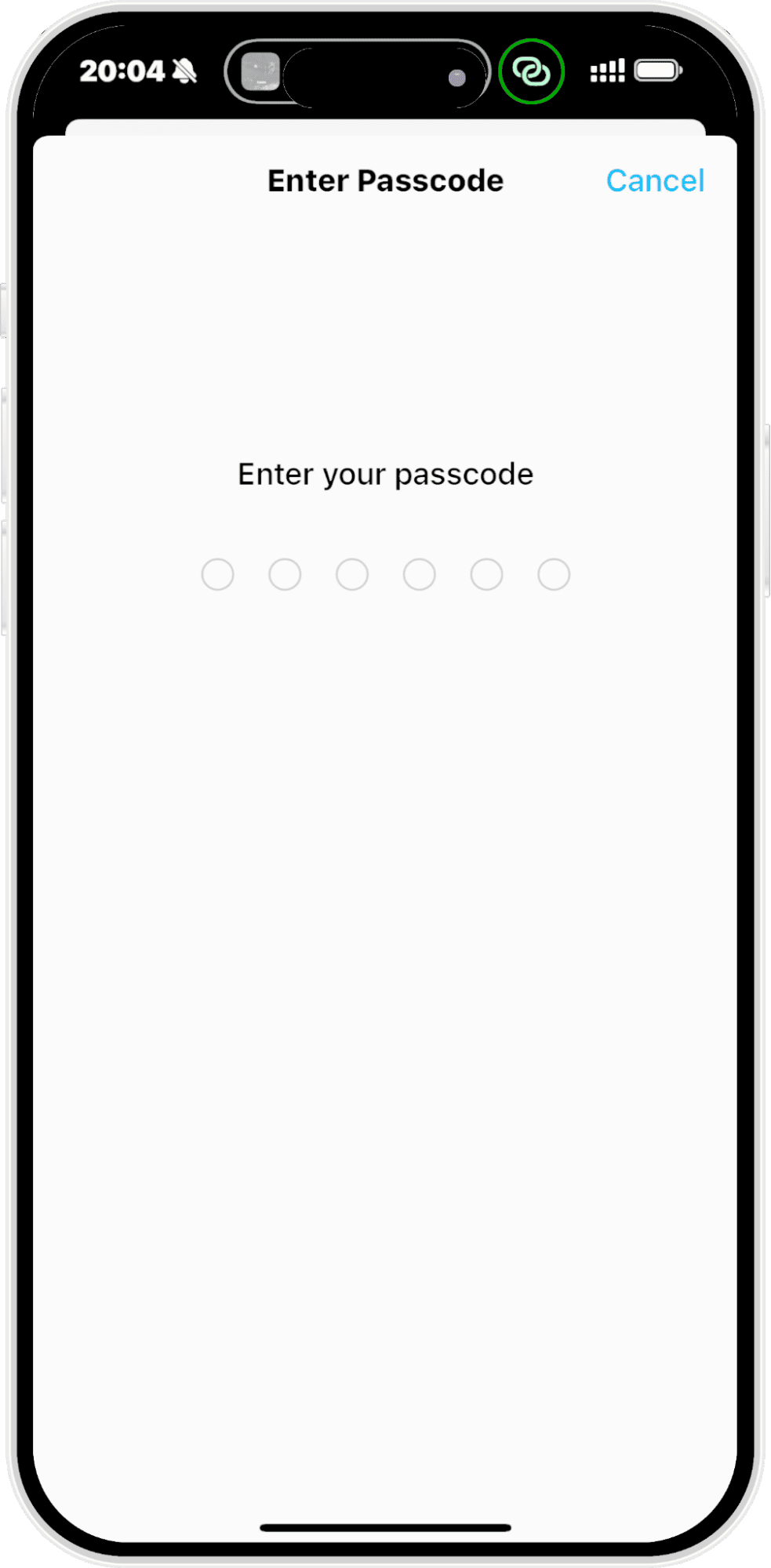
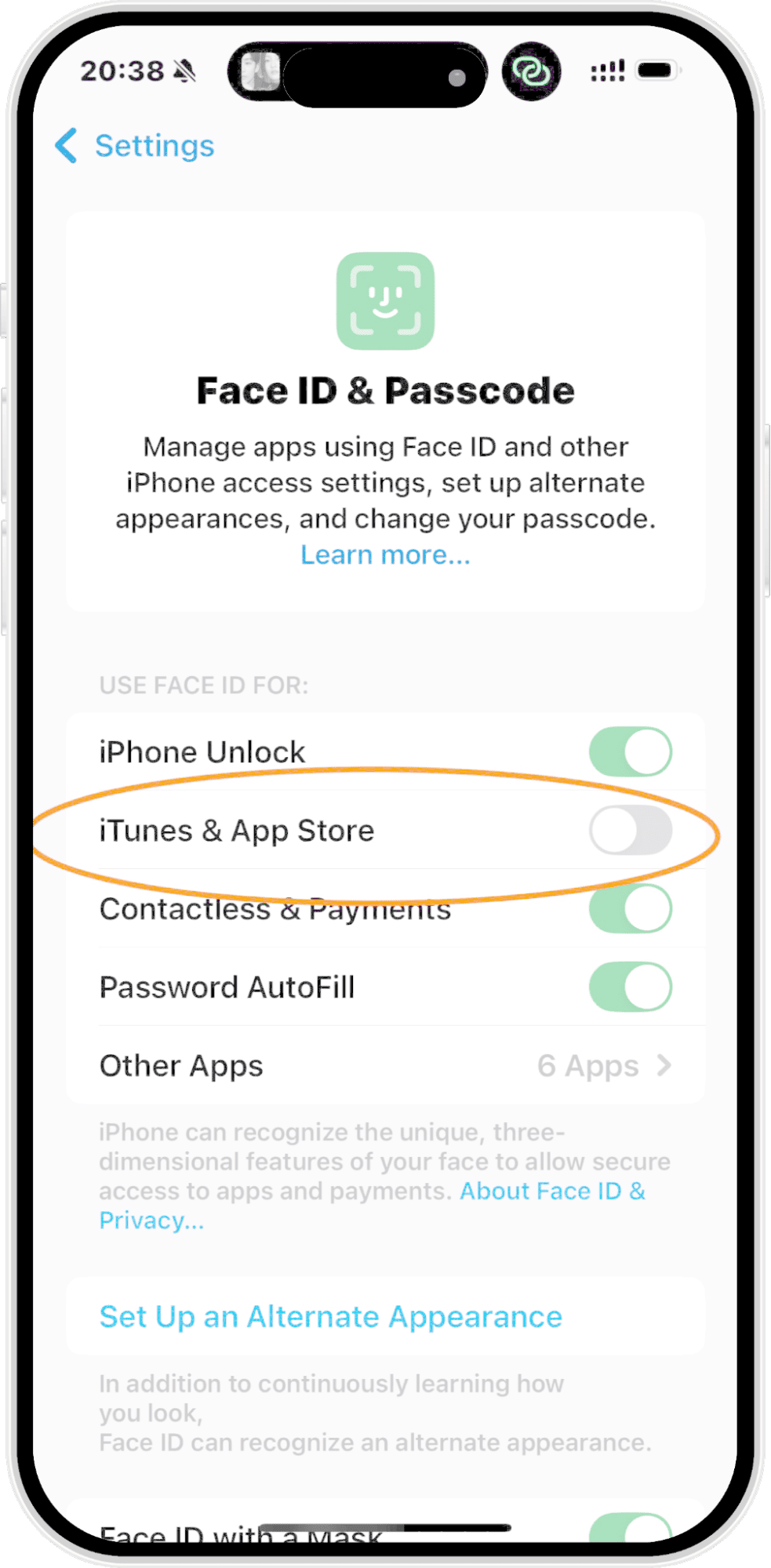
This allows downloads and purchases using Face ID or Touch ID instead of entering your Apple ID password every time.
2. Adjust App Store Password Settings
- Step 1: Open Settings
- Step 2: Tap your Apple ID Profile
- Step 3: Go to Media & Purchases > Password Settings
- Step 4: Disable password requirement for free downloads
This reduces friction when downloading free apps, which is ideal for child devices or shared family iPads.
3. Set Up Family Sharing
Family Sharing allows multiple Apple IDs to share purchases, subscriptions, and screen time limits. Children can request downloads via "Ask to Buy," avoiding the need to know or enter a password themselves.
4. Use Screen Time to Manage App Downloads
- Step 1: Go to Settings > Screen Time
- Step 2: Tap Content & Privacy Restrictions
- Step 3: Go to iTunes & App Store Purchases
- Step 4: Select Don't Require under Password Settings for Free Downloads
This helps parents pre-authorize downloads or prevent children from needing to input credentials themselves.
5. Sign In Once Using a Managed Apple ID
For school iPads or shared devices, parents can set up a dedicated Apple ID with limited permissions and payment options. Signing in once ensures app downloads work seamlessly while protecting private data.
Tip: Avoid using third-party app stores or sideloading tools, as these can violate Apple's terms and put your data at risk.
Why Apple ID Matters: Privacy & Security
Apple uses the Apple ID system to secure downloads, payment data, and iCloud services. It also enables features like purchase history, app re-downloads, and remote device tracking.
For more details, see Apple’s data privacy policies.
Conclusion: Downloading Apps Safely with Minimal Hassle
While bypassing Apple ID entirely isn't recommended or supported, there are several Apple-approved methods to reduce how often you need to enter credentials—especially helpful for children or frequent free-app users. Use Family Sharing, Screen Time, and Password Settings to create a secure yet convenient experience.









Leave a Reply.