How to Block Apps on iPhone: 4 Ways to Manage App Usage
If you need to focus on work or study or want to cut down on your screen time, or if you're a parent and wish your kids to avoid inappropriate applications, you may want to block apps on your iPhone.
Whether you want to block certain apps, block downloading apps, or block apps permanently on iPhone, this guide will show you how to block apps on your iPhone, including built-in features like Screen Time as well as third-party apps.

Quick Answer: How to Block Apps on iPhone?
The best way to block apps on an iPhone depends on what you want to achieve. Whether you want to limit your own app usage, manage a child's device, or temporarily restrict access to an app, choose the method that fits your situation.
| Your Need | Best Method |
|---|---|
| Block apps on your own iPhone | Use Screen Time to set app limits or restrict app access |
| Block apps on your child's iPhone | Use a parental control app to manage app usage and screen time |
| Android parent managing an iPhone child's device | Use AirDroid Parental Control for cross-platform app management |
| Temporarily lock one app on iPhone | Use Guided Access to keep the device focused on a single app |
| Manage company-owned iPhones | Use Mobile Device Management (MDM) solutions |
Method 1. Use Screen Time to Block Apps on iPhone
Apple's built-in Screen Time doesn't offer a clear feature to block apps on an iPhone. However, it allows you to set time limits on apps to 1 min on iPhone.
To block apps using Screen Time:
- Step 1.Open Settings on your iPhone.
- Step 2.Tap Screen Time.
- Step 3.Select App Limits and set limits or block access based on your needs.
- Step 4.Or pressContent & Privacy RestrictionsChoose the apps or categories you want to restrict.
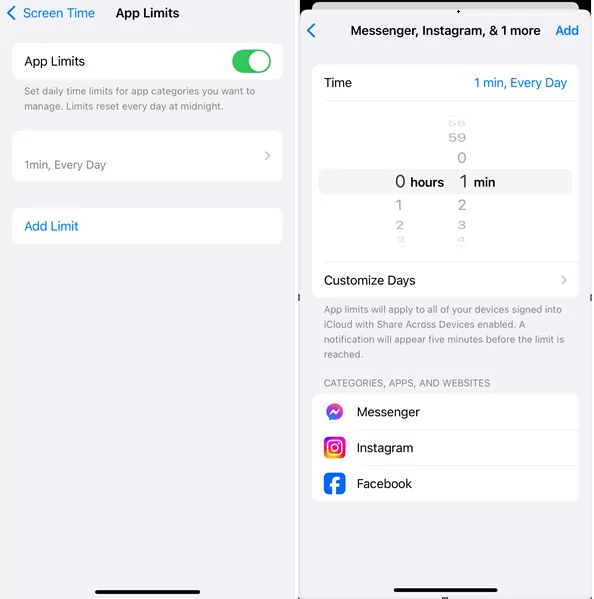
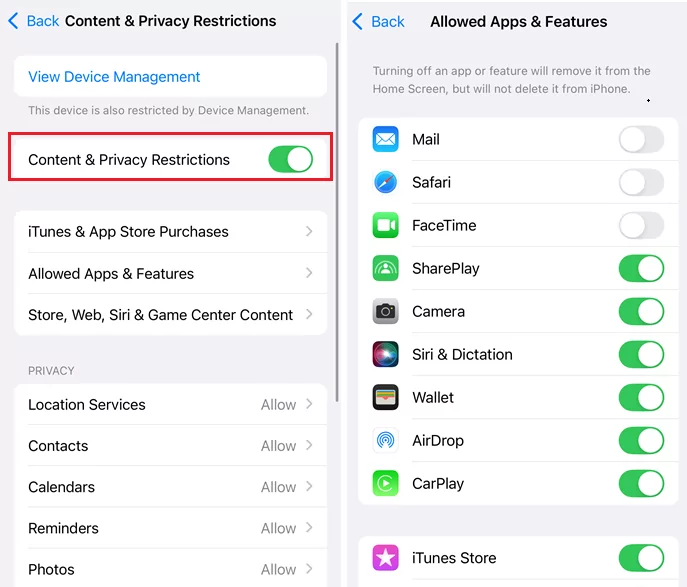
With Screen Time, you can manage app usage in several ways:
- Block apps completely: Restrict access to specific apps when needed.
- Limit app usage: Set daily time limits for apps such as games or social media.
- Hide apps: Prevent certain apps from appearing on the Home Screen.
- Prevent downloads: Restrict new app installations or in-app purchases.
For families who mainly use Apple devices, Screen Time provides a convenient way to encourage balanced device habits. However, its features work best within the Apple ecosystem, which can be limiting for families using different types of devices.
Method 2. Use a Cross-Platform Parental Control App to Manage iPhone Apps
Many families today use different devices across generations. For example, a parent may use an Android phone while their child uses an iPhone. In this situation, managing iPhone app usage can be more challenging with Apple's built-in tools alone.
A cross-platform parental control app provides a more flexible solution by helping parents manage app usage across different devices. In addition to built-in tamper protection, it helps families create healthier digital habits through balanced app management, rather than focusing only on restrictions.
AirDroid Parental Control is designed for families who need cross-platform support, allowing Android parents to manage an iPhone child's device more conveniently.
With AirDroid Parental Control, parents can:
- Block inappropriate apps: Help prevent access to apps that may not be suitable for children.
- Set app usage schedules: Create healthy routines by managing when certain apps can be used.
- Manage screen time: Encourage balanced device usage with flexible limits.
- Receive alerts: Stay informed about important activities and potential concerns.
- View app activity insights: Better understand children's digital habits.


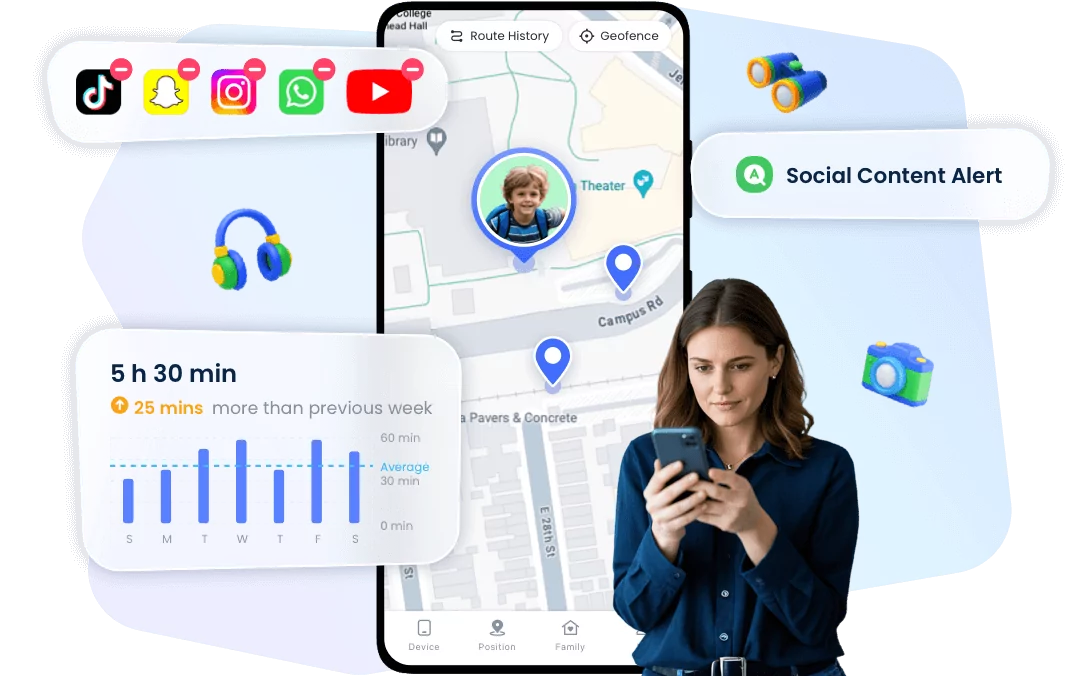
Unlike solutions that are limited to one device ecosystem, AirDroid helps bridge the gap between Android and iOS devices. It allows parents to support their children's digital well-being even when the family uses different mobile platforms.
The goal is not to completely restrict children's device use, but to help parents guide healthier screen habits and create a safer digital environment.
Method 3. Use Family Sharing to Manage a Child's Apps
For parents who want to manage their child's iPhone within the Apple ecosystem, Family Sharing provides a convenient way to control app-related settings remotely.
By setting up Family Sharing with Screen Time, parents can help guide their child's app usage without needing to access the device directly.
With Family Sharing, parents can:
- Approve app downloads: Review and approve new app requests before they are installed on a child's iPhone.
- Manage Screen Time remotely: Set app limits, downtime schedules, and content restrictions from the parent's Apple device.
Family Sharing works well for families who mainly use Apple devices. However, if parents and children use different platforms, such as an Android phone for parents and an iPhone for children, AirDroid Parental Control solution may provide more flexibility.
Method 4. Use Guided Access to Temporarily Lock an App
If you only need to keep someone inside a single app for a short period of time, Guided Access is a useful built-in iPhone feature.
Unlike Screen Time, which focuses on long-term app management, Guided Access temporarily limits the iPhone to one selected app and prevents users from switching to other apps.
This feature can be helpful in situations such as:
- Children using learning apps: Keep kids focused on educational content without opening other apps.
- Sharing your iPhone with others: Allow someone to use a specific app while keeping other areas of the device unavailable.
- Short-term restrictions: Quickly limit access to other apps during a specific activity.
To enable Guided Access:
- Step 1.Go to Settings on your iPhone.
- Step 2.Tap Accessibility.
- Step 3.Select Guided Access and turn it on.
- Step 4.Open the app you want to use and triple-click the side button to start Guided Access.
Guided Access is best for temporary situations. For ongoing app management, screen time guidance, or managing a child's device across different platforms, parental control tools may offer more comprehensive support.
FAQ






Leave a Reply.