- Doesn't save your browsing history locally: Websites visited and searches are not recorded in the browser's local history.
- Doesn't store cookies: Any cookies created are automatically cleared when the incognito window is closed.
- Doesn't sync your credentials: Accounts won't be automatically signed in under incognito.
AirDroid Web Filter
Record incognito history on Android & iPhone and ensure your kids only view secure websites.

How to See Incognito History: A Parent’s Guide for Android, iPhone and Desktop
Worried about what your child views in Incognito mode? Private browsing does not save a browsing history in the browser after the session ends, so there is no built-in history list for parents to open.
This guide explains what parents can check on Android, iPhone and desktop, and what each method can actually show. The key distinction is between checking records that already exist and setting up supervision for future browsing—installing a tool now does not automatically recover earlier Incognito activity.
What You Need to Know about Incognito Mode
What Does Incognito Mode Do?
Is Incognito Really Private?
No, it's a common misconception that incognito mode makes your online activities completely untraceable.
While it doesn't save your browsing history locally, your online activities can still be visible to the websites you visit, your Internet Service Provider (ISP), network administrators (e.g., at home, school, or work), and certain third-party apps designed for monitoring.
Furthermore, your device's IP address is saved to DNS caches. Every time you access a website, whether in incognito mode or not, your device's IP address must be sent to the server to facilitate data exchange.
How to Remotely View Incognito History on Your Child's Android & iPhone
If you're a parent worried about what your child is doing online or in incognito mode, consider using parental control tools, like AirDroid. It is designed to help parents to ensure child's safety online.
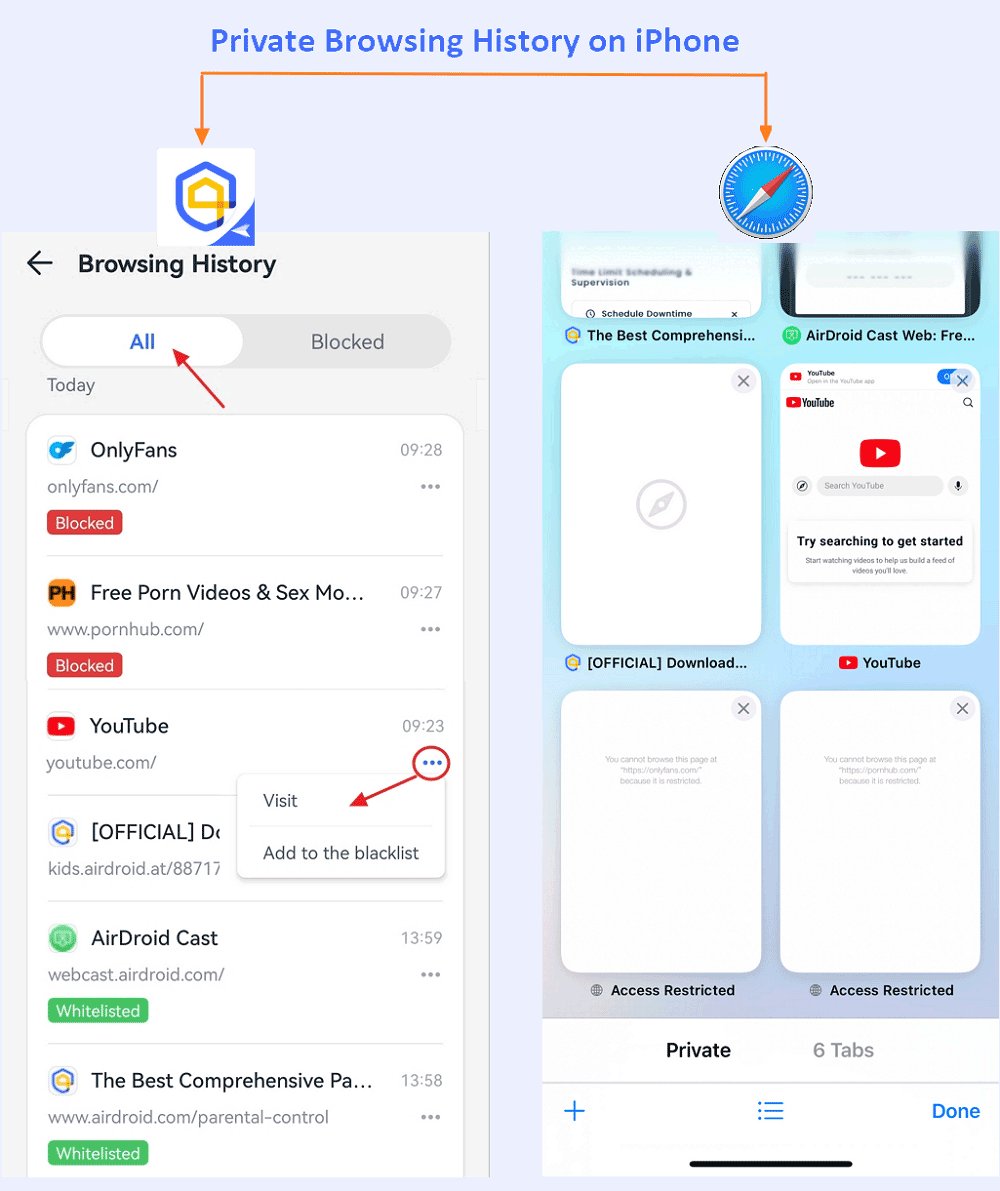
It can records child's incognito browsing history and send you alerts when risky websites are detected. Once set up, it saves searching activities from Google Chrome and Safari, etc., and provides detailed timestamps of website visits, even in incognito mode.
Follow these steps to check incognito history using AirDroid Parental Control:
Important Disclaimer:
This method is intended for parents and should only be used in a legal and ethical way, and with the clear consent of the device's owner (your minor child).
- Step 1.Download AirDroid Parental Control on your phone and your child's device.
- Step 2.Follow the in-app instructions to connect your child's Android or iPhone to your account.
- Step 3.Once connected, navigate to "Web Restriction" on your dashboard.
- Step 4.Here, you can view your child's incognito browsing history or private browsing history.
Can I view incognito history on Android without an app?
Yes. You can view incognito history on Android without an app through your WiFi router as long as you are the administrator. However, note that WiFi routers typically only record the domain of the visited website, not detailed URLs. For a more comprehensive view of incognito history, a third-party app is usually necessary.
How to Check Incognito History on Desktop
If your child uses a family computer, the options below can help you understand existing traces or set up recording for future browsing. Neither should be treated as a complete record of your child’s Incognito activity.
View DNS Cache
Your computer temporarily stores a record of recent websites you've visited (incognito activities included) in its DNS cache.
To access and see this list, you can open the Command Prompt and type the command ipconfig /displaydns on a Windows PC.
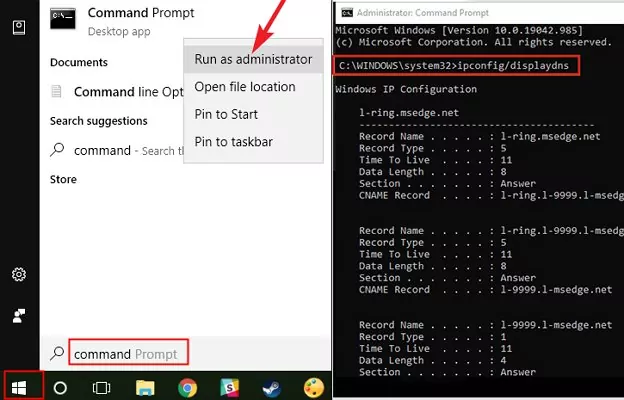
⚠️Please note that this cache is temporary and can be cleared. Additionally, this only displays the domain names and IP addresses of websites that your Windows computer visited, not accurate URLs. Therefore, if you need to see the incognito history accurately, skip this method.
Install an Extension
If you want to supervise future browsing on a computer your child uses, a browser extension may be an option. It needs to be installed and enabled before the activity you want to record, and its coverage depends on the extension’s features and permissions.
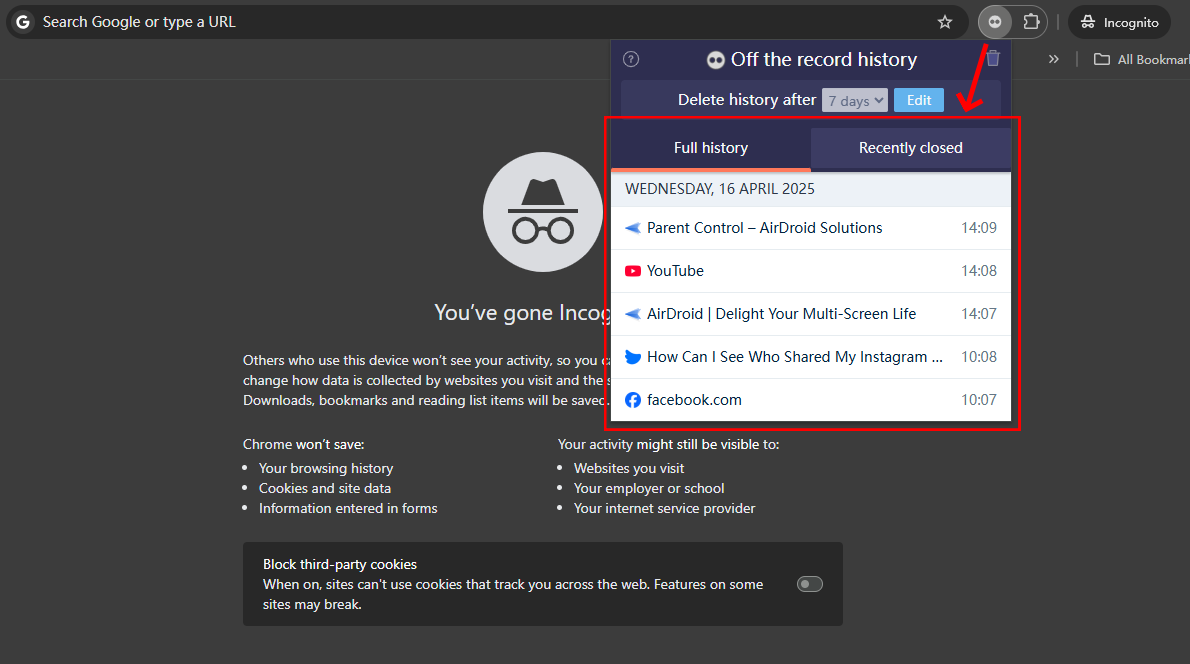
This extension can maintain incognito history for up to 7 days. However, it won't record search history within incognito mode. To use it, you must grant the extension permission to read incognito activities. Here's how to set it up for parental oversight on a PC:
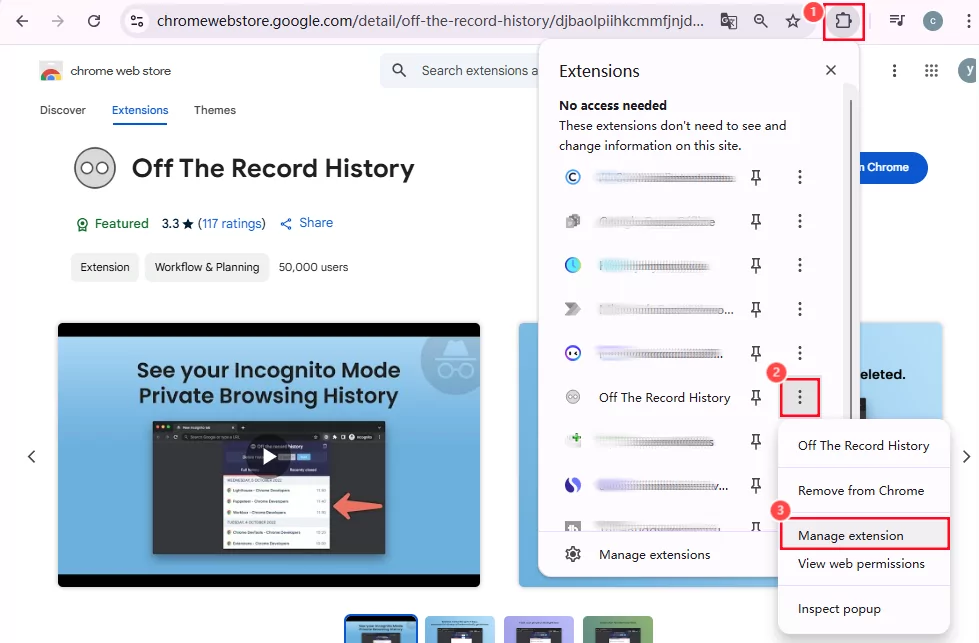
- Step 1.Access the Off The Record History extension and add it to your Chrome browser.
- Step 2.At the top right, go to "Extensions."
- Step 3.Click on the three dots next to "Off the Record History." Then, select "Manage extension."
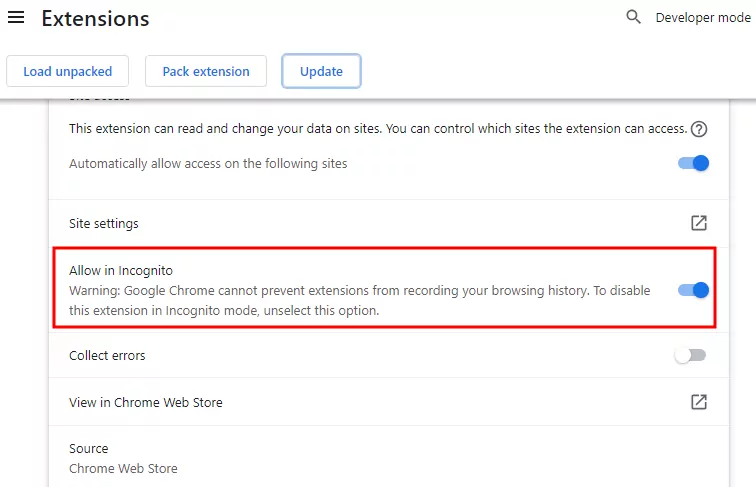
- Step 4.Next, toggle on "Allow in Incognito" to enable it.
- Step 5.Once enabled, you can view the incognito history by tapping on the extension icon.
Misleading Ways That DON'T Work
When searching for ways to find Incognito history, you may encounter YouTube tutorials or blogs promoting "guaranteed solutions" - most are technically impossible or offer incomplete data. So, you'd better avoid the misleading way to save you time.
Via chrome://chrome-urls/
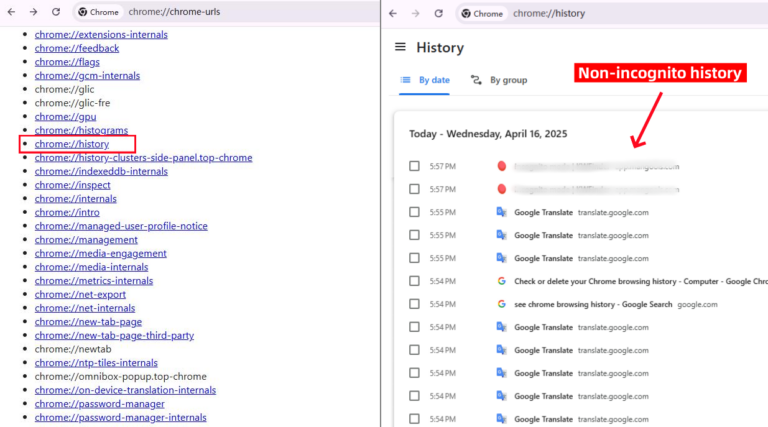
This is an misleading method that nearly covers the YouTube platform when you search for view incognito history. But the truth is that when you enter "chrome://chrome-urls/" and go to the history tab, you can merely get the history of non-incognito mode.
Via Google My Activity
This is another misleading method. When you enable incognito mode in Chrome (or private browsing in other browsers), your history, cookies, and site data are not saved to your browser or synced to your Google Account. That means those visits won't show up in Google My Activity.
Additional Information: Clearing DNS Caches
DNS caches are temporary and can be cleared. For parents, this means a cache should not be relied on as a lasting or complete browsing record. The steps below explain how to clear these caches.
On Windows PC
- Step 1.Click the "Windows" key and search for "Command Prompt."
- Step 2.Select "Run as administrator."
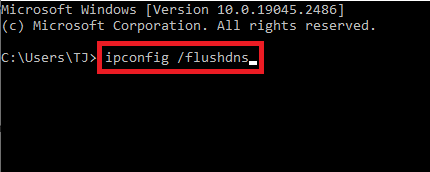
- Step 3.Type ipconfig/flushdns in the CMD window and press the "Enter" key.
On Mac
- Step 1.On Finder, go to "Applications" and then "Utilities."
- Step 2.Double-click on "Terminal."
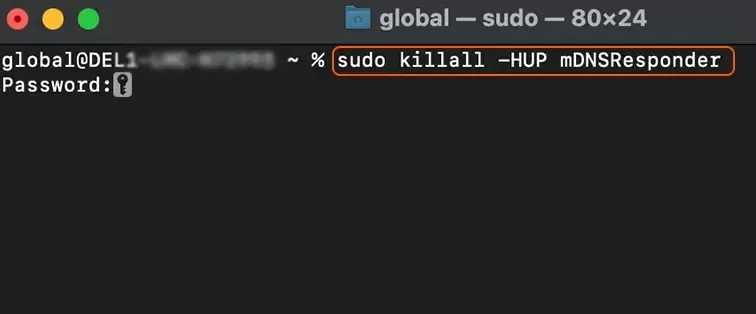
- Step 3.Type sudo killall -HUP mDNSResponder in the Terminal and press the Enter key.
- Step 4.Input your password once requested.
On Android
- Step 1.Enter chrome://net-internals/#dns on your Chrome browser.
- Step 2.Hit on "Clear host cache."
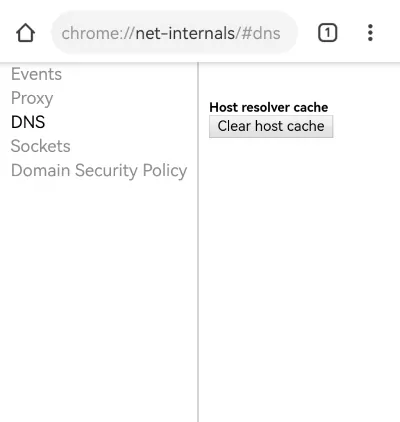
You can also enter chrome://net-internals/#dns on your Windows PC or Mac to clear incognito DNS caches. But note that this method is not applicable for iPhone users.
In Conclusion
For parents, checking Incognito activity starts with understanding the limits: the browser does not retain a history list after the session ends, and other traces may be incomplete. Checking existing records and setting up supervision for future browsing are different tasks.
If you choose parental controls, review the supported devices, browsers and monitoring limits before setup. Explain the arrangement to your child and use it alongside conversations about online safety and clear family browsing rules.










Leave a Reply.