From MDM Alerts to Action: How MDM Automation Improves Device Response
When an MDM alert fires, someone still has to notice it, work out who it belongs to, and get it in front of the right person. In a lot of teams, that middle step is where things stall: alerts sit in a shared inbox, get missed during a shift change, or wait until someone has time to sort through them.
For a handful of devices, that's a minor annoyance. Across a growing fleet, these alerts pile up faster than any one person can manually triage, and the real bottleneck becomes the gap between "something needs attention" and the right person actually knowing about it.
This article covers a practical way to close that gap with MDM alert automation: turning a routine alert into an automated notification that reaches the responsible person on its own, without anyone needing to notice, sort, and forward it by hand.
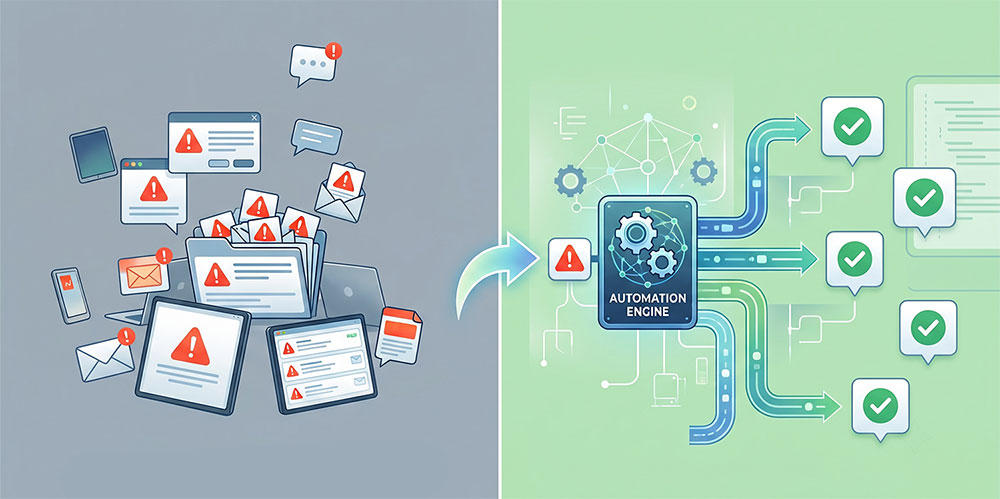
Why MDM Alerts Need Automation
A practical automated alert response is about more than sending notifications. Automation should decide what information gets collected after an alert fires, who receives it, and what happens next; which comes down to three questions:
- Who needs to know?
- What additional information is needed to assess the issue?
- What should happen next, and who is responsible for it?
Handled manually, the same alert can get treated differently every time, and there's no clear record of what got handled and what got missed.
Automating the first question is mostly a notification problem: instead of an admin forwarding alert emails one by one, the system routes each alert to the right person based on the issue type and the device involved. The second and third questions are where MDM alert automation adds more value, querying device data that would otherwise require manual lookups, packaging that data into a report, and creating a consistent record of what was collected and delivered. Together, these capabilities turn an MDM alert from a passive notification into an automated first step in the response process.
💡What that automation actually looks like depends on the type of alert. A storage warning doesn't call for the same response as a compliance violation or an offline device, since the right context and the right next step differ each time. The rest of this article builds one complete example end to end: an automated response for device storage alerts, from detection through to a report the team can act on.
Automating MDM Alerts Using Workflows
MDM alerts cover a lot of ground: compliance violations, offline devices, battery health, and more. Storage is a useful one to walk through in full, because it has three characteristics that make it well suited to a defined, automated workflow:
- It can be detected through a clear, measurable threshold.
- It often needs additional investigation before deciding on an action.
- The right response depends on device-specific context, not a one-size-fits-all fix.
Consider how storage affects different device types:
- A retail kiosk running low on space might need its cache cleared.
- A field service tablet with the same condition might need unused applications removed.
- A logistics handheld might need a different approach entirely.
In each case, the team needs information before making a decision, and forcing the same device-side action across all of them creates risk.
Designing an Alert Workflow for Device Storage Issues
Before opening any configuration screen, it helps to define what the workflow should do: the trigger, the response path, and the desired outcome. With that in mind, here is what this workflow is designed to do:
- Detect devices that fall below a defined storage threshold.
- Notify the responsible team members automatically.
- Collect detailed device resource information without manual checking.
- Deliver a structured report so the team can decide on next steps.
- Maintain a record of the alert, the data collected, and the report delivered for future reference.
The automation here removes the manual steps that slow down the response. Fixing the storage issue itself is still a human decision. Instead of someone opening the dashboard, navigating to each affected device, checking resource usage, collecting the data, and manually preparing a report, the workflow handles those steps automatically, and the team receives a report with the information needed to decide on the next step.
Building the Workflow with AirDroid Business and GoInsight.AI
This section walks through the setup step by step. AirDroid Business handles alert detection and notification. GoInsight.AI handles the automated information collection and report delivery.
Turn MDM Alerts Into Automated Action
Stop letting alerts sit in a queue. Automate detection, notification, and response with AirDroid Business and GoInsight.AI.
Step 1: Create a storage alert in AirDroid Business
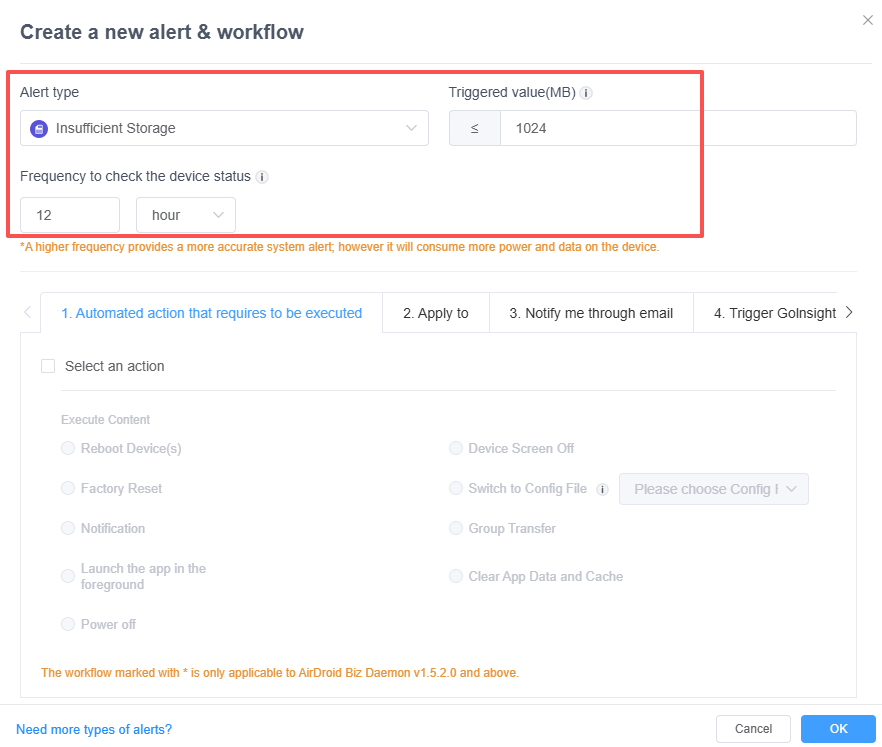
1. From the Workbench and click + Alerts & Workflows to create a new entry.
2. Set Alert type to Insufficient Storage.
3. Enter a Triggered value (MB). A threshold of 1024 (1 GB) or 500 (500 MB) works for most environments. Choose a value that gives the team enough lead time to respond before the device runs out of space entirely.
4. Set the Frequency to check the device status. For storage, checking every few hours is usually appropriate, since storage fills gradually rather than suddenly.
Step 2: Define what happens when the alert fires
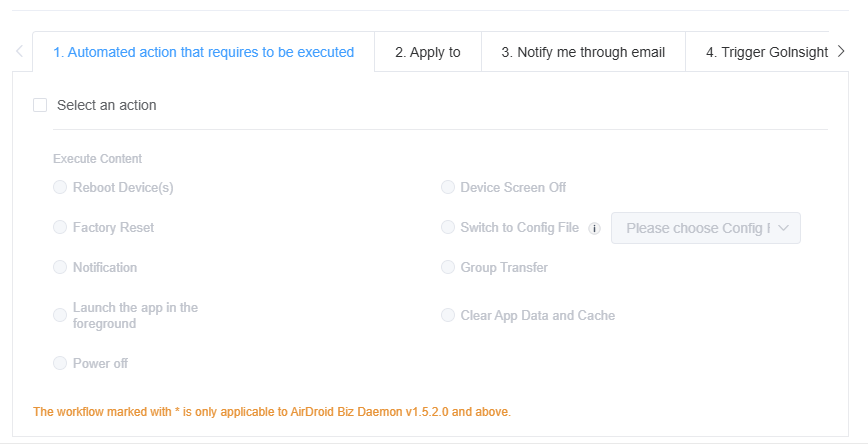
AirDroid Business offers several device-side actions: Reboot, Factory Reset, Power Off, Device Screen Off, Clear App Data and Cache, and others.
For storage issues, forcing an immediate device-side change is usually the wrong first move. If a device is low on storage because a business-critical app is caching large files, clearing app data might remove information the team needs. If the device is a customer-facing kiosk, powering off the screen mid-transaction creates a different problem entirely. The safer and more useful response is to gather information first.
In this example, the alert itself is used as the trigger. The automated response happens through the connected GoInsight.AI workflow rather than through a direct device action, focusing on the investigation phase: collecting additional resource information and delivering it to the people who need to make the decision. The steps that follow provide the information the team needs to assess the situation and decide on the right fix.
Step 3: Set device scope and email notification
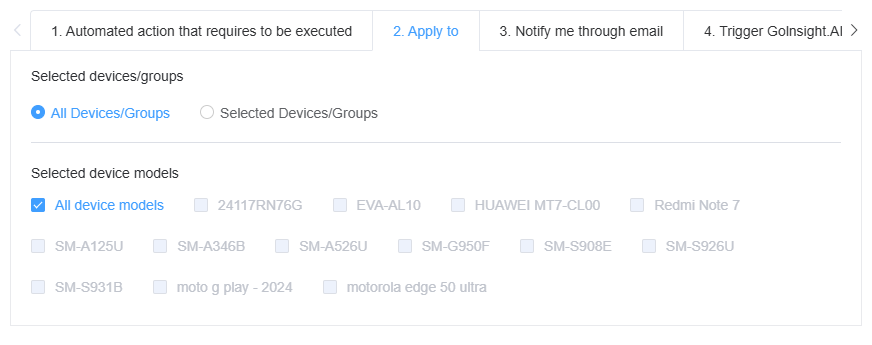
1. Under Apply to, choose the target devices.
All devices/groups is a common choice for storage monitoring, since any device can be affected. You can also narrow the scope to specific devices or groups and filter by device model.
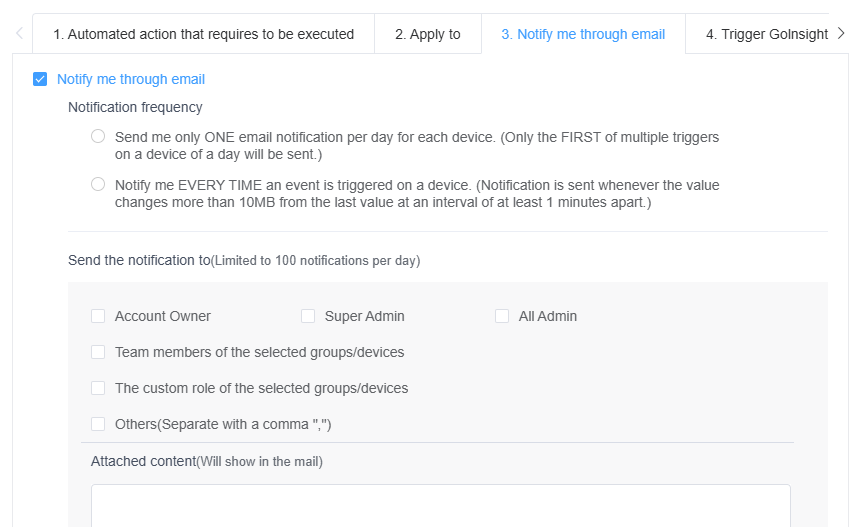
2. Under Notify me through email, choose the notification frequency.
Notify me EVERY TIME an event is triggered on a device is recommended for storage monitoring, since conditions can change throughout the day and teams benefit from knowing when a device continues to degrade.
For recipients, select Super Admin and team members responsible for device operations. This keeps the right people informed without adding noise for the entire admin team. You can also add specific email addresses under Others if stakeholders outside the MDM platform need to receive the notification.
Step 4: Connect the alert to a GoInsight.AI workflow
The final step is Trigger GoInsight.AI. This connects the AirDroid Business alert to an automated workflow that collects device information and delivers a structured report.
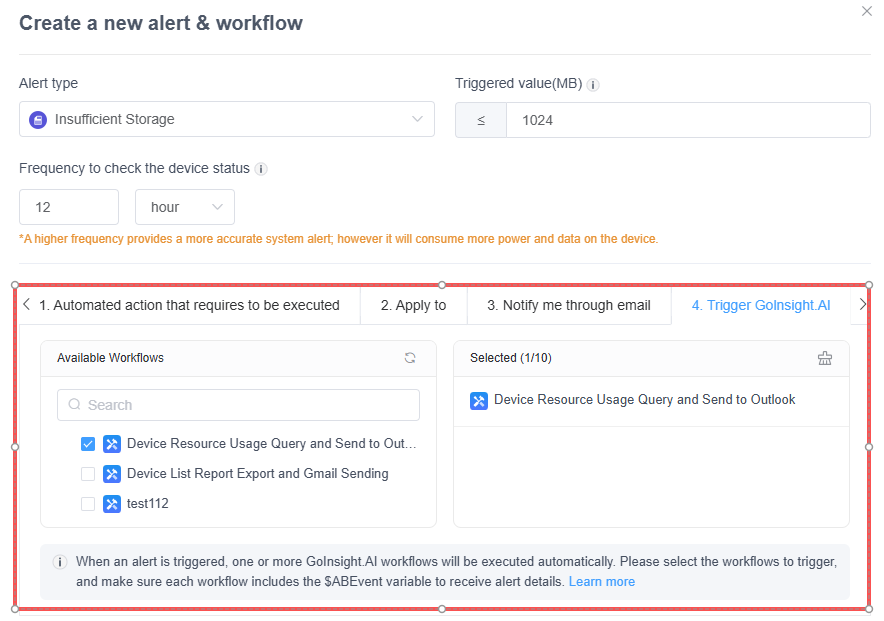
The GoInsight.AI workflow needs to be set up first:
1. Import the workflow template.
In GoInsight.AI, go to the Marketplace and import the template called Device Resource Usage Query and Send to Outlook. This template handles device data collection and report delivery.
2. Configure the API connections.
Open the imported workflow and follow the Checklist in the top-right corner. Two OAuth2 connections are required:
- AirDroid Business OAuth2 API: lets GoInsight.AI query device information from your AirDroid Business account.
- Microsoft Excel OAuth2 API: lets GoInsight.AI create and store the Excel report the workflow generates. Recipients receive an email with a link to view the report directly.
3. Test the workflow with a sample run.
Click Start Running and provide the required parameters. Below is an example configuration; adjust the device scope and recipient emails to match your environment.
Parameter | Example value |
|---|---|
| QueryAllDevices | True |
| RecipientEmails | admin@company.com |
If you set QueryAllDevices to False, you can specify DeviceNames or GroupNames in JSON format to target specific devices. Run the test and verify that the email arrives with the Excel report link.
4. Enable the ABEvent trigger and publish.
In the workflow editor, open the Start node and enable the $ABEvent switch. This setting allows the GoInsight.AI workflow to receive alert events from AirDroid Business as its trigger; without it enabled, the workflow can only be started manually. Save the workflow and click Publish to make it available.
5. Connect the workflow to the alert.
Return to AirDroid Business. Under Trigger GoInsight.AI, the published workflow should now appear in the list of available workflows. Select it and click OK to complete the connection.
Step 5: Verify the workflow is running
After saving, check the Operation history in AirDroid Business to confirm the alert is configured correctly and the GoInsight.AI workflow is receiving events. A successful status confirms the connection is working.
The setup is now complete. When a device's storage drops below the threshold, AirDroid Business detects it, sends an email notification, and triggers the GoInsight.AI workflow. The workflow collects device resource data, generates an Excel report, and delivers it to the designated recipients. The team receives not just an alert, but a report with the context they need to decide on the next step.
What This Workflow Changes for Device Operations
An automated alert workflow creates a more consistent process around IT decision-making, without replacing it.
Without MDM automation, similar alerts can be handled differently depending on who responds and what they know about the device. One person checks the device history tab and sends a message to a colleague. Another closes the alert and moves on. By the end of the month, no one can easily say which storage alerts were handled and which are still unresolved.
With a connected workflow, every storage alert follows the same path. The system detects the condition, sends the notification, queries device data, and delivers the report. No one has to remember the steps, because the workflow executes them regardless of who is on shift or how many other alerts are in the queue. The alert no longer ends at notification; it becomes a trigger that connects device visibility with operational workflows.
Traditional alert handling | Workflow-based response |
|---|---|
| Alert reviewed manually by whoever sees it first | Alert starts the response process automatically |
| Device information checked by navigating between screens | Relevant data collected and packaged through the workflow |
| Notifications forwarded manually to colleagues | Responsible teams notified automatically |
| Investigation details captured inconsistently or not at all | Alert data and reports maintained for future reference |
The value of this approach becomes clearer as device fleets grow. When every alert follows a predefined response path, teams reduce dependency on individual experience and build a more predictable operations model.
The goal is reducing the number of manual steps between "storage is low" and "we know what to do about it," not receiving alerts faster. Each automated step frees up time that would otherwise go to repetitive coordination, so over time the team handles more devices without adding more manual overhead.
Final Words
The storage workflow described here is one example. The same approach works for other device conditions. A battery threshold alert can trigger a workflow that collects device resource data and sends a report to the operations team before the next shift begins. A kiosk status alert can trigger a workflow that exports current device policy and kiosk status for investigation. Each starts with a clear trigger, a defined notification path, and an automated step that replaces manual information gathering.
Building an automated alert workflow does not require rethinking your entire device management approach. It starts with a single alert, a clear response path, and a connection between detection and action. AirDroid Business and GoInsight.AI provide the tools to turn that starting point into a repeatable process, helping teams spend less time on manual coordination and more time on the decisions that keep devices running reliably.








Leave a Reply.