AirDroid Parental Control
Best alternative to set time limits when Screen Time doesn't work!
Screen Time App Limits Not Working on iPhone? Try These Fixes
Imagine, you've successfully set up a screen time limit on your kid's iPhone or iPad. But, when the set time limit is reached, you discover nothing happened.
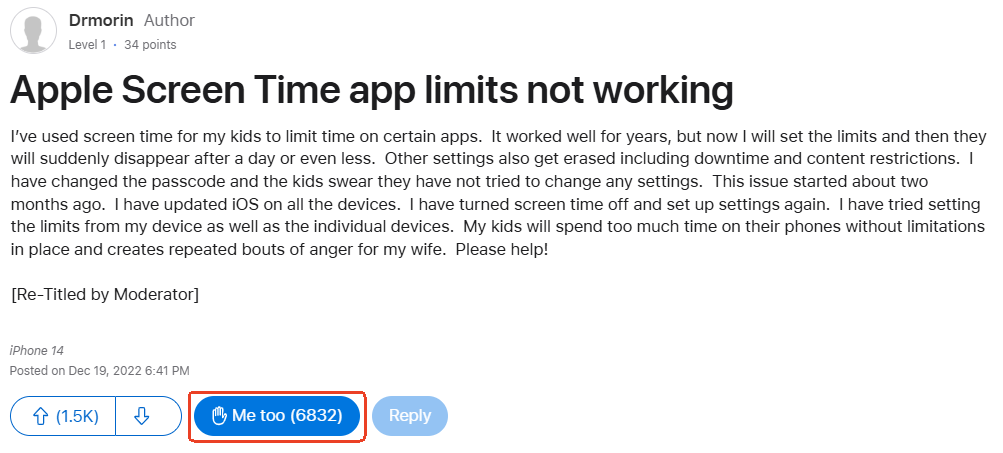
Well, you're not alone! In Apple's own forums, around 7,000 people have hit "Me too" on the thread complaining about Screen Time app limits not working.
Thankfully, after digging through Reddit discussions and other reliable fora, I eventually found workable solutions that actually work for me. Now, let's discover them.
Why Screen Time Limits Might Not Work
If the app limit is not working when the time limit has reached, it can be due to any of the following reasons:
1Incorrect Screen Time Settings
I've seen so many parents blame Apple each time they set up an app time limit and refuse to work. But the truth is, there are times when screen time limit setting might fail to work due to incorrect settings orchestrated by you, for example:
1.1 The Screen Time passcode never be set
Without a Screen Time passcode, the app limit and other restrictions can be easily removed. This way, you may assume the app limit did not work.
1.2 You disabled "block at end of limit"
If you toggled off "Block at End of Limit" when setting up app limit via Screen Time, your child can ignore the limit without a passcode and continue to use the app.
1.3 You leave apps on the "Always Allowed" list
Apps under the "Always Allowed" list are always exempted from any restriction. That said, if you set a time limit for an app that is in the "Always Allow" list, its app limit may not work.
2Family Sharing Syncing Issues
Sometimes Screen Time settings don't sync or work properly, especially when managing a child's device from a parent's Family Sharing account.
3Use of Bypass Tricks
Well, if the Screen Time app limit isn't working the way it should, there's a good chance your child has discovered a loophole or two to get around it.
Below are the most common tricks your kids may use to bypass app limits, so you know exactly what to look out for (and how to shut them down):
- Resetting the Screen Time settings or passcode.
- Changing the date and time of the managed device.
- Sending a screen time request for approval after getting hold of your phone.
- Deleting and reinstalling apps
- Switching or logging out of Apple ID.
- ........
4System-Level Bugs
Some iOS or app bugs can even interfere with the proper functioning of the Screen Time feature. Many users, especially those on iOS 16, reported this issue happening repeatedly when the rollout of the new iOS.
How to Fix Screen Time App Limits Not Working
Now that you know why app limits are not working on iPhone, let's look at how to fix this irritating issue.
Enable "Block at End of Limit"
"Block at End of Limit" ensures that once the app limit is reached, the app fully locks and can't be used again. Without this option turned on, kids can often keep using the app even after the limit expires and ignore the limit without a passcode. Turning on this setting helps make the limit actually stick. To do so:
- Step 1.Open "Screen Time" from the "Settings" app.
- Step 2.Select your child's name and account.
- Step 3.Then, select "App Limits."
- Step 4.Tap on "Add Limit" and select the apps you want to limit.
- Step 5.Ensure the "Block at End of Limit" toggle is ON.
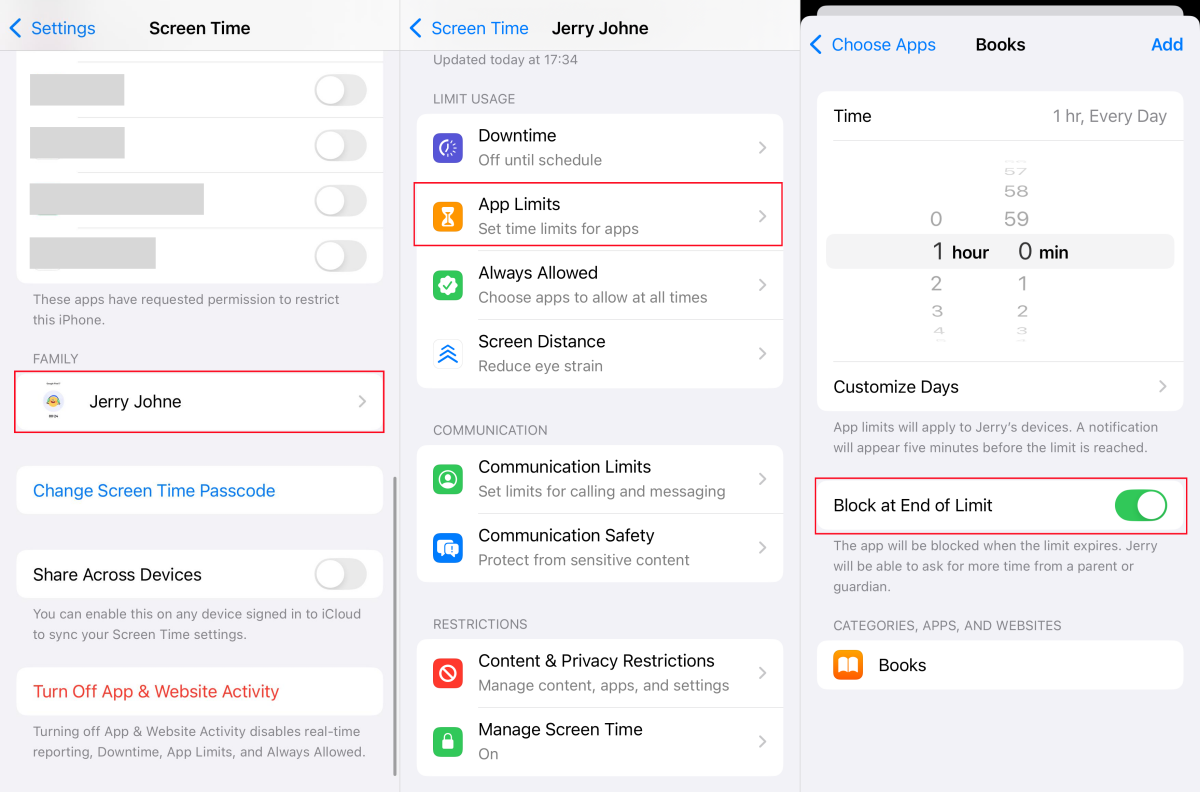
After that, your kids won't have the option to ignore the limit unless they have the Screen Time passcode.
Remove Always Allowed Apps
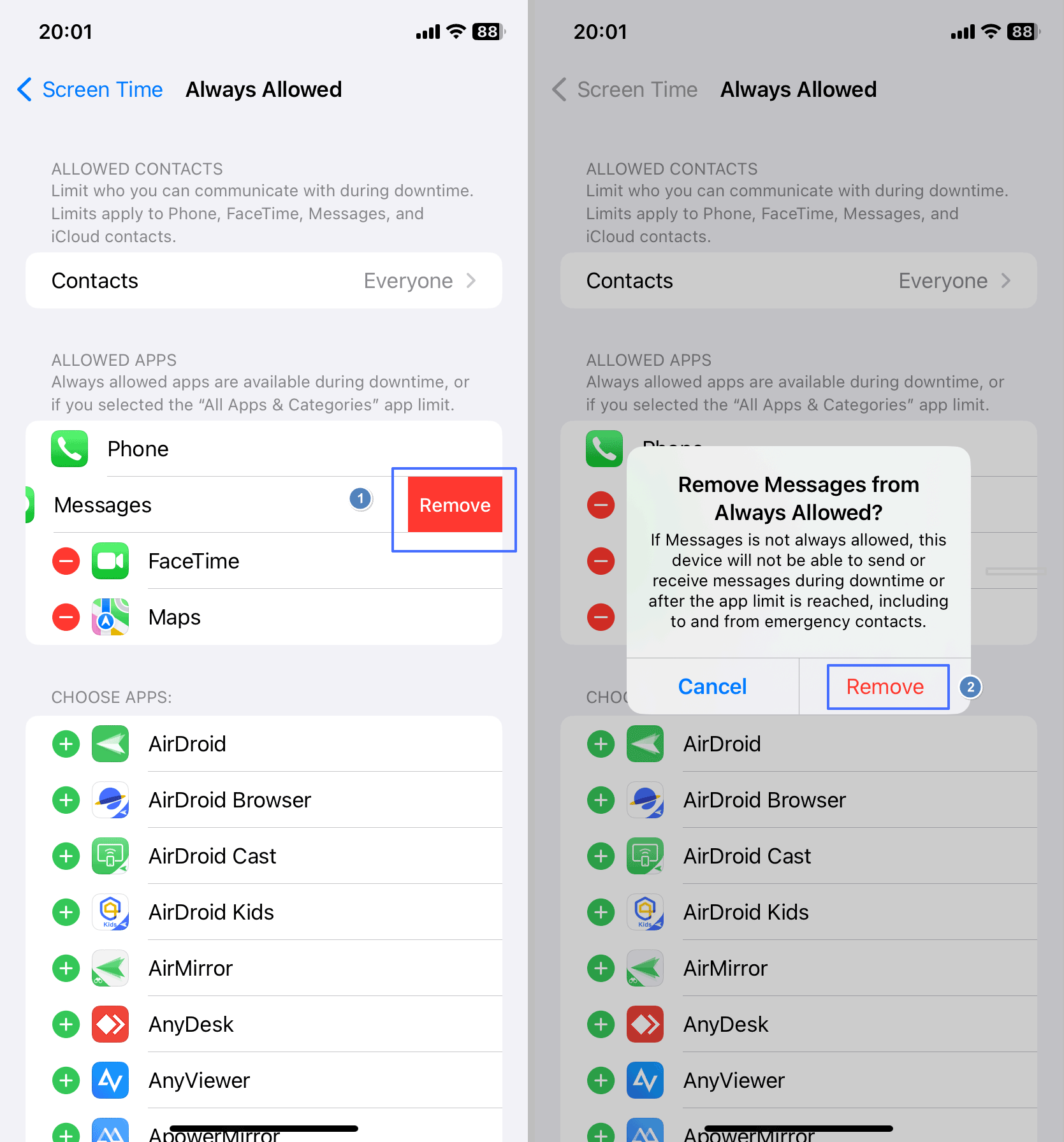
As I've said, app limits can't be applied to apps in the "Always Allowed" section, unless you remove an app from this section. Now, follow the steps below to learn how to remove apps from the "Always Allowed" list:
- Step 1.Go to "Settings > Screen Time > Always Allowed."
- Step 2.From the list, find the app you want to set time limits.
- Step 3.Tap on the (-) icon beside it and select "Remove."
Set up App Limits Directly on Your Child's Phone
During my own testing, I noticed something interesting: Screen Time limits set remotely using Family Sharing don't work; while setting the app limits directly on my child's iPhone works instantly.
So, if you're using Family Sharing to set app limits and finding it's not working, try getting your child's iPhone and heading to Screen Time to set the app limits.
Restrict Changes to Date and Time
Restricting changes to date and time on your kid's phone is an effective way to make app limits work properly and prevent kids from using this setting as a bypass trick.
To restrict that change, just set up a passcode for Screen Time. Here's how:
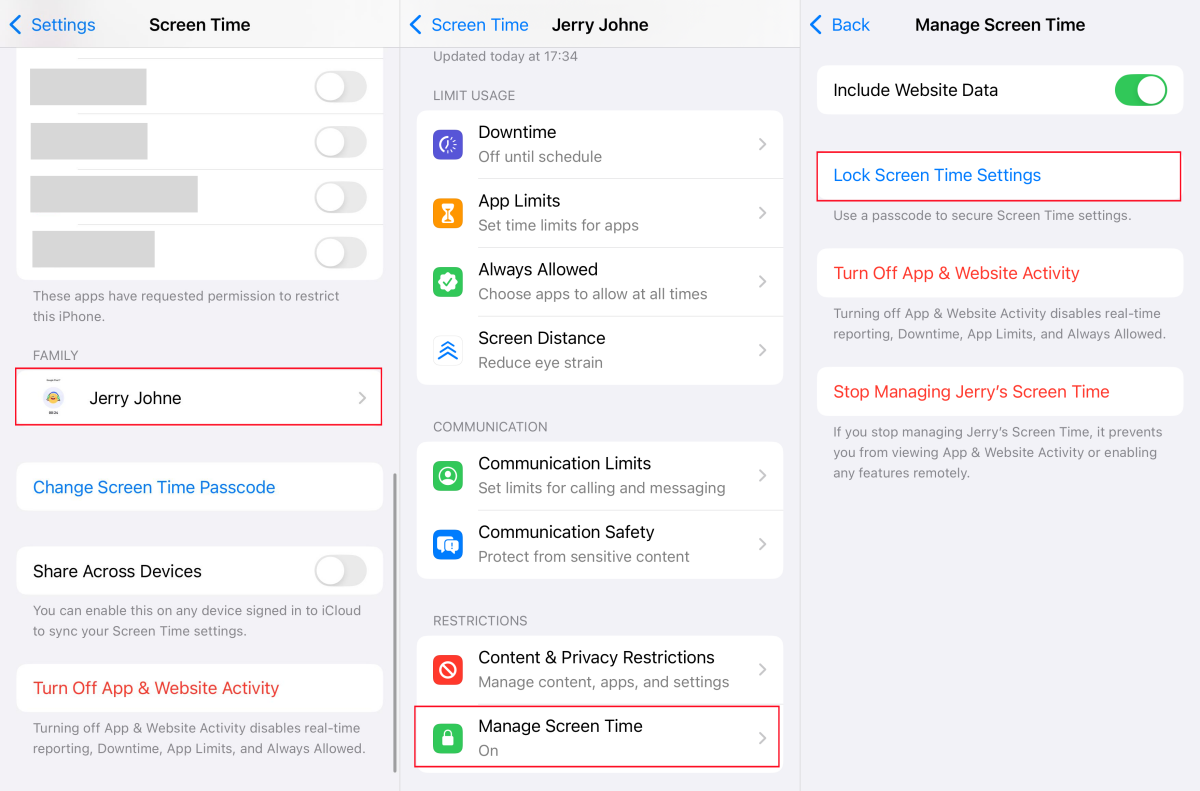
- Step 1.Go to "Settings > Screen Time" on your phone and tap on your child's profile.
- Step 2.Scroll down and select "Manage Screen Time."
- Step 3.Then, tap on "Lock Screen Time Settings."
- Step 4.Enter your lock screen password and then set up a 4-digit passcode for your child's Screen Time.
Remove the Parent/Guardian
This is the solution approved by several Apple users.
When you have two parents managing a child's screen time settings, it is better to remove one parent so that only one person can be in control of the restrictions. To remove one parent or guardian, follow the steps below:
- Step 1.In the "Settings," tap your Apple ID name at the top.
- Step 2.Click on "Family" and select the "parent/guardian" to remove.

Log out of the Apple ID and Reboot
At times, you may need to log out of your child's iCloud on their device and log out on your phone as well, then log back in and reboot the two devices.
This approach allows both devices to refresh their connection to Apple's servers to fix glitches and bugs in the Screen Time record. I learned this fix from a Reddit user, and it works well for me.
Update iOS
If you tried all the methods above and none seem to work, try updating your child's iOS to the latest one. This action can help clear system-level bugs and even enable screen time data to sync properly with your device.
- Step 1.Go to "Settings > General > Software Update."
- Step 2.If an update is available, click on "Update Now" to begin downloading the latest one.
Alternatives to Set App Time Limits
Apart from the popular app time limit set up, there are other ways to restrict your child's access to certain apps on their phone. Care to know that? Then, here's it:
Change the App Age Limit
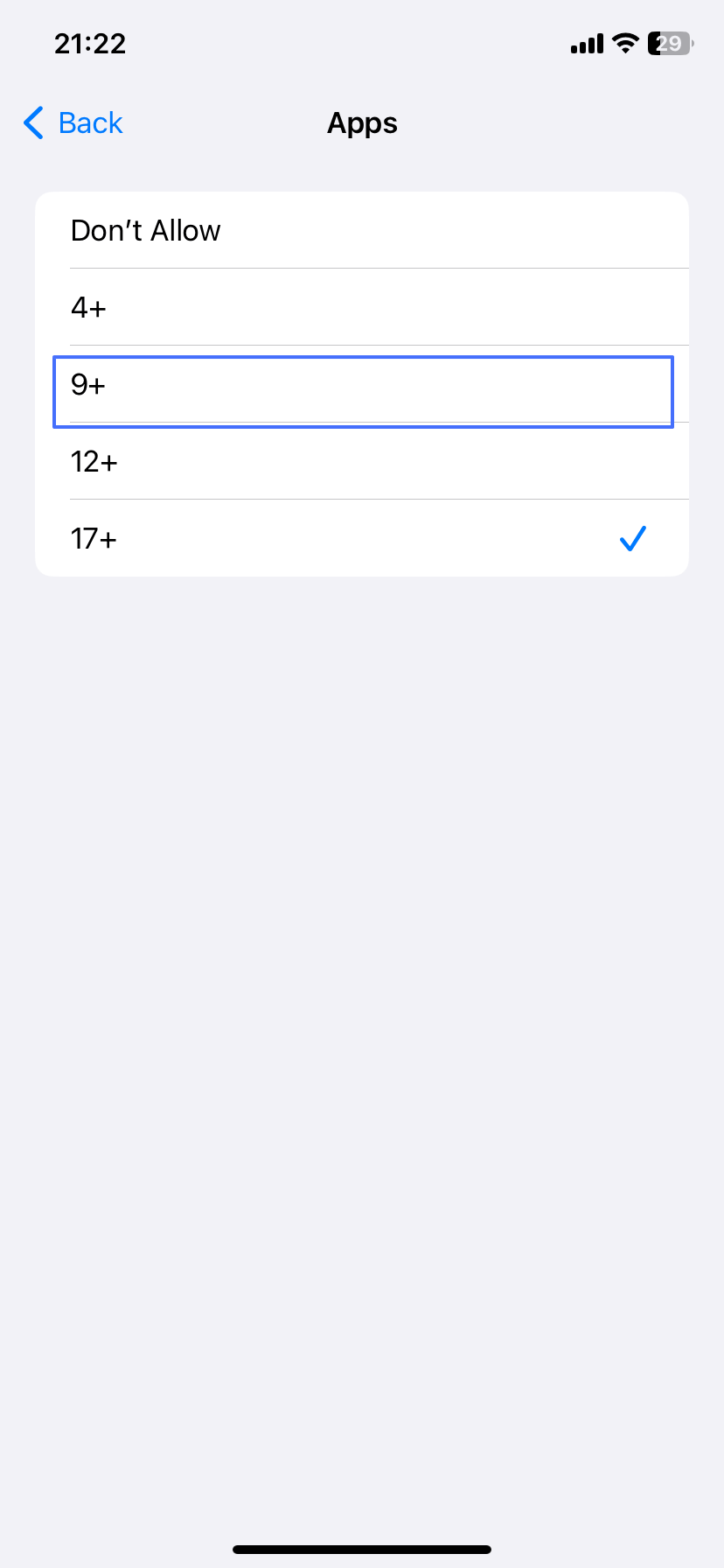
When you adjust the app age rating, your child will be able to see and use only the apps that fall within the age rating you select. For example, if you set the limit to 9+, only apps rated 9 and below will appear on your child's Home Screen.
Follow the steps below to set this up:
- Step 1.Go to "Settings > Screen Time."
- Step 2.Tap on your child's name.
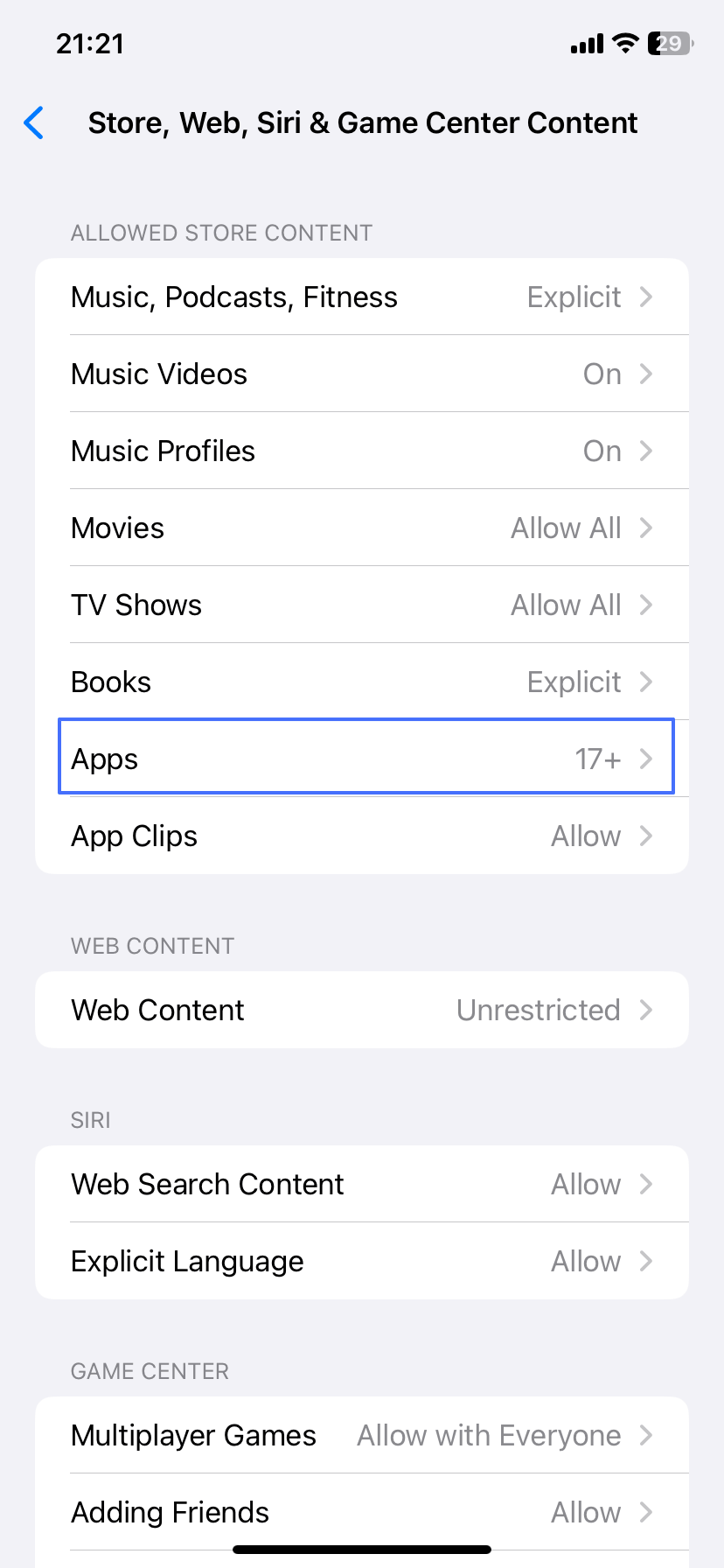
- Step 3.Select "Content and Privacy Restrictions > App Store, Media, Web, & Games."
- Step 4.Click on "Apps" and select either age 4+, 9+ or 12+, depending on your child's age.
 |  |
Use Third-party Parental Control Tools
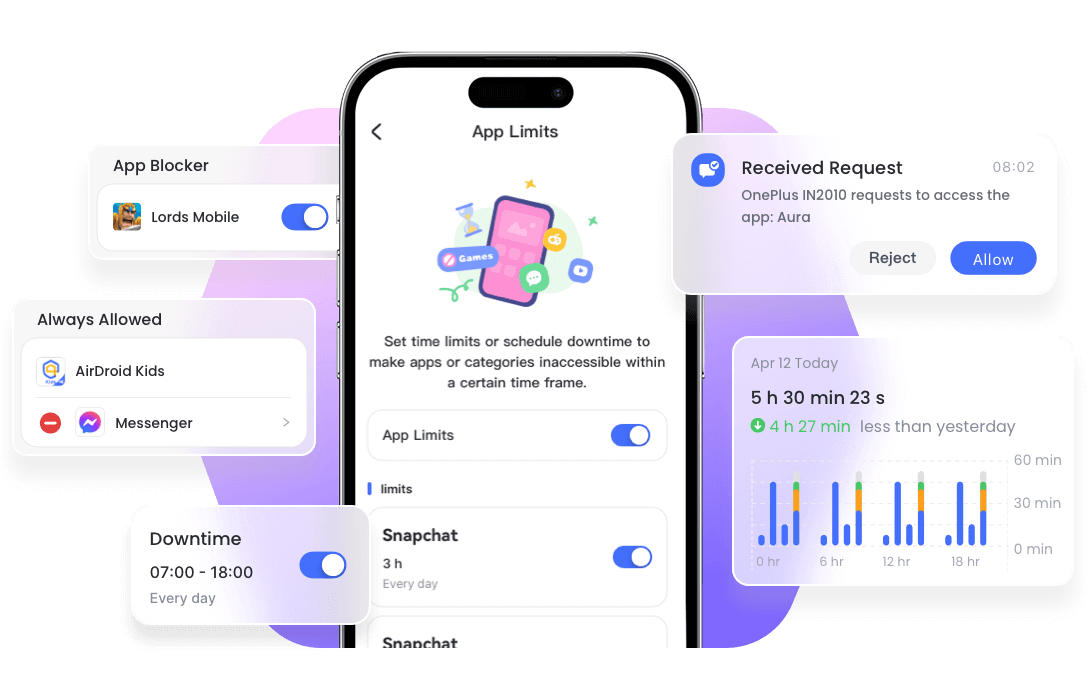
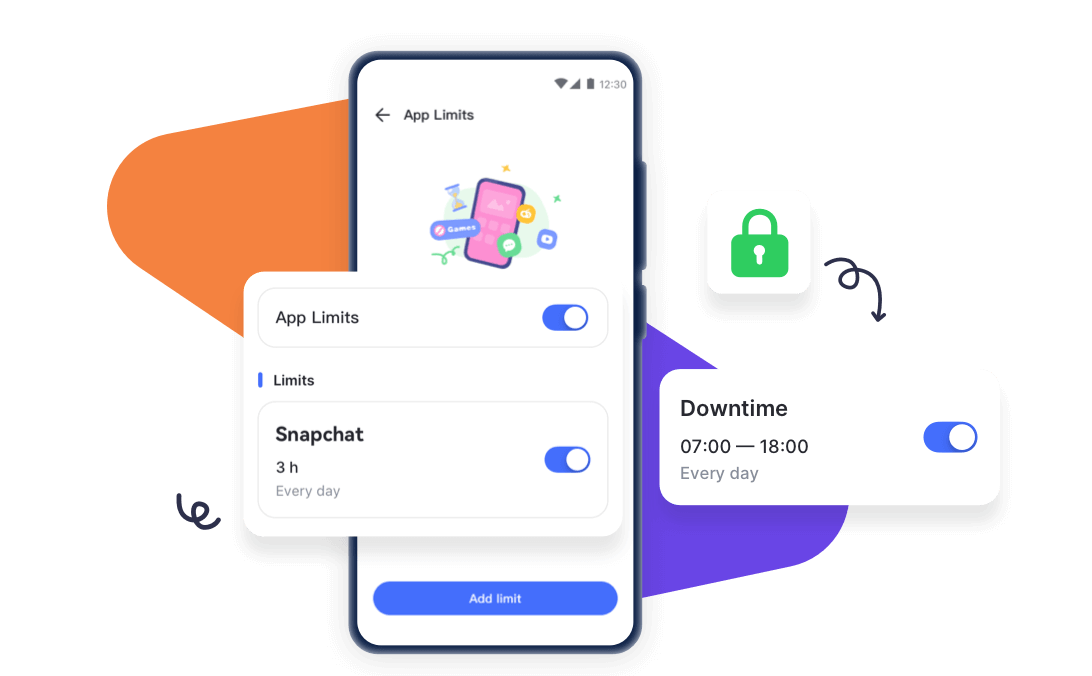
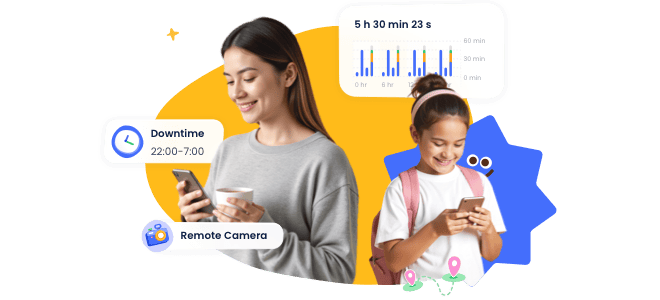
You can also leverage third-party parental control apps, such as AirDroid, to set a screen time limit if the one on your child's iPhone refuses to work. With AirDroid, you can:
- Set precise daily or weekly app time limits
- One-click to block specific apps or websites
- Set scheduled downtime during homework or bedtime
Set up Social Apps' Family Center Feature
Many social apps have built-in parental control or time management tools you can use. These tools allow parents to manage the screen time and content exposure of their child's account. These apps include:
- YouTube
- TikTok
- Snapchat
- Discord
FAQs about Screen Time
Final Thoughts
Screen Time is a useful tool—when it works. But between bugs, syncing issues, and all the clever bypass tricks kids come up with, it's normal for app limits to fail from time to time. The fixes in this guide should help you get Screen Time back on track.
But remember, if your child is older, giving them more freedom can be even more effective. Instead of strictly restricting, teaching them to manage their own screen use often lasts longer.














Leave a Reply.