How to Limit Character AI Screen Time on Smartphones
One Reddit user shared that they were spending 12 hours or more a day on Character AI, leaving little time for schoolwork or personal projects. They wanted to cut back but weren't sure where to start.
If you're a parent and Character AI is taking over your teen's homework time or bedtime, this guide walks you through how to limit Character AI across the app and web on their phone.
Does Character AI Have a Built-In Time Limit?
Character AI introduced a temporary two-hour daily chat limit and gradually decreased it during its 2025 transition.
Currently, its Help Center says users verified as under 18 are placed in Reading Mode: they can browse and view past chats, but cannot chat with characters.
Although it has a Parental Insights setting, it does not let linked parents set a time limit on Character AI. Instead, it shows daily screen-time totals that update as the teen uses the app and sends a weekly digest.
So, to limit total time on the Character AI app or website, use device-level controls we'll explain later.
How to Limit Character AI Time on iPhone
If your child uses an iPhone and has their own Apple account created through Family Sharing, you can limit Character AI time from your own phone. Here's how.
If You Haven't Updated to iOS 27:
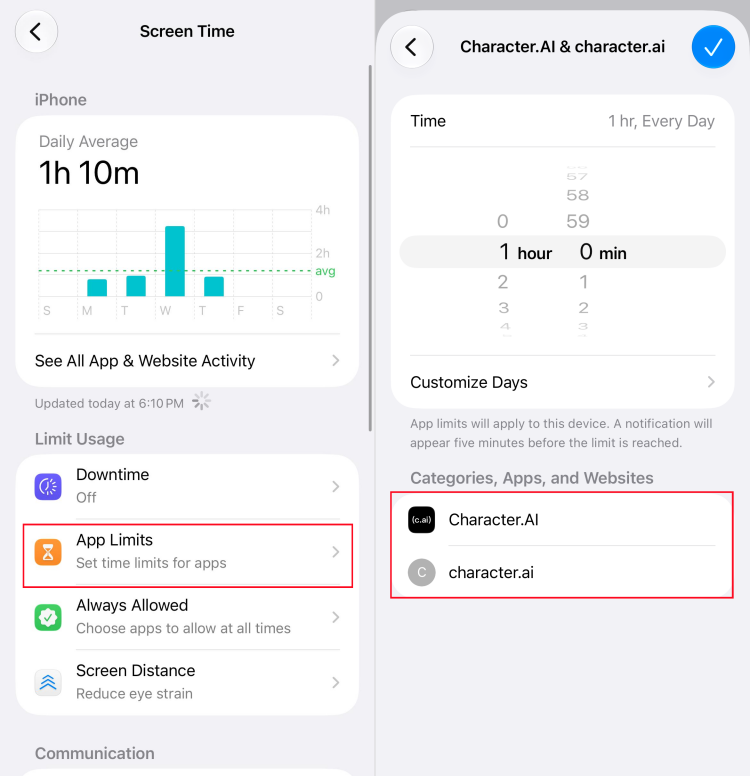
- Step 1.Open Settings > Screen Time and select your child.
- Step 2.Tap "App Limits > Add Limit."
- Step 3.Search for and select the Character AI app. Also, enter "character.ai" under "Websites."
- Step 4.Next, choose the daily time limit or customize different limits for weekdays and weekends.
- Step 5.If you don't want your teens to access Character AI during bedtime, open "Downtime," turn on "Scheduled," and choose the start and end times.
If All Devices in Family Sharing Are Using iOS 27:
Apple updated Screen Time settings and offered new controls for families in iOS 27. So the settings and steps are different.
⚠️Note: Apple states that to use the updated controls, all devices in your Family Sharing group must be on iOS 27, iPadOS 27, and macOS 27. Otherwise, continue using the previous Screen Time controls.
- Step 1.Open "Settings > Family > your child's name."
- Step 2.Select "Time Allowances."
- Step 3.Create a new category for the Character AI app.
- Step 4.Then, adjust that category's allowance.
- Step 5.Open "Screen Time Schedule," enable the schedule, and choose which app categories are available during school, after school, and other time windows.
How to Limit Character AI Time on Android
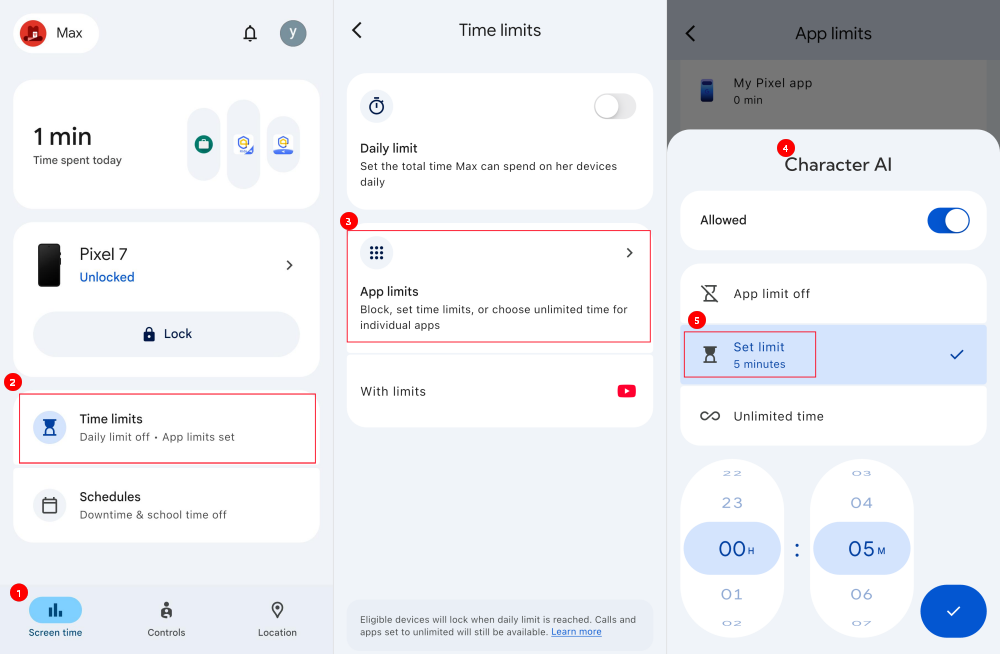
For a child's Android phone, Google Family Link lets you set a daily limit specifically for the Character AI app. Surely, the prerequisite is that their device needs to be supervised and linked through Family Link. To limit Character AI on Android with Family Link:
- Step 1.Open Family Link on your phone and select your child's profile.
- Step 2.Go to "Screen time > Time limits > App limits."
- Step 3.Locate Character AI and tap "Set limit."
- Step 4.Choose the hours and minutes allowed each day.
- Step 5.To restrict late-night use, go to "Screen time > Schedules" and enable "Downtime." Then, choose the days and start and end times.
Schedule Character AI Separately With AirDroid
Note that the Android downtime schedule is for the entire device use, not the Character AI app only.
So, if you want Character AI unavailable during homework while leaving other studying apps accessible, AirDroid Parental Control offers schedules for selected apps. Additionally, it can detect risky context and selected keywords in Character AI conversations on Android.
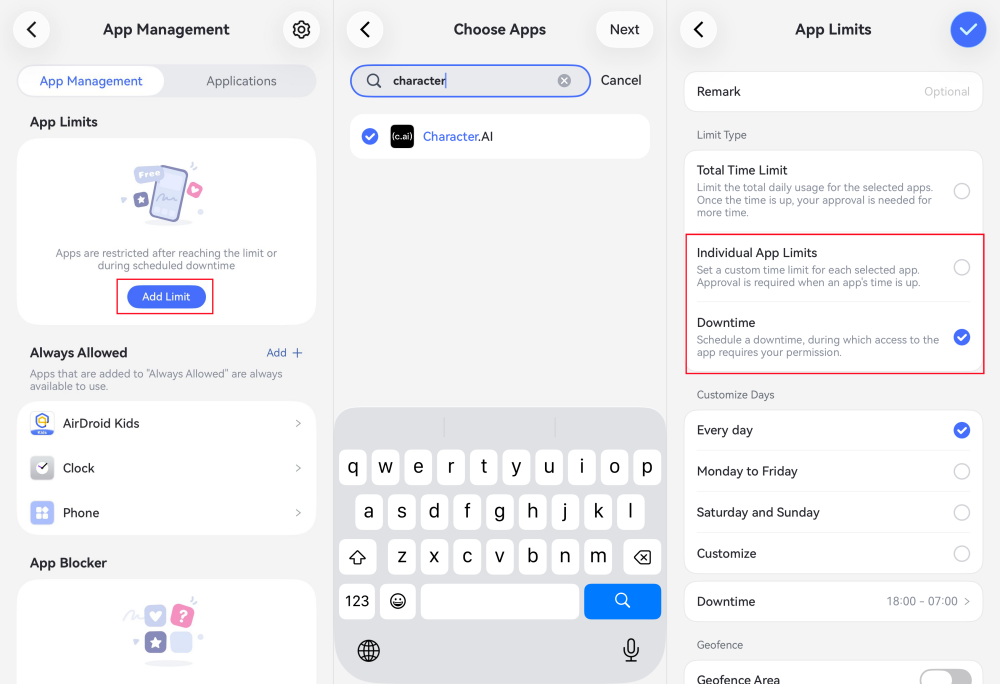
- Step 1.Install AirDroid Parental Control on your phone and link your child's Android device.
- Step 2.Open "App Management > App Limits > Add Limit."
- Step 3.Select "Character AI."
- Step 4.Choose "Individual App Limits" for a daily allowance, or "Downtime" to block it during specific hours.


What If Your Teen Keeps Using Character AI After the Time Limit?
Setting a limit doesn't always cover every way your child uses Character AI. Teens can always find the gaps in a limit quickly. These are the most common gaps and how to close each one:
| Common gaps | How to reduce it |
|---|---|
| Use another account with a different birthdate | Pay attention to your email inbox to see if your child has unlinked your account. Then, discuss which account your child uses, and ensure that they use the linked account with their real birthday. |
| Use the website or another browser | Restrict the Character AI website as well. Also, check which browsers your parental control tool covers and test the rules in every browser your child uses. |
| Switch to another device | Set up restrictions on spare phones, tablets, and computers your child uses. For devices you can’t control (a friend’s phone), agree on rules together. |
| Remove limits using parent’s device | Keep your own device locked and parental control passwords private. Don’t leave your phone unattended when lending it to your child, and review parental controls regularly. |
| Changing the device date or time | Restrict manual changes: on iPhone, set a passcode; on Android, open "Family Link > Screen time." Tap the signed-in device and go to "Device settings > disable Edit date & time." |
FAQs
Bottom Line: Make the Limit Work for Your Family
In short, the best Character AI limit is one your child understands, and you can easily enforce. Discuss and agree on a daily allowance, decide when it should be off-limits, and explain how they can ask for extra time.
Then make sure your settings match that agreement. Cover both the app and website, check other devices your child uses, and test what happens when time runs out.
Most importantly, look beyond the screen-time total. Just like the AAP's 5C suggests, pay more attention to the content, crowding out, etc. Based on this framework, here are a few discussion you can use regarding Character AI:
- Is Character AI interrupting their homework or bedtime?
- Are the conversations romantic or emotionally intense?
- Does limiting access cause distress or rebellion?
- Can your child clearly distinguish an AI character from a real relationship?
- Have you agreed on clear rules about Character AI use?
Then, use those answers to adjust the time limits together.










Leave a Reply.