How to Check If a Link Is Safe: A Parent's Guide
Children receive links through email, text messages, games, social media, and group chats. Some lead to ordinary websites, while others may be phishing attempts, scams, fake login pages, or malware downloads. Parents can reduce the risk by teaching children to pause before clicking and ask for help when a message feels unusual.
This guide explains how parents can check a link without opening it, help children recognize common warning signs, set age-appropriate website restrictions, and respond calmly if a child clicks something unsafe.
Why Parents Should Check Links with Kids
A deceptive link can lead to account theft, unwanted downloads, financial scams, or requests for personal information. Children may be especially likely to click when a message promises a game reward, free currency, a prize, an urgent account fix, or a message from someone who appears to be a friend.
Checking links should be a shared safety habit rather than a punishment. Encourage your child to show you unexpected links before opening them, and make it clear that asking for help will not automatically lead to blame or loss of device access.
- Pause before clicking. Urgency is often used to stop people from thinking carefully.
- Verify through another channel. Contact the sender or company through an official app, saved number, or known website.
- Protect private information. Children should not enter passwords, verification codes, addresses, payment details, or school information after following an unexpected link.
- Use tools as a second opinion. A link checker can identify known risks, but a clean result is not a guarantee that a page is safe.
7 Link Checkers Parents Can Use
If a child receives an unfamiliar URL, copy the address without opening it and check it with one or more reputable services. Do not submit private password-reset links, invitation links, medical portals, school portals, or URLs containing personal access tokens to a public scanner.
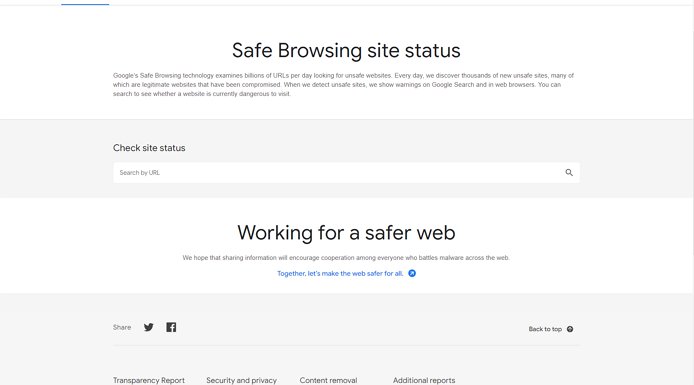
1Google Safe Browsing Site Status
Google Safe Browsing Site Status lets a parent check whether Google has identified unsafe content on a website. Copy the URL, paste it into the checker, and review the reported status before deciding whether to visit.
A result such as "No unsafe content found" means Google did not report a known issue at that time. It does not prove that every page, download, advertisement, or user on the site is trustworthy.
2PSafe Dfndr Lab
PSafe Dfndr Lab checks URLs for signals such as suspected phishing, hidden destinations, multiple redirects, external files, and adult content. This can be useful when a child receives a shortened or unfamiliar link in a message.
If the service says a URL is not in its database, treat the result as unknown rather than safe. New scam pages may not have been classified yet.
3Norton Safe Web
Norton Safe Web provides website reputation information and can flag known security concerns. Parents can use it as an additional check when a child receives a link that appears to lead to a login page, download, online store, or unfamiliar service.
A reputation rating is only one signal. Parents should still verify the domain name and the reason the child was sent the link.
4Sucuri SiteCheck
Sucuri SiteCheck remotely checks a website for known malware, malicious code, blocklist status, outdated software, and other visible security issues. It is more useful for checking a website than evaluating the intent of a private message.
Sucuri notes that a remote scanner has limited access and cannot guarantee complete detection. A clean report should not override obvious warning signs such as a misspelled domain or an unexpected request for a password.
5VirusTotal
VirusTotal checks a URL against multiple security engines and reputation sources. It can help a parent compare results when another checker gives an unclear answer.
Only submit public URLs. Do not paste private school links, account recovery links, invitation links, or any address containing personal or temporary access information.
6URLVoid
URLVoid checks a website against multiple blocklist and reputation services. Its report may also include the domain creation date, server location, IP information, and the scanners that flagged the site.
A recently created domain can be a warning sign, especially when it imitates a familiar brand, but domain age alone cannot prove that a website is malicious or legitimate.
7EasyDMARC Phishing Link Checker
EasyDMARC Phishing Link Checker is designed to identify suspicious links in emails, text messages, and other online content. It can be useful when a child receives a message that asks for an urgent login, payment, prize claim, or account verification.
Parents should still contact the named company through its official app or a website they already know. Do not use the phone number, reply address, or contact link supplied in the suspicious message.
Teach Kids to Recognize Unsafe Links
Link checkers are useful, but children also need simple habits they can use when a parent is not beside them. Practice the following checks together with harmless example messages.
1Pause and Identify the Sender
Ask who sent the link and why. A familiar display name or profile photo does not prove that the message is genuine because an account may be copied or compromised. If the request is unusual, confirm it through a separate conversation.
2Preview the Destination
On a computer, hover over the link without clicking to display its destination. On a phone or tablet, a long press may show a preview or an option to copy the link. Teach children not to open the preview if they are unsure how their device handles it.
3Check the Exact Domain Name
Look for misspellings, extra words, swapped letters, unusual subdomains, or endings that do not match the real service. A scammer may use a domain that looks similar to a game, bank, streaming service, or social platform.
4Do Not Treat HTTPS as Proof
HTTPS means the connection is encrypted, but scammers can also use HTTPS. The padlock icon does not prove that the organization behind the website is trustworthy.
5Open the Official Service Separately
If a message claims there is a problem with an account, open the official app or type the known website address instead of following the link. Check the account notifications there.
6Watch for Pressure and Sensitive Requests
Messages that demand immediate action, threaten account closure, promise free rewards, or request a password or verification code deserve extra caution. Children should know that a legitimate helper will allow them time to ask a parent.
7Be Careful with Short Links and QR Codes
Shortened URLs and QR codes can hide the final destination. They are not automatically malicious, but children should not open an unexpected one without checking who sent it and why.
8Use Reviews and Domain Details as Supporting Signals
Search for the organization independently and review its contact details, reputation, and domain history. These signals can support a decision, but positive reviews or an older domain do not guarantee safety.
What Does a Suspicious Link Look Like?
A suspicious link is a URL or linked message that gives you a reason to question its destination, sender, or purpose. Parents can teach children to look for a combination of warning signs instead of relying on a single clue.
- The message was unexpected. The child did not request a password reset, prize, delivery update, or account check.
- The domain imitates a familiar brand. It contains misspellings, extra words, numbers, or an unusual domain ending.
- The message creates urgency or fear. It says the child must act now or lose an account, reward, streak, or game item.
- The page requests sensitive information. It asks for a password, verification code, payment information, home address, school details, or identity document.
- The link hides its destination. It uses a short URL, unexpected redirect, QR code, or misleading linked text.
- The offer seems unrealistic. It promises free currency, rare items, prizes, or exclusive access in exchange for a login or download.
Some scams look polished and contain no spelling mistakes. The safest family rule is simple: when a link is unexpected or requests sensitive information, stop and ask a trusted adult before continuing.
What to Do If Your Child Clicks a Suspicious Link
A child may hide a mistake if they expect punishment. Stay calm, thank them for telling you, and focus first on limiting any harm.
- Step 1.Close the page and stop interacting with it. Do not download files, grant permissions, call numbers shown in a pop-up, or enter more information.
- Step 2.Ask what happened. Find out whether the child entered a password, verification code, payment information, address, or other personal data, and whether anything was downloaded or installed.
- Step 3.If a password was entered, change it through the real app or website and enable two-factor authentication. Change any other account that reused the same password.
- Step 4.If financial or identity information was shared, contact the bank, card issuer, platform, or other relevant organization through verified contact details.
- Step 5.Update the device and its security software, then run a security scan and remove anything identified as unsafe. Check for unfamiliar apps, browser extensions, downloads, or permissions.
- Step 6.Report the message to the email, messaging, game, or social platform. The FTC also provides guidance on recognizing, responding to, and reporting phishing.
- Step 7.Review what made the link convincing and agree on one simple rule the child can use next time, such as "Stop, do not enter information, and ask an adult."
Help Block Unsafe Websites on a Child's Device
Education should come first, but website controls can add another layer when a child is still learning to assess links. AirDroid Parental Control supports website restrictions, browsing-history review, and alerts for blocked-site attempts under supported configurations.
It does not guarantee that every malicious link will be detected or blocked. Available controls can vary by the child's operating system, permissions, setup mode, network, and current app version.
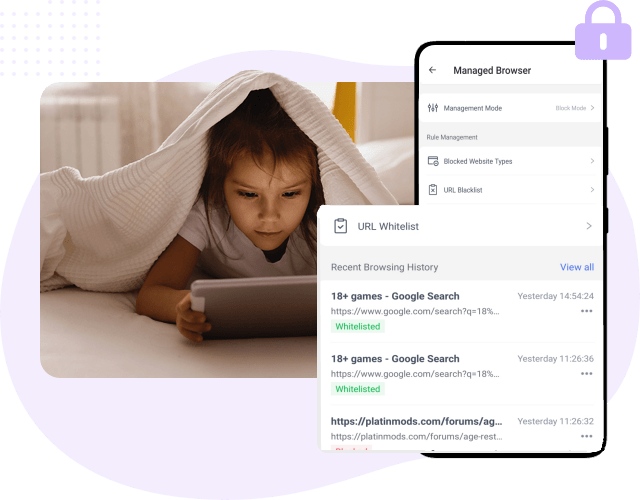
- Step 1.Install AirDroid Parental Control on the parent's device, or use AirDroid Parental Control Web, and connect the child's device with the child's knowledge.
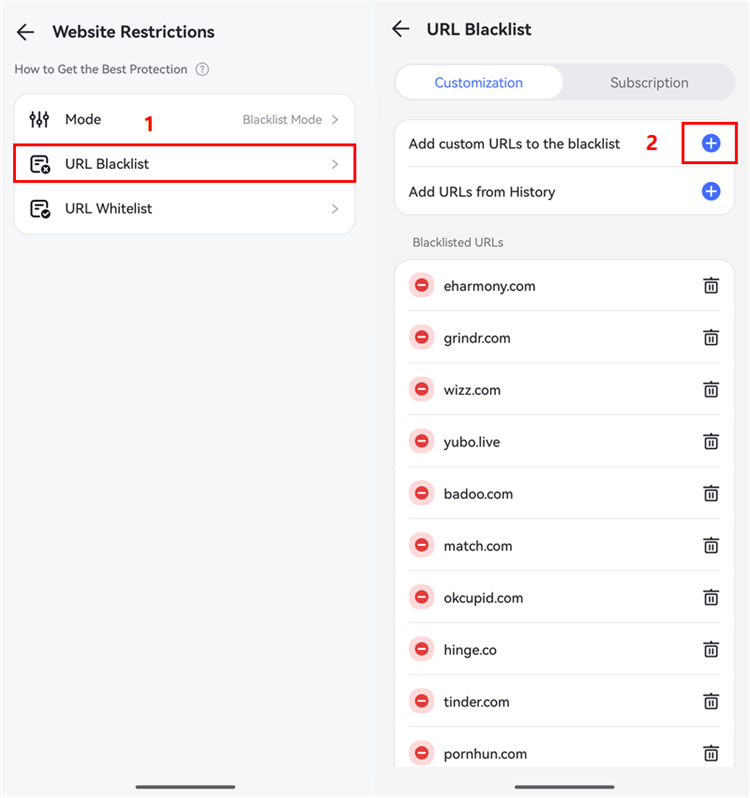
- Step 2.Open Website Restrictions and choose a mode that fits the child's age. A blacklist blocks selected URLs or categories, while a whitelist limits access to approved websites.
- Step 3.Add known unsafe URLs or unsuitable categories. Review the list regularly so an outdated or mistaken rule does not block legitimate school or health information.
- Step 4.Review supported browsing history and blocked attempts with your child. Treat an alert as a reason for a calm conversation, not automatic proof that the child deliberately searched for unsafe content.


Conclusion
Parents cannot inspect every link before a child sees it, so the long-term goal is to build a repeatable family habit: pause, check the sender, inspect the destination, and ask for help before entering information or downloading anything.
Link checkers and website restrictions can reduce risk, but neither replaces communication. Make it easy for your child to report a mistake quickly, respond without immediate blame, and use the incident to strengthen the family's online-safety rules.

If I accidentally click on a suspicious link, follow this.
1. Disconnect from the internet
2. Run a thorough scan with your updated antivirus software
3. Immediately change your passwords for critical accounts like email, banking, and social media.
Here’s how to check if a website is legit.
●Check for secure connections (HTTPS) and a padlock symbol in the browser address bar.
●Review the "About Us" page with information about the website's mission, team, and contact details.
●Use tools like WOT (Web of Trust) to see community-based safety ratings and user reviews.
●Read and search for independent website reviews to see what others experienced. Look for consistent negativity as a red flag.
The following signs indicate a phishing or scam site
●The link might pressure you to act quickly, claiming your account is in danger or offering a limited-time deal.
●Legitimate websites rarely have typos or grammatical mistakes.
●Watch out for altered spellings of well-known brands or domains that don't match the website's name.
●Unrealistic promises.









Leave a Reply.