AirDroid Parental Control
24/7 Kids' Guardian via App & Web
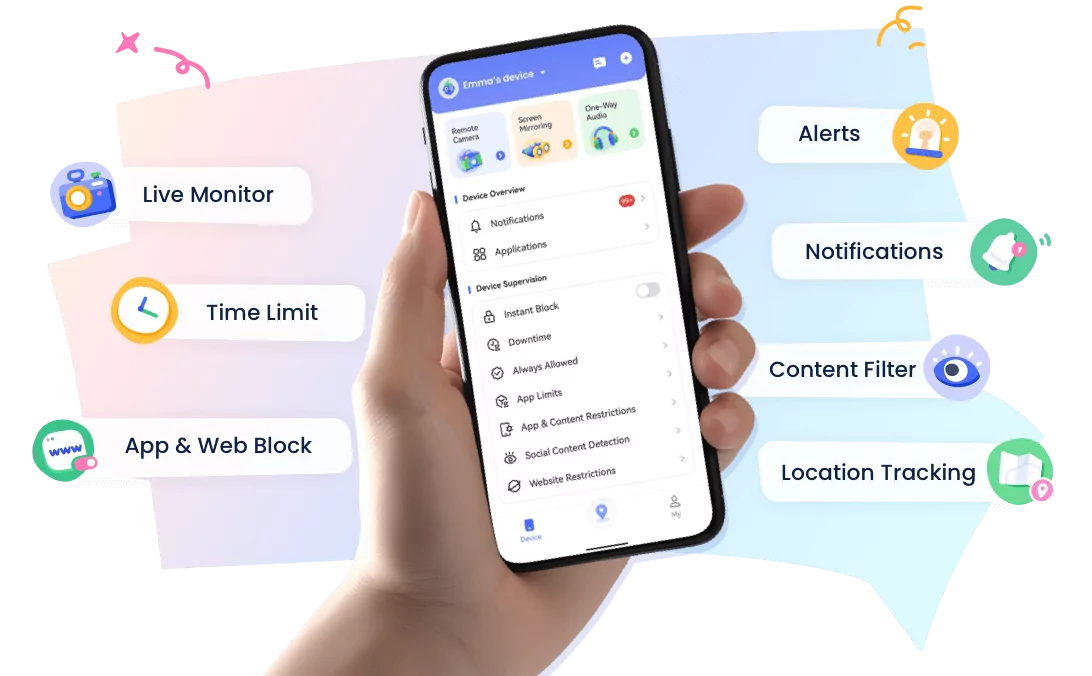
- 👀Live surroundings and location tracking
- 🔞Content Monitoring and App/Web Blocking
- ⚠Instant alerts for online risks and geofences
- ⌛Screen time control and monitor
How to Set Time Limits on Apps on Android & iPhone (Cross-Platform Parental Control Guide)
Parents can set time limits on apps to help children develop healthier screen habits and manage excessive phone use. This guide explains how to limit app usage on Android and iPhone using built-in parental controls, including Google Family Link and Apple Screen Time, and how a cross-platform parental control app like AirDroid Parental Control helps families manage screen time across different devices.
Quick Answer: How Do You Set Time Limits on Apps?
You can set app time limits in 3 ways:
- Android: Use Digital Wellbeing, App Timers, or Google Family Link to limit app usage.
- iPhone/iPad: Use Apple Screen Time → App Limits to restrict specific apps or categories.
- Multiple devices: Families with both Android and iPhone devices can use a cross-platform app like AirDroid Parental Control to manage app limits, screen schedules, and children's digital habits from one place.
Why Should Parents Set Time Limits on Apps?
Children today spend significant time on smartphones for entertainment, communication, and learning. Without proper boundaries, excessive app usage may affect sleep, focus, and daily routines.
Setting app time limits helps parents create healthy digital habits by controlling how long children spend on games, social media, streaming apps, and other online activities.
However, different families use different devices. Some children use Android phones, while others use iPhones or tablets. Therefore, parents may need a solution that works across platforms instead of managing each device separately.
How to Set Time Limits on Apps on Android?
Android devices provide built-in tools to manage app usage, including Digital Wellbeing and Google Family Link. These features allow users and parents to set daily app limits, monitor screen time, and create healthier device routines.
1 Set App Timers with Digital Wellbeing
Android's Digital Wellbeing feature allows users to check app usage and create daily timers for individual apps.
- Step 1.Open Settings on your Android device.
- Step 2.Tap Digital Wellbeing & parental controls > Dashboard and choose the app you want to limit..
- Step 3.Set a daily usage timer and tap Done.
2 Use Google Family Link for Child Devices
Google Family Link is designed for parents who want to manage their child's Android device. Parents can set daily screen time limits, app restrictions, and downtime schedules.
How to Set Time Limits on Apps on iPhone and iPad?
If you have already finished Family Sharing settings with your child's Apple Account, you can set up and manage Screen Time from your own iPhone, iPad, Mac, or Apple Vision Pro.
Apple provides built-in parental controls through Screen Time. Parents can use App Limits, Downtime, and Family Sharing to manage children's iPhone or iPad usage.
1 Set up Screen Time for your child
- Step 1.Open Settings on your iPhone, scroll down, and tap Screen Time.
- Step 2.Under Family, tap your child's name and follow the onscreen instructions to set screen time.
2 Use your child's iPhone or iPad to turn on Screen Time
Even if you're not an Apple user, you can still manage your teen's screen time. If they're between 13 and 17, just grab their iPhone or iPad to configure parental controls and limits directly.
- Step 1.Go to Settings > Screen Time → App Limits.
- Step 2.Tap App & Website Activity > Turn On App & Website Activity. In this case, you can see a summary of your child's device usage.
- Step 3.Scroll down, then tap Lock Screen Time Settings.
- Step 4.Set a 4-digit passcode and confirm again.
Built-in Controls vs Cross-Platform Parental Control Apps: Which Method Is Better?
Android and iPhone both provide built-in screen time tools, and they work well for basic app limits. However, families with multiple devices may need a more flexible solution to manage children's digital habits across different platforms.
For example, parents may use an Android phone while their child uses an iPhone, or siblings may use different devices. In these situations, managing each device separately can become inconvenient.
A cross-platform parental control tool like AirDroid Parental Control allows parents to manage screen time, app limits, and digital rules from one parent dashboard.
| Method | Best For | Limitations |
|---|---|---|
| Android Digital Wellbeing | Personal app usage management | Limited parental management features |
| Google Family Link | Parents managing Android child devices | Mainly designed for Android ecosystem |
| Apple Screen Time | Parents managing iPhone/iPad devices | Works best within Apple's ecosystem |
| AirDroid Parental Control | Families using Android and iPhone devices together | Requires installing a dedicated parental control solution |
When Do Parents Need a Cross-Platform Parental Control App?
Built-in tools are useful for simple app restrictions, but parents may need additional features when they want to:
- Manage children's Android and iPhone devices from one account.
- Create customized app limits and screen time schedules.
- Monitor children's app usage habits.
- Set different rules for multiple children.
- Receive alerts when children exceed screen time limits.
Manage App Time Limits Across Devices with AirDroid Parental Control
For families using different devices, AirDroid Parental Control provides a unified way to manage children's screen time and app usage. Instead of switching between different operating systems, parents can manage digital rules from one dashboard.
With AirDroid Parental Control, parents can:
- Balance screen time: Softly guide children with healthy daily limits for apps and categories.
- Understand digital habits: Gain insights from friendly activity summaries to support better choices.
- Cross-platform parental control: Extend mindful, gentle care across all supported Android and iOS devices.


This makes AirDroid Parental Control a practical option for parents who want more flexibility than built-in Android or iPhone screen time settings.
FAQs About Setting Time Limits on Apps
On Android, you can set app time limits through Digital Wellbeing or Google Family Link. Go to Settings → Digital Wellbeing & parental controls, select the app, and create a daily timer. Parents can use Google Family Link for additional child device management features.
On iPhone, open Settings → Screen Time → App Limits. Select apps or categories, choose the allowed usage time, and save the settings. Parents can also use Family Sharing to manage children's Screen Time settings remotely.
Yes. Both Android and iPhone allow users to create app-specific limits. For example, parents can set shorter limits for games and social media while allowing more time for educational apps.
For families using only one platform, built-in parental controls may be enough. However, families managing both Android and iPhone devices may benefit from a cross-platform parental control app that provides centralized screen time and app management.
Yes. AirDroid Parental Control allows parents to set app limits, create screen time schedules, and manage children's app usage from a parent dashboard. It is designed for families who want flexible parental controls across supported devices.









Leave a Reply.