AirDroid Instagram Account Tracker
- ⚠️ Hacked or Forgotten Instagram Password?
- 🚨 Get notified if suspicious activity happens.
- 📍 Track device location if account is compromised.
- 🛡️ Social Content Detection helps spot phishing scams.
How to Recover Instagram Account [2026]
Losing access to your Instagram account can be stressful, whether you forgot your password or someone hacked it. In this guide, we’ll show you how to recover Instagram account step by step.
You’ll learn how to check if your account was hacked, how to recover Instagram password, and how to keep it safe from hackers in the future. Instagram’s official I Can’t Log In page and Account Recovery and Login hub are the best starting points because recovery options vary depending on whether you forgot your password, lost access to your email or phone, had your account hacked, or had the account disabled.
Part 1. How to Recover Instagram Account?
If you’re wondering, “How to get my Instagram account back?” after someone has hacked it or you are locked out, start with Instagram’s official recovery paths. Most accounts can be recovered if you still have access to your linked email, phone number, username, Facebook login, backup codes, or identity verification options. However, if an account was permanently deleted and the deletion process is complete, Instagram says it can’t be restored.
1. Recover Instagram via Email or Phone Number
The easiest and most common method to get Instagram account back is via the email address, username, or phone number linked with the account. According to Instagram’s official password recovery guide, you can request a login link or reset your password through the recovery option on the login screen.
Here’s how:
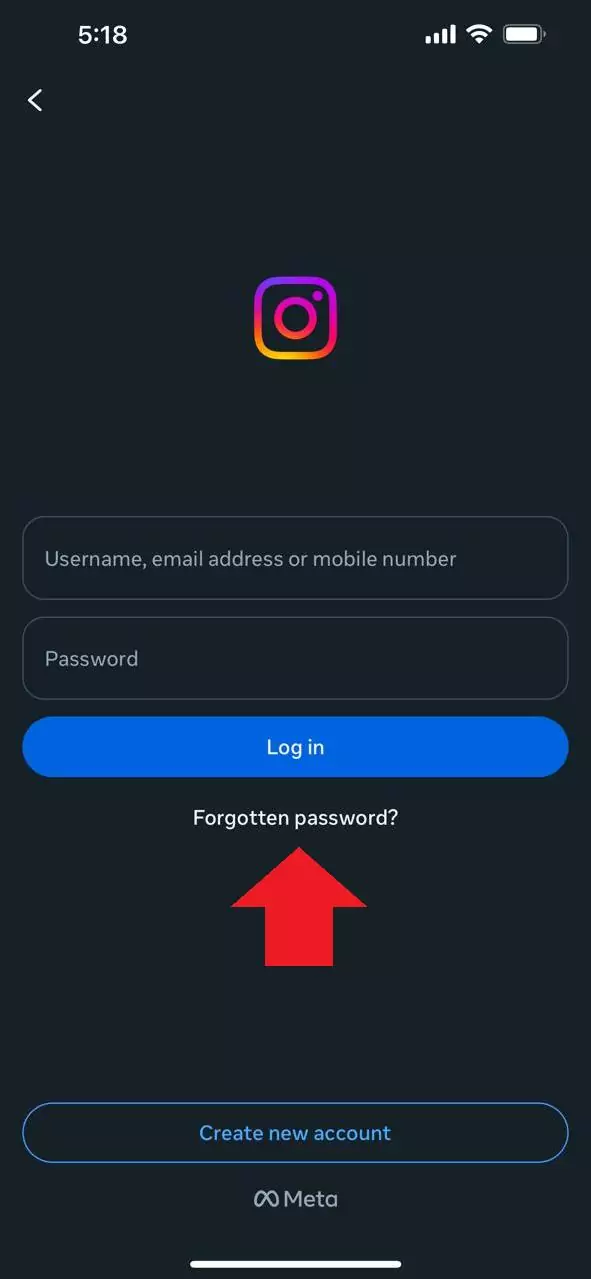
- Step 1. Launch Instagram on your device, and tap on “Forgotten Password”.
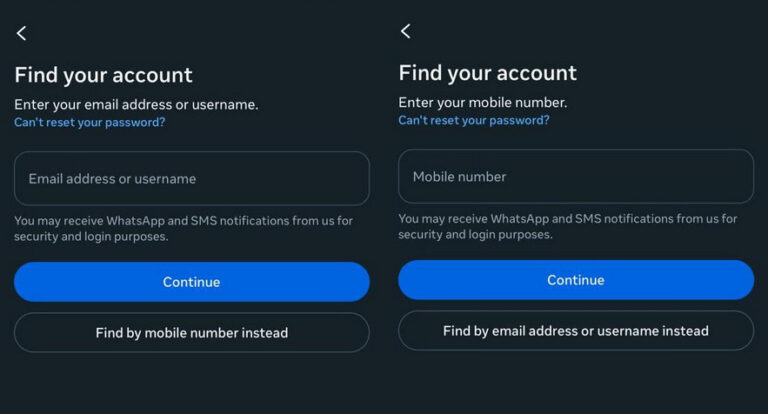
- Step 2. Instagram will ask you to enter your email address or phone number.
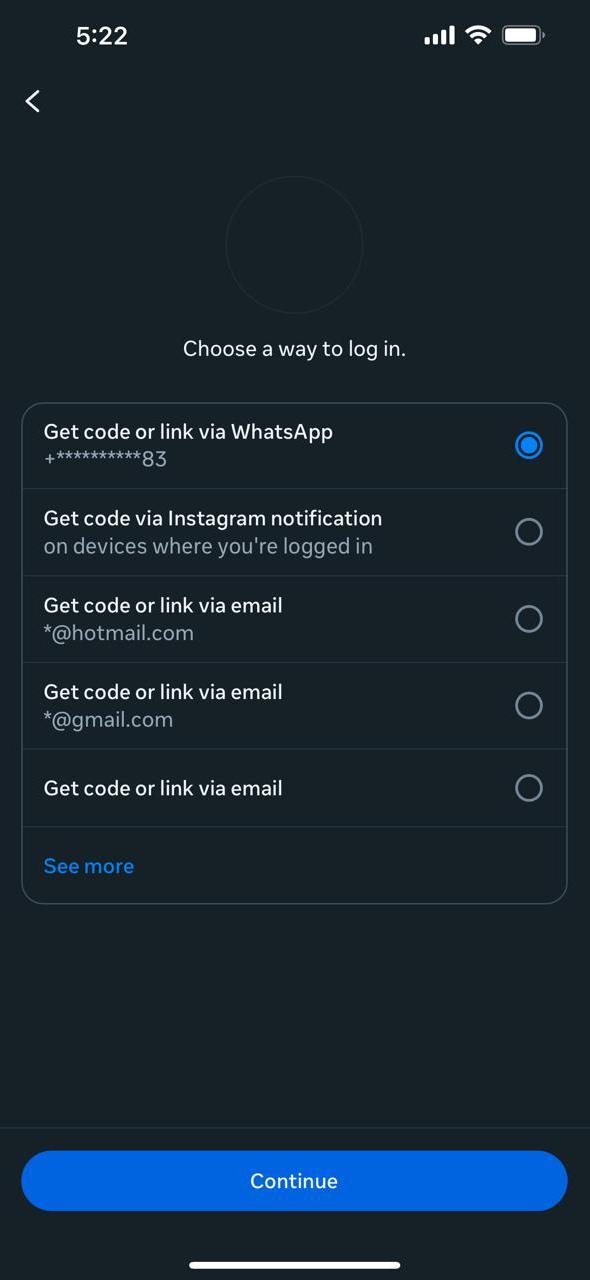
- Step 3. Once entered, it will ask you how you want to receive the verification code.
- Step 4. Depending on the method you choose, you will receive a link or code, using which you can log in to your account.
2. Via Linked Accounts Like Facebook
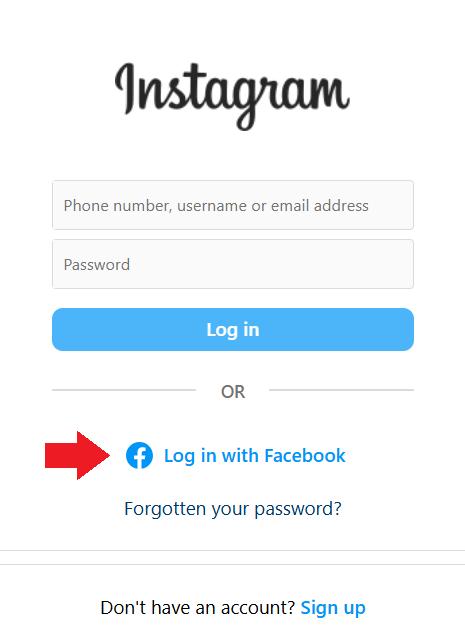
If you have linked your Instagram account to your Facebook account, you may be able to use that connected login path to access Instagram and then reset your password. This works best when your Facebook account is still secure and the accounts remain connected through Meta’s login or Accounts Center settings.
Here’s what to do:
- Step 1. Launch Instagram, and tap “Log In with Facebook.”
- Step 2. You will automatically be logged into your Instagram account, after which you can reset your password.
3. Recover Disabled Instagram Account
Instagram may disable your account if it finds activity that violates its rules, such as impersonation, harmful content, or other suspicious behavior. Instagram’s official page on disabled Instagram accounts explains that users may be able to request a review if they believe the account was disabled by mistake.
Here’s how to recover it:
- Step 1. Launch Instagram and enter your login details.
- Step 2. Follow the on-screen instructions to request Instagram to review their decision.
Response times can vary, and approval is not guaranteed. The safest approach is to follow the review instructions shown in the app or Help Center and avoid submitting repeated or misleading appeals.
4. Contact Instagram Support
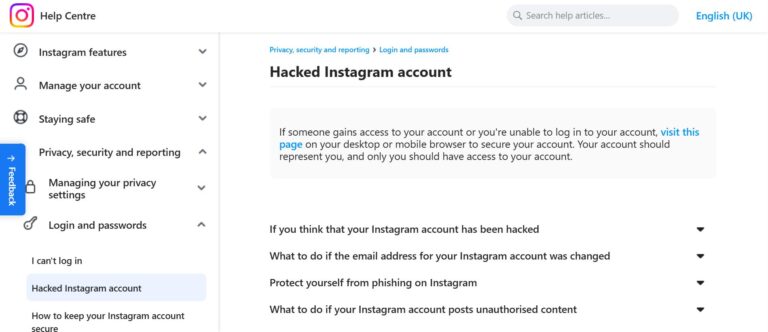
If none of the methods above help recover your compromised account, use Instagram’s official Help Center or hacked account flow instead of relying on unofficial support emails, social media replies, or paid recovery services.
- Step 1. Go to the Instagram hacked account recovery page or the Instagram Help Center, then follow the recovery path for hacked accounts.
- Step 2. Follow the on-screen instructions to report hacked Instagram account, and wait for them to resolve the issue.
Part 2. Signs That Someone Hacked My Instagram Account
If your Instagram account was hacked, you might notice a few warning signs. Instagram’s hacked account guidance recommends checking for suspicious changes such as a changed email address, unknown login activity, posts you did not create, or account settings you do not recognize.
| Signs | What’s Happening | What to Do |
|---|---|---|
| Can’t Log In | Keep getting “wrong password” messages. | Use Instagram’s password recovery or hacked account flow. |
| Strange Login Locations | Your account shows logins from places you don’t recognize. | Log out suspicious devices and reset your password. |
| Profile Changes | Your profile picture, name, bio, email, or phone number changed without your permission. | Fix your profile details, check account contact info, and reset your password. |
| New Follows or Spam DMs | Your account follows strangers or sends strange messages you did not create. | Unfollow suspicious accounts, report spam messages, and check your security settings. |
| Deleted Posts or Fake Content | Your old posts are gone, or new posts you didn’t create appear. | Delete fake posts, check login history, and reset your password. |
| Instagram Security Emails | You receive an email from Instagram about a password, email, or login change you didn’t make. | Use Instagram’s official email-checking feature to confirm whether the email is real before clicking links. |
| Unknown Email/Phone Linked | Your linked email or phone number is changed to one you don’t know. | Follow Instagram’s hacked account or lost email/phone recovery steps. |
| Two-Factor Authentication Disabled | Your 2FA suddenly turns off or backup codes no longer work. | Turn 2FA back on, regenerate backup codes, and review account settings. |
| Suspicious Third-Party Apps | Untrusted apps may be accessing your account or posting spam. | Remove suspicious app access, reset your password, and run Instagram Security Checkup. |
Part 3. How Do I Get My Hacked Instagram Account Back?
If your Instagram account has been hacked, Instagram recommends using its official hacked account recovery tools, login links, security codes, and identity confirmation steps rather than third-party “recovery” services.
1Reset Your Password
As soon as you suspect that your Instagram is hacked, reset your password to block out the hacker. Instagram’s hacked account guide also recommends checking whether your email address, phone number, or account details were changed.
2Use Facebook If Linked
If your Facebook is linked with Instagram and Facebook is still secure, use it to log in to your Instagram account and then change your password. If the hacker changed your Instagram contact information, follow Instagram’s lost email or phone access steps.
3Report Hacked Instagram Account
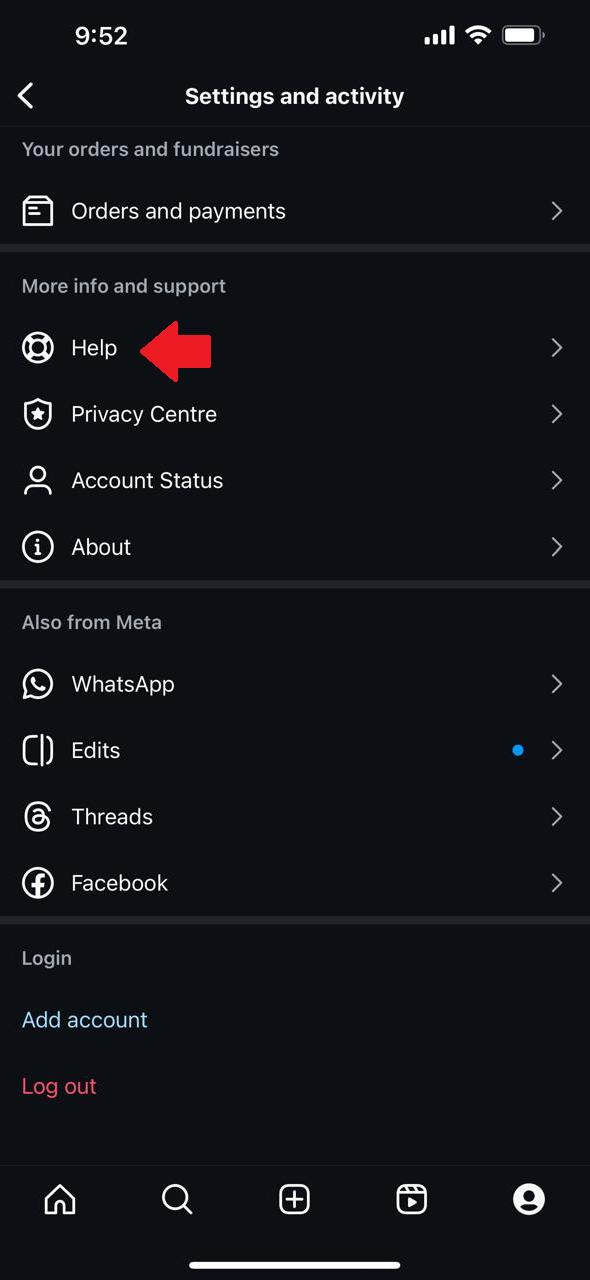
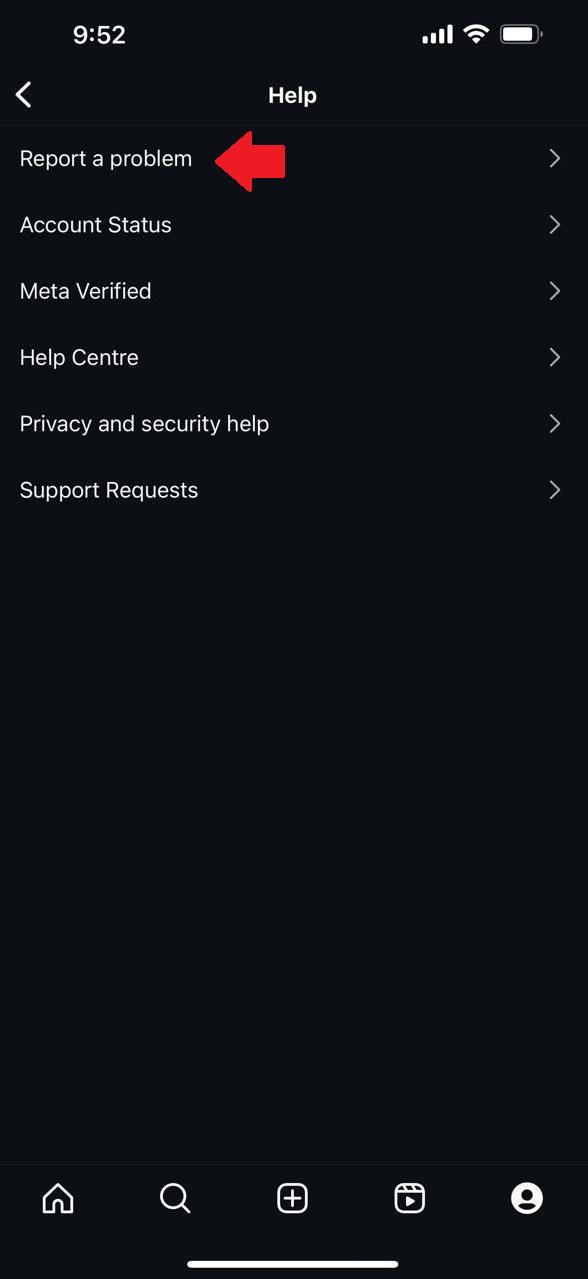
If you still have access to your Instagram account, report suspicious activity from inside the app and then run a security review. Instagram’s Security Checkup is designed to help users review login activity, account contact details, and security settings after suspicious activity.
- Step 1. Go to “Settings > Help.”
- Step 2. Click “Report a Problem” and follow the instructions to report the issue.
4Use Instagram’s Official Recovery Flow
If reporting the problem from inside the app does not work, use Instagram’s official hacked account recovery flow. Avoid sharing your password, verification codes, or ID documents with people who claim they can recover your account through DMs, comments, or unofficial emails.
- Step 1. Visit Instagram’s hacked account recovery page.
- Step 2. Follow the prompts to request a login link, security code, or identity confirmation if Instagram offers that option for your account.
The response times may vary. If Instagram asks you to confirm your identity, use the official in-app or Help Center instructions only.
Part 4. How To Protect Your Instagram Account from Hackers
Keeping your Instagram account secure is important to prevent hackers from gaining access. Instagram’s Security Checkup and two-factor authentication guidance both recommend reviewing login activity, securing your password, checking account contact details, and enabling 2FA after a recovery issue.
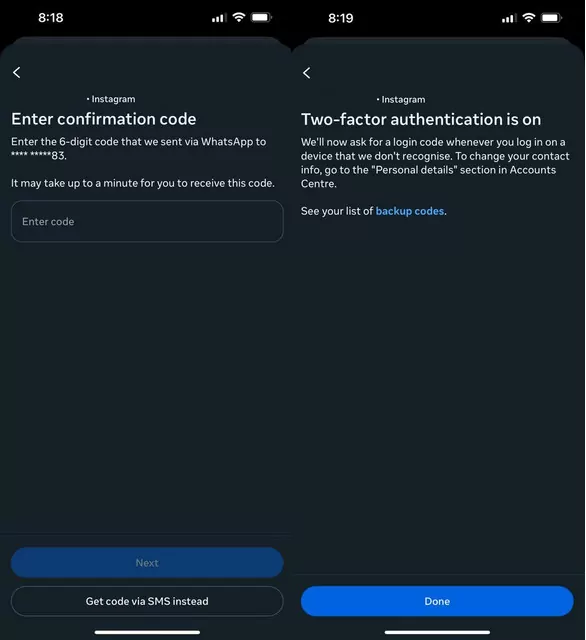
1Enable Two-Factor Authentication (2FA)
Two-Factor Authentication adds an extra layer of security by requiring a verification code when logging in from a new device. Instagram’s 2FA guide explains that users can set up two-factor authentication and use backup codes as an additional way to regain access when normal codes are unavailable.
To Enable 2FA:
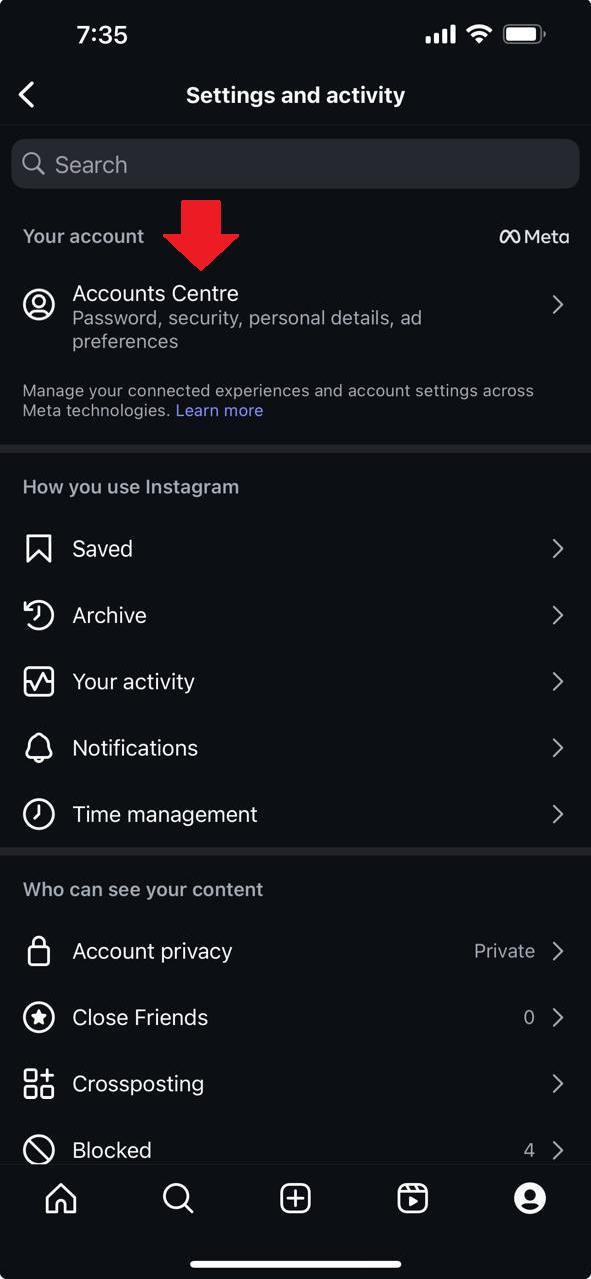
- Step 1. Go to “Settings > Account Centre.”
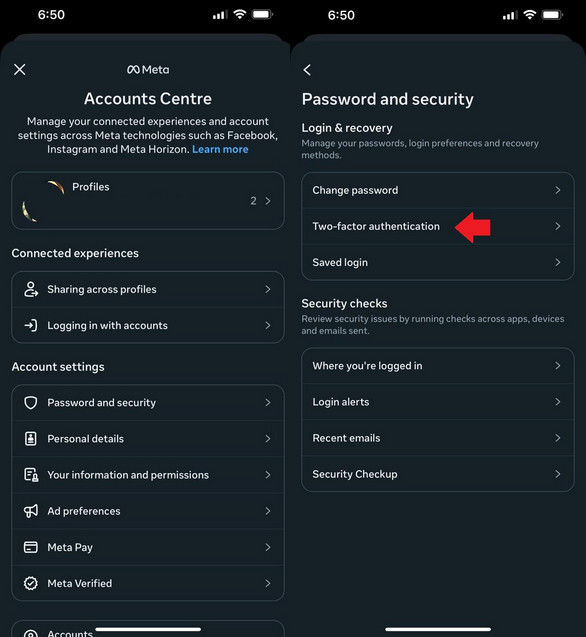
- Step 2. Select “Password & Security > Two-Factor Authentication.”
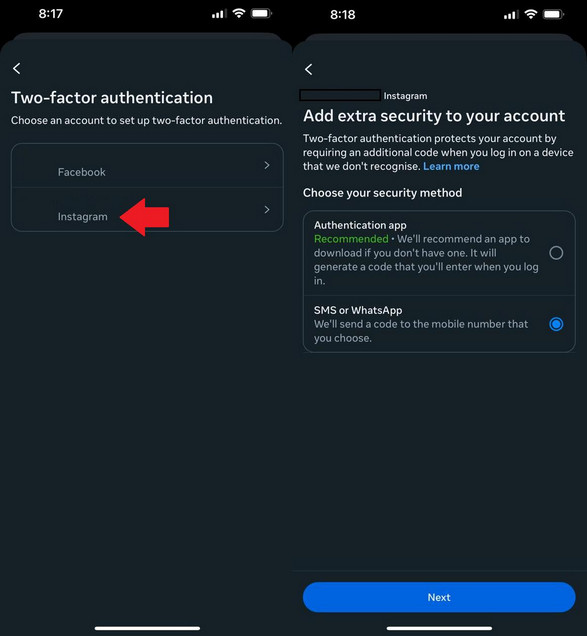
- Step 3. Select your account, and choose “SMS or WhatsApp.”
- Step 4. You will receive a code via text. Enter it in the given space to activate 2FA.
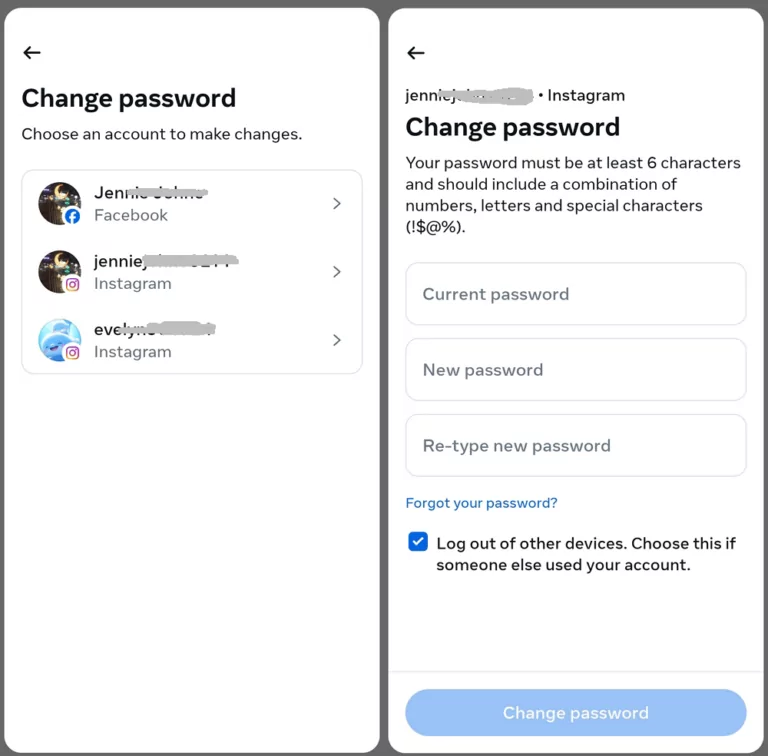
2Use a Strong Unique Password
A weak or reused password makes it easier for hackers to break into your account. Use a strong, unique password and update it immediately if you suspect account compromise. After recovery, Instagram’s Security Checkup can help you review account security settings.
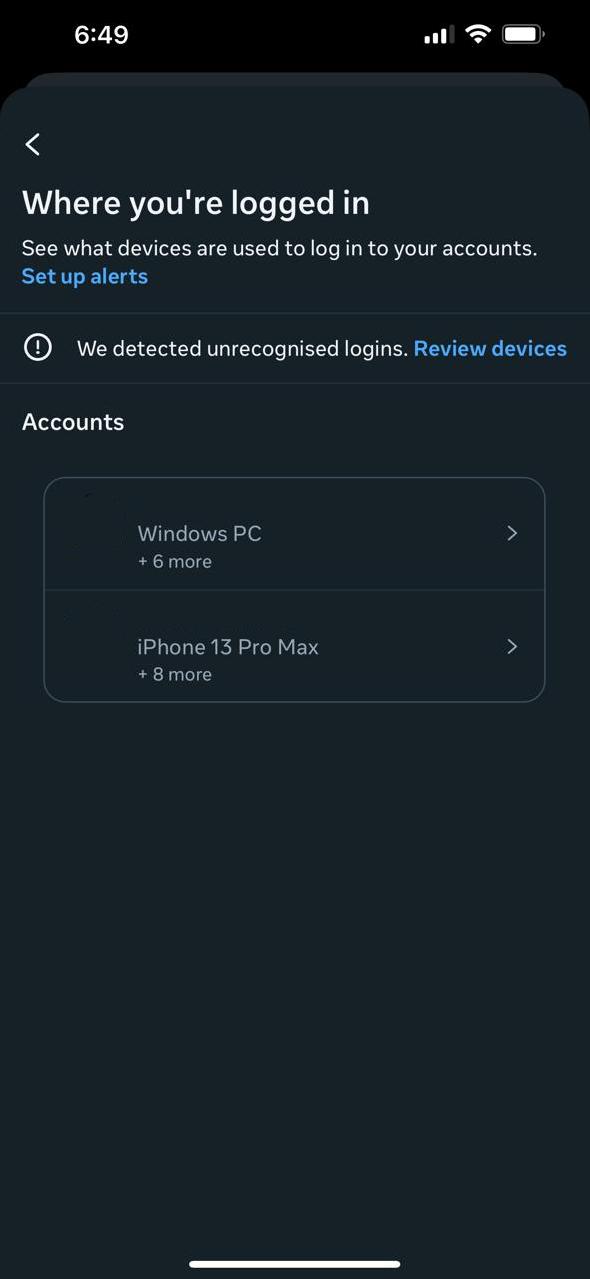
3Monitor Login Activity
Checking your login activity regularly helps you spot suspicious logins from unknown devices or locations. If you notice that your account is logged in from strange locations, log them out, reset your password, and review the rest of your security settings through Instagram Security Checkup.
4Lock Down Privacy Settings
Another way to protect your account from unauthorized access is to reduce its visibility. You can do so by:
• Setting your account to Private. This limits access to approved followers only.
• Hiding your email and phone number to prevent strangers from seeing your contact info.
• Disabling "Show Activity Status" to stop hackers from tracking your online presence.
5Remove Suspicious Third-Party Apps
Some third-party apps request Instagram access, but not all are safe. Malicious apps can steal your login details or post spam on your behalf. Therefore, remove all apps that seem suspicious and have access to your Instagram, especially after a hacked account incident.
6Avoid Public Wi-Fis for Logins
Public Wi-Fi networks can increase your exposure to phishing pages, fake login portals, and other security risks. If you must log in while away from home, avoid suspicious pop-ups, check the URL carefully, and use a trusted network whenever possible.
7Avoid Phishing Scams
Phishing scams trick you into entering your Instagram password on fake login pages. These scams often come through emails, DMs, or pop-up ads claiming your account is at risk. Instagram’s Emails from Instagram page explains how to check whether a security email really came from Instagram, while CISA warns that social engineering and phishing attacks often try to pressure users into giving away passwords or sensitive information.
If you want to stay safe:
- Never click on suspicious links in emails or messages.
- Always verify website URLs before entering your login details.
- Instagram will never ask for your password via email or DM.
Bonus: How to Prevent Your Kid’s Instagram From Being Hacked
Instagram is one of the most widely used social media platforms among teens and young users. Younger users may not always recognize phishing links, fake login pages, suspicious DMs, or password reset scams, so parents can help them build safer account habits.
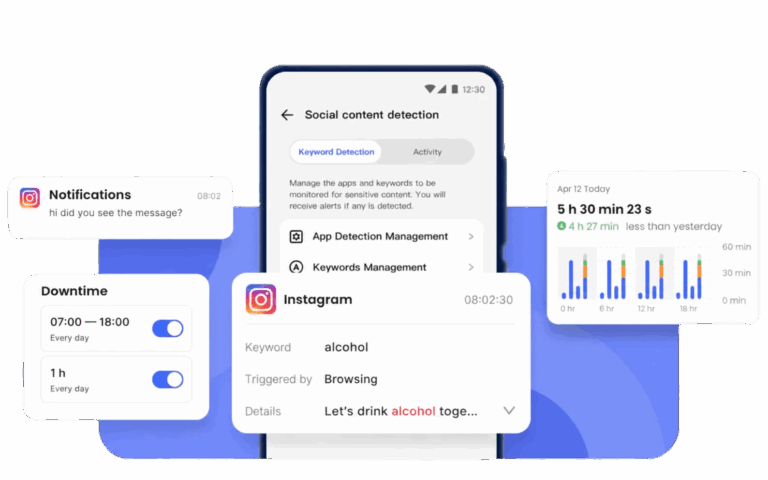
Parents might want to monitor their child's Instagram activities for safety reasons. However, they can do that without logging into their child’s Instagram account or asking for the child’s password. For this purpose, we recommend a reliable tool like AirDroid Parental Control.
- Create Keywords: With AirDroid Parental Control, you can set keywords to detect harmful content, cyberbullying, phishing terms, or risky conversations from synced notifications and supported monitoring features.
- Sync App Notifications: Get alerts for Instagram-related notifications and interactions to spot potential threats early.
- Monitor App Usage & Set Downtime: Track Instagram usage, set time limits, and schedule downtime to prevent overuse.
Disclaimer: When using parental control tools, ensure compliance with local laws and the terms of service of social media platforms like Instagram. AirDroid Parental Control focuses on providing device-level monitoring and management features to help parents safeguard their children's online experience.
Conclusion
It can be quite overwhelming when your Instagram gets hacked. However, there are several official ways to recover your account, including password reset, linked account login, hacked account recovery, identity verification, and disabled account review. In this guide, we have discussed how to recover Instagram account and how to keep it protected after you regain access.
List of Sources
- Part 1. How to Recover Instagram Account?
- Instagram Help Center – I Can't Log In (https://help.instagram.com/374546259294234/)
- Instagram Help Center – Account Recovery and Login (https://help.instagram.com/345310197245685/)
- Instagram Help Center – Recover Your Instagram Password (https://help.instagram.com/409847499070242/)
- Instagram Help Center – Lost Access to Email or Phone Number Linked to Instagram Account (https://help.instagram.com/358911864194456/)
- Instagram Help Center – About Disabled Instagram Accounts (https://www.facebook.com/help/instagram/804537404168716/)
- Instagram Help Center – Permanently Delete or Deactivate Your Instagram Account (https://www.facebook.com/help/instagram/139886812848894/)
- Meta Help Center – Accounts Center (https://www.meta.com/help/accounts-center/)
- Part 2. Signs That Someone Hacked My Instagram Account
- Instagram Help Center – How to Fix and Secure a Hacked Instagram Account (https://help.instagram.com/149494825257596/)
- Instagram Help Center – Emails from Instagram (https://help.instagram.com/270963803048818/)
- Instagram Help Center – Security Checkup (https://help.instagram.com/174987464307045/)
- Part 3. How Do I Get My Hacked Instagram Account Back?
- Instagram Help Center – How to Fix and Secure a Hacked Instagram Account (https://help.instagram.com/149494825257596/)
- Instagram Help Center – Lost Access to Email or Phone Number Linked to Instagram Account (https://help.instagram.com/358911864194456/)
- Instagram Help Center – Identity Verification on Instagram (https://help.instagram.com/1053588012132894/)
- Instagram Help Center – Security Checkup (https://help.instagram.com/174987464307045/)
- Part 4. How To Protect Your Instagram Account from Hackers
- Instagram Help Center – Securing Your Instagram Account with Two-Factor Authentication (https://help.instagram.com/566810106808145/)
- Instagram Help Center – How You Can Use a Backup Code on Instagram (https://help.instagram.com/1006568999411025/)
- Instagram Help Center – Security Checkup (https://help.instagram.com/174987464307045/)
- Instagram Help Center – Emails from Instagram (https://help.instagram.com/270963803048818/)
- CISA – Avoiding Social Engineering and Phishing Attacks (https://www.cisa.gov/news-events/news/avoiding-social-engineering-and-phishing-attacks)
- Bonus. How to Prevent Your Kid’s Instagram From Being Hacked
- AirDroid Parental Control – Official Website (https://www.airdroid.com/parental-control/)
- AirDroid Parental Control – Content Monitoring (https://www.airdroid.com/parental-control/content-monitoring/)
- Instagram Help Center – Securing Your Instagram Account with Two-Factor Authentication (https://help.instagram.com/566810106808145/)
- Instagram Help Center – Emails from Instagram (https://help.instagram.com/270963803048818/)









Leave a Reply.