AirDroid Parental Control
24/7 Kids' Guardian via App & Web
- 👀Live surroundings and location tracking
- 🔞Content Monitoring and App/Web Blocking
- ⚠Instant alerts for online risks and geofences
- ⌛Screen time control and monitor
Coverstar Review: Is It a Safer TikTok Alternative for Kids?
Coverstar has positioned itself as a safe and positive TikTok-like app designed for the younger generation. But is it truly safe for children, or are there still risks parents should be aware of? Let's start with the quick answer.
TL;DR: Is Coverstar Safe for Children?
- Overall Safety Rating: ⭐⭐⭐
- Coverstar is significantly safer than TikTok or Instagram because it is built for younger creators.
- Recommended Age:
- Best suited for children aged 9 to 15. On the Apple App Store, Coverstar is rated 9+.
- Safety Features:
- It removes direct messaging and applies strict age-appropriate standards.
- Potential Risks:
- Public profiles; the "Starcoins" gifting system; inappropriate ads; imperfect age verification.
What Is Coverstar and Why Do Kids Use It?
Coverstar is a short-video social platform specifically for the younger generation.
Just like TikTok, it allows users to watch trending clips, create their own videos, and engage with creators through likes and comments. Meanwhile, users can create and get a unique avatar within the app.
Then, why are some kids and teens drawn to it?
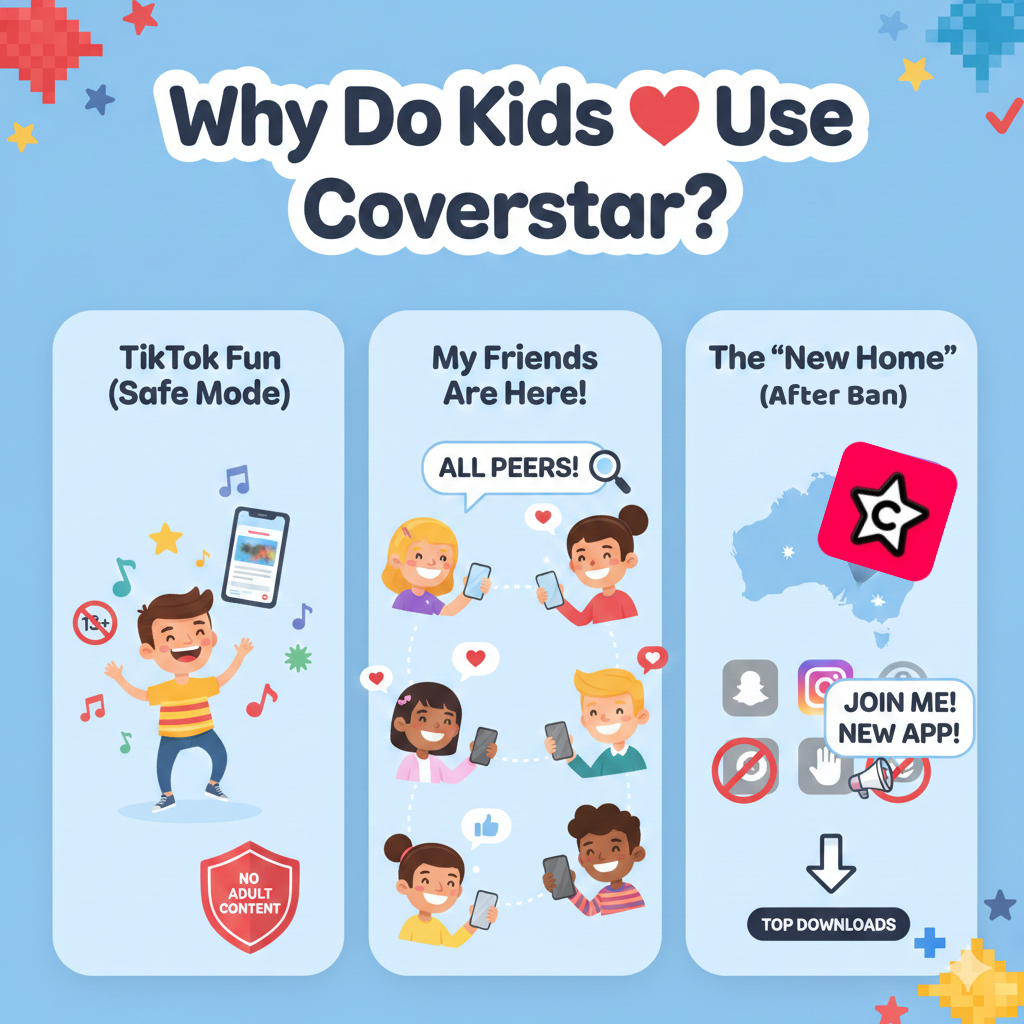
- TikTok Vibes: Many parents don't allow TikTok due to its mature content. Coverstar offers kids the same experience but more tailored to their ages.
- A "Pre-Teen" Community: After signing up for Coverstar and spending some time browsing the feed, I found it's wall-to-wall content from children and teens. This peer-heavy environment may be part of why kids love Coverstar.
- Other Social Media Bans: Since Australia banned major social media for kids under 16, Coverstar has emerged as one of the "refuges." That's why it has ranked top downloads in Australia recently.
Official Safety Features to Make Coverstar Safe for Kids
Since Coverstar claims to be a safe and positive social app, what measures does it actually use to protect younger users?
No Direct Messaging
By completely removing the ability to send or receive private messages within the app, Coverstar eliminates the risks of grooming activities from strangers or cyberbullying from peers.
Parental Approval for Accounts Under 13
This is in line with the U.S. Children's Online Privacy Protection Act (COPPA).
For users under 13, Coverstar requires parental consent for unlocking full app access. And parents must verify with a credit card payment or a video ID check, ensuring that younger children aren't using the app behind their parents' backs.
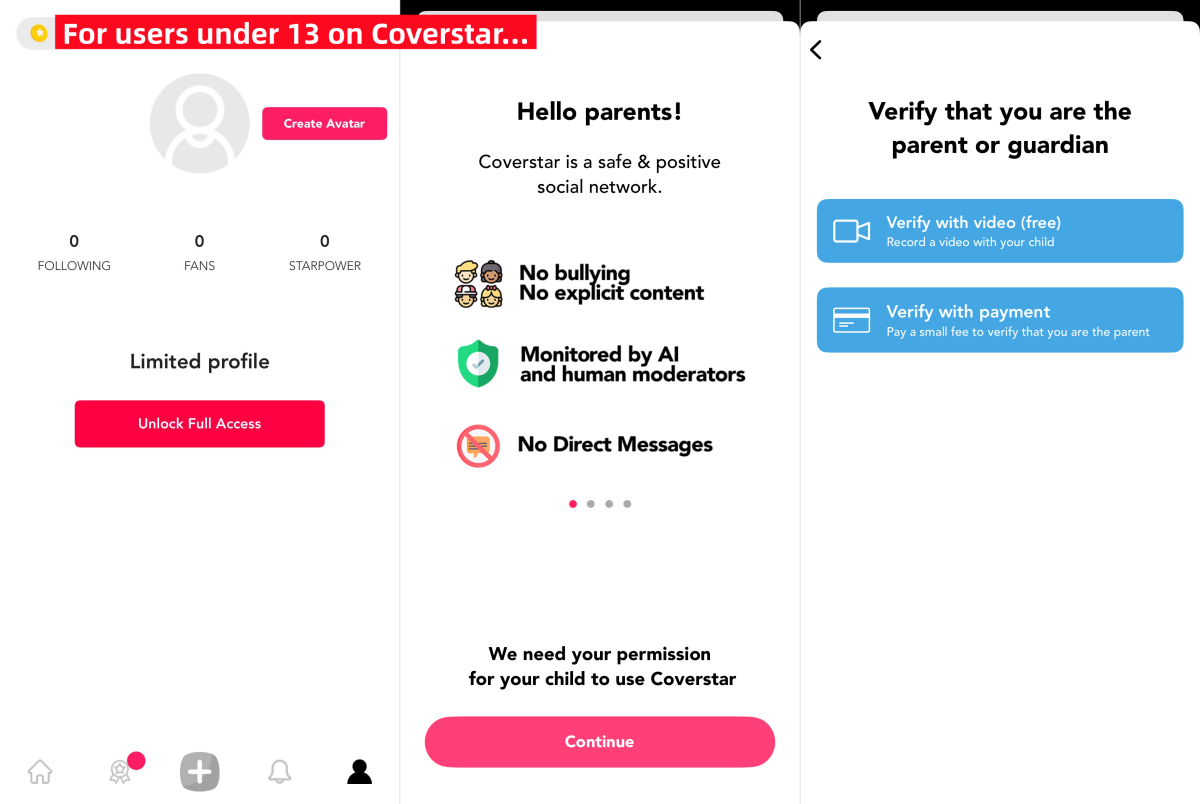
However, this is not foolproof in my testing >>>
Strict Content Guidelines
Coverstar enforces clear rules about what users can post. When you need to post something for the first time, a pop-up appears and requires you to agree that you won't post videos featuring underwear, bathing suits, or other explicit content.
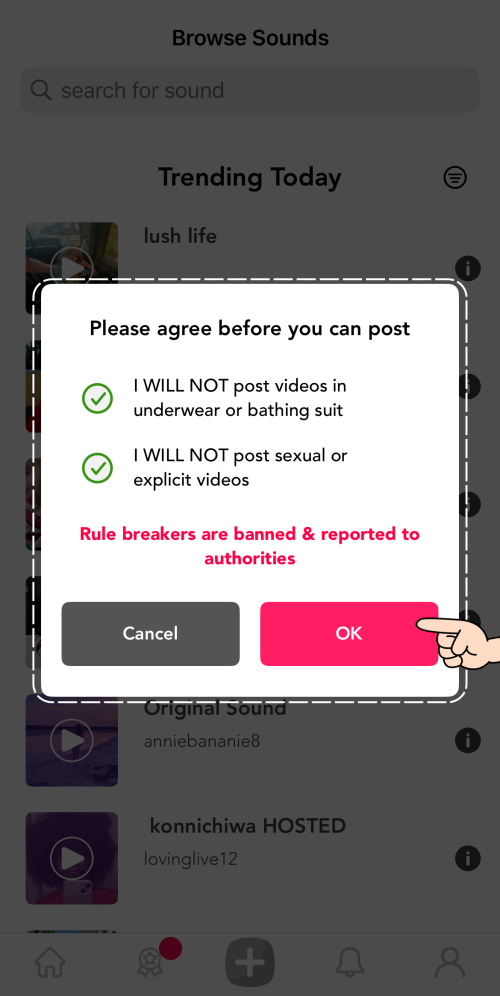
This shows it applies a stricter age-appropriate content standard than other social media apps.
Zero-Tolerance for Harmful Content
Beyond prohibiting explicit videos, Coverstar uses AI vision + natural language moderation tech and a skilled human team to review videos, comments, and livestream.
Once there is any age-inappropriate content (including sexual, violent, hate speech, etc.), it will be removed and the account will be banned.
Coverstar also provides an in-app reporting tool, so users can flag harmful posts or accounts for review and investigation. But, I noticed there is no "report" option for comments, which is a big loophole.
Hidden Risks that Parents Need to Know
While Coverstar has built-in safety measures, it's not risk-free. Here are some risks parents should be aware of that we found in testing:
1Public Content and Profile by Default
A major oversight in Coverstar is that new profiles are public by default. Unless the user toggles "Private Account," any video a child uploads can be viewed by anyone, which may expose them to unwanted attention.
2Imperfect Age Verification
Though Coverstar requires parental consent for under-13 users, in my test, I could bypass this restriction by deleting that account and recreating a new account with a fake age. So, it would be better if it could verify the child's real age.
3Inappropriate Third-Party Ads
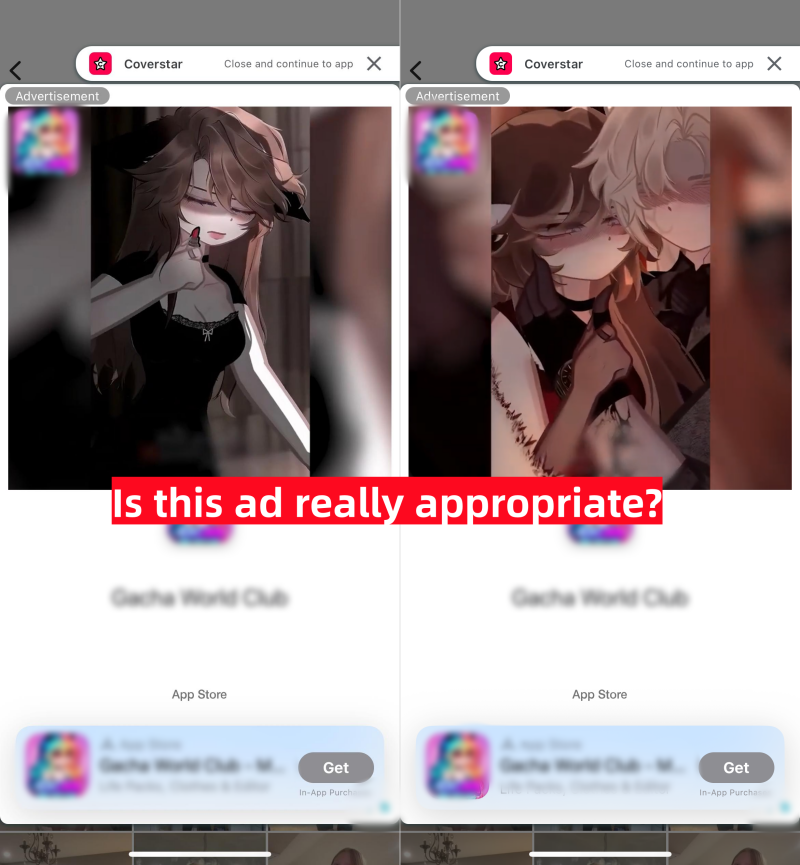
This is what I cannot stand. During testing (with screenshots below), the ad shows an anime character with revealing clothing performing provocative movements. Though videos on Coverstar are clean, advertisements still require moderation.
4"Starcoins" Monetization
Coverstar has a virtual currency called "Starcoins," which costs real money.
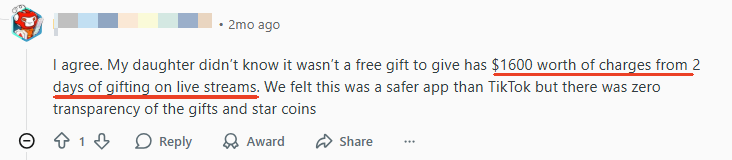
According to a Reddit user, creators can get virtual gifts from followers via livestream. And virtual gifts cost Starcoins. This creates a bad culture where kids feel pressured to tip their favorite creators to support them.
For parents, it also raises the risk of unexpected in-app purchases. A parent even shared that her daughter spent $1,600 on Starcoins and gifts in just two days.
5Unnecessary Interactions through Comments
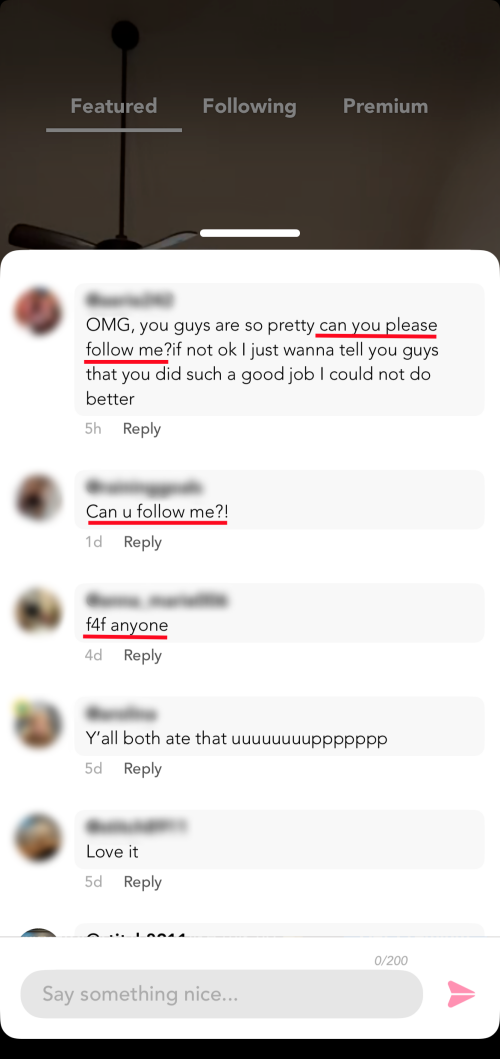
If you opened the comments of any video in Coverstar, you'll know what this means.
Many comments are "F4F" or "follow me" to exchange follows, which can create social pressure, and even redirect the child to another platform via links or information in profiles.
How Parents Can Make Coverstar Safer for Kids
Well, if you decide to let your child use Coverstar, trust the app's safety features and then manually do the following to ensure the app stays safe.
Lock Down In-App Purchases
As we stated above, Coverstar's Starcoins and gifts can lead to surprise charges. Many younger kids may not realize they are paying real money.
So, you, as a parent, should disable in-app purchases before your child starts using the app.
Set Daily Limits on Coverstar
While Coverstar is built for kids, its "TikTok-style" scroll can be incredibly addictive.
If you find that "just five more minutes" is turning into two hours, or if you are concerned about the inappropriate ads we discovered, using a tool like AirDroid Parental Control can save you the hassle. With it, you can:
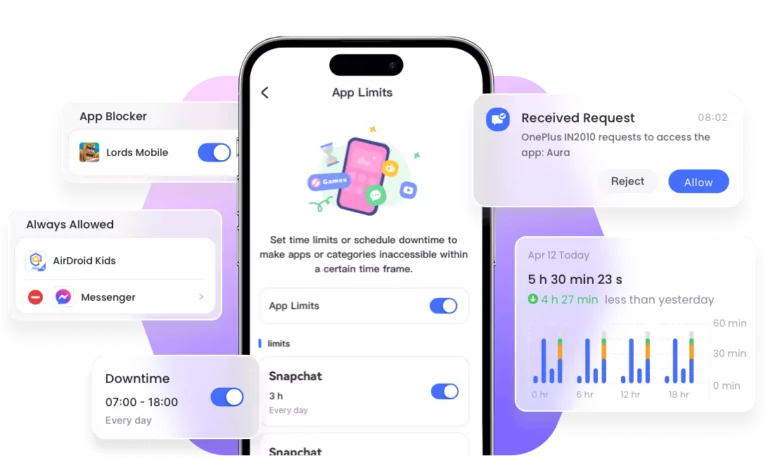
- Check if your child spends too much time on Coverstar.
- Set a hard time limit for the Coverstar app.
- Spot potential risky comments through notification syncing.
- Schedule when your child cannot use Coverstar.
- Block in-app purchase for iOS devices.


Set the Account to Private If Necessary
Coverstar sets accounts to public by default. If you want to reduce exposure to strangers or social interactions, you'd better encourage your child to turn on the private account. To do so,
- Step 1. Go to the profile page on your child's Coverstar.
- Step 2.Tap on "Settings."
- Step 3.Next, select "Edit Profile," and toggle on "Private Profile."
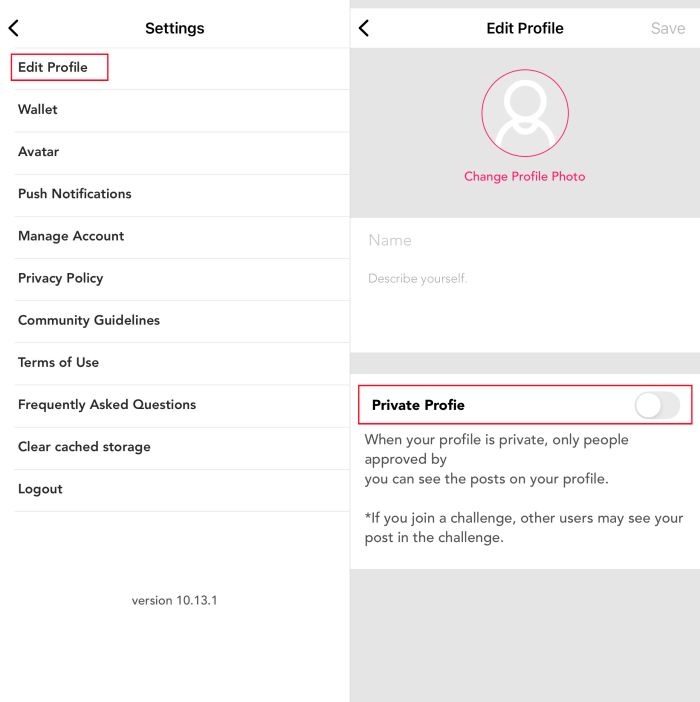
This ensures that only people your child approves can see their videos.














Leave a Reply.