How to Monitor Android Device Health Remotely
Your dashboard says every kiosk in the fleet is online. That doesn't mean any of them are actually working: an app can be frozen, storage full, or the screen dark, and nobody in IT finds out until someone on-site notices first. That gap becomes unmanageable once devices are spread across stores, warehouses, or unattended sites, and hand-checking each one doesn't scale past a handful of locations.
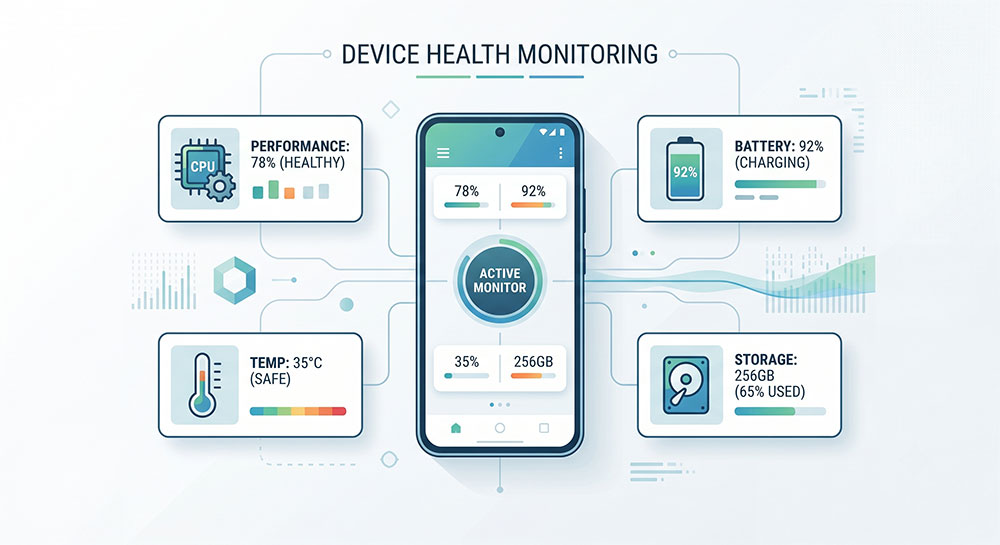
Remote Android device health monitoring means regularly checking whether devices are reachable, within safe resource limits, and still performing their business task, without a technician physically checking each one. This guide covers what device health means, which signals to watch, and how to build a monitoring process for a distributed fleet.
- 1 : What is Android device health monitoring?
- 2 : What does a healthy business Android device look like?
- 3 : Why manual device health checks do not scale
- 4 : How to monitor Android device health remotely
- 5 : How AirDroid Business supports remote Android device health monitoring
- 6 : Tips: Remote Android device health monitoring checklist
What is Android device health monitoring?
Android device health monitoring is the ongoing observation of device availability, resource conditions, connectivity, management status, and business application state across a managed fleet.
That's a mouthful, so here's the plain version: it's how you know a device is actually doing its job, not just turned on.
A few things it is not: employee activity monitoring (it watches the device, not the person using it), the same as remote control (you can monitor health without ever touching the screen), or "checking the dashboard once a week" (that's a status check, not monitoring).
The point is narrower and more useful than any of those: is this device available, manageable, and able to keep running the service it was deployed for?
What does a healthy business Android device look like?
Here's where a lot of teams get it wrong. A device with a green "online" dot on the dashboard is not automatically healthy. Online just means it can be reached. It says nothing about whether the kiosk app crashed an hour ago, whether the battery is about to die, or whether someone yanked the SIM card out.
A healthy device satisfies five conditions at once.
Device availability
Is IT currently able to reach and manage this device? This covers online/offline status, reachability, and network connectivity. It's the baseline: if a device is unreachable, immediate remote investigation and intervention become more difficult, which is why availability is usually one of the first signals IT should check. For devices that remain disconnected, a documented offline Android device recovery process helps the team decide when to continue investigating remotely and when to involve someone on-site.
Resource health
Does the device have what it needs to keep running reliably? Battery capacity, charge status, temperature, storage space, and cellular data usage all fall here. Critically low storage, for example, may affect application stability, system updates, or overall device performance. Teams managing battery-powered fleets may also need a dedicated approach to enterprise Android battery monitoring across different device roles.
Business application health
Is the software actually doing its job? Signals include app running status, foreground app status, kiosk status, and external HDMI status (relevant for signage). A device can be online and fully charged while the app it's supposed to be running has silently crashed.
Manageability and configuration
Is the device still under IT's control, with its configuration intact? This covers Biz Daemon permission, SIM card status, and screen lock status. Removing a SIM card or losing management permissions may limit device connectivity, visibility, or the remote actions available to IT.
Physical and security risk signals
Is there evidence of unauthorized movement or access attempts? Device motion status and failed password attempts belong here, and matter most for devices in less-controlled environments: unattended kiosks, field devices, anything not sitting inside a locked office.
Health dimension | Signal examples | Operational question | Possible next step |
|---|---|---|---|
| Device availability | Online/offline, reachability | Can IT contact and manage this device right now? | Check last-seen time and network status, and determine whether on-site intervention is needed |
| Resource health | Battery capacity/temp, storage, data usage | Does the device have the resources to keep running? | Review the resource report and determine whether cleanup, reallocation, or hardware attention is needed |
| Business application health | App running status, Kiosk, HDMI status | Is the deployed service actually functioning? | Investigate the app or kiosk status and determine whether remote intervention is needed |
| Manageability | Biz Daemon permission, SIM status, screen lock | Is the device still under IT control? | Verify device permissions, connectivity, and configuration before starting the appropriate recovery process |
| Physical/security | Motion status, failed password attempts | Is there unauthorized activity? | Escalate the event for security review and take an approved response action |
Why manual device health checks do not scale
Manual checks work fine at ten devices. At a hundred, they start to crack. At a thousand, they're basically theater: a process that looks like oversight but isn't catching much.
A few reasons this breaks down in practice:
- Someone has to actively log in and look. There's no monitoring happening between checks.
- Nobody checks every device every time. Sampling means blind spots, and blind spots grow with fleet size.
- Different technicians apply different standards. One person's "looks fine" is another person's "needs attention."
- Problems get noticed after they've already caused downtime, like a customer complaint or a blank kiosk screen. Not before.
- Watching too many raw metrics at once creates noise, and noise trains people to stop paying attention.
The fix isn't a bigger dashboard with more numbers on it. It's a process that surfaces the exceptions that matter and skips the rest. Remote monitoring should help a team catch meaningful problems, not just display more device data for someone to stare at.
How to monitor Android device health remotely
Step 1: Define health for each device role
A kiosk and a field handheld don't fail the same way, so they shouldn't be monitored the same way. A kiosk that's technically online but has a frozen app is a bigger problem than a field device with 40% battery. Define what "healthy" looks like per role before you touch a single alert setting.
Device role | Critical health signals |
|---|---|
| Kiosk | Online status, kiosk status, app running status, storage |
| Digital signage | Online status, app status, external HDMI status, storage |
| Field/handheld device | Battery level, battery temperature, network connectivity, data usage |
Step 2: Organize devices by operational use
Group devices by role, location, business function, operational importance, and the team responsible for them. A payment kiosk at a flagship store and a backroom inventory scanner are not equally urgent when something goes wrong, and your monitoring setup should reflect that. Treating every Android device with the same standard is how low-priority noise ends up burying the alert that actually needed someone's attention today.
Step 3: Select signals tied to operational availability
You don't need to watch every metric a device can report. You need to watch the ones that predict whether the device stops doing its job. Before adding any signal to your monitoring setup, ask what decision it drives. If a metric wouldn't change what anyone does next, it doesn't deserve a high-priority alert.
Step 4: Use a centralized remote monitoring view
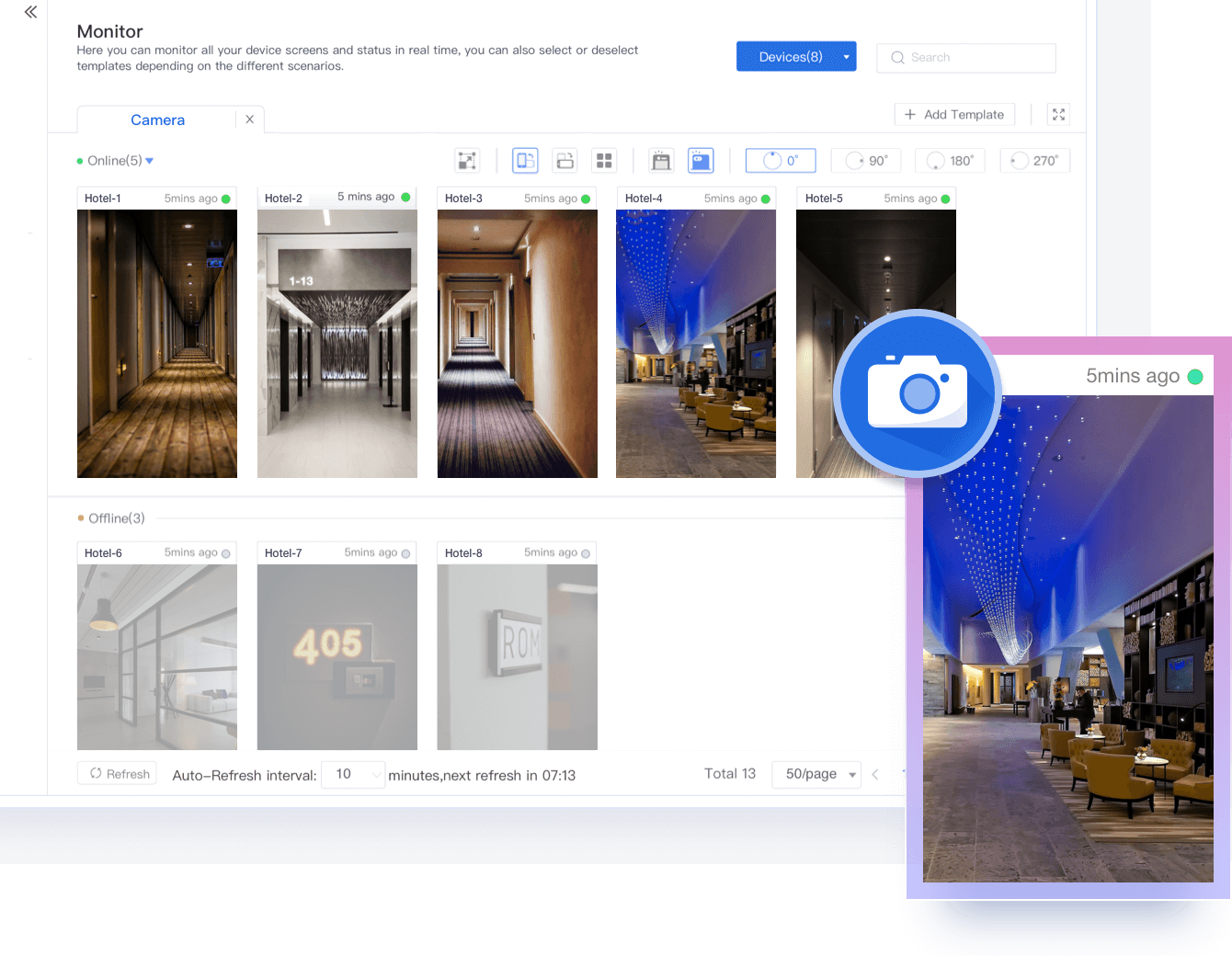
Instead of logging into each device individually, a centralized monitoring view lets IT see status, resource information, and application/kiosk status across the whole fleet in one place. AirDroid Business Monitor provides this kind of centralized view of supported device information, helping IT review device status and health signals without opening individual remote sessions. Teams can also set up Monitor templates in AirDroid Business based on the device information they need to review, then combine those views with their device organization and ownership model.
Step 5: Configure alerts for meaningful exceptions
A dashboard only works if someone's looking at it. Alerts flip that around: instead of a human checking the system, the system tells the human when something crosses a line worth caring about.
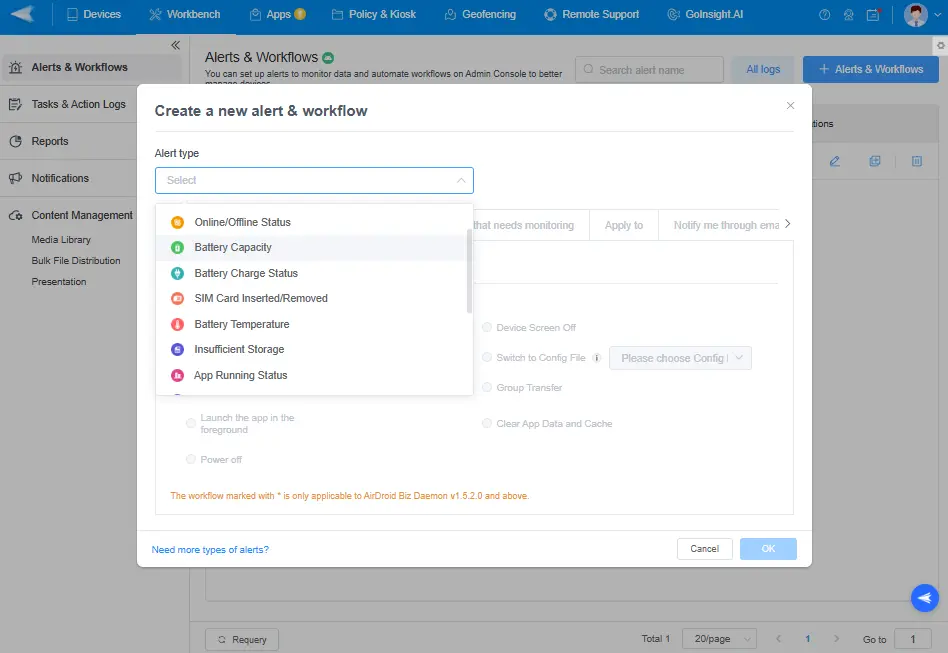
For device health monitoring, the supported alert types can be organized into the following operational categories:
Category | Alert types |
|---|---|
| Device availability | Online/Offline Status |
| Device resources | Device Cellular Data Usage, App Cellular Data Usage, Battery Capacity, Battery Charge Status, Battery Temperature, Insufficient Storage |
| Business application and display status | App Running Status, Foreground App Status, Kiosk, External HDMI Status |
| Manageability and configuration | Biz Daemon Permission, SIM Card Inserted/Removed, Screen Lock |
| Physical and security conditions | Device Motion Status, Failed Password Attempt |
Before setting alert conditions, it helps to observe the normal operating range for each device role first. A battery or storage condition that's acceptable for a continuously powered kiosk may not be appropriate for a field device expected to last an entire shift.
The temptation is to turn on an alert for everything. Resist it. Every alert should have an owner and a clear next step attached. An alert nobody's responsible for is worse than no alert at all.
Step 6: Review recurring device health problems
A single low-battery alert is a one-off. The same device flagging low battery every Tuesday is a pattern, and patterns are where monitoring earns its keep long-term. Keep an eye on devices that repeatedly overheat, storage that keeps creeping back down after you clear it, apps that keep stopping, and alerts nobody ever seems to act on.
It also helps to track whether monitoring is actually working, not just whether alerts are firing: repeated alerts on the same device or group, device downtime, time from alert to investigation, and alerts nobody ever responds to. If alerts keep coming in but investigation time, downtime, or repeat failures aren't improving, the team may just be generating more notifications without actually improving device operations. Historical information from MDM logs and reports can help confirm whether the same conditions keep affecting a device or device group.
How AirDroid Business supports remote Android device health monitoring
What you need | What AirDroid Business gives you |
|---|---|
| See every device's health from one screen | A centralized Monitor dashboard for supported device information |
| Catch issues before they cause downtime | Alerts with configurable conditions for battery, storage, app status, and more |
| Spot patterns across the fleet, not just single incidents | Reports and Logs that track trends and repeated issues over time |
| Investigate without traveling to the site | Remote Access for hands-on investigation once a device has been flagged |
| Kick off the next step automatically | Alert-triggered workflows that collect additional device context, generate reports, or route information for supported alert types |
Remote Access is the one IT reaches for after Monitor or an alert has already identified a specific device that needs attention. It's used for hands-on remote investigation or intervention, when the device is reachable and the required permissions are available, not for routine checking.
What happens after an alert fires
Catching a problem is only half the process. For supported alert types, an AirDroid Business alert can be linked to a pre-configured workflow: set up the alert, select the workflow it should trigger, and once the alert condition is detected, AirDroid Business starts that workflow to gather the relevant information. These workflow capabilities are enabled through AirDroid Business's integration with GoInsight.AI.
- If a battery-related alert (Battery Capacity, Battery Charge Status, or Battery Temperature) is linked to the relevant workflow, it can query the device's battery data and route the report to the responsible person.
- If an Insufficient Storage alert is linked to the relevant workflow, it can query resource usage and send the report so IT can decide whether it needs deeper investigation.
- If a Kiosk, App Running Status, or Foreground App Status alert is linked to the relevant workflow, it can pull a policy/kiosk status check or a screen snapshot, giving IT more context before deciding whether to step in.
These workflows automate information gathering and routing rather than physical repair or remediation that requires human judgment.
Turn Device Alerts into Automated Follow-Up
When a battery, storage, or app status alert fires, AirDroid Business can trigger a pre-configured workflow to gather the details and route them to the right person, so IT starts investigating instead of starting from zero.
Tips: Remote Android device health monitoring checklist
- Have you defined what "healthy" means for each device role in your fleet?
- Are devices grouped by business use, not treated as one uniform pool?
- Are the signals you're monitoring tied to operational availability, not just raw data?
- Can IT view fleet health from a centralized location?
- Are alerts limited to conditions someone will actually act on?
- Does every important alert have a named owner?
- Is the next step after an alert documented somewhere, not left to memory?
- Are recurring problems reviewed on a regular basis, not just fixed one at a time?
- Are automated workflows scoped to what they're actually built to do?
Conclusion
Remote Android device health monitoring gives IT teams ongoing visibility into whether distributed devices are available, manageable, and actually able to perform the job they were deployed for. Get the health framework right first: define it per role, watch signals tied to operational availability, and alert on exceptions instead of drowning in raw data.
For supported device health alerts, AirDroid Business can also trigger a pre-configured workflow, helping teams kick off the next step automatically once an exception is detected, turning "we noticed a problem" into "we're already investigating it."
FAQs







Leave a Reply.