Auto Kiosk Recovery: How AirDroid Business and InsightFlow Reduce Device Downtime
Retail, restaurant, and other businesses often use Kiosk Mode in an MDM platform to restrict POS systems and self-ordering terminals to a controlled business interface. If a device unexpectedly exits Kiosk Mode, AirDroid Business can immediately run a preconfigured device-side action and send an alert to the IT support team.
However, after an alert is triggered, the IT team still needs to identify the anomalies that truly require attention from a large volume of notifications, look up the relevant device and store details, contact the responsible people, and continue tracking the recovery result. This repeated manual work extends Kiosk device downtime. Until the device recovers, business services and the original security restrictions may also remain affected.
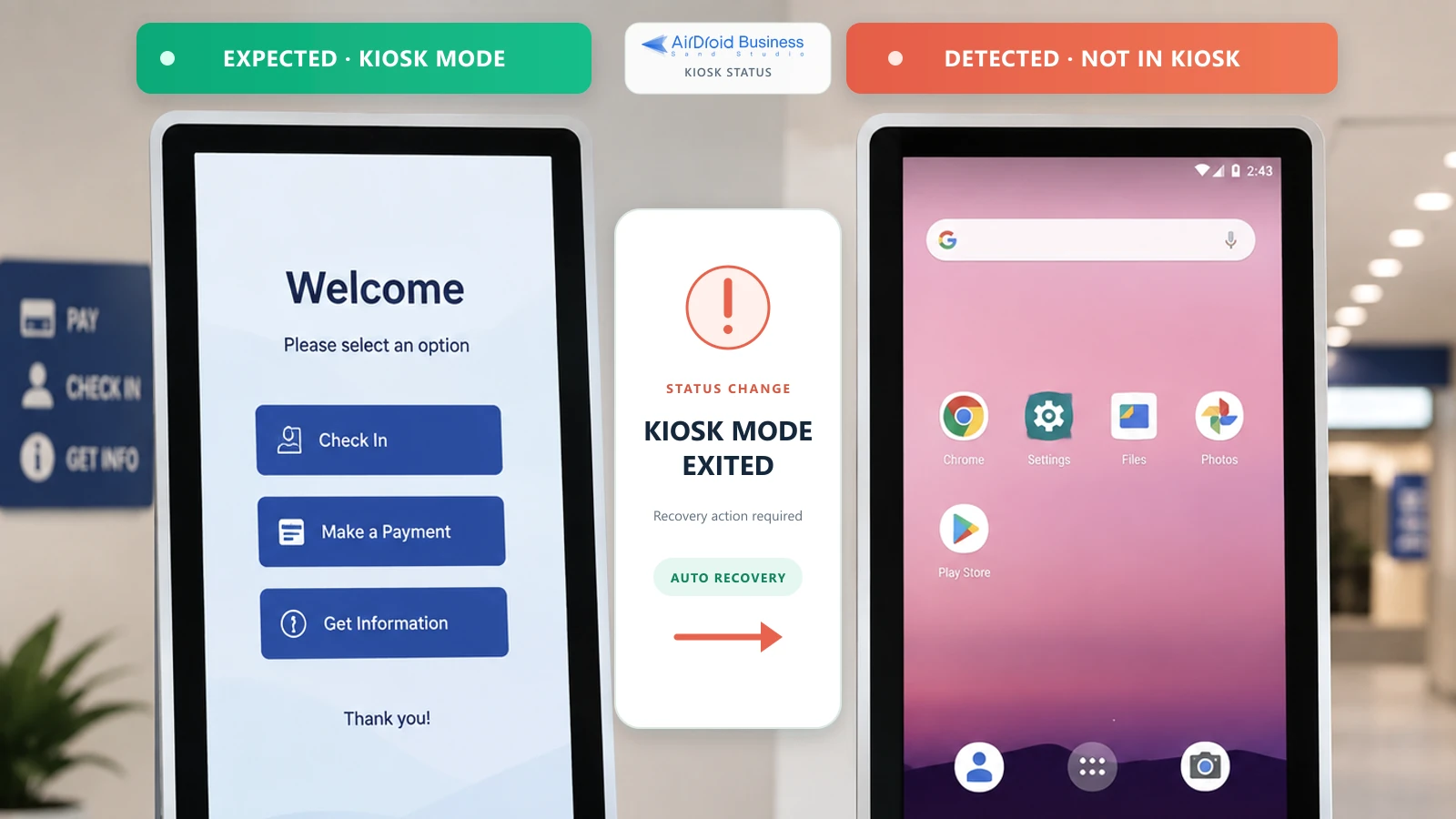
GoInsight.AI InsightFlow can receive the alert and device context passed by AirDroid Business, verify the result of the device-side action, and hand unresolved events to the ticketing system or responsible team. The following sections explain how to configure this auto kiosk recovery and exception escalation process.
- Part 1: Why Manual Alert Handling Keeps Kiosks Downtime Longer
- Part 2: How the Automated Kiosk Recovery Workflow Works
- Part 3: What to Prepare Before Configuring Auto Kiosk Recovery
- Part 4: Configure a Kiosk Anomaly Alert in the AirDroid Business Console
- Part 5: Verify Kiosk Recovery with AI Workflow
- Step 1: Receive Alert and Device Information
- Step 2: Query Kiosk Configuration Deployment Status
- Step 3: Use a Condition Node to Evaluate the Recovery Result
- Step 4: Use LLM/Agent to Organize the Information and Generate Suggestions
- Step 5: Create a Ticket and Notify the Assigned Team
- Step 6: Verify Kiosk Recovery Status
- Part 6: Conclusion
1Why Manual Alert Handling Keeps Kiosks Downtime Longer?
For a small number of devices, IT staff can review alerts one by one and then sign in to the management platform to confirm device status. As the number of devices grows, multiple notifications may arrive at the same time from different stores, regions, and device groups. Support staff must first determine which devices recovered through the preconfigured action and which remain abnormal before deciding whether further handling is needed.
Confirming the incident is only the first step. The IT team also needs to look up the device name, store, Kiosk configuration, trigger time, and actions already performed, then contact the corresponding store staff or technical owner. If this information is spread across the AirDroid Business Console, email, chat tools, and the ticketing system, the same event has to be looked up and relayed repeatedly.
Recovery efficiency therefore depends on more than the device-side action. Alert filtering, information completion, owner identification, and result tracking also take time. Once these steps are connected in one MDM workflow, recovered events can close automatically, while exceptions that still need attention can quickly reach the right team with complete information.
2How the Automated Kiosk Recovery Workflow Works?
To make auto kiosk recovery more efficient, AirDroid Business combines its basic Kiosk alert with a GoInsight.AI InsightFlow workflow. Together, they form an automated loop for detecting the exception, performing recovery, verifying the result, and escalating the event. The process is shown below.
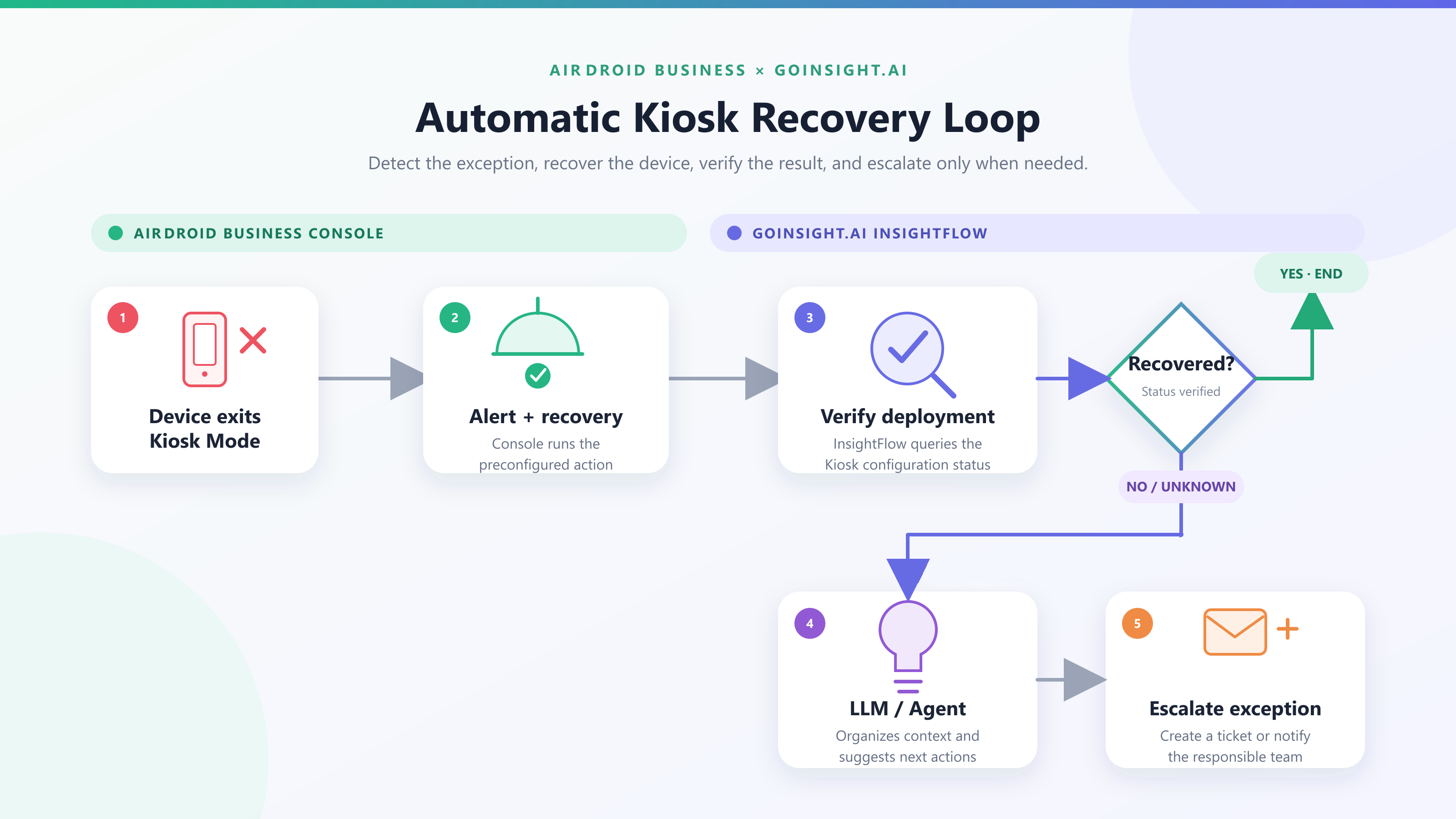
- AirDroid Business Console: detects the exception and performs device-side recovery. Administrators can define the Kiosk status trigger, applicable devices, and notification recipients in advance, and select the AI workflow that should run after the alert is triggered.
- GoInsight.AI InsightFlow: verifies the recovery result and connects the event to subsequent handling. Workflow receives the AirDroid Business alert event, queries the Kiosk configuration deployment status, organizes the information for devices that have not recovered, and writes it to a ticket or sends it to the relevant responsible team.
3What to Prepare Before Configuring Auto Kiosk Recovery?
Confirm the following requirements before configuring the workflow:
- Device and Kiosk configuration: Make sure the device has been enrolled in AirDroid Business, and the required Kiosk configuration has been created and deployed. For the first test, use one device or a small test group.
- Account permissions: Confirm that your current account can create Kiosk alerts, configure device-side actions, and view and run the corresponding InsightFlow workflow.
- Workflow and external systems: Confirm that the List Policy and Kiosk Configurations and Get Config File Deployment Status workflow templates are available. Also prepare the connectors or API credentials required for the ITSM or messaging platform.
4Configure a Kiosk Anomaly Alert in the AirDroid Business Console
After completing the preparation, create a Kiosk alert in the AirDroid Business Console and configure the action that should run when a device unexpectedly exits Kiosk Mode.
Step 1 : Create a Kiosk Alert
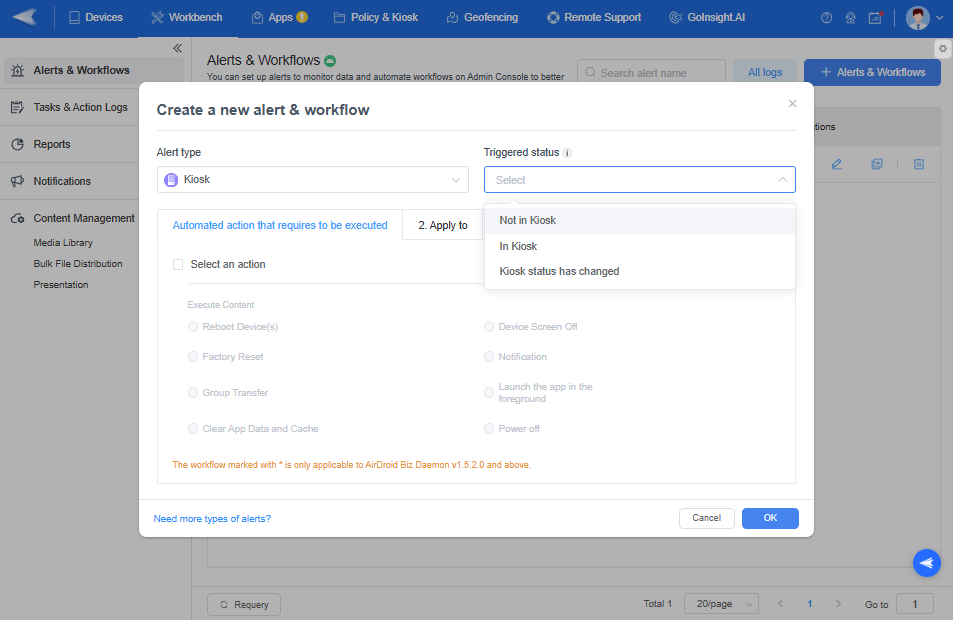
Go to Alerts & Workflows and create a new alert and workflow. Select Kiosk under Alert type, then set Triggered status to Not in Kiosk. The system triggers the alert when the device leaves its expected Kiosk Mode.
Step 2 : Select a Device-side Recovery Action
In Automated action that requires to be executed, select the recovery action that the current Console provides. The available options depend on the device model, deployment method, and account permissions. Test the action on a pilot device before applying it to production devices.
Step 3 : Set the Device Scope and Alert Recipients
Under Apply to, select the devices or device groups to monitor and set the alert recipients. After the small-scale test passes, gradually expand the scope to stores, regions, or other production device groups.
Step 4 : Link the InsightFlow Workflow
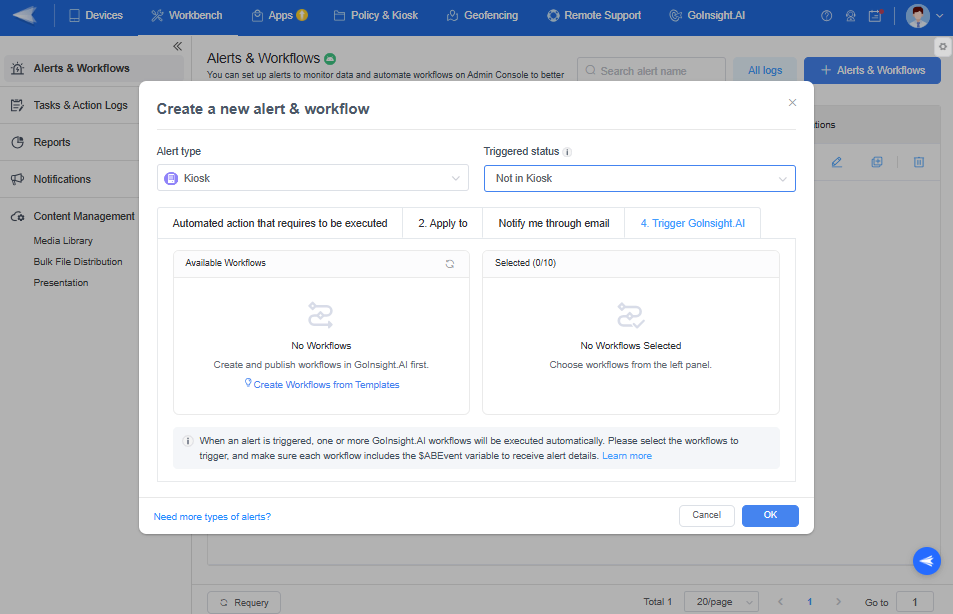
Open Trigger GoInsight.AI and select the published workflow. Confirm that $ABEvent is enabled in the workflow so that it can receive device and event information after the alert is triggered.
One alert can be linked to multiple workflows, and those workflows may run at the same time. If the Console sends the basic email while InsightFlow handles dynamic notifications and tickets, define those responsibilities in advance to prevent duplicate notifications or duplicate tickets for the same event.
5Verify Kiosk Recovery with AI Workflow
Once the preconfigured device-side action is executed, workflow queries the device that triggered the alert and confirms whether the corresponding Kiosk configuration has recovered. If the device has recovered, the workflow records the result and ends automatically. If the device has not recovered or the result cannot be confirmed, LLM/Agent organizes the exception information and handling suggestions before passing them to the ticketing or notification process.
Step 1 : Receive Alert and Device Information
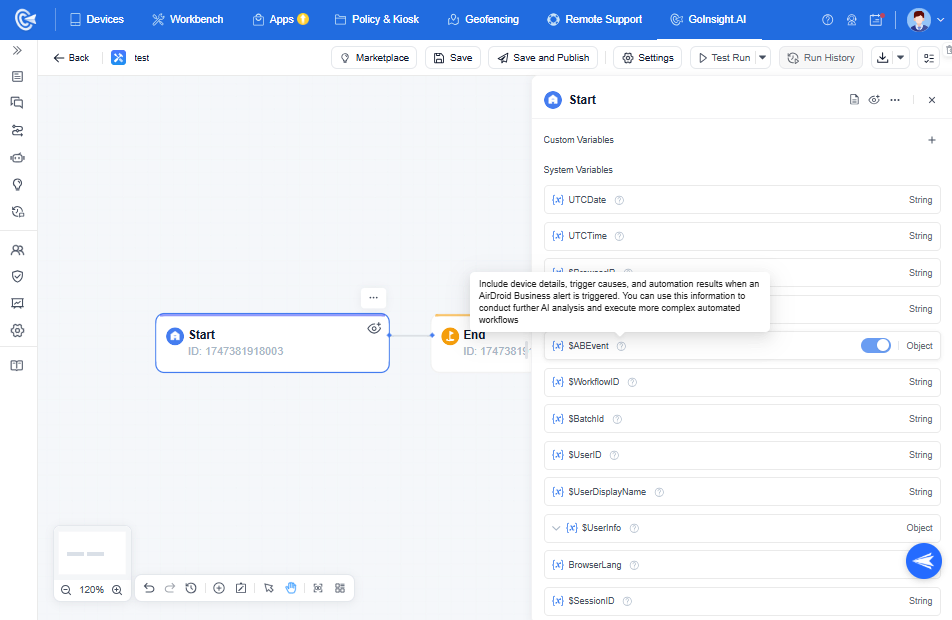
Enable $ABEvent in the Start node. After the alert is triggered, $ABEvent passes the device, device group, Kiosk status, and actions already performed by the Console to InsightFlow. The following nodes can use this information to continue handling the same event without requiring IT staff to look it up and enter it again.
Step 2 : Query Kiosk Configuration Deployment Status
Import List Policy and Kiosk Configurations and Get Config File Deployment Status from GoInsight.AI > Marketplace > AirDroid Business. The former template finds the corresponding Kiosk configuration. The latter queries the deployment status of that configuration on the device that triggered the alert.
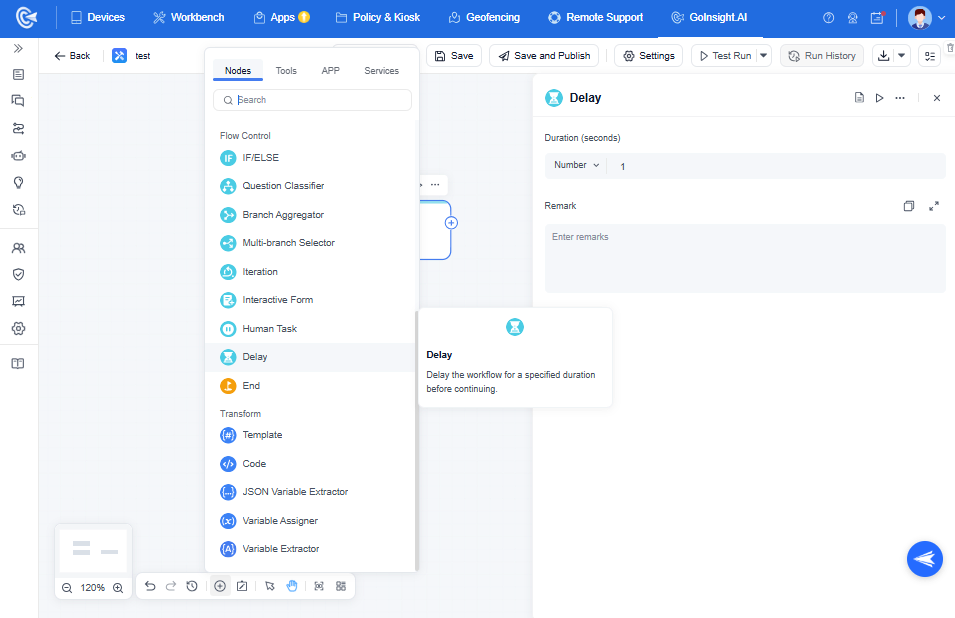
If the status is still pending, use a Delay node to wait before querying again. Set limits for the number of checks and the total wait time. When a limit is reached, move the event to exception handling so that the device does not remain in the "Processing" state indefinitely.
Step 3 : Use a Condition Node to Evaluate the Recovery Result
After the query is complete, use an IF/ELSE node to divide the result into three paths:
- The Kiosk config has recovered: Record the handling result and end the workflow without sending another notification to the IT team.
- Still processing: Pause before querying again, and continue until the device recovers or the configured wait limit is reached.
- The Kiosk config has not recovered or the status cannot be confirmed: Move to the LLM/Agent node to organize the incident information and prepare the follow-up handling.
Step 4 : Use LLM/Agent to Organize the Information and Generate Suggestions
Add the LLM/Agent node for receiving and organizing the alert context, the Kiosk configuration deployment status, and the executed actions. You can ask AI to produce a consistent summary covering:
- the current exception;
- the affected device and store;
- the actions already completed; and
- a recommended troubleshooting order.
The support technician can then begin with a clear incident history instead of reconstructing it from several notifications.
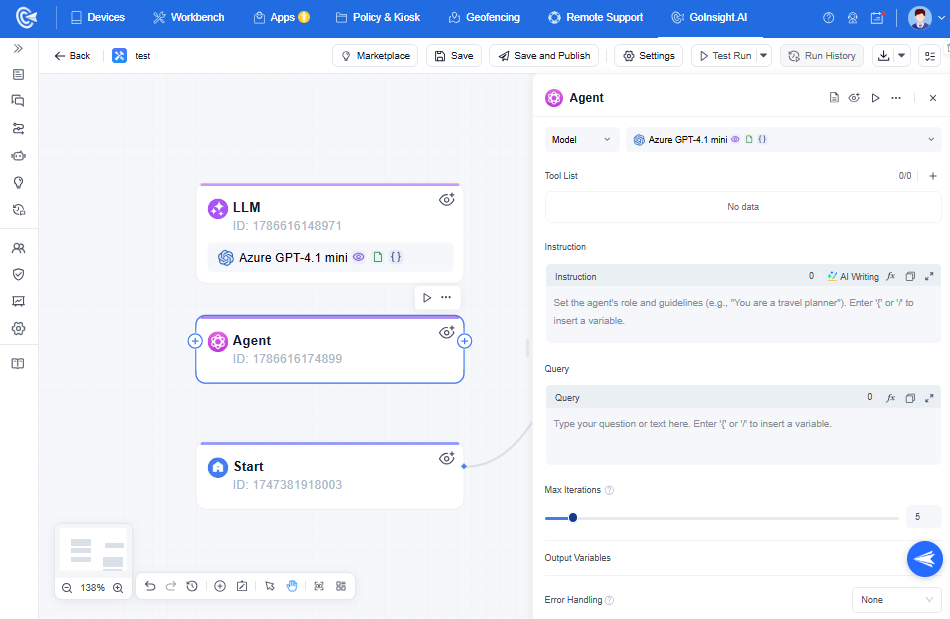
If another connector or API provides the device purpose, business priority, or assigned team, include that context as well. The LLM/Agent can use known facts to improve the summary and routing recommendation.
Step 5 : Create a Ticket and Notify the Assigned Team
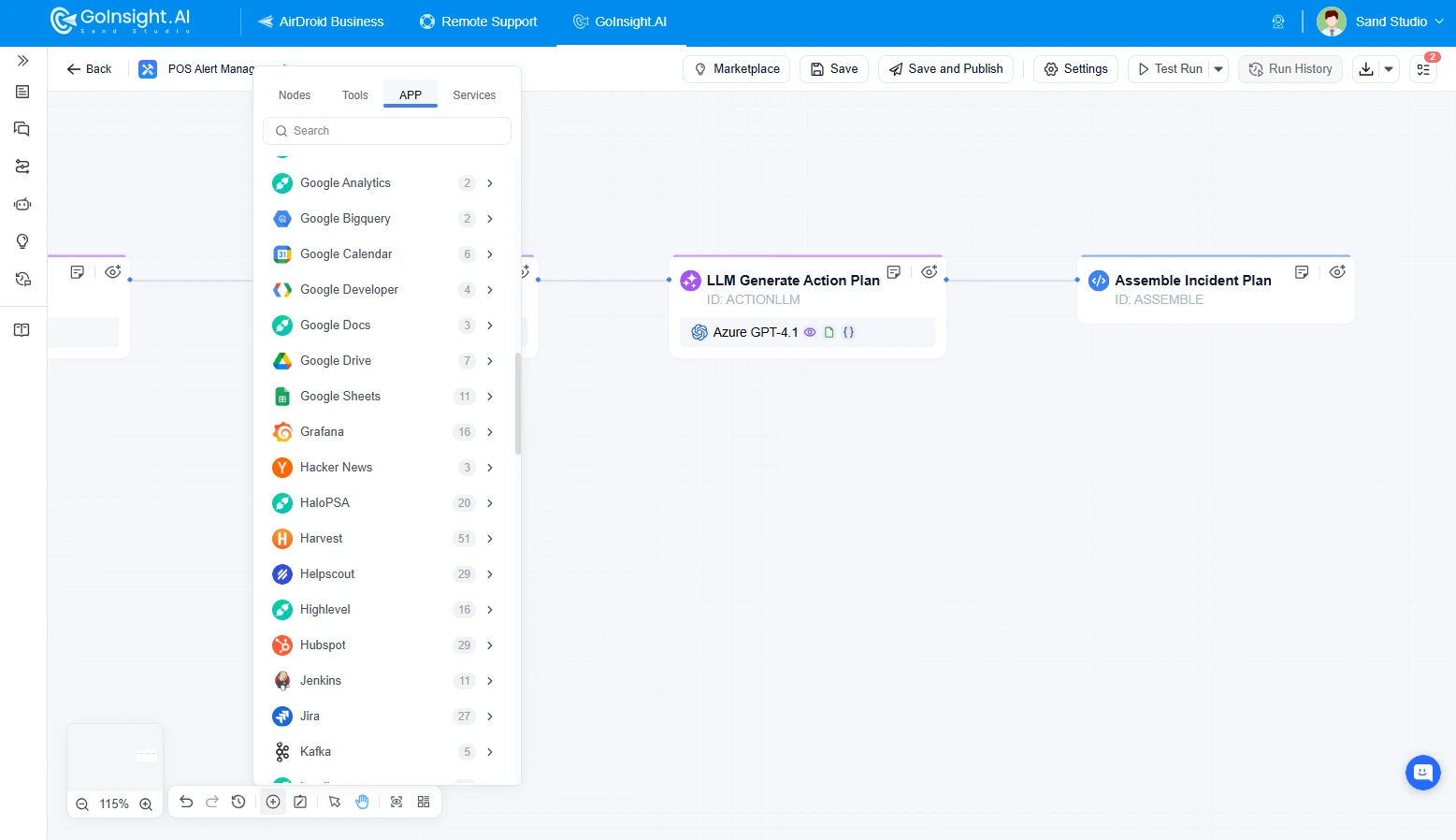
Use the prepared ITSM or messaging platform connector. Write the device name, store, trigger time, Kiosk configuration, latest deployment status, actions already performed by the Console, and the incident summary and handling suggestions produced by LLM/Agent to the ticket or notification. The complete event context reaches the responsible team with the ticket, so support staff can begin handling it directly.
Step 6 : Verify Kiosk Recovery Status
After remote or on-site handling, call Get Config File Deployment Status again to verify the result. If the device has recovered, update and close the ticket. If it has not recovered, keep the existing handling record and hand the case to the next support level.
Recovery verification boundary: A recovered Kiosk configuration means that AirDroid Business has detected that the corresponding configuration was redeployed successfully. It does not necessarily mean that ordering, payment, or other business functions are fully available. If the business can query application health, backend transaction status, or another business API, those signals can also be connected to AI workflow to further confirm whether the terminal has resumed service.
6Conclusion
AirDroid Business and InsightFlow connect exception detection, device-side recovery, status verification, AI-assisted information organization, and event escalation into a closed loop. This loop reduces the manual work of filtering alerts, looking up device information, and transferring data across systems. It moves distributed Kiosk operations away from reliance on manual follow-up toward a process that is traceable, verifiable, and scalable.
Use AirDroid Business to monitor and recover Kiosk status, then use InsightFlow to verify the result, organize the event, and connect business systems. Each unresolved exception reaches the right team with complete information.








Leave a Reply.