How to Monitor Android Data Usage Across Work Devices with MDM
For a single Android phone, checking data usage is usually simple: open device settings, review mobile data consumption, and adjust usage if needed. For individual users, Google provides instructions to check mobile data usage in Android Settings. But for businesses managing dozens, hundreds, or thousands of Android work devices, data usage becomes a device operations problem.
IT teams need to know which devices are consuming the most cellular data, which apps are driving that usage, whether the issue is isolated or group-wide, and what should happen after abnormal usage is detected. Manual checks, delayed carrier bills, and one-off screenshots are not enough.
Android data usage monitoring is the process of reviewing how much mobile, cellular, or Wi-Fi data Android devices and apps consume over time. In a business environment, it usually requires centralized reports, device-level and app-level visibility, cellular data usage alerts, and a consistent follow-up process across managed Android devices.
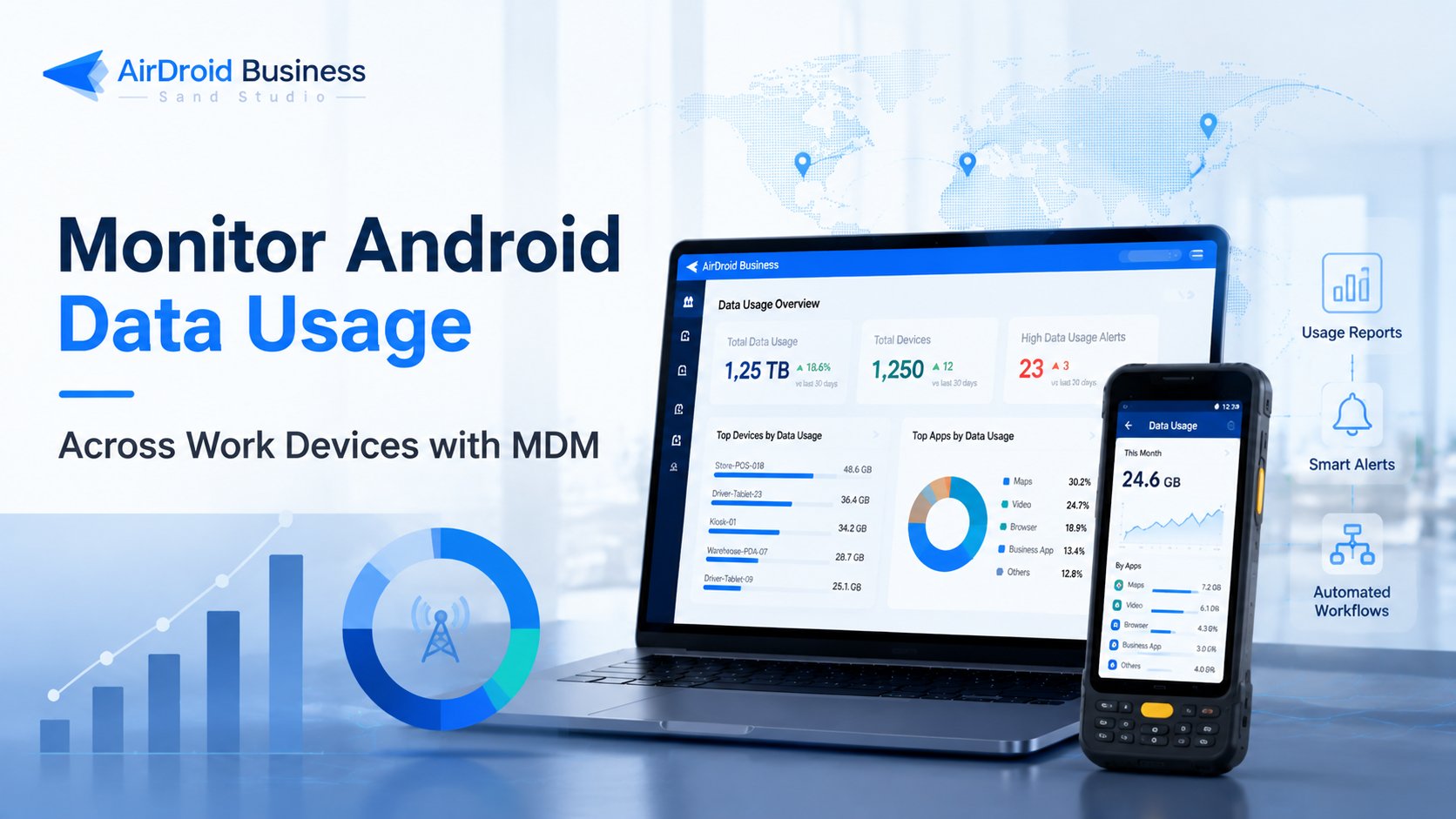
This guide explains how enterprise IT teams can monitor Android data usage across work devices with MDM, how reports and alerts help detect issues earlier, and how workflow-based follow-up can make data usage management more consistent.
Part 1: Why Android Data Usage Monitoring Matters for Business Devices
Data usage is a device operations issue, not just a phone setting
Android work devices are often used far beyond the office environment. They may be mounted in delivery vehicles, used by warehouse workers, deployed as POS tablets, placed in self-service kiosks, or handed to field teams.
In these environments, cellular data usage is closely tied to device availability, operating cost, and service continuity. A single device consuming too much mobile data may seem like a small issue. Across an entire device fleet, the same issue can become expensive and difficult to trace.
For IT administrators and operations teams, Android data usage monitoring helps answer questions such as:
- Which devices are consuming more data than expected?
- Which apps are responsible for the highest usage?
- Is the issue limited to one device, or is it happening across a store, fleet, project, or customer group?
- Is the usage coming from business activity, background data, or unexpected non-work apps?
- Should the device owner, store manager, fleet supervisor, or MSP account owner be notified?
- Does the issue require a policy change, app review, or further troubleshooting?
The goal is not only to “check data usage.” The goal is to make usage visible enough to identify the device, app, group, and owner involved.
Distributed Android devices make usage harder to control
Business Android devices are often distributed across locations and teams. A retail company may manage tablets across hundreds of stores. A logistics company may manage driver devices across multiple regions. An MSP may manage Android devices for several customers, each with different thresholds and reporting expectations.
This makes manual data usage monitoring difficult. IT teams may not have physical access to the devices. End users may not know how to check data usage. Even when they do, screenshots and one-off reports are not reliable enough for ongoing operations.
A centralized approach is needed when devices are:
- Used outside corporate Wi-Fi networks
- Dependent on cellular data or roaming data
- Shared across shifts or employees
- Assigned to vehicles, stores, warehouses, or kiosks
- Managed by regional teams or MSPs
- Dependent on business apps that sync data frequently
- Deployed in unattended or semi-attended environments
Unusual data usage is not always caused by user behavior. It may come from a business app syncing too often, a navigation app downloading large map data, a media-heavy app running in the background, or a device configuration issue.
Common business impacts include:
- Higher mobile data costs
- Roaming data charges for fleet or field devices
- Increased bandwidth consumption from background services
- Harder troubleshooting when usage is discovered too late
- Reduced visibility into whether data usage is business-related
- Potential non-work activity on devices that should be dedicated to business tasks
Data usage monitoring gives IT teams a way to detect these patterns earlier and investigate them with more context.
Part 2: Why Manual Data Usage Checks Don’t Scale
Android Settings work for individual devices
If you only need to check data usage on one Android phone, Android Settings is usually enough. A user can open settings, review mobile data usage, check app-level usage, set a mobile data limit, or adjust background data settings.
For enterprise IT, this approach does not scale. Administrators cannot rely on every driver, store employee, field worker, or kiosk operator to check settings, interpret the results, and report them accurately.
Manual checks also lack consistency. Different Android versions, device brands, carrier settings, enrollment methods, and user permissions can make the experience inconsistent across a mixed device fleet.
Carrier bills can help organizations understand total cost, but they are usually too late for operational troubleshooting. By the time a high data usage issue appears on a bill, the device may have already consumed unnecessary data for days or weeks. Carrier bills may also lack the app-level, group-level, or device-role context IT teams need for investigation.
Enterprise teams need centralized visibility
A scalable approach should give IT teams centralized visibility into data usage across managed Android devices. This includes both device-level and app-level usage, so administrators can identify not only where the issue is happening, but also what may be driving it.
In an MDM environment, this visibility can be connected to device groups, cellular data thresholds, alerts, policies, and follow-up processes. That is what turns Android data usage from a manual device check into a manageable operations workflow.
Manual Android data usage checks vs. MDM-based monitoring
| Approach | Best For | Limitation for Business Devices |
|---|---|---|
| Android Settings | Checking data usage on one Android phone | Not scalable across many devices, users, or locations |
| Carrier bills | Reviewing total mobile data cost | Usually too late for troubleshooting and may lack app-level context |
| Manual reports or screenshots | One-time checks | Inconsistent, difficult to audit, and hard to standardize |
| MDM reports | Fleet-level review across managed Android devices | Requires devices to be enrolled and reporting data |
| MDM alerts | Detecting abnormal cellular data usage earlier | Thresholds need to be configured by device role, group, or business context |
AirDroid Business - Manage Android Data Usage Across Your Device Fleet
AirDroid Business helps IT teams monitor managed Android devices, review data usage reports, and detect device exceptions from one centralized console.
Part 3: What IT Teams Should Monitor
Device-level and app-level usage
Device-level data usage helps IT teams identify which Android devices are consuming the most data. This is useful when reviewing a device fleet for unusual behavior or investigating a high-cost billing period.
For example, if one driver tablet, POS device, or kiosk player consumes significantly more data than similar devices, IT can prioritize that device for review.
Device-level monitoring is especially useful for:
- Fleet devices
- Store tablets
- Field service phones
- Warehouse PDAs
- Shared business devices
- Kiosk or unattended terminals
App-level data usage helps explain why a device may be consuming more data than expected.
A device-level report can show that a device is using too much data. App-level visibility helps determine whether that usage comes from a business app, navigation app, browser, media app, background service, or unexpected non-work application.
This distinction matters because different causes require different responses. A business app may need configuration review. A media-heavy app may need restrictions. A background service may need further troubleshooting. A non-work app may suggest a need for stronger Kiosk or Policy controls.
Trends, top apps, and group-level visibility
Top data-consuming apps should be reviewed regularly because they help IT teams focus on the apps responsible for the largest share of usage. Instead of investigating every installed app, administrators can prioritize the apps most likely to affect cost, performance, or compliance.
Reviewing top data-consuming apps can help answer questions such as:
- Which apps consume the most cellular data across the fleet?
- Are top-consuming apps expected for this device role?
- Is a business-critical app using more data than usual?
- Are there non-business apps consuming data on managed devices?
- Does usage differ by device group, region, or customer?
Usage trends are also important. Data usage monitoring is more useful when viewed over time. Trends can show whether usage is increasing gradually, spiking suddenly, or changing after an app update or device configuration change.
Trend analysis can support:
- Monthly mobile data cost control
- App update impact analysis
- Roaming data review
- Capacity planning
- MSP customer reporting
- Investigation of repeated data usage alerts
Most enterprise device fleets are not managed as a flat list. Devices are organized by business context, such as store, region, fleet, warehouse, hospital site, project, or customer.
Group-level visibility helps IT teams identify whether data usage issues are isolated or operationally significant. A single high-usage device may be a device-level issue. Multiple high-usage devices in one group may indicate a broader configuration, app, or workflow problem.
For MSPs, group-level visibility is especially important because it supports customer-level reviews and recurring operations summaries.
Part 4: Using MDM Reports and Alerts to Manage Android Data Usage
Use reports to understand data usage patterns
Android MDM data usage monitoring should start with visibility. MDM reports help IT teams move beyond manual device checks and delayed carrier bills.
In AirDroid Business, IT teams can use device monitoring and reports such as Traffic Statistics reports to review data usage across managed devices. These reports help administrators understand data usage patterns across devices, groups, and apps.
Reports are useful for recurring analysis and operational review. Typical review scenarios include:
- Weekly IT operations review
- Monthly mobile data cost analysis
- Device fleet audit
- App usage investigation
- MSP customer reporting
- Review of high-consuming devices or apps
Reports are best used when IT teams need a fleet-level view of data usage rather than immediate exception handling.
With centralized reporting, IT teams can identify devices and apps that consume more data than expected. This allows administrators to focus their troubleshooting efforts where they are most likely to matter.
For example, a logistics team may find that a small number of driver tablets are responsible for a large share of mobile data usage. A retail IT team may find that one app on store tablets is consuming more data after a recent update. An MSP may identify that one customer group has consistently higher usage than others.
The value of reporting is not just the data itself. It is the ability to connect usage patterns with operational context.
Use alerts to detect device-level and app-level exceptions
Reports are useful for review. Alerts are useful for exceptions.
A Device Cellular Data Usage alert helps IT teams detect when a managed device reaches a defined cellular data usage condition. This is useful when a device consumes more mobile data than expected within a certain time period or threshold.
This type of alert is helpful when the primary question is: Which device is using too much cellular data?
For example, a driver tablet may start consuming unusually high mobile data during a delivery route. Instead of waiting for a monthly report or carrier bill, IT can be notified earlier and review the device.
AirDroid Business MDM alerts can help IT teams detect abnormal conditions across managed devices, including usage-related exceptions, offline status, low battery, storage issues, and other device events depending on configuration.
An App Cellular Data Usage alert helps IT teams detect when a specific app consumes cellular data beyond a defined threshold. This is useful when the issue may be tied to a business app, navigation app, browser, content app, or background service.
This type of alert is helpful when the primary question is: Which app is generating abnormal cellular data usage?
Consider a fleet operations team managing Android tablets used for navigation and delivery workflows. If a navigation app starts downloading large map data unexpectedly, an App Cellular Data Usage alert can help IT identify the app-level issue earlier and notify the fleet owner before costs increase further.
Reports, alerts, and workflows: how they work together
Reports and alerts serve different purposes.
Use reports when you need to review patterns, compare usage, audit device groups, or prepare recurring summaries. Reports are useful for planned analysis.
Use alerts when you need to detect exceptions earlier. Alerts are useful when usage crosses a threshold and requires attention.
In practice, most IT teams need all three parts:
- Reports for regular visibility
- Alerts for abnormal usage
- Workflows for consistent follow-up
This combination moves data usage management from periodic review to exception-based operations: reports show what is happening, alerts detect when something needs attention, and workflows help standardize what happens next.
| Capability | What It Helps With | Example Use |
|---|---|---|
| Reports | Reviewing data usage patterns across devices, apps, and groups | Monthly mobile data cost analysis |
| Device Cellular Data Usage alerts | Detecting devices that exceed expected cellular data usage | A driver tablet uses more data than usual |
| App Cellular Data Usage alerts | Detecting apps with abnormal cellular data consumption | A navigation app starts downloading large map data |
| Workflows | Standardizing follow-up after an alert | Notify the device owner and record the event |
AirDroid Business - From Data Usage Reports to Actionable Alerts
Use AirDroid Business to review traffic statistics, identify high-consuming devices or apps, and set alerts for abnormal device conditions.
Part 5: Turning Data Usage Alerts into Workflow-Based Follow-Up
Why alerts need a follow-up process
An alert is useful only if the right team sees it and knows what to do next. In many organizations, the process after an alert is still manual.
A typical manual process may involve:
- Reviewing the alert
- Checking the affected device or app
- Exporting details
- Sending a message to a manager or owner
- Recording the issue in a spreadsheet or ticket
- Following up later to confirm resolution
This can work for a small number of devices. It becomes difficult when IT teams manage distributed devices across many locations, customers, or operational groups.
What an alert-triggered workflow can help with
Workflow-based follow-up can standardize what happens after a data usage alert is triggered. Depending on configuration and available integrations, an alert-triggered workflow may help with actions such as:
- Creating a summary of the alert event
- Notifying the responsible device owner or operations contact
- Recording the event for later review
- Routing the issue by device group, customer, region, or project
- Including the issue in a recurring operations summary
- Supporting a review process before further device actions are taken
This does not mean the system should automatically fix every data usage issue. In many cases, the correct response requires review. The value of workflow automation is consistency: the alert is captured, summarized, routed, and made easier to follow up.
AirDroid Business helps connect three parts of Android data usage management: reports for visibility, alerts for exception detection, and workflow-based follow-up through GoInsight.AI where supported.
AirDroid Business provides the device management context and alert event. GoInsight.AI can support workflow automation for follow-up, such as routing notifications, recording events, or preparing summaries, depending on configuration.
For example, an MSP managing Android devices for multiple customers may want data usage alerts routed to the right account owner. A workflow can help record the event, generate a short summary, and include the issue in a weekly device operations report.
This approach is especially useful when multiple teams are involved, such as IT administrators, operations managers, regional owners, customer success teams, or MSP account teams.
Availability may depend on workspace configuration, workflow setup, connectors, and product plan.
What workflow automation should not be expected to do
Workflow automation should not be described as fully autonomous data usage management. It does not guarantee lower mobile data costs, and it should not be expected to automatically fix every data usage issue.
- Reports help teams understand data usage patterns.
- Alerts help teams detect abnormal usage earlier.
- Workflows help teams standardize follow-up.
This is a practical step toward more scalable device operations without removing human review from decisions that may affect business devices.
Part 6: Best Practices for Android Data Usage Monitoring
1. Monitor both device-level and app-level usage.
Device-level usage helps IT teams identify which Android devices are consuming more data than expected. App-level usage helps explain what may be driving that usage, such as business apps, navigation apps, browsers, background services, or unexpected non-work apps. Reviewing top data-consuming apps regularly can also help teams spot unusual patterns earlier.
2. Set thresholds by device role and business context.
Not every device should follow the same cellular data threshold. A driver tablet, warehouse scanner, POS tablet, digital signage player, and field service phone may all have different expected usage patterns. Thresholds should reflect how the device is used, where it is deployed, whether it relies on Wi-Fi, cellular data, or roaming data, and which apps are expected to run.
3. Use reports for regular reviews and alerts for exceptions.
Reports are best for scheduled reviews, mobile data cost analysis, app usage audits, and MSP customer summaries. Alerts are better for detecting abnormal cellular data usage earlier. A practical monitoring setup should use reports to understand trends and alerts to catch exceptions that require attention.
4. Use Kiosk and Policy where appropriate.
For dedicated Android devices, Kiosk and Policy controls can help limit devices to approved apps, restrict unnecessary access, and reduce the chance of non-work activity. This does not guarantee lower data usage, but it can support a more controlled device environment for POS tablets, self-service kiosks, warehouse PDAs, signage players, and other business devices.
5. Standardize follow-up with workflows where supported.
Data usage monitoring should not stop at detection. IT teams should define who receives an alert, what information is included, whether the event should be recorded, and when further review is needed. Where supported and configured, workflows can help route alerts, notify responsible owners, record events, and make follow-up more consistent.
AirDroid Business - Ready to Manage Android Work Devices with More Visibility?
AirDroid Business helps IT teams monitor device status, manage alerts, apply Kiosk and Policy controls, and standardize device operations across distributed Android fleets.
FAQs








Leave a Reply.