Remote Access Device Monitoring: How Alerts and Workflows Help Reduce Device Downtime
-
Part 1: What Is Remote Access Device Monitoring?
-
Part 2: Why Remote Access Alone Is Not Enough
-
Part 3: Common Device Downtime Risks for Distributed Business Devices
-
Part 4: How Alerts and Workflows Change the Response Model
-
Part 5: What Automated Remediation Can and Cannot Do
-
Part 6: Where This Matters Most
-
Part 7: How AirDroid Business Supports Proactive Device Operations
-
FAQs
Remote access is often the first capability IT teams look for when managing devices outside the office. It makes sense: when a POS tablet freezes, a driver device stops responding, or a kiosk screen shows the wrong interface, remote access gives IT a way to step in without sending someone onsite.
But remote access solves only part of the problem.
For distributed business devices, the bigger challenge is not just fixing issues remotely. It is knowing when something is wrong, understanding what kind of issue it is, and making sure the right follow-up happens consistently.
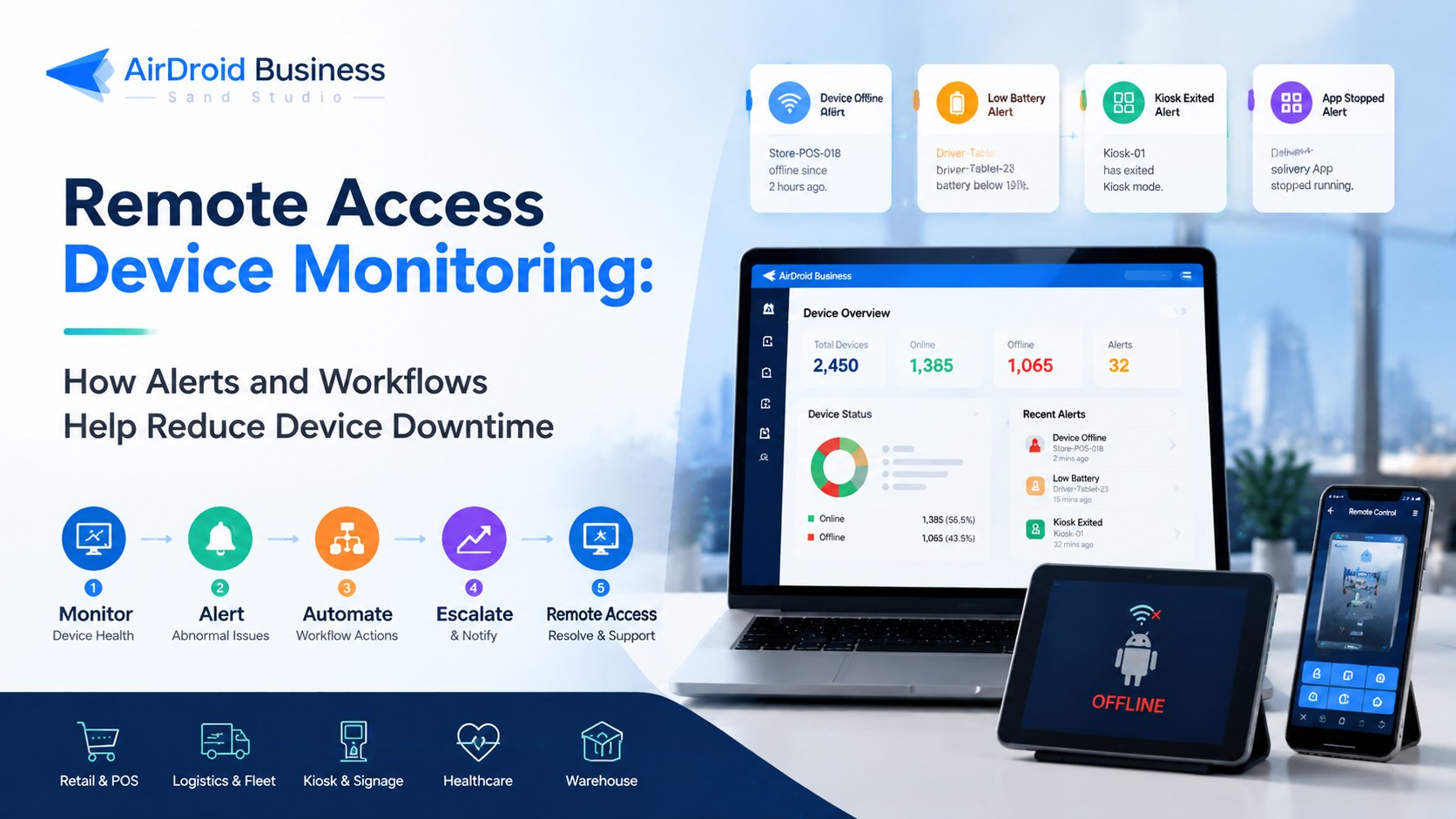
Remote access helps IT respond after a problem is visible. Monitoring, alerts, and workflows help make the problem visible earlier and guide the next response.
That is where remote access device monitoring becomes more useful. When remote access is combined with device monitoring, alerts, and workflows, IT teams can move from reactive troubleshooting to more proactive device operations.
Part 1: What Is Remote Access Device Monitoring?
Remote access device monitoring is the practice of remotely tracking device status, detecting abnormal conditions, and supporting troubleshooting across distributed business devices.
It usually combines four capabilities:
- Remote access to view or control a device when troubleshooting is needed
- Device monitoring to track device health, such as online state, battery, storage, network, app status, and Kiosk status
- Alerts to notify IT teams when a device enters an abnormal state
- Workflows to standardize what happens after an alert is triggered
For IT teams managing Android business devices, this often applies to devices such as:
- POS tablets
- Self-service kiosks
- Digital signage players
- Logistics handhelds
- Driver tablets
- Warehouse PDAs
- Healthcare tablets
- Unattended Android devices
For remote Android device monitoring, the most useful signals usually include online status, battery level, charging status, storage, network connection, mobile data usage, app running status, Kiosk status, and location-related events.
The goal is not simply to start a remote session. It is to help IT teams understand device health, detect issues earlier, and respond before downtime spreads across stores, vehicles, sites, or service locations.
AirDroid Business - Go Beyond Remote Access with Proactive Android Device Monitoring
Monitor device health, detect issues earlier, and manage distributed Android fleets from one centralized platform. AirDroid Business combines monitoring, alerts, workflows, and remote support to help IT teams reduce device downtime.
The four capabilities work together, but they are not the same. The table below shows how each layer contributes to device downtime reduction.
| Capability | What It Does | When It Helps | Example Use Case |
|---|---|---|---|
| Remote Access | Lets IT view, control, or inspect a device remotely | When a device needs hands-on troubleshooting | An IT admin connects to a POS tablet to check why the app is frozen |
| Device Monitoring | Tracks device health and status over time | Before an issue becomes a visible failure | IT monitors online status, battery, storage, network, app status, and Kiosk status |
| Alerts | Notifies teams when a device enters an abnormal state | When IT needs to detect issues earlier | A low-battery or offline device alert is sent to the responsible team |
| Workflows | Defines what happens after an alert or trigger | When follow-up needs to be consistent and repeatable | A workflow logs the event, exports a device list, notifies the owner, or escalates to remote support |
Part 2: Why Remote Access Alone Is Not Enough
Remote access is useful once a problem is known. An employee reports that a tablet is frozen. A store manager says the kiosk is not working. A driver calls support because the delivery app will not open. IT connects remotely and begins troubleshooting.
That model works when device fleets are small and issues are reported quickly.
It becomes harder to scale when devices are distributed across many locations and used by non-technical staff. In those environments, IT may not know a device is offline, low on battery, out of storage, or outside its expected Kiosk state until someone notices and reports it.
That delay matters.
A POS device may be unavailable during checkout. A self-service kiosk may stop accepting orders. A logistics device may fail to sync route or delivery updates. A digital signage screen may sit blank for hours because no one is watching it closely.
Remote access helps IT respond after the issue is visible. Device monitoring and alerts help IT discover the issue earlier.
- 1. Monitor the device state
- 2. Detect an abnormal condition
- 3. Trigger an alert
- 4. Start a predefined workflow
- 5. Escalate to remote access if deeper troubleshooting is needed
In this model, remote access remains important. It just becomes part of a broader device operations process, rather than the only way to handle problems.
Remote access is the troubleshooting layer. Monitoring and alerts are the visibility layer. Workflows connect visibility to action.
Part 3: Common Device Downtime Risks for Distributed Business Devices
Device downtime does not always look like a device being completely dead. In many business environments, a device can be powered on but still unavailable for its intended job.
For example, a business may not know a device has gone offline, exited Kiosk mode, or stopped running its expected app until a frontline employee reports it. Monitoring and alerts help IT teams detect these risks earlier, before more transactions, services, or field operations are affected.
Device downtime can come from different signals. The earlier IT can detect the signal, the easier it is to prioritize the right response.
| Downtime Risk | What IT Should Monitor | Why It Matters | Possible Follow-Up |
|---|---|---|---|
| Offline devices | Online / offline status, last online time, network state | Offline devices may not be available for remote access or business use | Notify the responsible team, export an offline device list, assign onsite follow-up |
| Low battery or charging issues | Battery level, charging status, battery health | Devices may become unavailable during shifts, routes, or service windows | Send a low-battery alert, remind local staff to charge, review charging stations |
| App issues | App running status, app version, app usage signals | A device can be online but unusable if the business app is not running correctly | Notify IT, open the app to the foreground where appropriate, escalate to remote troubleshooting |
| Kiosk status issues | Kiosk running status, Policy / Kiosk configuration status | A device that exits Kiosk mode may no longer be locked to its intended business use | Trigger a Kiosk status alert, review the device remotely, reapply configuration if appropriate |
| Storage or performance issues | Remaining storage, CPU usage, device resource status | Low storage or high resource usage can affect app performance and updates | Generate a device report, prioritize devices for cleanup or maintenance |
| Network or data usage issues | Network type, signal strength, data usage trends | Poor connectivity or abnormal data usage can affect syncing, cost, and availability | Send usage alerts, review affected devices, investigate app or network behavior |
Offline devices
Offline devices are one of the most common and most disruptive issues for distributed fleets.
A device may go offline because of network failure, power loss, poor signal, device shutdown, or local configuration issues. For IT teams, the immediate challenge is visibility. If the device is offline, remote access may not be available. But an offline alert can still help the team record the event, notify the right owner, export a device list, or assign follow-up to onsite staff.
This is especially important for logistics devices, unattended kiosks, and remote field devices where IT cannot physically inspect the device.
Low battery or charging issues
Low battery may seem simple, but it is often a warning sign before downtime occurs.
For mobile or semi-mobile devices, such as driver tablets, warehouse handhelds, healthcare tablets, and store associate devices, battery status can directly affect operations. A device that drops below a certain battery threshold may soon become unavailable during a shift, route, or service window.
Battery and charging alerts help IT teams or local managers take action earlier. In many cases, the next step is not a technical fix. It may be a reminder to charge the device, a check of the charging station, or a follow-up with the team responsible for that location.
App and Kiosk status issues
Many business devices are only useful when the right app is running in the right state.
A POS tablet needs the POS app available. A self-service kiosk needs the customer-facing app locked in place. A digital signage device needs its media player running. A healthcare tablet may need to stay in a controlled interface for patient-facing use.
If the app crashes, moves to the background, or the device exits Kiosk mode, the device may technically still be online but no longer usable for its intended purpose.
This is where Android Kiosk monitoring becomes important. Monitoring app running status and Kiosk status helps IT teams catch issues that may not appear as full device outages but still interrupt the business process.
Depending on the device and policy, a workflow may notify the right team, open the business app to the foreground, switch a configuration, or escalate the issue for remote troubleshooting.
Storage, network, and data usage problems
Some downtime risks build up gradually.
A device with low storage may start to run slowly or fail during app updates. A device with poor network connectivity may remain online intermittently but fail to sync data reliably. A logistics or fleet device with abnormal mobile data usage may create cost issues or indicate that an app is consuming more bandwidth than expected.
Monitoring storage, network status, and data usage gives IT teams more context before users report a visible failure. It also helps teams prioritize which devices need attention first.
Part 4: How Alerts and Workflows Change the Response Model
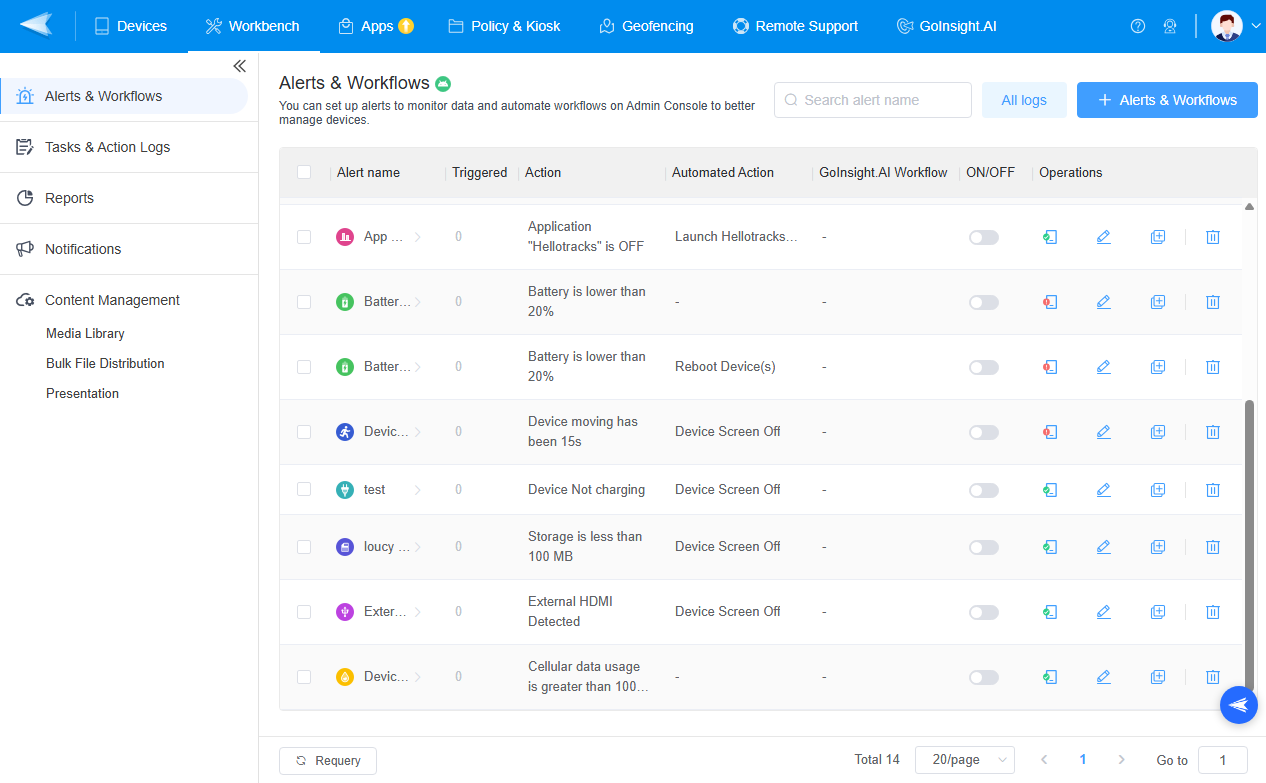
Alerts and workflows address two different parts of the same problem.
Alerts help IT teams detect issues. Workflows help define what happens next.
Alerts answer “what happened.” Workflows define “what should happen next.”
Without alerts, IT teams often depend on manual checks or user reports. Without workflows, alerts can become another queue of notifications that still require manual interpretation and follow-up.
A stronger response model connects the two.
For example, when a device goes offline, an alert can notify the IT team. A workflow can then log the event, export the affected device list, notify the regional owner, or create a follow-up task. If the device comes back online and still needs support, IT can use remote access to troubleshoot directly.
For a Kiosk status issue, the process may look different. An alert detects that the device has exited the expected Kiosk state. A workflow notifies the operations team and records the device details. If the device is online, IT can use remote control or observation mode to inspect what happened.
This kind of alert workflow automation does not need to be complex to be useful. Even simple workflows, such as notifying the right person, exporting device details, or creating a follow-up record, can reduce ad hoc troubleshooting.
A typical alert-triggered workflow may include:
- Detecting a device issue
- Notifying the right team or owner
- Logging the device details
- Exporting a device list or report
- Triggering a predefined response
- Escalating to remote access when needed
The value is not that every issue becomes fully automated. The value is that the first response becomes more consistent.
This helps reduce repeated manual steps and gives IT teams a clearer path from detection to action.
Part 5: What Automated Remediation Can and Cannot Do
Automated remediation is useful when the task is predefined, repeatable, and low risk. It is less appropriate when an action could disrupt business operations, erase data, or affect many devices at once.
That distinction matters.
In device operations, some actions are good candidates for automation or semi-automation. For example:
- Sending an alert notification
- Generating a device status report
- Exporting a list of offline devices
- Checking Policy or Kiosk status
- Opening a business app to the foreground
- Moving devices to a follow-up group
- Triggering a workflow after an alert
- Clearing app cache where appropriate and properly reviewed
These actions can reduce repetitive work and help IT teams respond faster.
Other actions require more care. A device reboot may interrupt a user session. Powering off a device may require onsite intervention to turn it back on. Factory reset and unenrollment can remove data or require physical access to reconfigure the device.
Clearing app cache may be a reasonable maintenance action in some scenarios. Clearing app data is different. It may affect login state, local settings, offline data, or app configuration, so it should be reviewed carefully before execution.
Higher-risk actions may include:
- Rebooting devices
- Powering off devices
- Factory reset
- Unenrolling devices
- Clearing app data
- Large-scale bulk operations
These actions should be controlled by permissions, confirmation steps, audit records, and clear operational policies.
Automation should reduce repetitive work, not remove administrator review from high-risk actions.
Automated remediation should support IT administrators. It should not replace their judgment. The best use of automation is to standardize routine responses while keeping human review in place for actions that can affect business continuity or data.
Part 6: Where This Matters Most
Remote access device monitoring is useful in any environment where devices are distributed, business-critical, and difficult for IT to inspect in person. The specific risks vary by industry, but the operating pattern is similar: device issues need to be detected early, routed clearly, and resolved with as little delay as possible.
Retail POS and self-service kiosks
A frozen POS tablet or kiosk app can interrupt transactions, ordering, and customer service. POS device monitoring helps IT track device status, app availability, battery, storage, and Kiosk state before store teams need to escalate the issue manually.
Transportation and logistics devices
Driver tablets and warehouse PDAs often operate far from IT support. Offline, battery, network, data usage, and app alerts help teams prioritize follow-up before routes, scanning, picking, or delivery workflows are affected.
Digital signage and unattended screens
Unattended device monitoring is especially important when no one is standing nearby to report a failure. Kiosk status, app running status, HDMI status, screenshots, observation mode, and remote access can help teams identify abnormal display states faster.
Similar needs also apply to healthcare tablets and other care devices where device availability, guided remote support, and faster follow-up matter. The value is faster visibility and response, not a promise of clinical outcomes or guaranteed compliance.
Part 7: How AirDroid Business Supports Proactive Device Operations
AirDroid Business - Manage Android Devices with Monitoring, Alerts, Workflows, and Remote Support
AirDroid Business helps IT teams monitor distributed Android devices, automate alert-based workflows, and troubleshoot issues remotely from a single platform. Keep POS systems, kiosks, logistics devices, and digital signage running smoothly.
AirDroid Business supports this shift from reactive remote support to proactive device operations by connecting the steps that IT teams already follow: monitor device status, detect abnormal conditions, trigger follow-up, troubleshoot remotely when needed, and review what happened afterward.
AirDroid Business is most useful when these capabilities are viewed as one device operations process rather than separate tools.
| Device Operations Step | AirDroid Business Capability | How It Helps |
|---|---|---|
| Monitor device status | Device Monitoring, Device List, Device Details | Helps IT view online status, battery, storage, network, app status, Kiosk status, location, and other device signals |
| Detect abnormal conditions | Alerts | Helps teams identify offline devices, low battery, storage shortage, app running issues, Kiosk status issues, HDMI events, and other device risks |
| Trigger follow-up workflows | AB Workflow and AI Workflow | Helps teams standardize follow-up such as notifications, reports, records, device lists, or predefined next steps |
| Troubleshoot remotely | Remote Control, Observation Mode, Remote Camera, screenshots, logs | Allows IT to inspect and support devices remotely when human review is needed |
| Review and document activity | Reports, task records, account activity logs, remote access reports | Helps teams review what happened, who acted, and whether additional follow-up is needed |
AirDroid Business helps IT teams monitor Android business devices across locations. Teams can view device status such as online state, battery level, charging status, storage, network status, data usage, app running status, Kiosk status, location, and device details.
For teams looking at Android MDM monitoring, this gives IT a practical view of device health beyond basic remote screen access.
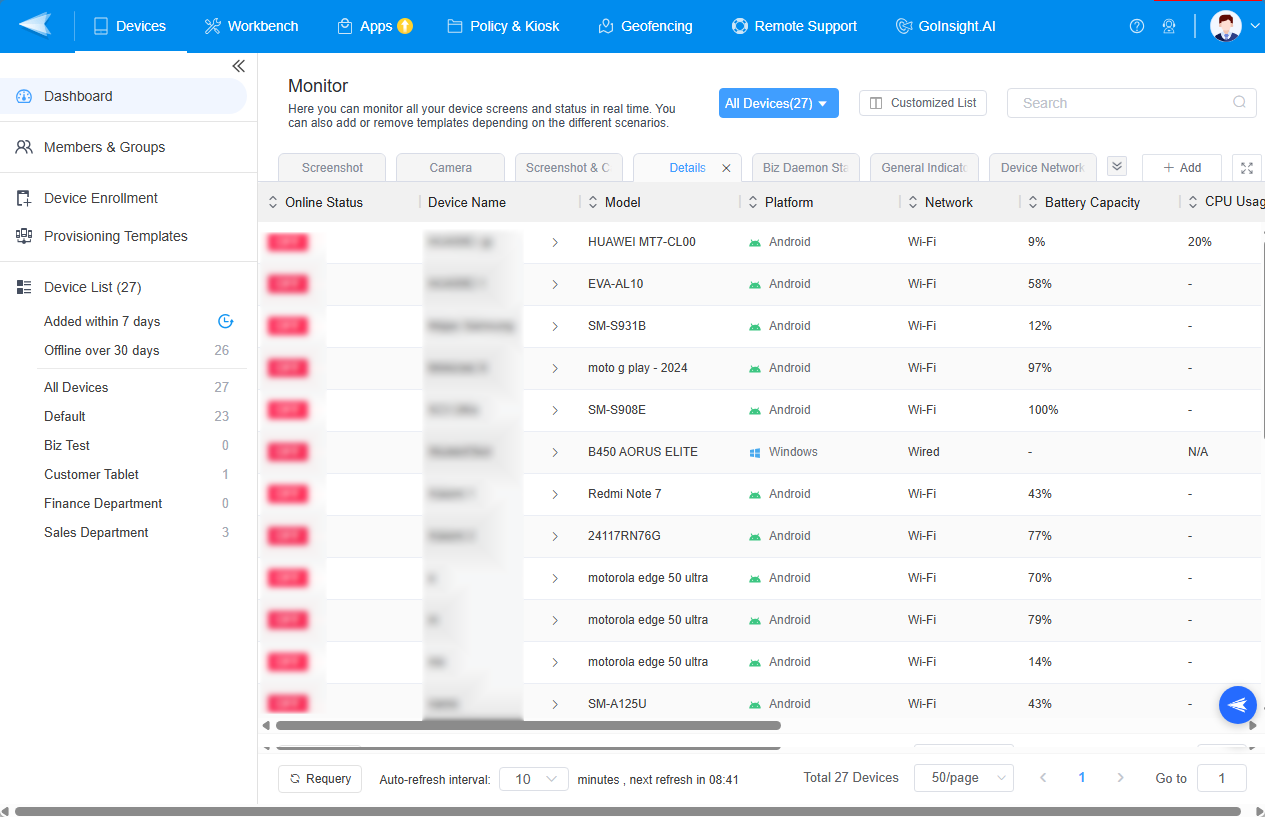
Detect issues with alerts
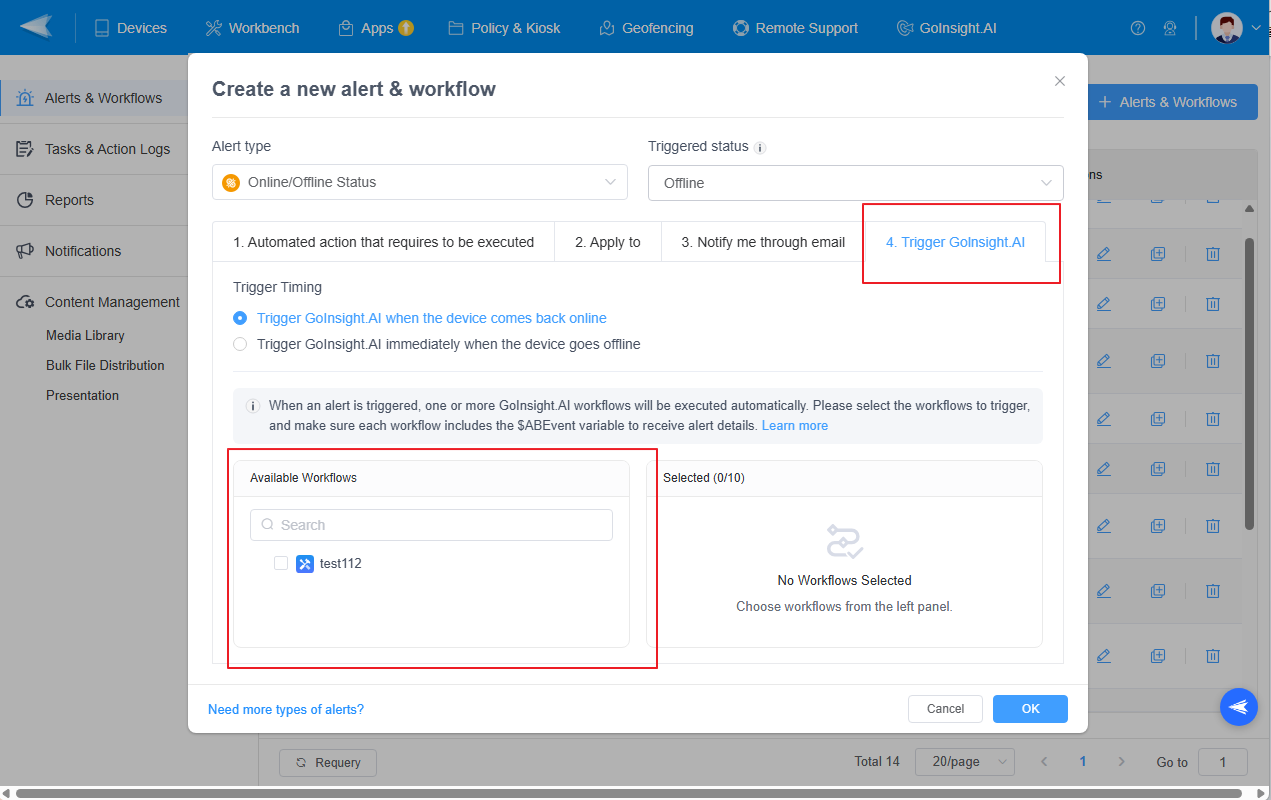
Alerts help teams detect abnormal device conditions earlier. For example, teams can configure alerts for offline devices, low battery, storage shortage, data usage, app running status, Kiosk status, SIM card changes, device movement, Biz Daemon permission status, screen lock status, and HDMI status.
These alerts help IT move from “someone reported a problem” to “the system surfaced a device risk.”
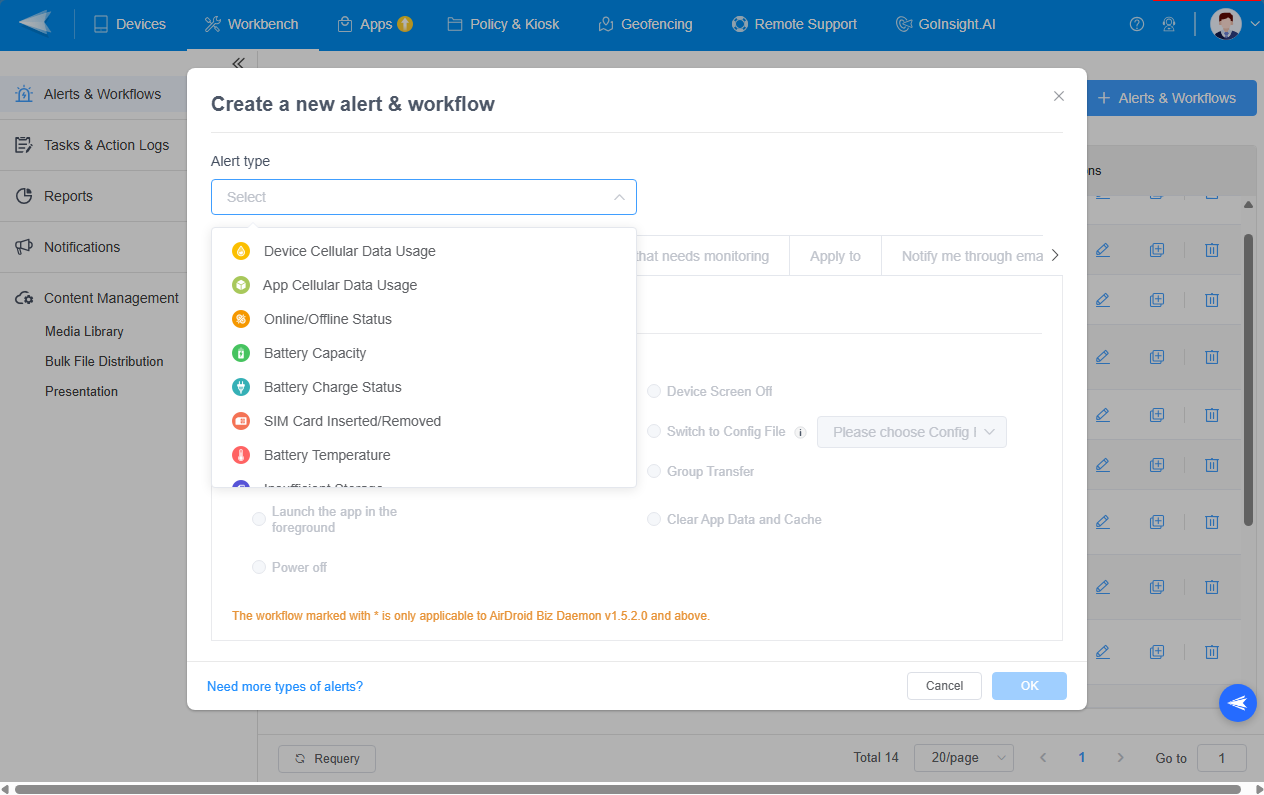
Trigger predefined follow-up workflows
When an alert is triggered, AirDroid Business can support follow-up through predefined workflows. Depending on the use case and configuration, teams can use workflows to send notifications, switch configuration files, move devices to groups, open an app to the foreground, clear app data or cache where appropriate, send alert emails, or trigger an AI Workflow for additional follow-up processes.
AI Workflow is best used here as a way to extend alert-triggered follow-up, such as logging, notification, reporting, or additional workflow steps. It should not be positioned as fully autonomous device management.
Troubleshoot remotely when deeper support is needed
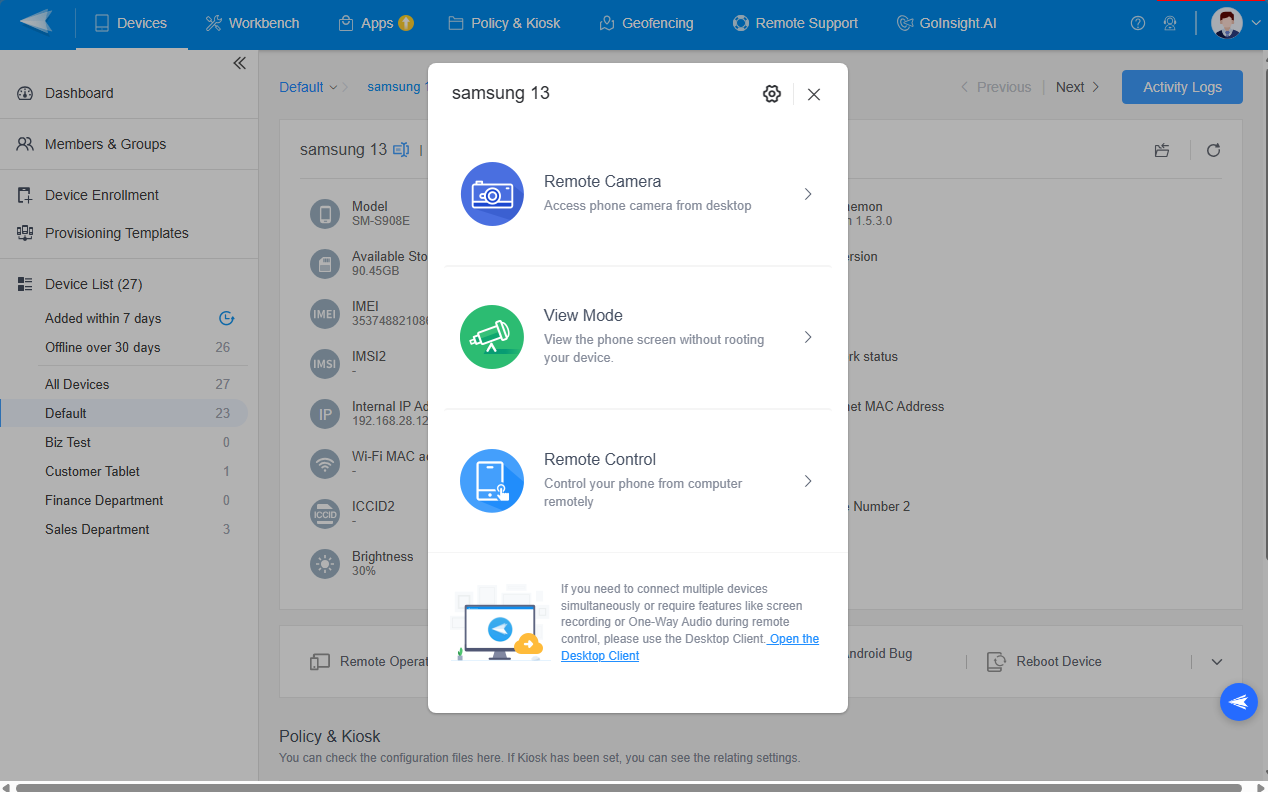
For issues that require human judgment, IT teams can use AirDroid Business remote access tools such as Remote Control, Observation Mode, Remote Camera, screenshots, screen recording, file management, device reboot, and log collection.
This is where remote access remains essential. Monitoring and alerts help identify the problem earlier. Remote access helps IT inspect, guide, and resolve issues that need direct intervention.
Review reports and logs
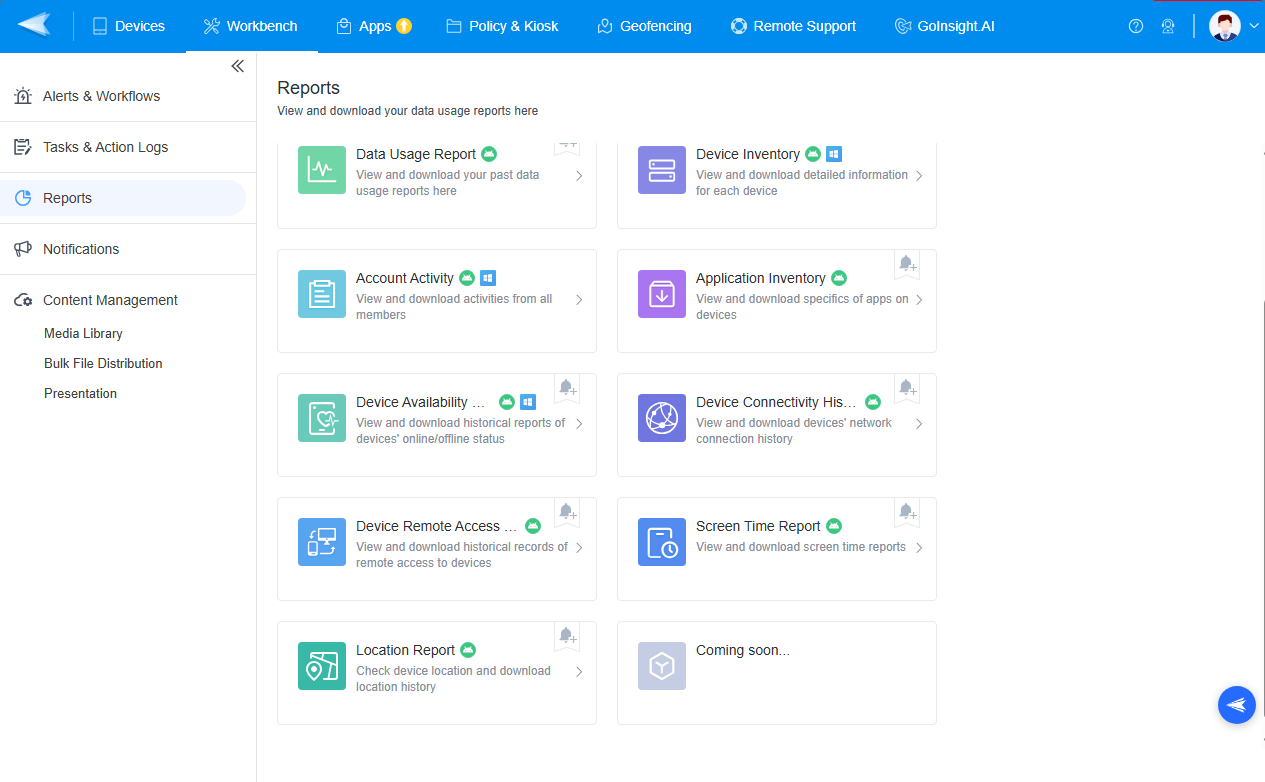
AirDroid Business also provides reports and logs to support follow-up and review, including device inventory, online and offline reports, application reports, data usage reports, remote access reports, account activity logs, task records, and scheduled reports.
This helps IT teams understand what happened, who acted, and whether further follow-up is needed.
For teams managing Android business devices, the value is the combination of device monitoring, Kiosk visibility, alerts, workflow-based follow-up, and remote troubleshooting in one operational process. This is especially useful for kiosks, POS tablets, logistics devices, digital signage, and other unattended endpoints that need more than occasional remote access.
In practice, AirDroid Business helps IT teams monitor distributed Android devices, detect issues with alerts, standardize follow-up with workflows, and use remote access when deeper troubleshooting is needed.
AirDroid Business - Ready to Build a More Reliable Android Device Operations Process?
Start managing your Android fleet with centralized monitoring, automated alerts, workflow-based responses, and remote support tools from AirDroid Business.
FAQs








Leave a Reply.