AirDroid Location Tracker
Tracks your child's real-time location, even when Find My fails.
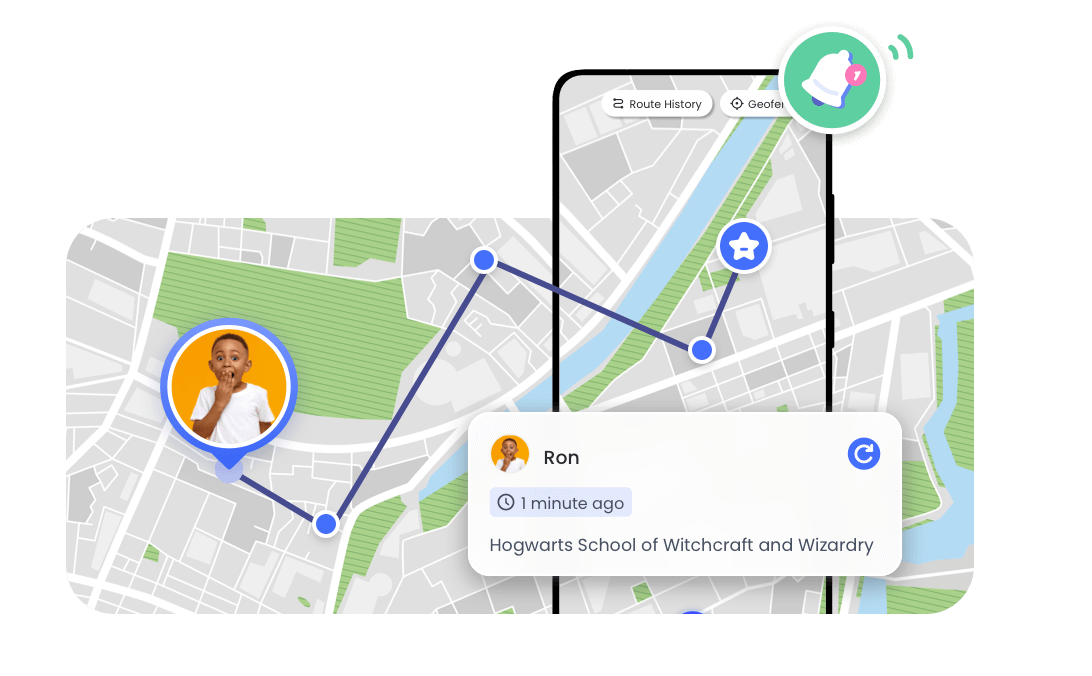
Why Can't I See My Child's Location on iPhone? How to Fix?
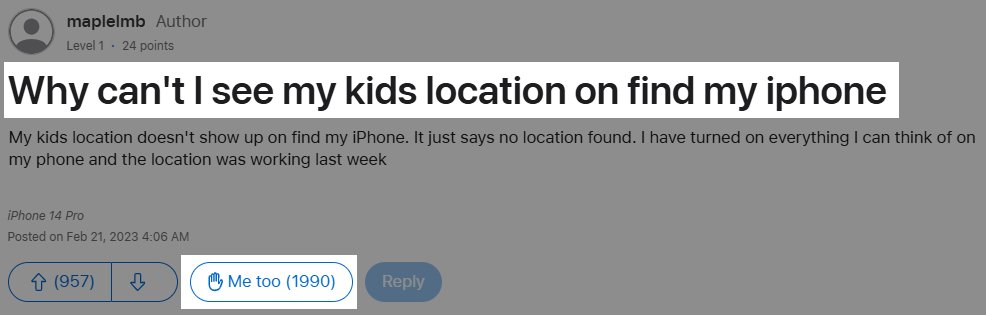
This is a real question from the Apple Community, and it's something around 2,000 parents have run into.
That moment can be anxious about their safety, especially when your child doesn't answer the phone or isn't home. The good news is that this usually isn't a serious problem.
It also happened to me recently. But it wasn't long before I found a solution to the problem. So, in the next few minutes, I will let you know why you can't see your child's location and show you how to fix it.
Why Can't I See My Child's Location on iPhone?
If you can't see your child's location, then it could be due to any of the following reasons.
1They Turned off Location Services
Location service is an important feature that Find My and other location-sharing apps on iPhones depend on for location tracking. Once your child turns it off, their device won't be able to transmit location data to you.
As such, you can only see "No Location Found" on your end.
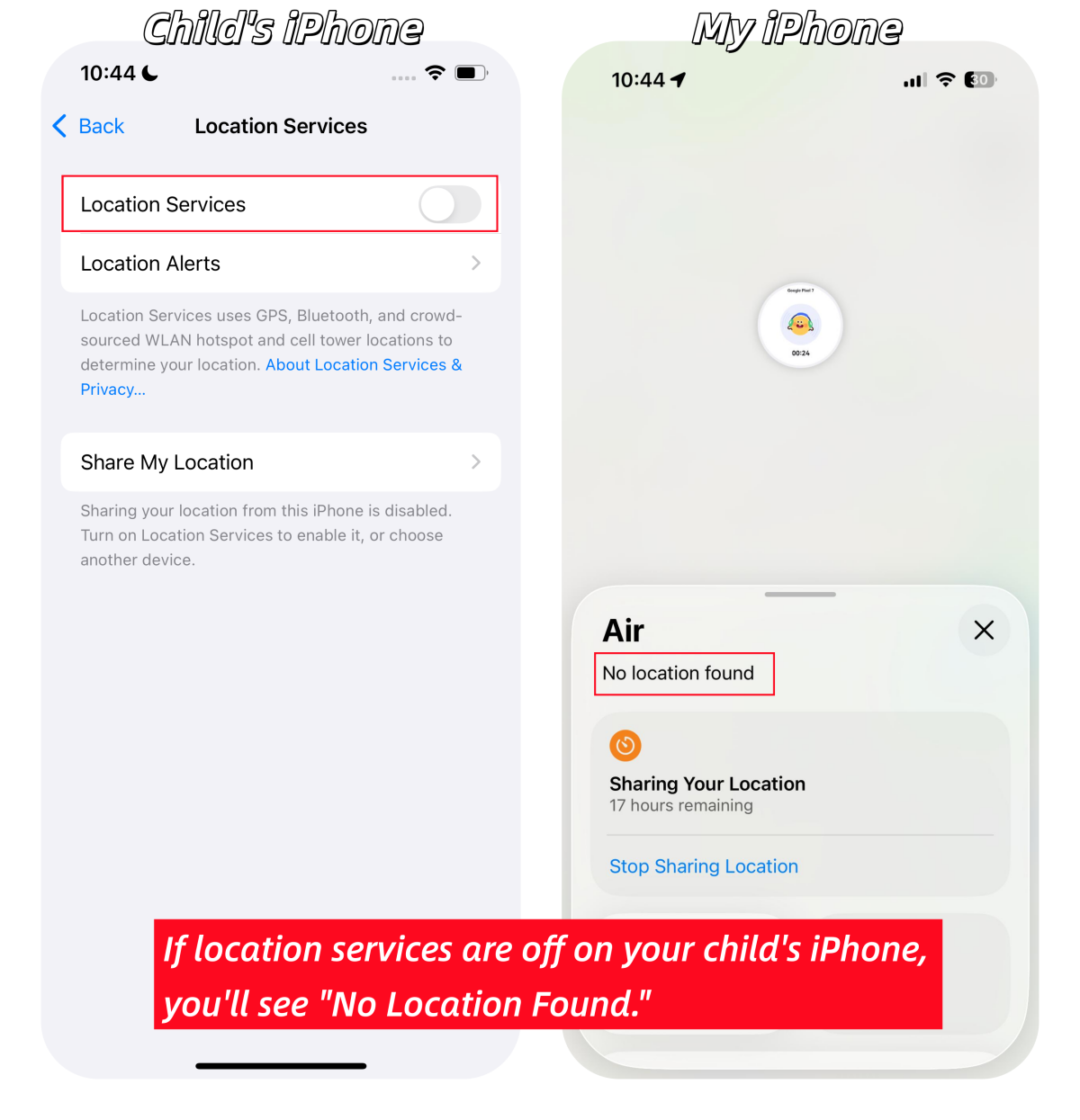
2They Disabled Location Sharing
Sometimes, your child accidentally disables "Share My Location" while exploring their phone, or intentionally turns it off for privacy.
When this happens, their iPhone stops sharing location data with you. As a result, you may only see their last known location or not see any location at all.
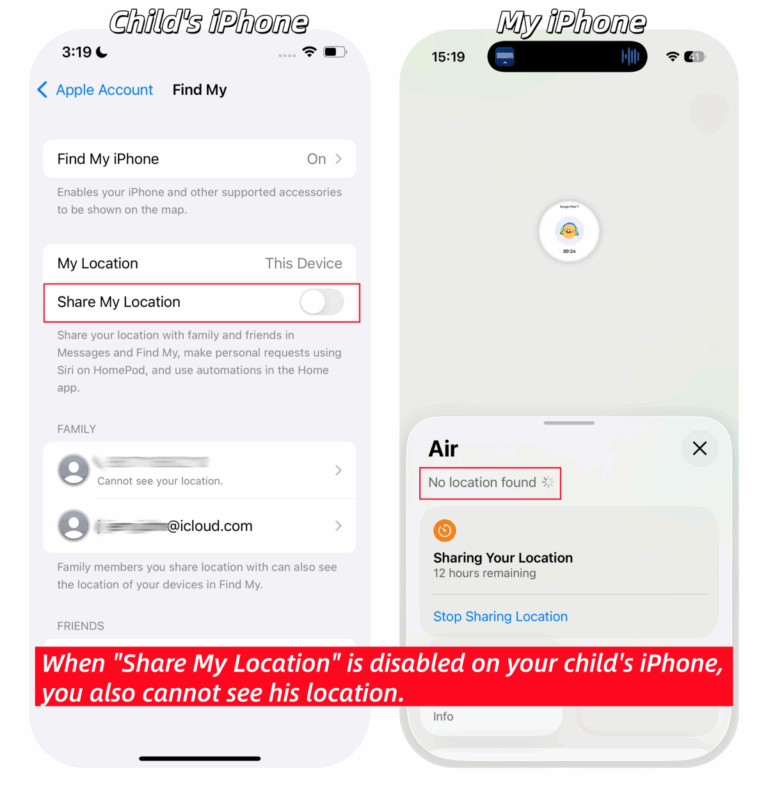
3Screen Time Restrictions
This is the most overlooked reason for location tracking failures. For iOS devices, screen time restrictions settings override normal phone settings.
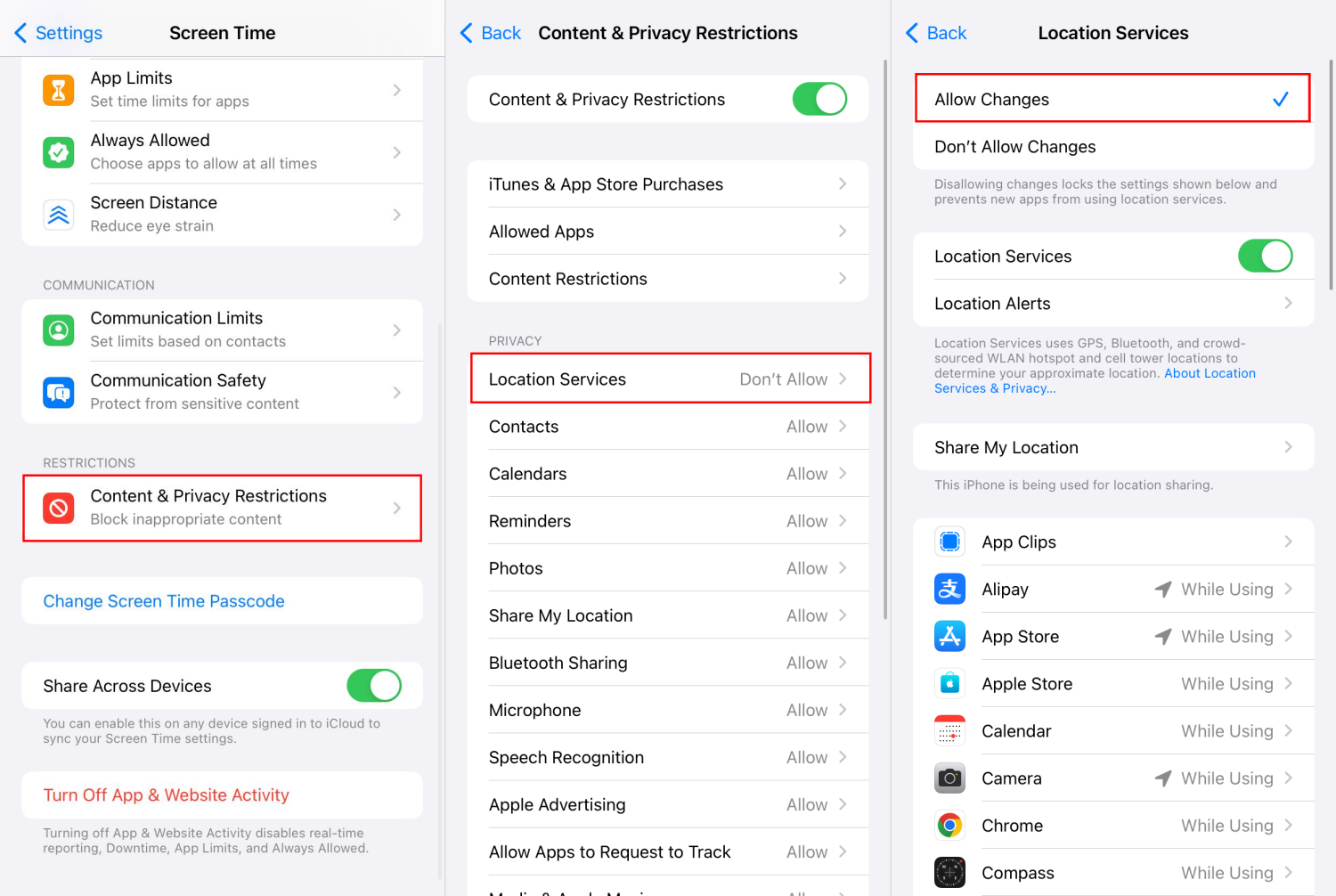
Even though every location setting looks enabled at first glance, it will be impossible to see their location on iPhone if the "Share My Location" setting is set to "Don't Allow" in your child's Screen Time restrictions.
4Dead/Offline/Device Off
At times, if you can't see your child's location on your iPhone, it could simply be because their phone is switched off or disconnected from the internet.
Since Find My depends on an internet connection to send location data, the latest location data cannot be fetched once the device is dead or offline.
5Apple Account Issues
Apart from date and time, Apple account issues can also prevent you from seeing your child on the location map.
For example, if your kids log out of their Apple account or they have not accepted the new iCloud terms, their account may not sync properly with the Apple server.
When this happens, location sharing is not available, and you may not be able to see your child on Find My.
6iOS Bugs
Bugs in iOS can affect location services and how Find My works. And these glitches can stop their device from updating and sending its location data to you.
This is why many users reported the location issues in older devices or systems.
Solutions If You Can't See Your Child's iPhone Location
Well, after knowing the causes, it's much easier to address them one by one.
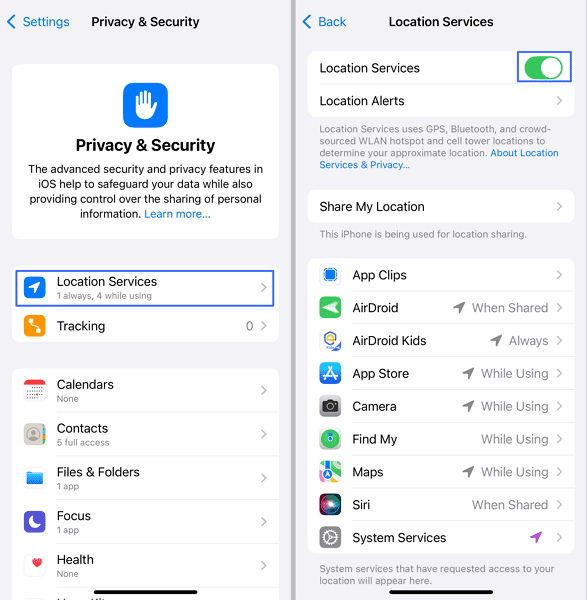
Fix 1: Turn on Location Services
Whenever you can't see your child's location, first ensure their device location service is not disabled. If it is disabled, then enable it.
Once you've done that, their device will begin to share location data again, and you'll be able to see their location again. To enable location service on their device, follow the steps below:
- 1.Go to "Settings" on your child's phone.
- 2.Scroll down and select "Privacy & Security."
- 3.Tap on "Location Services" and turn on its toggle.
- 4.Also, ensure the location services for "Find My" is set to "While Using the App."
Fix 2: Enable "Share My Location"
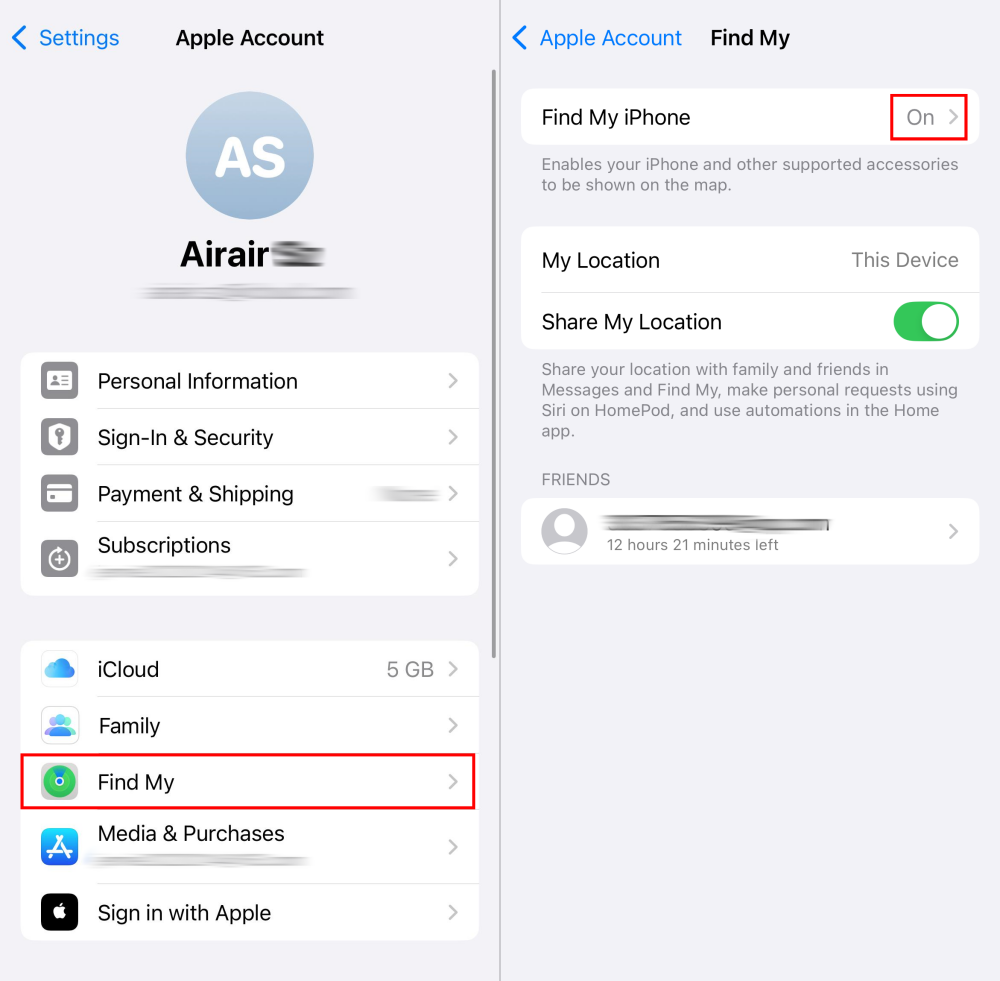
You have to re-enable location sharing in your child's iPhone settings before location tracking works. Follow the steps below to enable it:
- 1.On your child's phone, open "Settings."
- 2.Tap on their name at the top of the screen.
- 3.Select "Find My." Make sure it is on
- 4.Then, turn on the "Share My Location" toggle.
Fix 3: Remove the Restrictions
Beyond turning on location sharing in Find My settings, you have to ensure "Share My Location" in the screen time settings is configured correctly. Otherwise, all your previous setup efforts may be valid.
Now, review this and do it by following the prompts below:
- 1.On your child phone, go to "Settings > Screen Time."
- 2.Find and tap "Content & Privacy Restrictions."
- 3.Locate "Share My Location" and select "Allow."
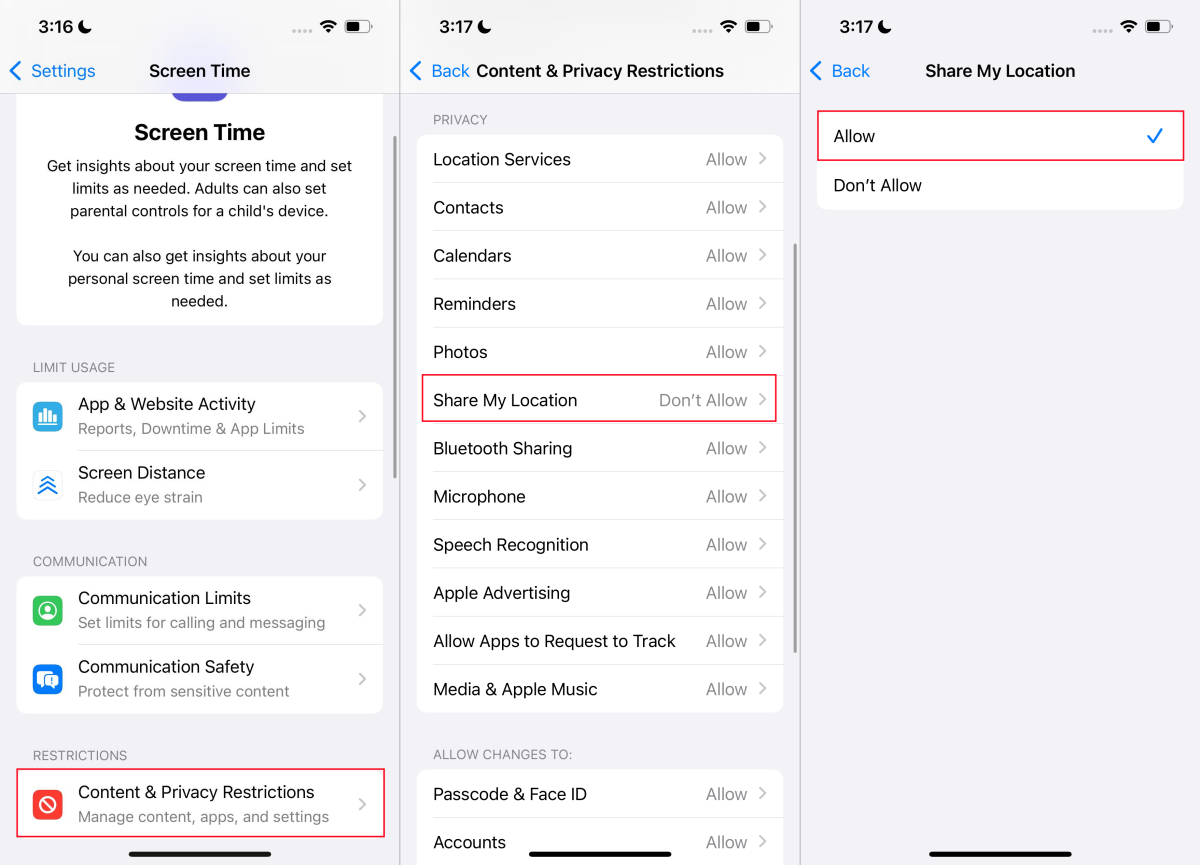
Once you've done that, location sharing will be restored, and you'll begin to see your child's current location without any issue.
Fix 4: Accept New iCloud Terms
Additionally, make sure your child is logged in to their Apple ID.
And then, if you notice the "New iCloud Terms & Conditions" or "Apple ID Suggestions" message under their name, help them to resume sync or accept new iCloud terms.
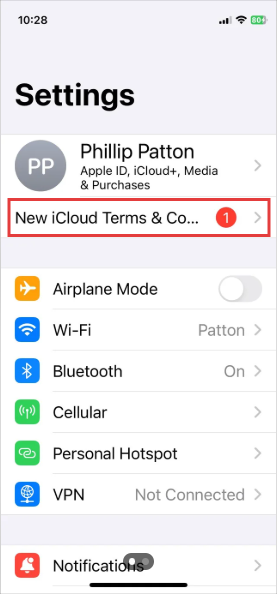
Once they've done that, their account will sync with the Apple server, and location sharing will begin properly.
Fix 5: Update to the Latest System
If you cannot see your child's location due to the system bugs, all you have to do is update the iOS to the latest version. This update will help fix temporary bugs and glitches.
- 1.Select "General" in your child's iPhone settings menu.
- 2.Scroll down and select "Software Update."
- 3.Then, choose the available iOS version.
- 4.Click on "Update Now" to install it.
Prevention Tips to Keep Location Tracking Working
As you can see, most of the time when you can't see your child's location, it is because your child changed a setting or tried to bypass it. To ensure your child's location continues to update, follow the tips below.
1Prevent child from turning off location services
Since Find My is dependent on the location service, you have to make sure you make it impossible for your kids to disabled location service. Doing this will make their device keep sharing their location with you at any time.
Wondering how to prevent your child from turning off location on iPhone? Follow the steps below:
- Step 1.Open the "Screen Time" setting on your child's phone.
- Step 2.Tap on "Content & Privacy Restriction."
- Step 3.Under "Privacy," select "Location Services."
- Step 4.Then, select "Don't Allow Changes."
- Step 5.After this, the "Location Services" toggle will grey out, and they won't be able to turn it off.
If the child is in your Family Sharing group, you can access their Screen Time settings directly from your own iPhone and select their profile to continue.
Since kids may log out of their Apple accounts to bypass location tracking, you'd better set account changes as "Don't Allow."
2Use a third-party family tracking app
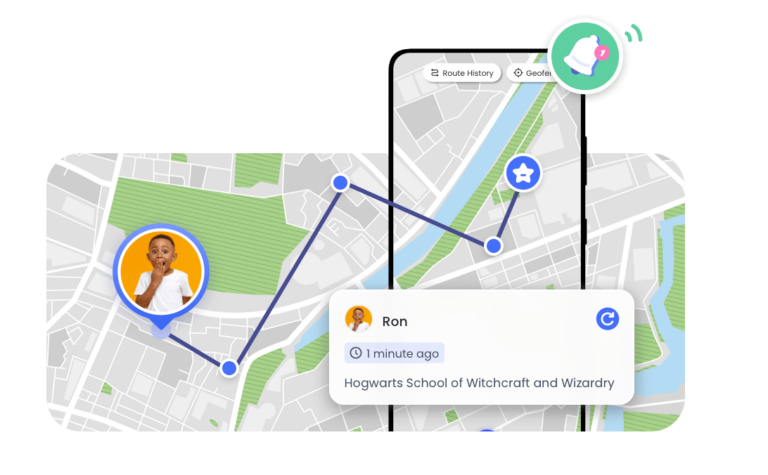
You can also leverage third-party family tracking apps, like AirDroid Family Tracker, to keep an eye on your child's location remotely. These apps often come with uninstall protection, which helps prevent the location tracking from being disabled.
How AirDroid Family Tracker Helps?
- Provides real-time location.
- Keeps 30 days of location history.
- Notifies when your child leaves or enters certain places.
- Cannot be bypassed or uninstalled.
- Detect if your child's iPhone is dead or switched off.
3Talk about location sharing with your child
You can also talk to your child openly about location sharing. Let them know its benefits and your concerns.
And most importantly, tell them you're only using it for safety purposes and not to control their life. That way, your child will cooperate with you and not look for every way to bypass it.
FAQs about Tracking Child's iPhone
Can I see my child's location history on iPhone?
Yes, but limited. Features like "Significant Locations" can track and show 3 commonly visited places. For more detailed insights, apps like AirDroid help you know where your child has been for the past 30 days.
Why is my child's Apple Watch location not updating?
If your child's Apple watch location is not updating, it could be due to any of the following reasons:
- 1.Poor or no internet connection.
- 2.Location service is disabled.
- 3.Software glitches or outdated watchOS.
- 4.The Apple Watch isn't paired or powered on.
How can I track my child's iPhone from my Android?
To track your child's iPhone from your Android device, you can either use a third-party app like AirDroid or visit the iCloud Find Devices web version. Here is a detailed step guide: Effective Ways to Track an iPhone from Your Android Device













Real-time Protection
4.6

Leave a Reply.