AirDroid Parental Control
24/7 Kids' Guardian via App & Web
- 👀Live surroundings and location tracking
- 🔞Content Monitoring and App/Web Blocking
- ⚠Instant alerts for online risks and geofences
- ⌛Screen time control and monitor
How to Cancel DramaBox Subscriptions? Can You Get A Refund?
On September 6, 2026, a DramaBox user reported on the BBB Scam Tracker that they were charged $16.19 every week despite having only purchased a one-week viewing plan.
DramaBox subscriptions renew automatically, so the charge keeps coming until you cancel. The good news is you can cancel your DramaBox subscription in a minute: open DramaBox > Profile > the gear icon > Manage Subscription > Cancel Subscription.
In this guide, we'll walk you through how to cancel your DramaBox subscription in the app and the app stores, and how to request a refund if you or your teens have already been charged.
Steps to Cancel DramaBox Subscription
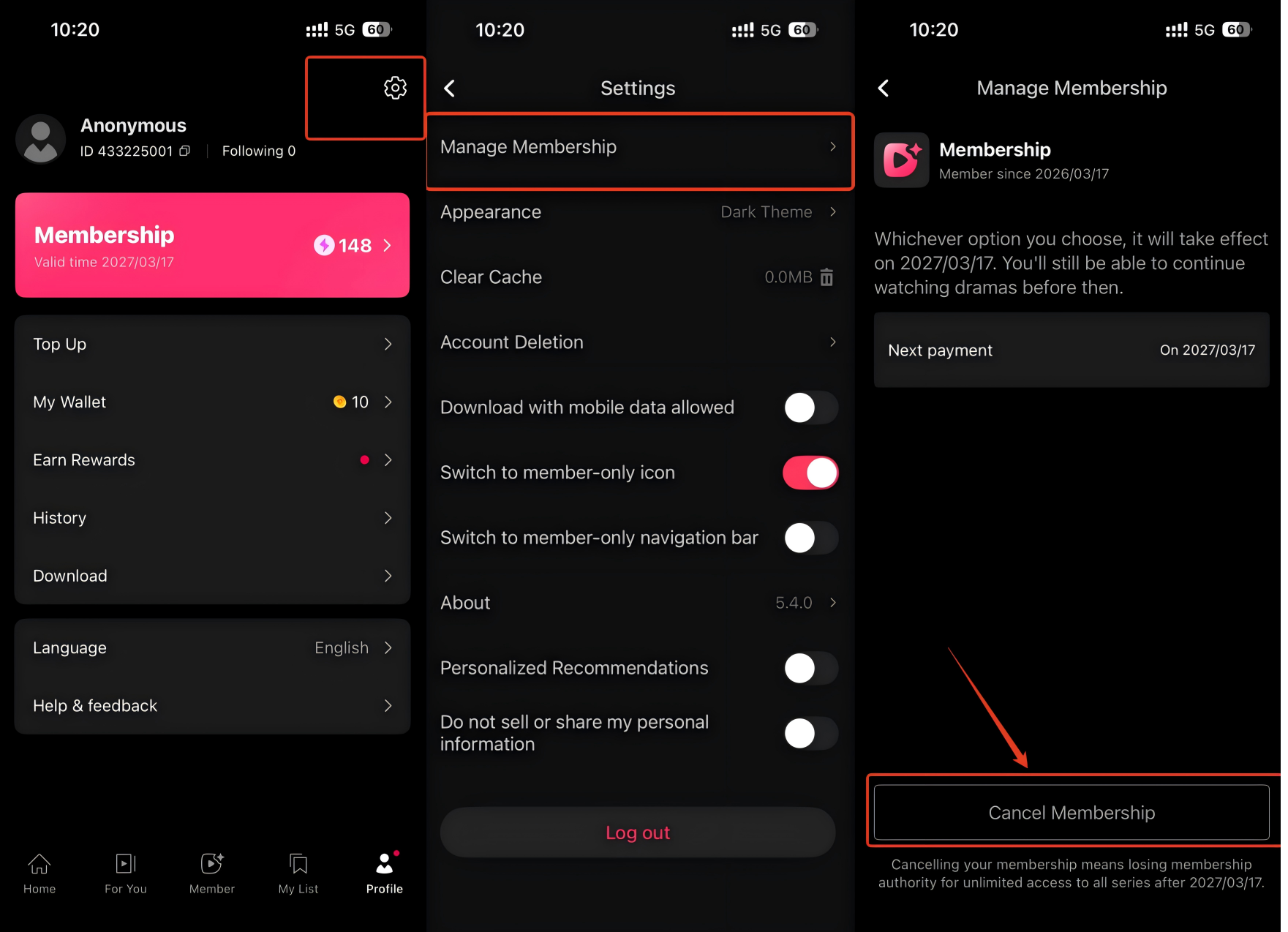
How to Cancel DramaBox Subscription in the App
You can unsubscribe from DramaBox directly in the app through its subscription management settings. Here's where to find the cancellation option:
- Step 1.On the DramaBox app, tap "Profile" in the bottom-right corner.
- Step 2.Tap the "Settings" (gear) icon in the top-right corner.
- Step 3.Select "Manage Subscription" at the top.
- Step 4.Tap "Cancel Subscription" at the bottom and tap "Cancel" to proceed.
How to Cancel DramaBox Subscription on App Stores
If you purchased your DramaBox subscription through Apple or Google Play on your smartphones, you can also cancel it through the corresponding app store. Here's how:
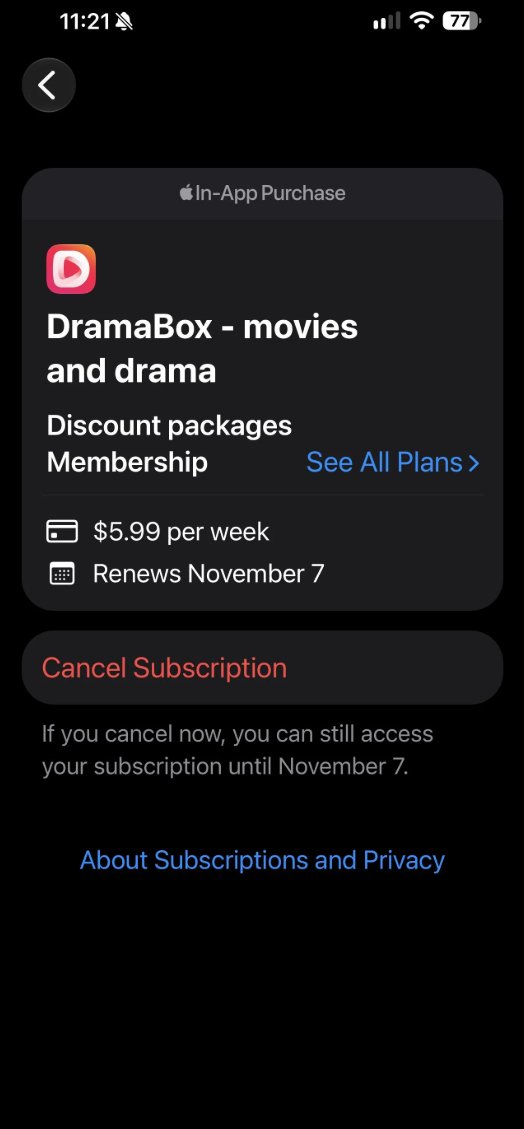
On iPhone
- Step 1.Open "App Store" on your iPhone.
- Step 2.Tap your profile and then "Subscriptions."
- Step 3.Find and select DramaBox.
- Step 4.Tap "Cancel Subscription" and confirm.
On Android
- Step 1.Open the Google Play Subscriptions page.
- Step 2.Find and select "DramaBox."
- Step 3.Tap "Cancel subscription" and follow the instructions.
What Happens After You Cancel Your DramaBox Subscription?
Canceling stops future renewals. We reached out to DramaBox customer support to confirm exactly what happens next. Here's what you need to know:
Will I Still Have Access to DramaBox After Canceling?
Yes. After you cancel your subscription, you will still have access to DramaBox premium content until the end of your current subscription period. Even if your membership ends, you can still watch free episodes or unlock them with enough coins.
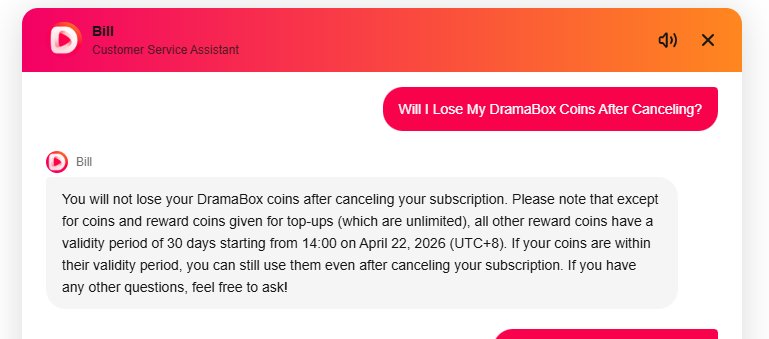
Will I Lose My DramaBox Coins?
No. DramaBox coins and memberships are separate. Canceling doesn't wipe your coins, but not every coin lasts forever. According to DramaBox support, all coins are valid for 30 days, except for coins and reward coins given for top-ups. So after you cancel, you can keep using any coins that are still valid.
Will I See Ads After Canceling?
Yes. The ad-free viewing experience is only for DramaBox members. So, ads come back while watching short dramas once your subscription ends.
Does Canceling Delete My Watch History or Favorites?
No. Canceling only ends the subscription and related VIP features (such as downloads, 1080p quality, etc.). It won't delete anything that is bound to your account, such as watch history, favorites, coins, and more.
Why Are You Still Charged After Canceling Subscriptions?
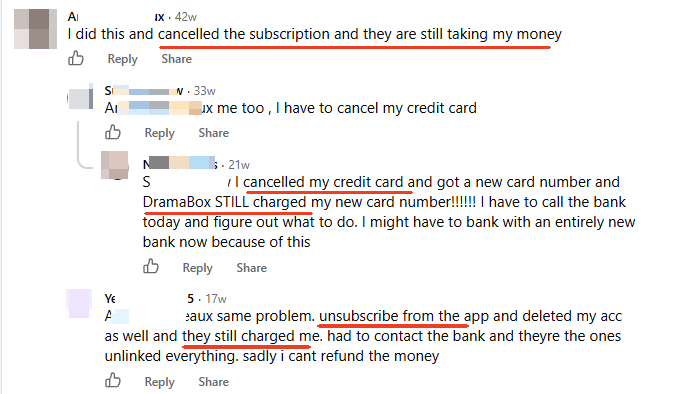
Many DramaBox users have reported that they continued to receive subscription charges even after canceling their memberships. If this happens to you, here are some possible reasons:
- Your cancellation didn't go through successfully. As we stated above, DramaBox retains subscribers with a discount offer and the gray "cancel" button; you may have selected a discounted retention offer instead of the final cancellation option.
- You canceled too close to the renewal date. For DramaBox's auto-renewal, it has to be turned off at least 24 hours before the current period ends. Cancel the same day it renews, and you've probably already been billed for the next period.
- You canceled on the wrong account. DramaBox subscriptions may be billed through different channels, including Apple Pay, Google Play, PayPal, or cards. Canceling through one platform won't necessarily stop a subscription billed through another.
Can You Get a Refund If You Were Mistakenly Charged?
Possibly yes. Though DramaBox's Terms of Service explicitly state: "All fees are in U.S. dollars and are non-refundable," you can submit a refund request through Apple or DramaBox directly.
If you're going to do this, we recommend filing your request within 48 hours of the charge. After that window, your chances of getting the money back may drop. To request a DramaBox refund, follow the steps below:
First, fnd the receipt email or the order history to see whether it came through Apple, Google, or your bank. Then, request a refund depending on where you paid for subscriptions.
For Apple:
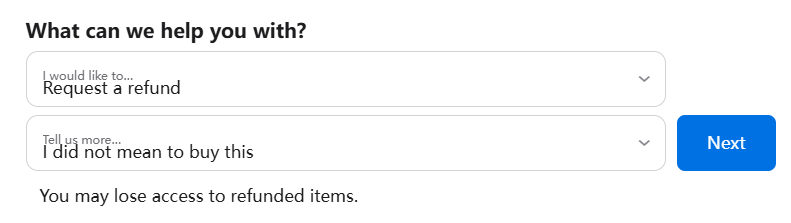
- Step 1.Visit Apple's Report a Problem page.
- Step 2.Sign in with the Apple account used for the purchase.
- Step 3.Select I would like to request a refund.
- Step 4.Choose a reason for your refund request.
- Step 5.Next, select the DramaBox subscription and submit your request.
For Google Play or credit card:
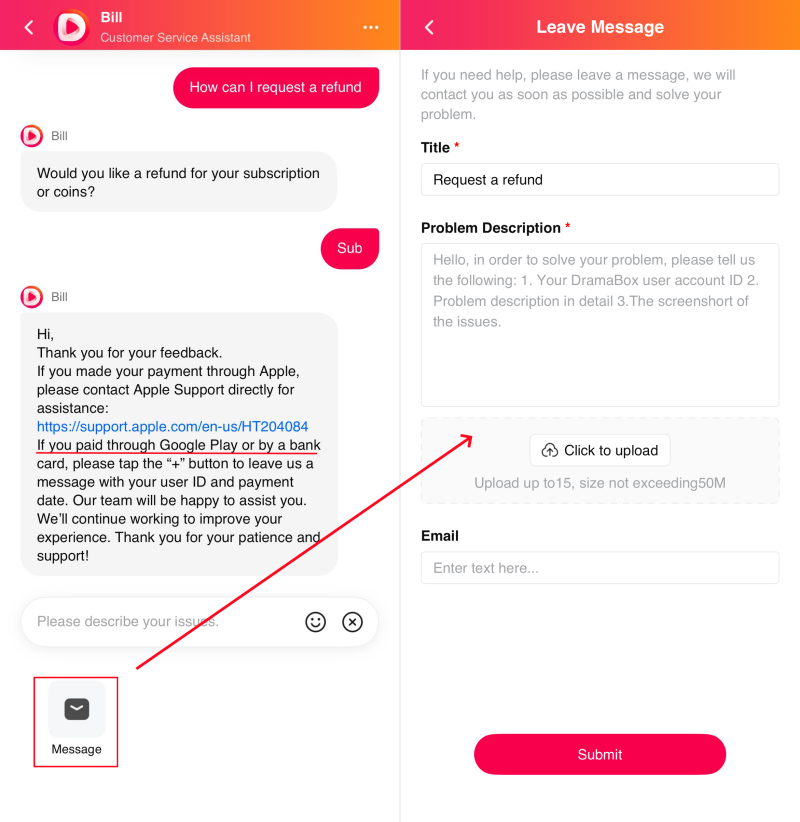
According to DramaBox's customer service center, if the payment was made through Google Play or by a bank card, a refund requires contacting them.
- Step 1.On DramaBox, go to "Profile > Help & feedback."
- Step 2.Explain why you want a refund and provide your user ID, transaction date, and payment amount.
- Step 3.If you were charged after canceling, attaching your cancellation confirmation will be helpful.
Did Your Child Subscribe? What Parents Can Do
Finding out that your teen has subscribed to DramaBox without your permission can be irritating. But don't blame your child. DramaBox tempts users to spend money while watching:
Episodes stop on a cliffhanger, the next ones are locked behind coins or membership, and the app promotes discounted offers through bundled coins, pop-ups, limited-time plans, and rewards.
A teen who taps once to find out what happens next may not realize they've started a recurring plan or purchased coins. So, what should you do if your child has already made a purchase?
- Cancel subscriptions in the DramaBox app using the steps above.
- Ask for a refund and explain that it was an unintended purchase by a minor. Note that the refund isn't guaranteed.
- Prevent unauthorized DramaBox purchases in the future.
On iPhone: Open "Settings > your Apple ID > Family > your child's profile > turn on Ask to Buy."
On Android: Go to "Family Link > Controls > Google Play > Require Approval For > All Content."
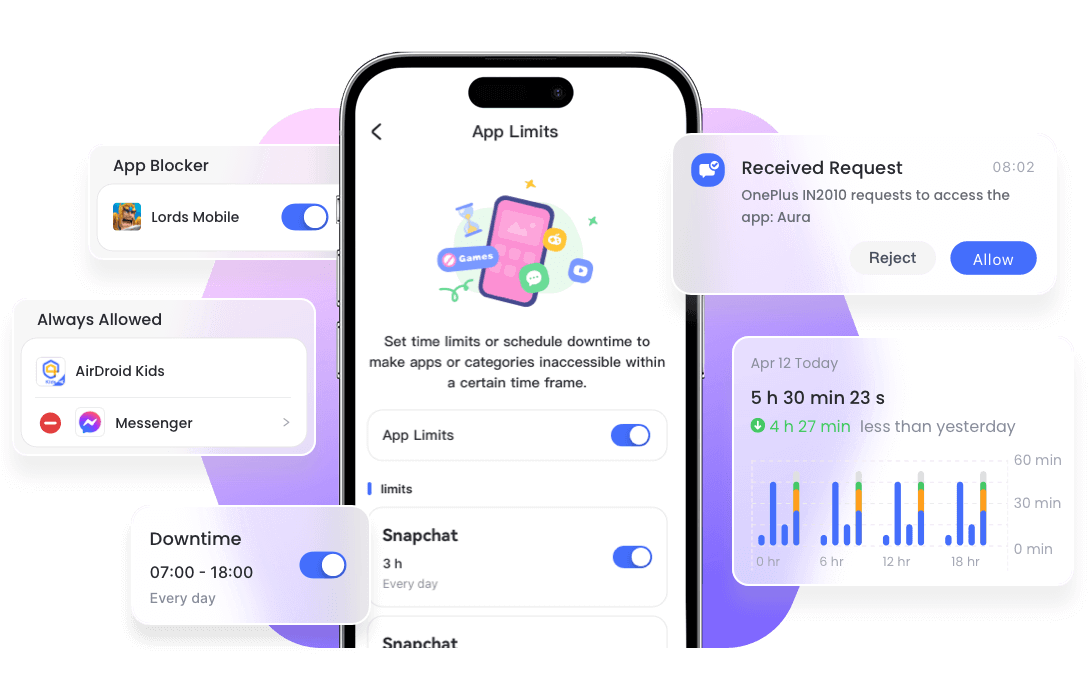
Ask to Buy and purchase approval only kick in when a purchase is attempted. 💡With AirDroid Parental Control, you can get a notification when your child installs a new app that may lead to unexpected spending, so you can talk about the app before the first coin or subscription.
FAQs about DramaBox Subscriptions







Leave a Reply.