[2025] How to Mirror iPhone to Mac/MacBook?
Mirroring your iPhone to a Mac allows you to share content, demonstrate apps, or even control your phone from your computer. Whether you're looking to display your iPhone's screen for a presentation or simply to use your phone’s features more comfortably on a larger screen, this guide covers the best methods to mirror your iPhone to a Mac.
We dives deep into various solutions, from Apple's native offerings(iPhone Mirroring) to versatile third-party apps, ensuring you can effectively mirror iPhone to MacBook or any Mac model.
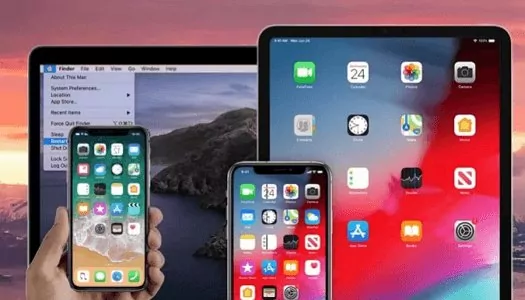
Method 1:Apple's iPhone Mirroring (macOS Sequoia & iOS 18)
For users deeply embedded within the Apple ecosystem, the native iPhone Mirroring feature, introduced as part of macOS Sequoia and iOS 18, offers the most integrated and feature-rich experience to screen mirroring iPhone and Mac.
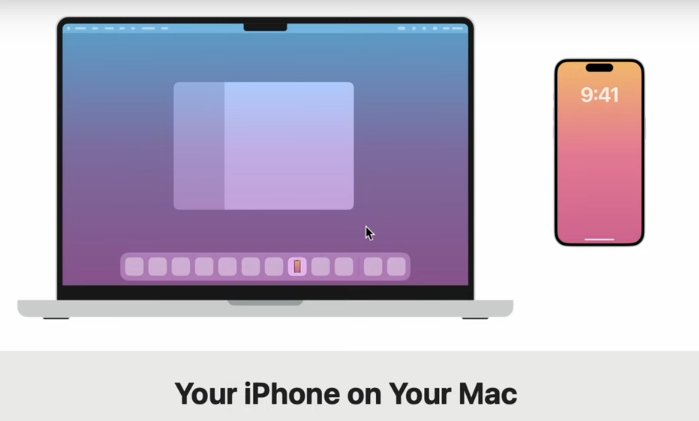
This cutting-edge feature allows you to screen mirroring iPhone to Mac with unprecedented interactivity.
Key Features
- Interactive Control: Use your Mac's mouse, trackpad, and keyboard to control your iPhone, just like using the phone itself.
- Drag-and-Drop File Transfer: Seamlessly transfer files, photos, and more between your Mac and iPhone.
- Unified Notifications: Receive iPhone notifications on your Mac, even when not actively mirroring.
- Audio Integration: iPhone audio plays through your Mac, with volume controlled by the Mac unless headphones are connected.
- Automatic Orientation: The mirrored screen adjusts automatically between portrait and landscape modes based on the app.
- Secure App Access: Access locked apps on your iPhone, authenticated through your Mac’s password, Touch ID, or Apple Watch.
- Multi-iPhone Support: Choose which iPhone to mirror from multiple devices connected to the same Apple ID.
System Requirements:
- Requires a Mac with Apple Silicon or T2 Security Chip, running macOS Sequoia 15 or higher, and an iPhone 8 or newer with iOS 18 or higher.
- Both devices need to be signed into the same Apple ID with two-factor authentication enabled.
How to use iPhone Mirroring on MacBook:
- Step 1. Open the iPhone Mirroring app on your Mac. It appears in the Dock or Applications folder after updating to macOS Sequoia.
- Step 2. Follow the on-screen instructions, to unlock iphone with the password or choose whether to authenticate every time or connect automatically.
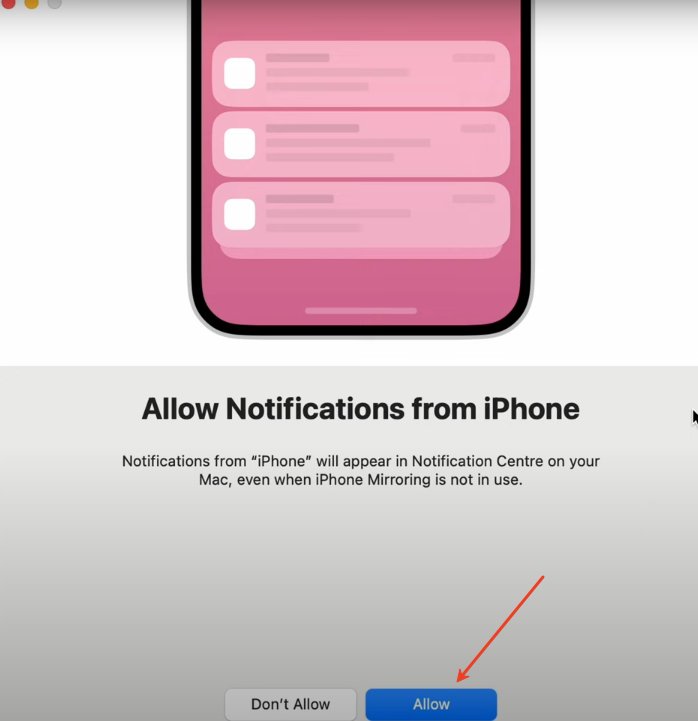
- Step 3. Decide whether to allow notifications from the iPhone to your Mac or set it later.
- Step 4. The iPhone screen will then appear on your Mac, and you can interact with your iPhone through your Mac’s interface.
- Step 5. While connected, your iPhone stays locked and displays a message saying it's being used from your Mac. Mirroring automatically pauses after inactivity or when you unlock your iPhone.

Method 2: AirPlay
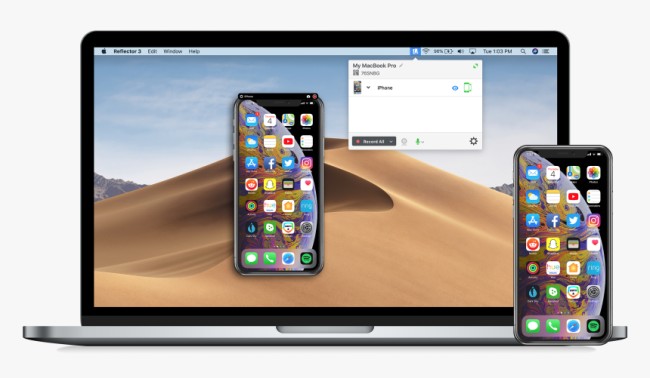
AirPlay is Apple's long-standing wireless streaming technology, primarily used for media streaming and basic screen mirroring, often to display content on larger screens like an Apple TV or compatible Mac. AirPlay allows you to share screen iPhone to Mac for passive viewing.
It allows you to stream audio, video, and content from your iPhone to a larger screen for passive viewing. It’s perfect for watching photos, videos, or presentations on a bigger display. However, AirPlay does not provide interactive control of your iPhone from your Mac, unlike newer mirroring features.
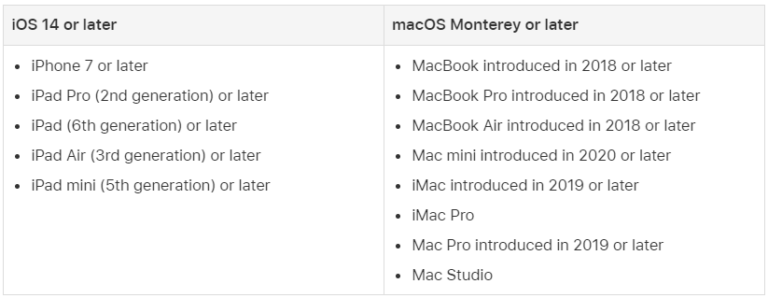
However, not every iOS device does support AirPlay. Hence, you need to check system requirements for continuity for screen mirroring your iPhone to your MacBook via AirPlay. AirPlay is supported on iPhones running iOS 14 or later and MacBooks with macOS Monterey or later. Ensure both devices are compatible before using the feature.
How to use AirPlay to Mirror iPhone to Mac
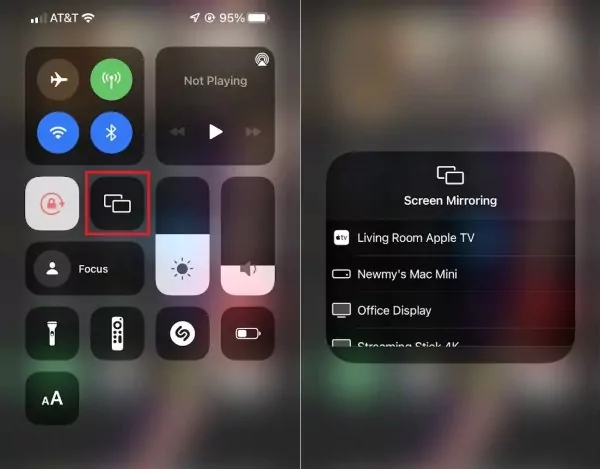
- Step 1. First of all, go to your iPhone and swipe down to open the Control Center.
- Step 2. Here you will find a "Screen Mirroring" option; tap on it.
- Step 3. After clicking it, a device list will show up, and choose Mac from the list.
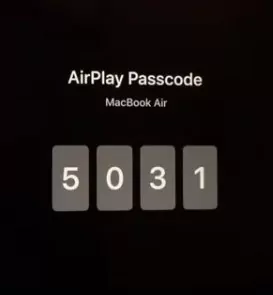
- Step 4. After choosing the Mac device, you may be asked to enter the AirPlay code to verify; enter the AirPlay code on your iPhone.
- Step 5. After accepting the request, screen mirroring from your iPhone to your MacBook will start.

Method 3: QuickTime Player(Wired Way)
QuickTime Player, a built-in macOS application, provides a straightforward and reliable wired method to share screen iPhone to MacBook or any Mac. It’s particularly useful for recording or stable presentations.
QuickTime Player allows you to iPhone share screen to Mac via a wired Lightning/USB-C connection. This method is especially beneficial for screen recording, demonstrations, or presentations where stable, stutter-free visuals are paramount.
Pros
- Superior Stability: The wired connection ensures a stable and reliable screen mirroring experience, free from Wi-Fi interference or lag.
- No Additional Software: QuickTime is a native macOS app, meaning no third-party software is needed.
- Ideal for Recording/Presentations: Perfect for use cases requiring stable visuals, such as screen recording or critical presentations.
Cons
- Limited Mobility: Requires a physical cable, restricting movement and flexibility.
- No Interactive Control: You cannot control your iPhone from your Mac, unlike newer mirroring features.
- No Audio Transmission by Default: iPhone audio isn’t transmitted to the Mac by default and may need manual setup as a microphone source.
Steps to connect iPhone to MacBook using QuickTime:
- Step 1. Run QuickTime Player on your MacBook.
- Step 2. Connect the iPhone to MacBook via a Lightning-to-USB cable.
- Step 3. Unlock your iPhone and press the Trust button to enable accessibility from Mac.
- Step 4. Once both devices have been connected, you can mirror your iPhone screen to Mac and share, display, or edit audio and video files with QuickTime Player.
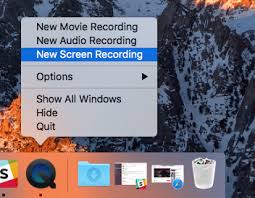
- Step 5. Under the File menu of QuickTime Player, click on New Screen Recording.
- Step 6. Finally, switch the FaceTime HD Camera to iPhone so that QuickTime can use your Mac’s camera and mirror screen.
QuickTime Player offers unmatched reliability for wired mirroring, making it perfect for situations where stability is essential, such as recording or critical presentations. However, it sacrifices interactive control and wireless flexibility, which are central to more advanced mirroring options.
Method 4:Third-Party Screen Mirroring Applications
Various third-party applications offer screen mirroring solutions, often providing broader cross-platform compatibility (e.g., to Windows PCs) and specialized features not found in Apple's native offerings. These apps can be excellent for those looking to share screen iPhone on Mac with more flexibility.
Key Features
- Cross-Platform Compatibility: Apps like DeskIn and AirDroid Cast enable mirroring between iPhone and Windows PCs, a feature missing in Apple’s native options.
- Advanced Features: Many third-party apps provide remote control, multi-device support, and high-definition mirroring (up to 4K), which Apple's solutions lack.
Popular Third-Party Apps:
- AirDroid Cast: Provides seamless cross-platform screen mirroring and remote control of mobile devices from a Mac, supporting up to five devices.Free to use when you mirroring in a same Wi-fi NetWork
- DeskIn: Supports Windows, macOS, Android, and iOS with HD mirroring (up to 4K 60FPS) and low latency. The free version allows up to three devices, with remote control features.
- ApowerMirror: Supports both wireless and USB connections with features like screen recording and remote control (4K available in paid version).
- LetsView: A free and user-friendly option, offering stable 1080p mirroring and low latency, ideal for remote learning and collaborative work.
Take AirDroid Cast as an example to show you how to use third-party screen mirroring apps to cast iphone to mac:
How to Cast iPhone Screen on Mac using AirDroid Cast:
- Step 1. Download and Install AirDroid Cast on your iPhone.
- Step 2. Go to your Mac's browser and enter webcast.airdroid.com.
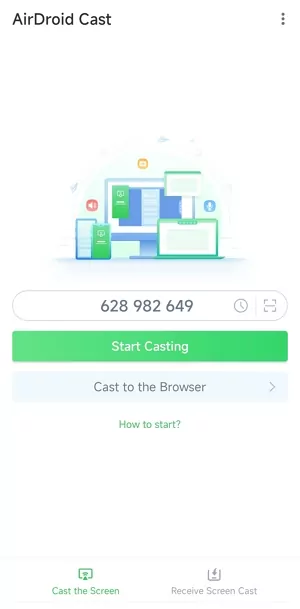
- Step 3. Enter the cast code or scan the QR code. Accept the request and you can cast.
- Step 4. When both devices have been connected, your iPhone screen will be shared. Start enjoying content from your iPhone on the big screen of your MacBook.
Here is the video tutorial to cast iPhone to PC/Mac via AirDroid Cast:
Comparison among These 4 Methods
When deciding on the best method to mirror your iPhone to your Mac, it's important to consider factors like ease of use, additional features, compatibility, and desired functionalities. Select the method that suits your needs and circumstances, and make the most out of your screen mirroring journey.
Although all screen mirroring apps are highly efficient, they have different features and have their own strengths and weaknesses. Given below is a detailed comparison of these methods:
| Feature Category | Apple Native iPhone Mirroring | AirPlay | QuickTime Player | Third-Party Apps (e.g., DeskIn, AirDroid Cast) |
|---|---|---|---|---|
| Control Method | Fully Interactive (mouse/keyboard) | Passive Display | Passive Display (no Mac control) | Often supports remote control (iOS may need USB) |
| File Transfer | Drag-and-drop (photos, files) | No (requires AirDrop/Universal Clipboard) | No | Partial drag-and-drop or file management |
| Resolution | HD (with iPhone screen) | HD | HD | Up to 4K (paid versions) |
| Latency | Low | Medium (Wi-Fi dependent) | Extremely Low (wired) | Low (Wi-Fi/app dependent) |
| Connection Method | Wireless (Wi-Fi/Bluetooth) | Wireless (Wi-Fi/Bluetooth) | Wired (USB/Lightning) | Wireless (Wi-Fi/AirPlay) or Wired (USB) |
| Cross-Platform (Windows) | No | No | No | Yes |
| Multi-Device Support | One iPhone at a time | One iPhone at a time | One iPhone at a time | Some support multiple device mirroring |
| Cost | Free (built-in) | Free (built-in) | Free (built-in) | Free versions limited, premium features paid |
| Security/Privacy | Highly integrated & secure | Apple ecosystem secure | Apple native, secure | Requires careful evaluation of third-party policies |
| System Requirements | Mac (Apple Silicon/T2), macOS S15+, iPhone (iOS 18+) | Mac (macOS 12.5+), iPhone (iOS 15+) | Mac (any), iPhone (any) | Varies, generally broader compatibility |
Troubleshooting Screen Mirroring Latency, Stutter, & Audio Sync
Mirroring issues like latency, stuttering, and audio desynchronization are common when mirroring devices, often stemming from network conditions or device limitations.
The most common causes include weak or unstable Wi-Fi, distance from the router, network congestion, and VPN usage, all of which can hinder data transmission. High-resolution content, especially 4K video, requires significant bandwidth, which older devices or weak networks may struggle to support. Additionally, too many active Bluetooth connections or background apps can affect performance.
Audio sync issues often arise from Bluetooth compression or variable frame rates in video recordings. For network optimization, restart your router, move devices closer, and switch to a 5GHz Wi-Fi band. Reducing the number of connected devices or disconnecting from the VPN can also improve performance. Ensure both devices are up-to-date and reset network settings on your iPhone if needed.
For better audio sync, adjust the audio delay in media players like Elmedia Player or VLC. For critical tasks, consider using a wired connection, such as QuickTime Player, to avoid wireless issues.
Conclusion
The ability to mirror iPhone to Mac has evolved significantly, offering a range of powerful options to enhance your productivity and media consumption. Both wireless and cable methods can be used to mirror iPhone to Mac.
Among them, AirDroid Cast is the best app in terms of functionality, pricing, and usability. Try it for free and start to mirror your iPhone to your MacBook now!













Leave a Reply.